Completing an Employee Standard Performance Review
Last updated: July 1, 2026
Completing a Performance Review for a Direct Report
This process walks you through opening a pending performance review, rating key competencies, using AI draft assistance, answering custom questions, and submitting the completed review for a direct report.
Step 1: Open the Pending Performance Review
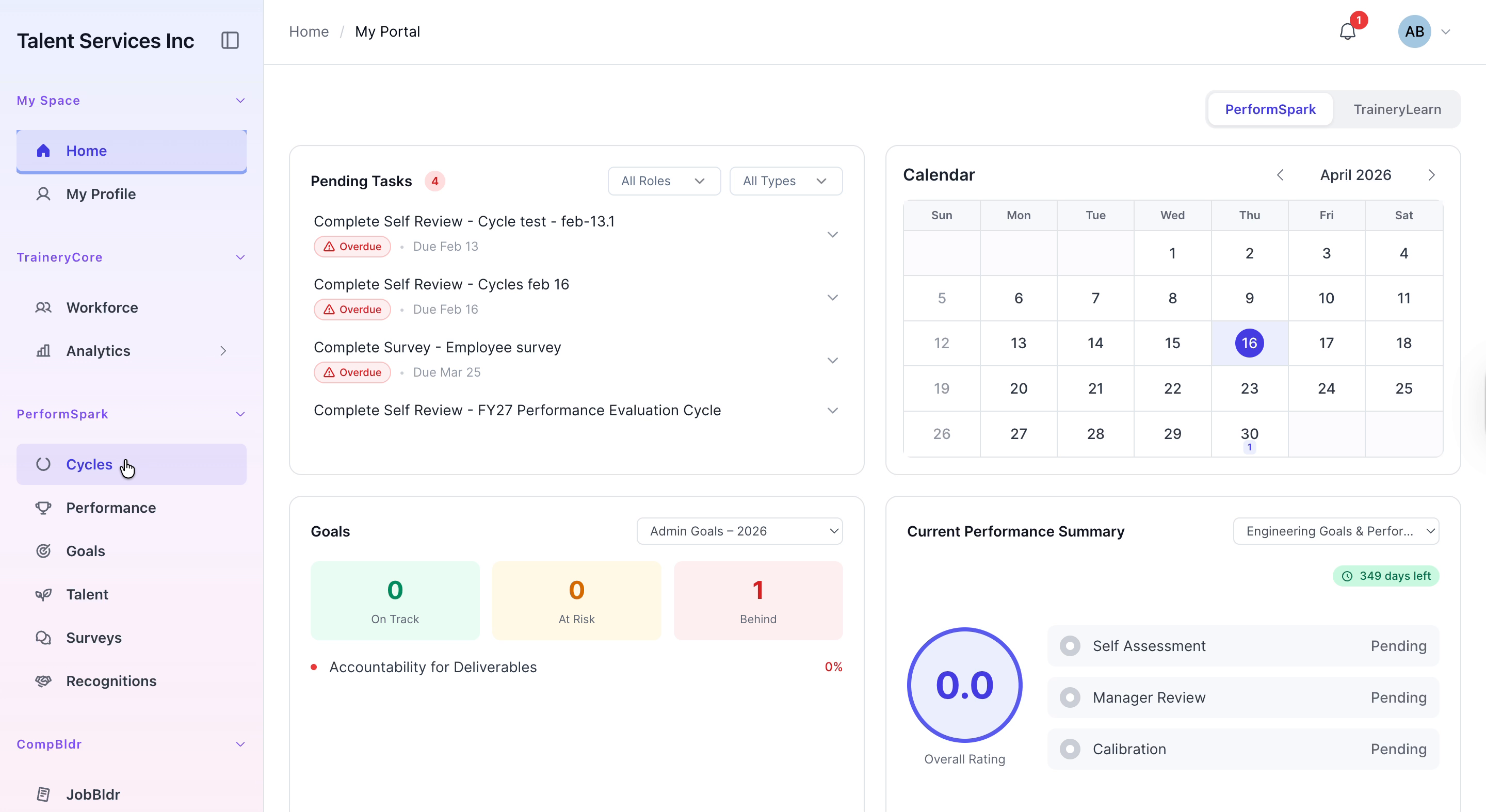
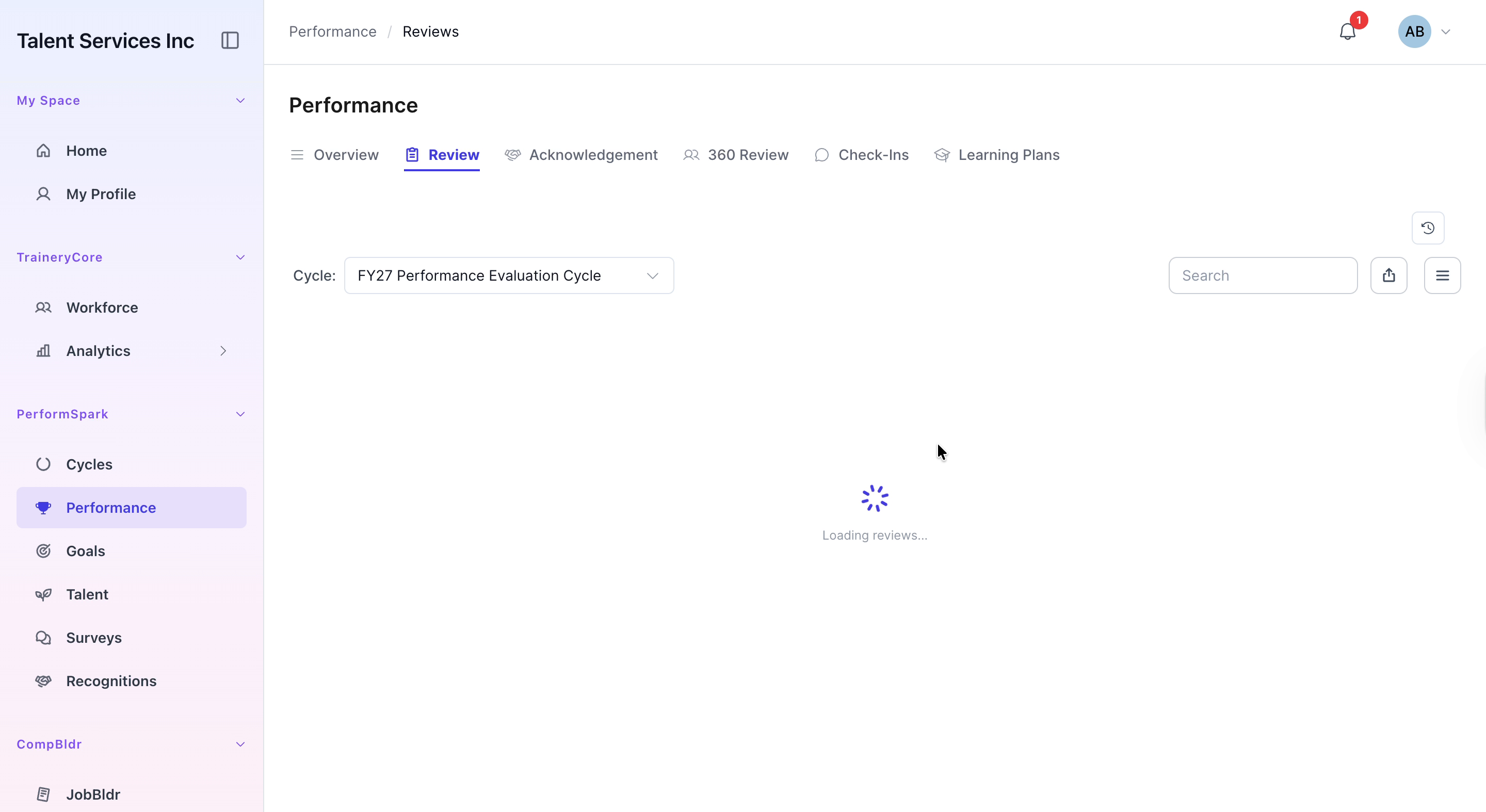
Navigate to the Performance section in your system, select the Review tab, and locate the pending review for Aaron Blake. Open Aaron’s pending review to begin filling it out.
Step 2: Provide Ratings for Key Competencies
Start by assigning a five-star rating for overall performance and select “Good” for stakeholder communication. Next, rate strategic visioning with four stars, choose “Very effectively” for effectiveness, and specify how frequently Aaron involves the team in decision-making or key activities.

Step 3: Draft and Enhance the Strategies Section
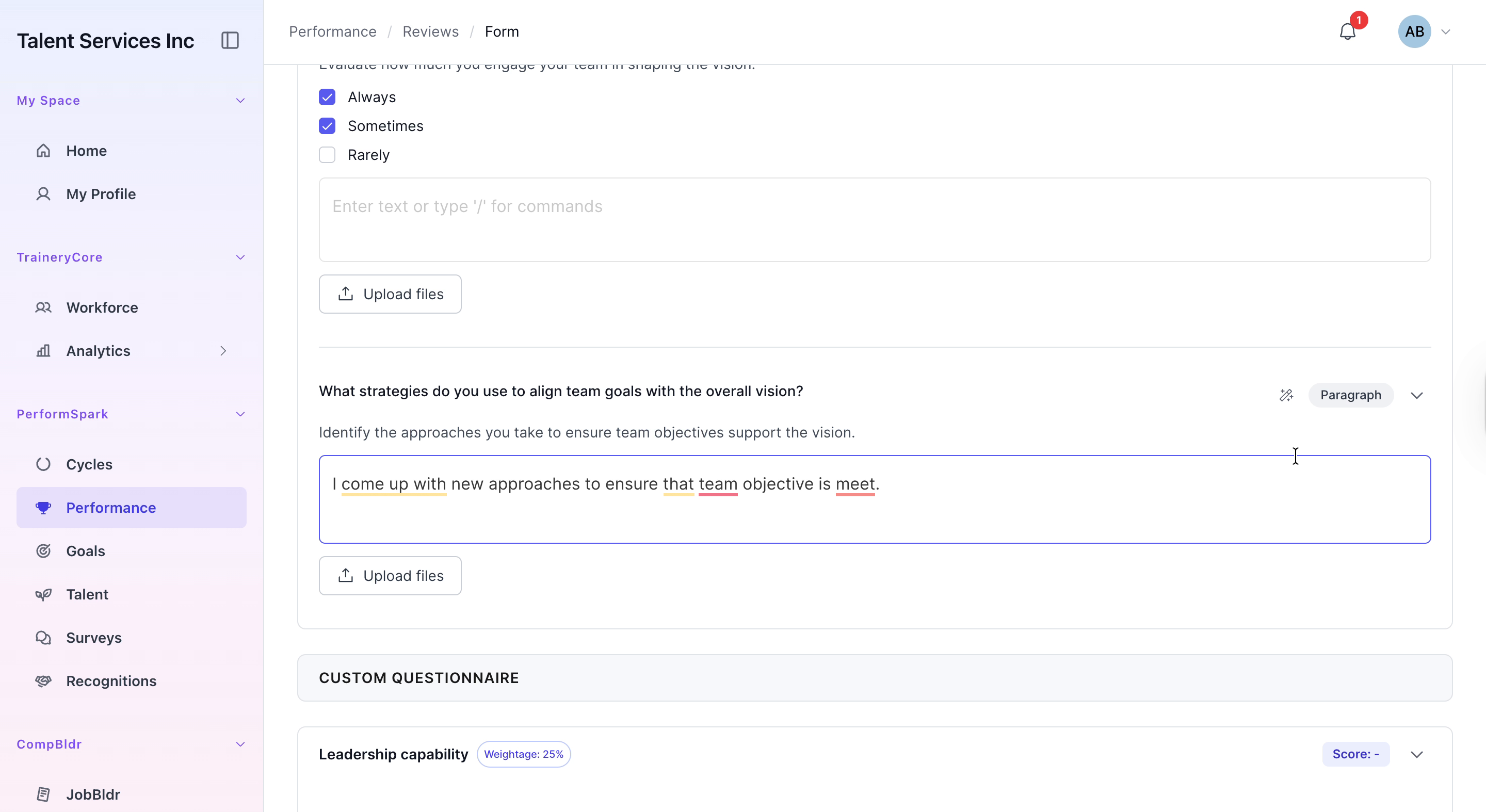
In the Strategies or goals section, type a brief description of your approach to team objectives, including how Aaron contributes to achieving them. To refine and enhance this response, click the AI icon to open the Draft Assistance tool. After the AI generates a professional summary of Aaron’s goals and vision, click “Apply to Review” so the generated text replaces or updates the existing content in the text field.

Step 4: Complete the Questionnaire, Sign, and Submit
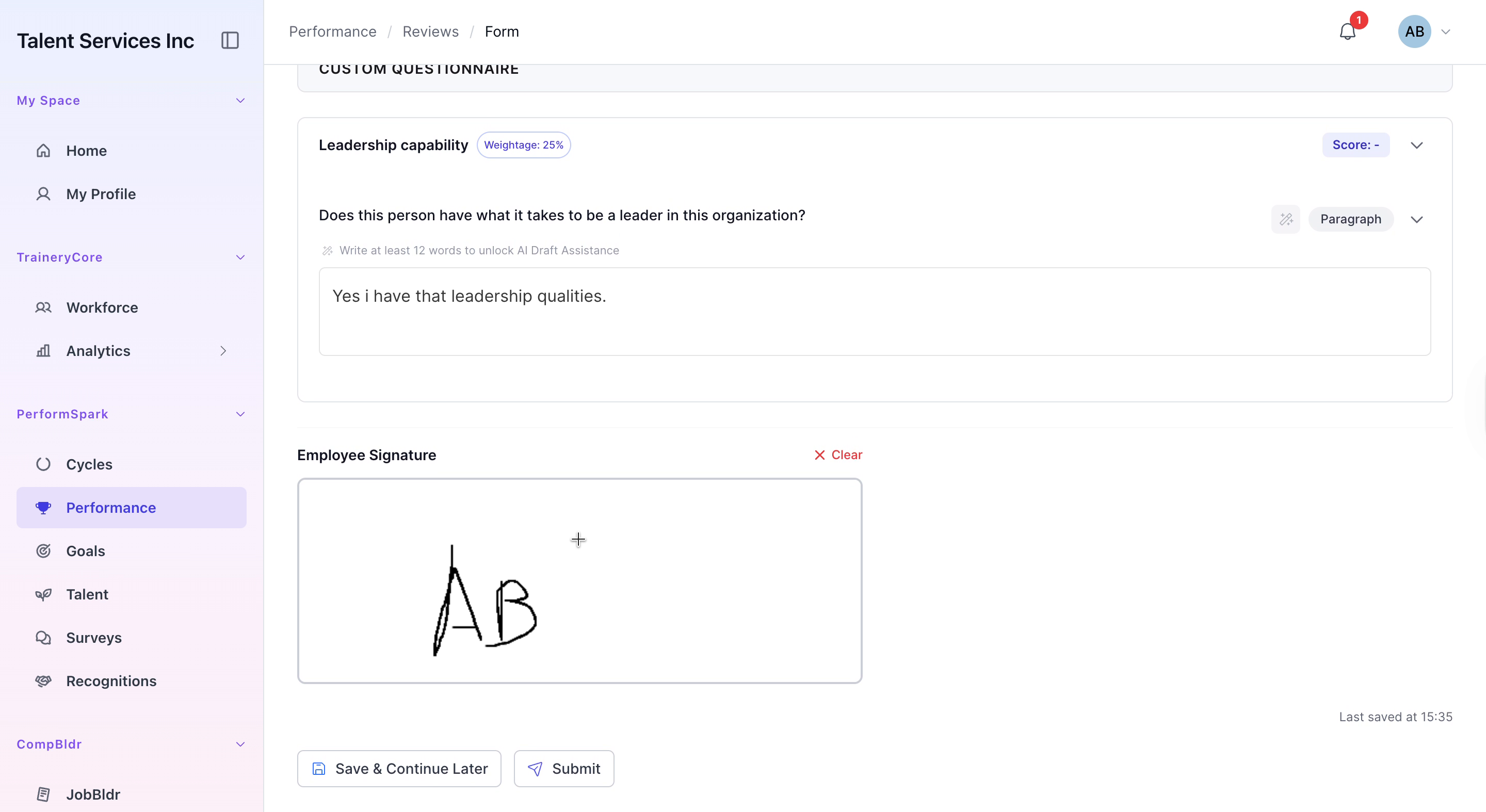
Answer the custom questionnaire regarding Aaron’s leadership qualities by typing clear, specific responses in the provided fields. Then, navigate to the signature section and add your digital signature in the designated box. Scroll through the entire review to confirm all ratings and comments are accurate, and when you are satisfied, click the “Submit” button at the bottom of the page to complete the performance review.