Enrolling in and Managing a Training Session
Last updated: August 26, 2026
This guide outlines how to enroll in a training session, review its details, complete assigned tasks, and explore related materials within the learning platform.
Step 1: Access the Training Section
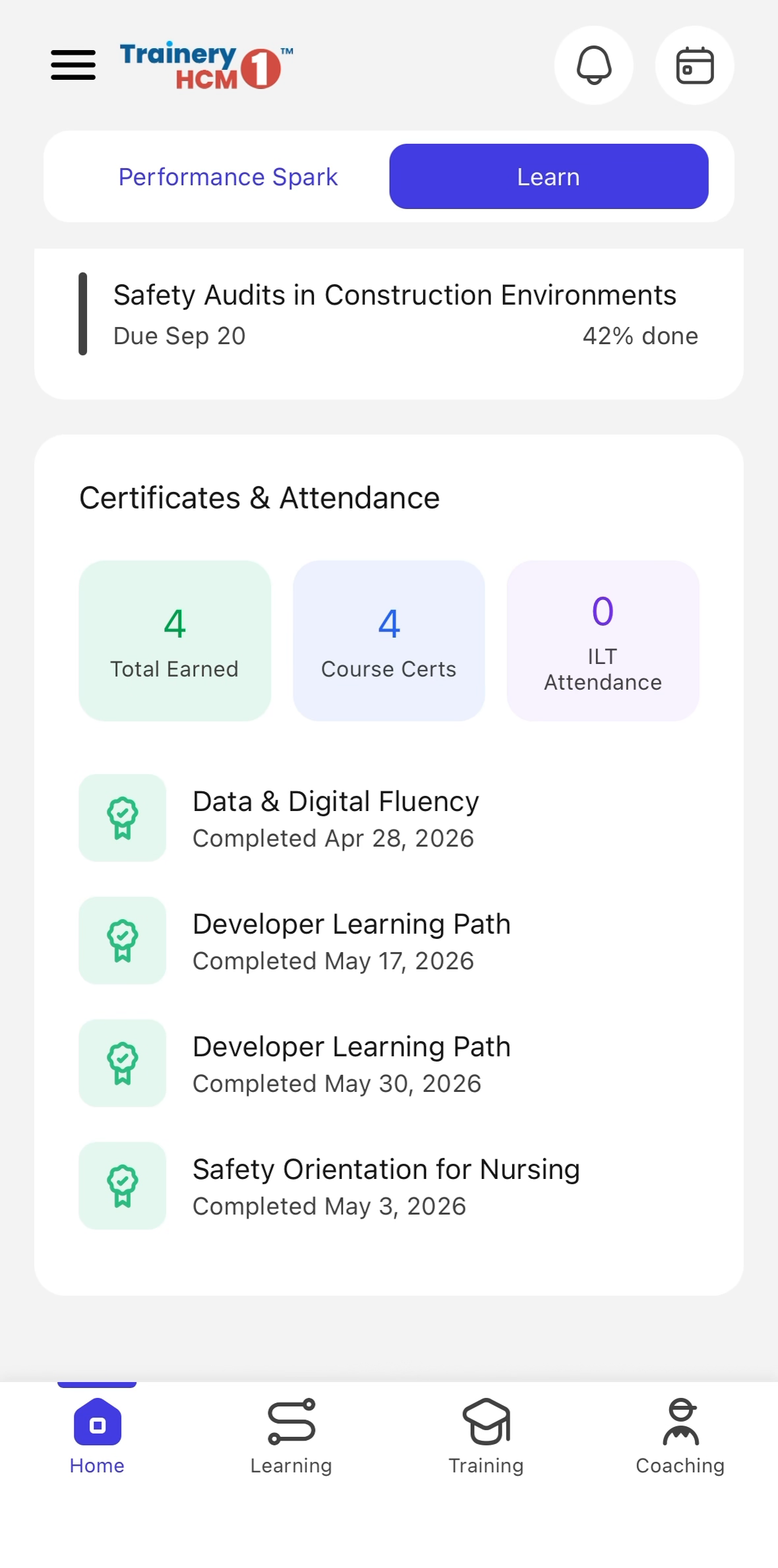
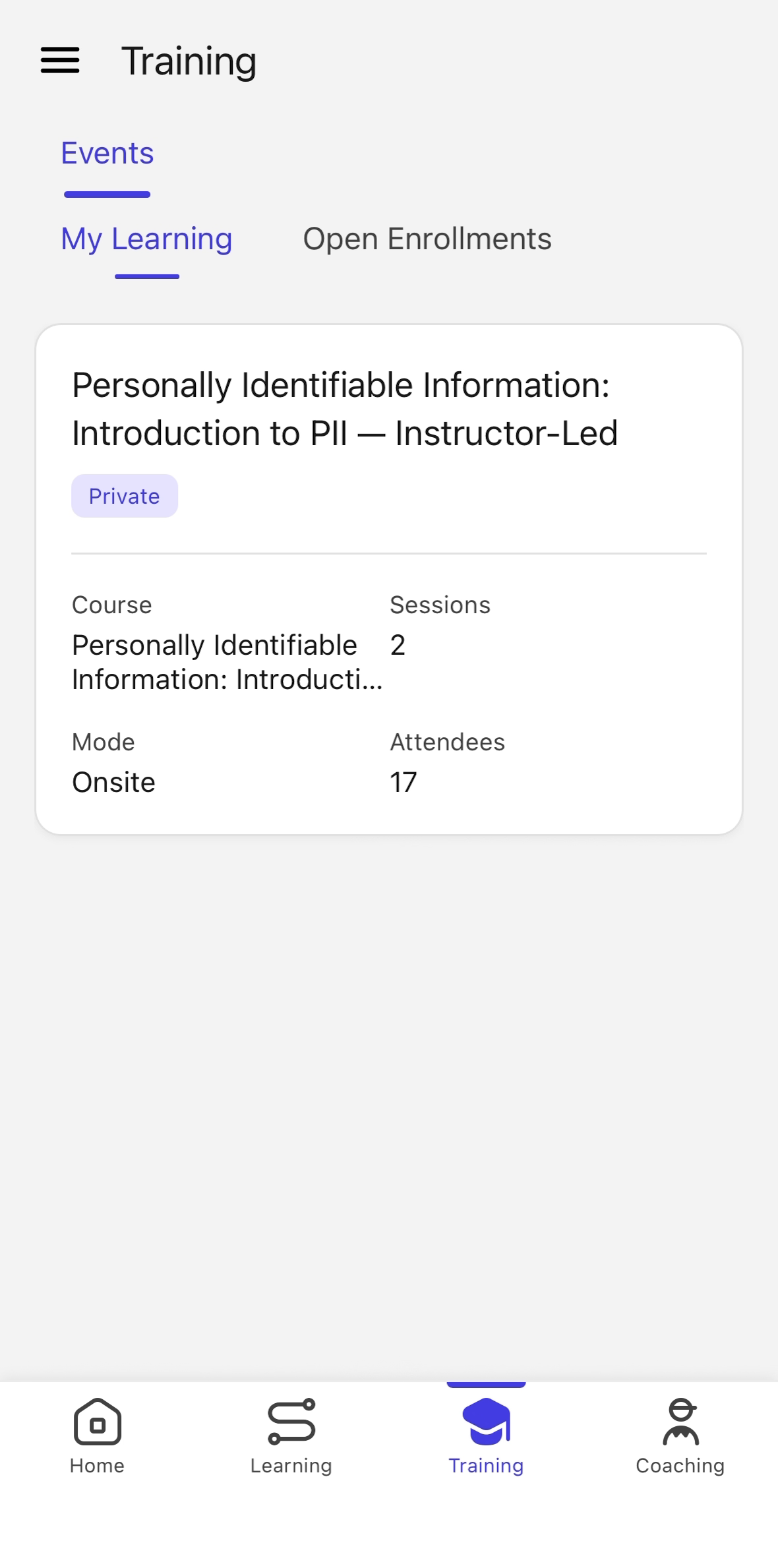
Open the platform's side menu and select the Training option to access available learning offerings.
Step 2: Open the Open Enrollments Tab
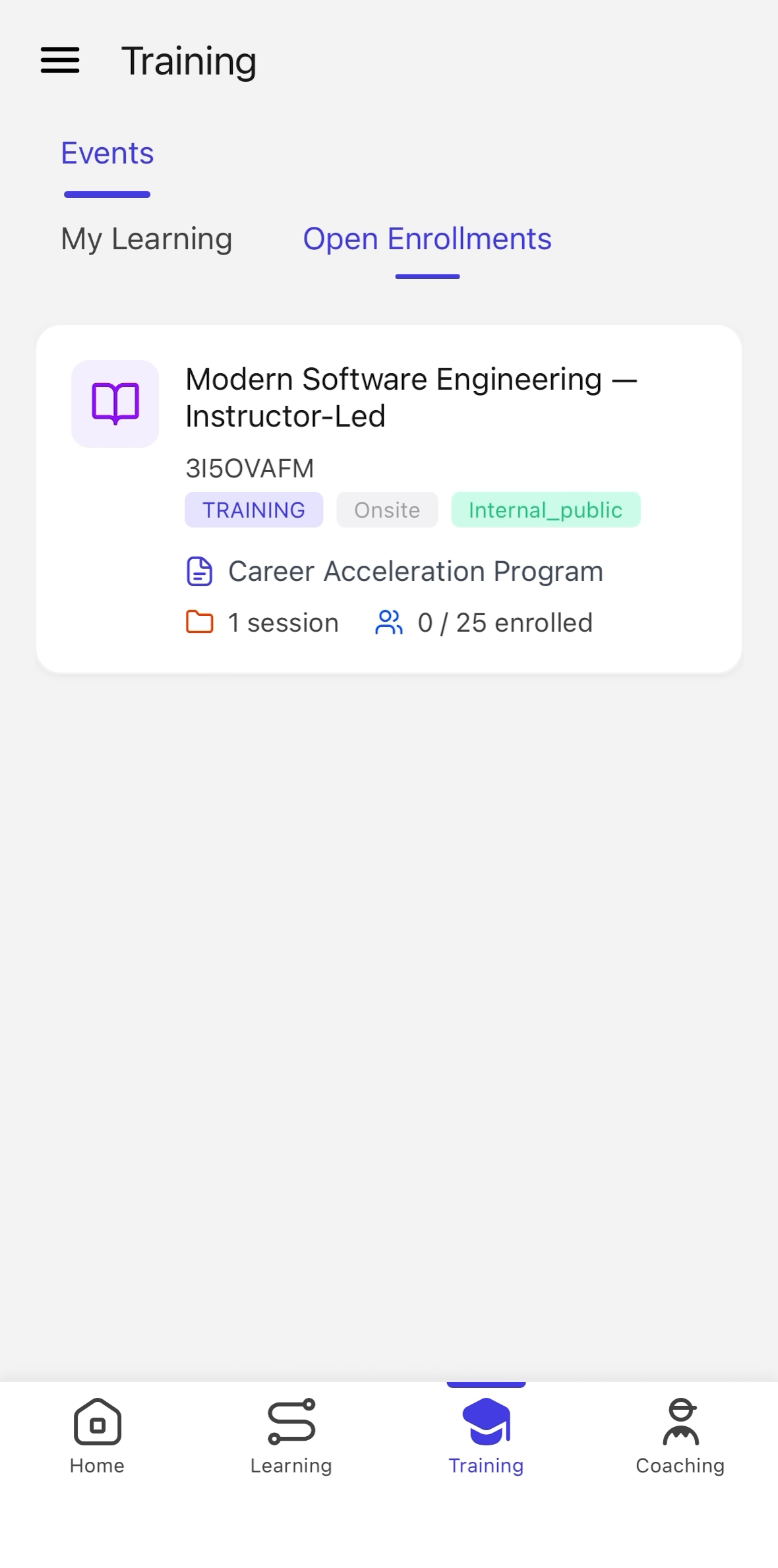
Within the Training area, switch to the Open Enrollments tab to view all courses currently accepting registrations.
Step 3: Select the Course
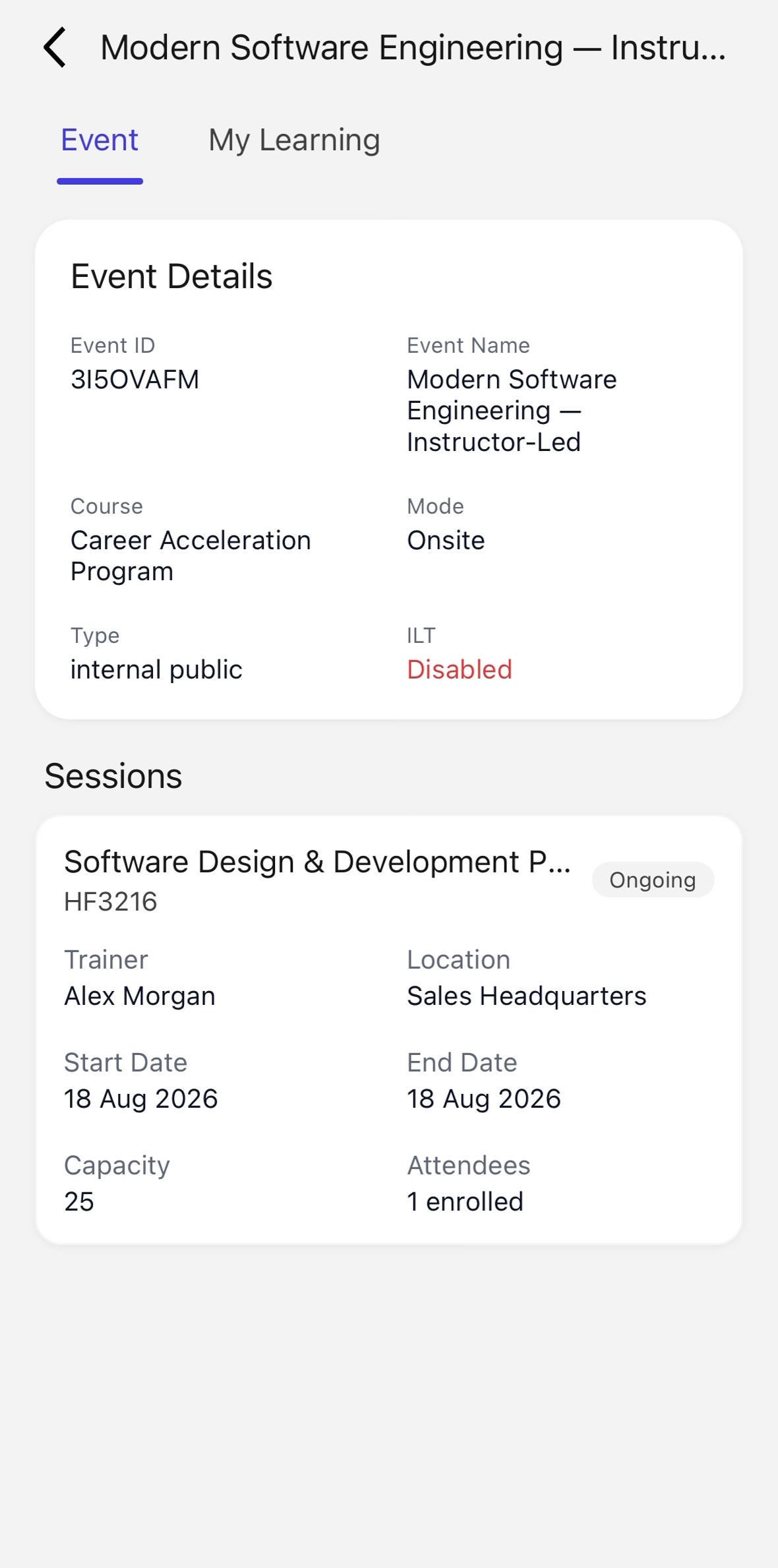
From the list of open enrollments, locate and select the course to open its event details and available sessions.
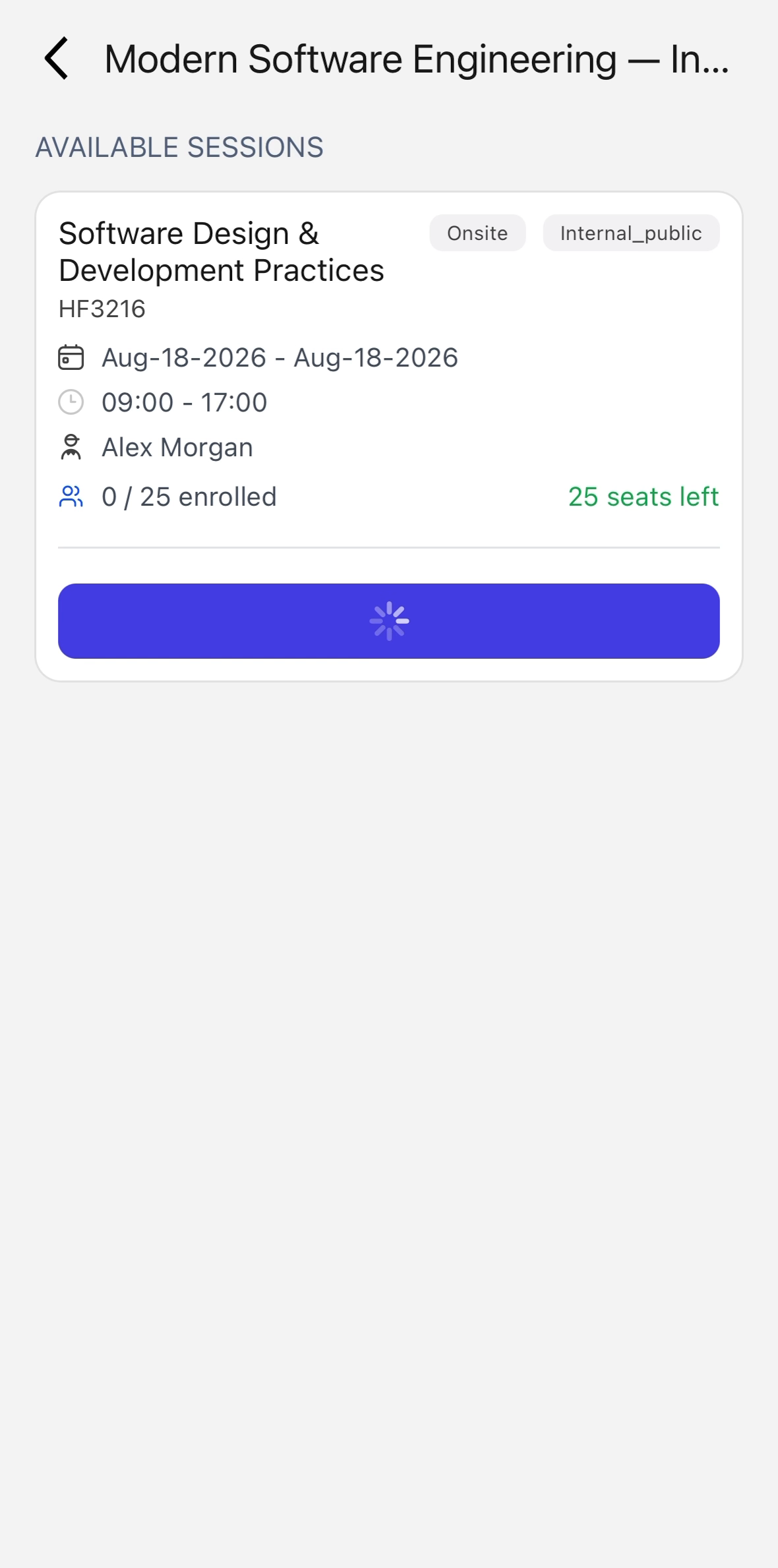
Step 4: Register for a Session
On the course page, find the session you want and click Register Now to enroll.
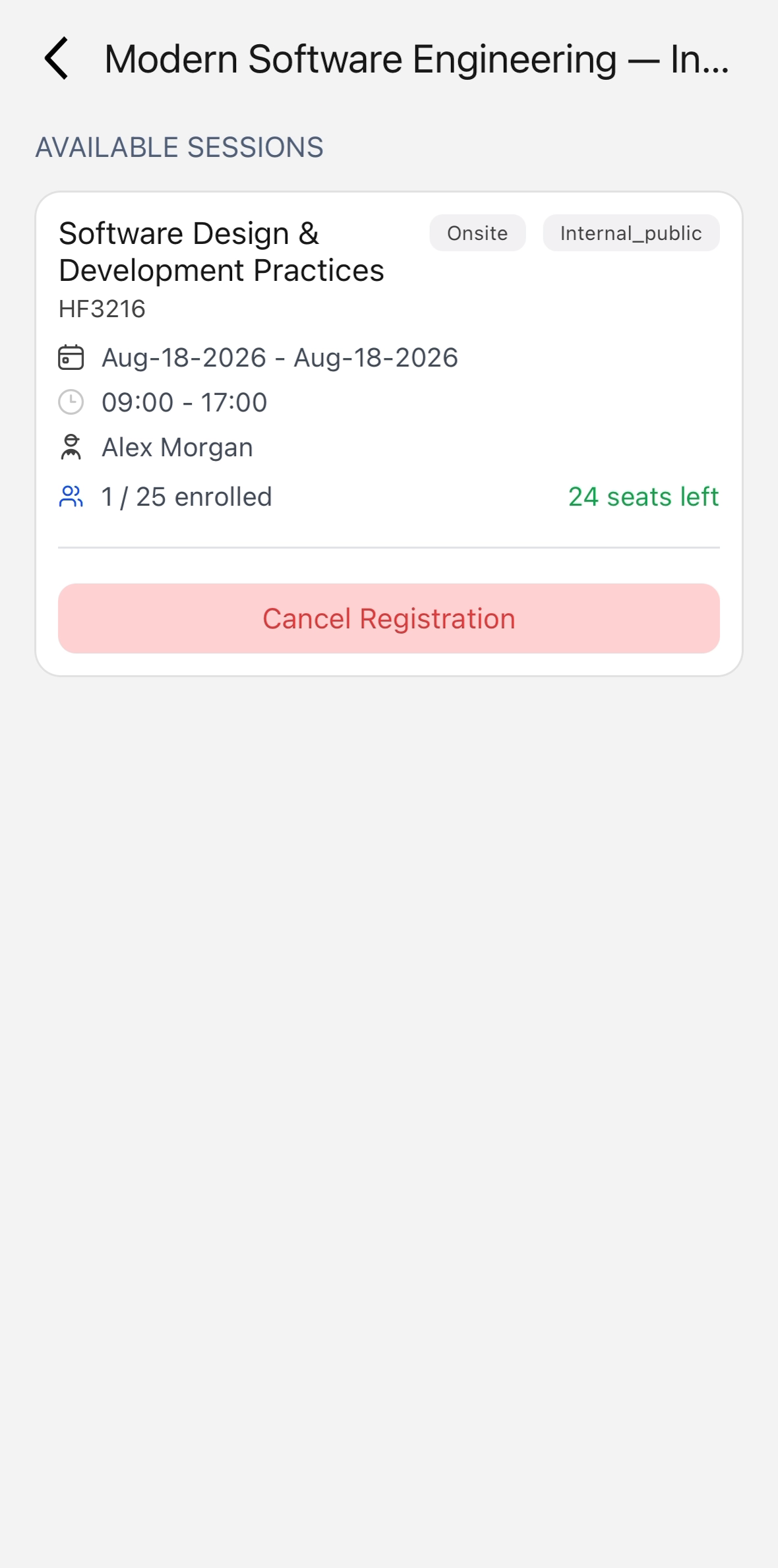
Step 5: Open the Course in My Learning
Navigate to My Learning, locate the newly enrolled course, and open its details page.
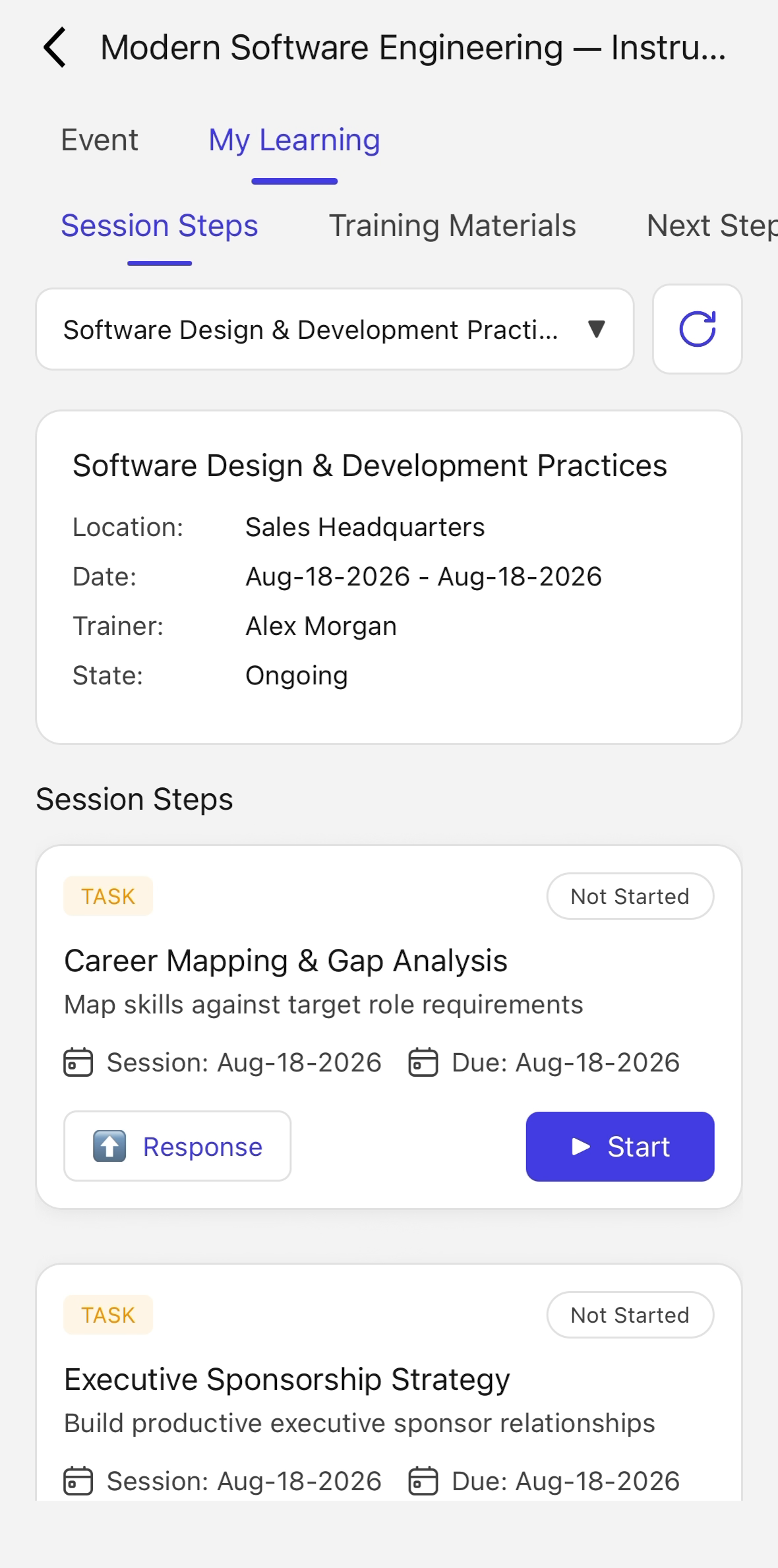
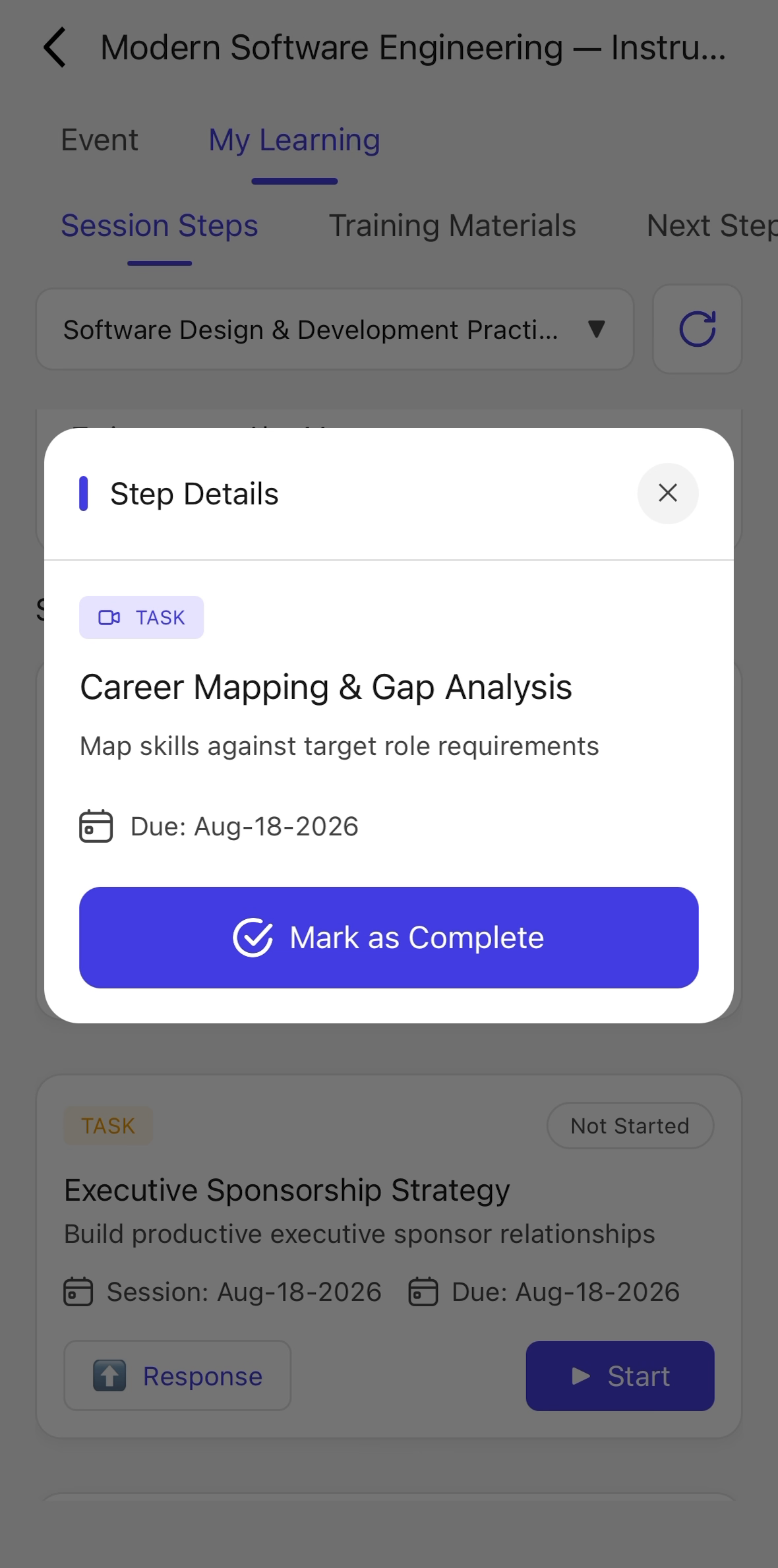
Step 6: Complete Session Tasks
Within the course details, view the session steps or task list and mark each task as complete to update your progress.
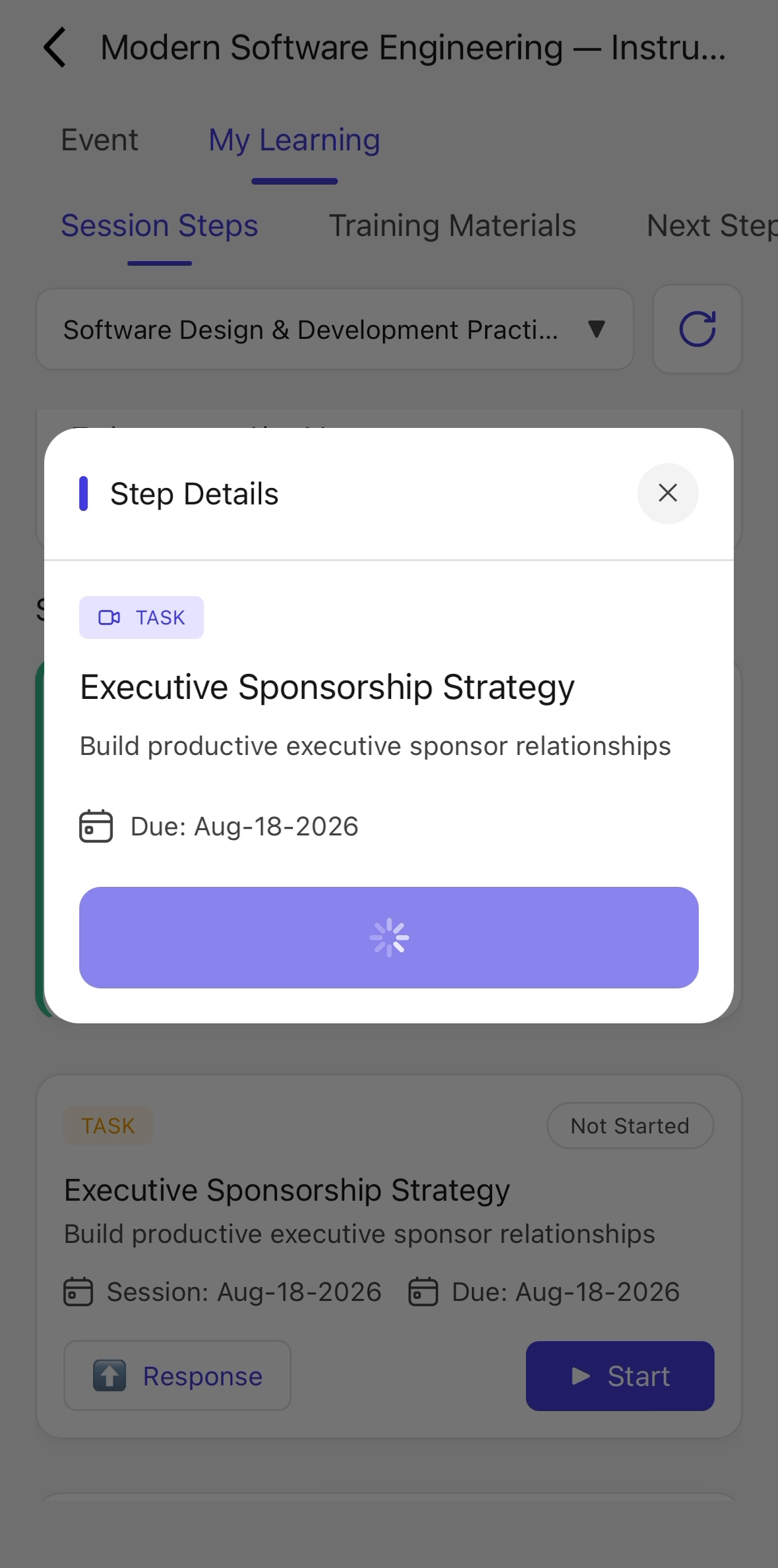
Step 7: Review Materials and Next Steps
Explore the Training Materials tab to review provided content, and open the Next Steps tab to see follow-up activities. Return to your My Learning list when finished.