Managing Attendance and Completion Sign-Off for AI Training Events
Last updated: August 26, 2026
This guide describes how a trainer reviews participants for a training event, records attendance, and signs off completion for selected attendees.
Step 1: Open the Event from the Trainer Dashboard
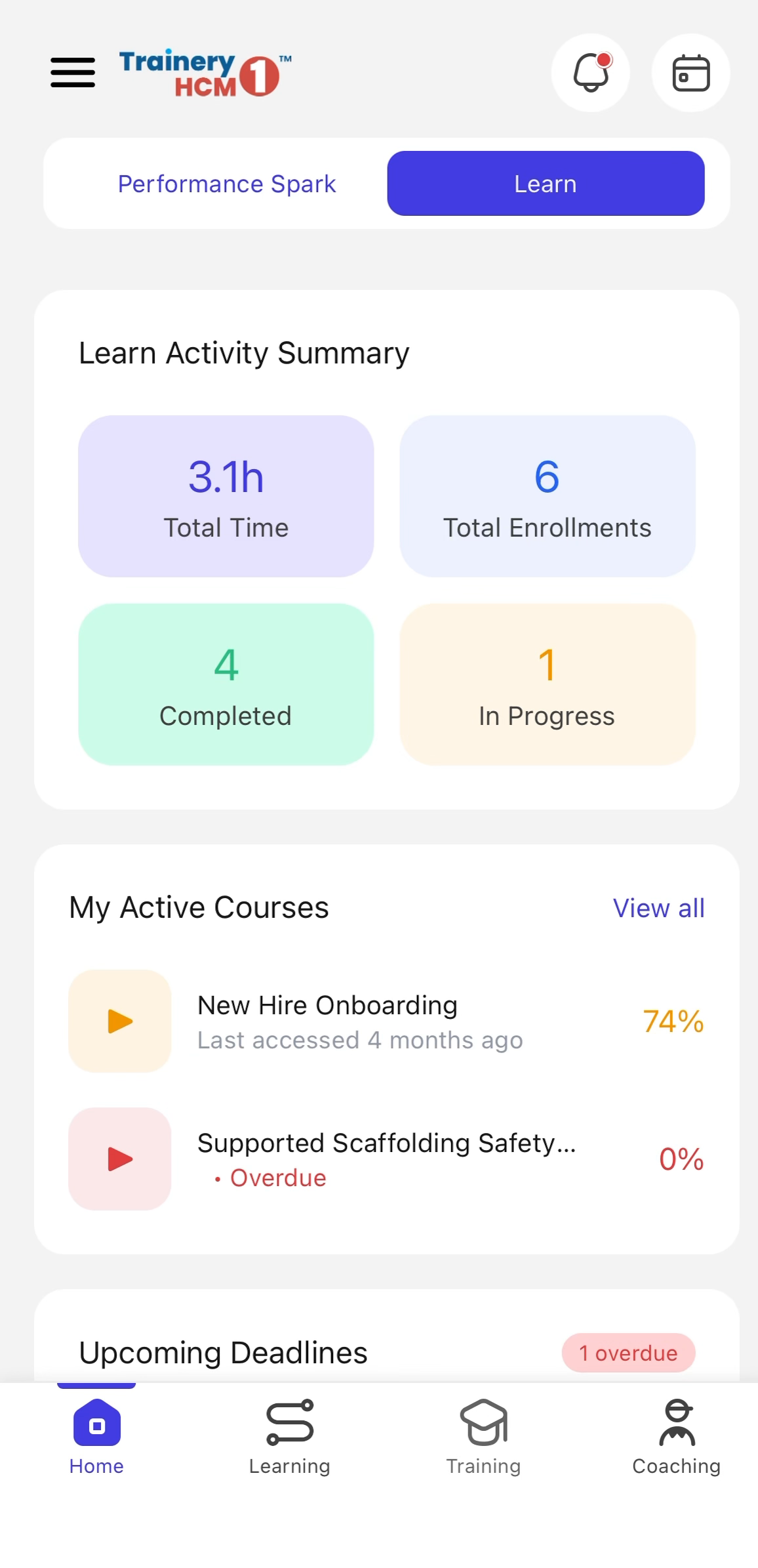
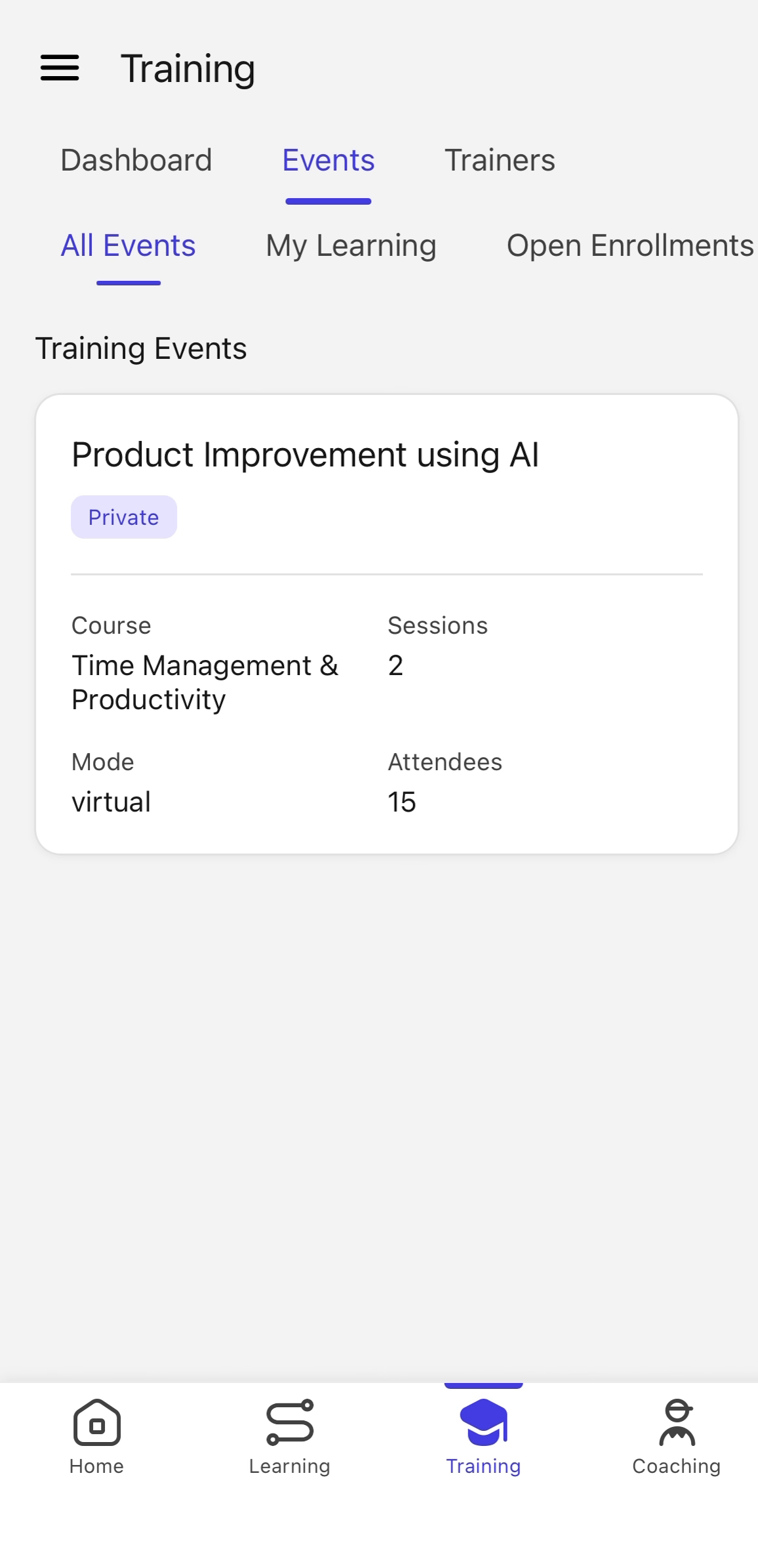
Navigate to the Trainer dashboard, select Events, and open the specific training event you want to manage.
Step 2: Review Participants
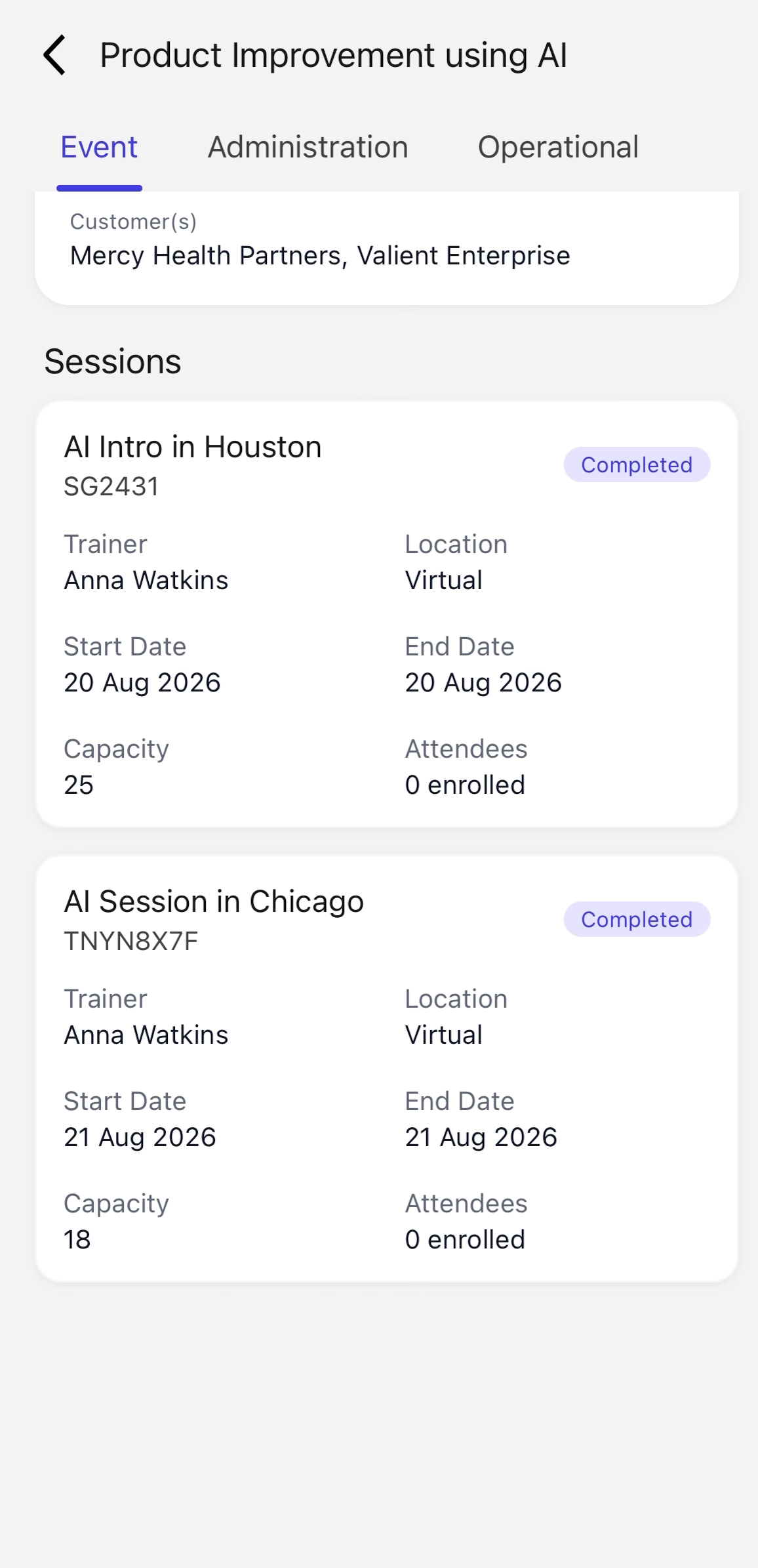
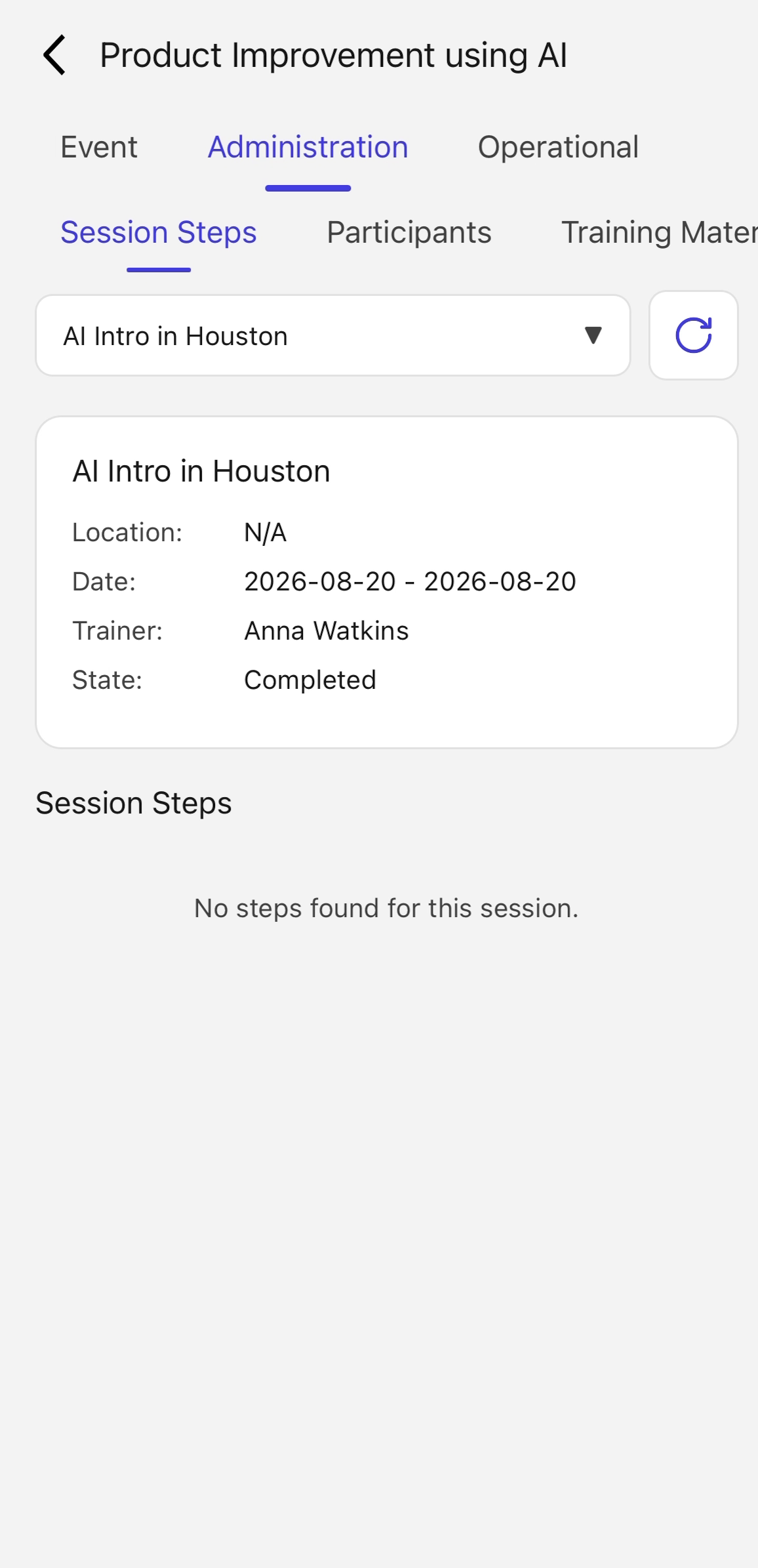
Open the Administration tab, then click the Participants sub-tab to view the list of attendees for the session.
Step 3: Go to the Operational Tab
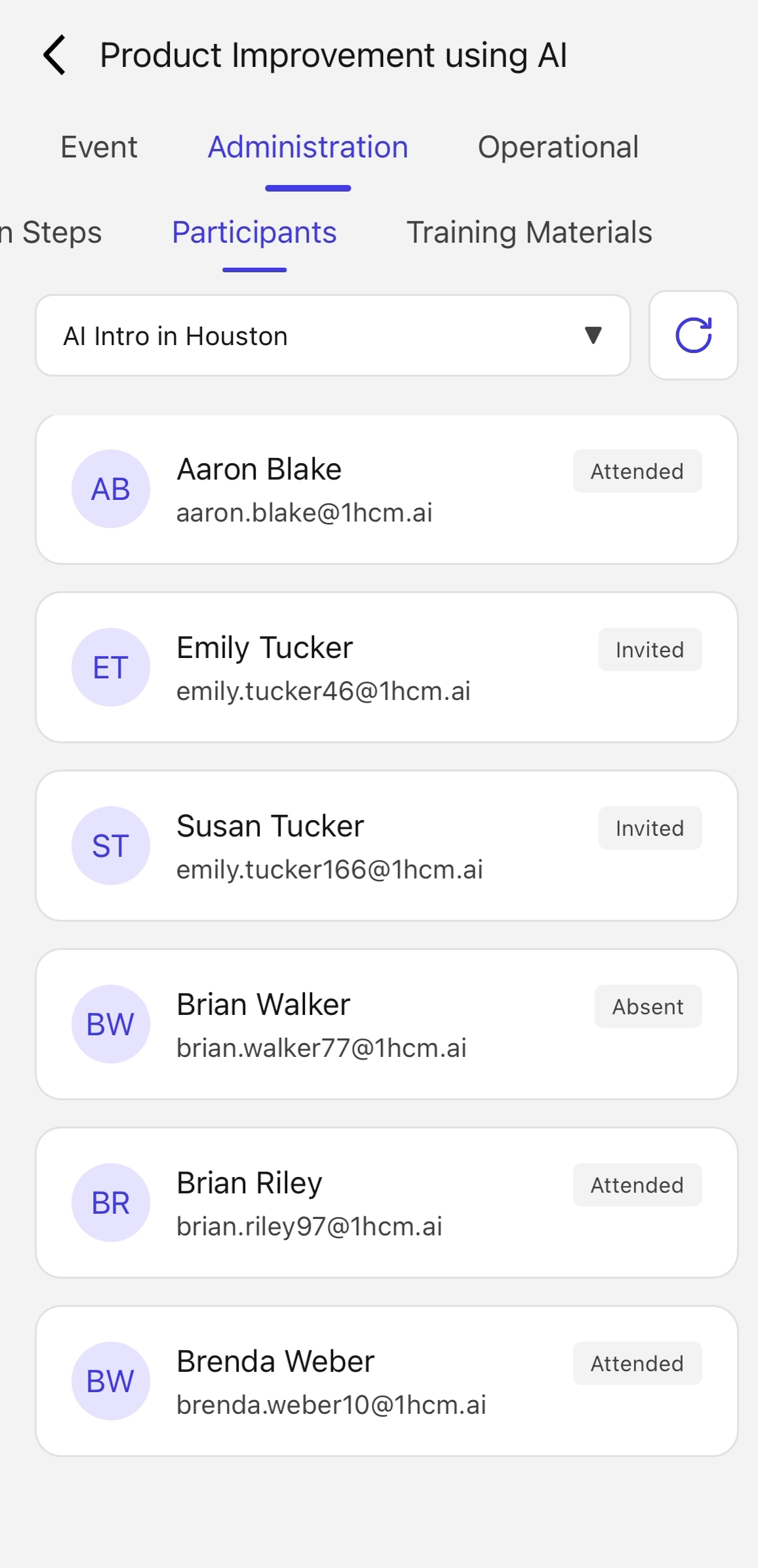
Navigate to the Operational tab to access the operational controls for the event.

Step 4: Open the Attendance Section
Click the Attendance sub-tab to view and manage attendance records for the session.
Step 5: Sign Off Completion for Selected Participants
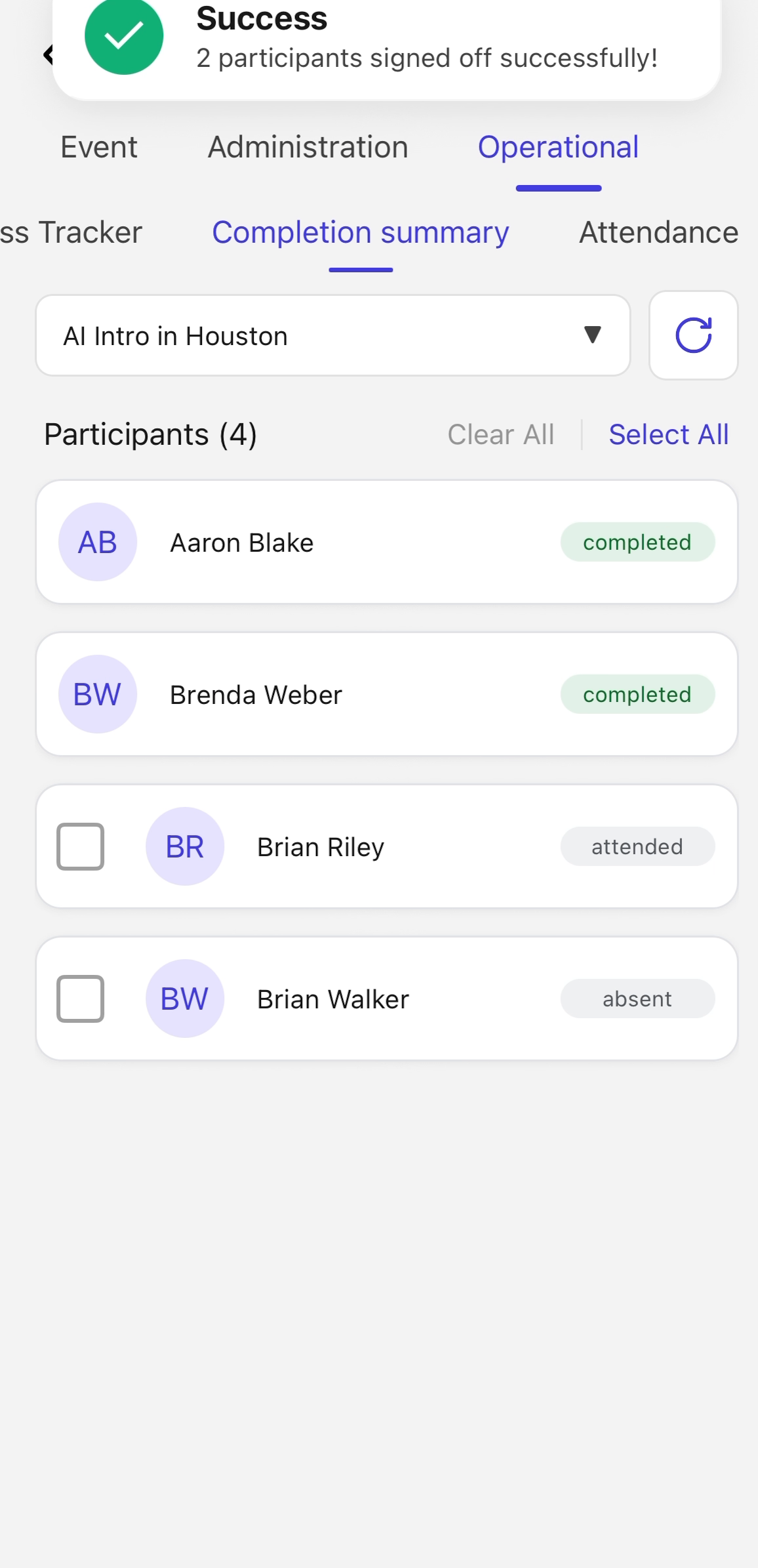
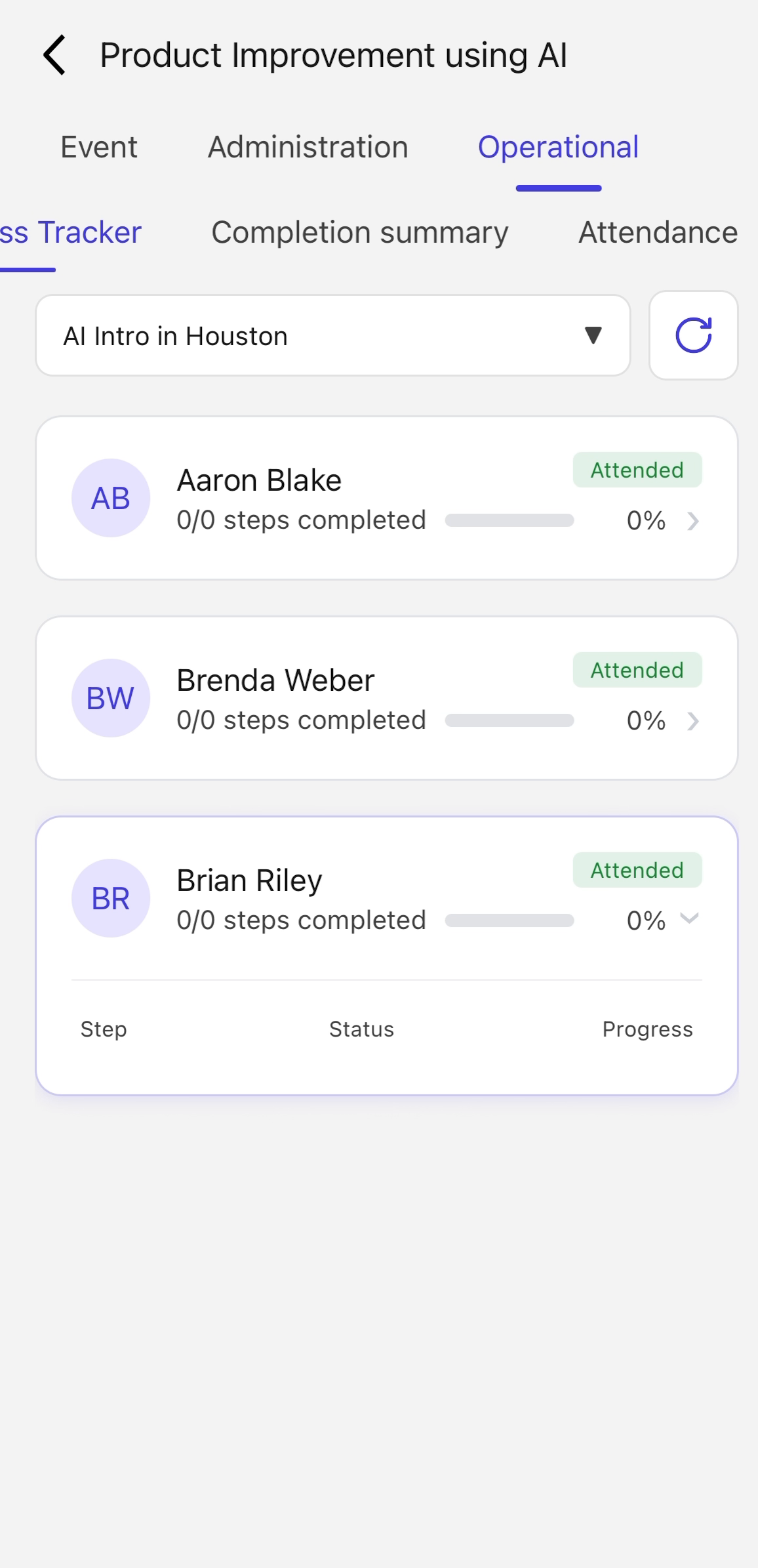
Open the Completion summary sub-tab, check the boxes for the participants you want to sign off, then click the Sign Off button.
Step 6: Finalize Sign-Off and Review Details
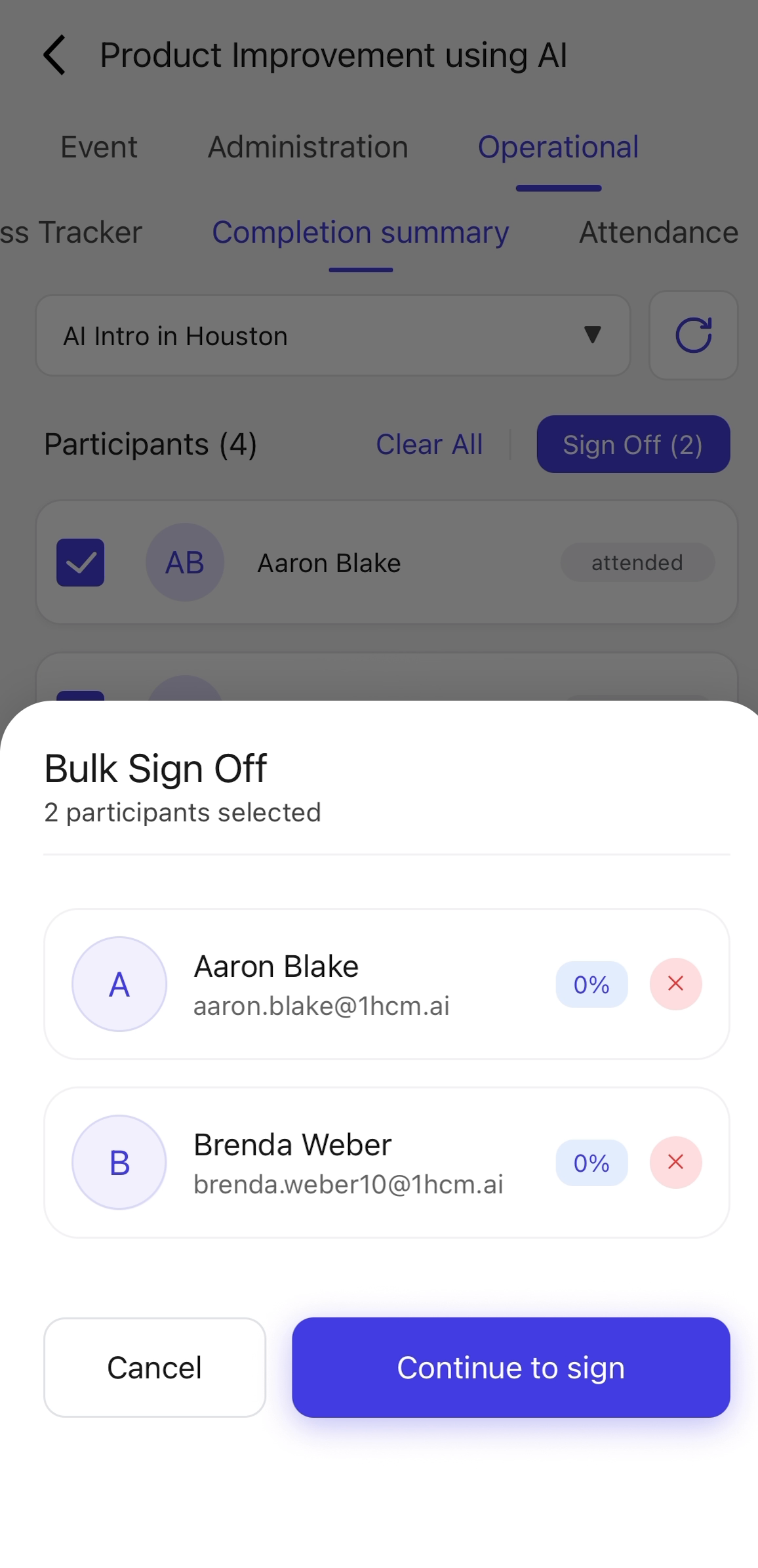
In the modal that appears, provide your signature and click Sign Off Now to finalize the completion status. Click a participant's name to view their detailed information, and return to the summary when finished.