Resetting and Accessing Your Account Password
Last updated: July 1, 2026
Resetting and Using Your New Account Password
This process walks you through resetting your account password via email and then signing back in with the newly created password to access your dashboard.
Step 1: Start the Password Reset Process
From the login screen, open the email address dropdown and select your email address. Click Continue, then choose the Forgot password option to begin resetting your password.


Step 2: Send the Password Reset Link
On the password reset request screen, click Send Reset Link to have a password reset email sent to your selected address.
Step 3: Create and Confirm Your New Password
On the password reset page, enter a new password that meets all listed security requirements. Re-enter the same password in the confirmation field, then click Set Password to finalize the update.
Step 4: Return to the Login Page
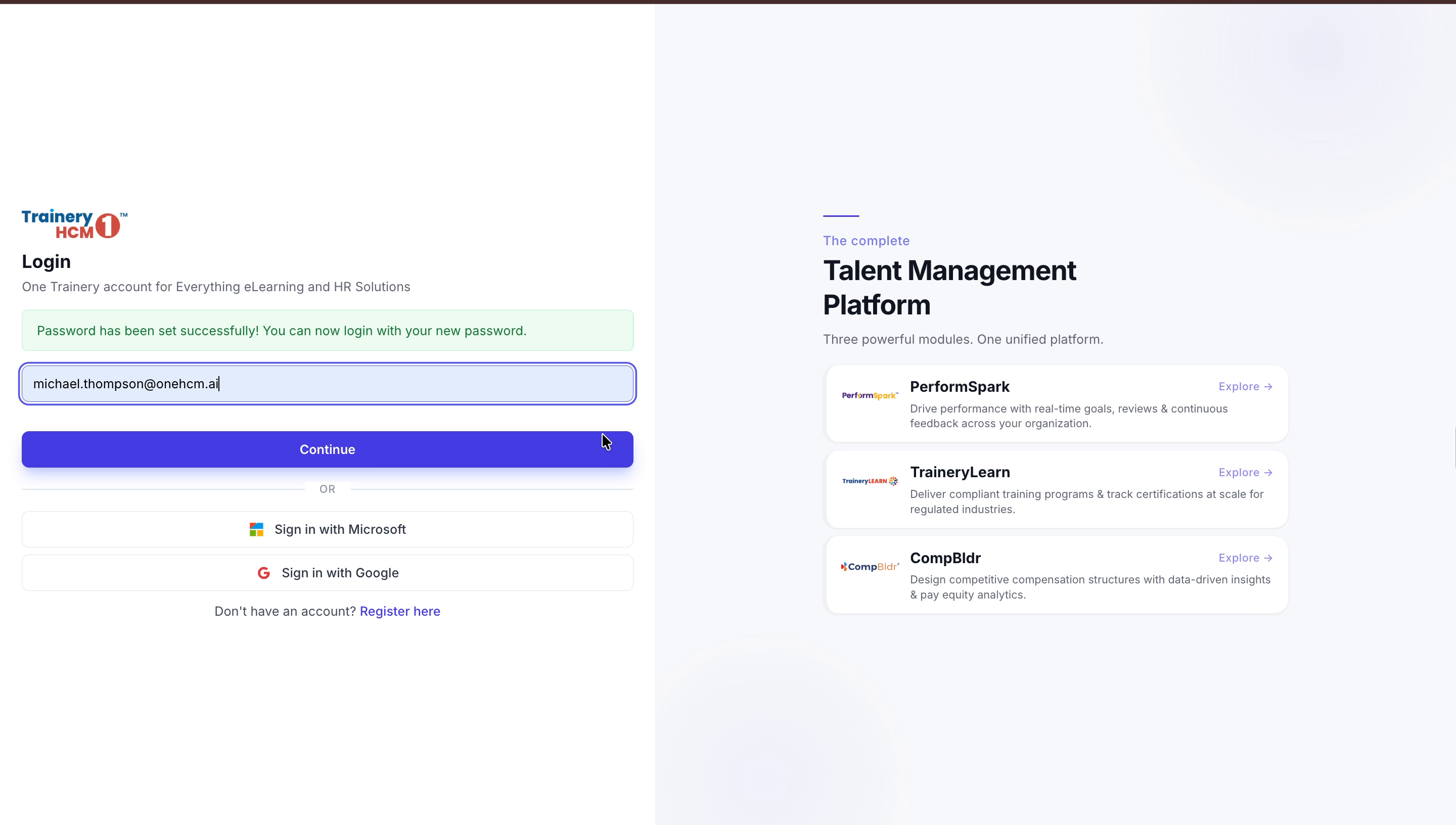
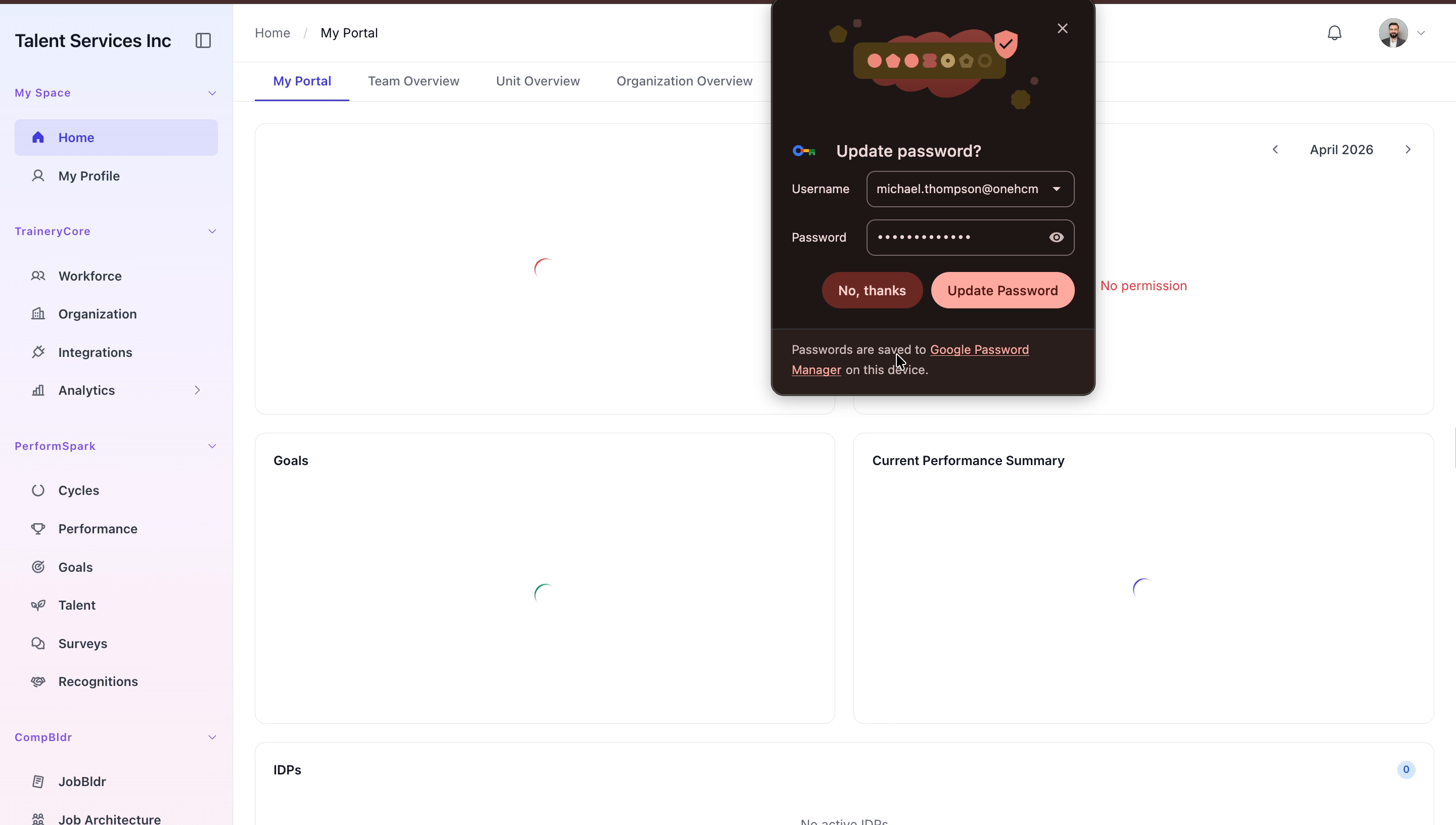
After your password has been successfully reset, dismiss any browser prompts that appear, then click Continue to go back to the login page.

Step 5: Sign In with Your New Password
On the login page, click Sign In, enter your newly created password, and click Sign In again to access your dashboard. Dismiss any remaining browser prompts to complete the process.