Creating a Performance Grid Cycle
Last updated: May 3, 2026
Creating a Performance Grid Cycle in Talent
This document describes how to create a new performance grid cycle in the Talent module, link it to an existing performance cycle, configure rating levels, and define the applicable timeline.
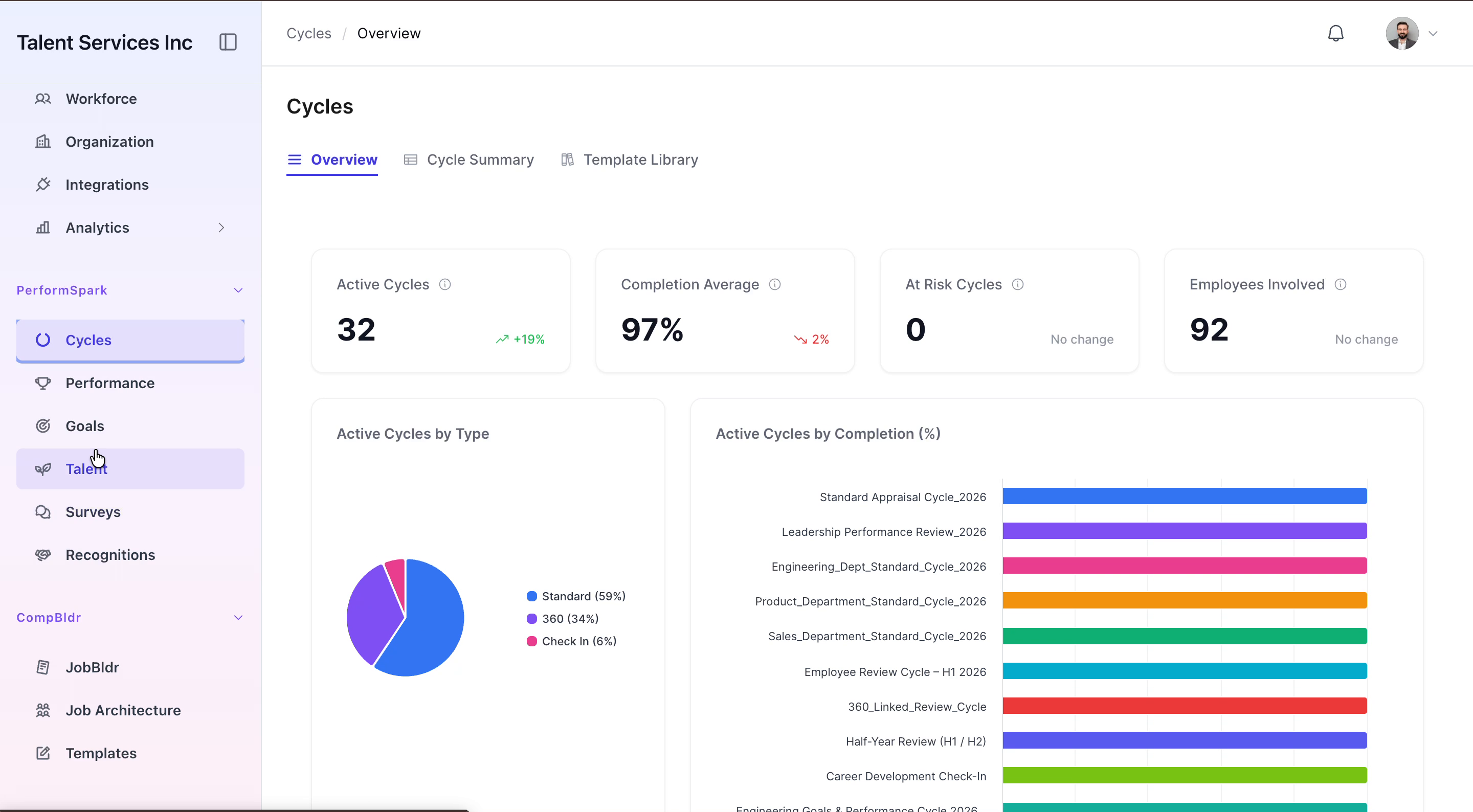
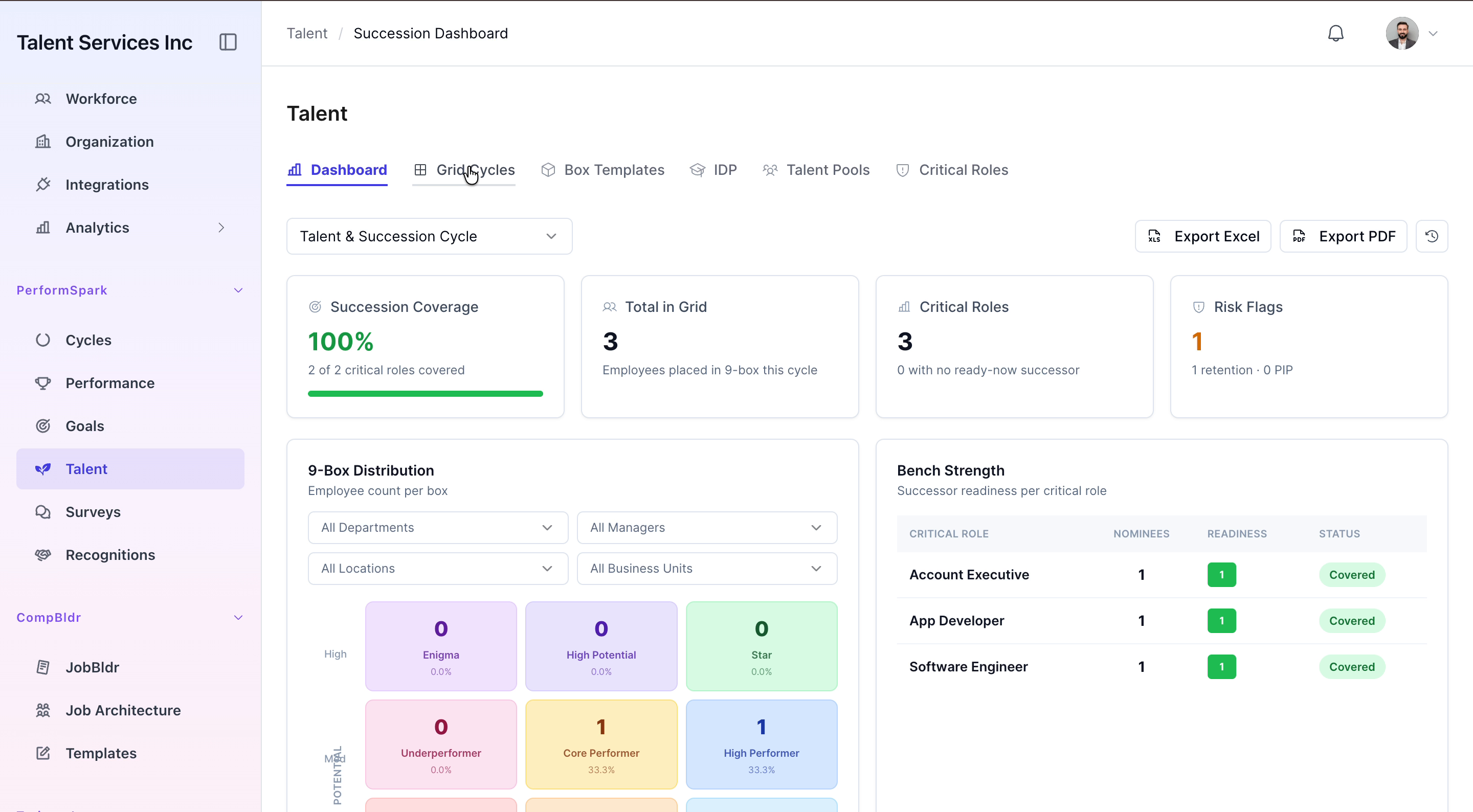
Step 1: Open the Grid Cycles Page
Navigate to the Talent section in your application, then click on the Grid Cycles tab to open the grid cycle management page.
Step 2: Start a New Grid Cycle
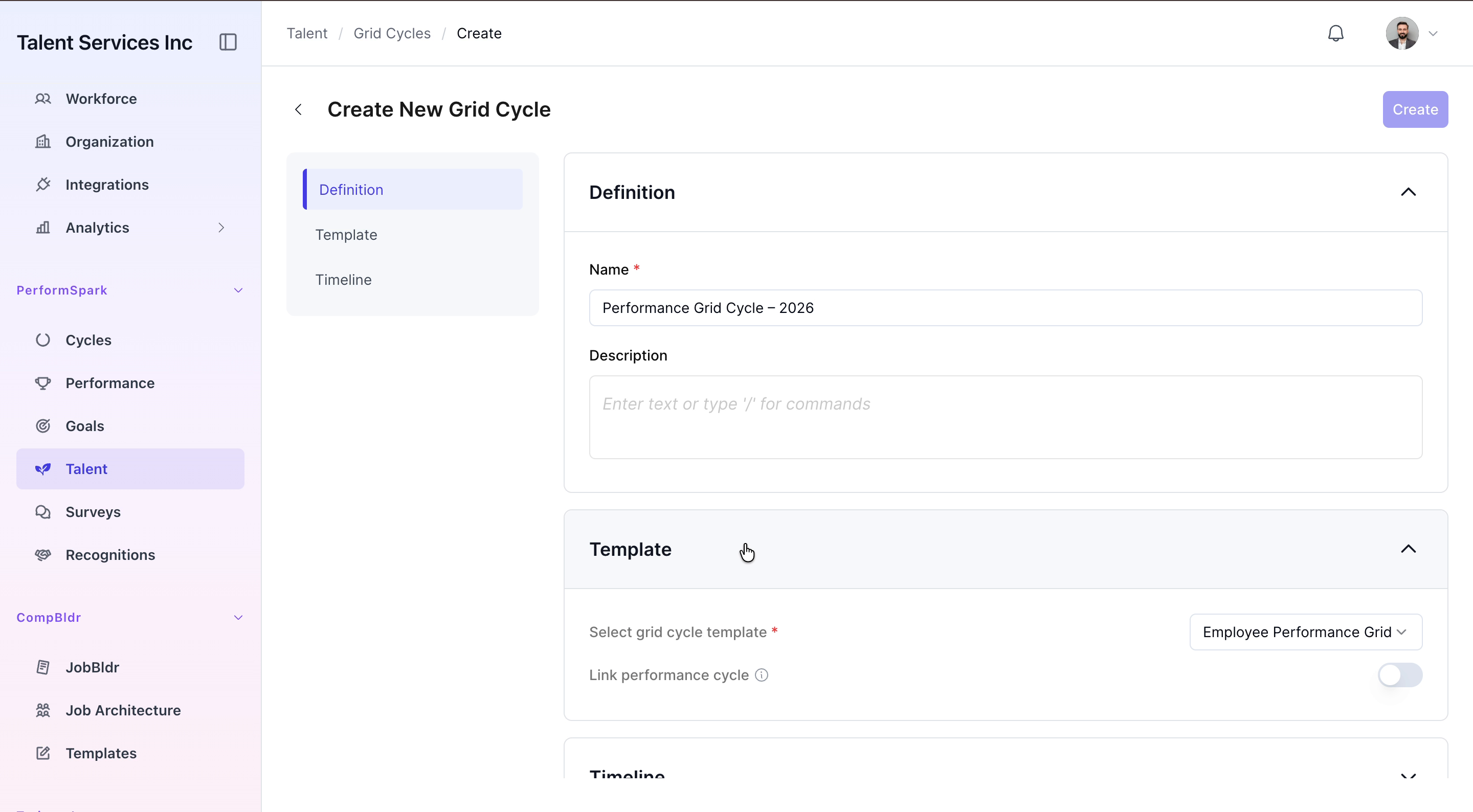
Click the Add Cycle button, then enter a clear and descriptive name for your new performance grid cycle.

Step 3: Select the Template and Link a Performance Cycle
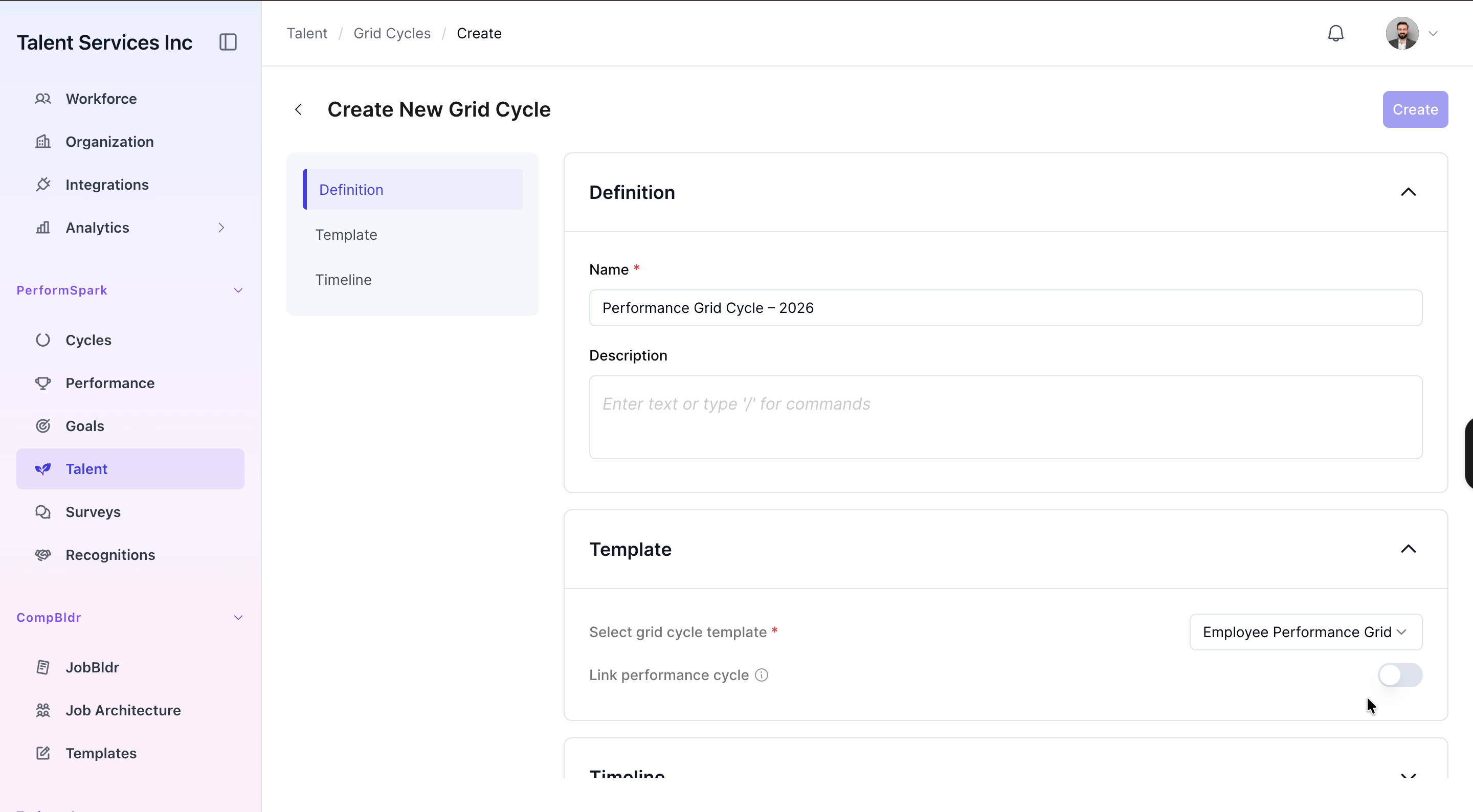
Under the Template section, select Employee Performance Grid as the template. Enable the Link performance cycle option to associate this grid cycle with an existing performance review cycle.
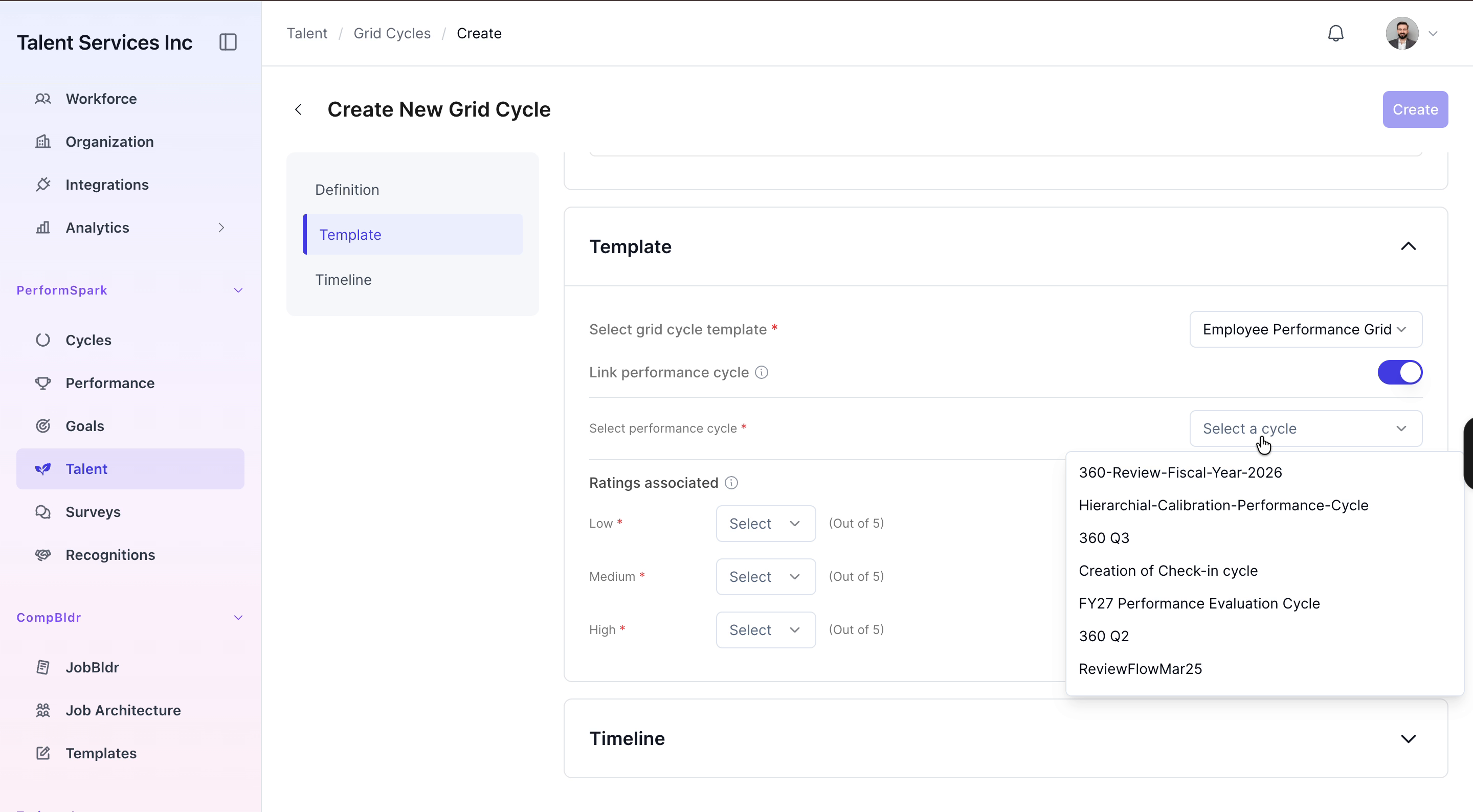
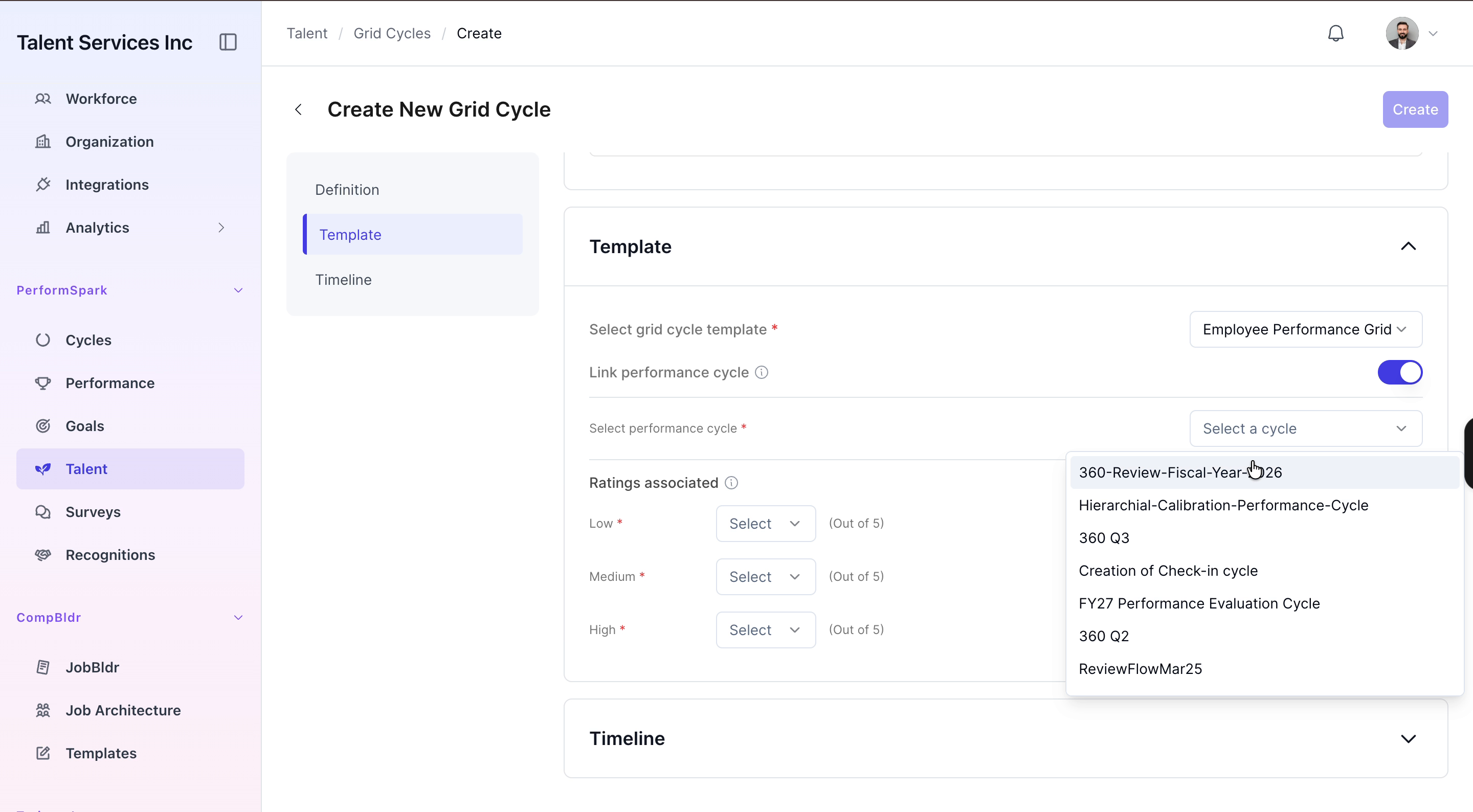
From the performance cycle dropdown menu, choose 360 Review Fiscal Year 2026 as the linked performance cycle.
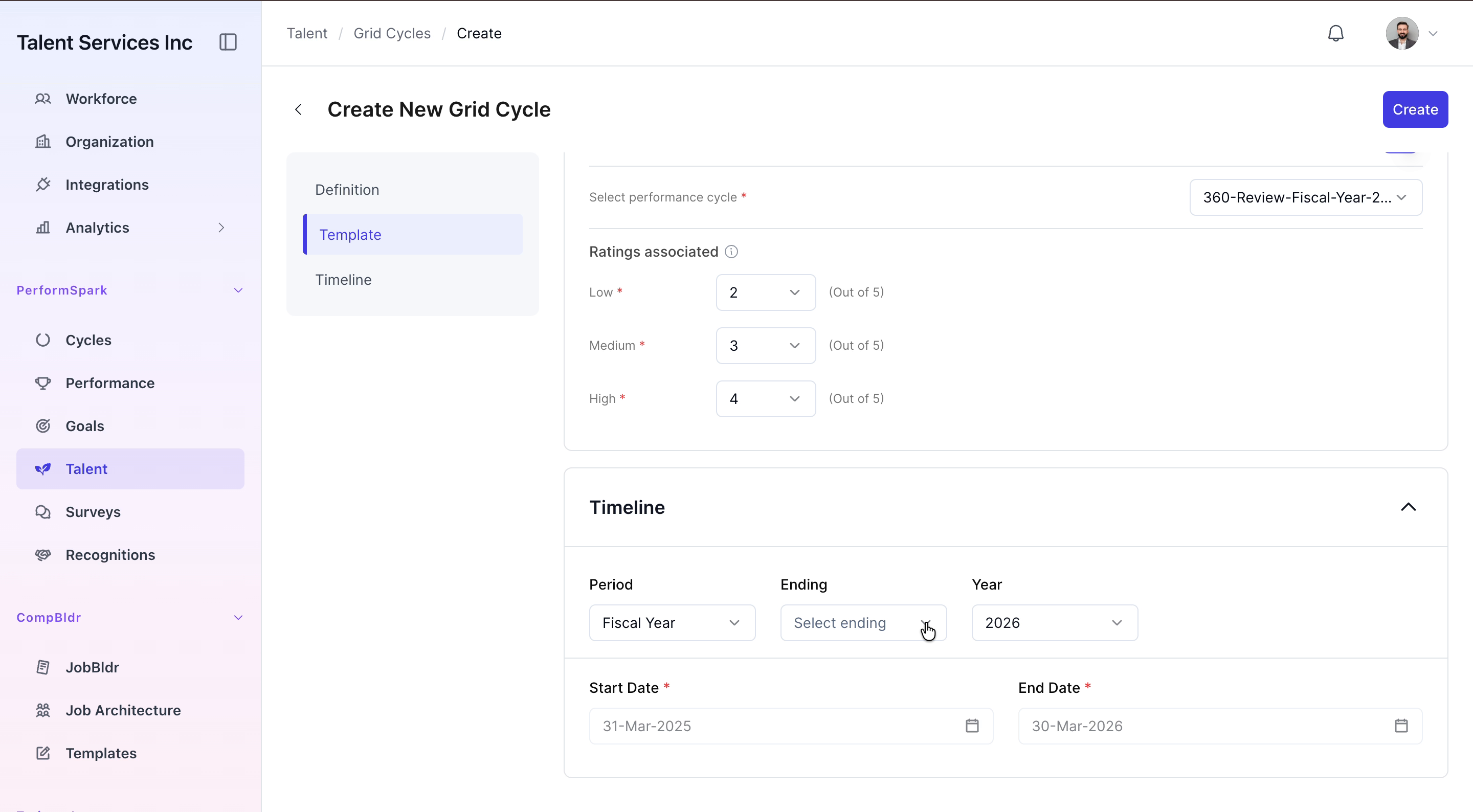
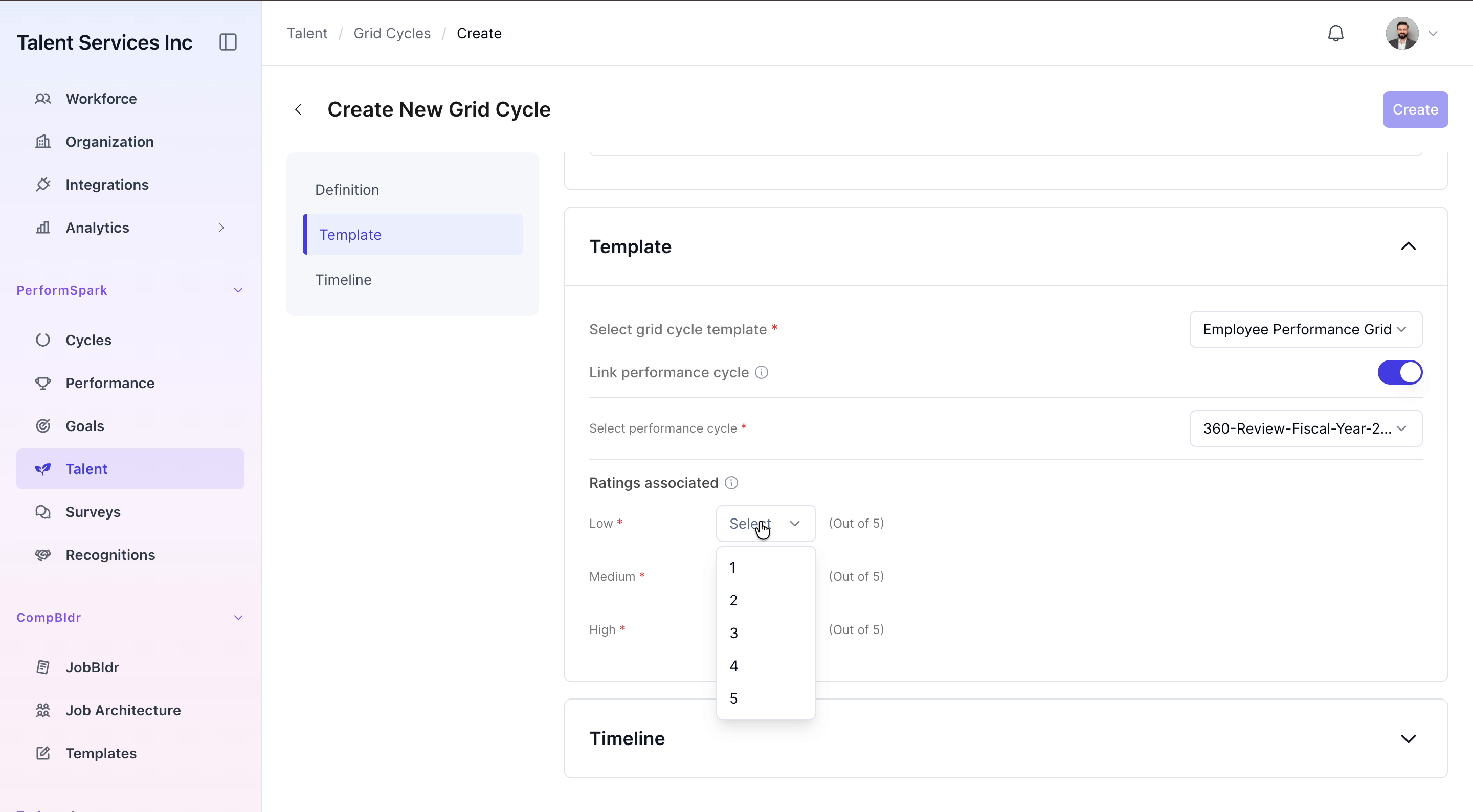
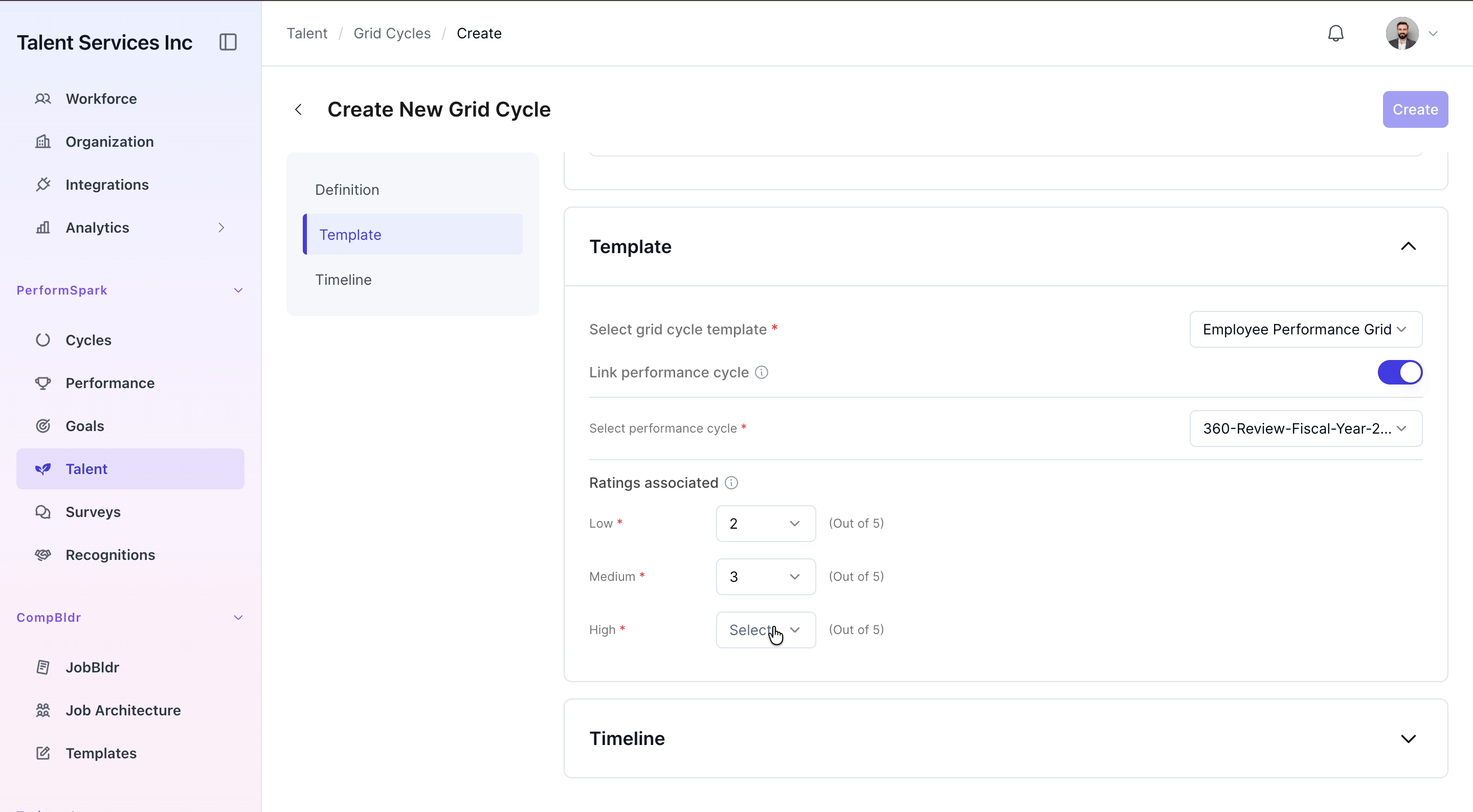
Step 4: Configure Performance Rating Levels
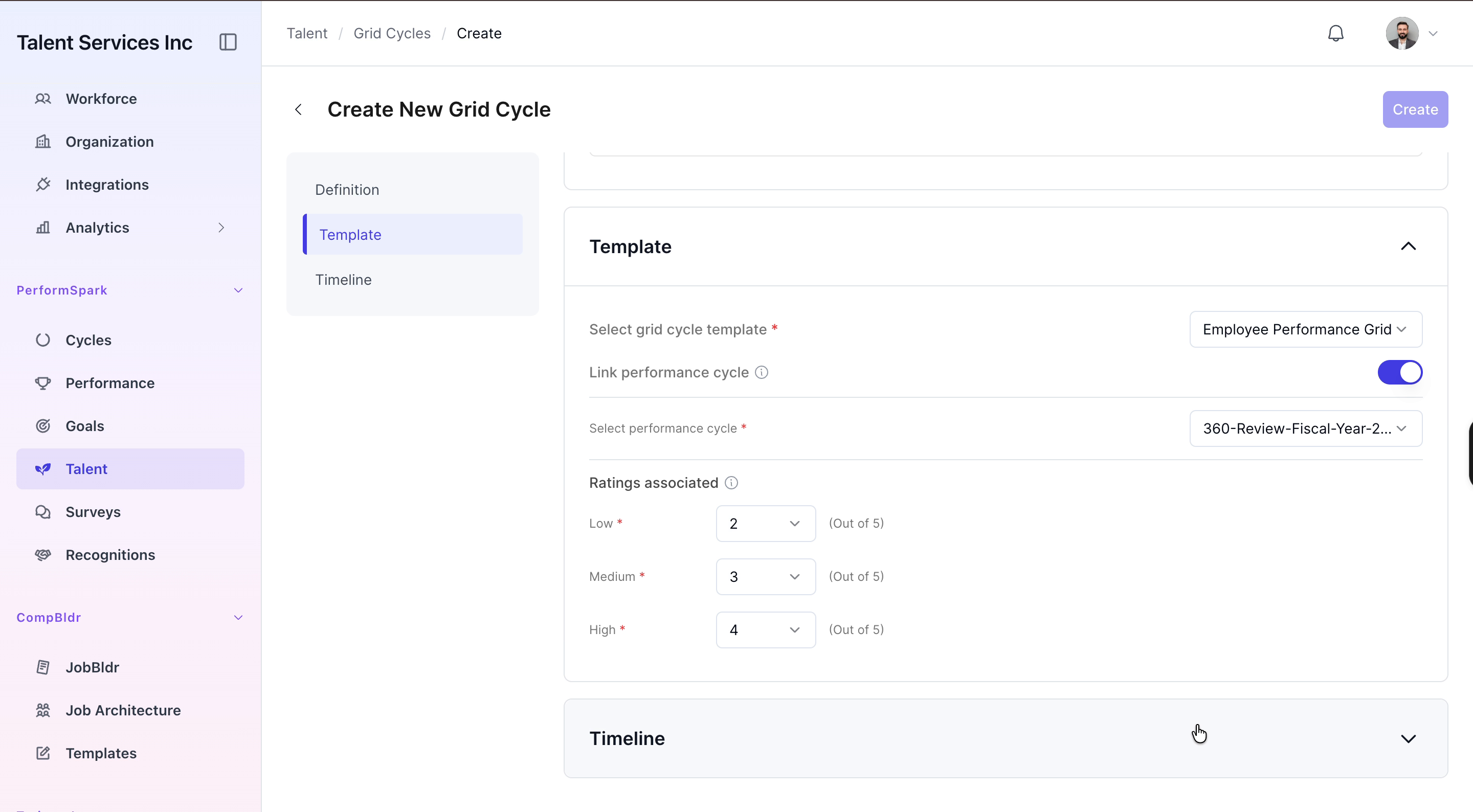
Associate the rating levels by selecting appropriate values for low, medium, and high performance. Ensure the selected values align with your organization’s rating scale.
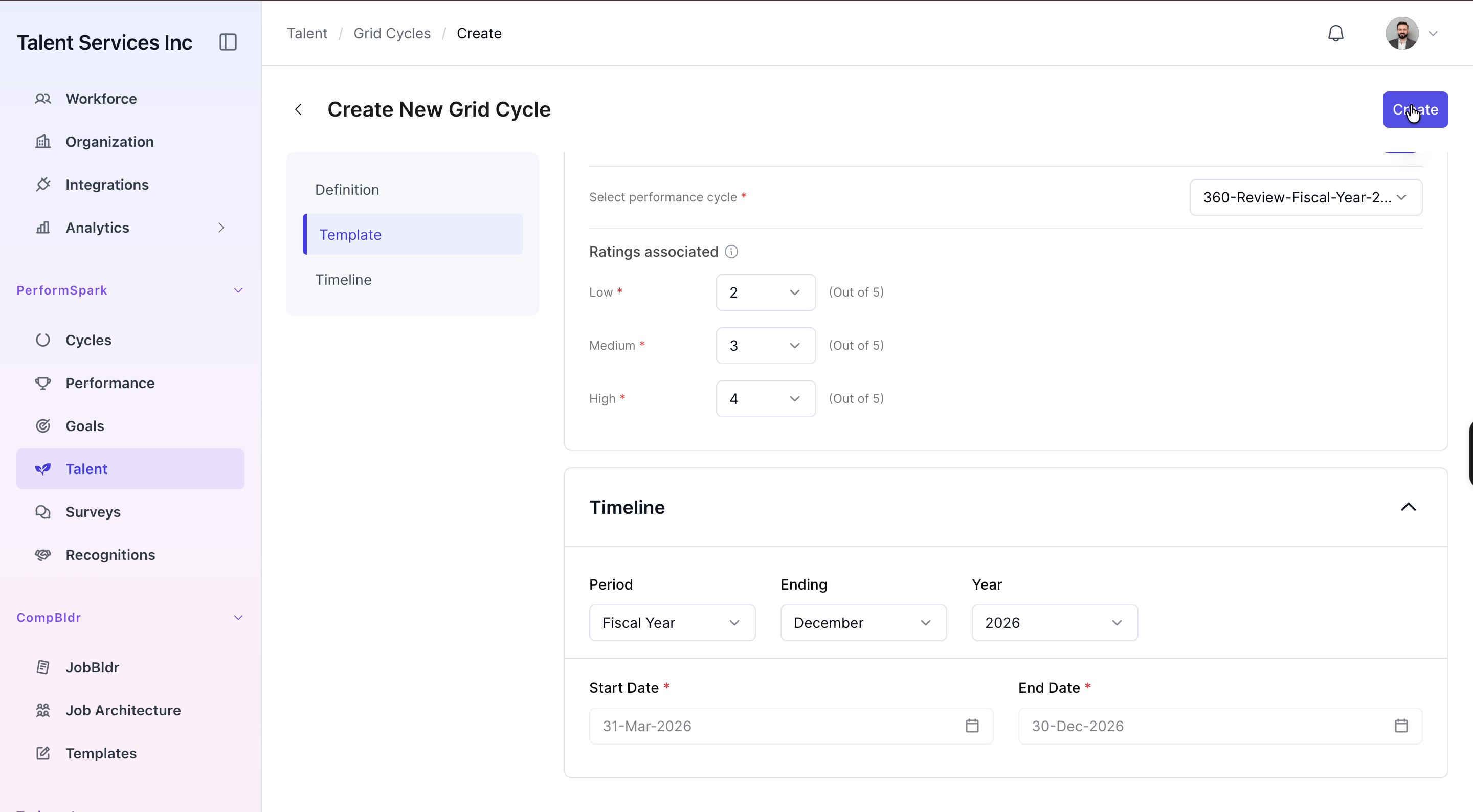
Step 5: Define the Timeline and Create the Grid Cycle
In the Timeline section, set the period to Fiscal Year and select the correct fiscal year for this cycle.
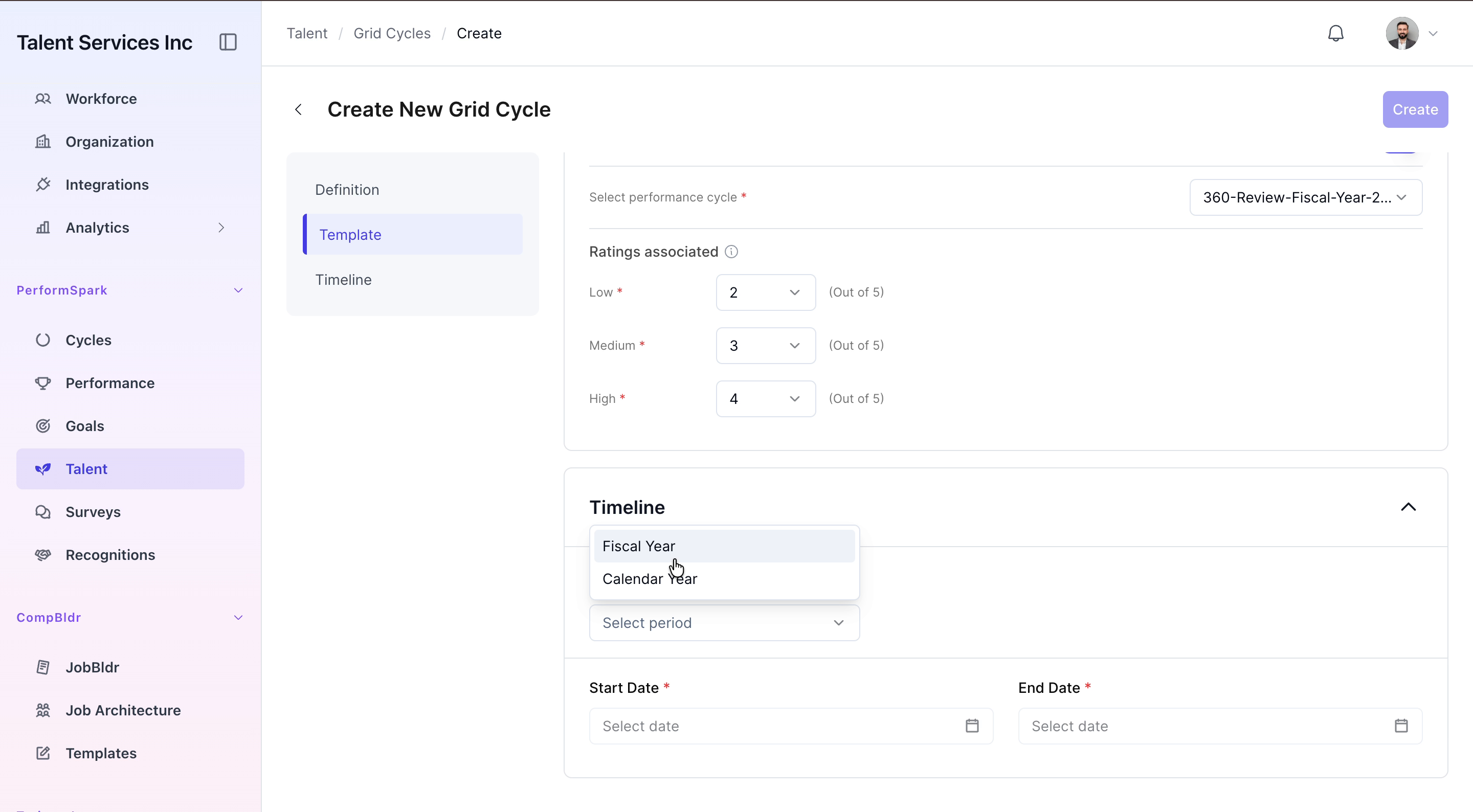
Choose December as the ending month (or the appropriate month for your fiscal year end), then click Create to finalize and save the new performance grid cycle.