Adding new Grid Cycle for Manager
Last updated: July 1, 2026
Creating a New Succession Grid Cycle
This document explains how to create a new Succession Grid Cycle in the Succession Dashboard, configure its template and ratings, define the timeline, and confirm that it has been successfully created.
Step 1: Open the Succession Dashboard
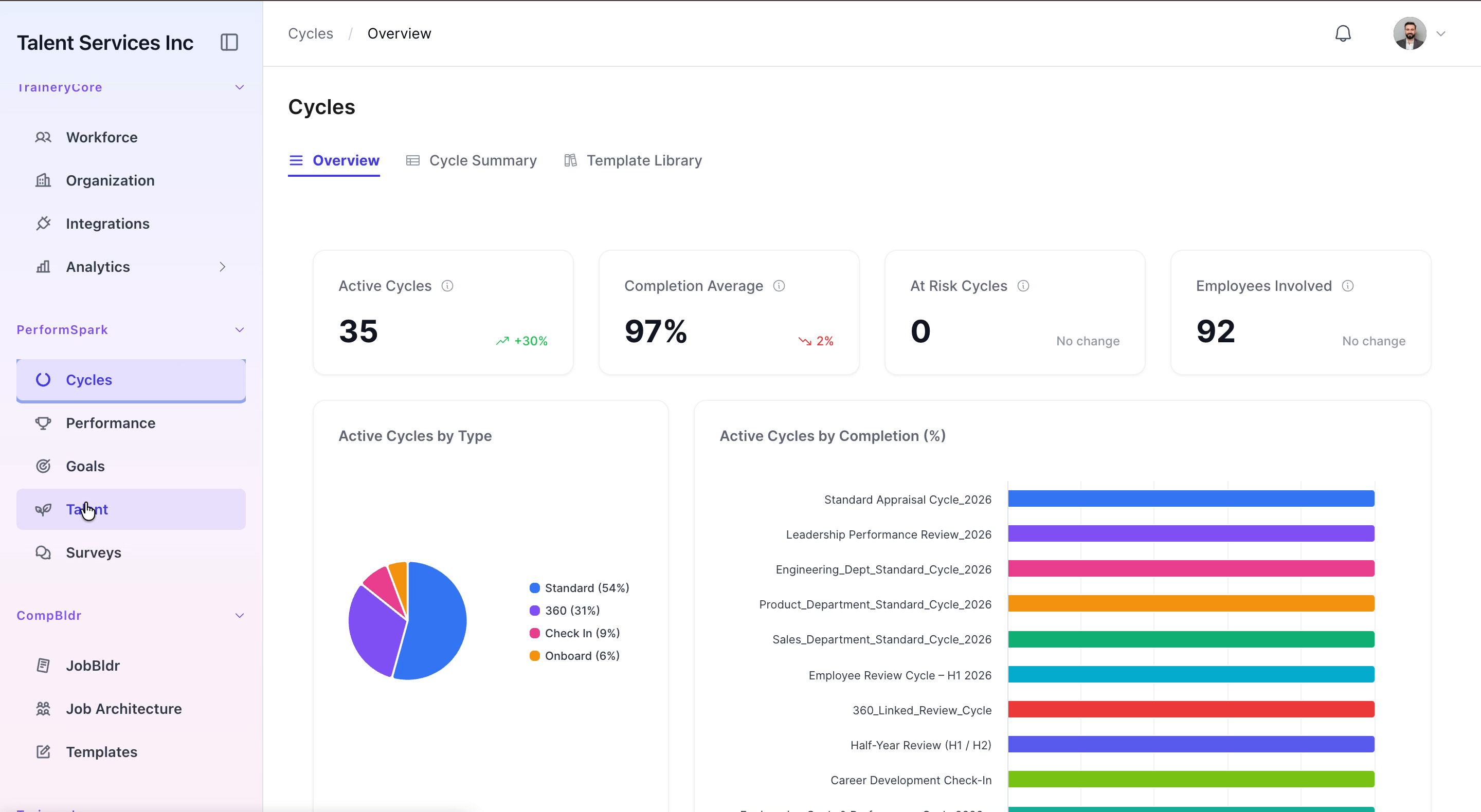
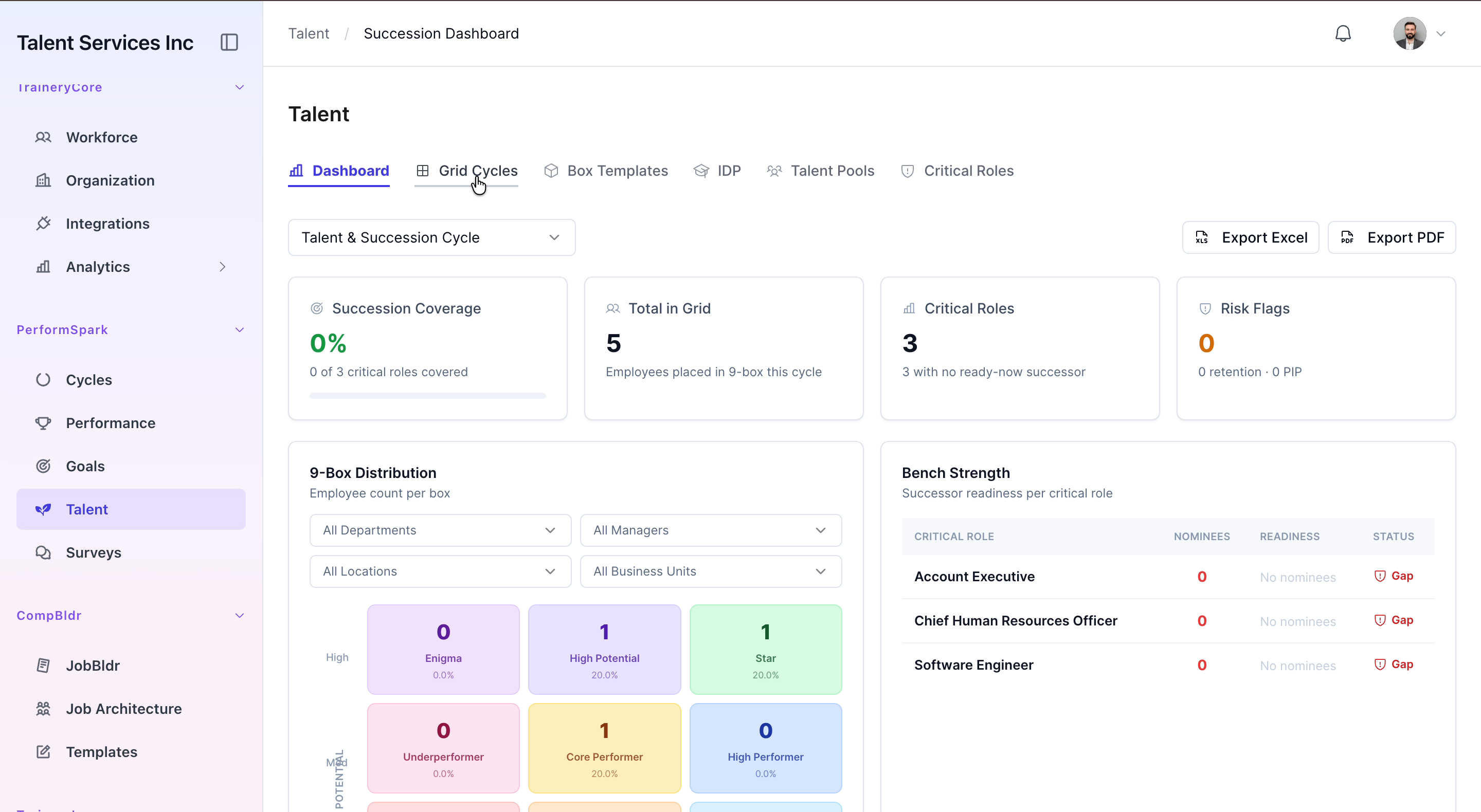
Click Talent in the sidebar and wait for the Succession Dashboard to load.
Step 2: Start Adding a New Grid Cycle
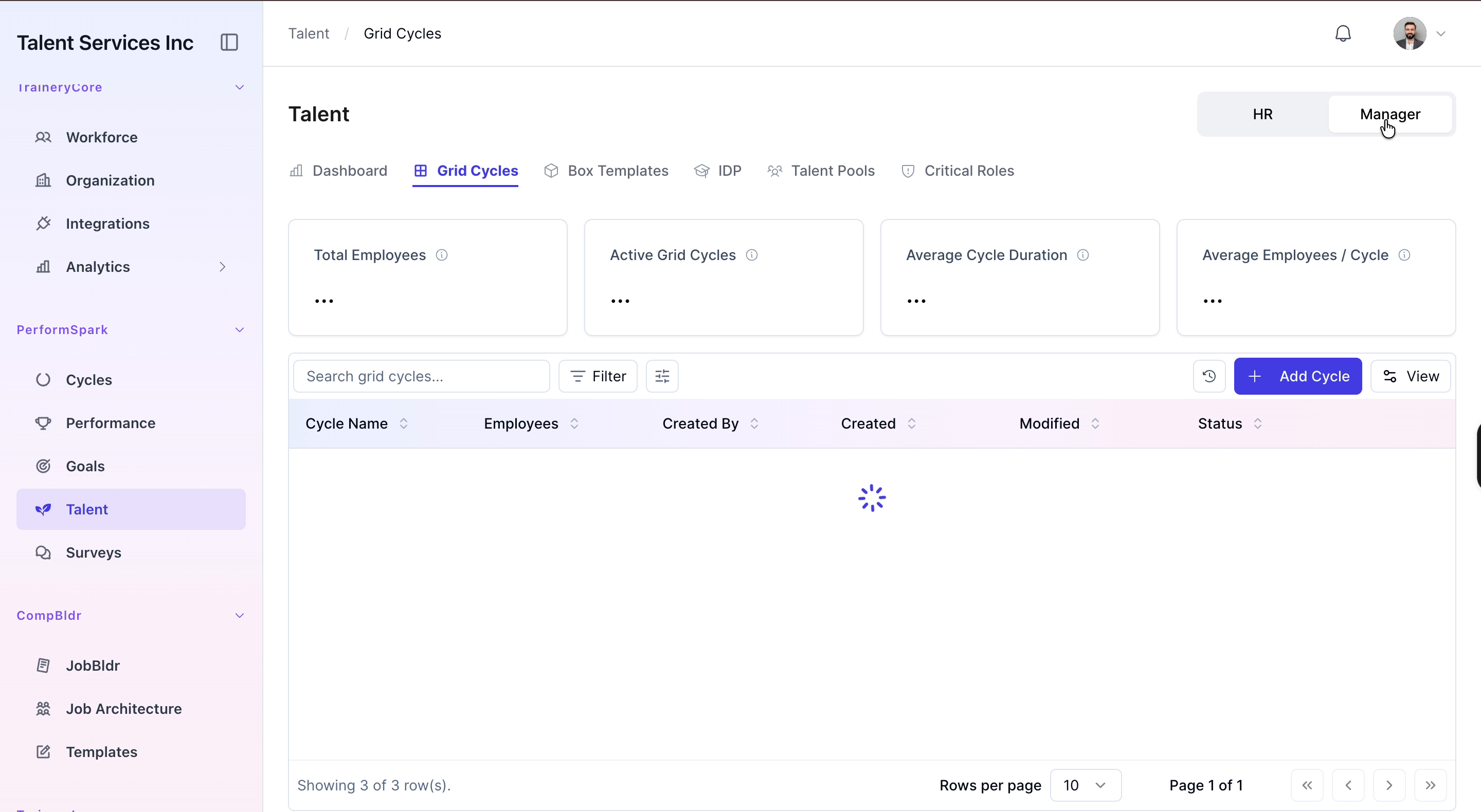
Navigate to the Grid Cycles tab and click the Add Cycle button.
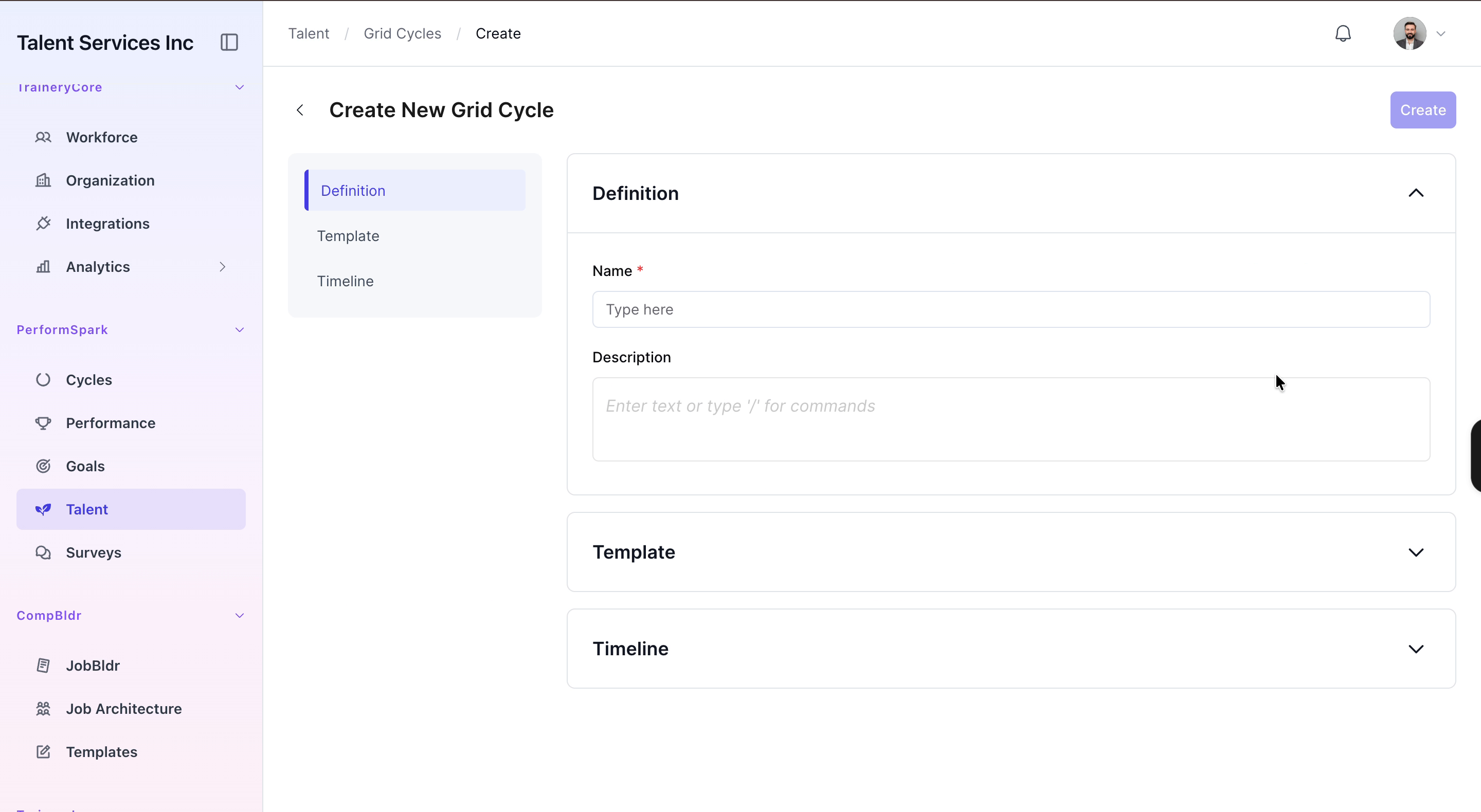
Step 3: Enter Basic Cycle Details
Type Q3 Performance as the cycle name and enter an appropriate description for the new cycle.
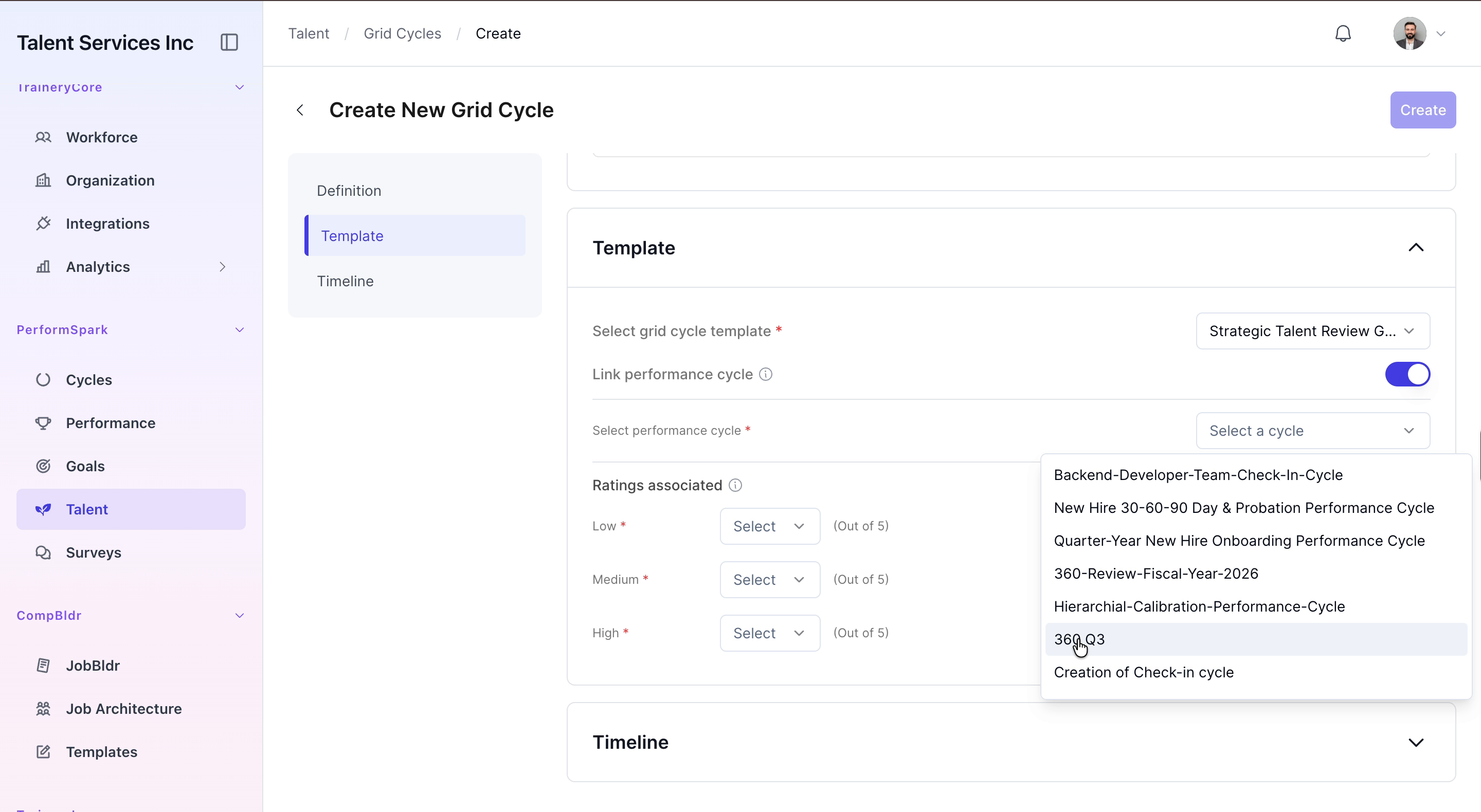
Step 4: Configure the Template and Link the 360 Cycle
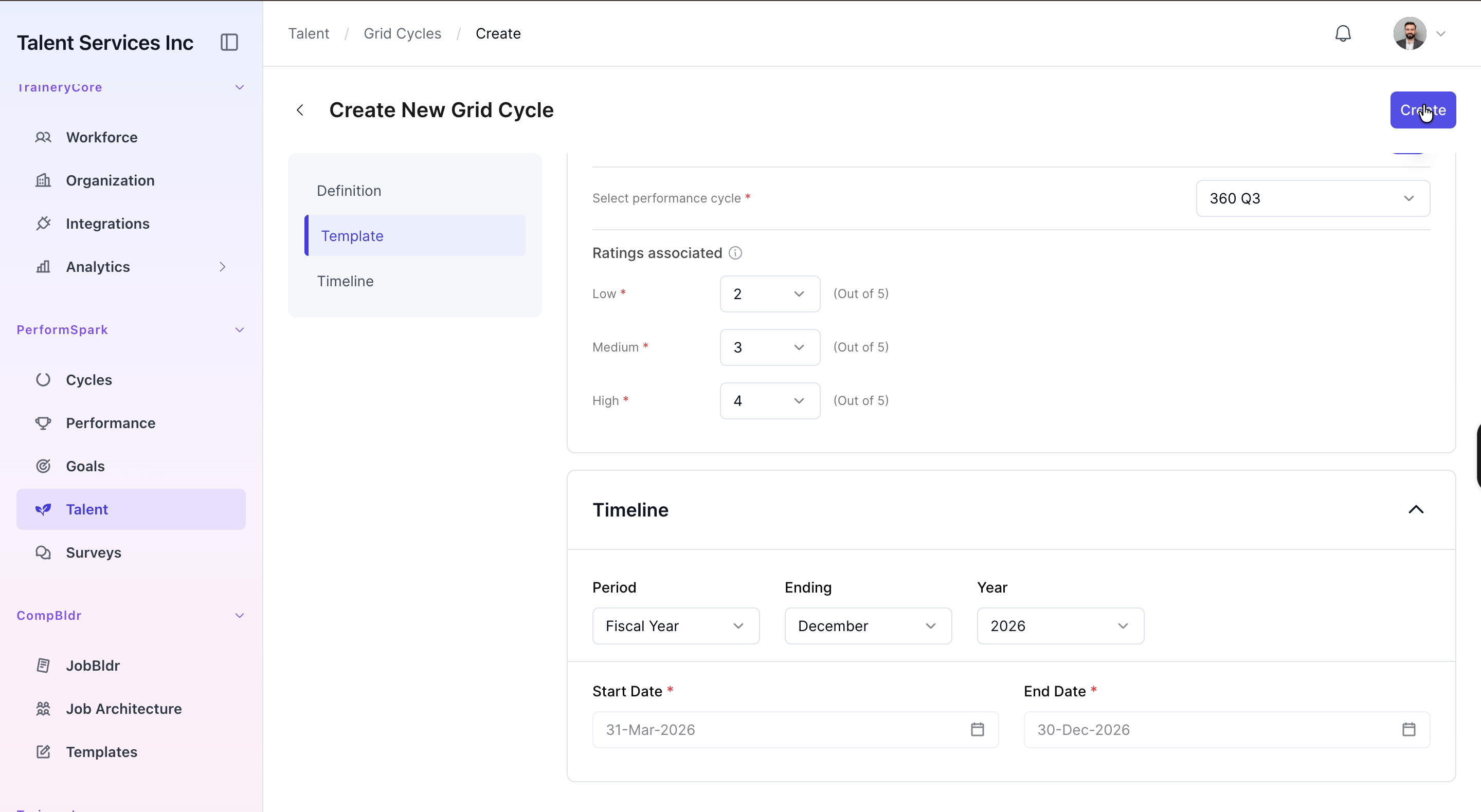
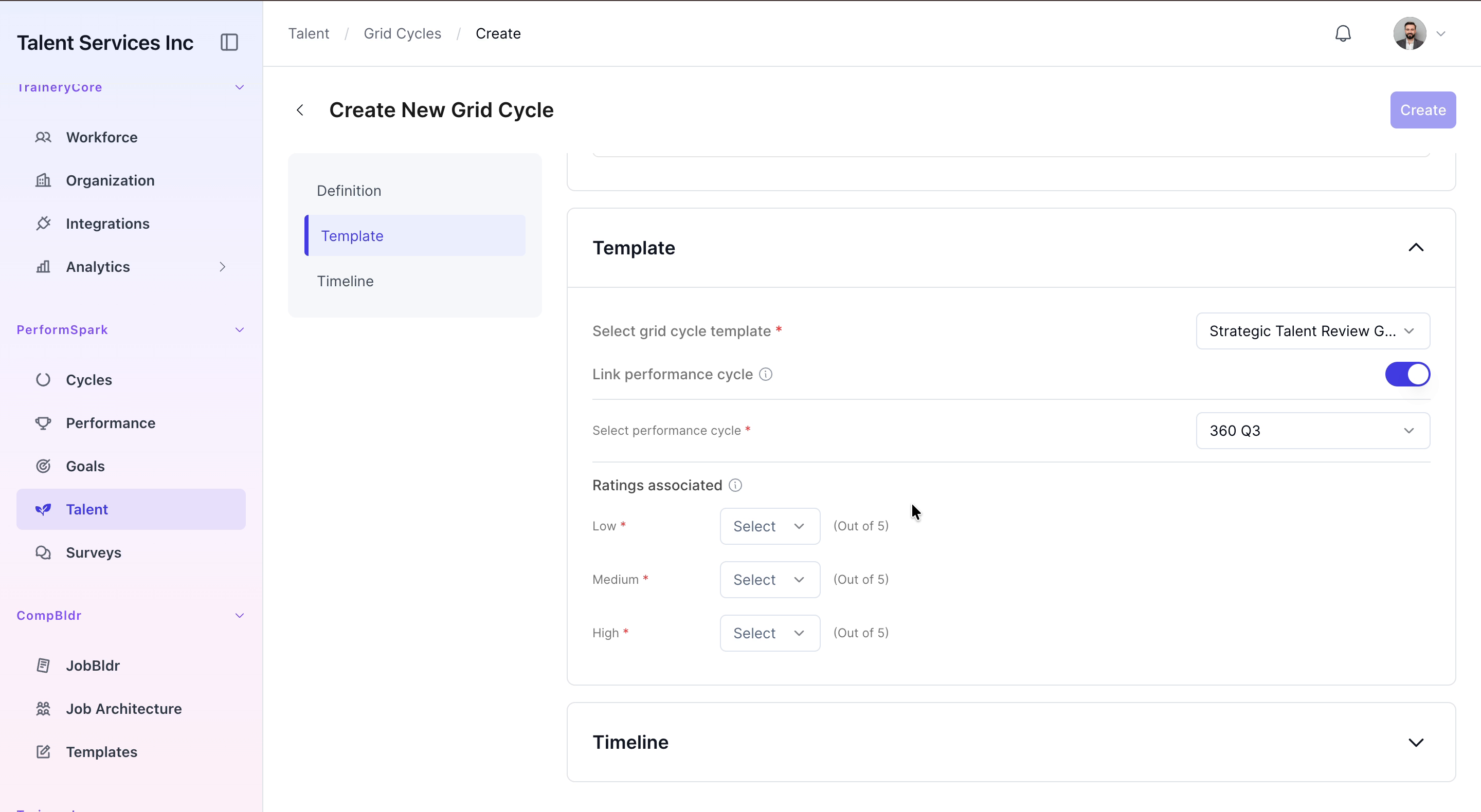
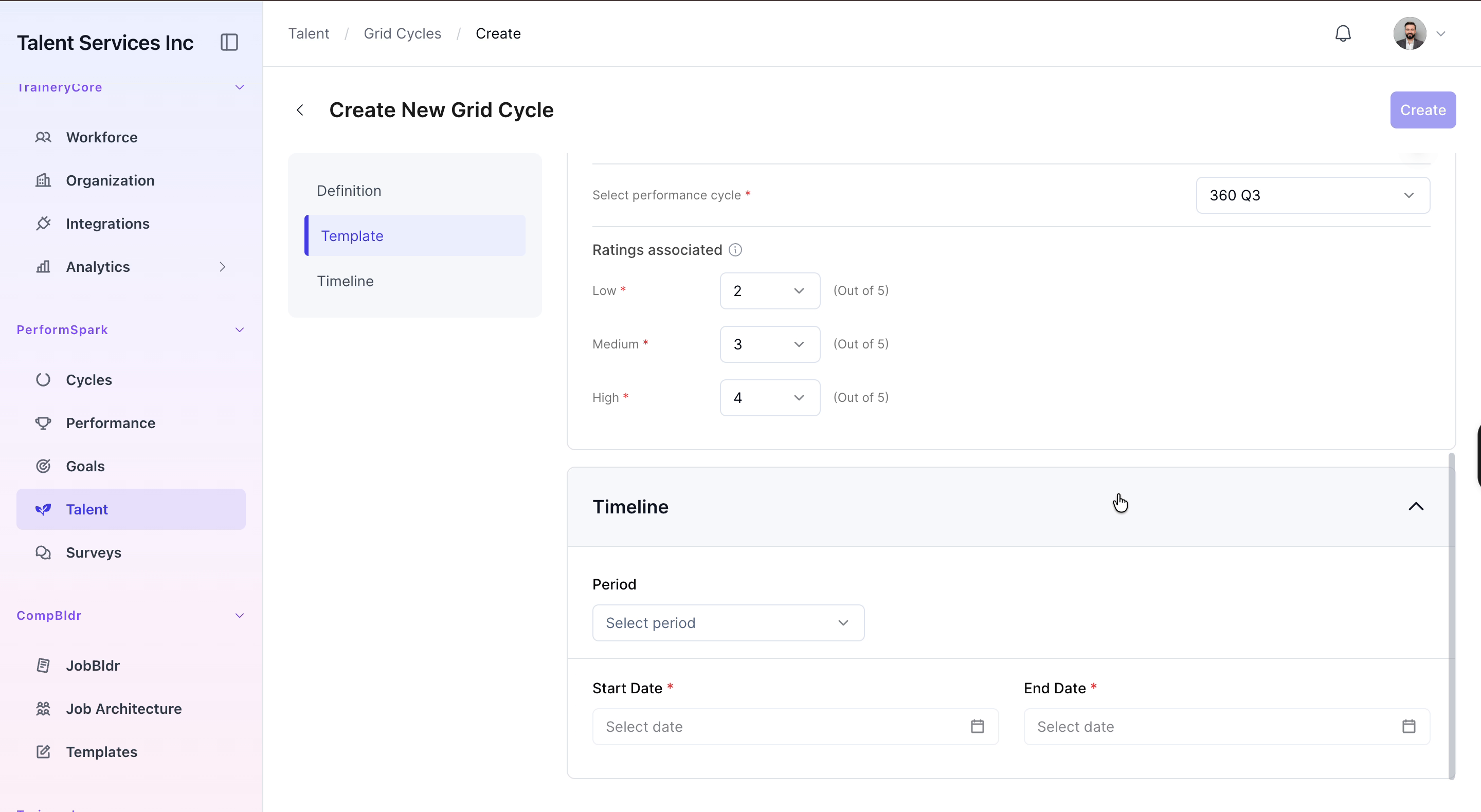
Expand the Template section, select the Strategic Talent Review Grid template, and link it to the 360 Q3 performance cycle.

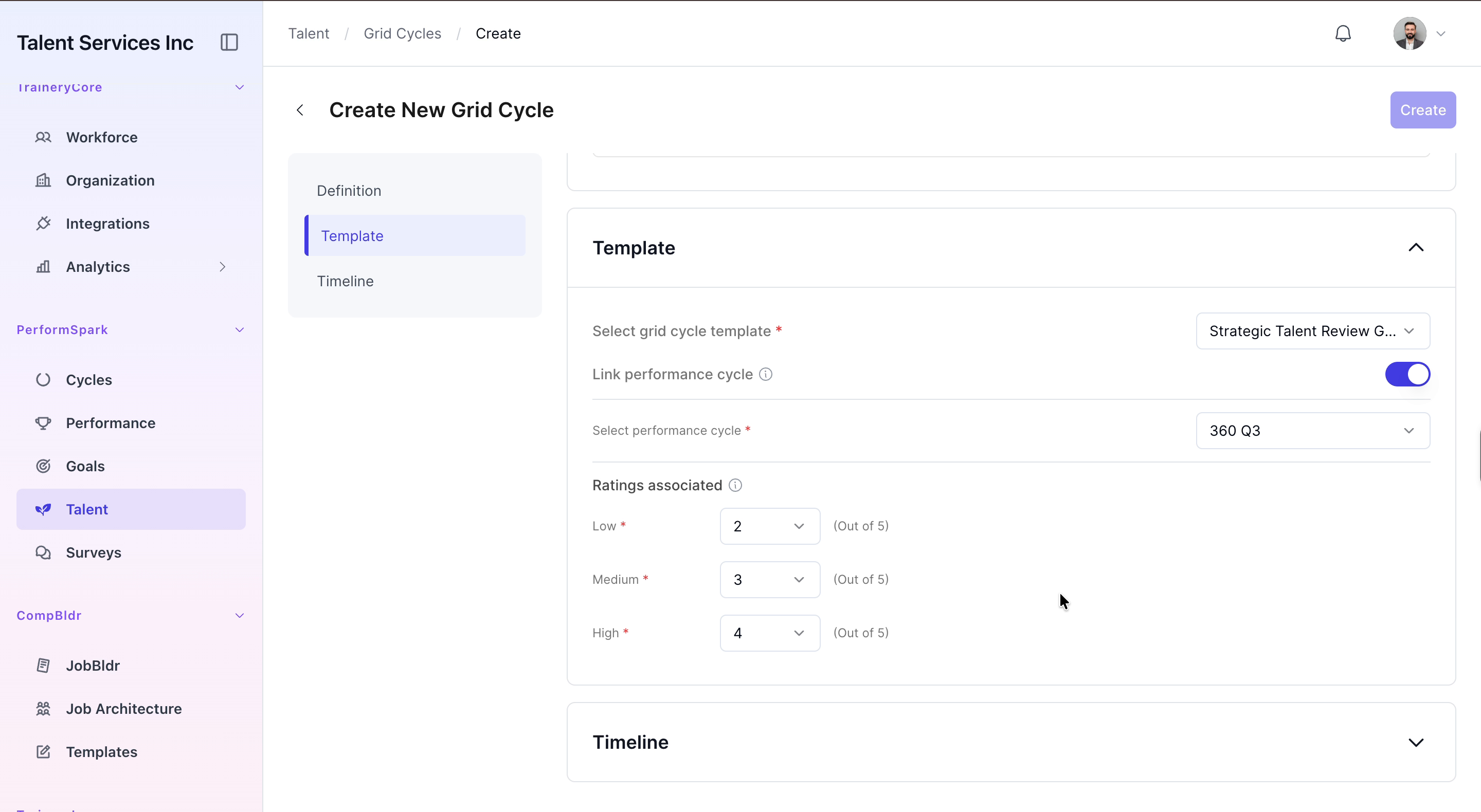
Step 5: Set Associated Ratings
Set the associated ratings for the template by selecting values for low, medium, and high performance levels.
Step 6: Define the Timeline
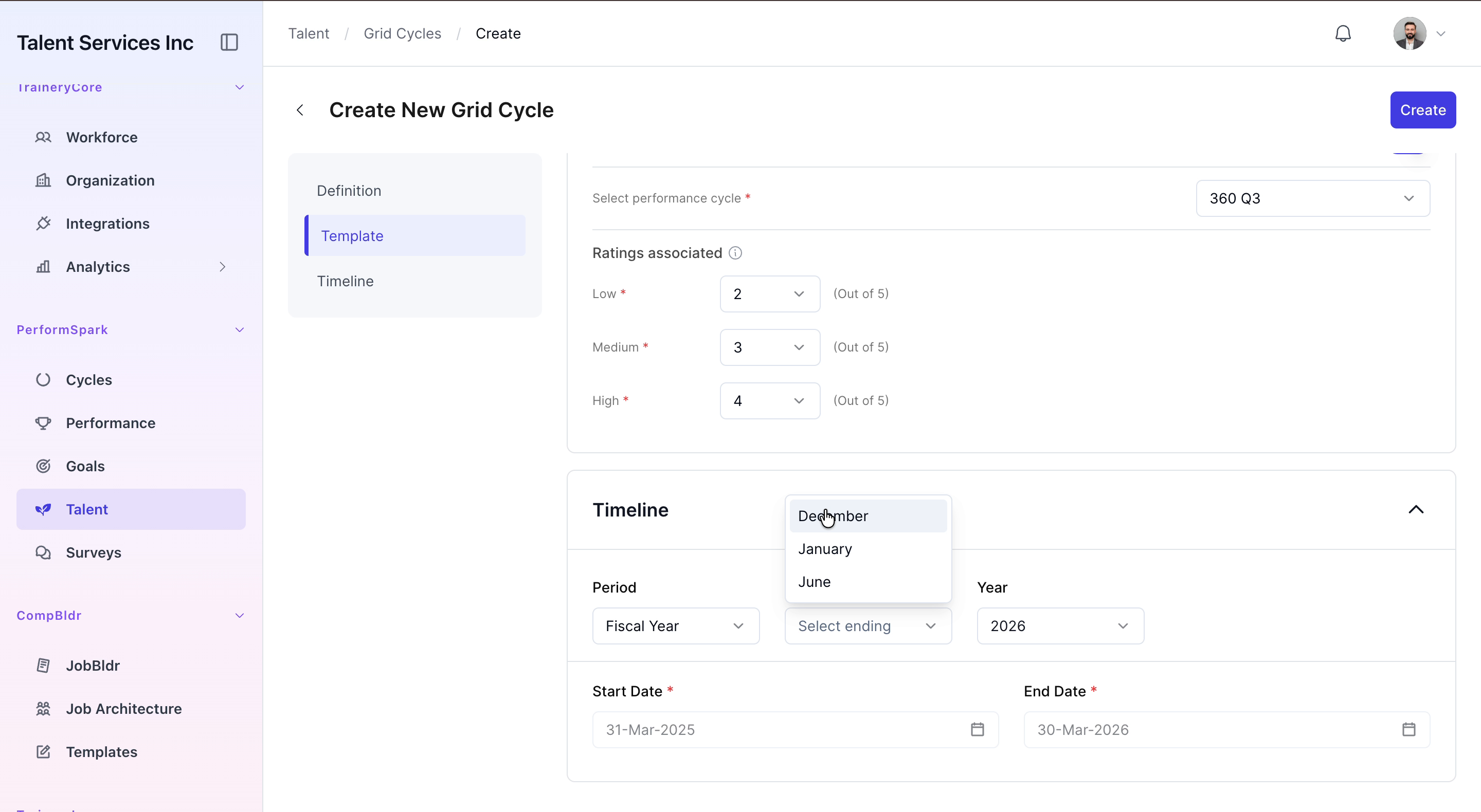
Open the Timeline section and select Fiscal Year ending in December as the cycle period.
Step 7: Create and Verify the New Cycle
Click the Create button. Confirm that the success message appears and that the new cycle is listed in the Grid Cycles list.