JobBldr Template Creation
Last updated: September 8, 2026
This document describes how to review and configure Template, adjust compliance settings, add section fields, and then apply and preview a Template for a specific job in the Job Catalog.
Step 1: Open and Preview Template
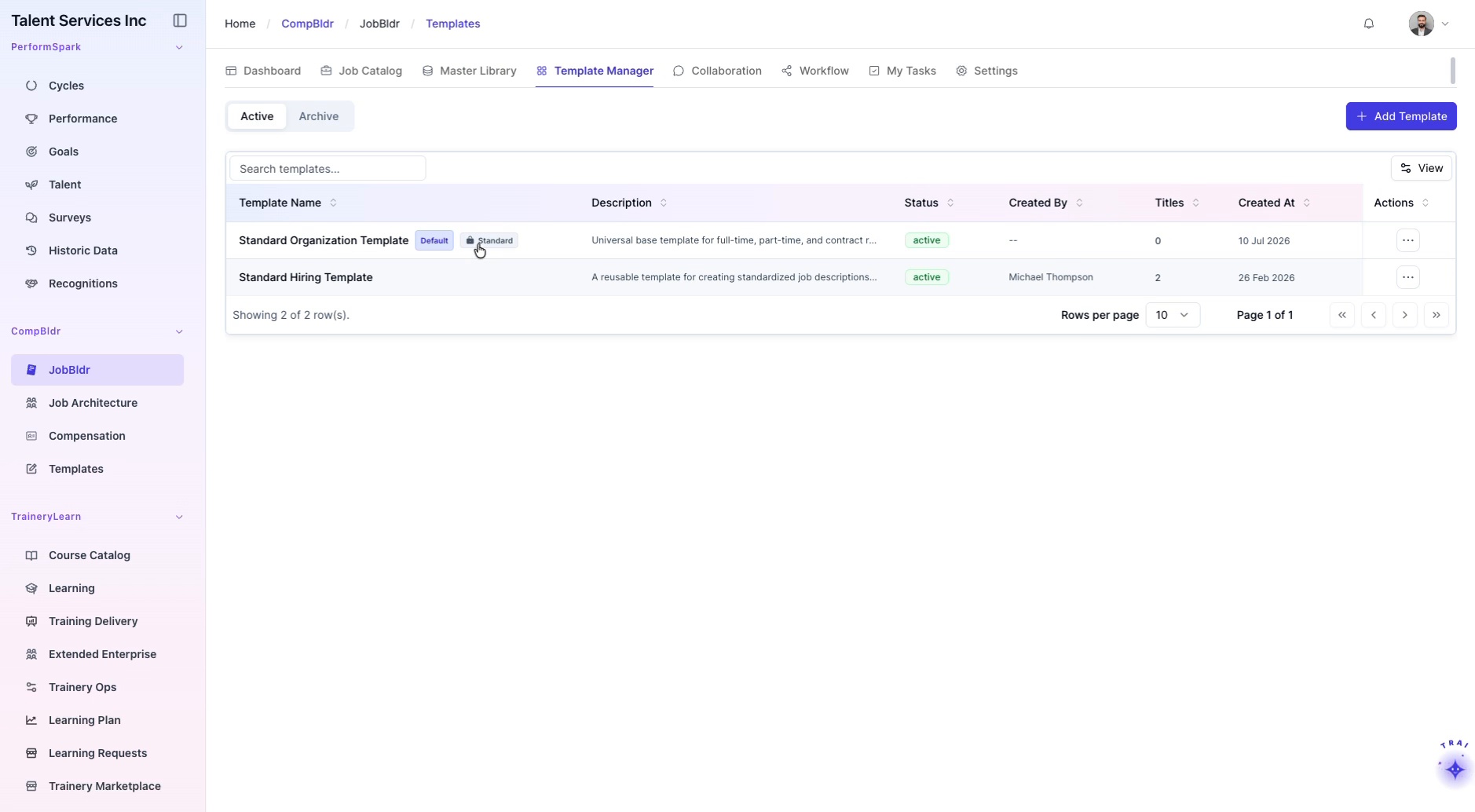
Click the Template to open it.
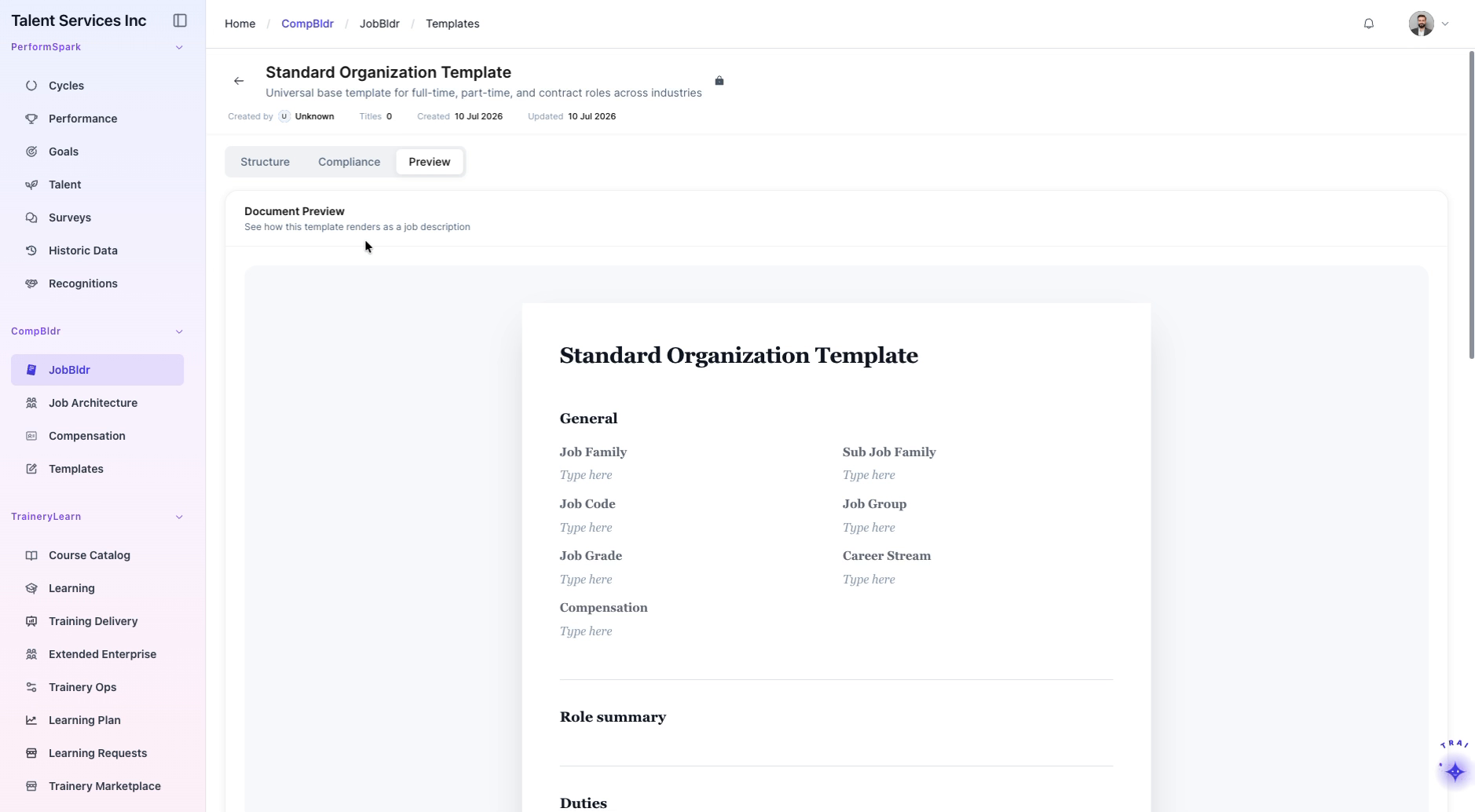
Navigate to the Preview tab.
Scroll through the General, Role summary, Duties, and Qualifications sections to verify that the layout and content appear as expected.
Step 2: Review Section Structure in the Structure Tab
Return to the Structure tab.
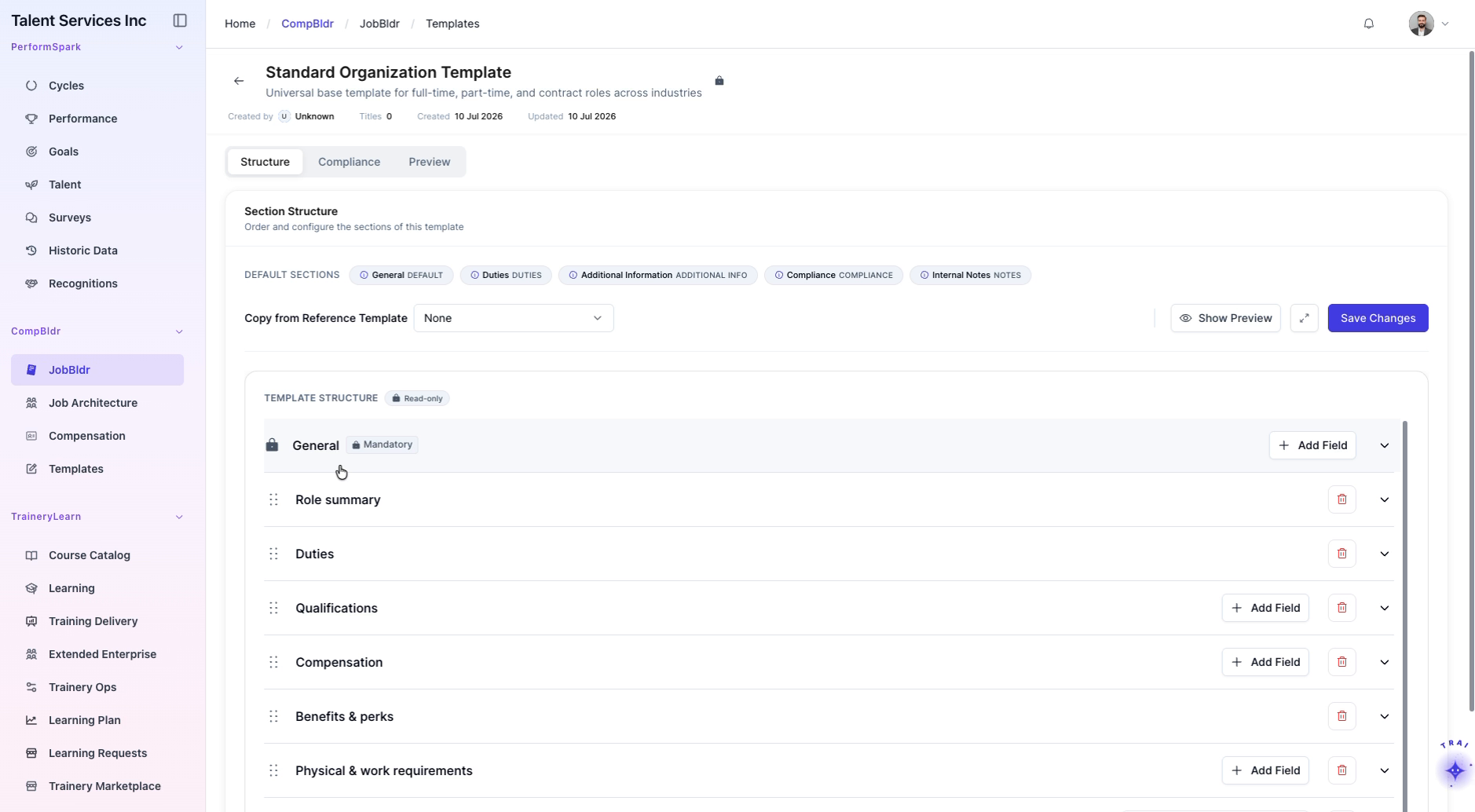
Expand and collapse the General section to understand its fields and layout.
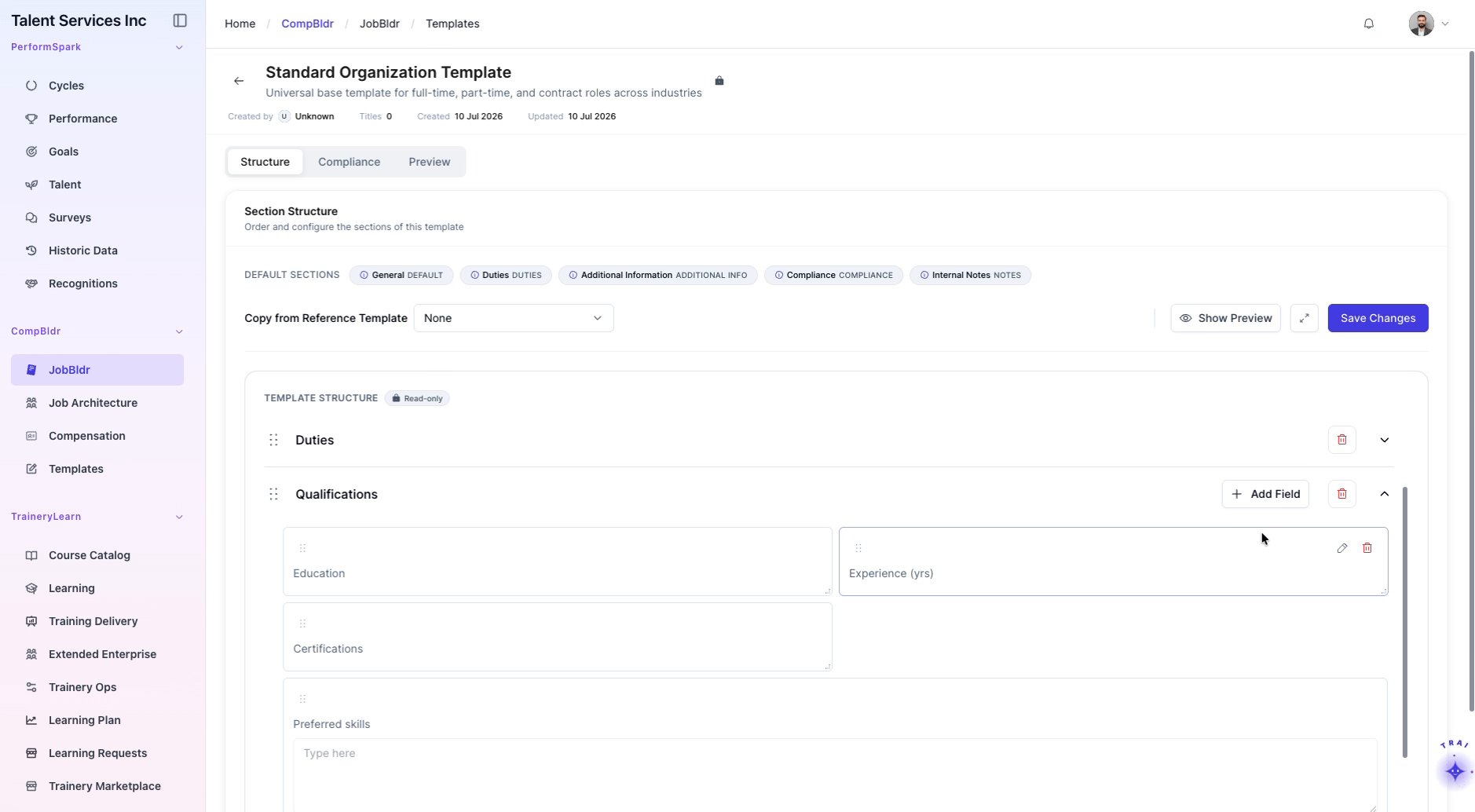
Expand the Role summary, Duties, Qualifications, and other sections one by one to review all available fields and configuration options.
Step 3: Add a New Text Field to any Required Section
In any section, click Add Field.
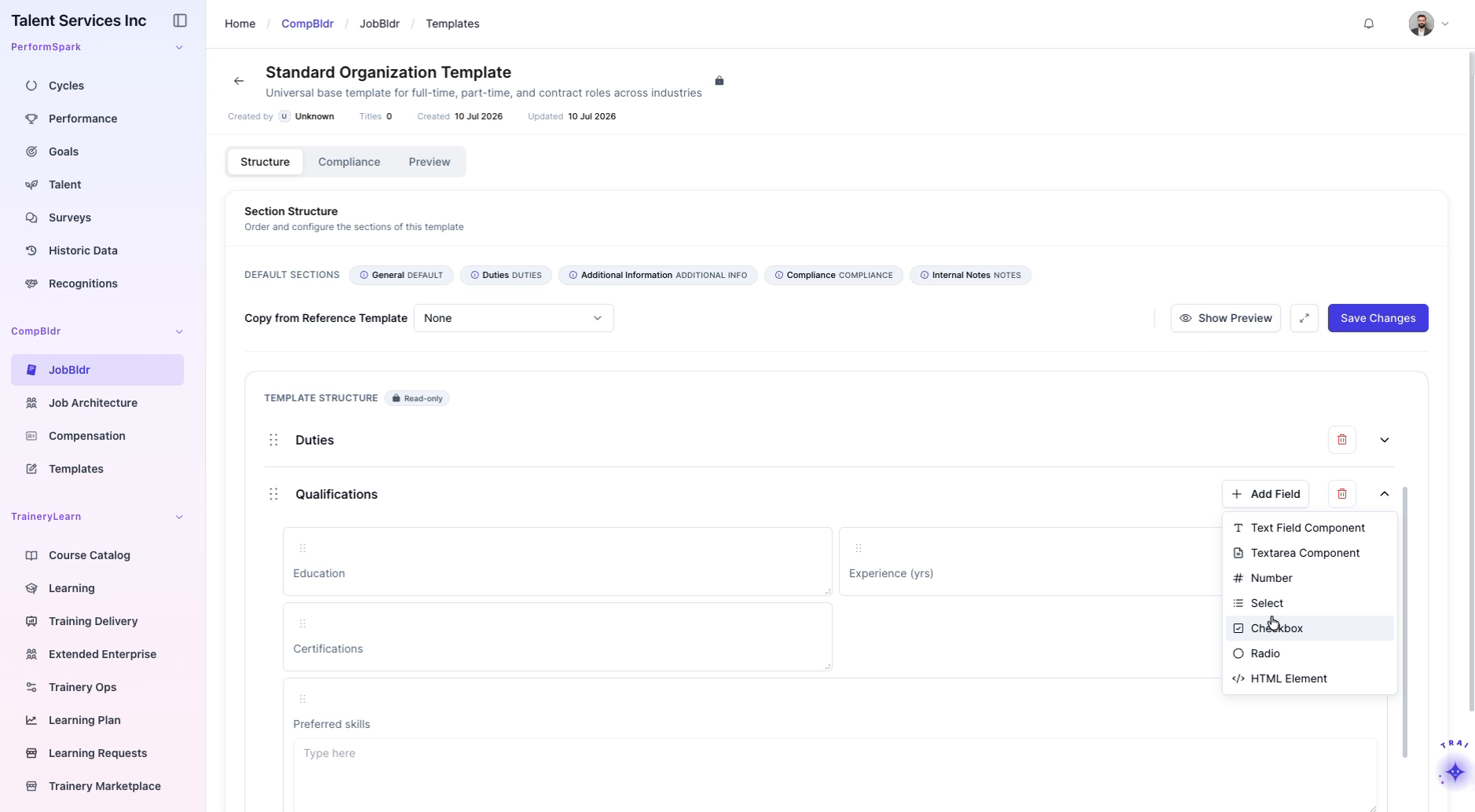
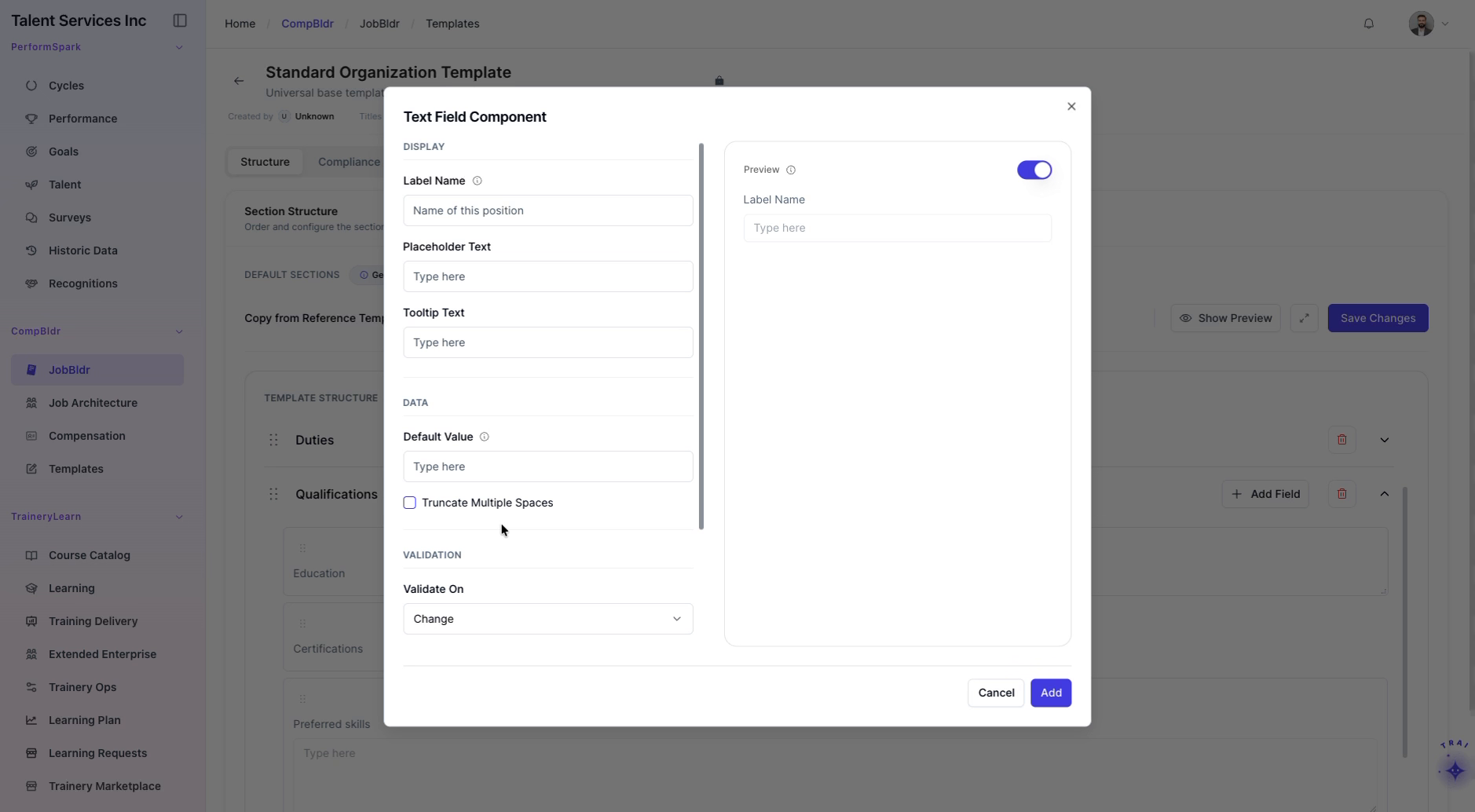
In the modal, select Text Field Component as the field type.
Click Add to confirm and insert the new text field into the section.
Step 4: Open and Review Compliance Settings
Review the updated structure to confirm the new field appears correctly.
In the Compliance row, click the Managed link to open the compliance settings.
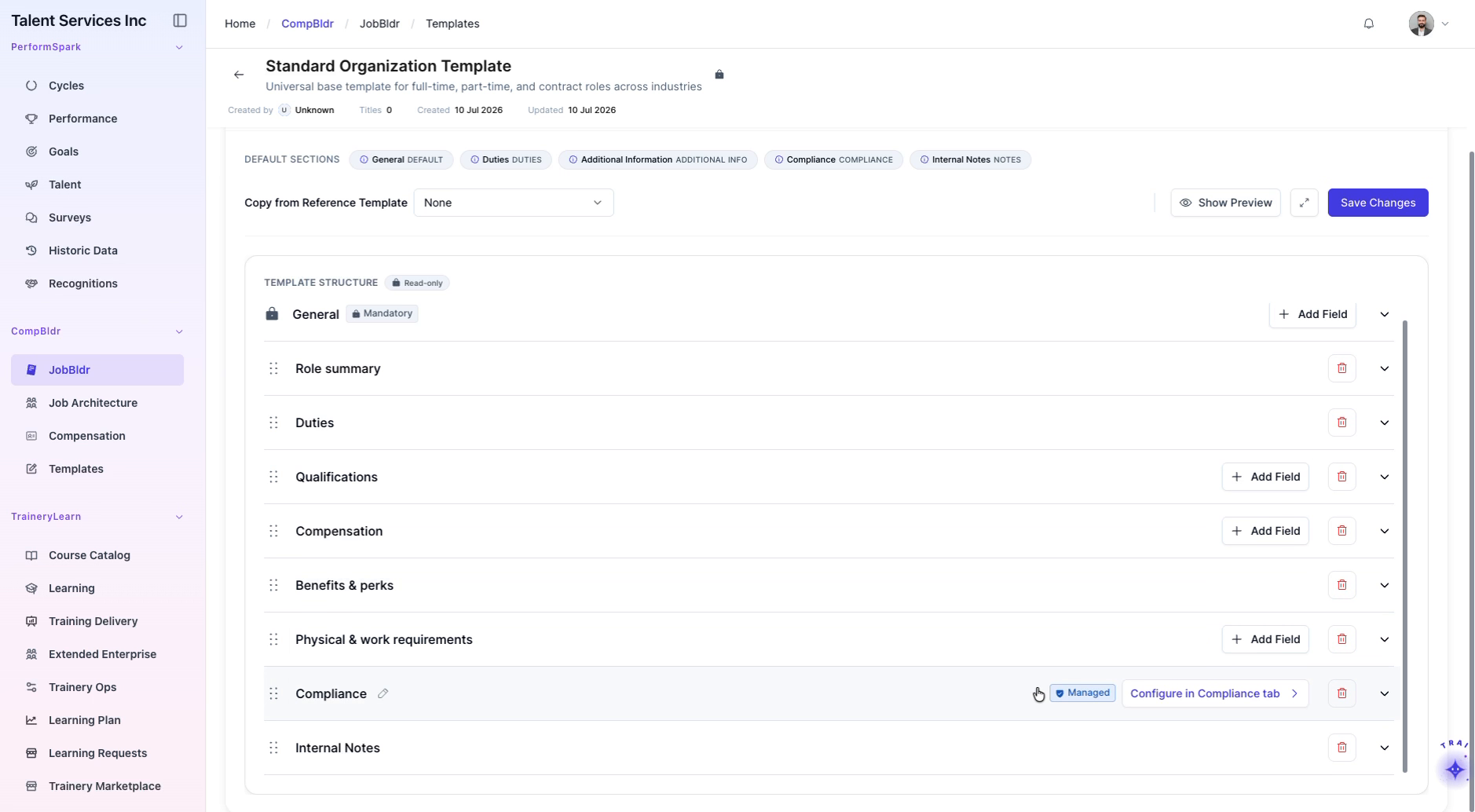
Step 5: Configure Compliance Status and Defaults
In the Compliance tab, toggle the template status between Inactive and Active to confirm how the setting works and ensure the correct final status.
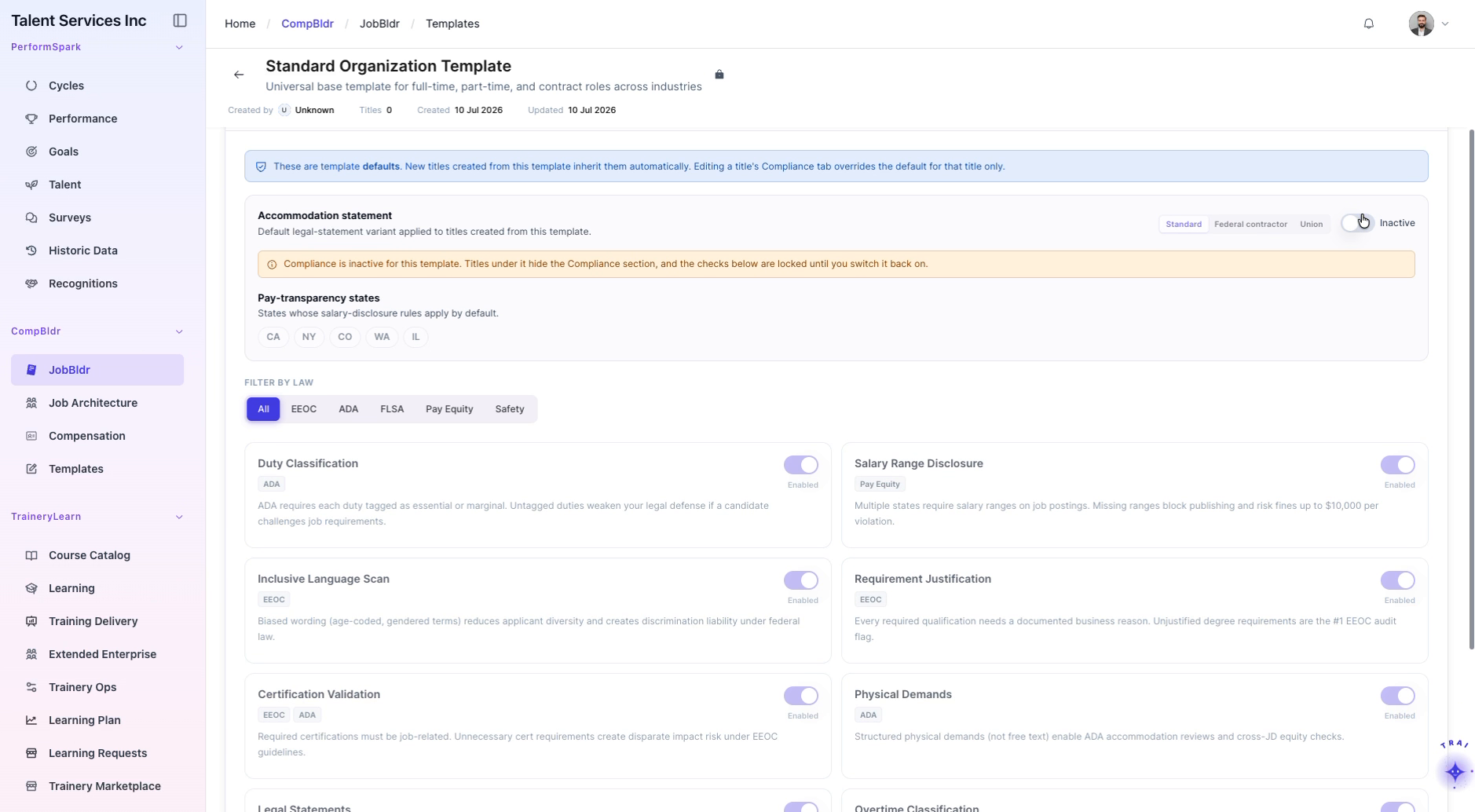
Scroll through the compliance defaults to review items such as:
Accommodation statements
Pay transparency rules
Other default compliance language and requirements.

Step 6: Filter and Review Compliance Items
Use the filter buttons to sort compliance items by:
EEOC
ADA
FLSA
Pay Equity
Safety
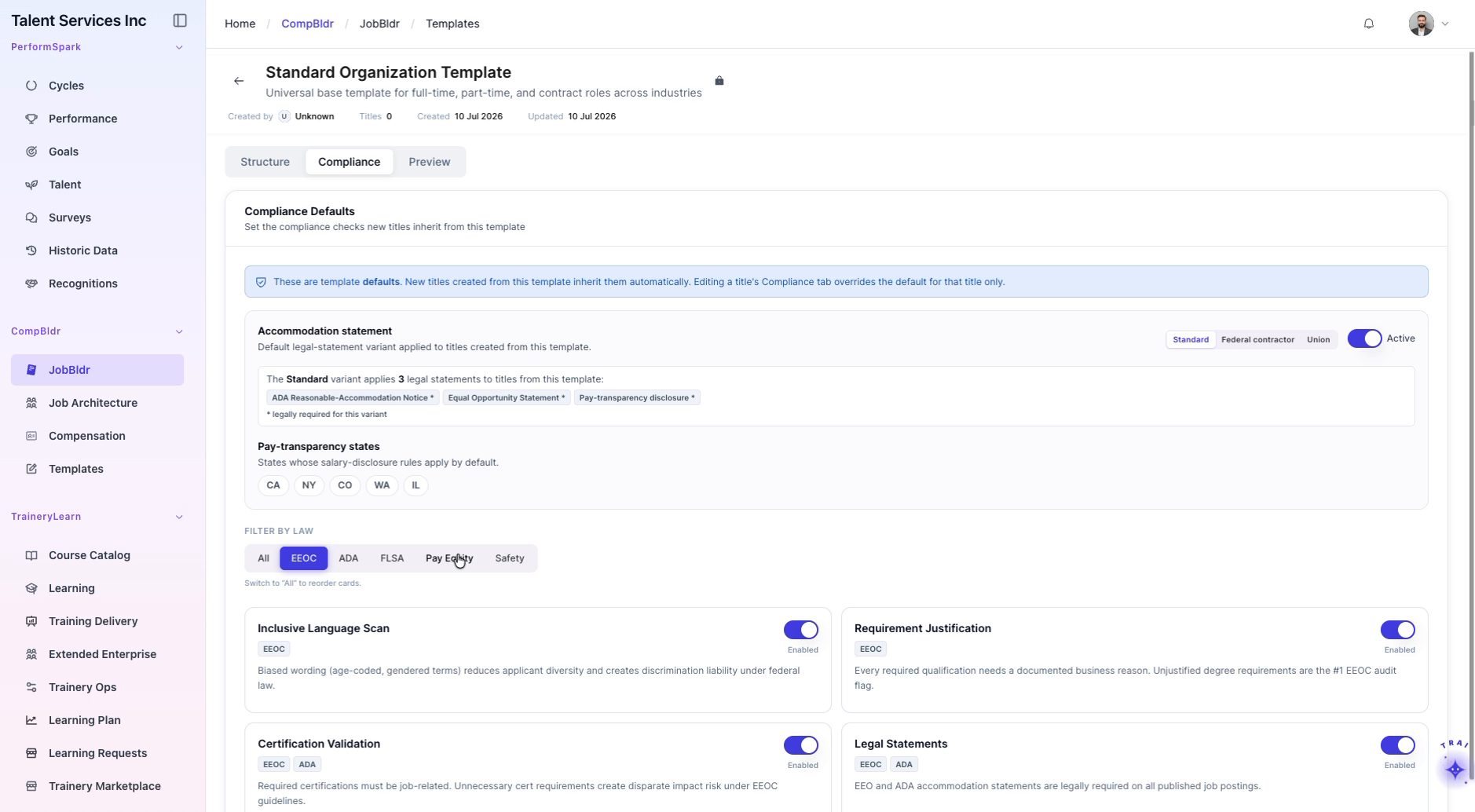
After reviewing each filtered view, clear the filters to display all compliance items again.
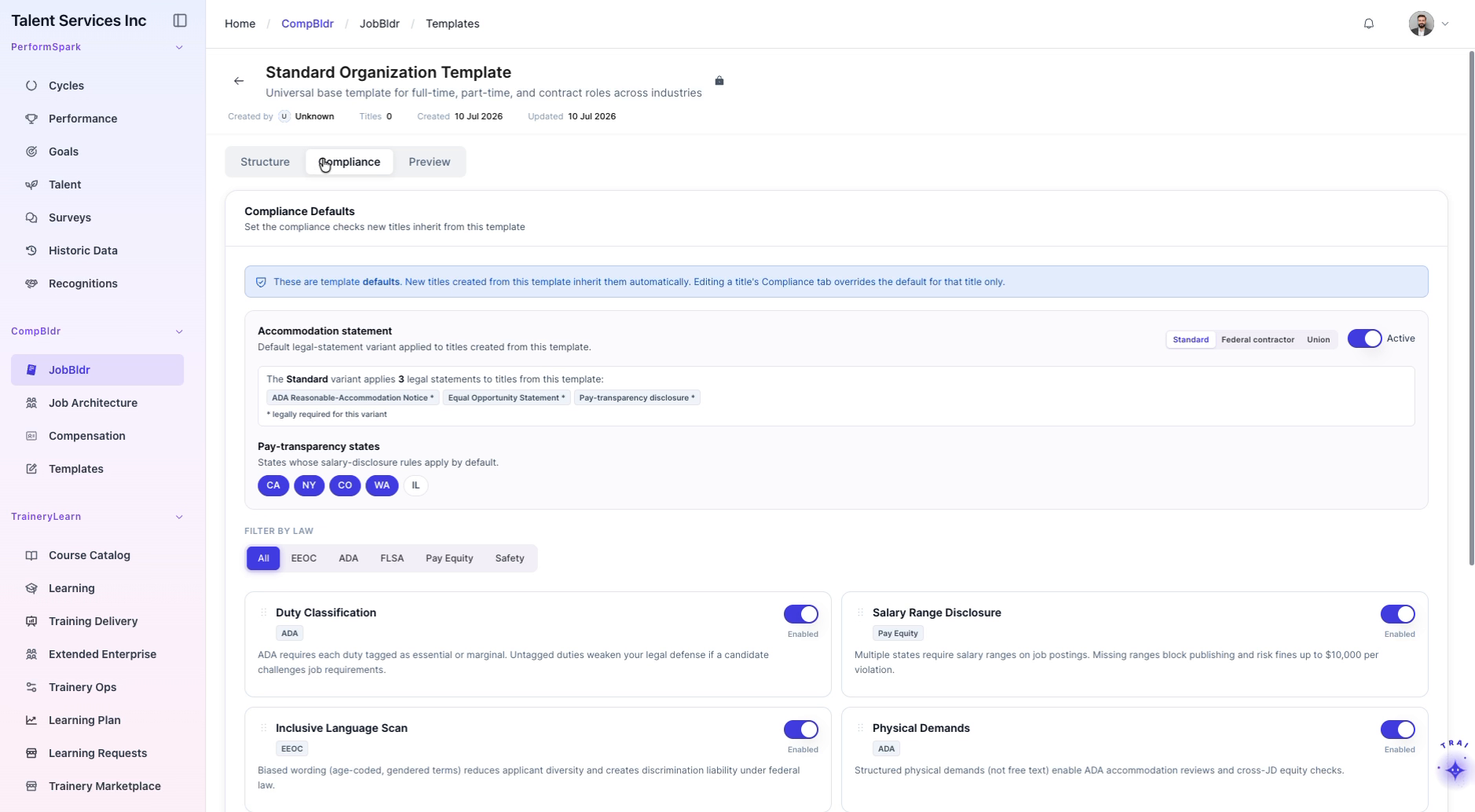
Step 7: Create a Job Title from the Job Catalog
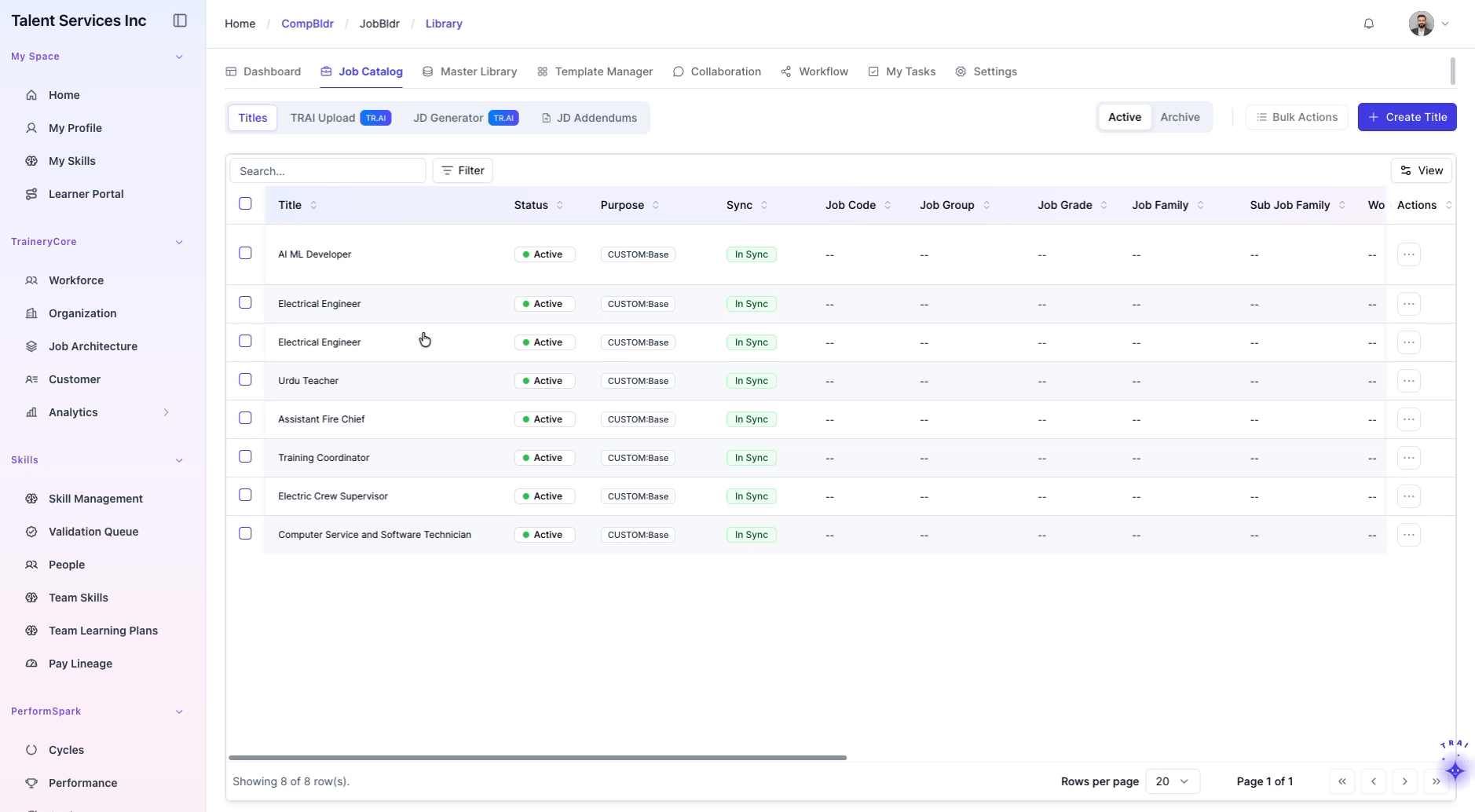
Switch to the Job Catalog tab.
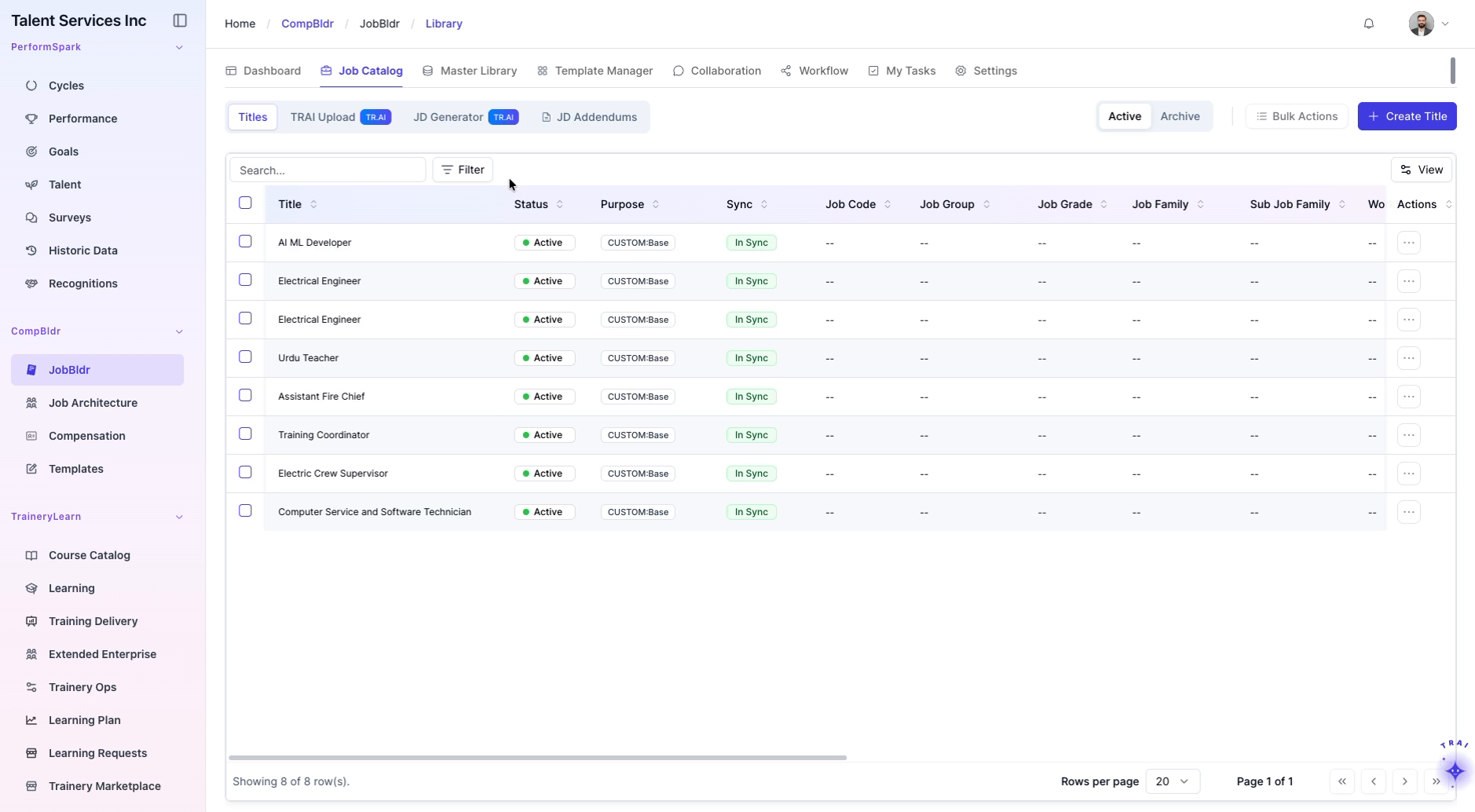
In the Job Catalog, select a job title to open its details.
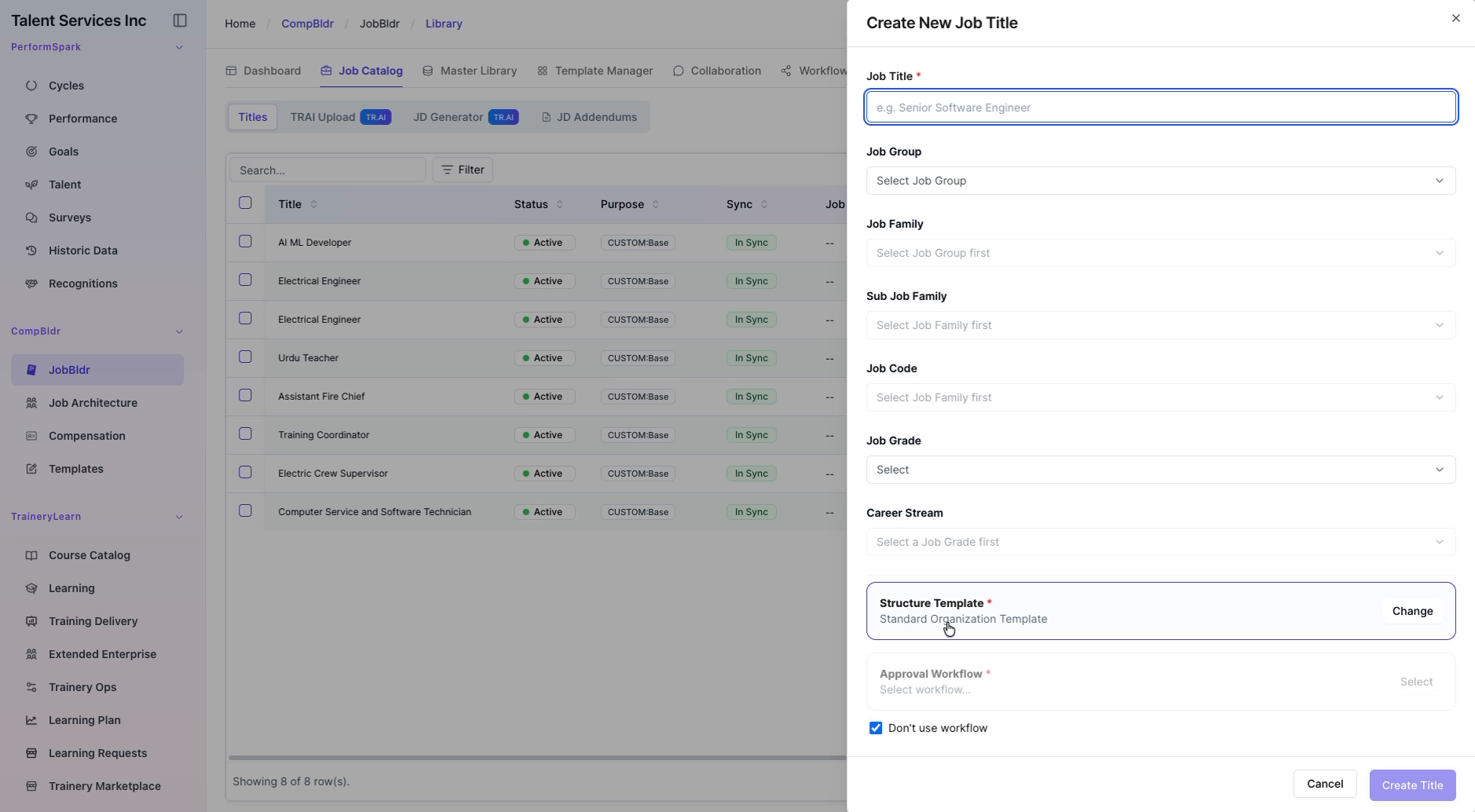
Step 8: Change the Structure Template for the Job
When creating a job title, select the desired template from the Structure Template field.
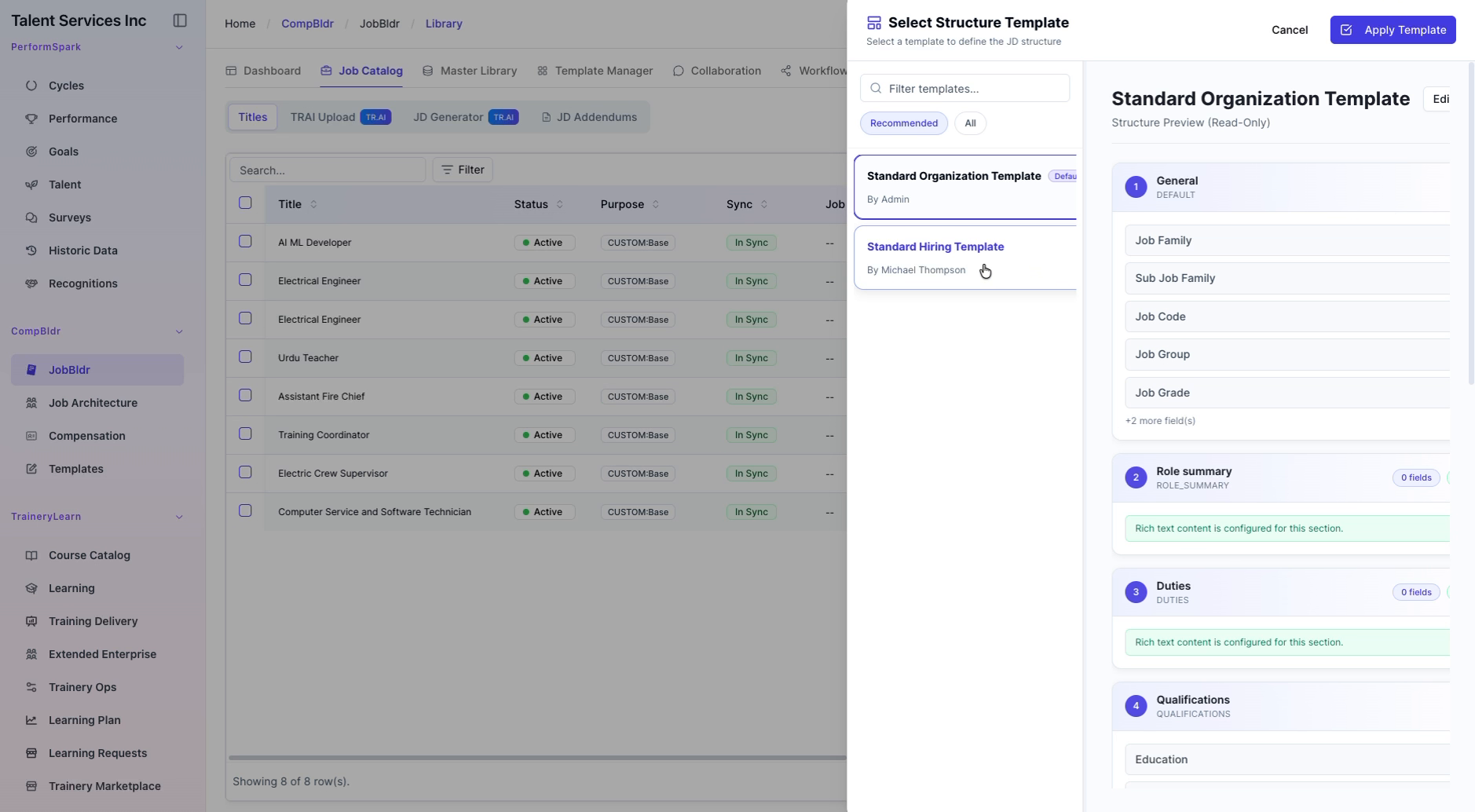
In the selector, choose the Standard Hiring Template as the new structure template.
Click Edit Template to open and configure the selected hiring template.
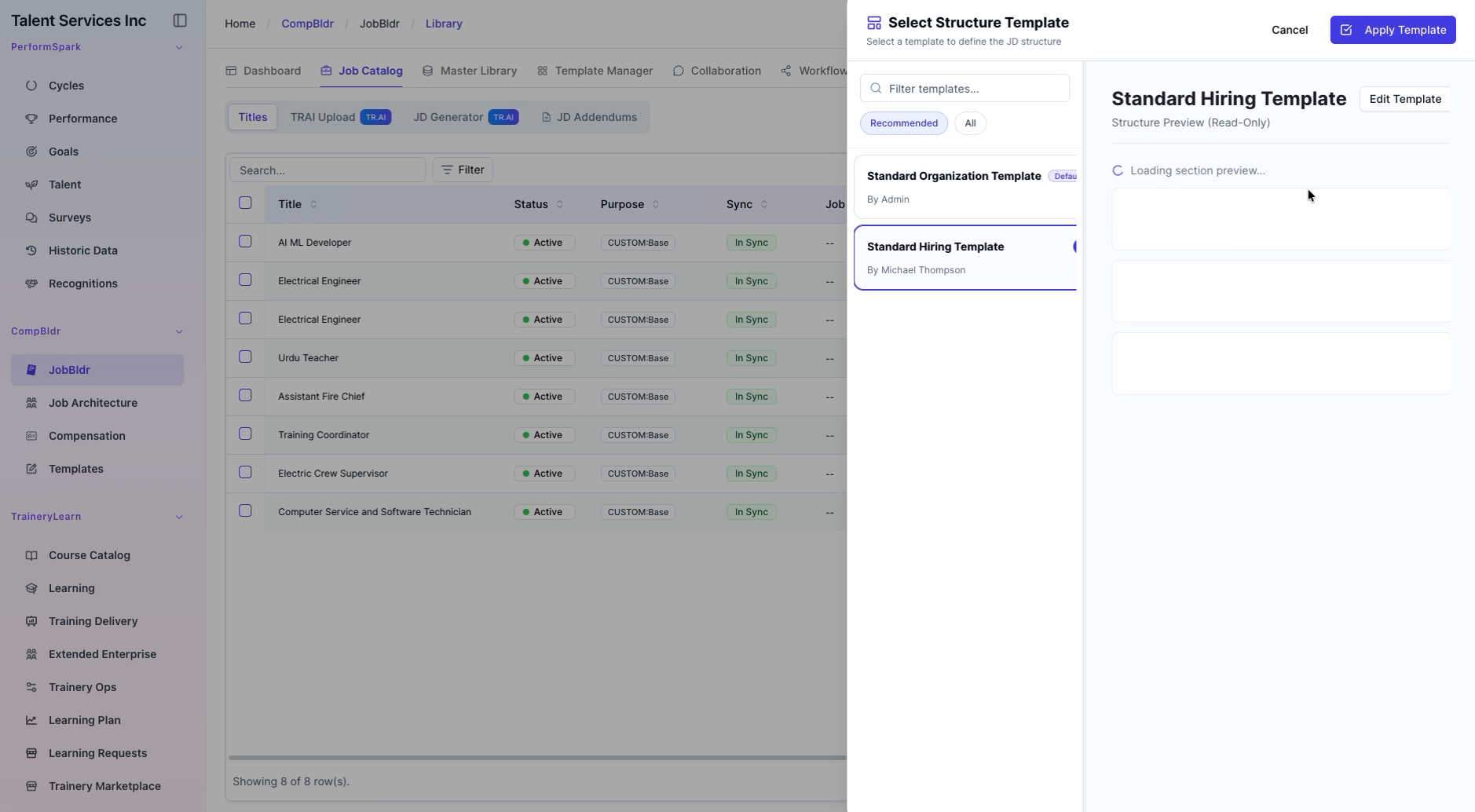
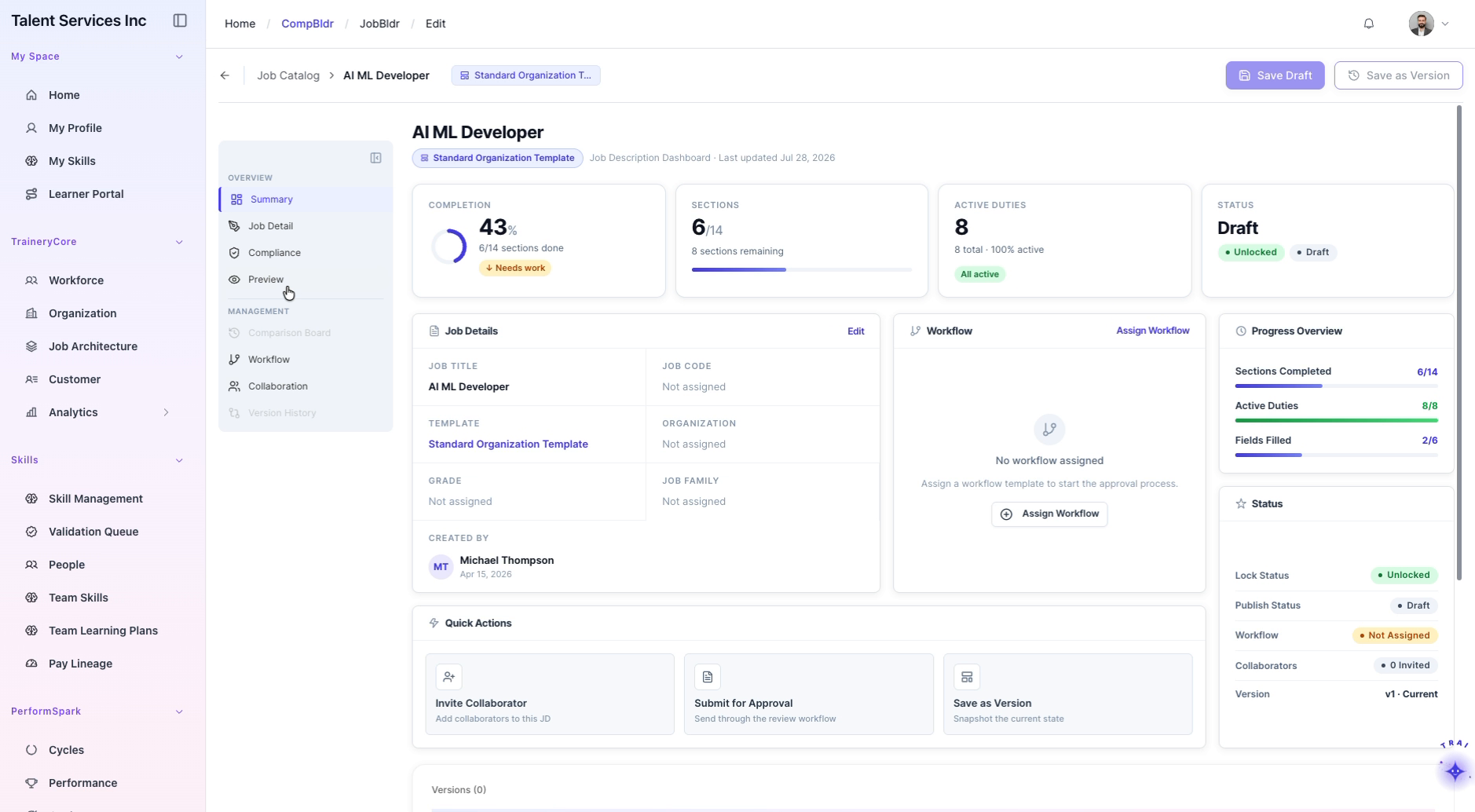
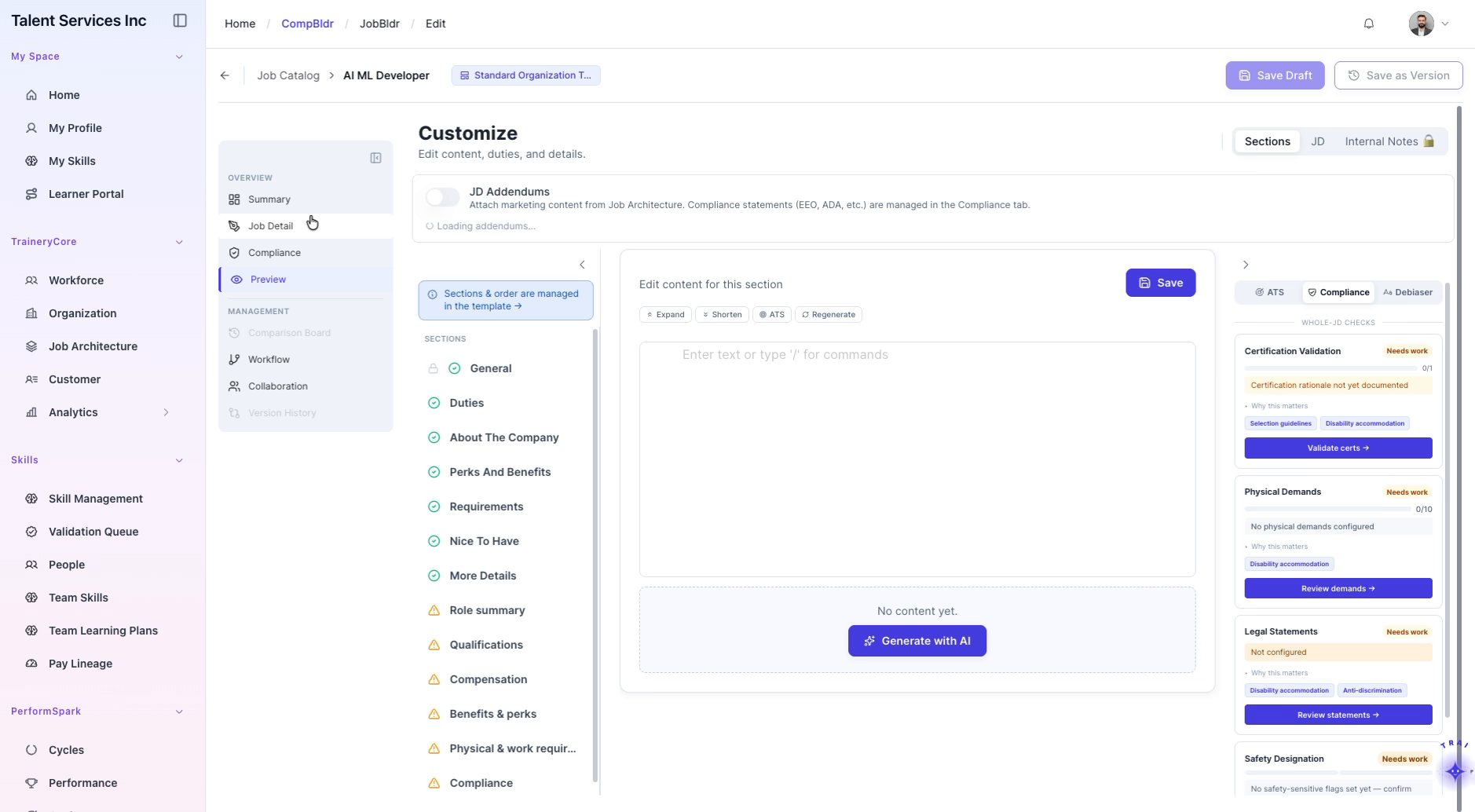
Step 9: Preview the Finalized Job Description
Reopen the job from the Job Catalog.
Click Preview to view the finalized job description layout using the Standard Hiring Template.