Workflow Creation and Assignment Guide
Last updated: September 8, 2026
This document outlines how to create and configure workflows from templates, activate them, and assign an active workflow to a specific job in the Job Catalog.
Step 1: Access the Workflows Section
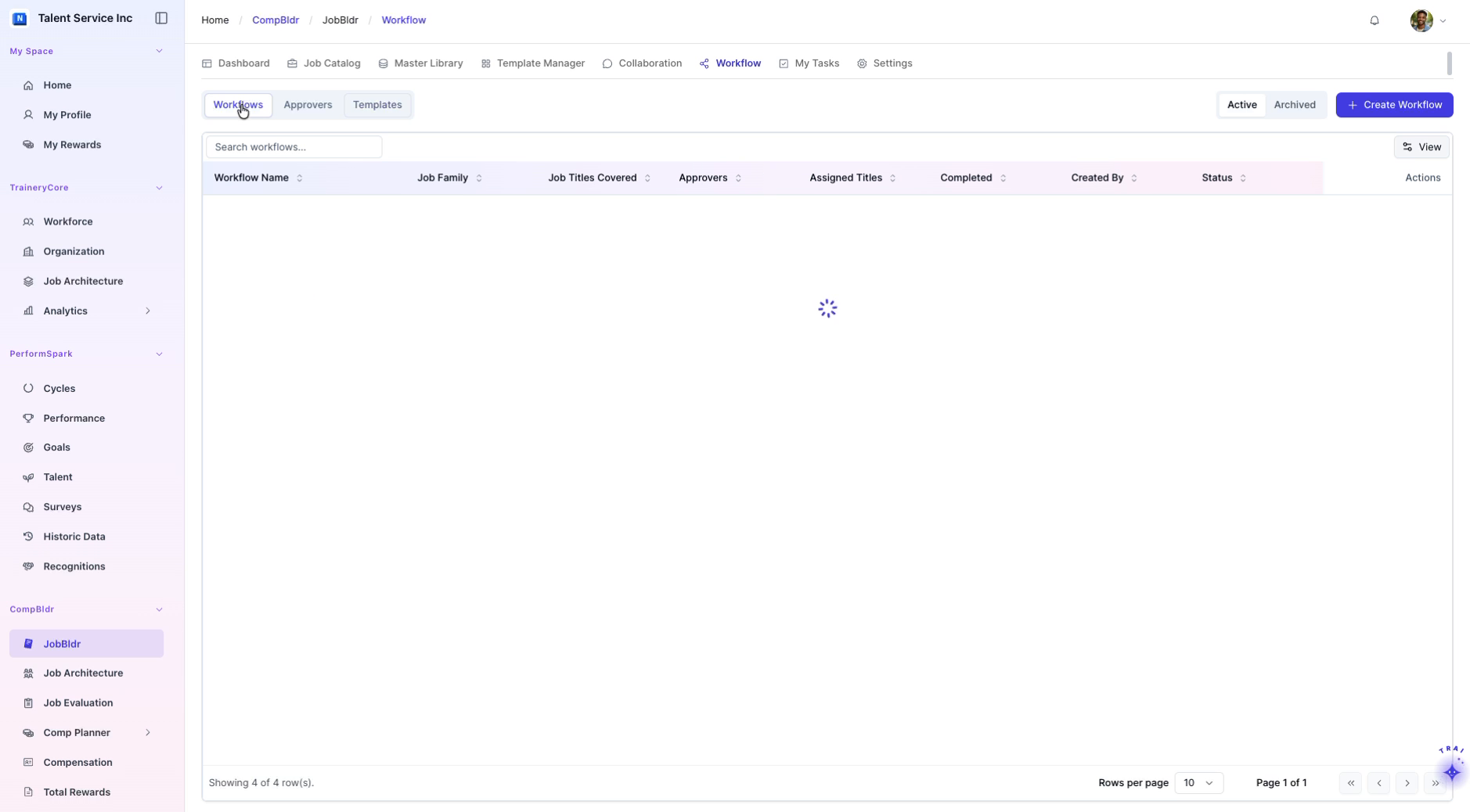
Navigate to the Workflows section from the main navigation menu and review the current list of existing workflows.
Explore and Filter Workflow Templates
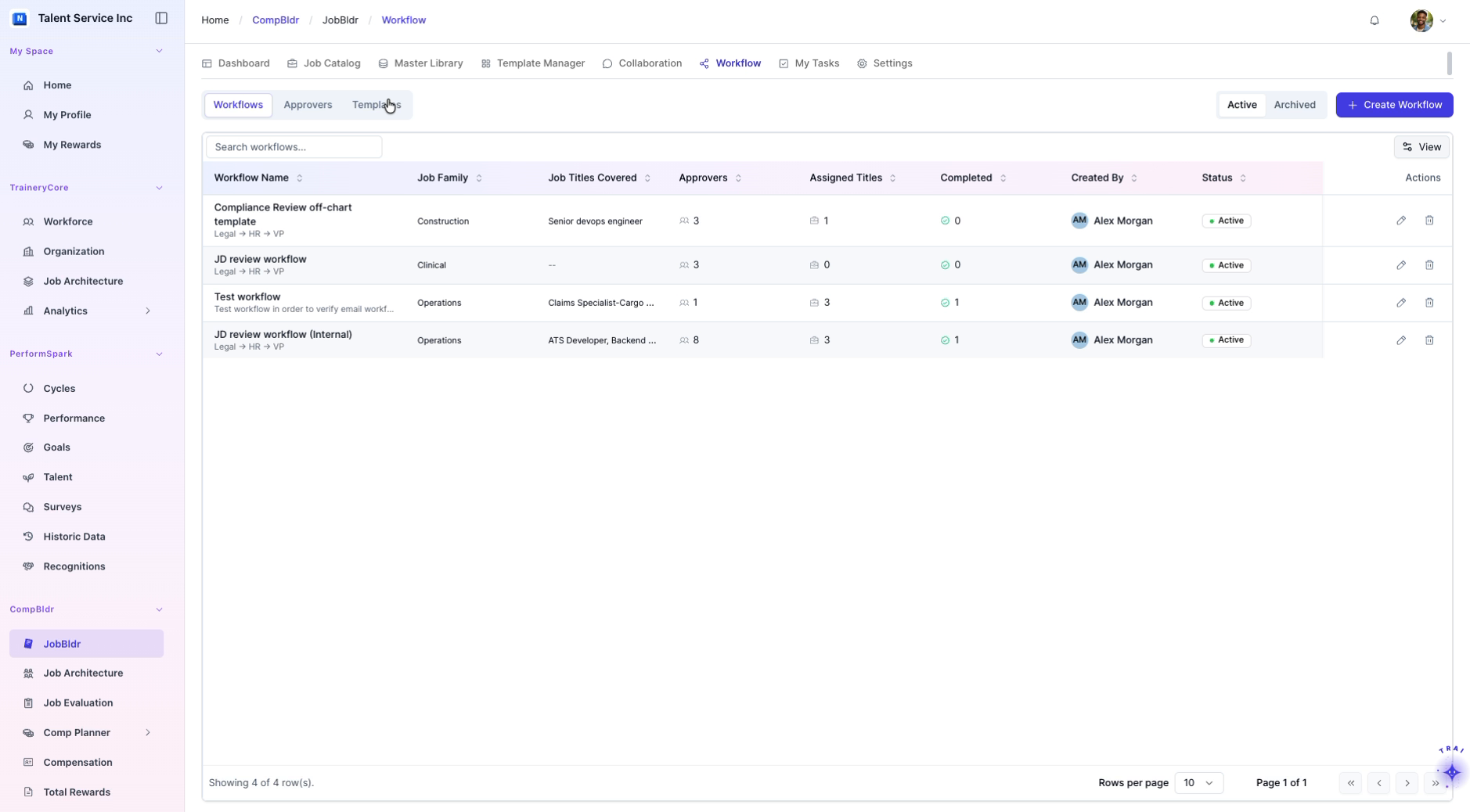
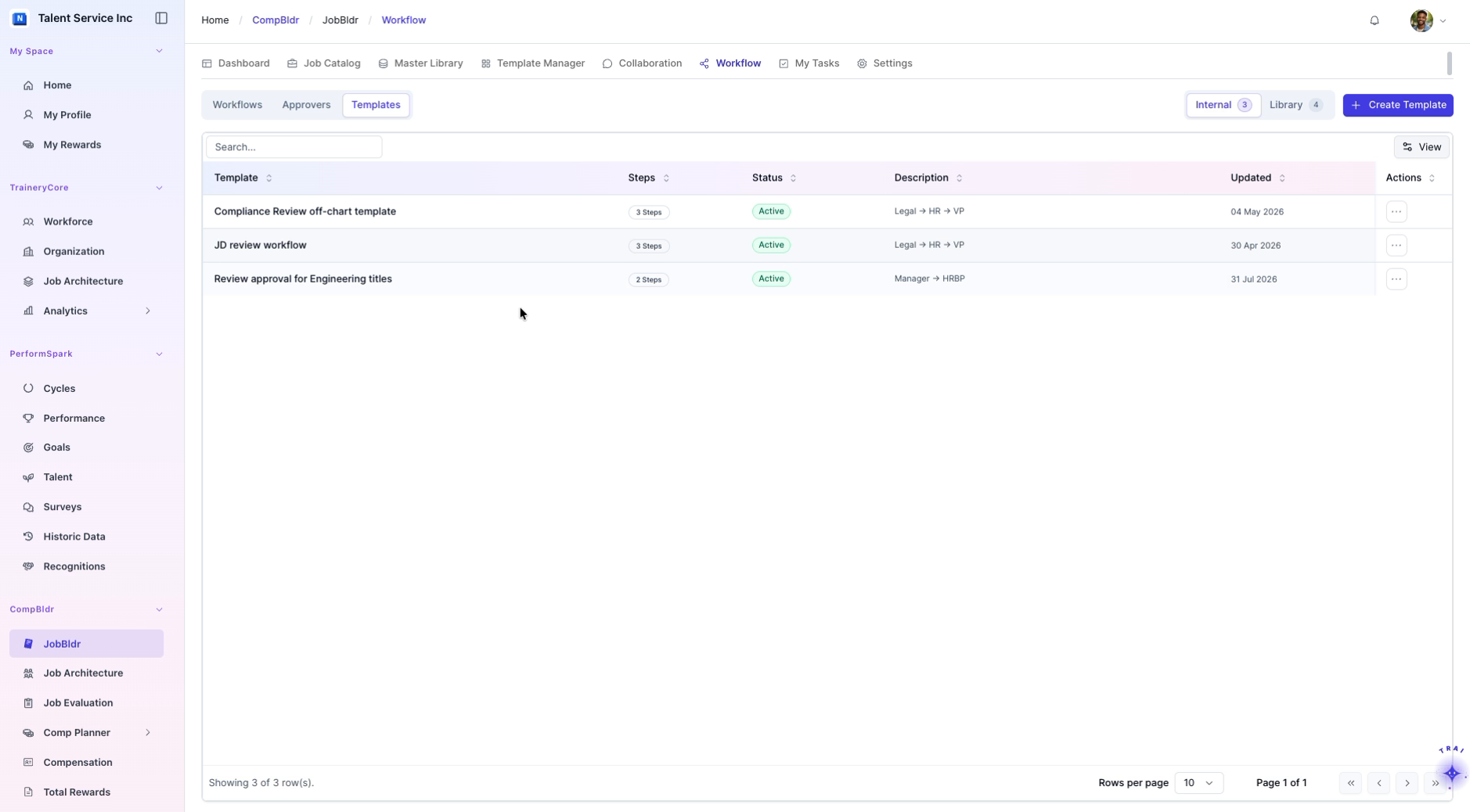
Switch to the Templates tab within the Workflows area. Use the available filters to toggle between Internal and Library templates to find a suitable starting point for your workflow.
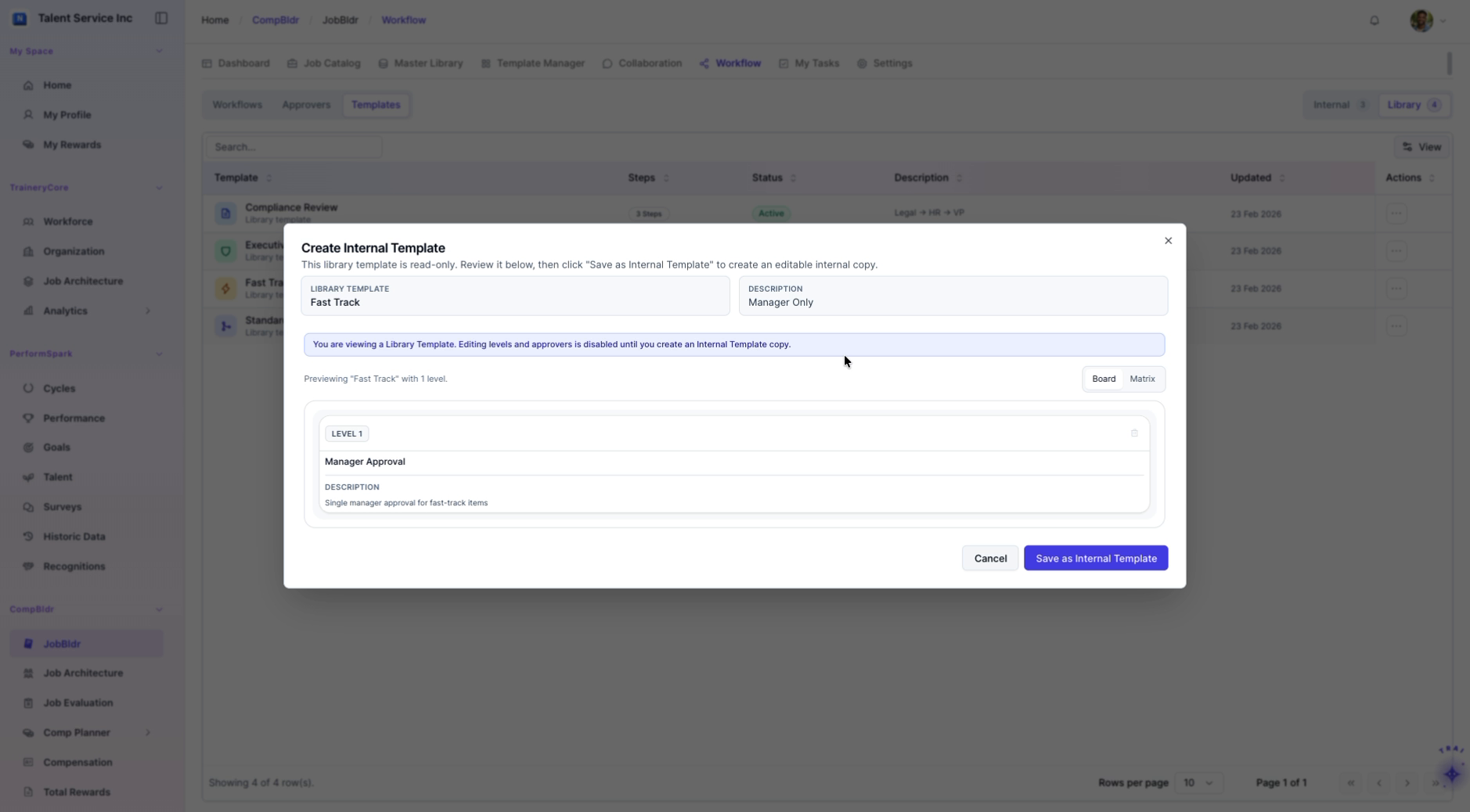
Step 2: Review the Fast Track Template Details
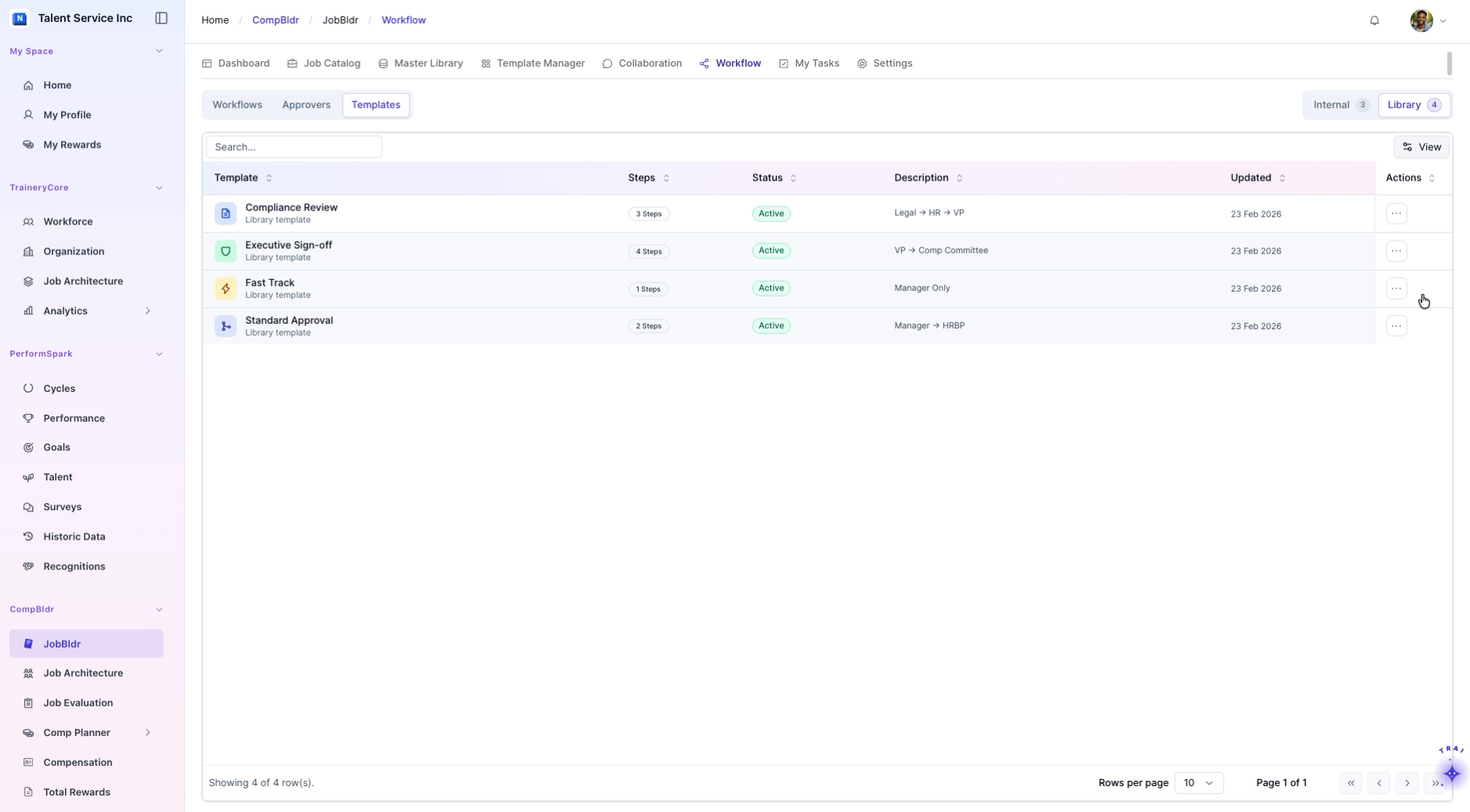
Open the actions menu (e.g., the three-dot or context menu) for the Fast Track template and view its internal details, such as steps, approvers, and configuration options.
Step 3: Review Template and Assign Approvers
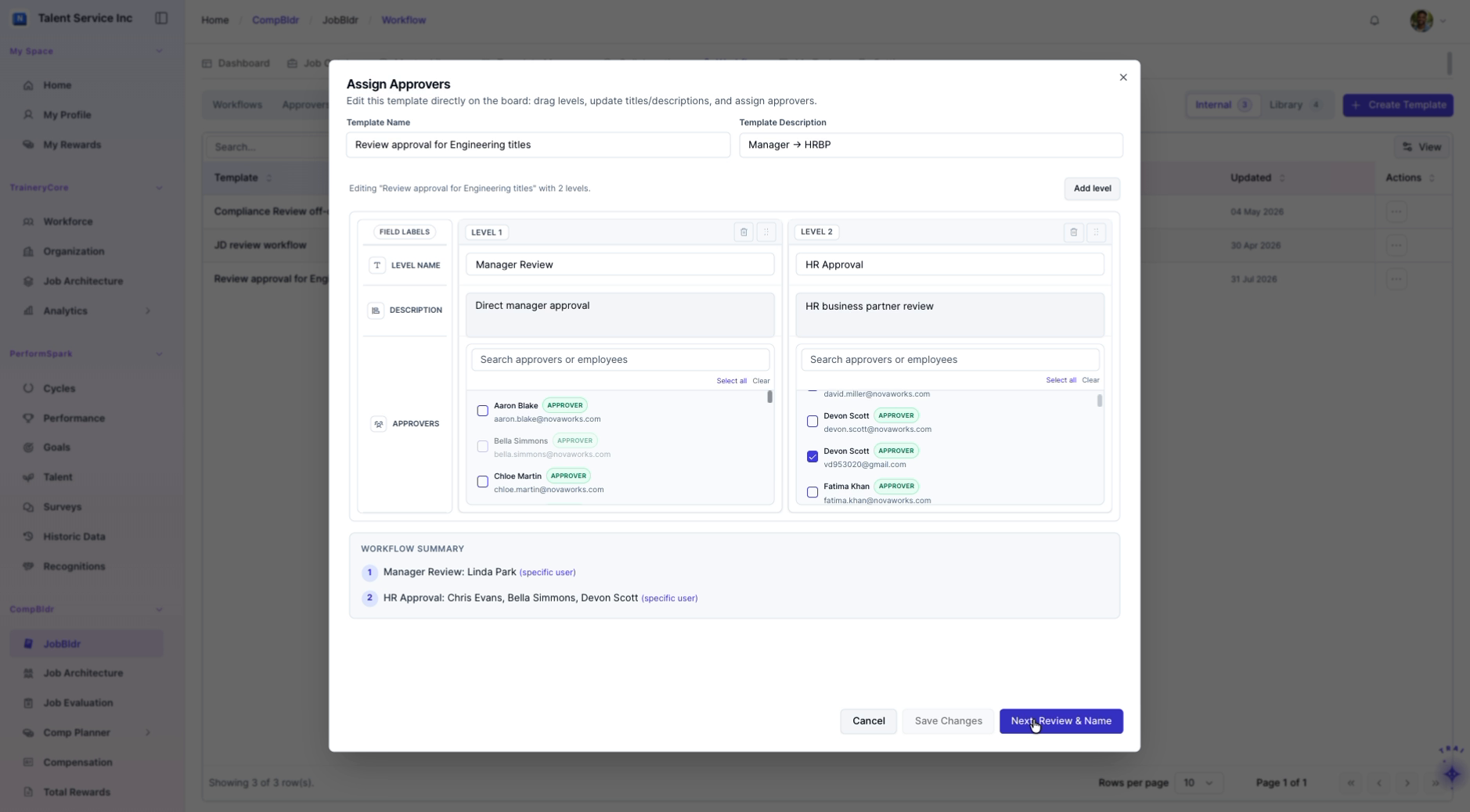
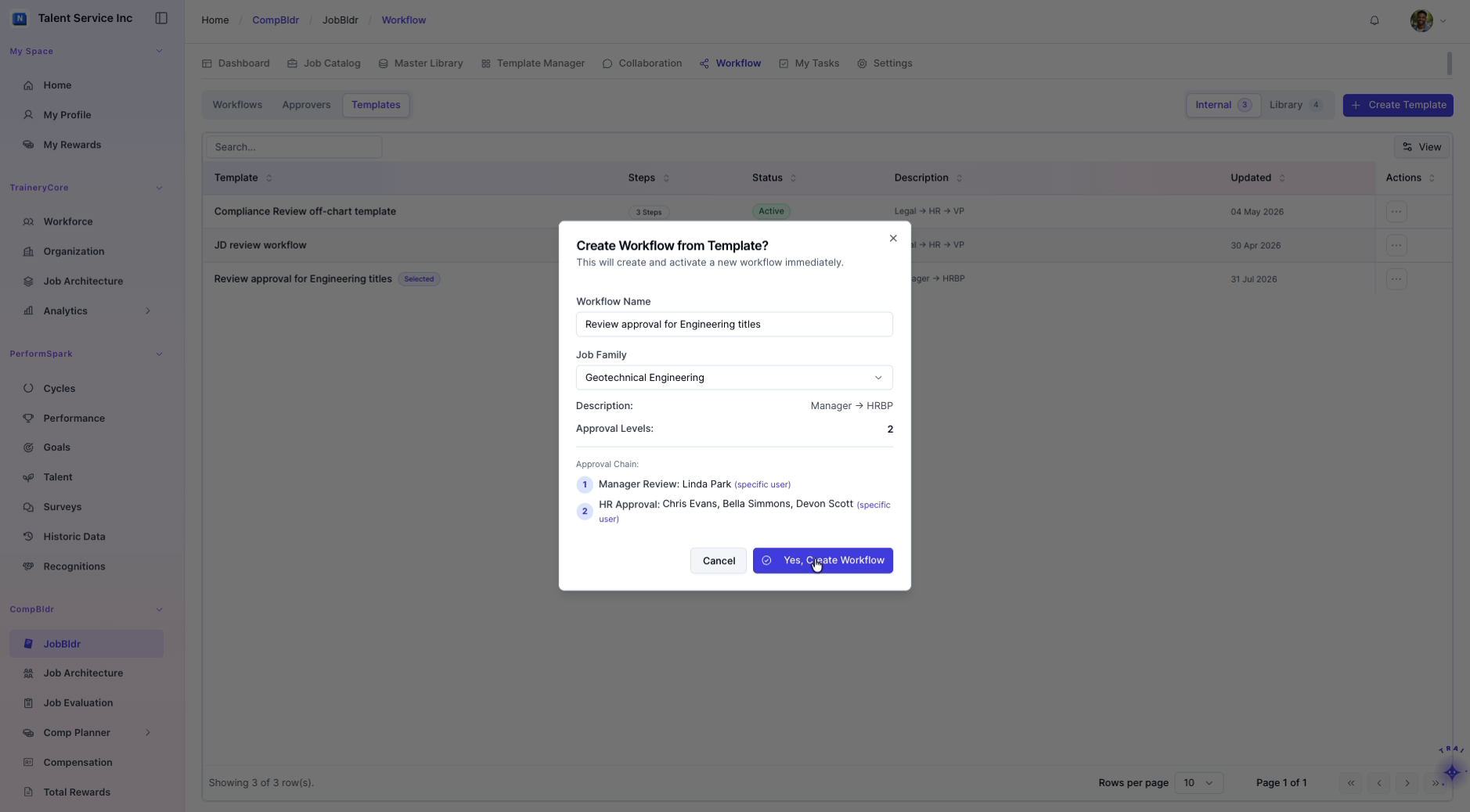
Select the Review approval for Engineering titles template to base a new workflow on it. Assign the following approvers to the workflow:For example
Aaron Blake
Linda Park
Paul Robinson
Ensure each approver is added in the correct order and role as required by your process.
Step 4: Set Job Family and Finalize the New Workflow
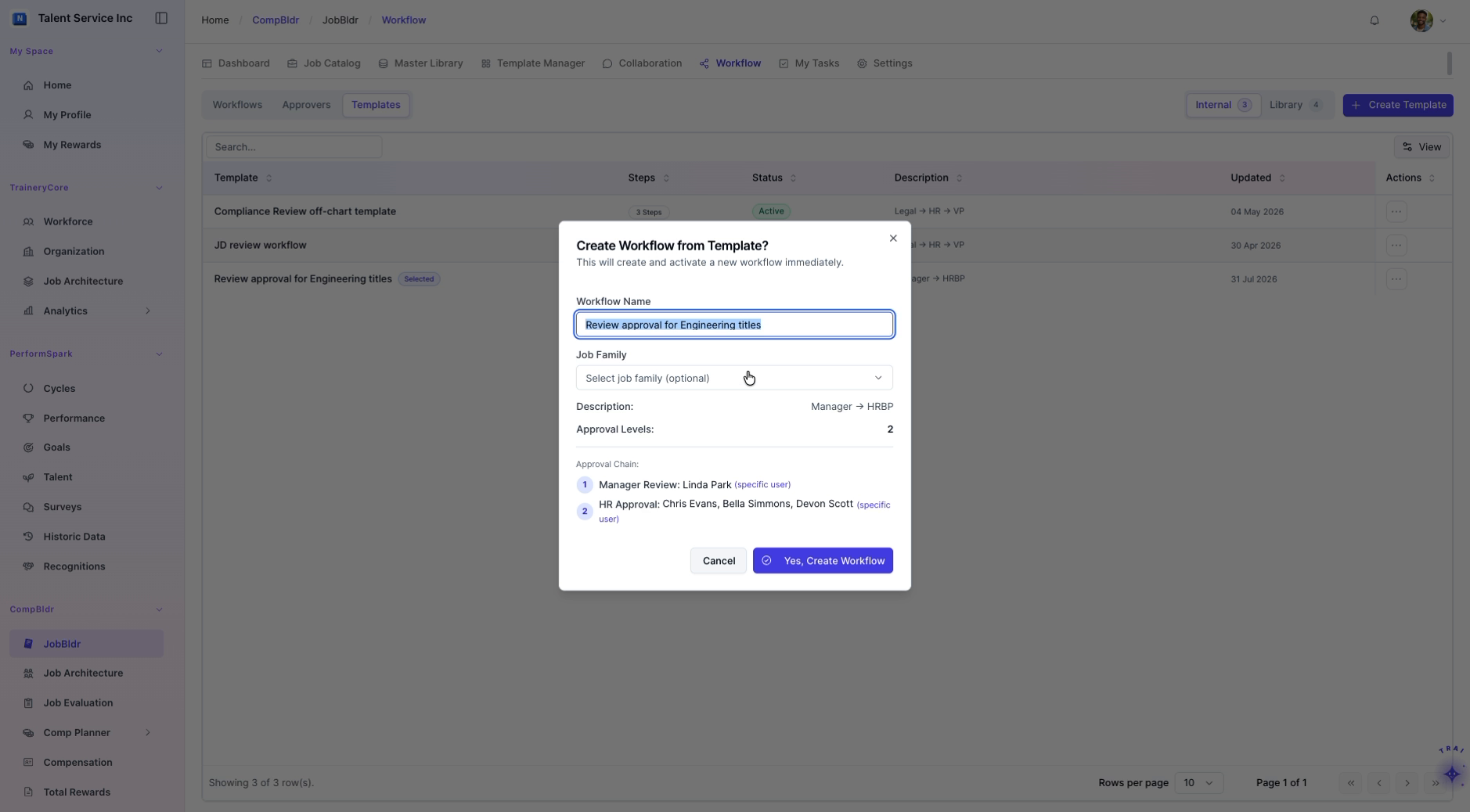
From the Job Family dropdown, select title (or the appropriate job family for this workflow). Confirm all settings and finalize the creation of the new workflow.
Step 5: Create a New Executive Workflow
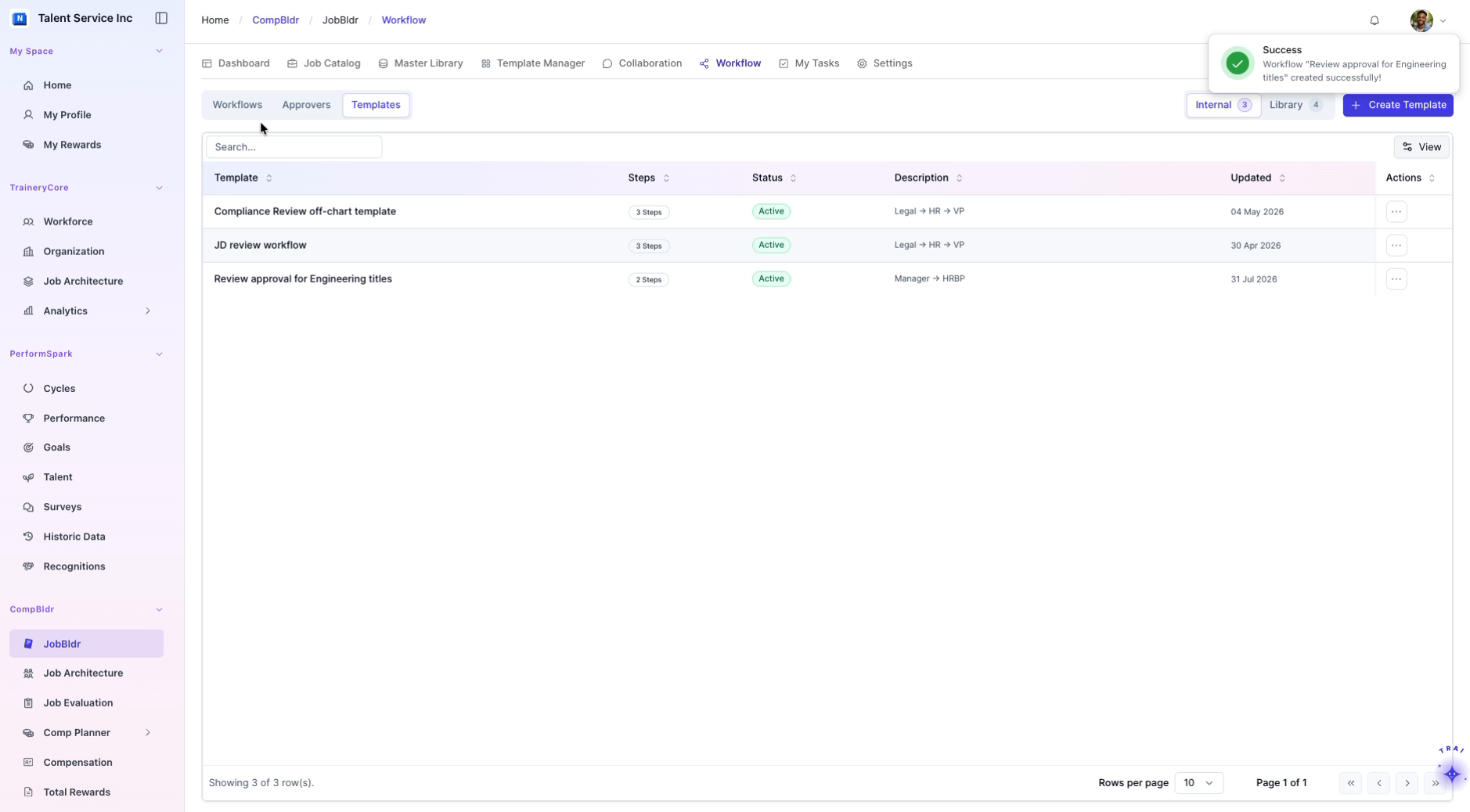
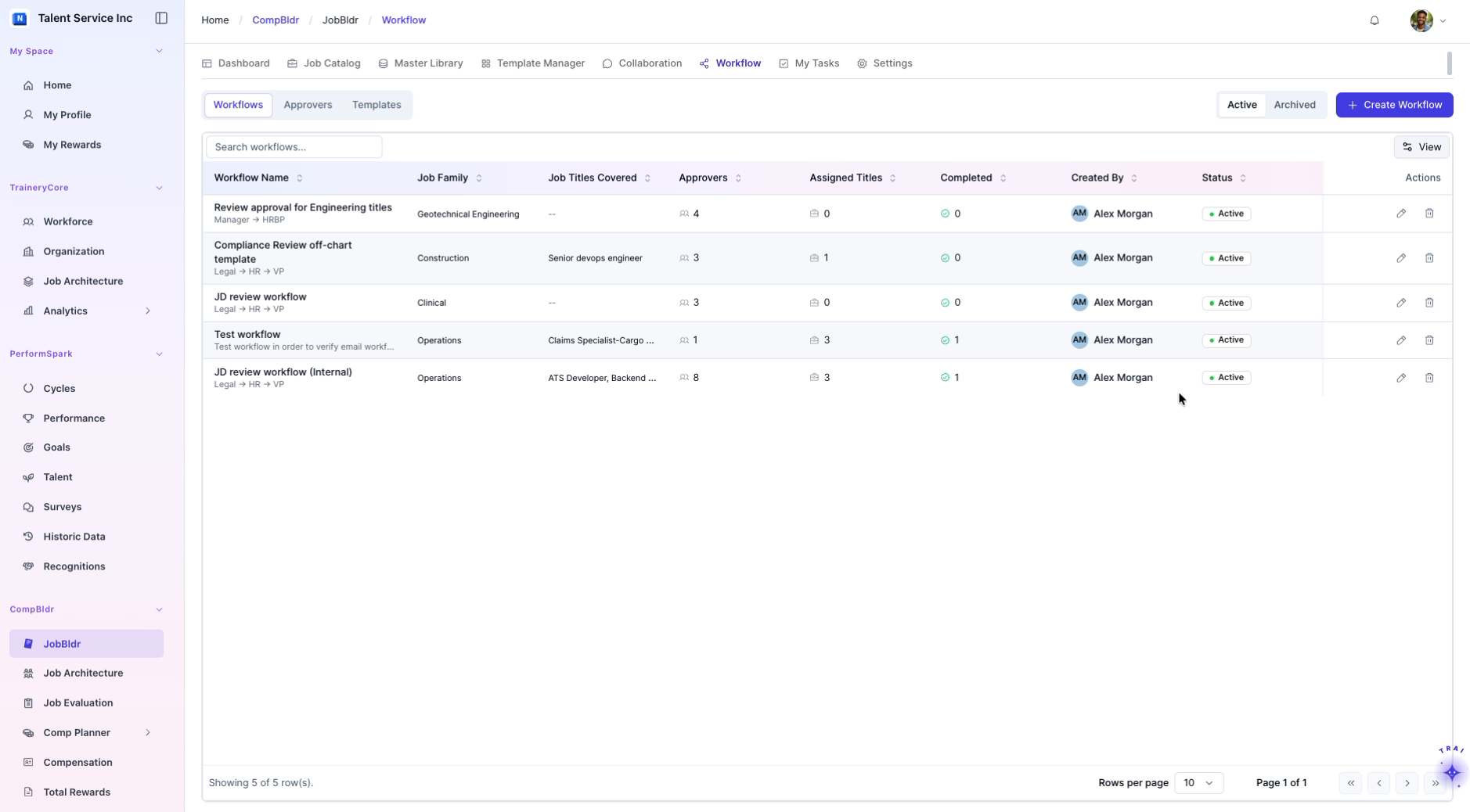
Return to the main Workflows list. Click Create Workflow and enter Executive workflow as the workflow name. Provide a clear, detailed description explaining its purpose and usage.
Step 6: Apply the JD Review Internal Template
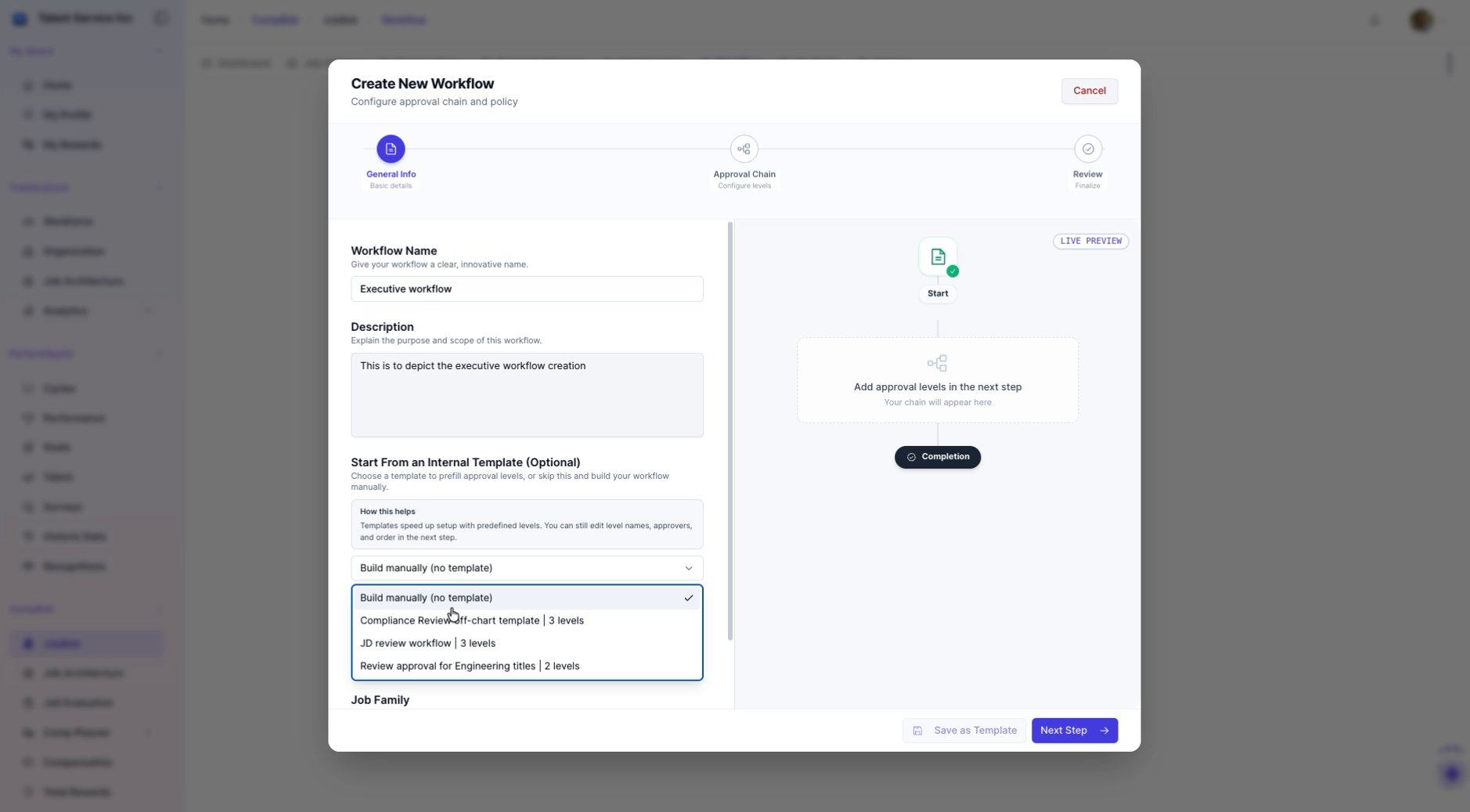
In the new workflow setup, browse the Internal templates and select the JD review workflow template. Apply this template so its structure and steps are used for the Executive workflow.

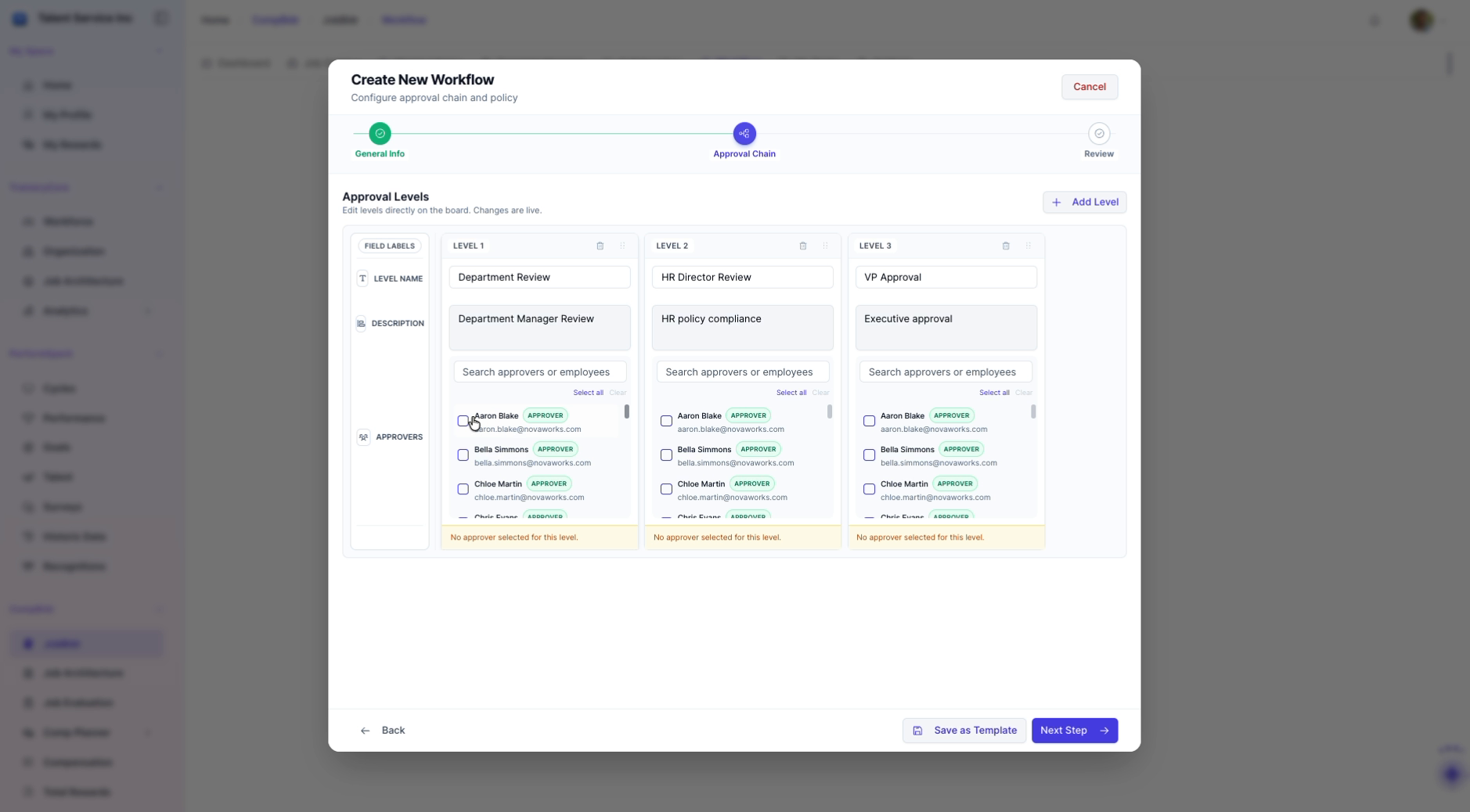
Step 7: Configure the Approval Chain for the Executive Workflow
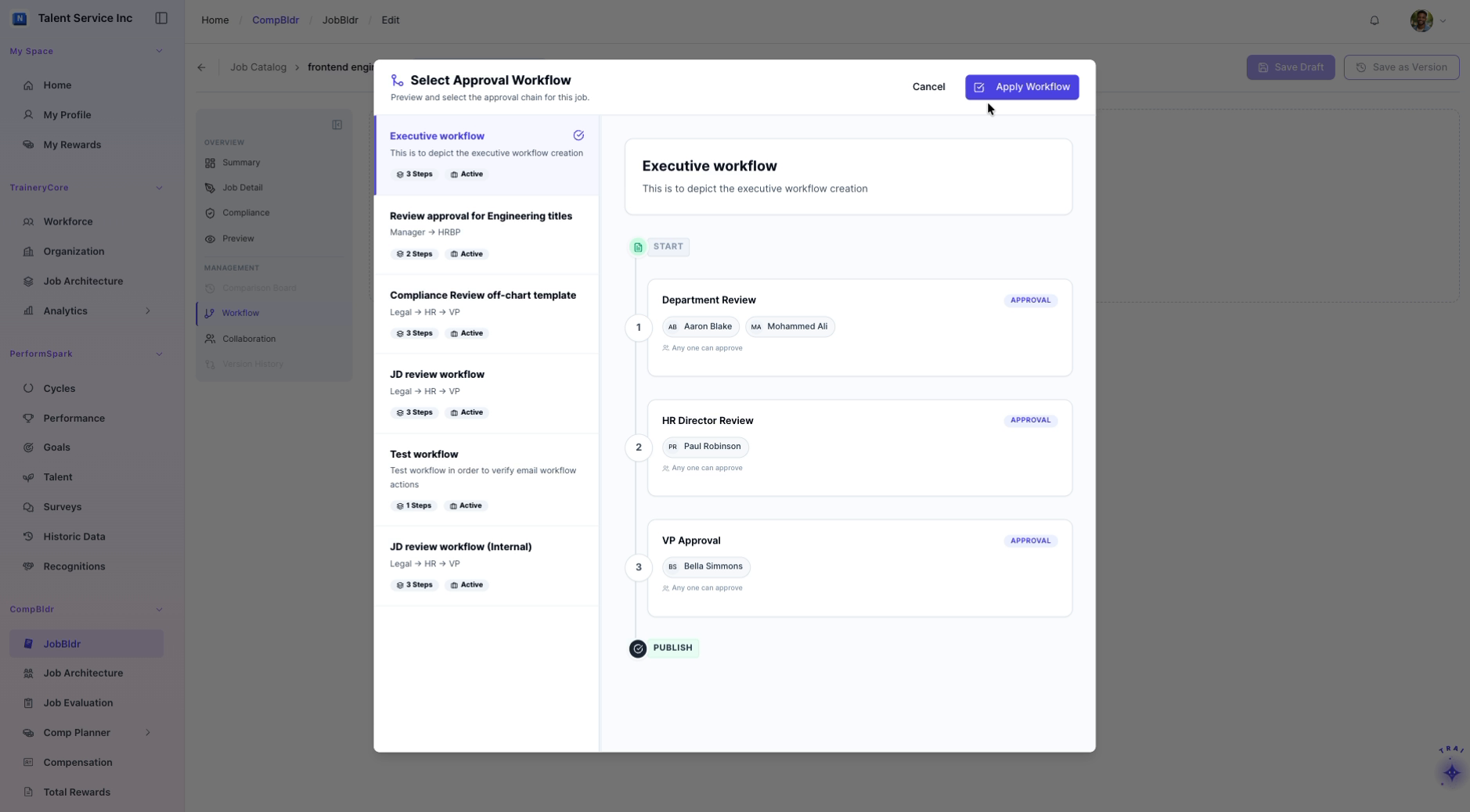
Set up a three-level approval chain for the Executive workflow: Example
Level 1: Aaron Blake
Level 2: Paul Robinson
Level 3: Bella Simmons
Confirm that each approver is correctly assigned to the appropriate level.
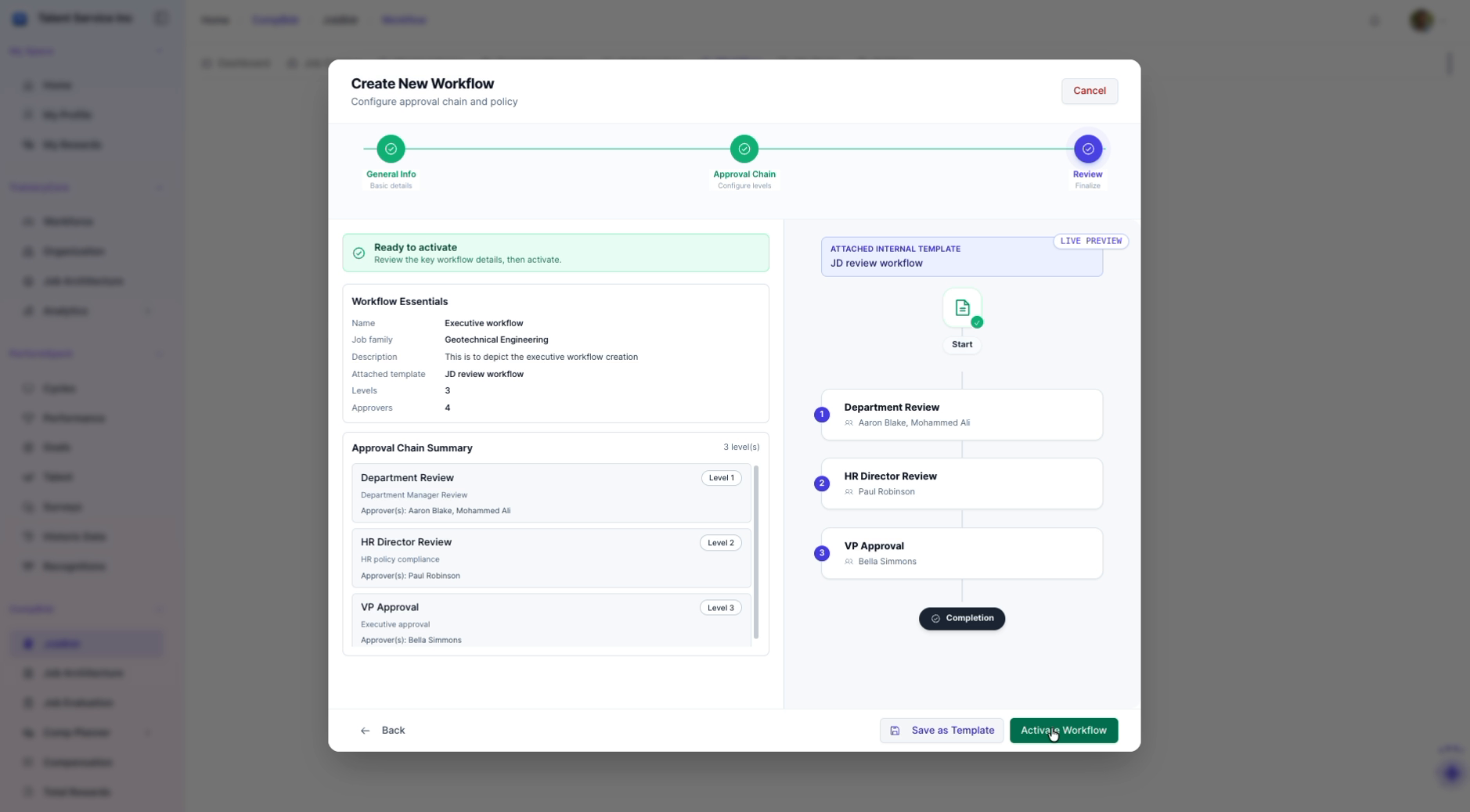
Step 8: Review and Activate the Executive Workflow
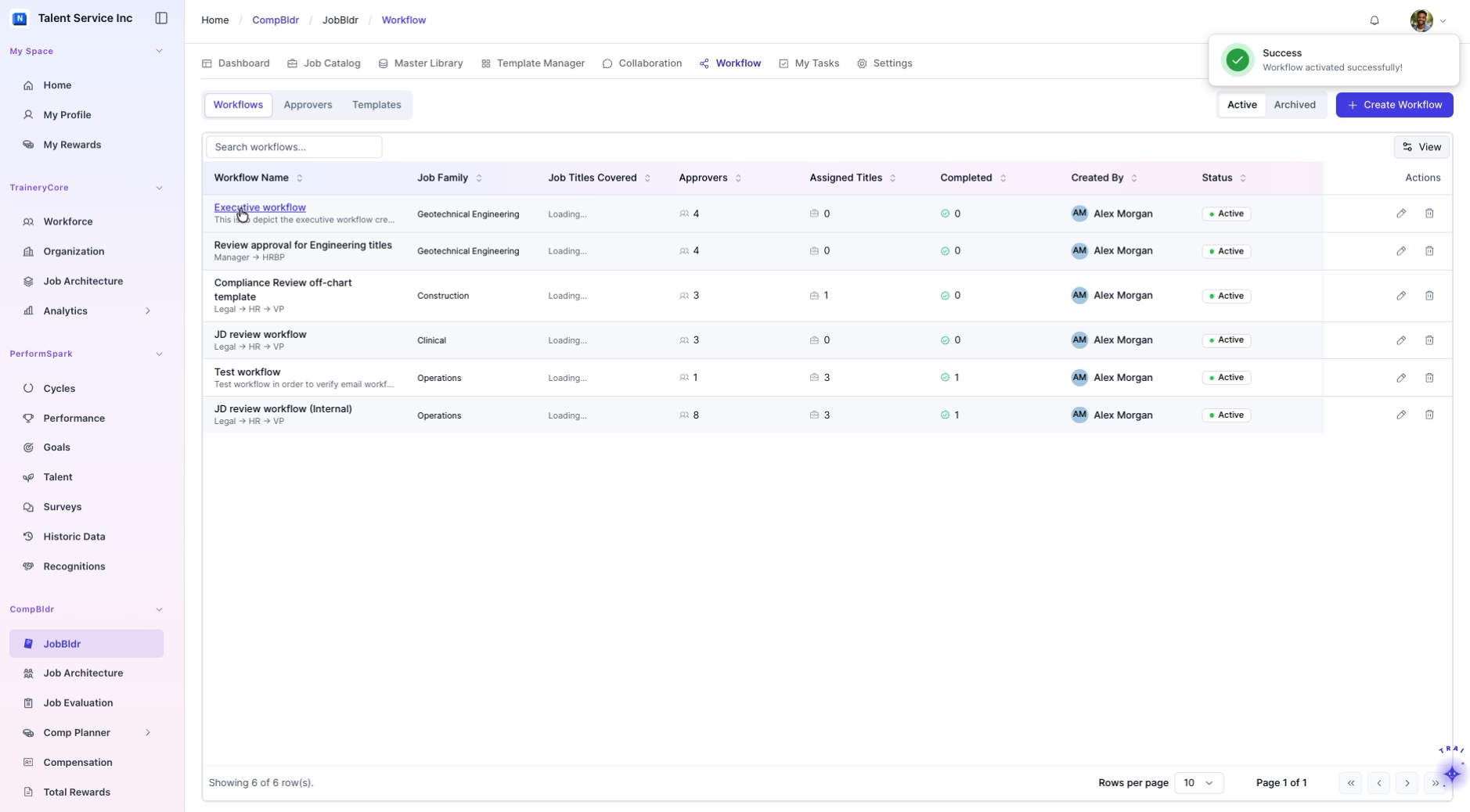
Review the workflow essentials (name, description, template, and key settings) and the approval chain summary. Once everything is verified, click Activate Workflow to make the Executive workflow live.
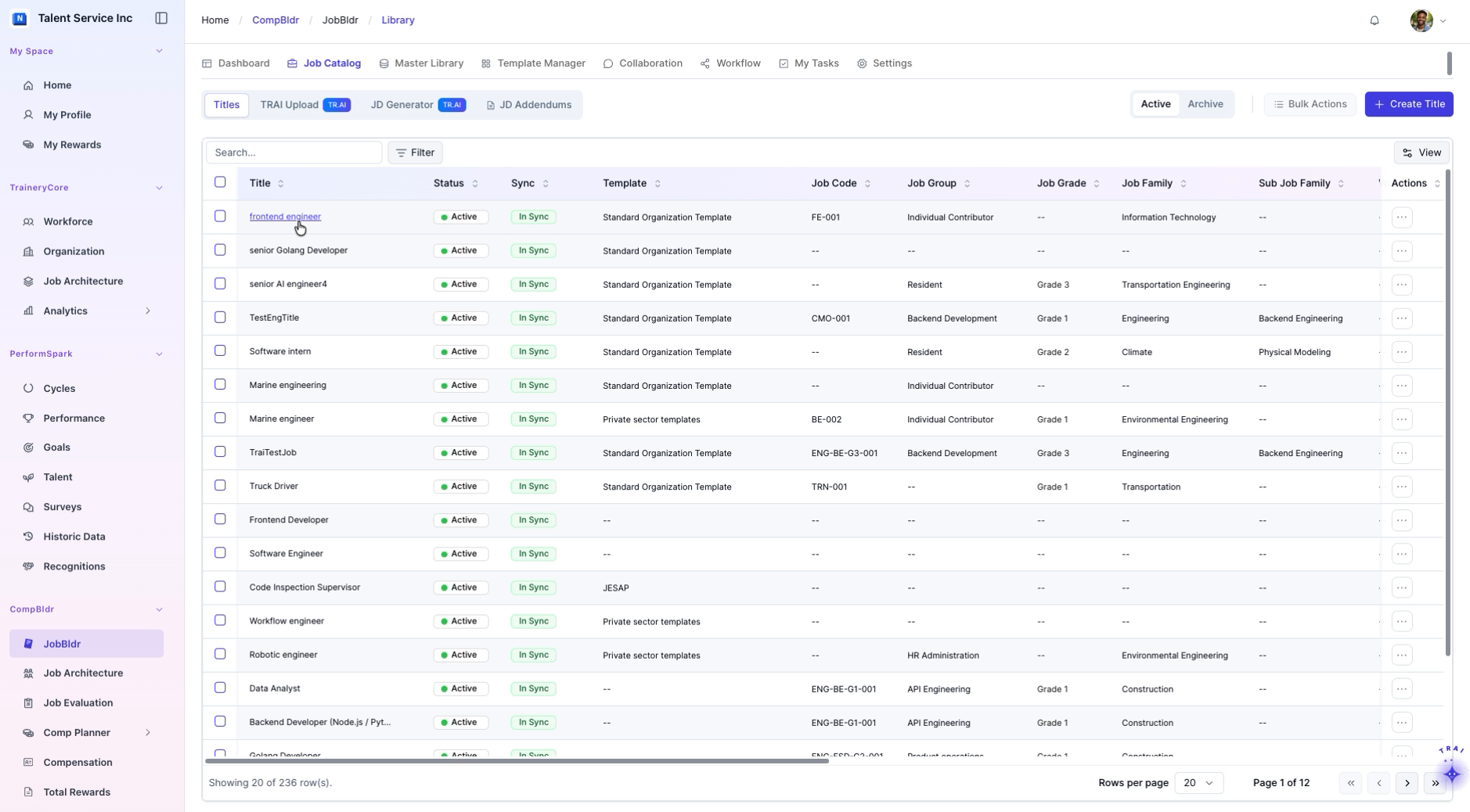
Step 9: Open the specific Role in the Job Catalog
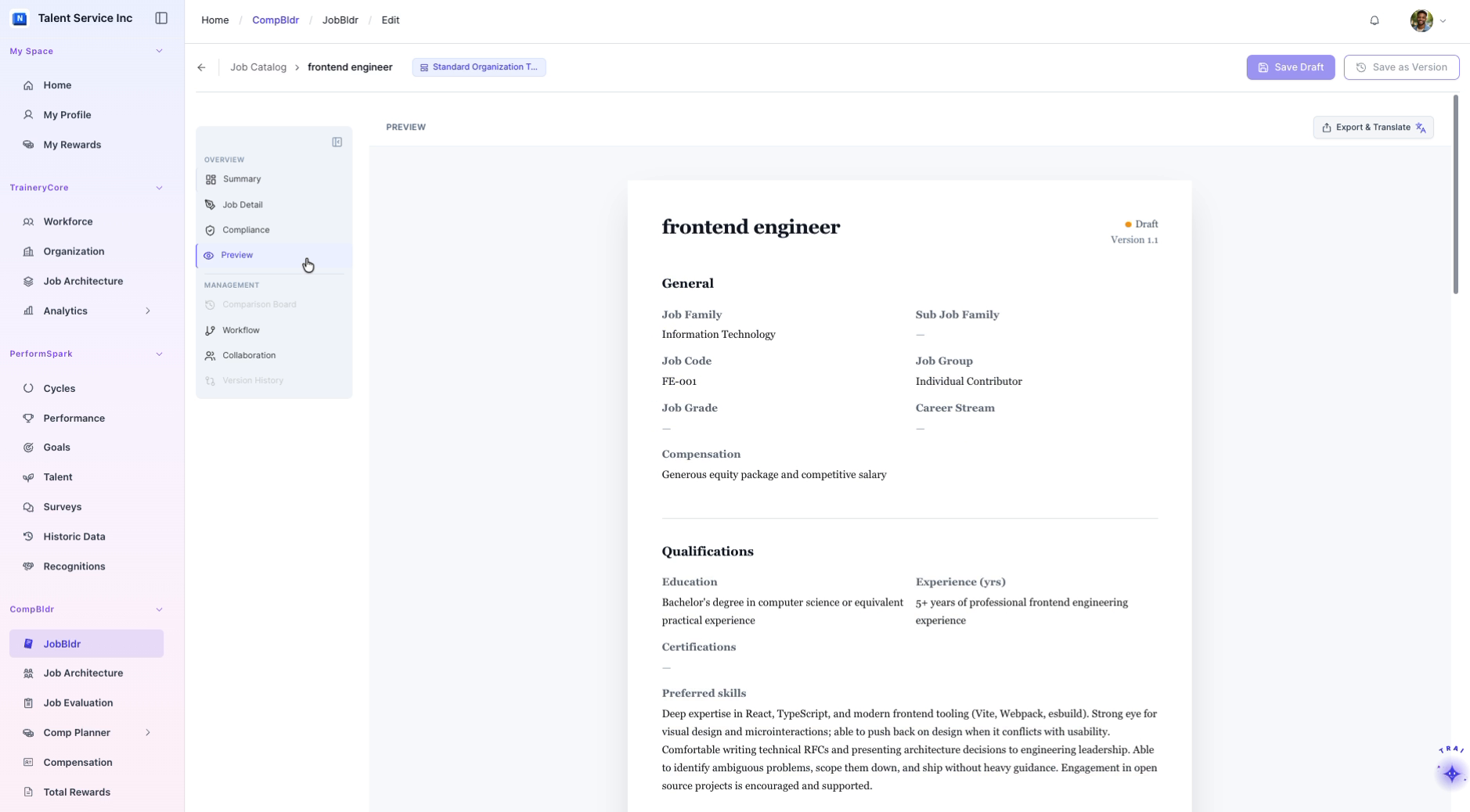
Navigate to the Job Catalog. Locate and select the role for the example frontend engineer position to manage its details.
2. Assign the Executive Workflow to the Frontend Engineer Job
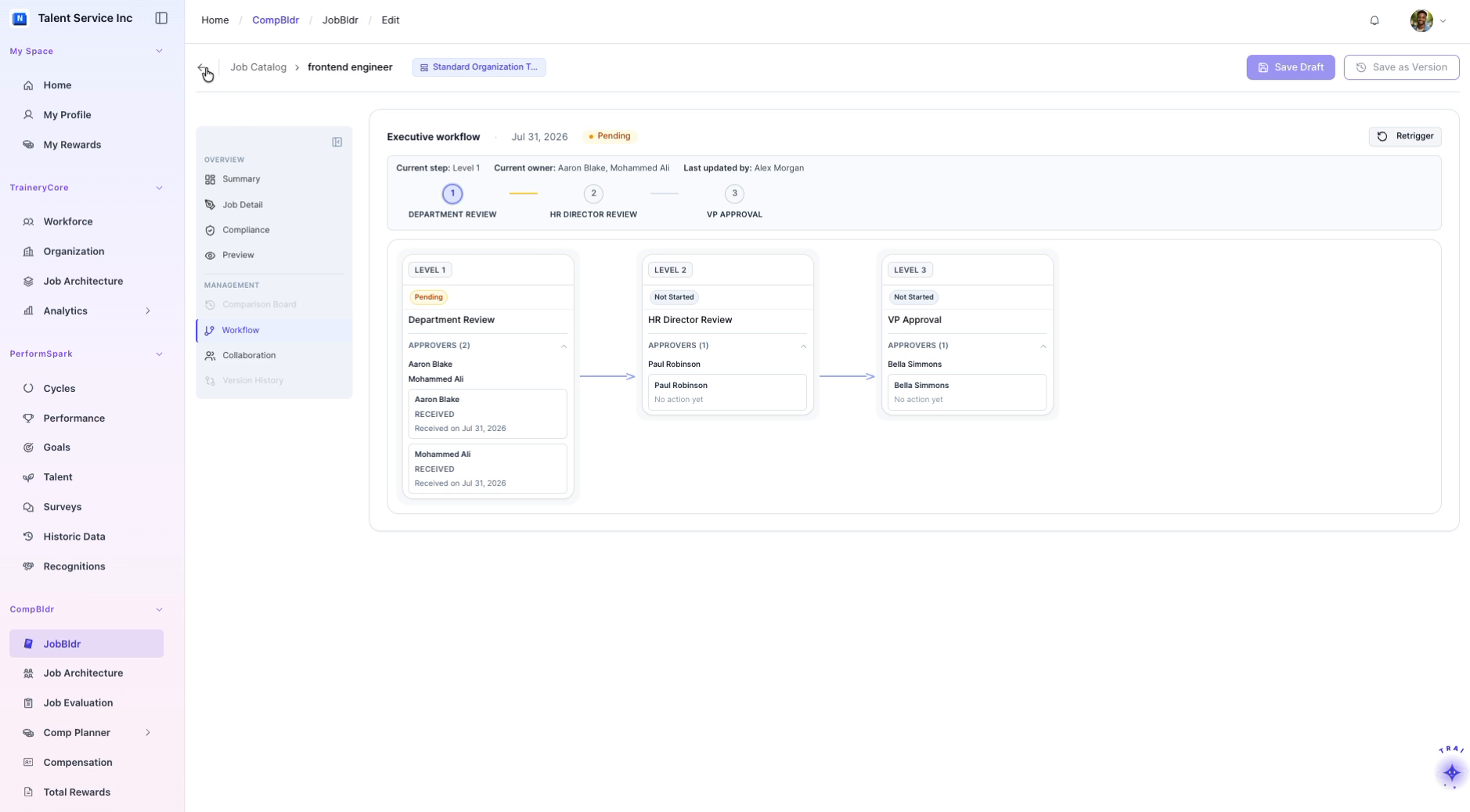
3. Preview the job description to confirm you have the correct role. Then go to the Workflow tab for this job and assign the newly created Executive workflow as the active workflow for the frontend engineer position.
Step 10: Confirm Active Workflow Status and Return to Job Catalog
Verify that the Executive workflow shows as the active workflow for the frontend engineer role. Once confirmed, return to the main Job Catalog list.