Employee Survey Submission
Last updated: July 1, 2026
Completing the Learning and Growth Survey
This document describes how to access and complete the Learning and Growth Survey, including providing responses to each question and submitting your survey successfully.
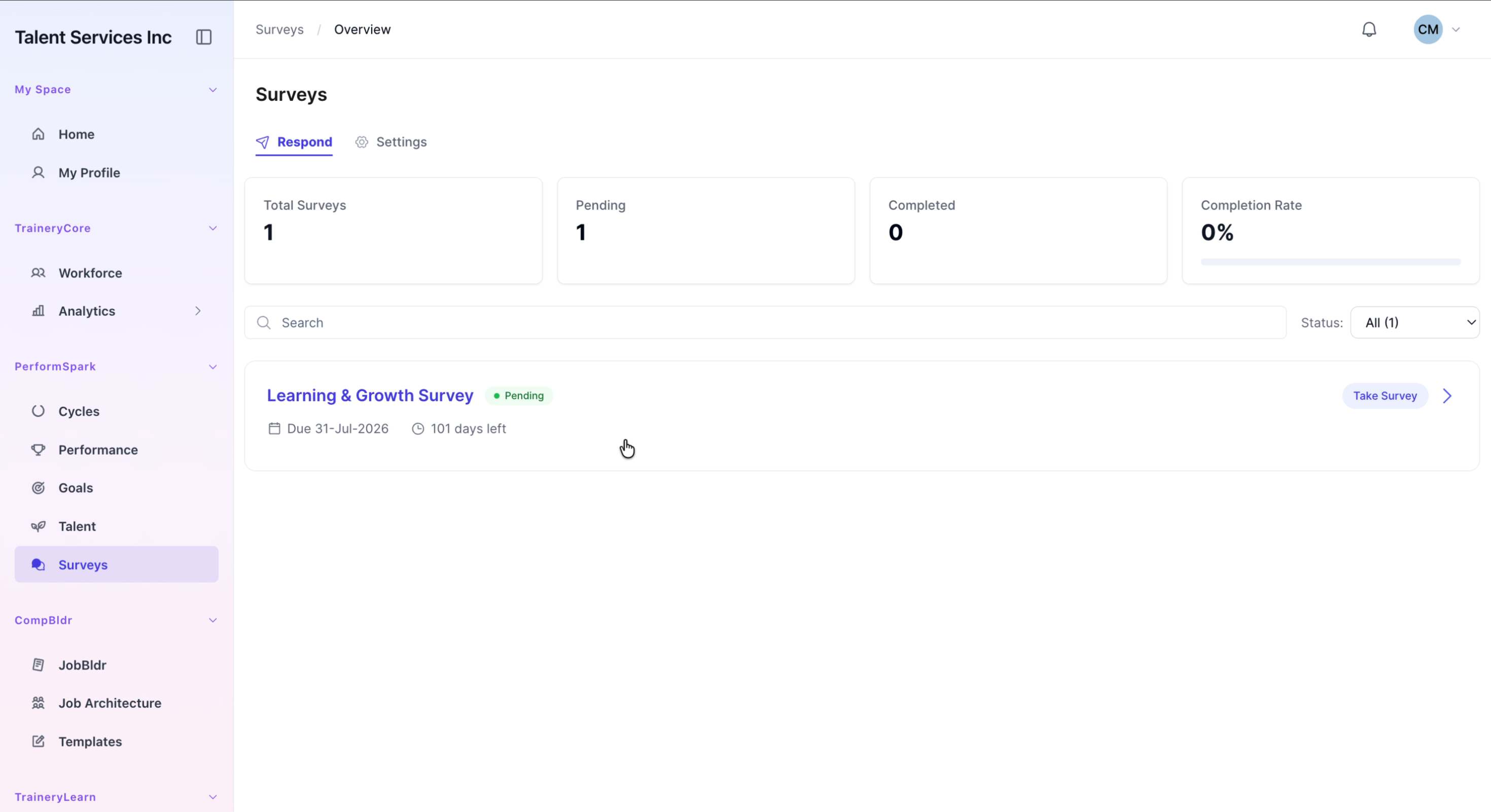
Step 1: Open the Learning and Growth Survey
From the application sidebar, navigate to the Surveys section and locate the Learning and Growth Survey. Click Take Survey to open it.

Step 2: Provide Initial Satisfaction and Recommendation Responses
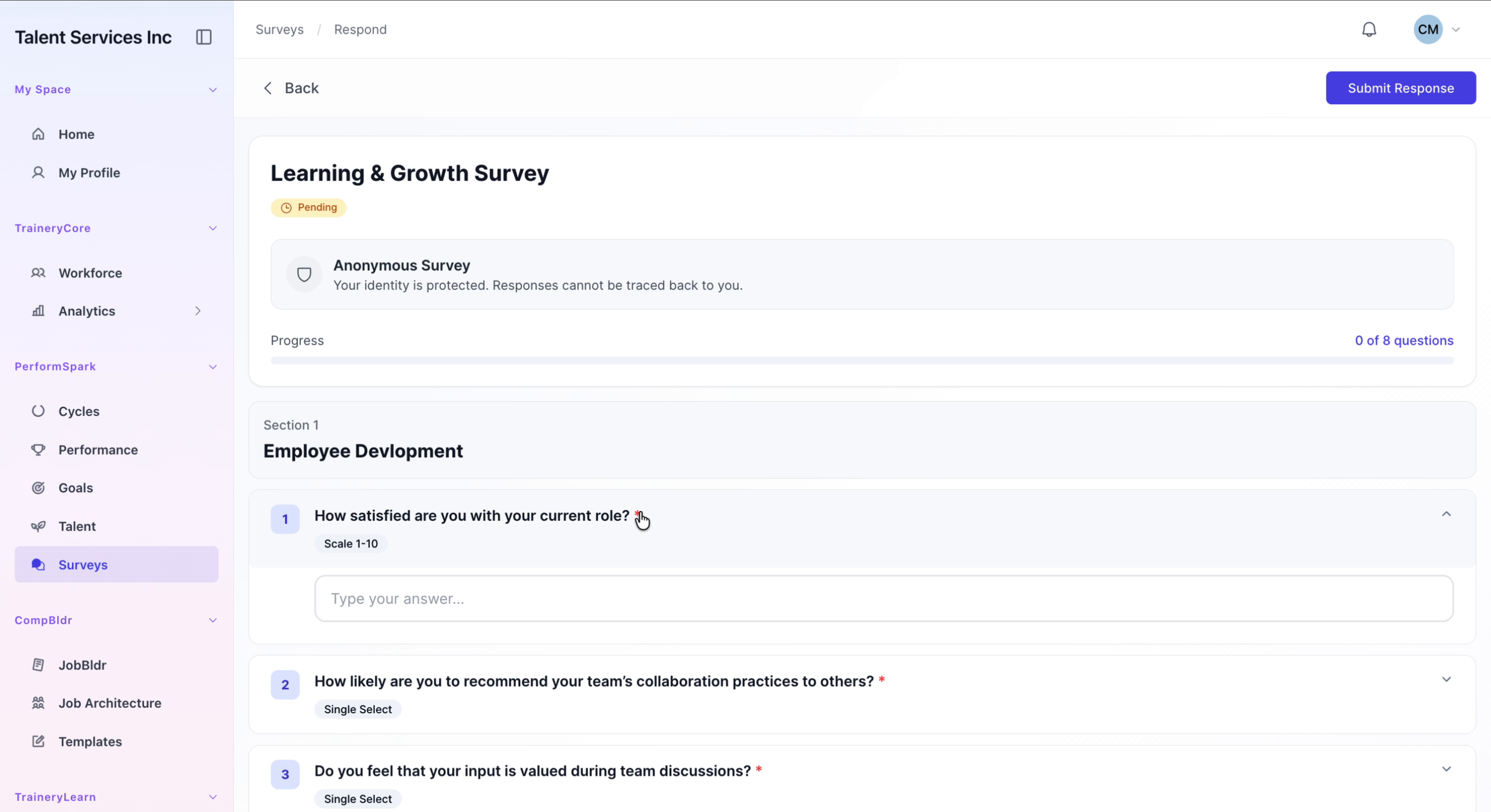
Begin the survey by setting your role satisfaction rating to 9. Then, in the question about recommending your team’s collaboration practices, type "most likely" as your response.

Step 3: Confirm Input Value and Describe Collaboration Challenges
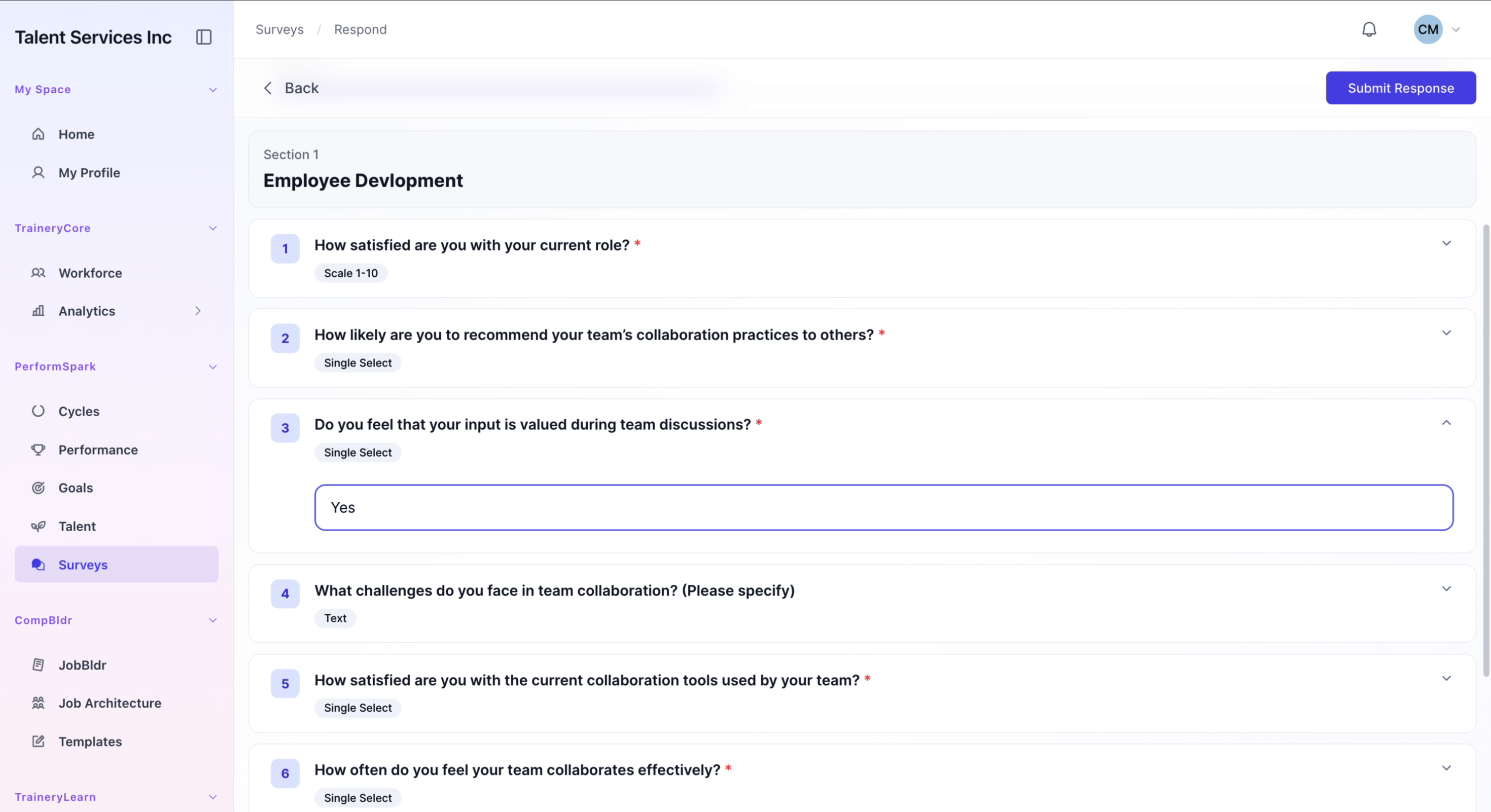
In the question asking whether your input is valued, type "Yes". For the question about any collaboration difficulties, type "No challenges" to indicate you are not experiencing issues.

Step 4: Rate Collaboration Tools and Frequency of Effective Collaboration
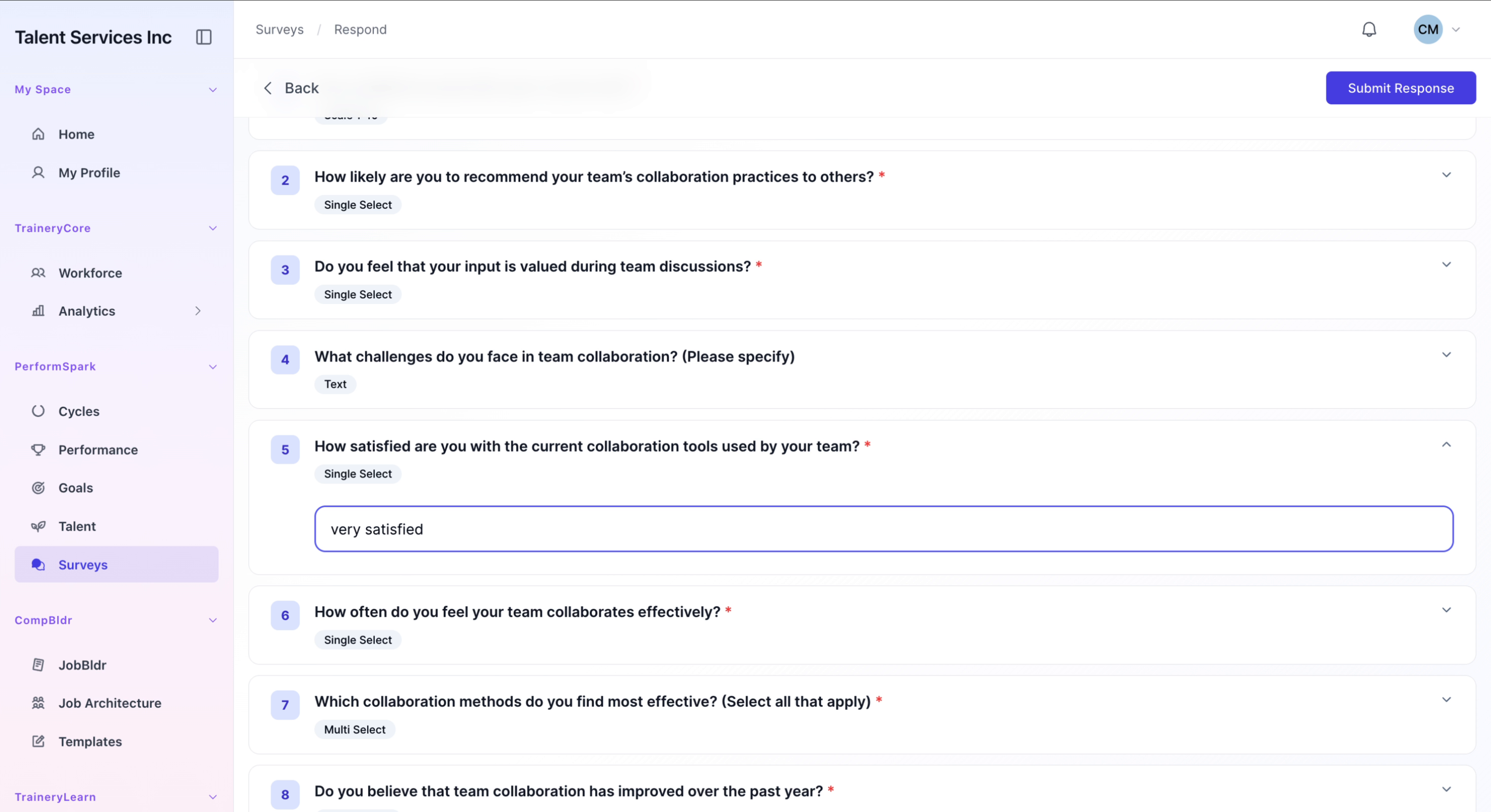
For the question regarding satisfaction with collaboration tools, type "very satisfied". Then, for the question on how often effective team collaboration occurs, type "very often".
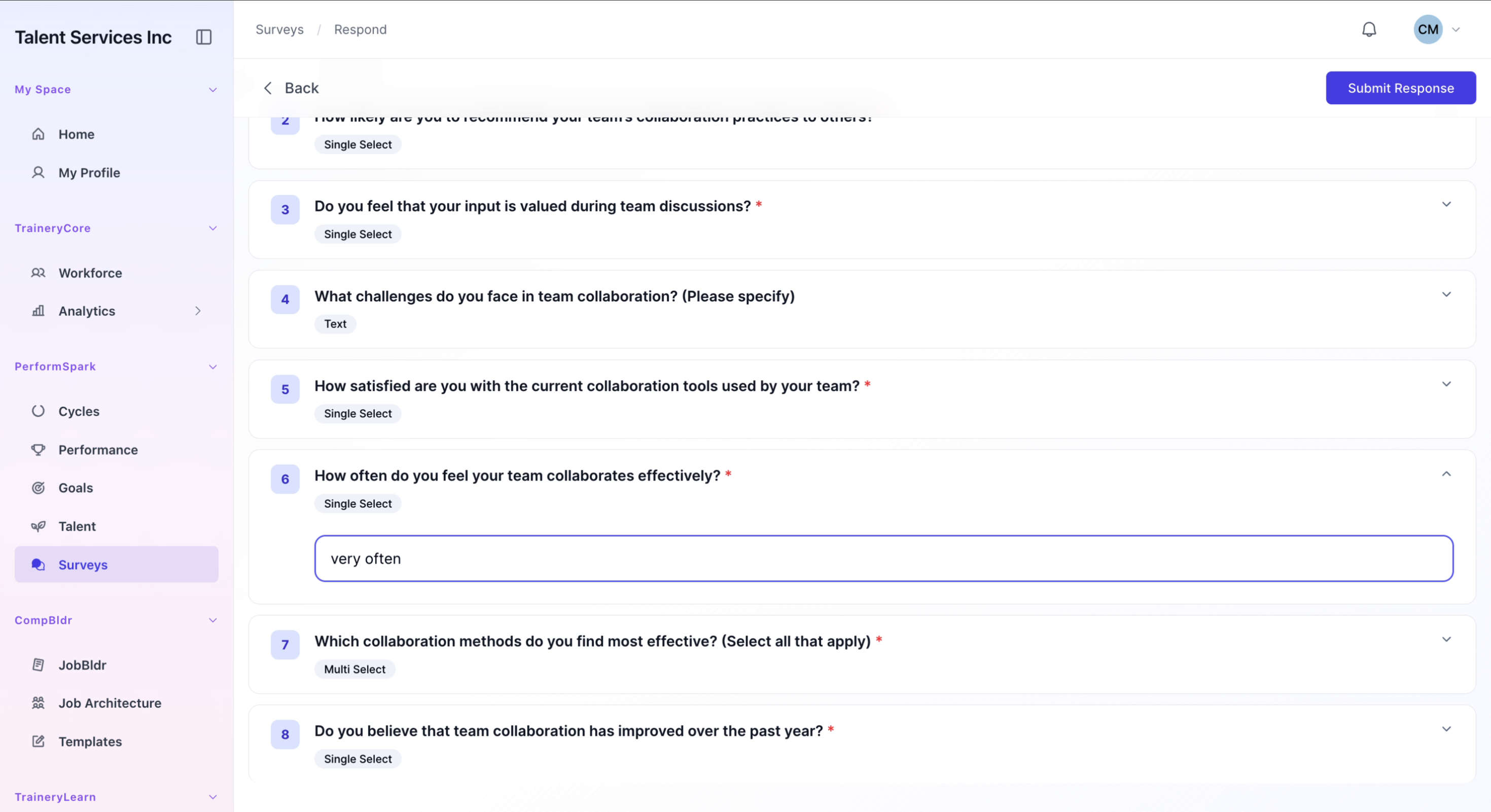
Step 5: Describe Effective Methods and Recent Collaboration Improvements
For the question about which methods are most effective for collaboration, type "All". In the question asking whether collaboration has improved over the past year, type "Yes" to indicate positive change.

Step 6: Submit and Confirm Your Survey Response
Click Submit Response to send your completed survey. Wait for the submission to finish processing, then click OK on the success confirmation dialog to finalize.

