Survey Question label, Question Type and Template type creation
Last updated: July 1, 2026
Configuring Survey Labels, Question Types, and Template Types
This document describes how to configure survey settings by creating a new label, defining a custom question type, and adding a new template type within the Surveys section.
Step 1: Open Survey Settings
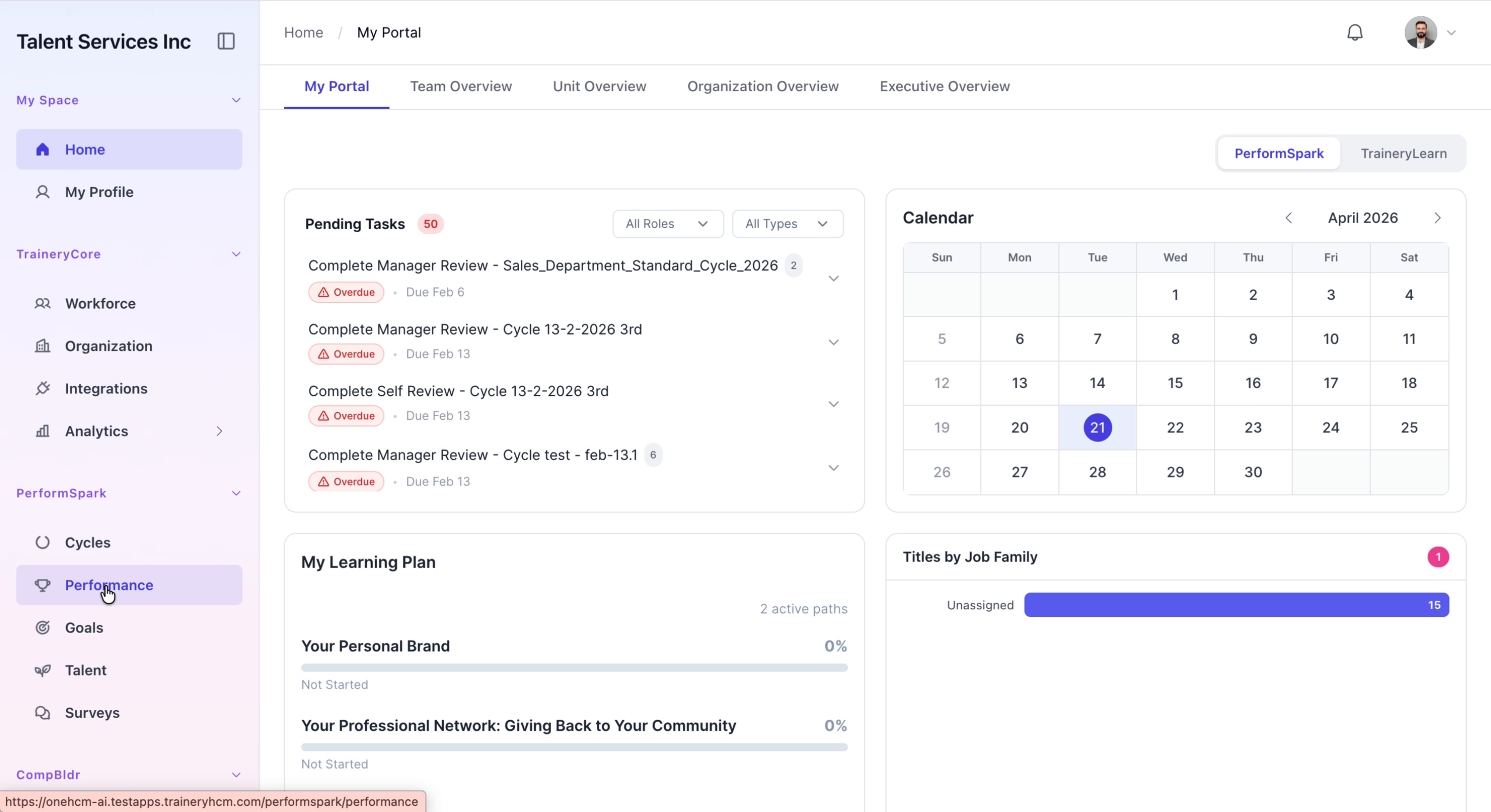
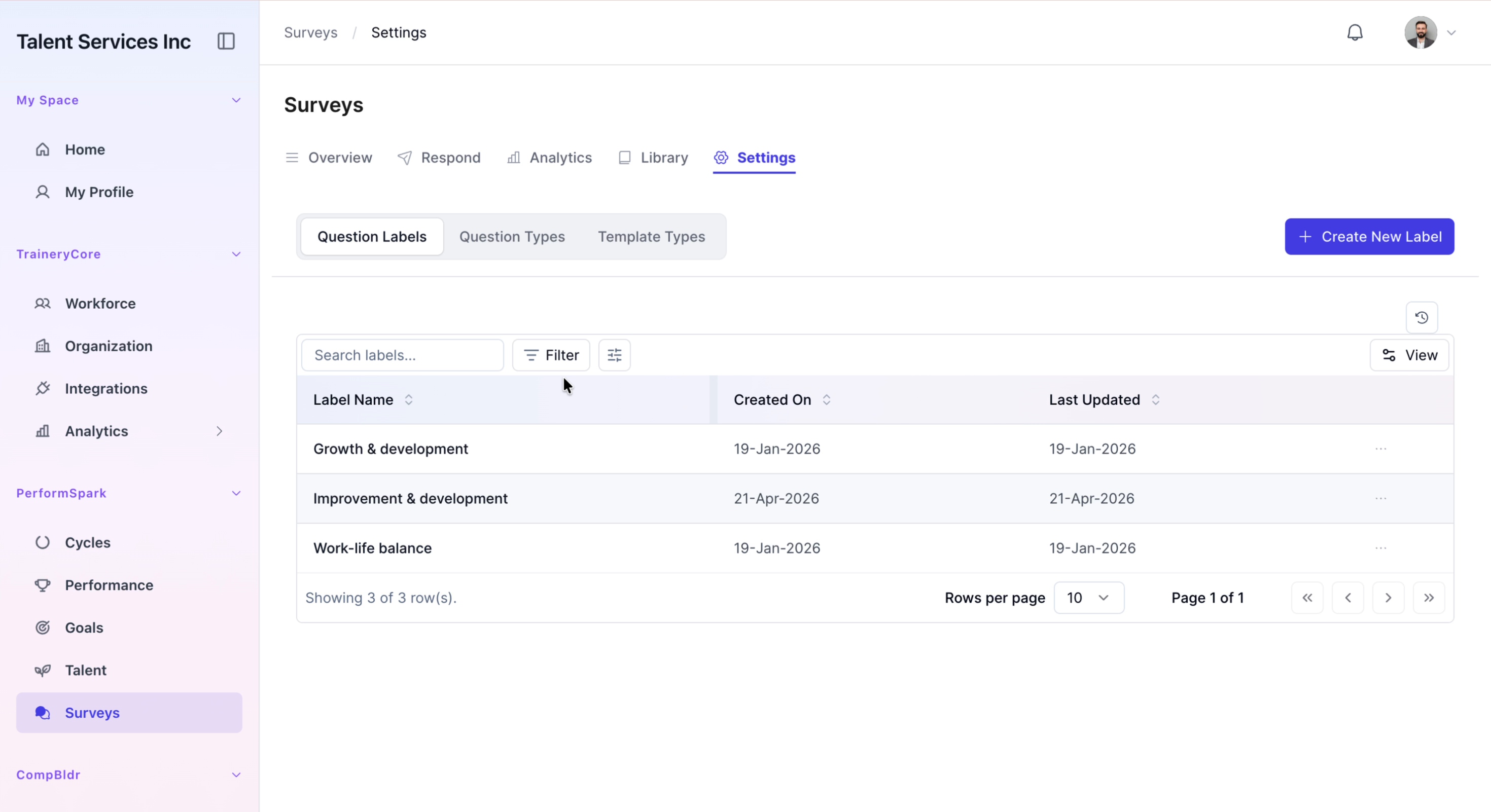
1. From the main application sidebar, navigate to the Surveys section. 2. Within the Surveys area, click on the Settings tab to access configuration options.

Step 2: Create a New Label
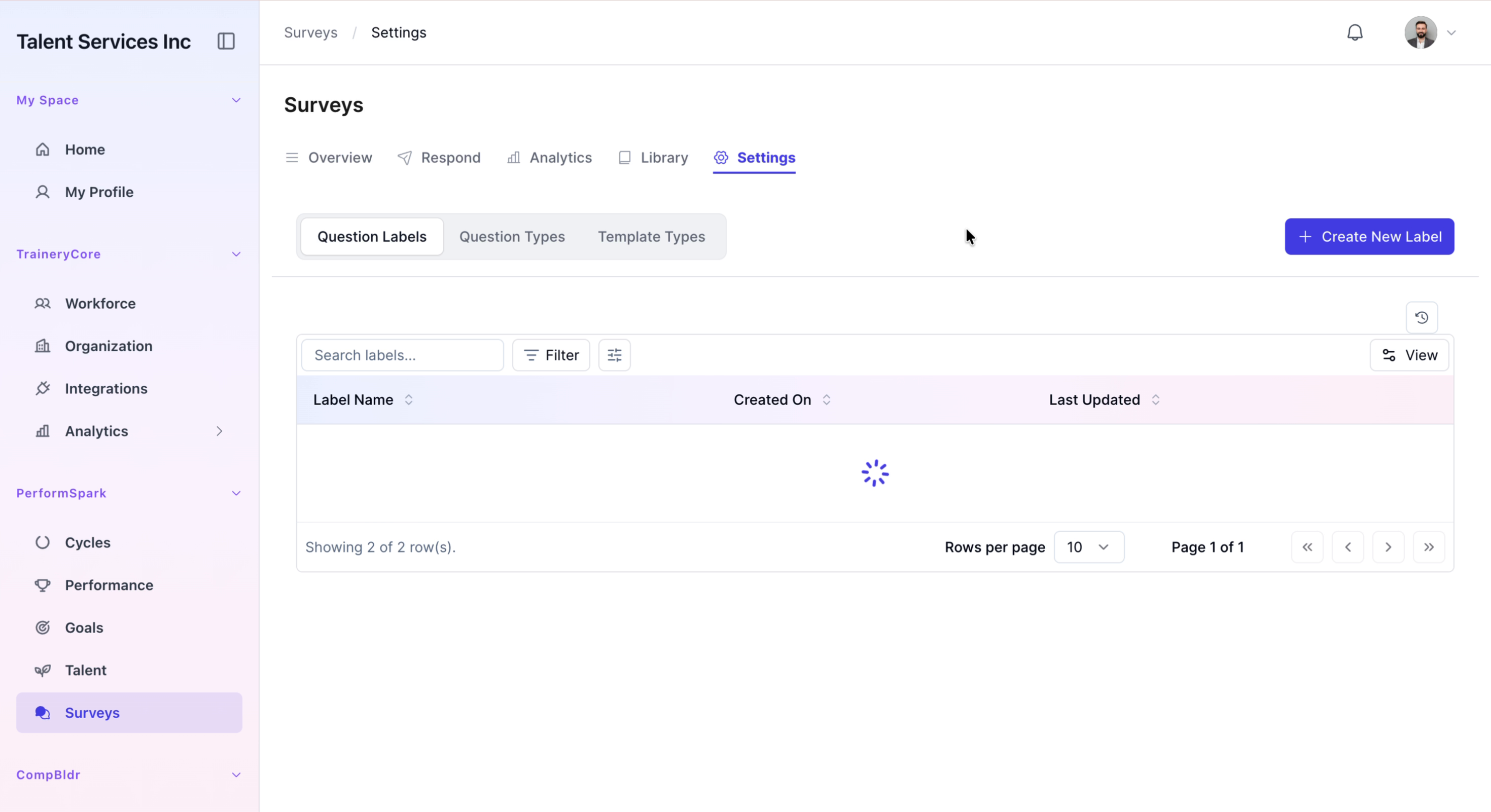
1. In the Labels section of the Settings page, click Create New Label. 2. In the label name field, enter Improvement & Development. 3. Click Create Label to save the new label.

Step 3: Define a New Question Type
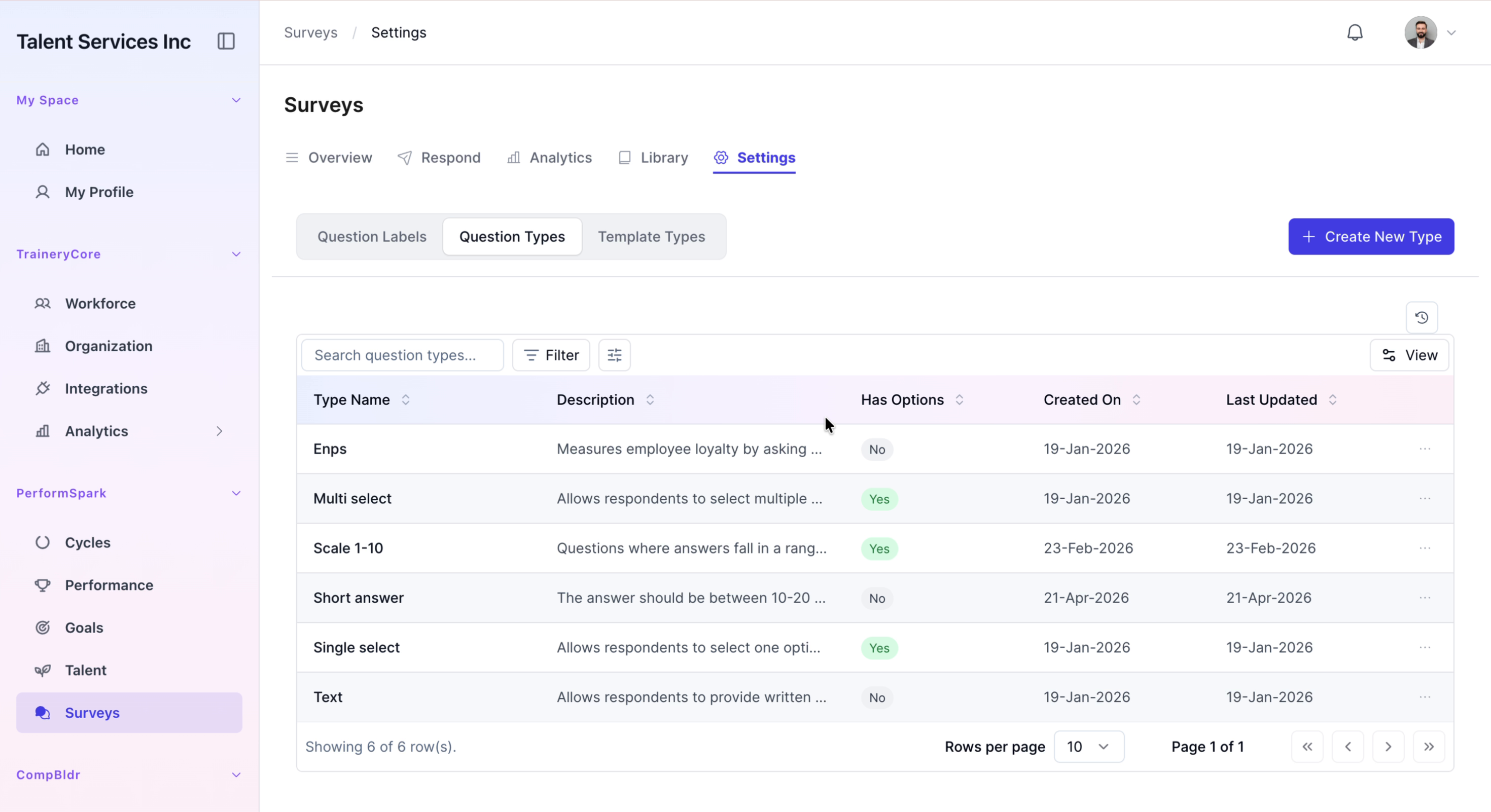
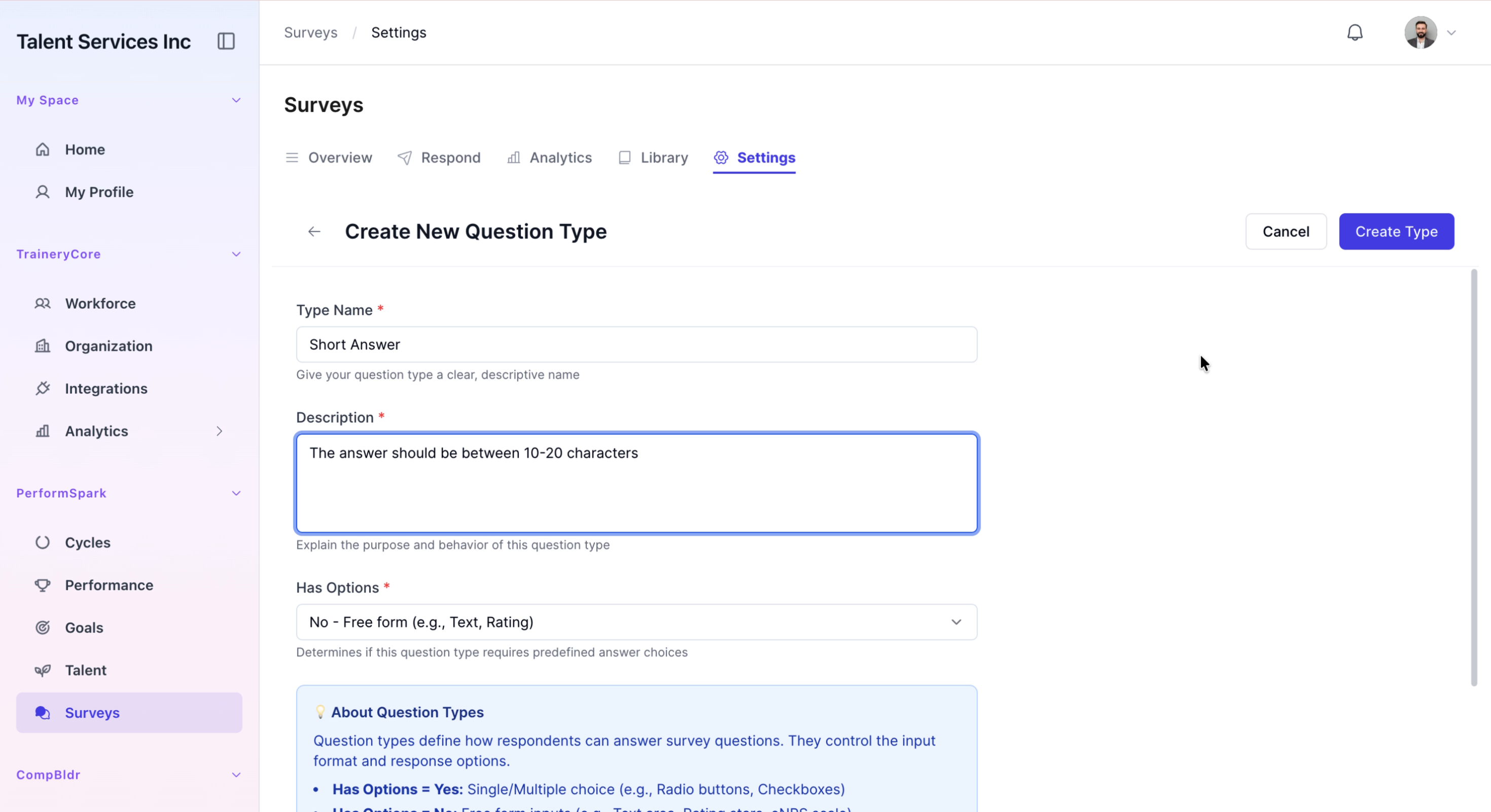
1. Switch to the Question Types tab within the Settings area. 2. Click Create New Type. 3. In the type name field, enter Short Answer. 4. In the description field, type a specific description that includes any character limit or other constraints for this question type. 5. Click the Create Type button to save the new question type.
Step 4: Add a New Template Type
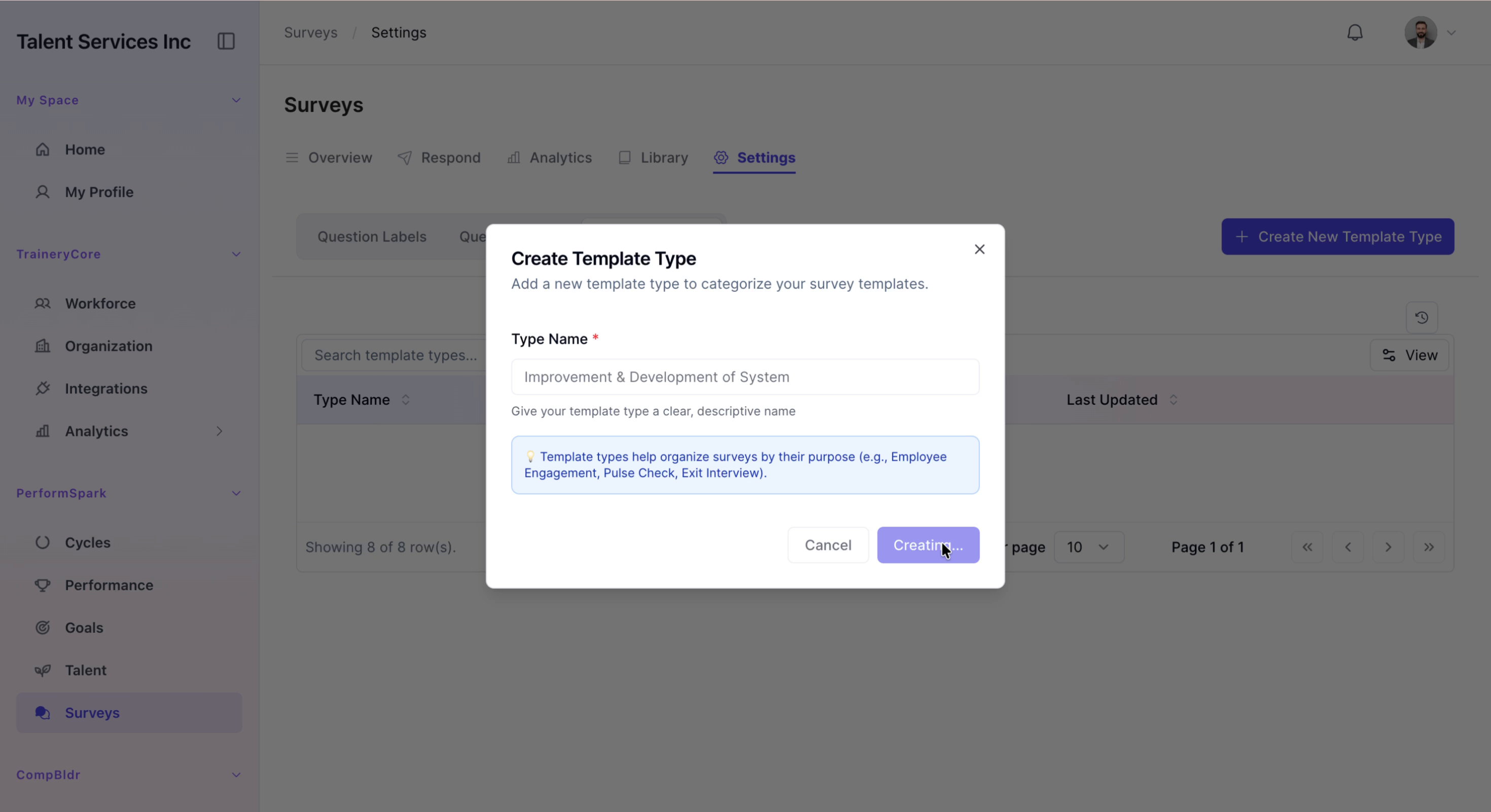
1. Navigate to the Template Types tab. 2. Click Create New Template Type. 3. In the pop-up modal, enter Improvement & Development of System as the new template type name. 4. Click the Create button to finish creating the template type.