Create and share survey
Last updated: July 1, 2026
Creating a Learning & Growth Survey
This document describes how to create, configure, distribute, and verify a “Learning & Growth Survey” in the Surveys module, including setting dates, reminders, participants, and confirming its scheduled status.
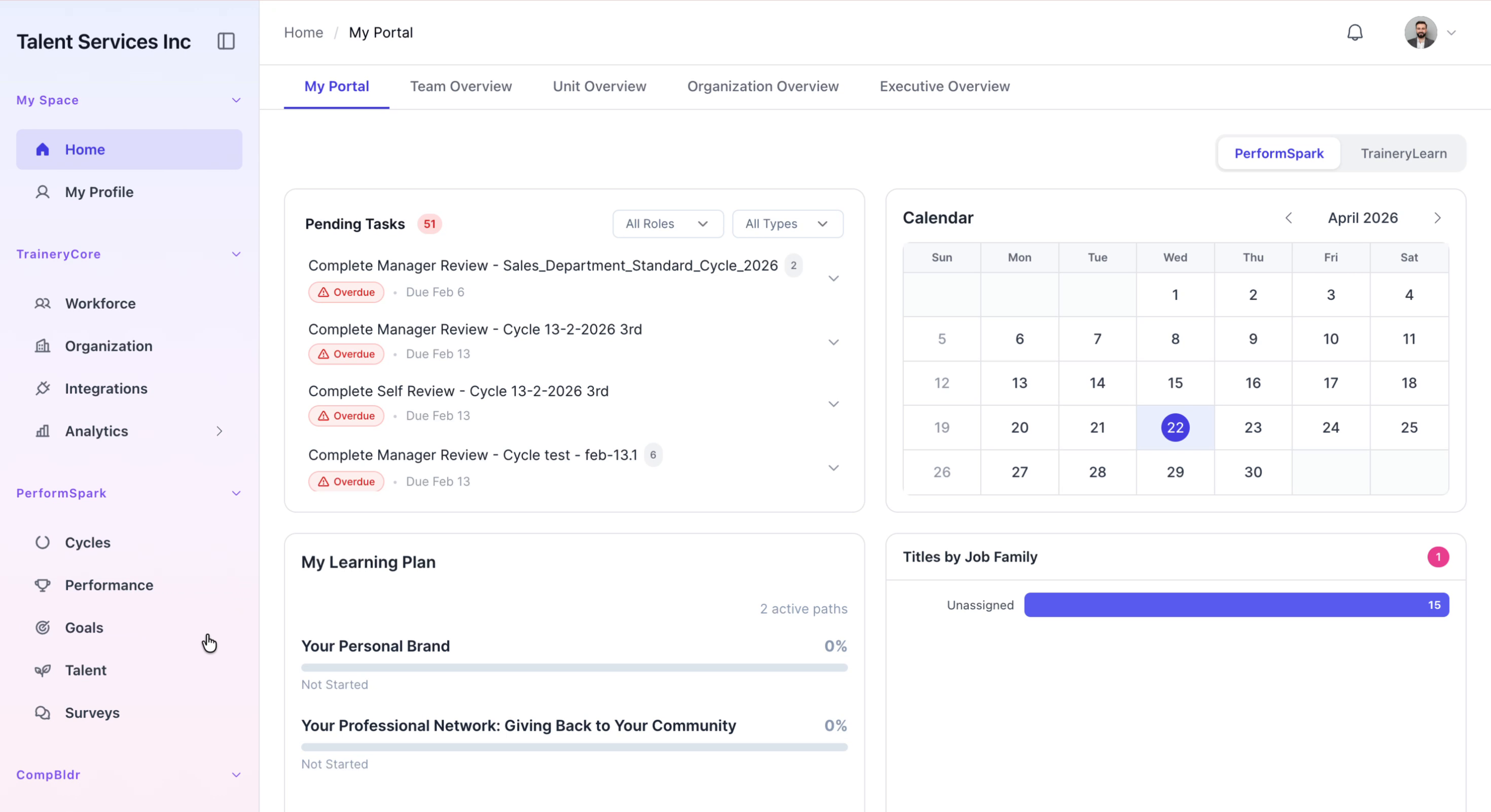
Step 1: Open the Surveys Section
Navigate to the Surveys section from the application’s sidebar to view all existing surveys.
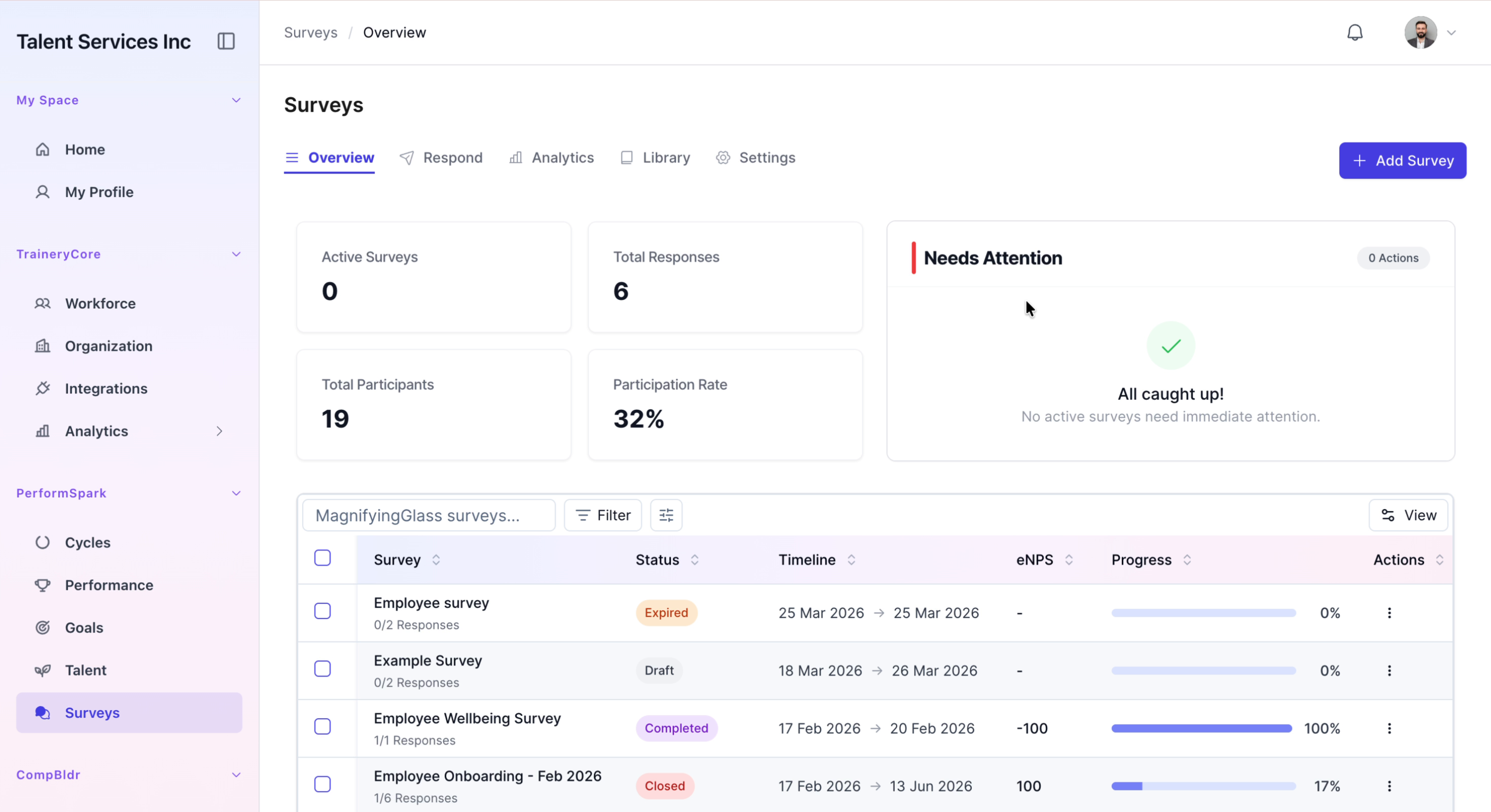
Step 2: Start a New Survey
Click the Add Survey button. Enter "Learning & Growth Survey" as the survey name, and select "Improvement & development" as the survey type.
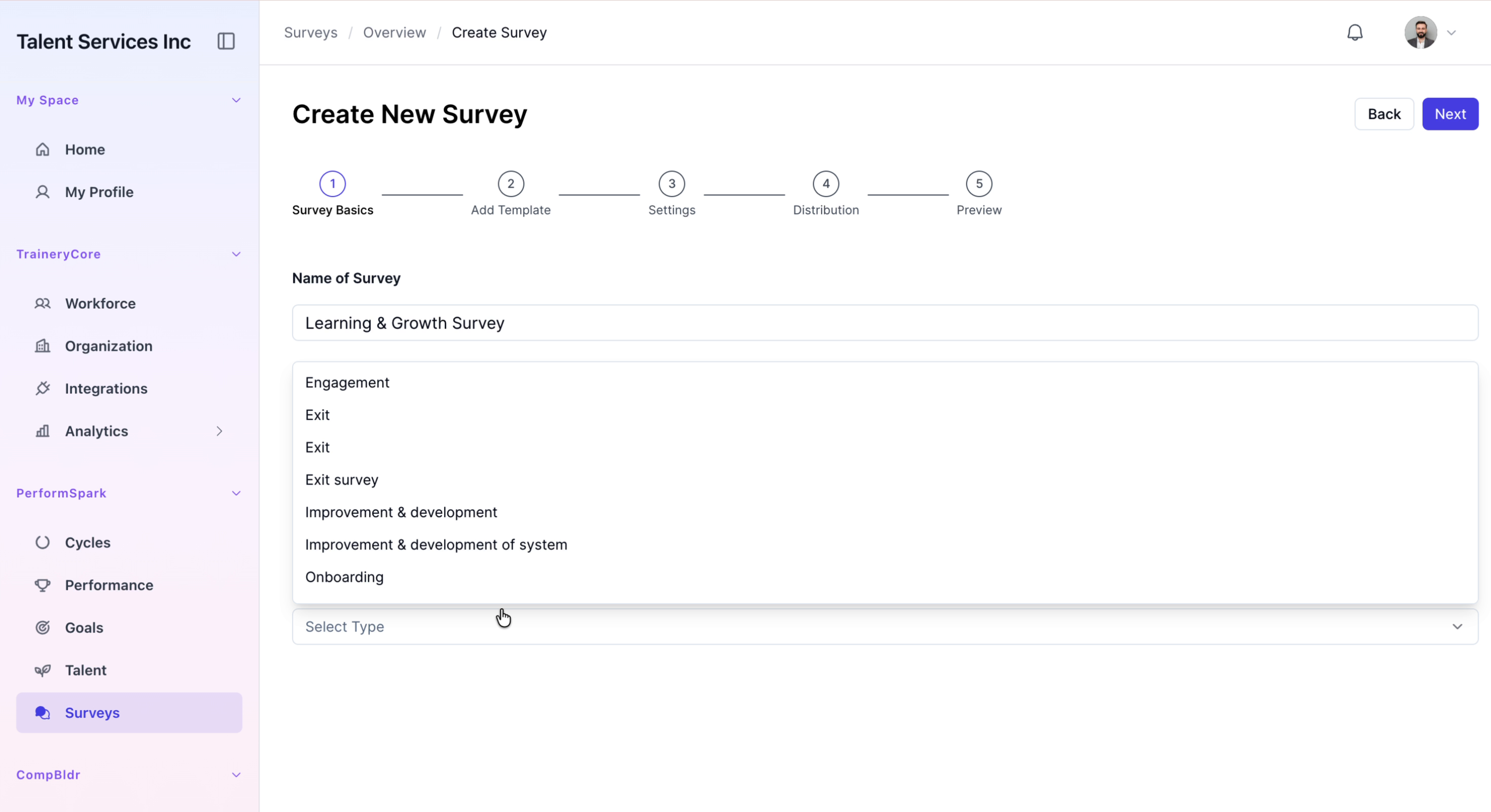
Step 3: Choose and Confirm the Survey Template
Click Next to proceed. Select the "Learning and Growth Survey" template, preview the list of questions to ensure they meet your needs, then continue to the next step.


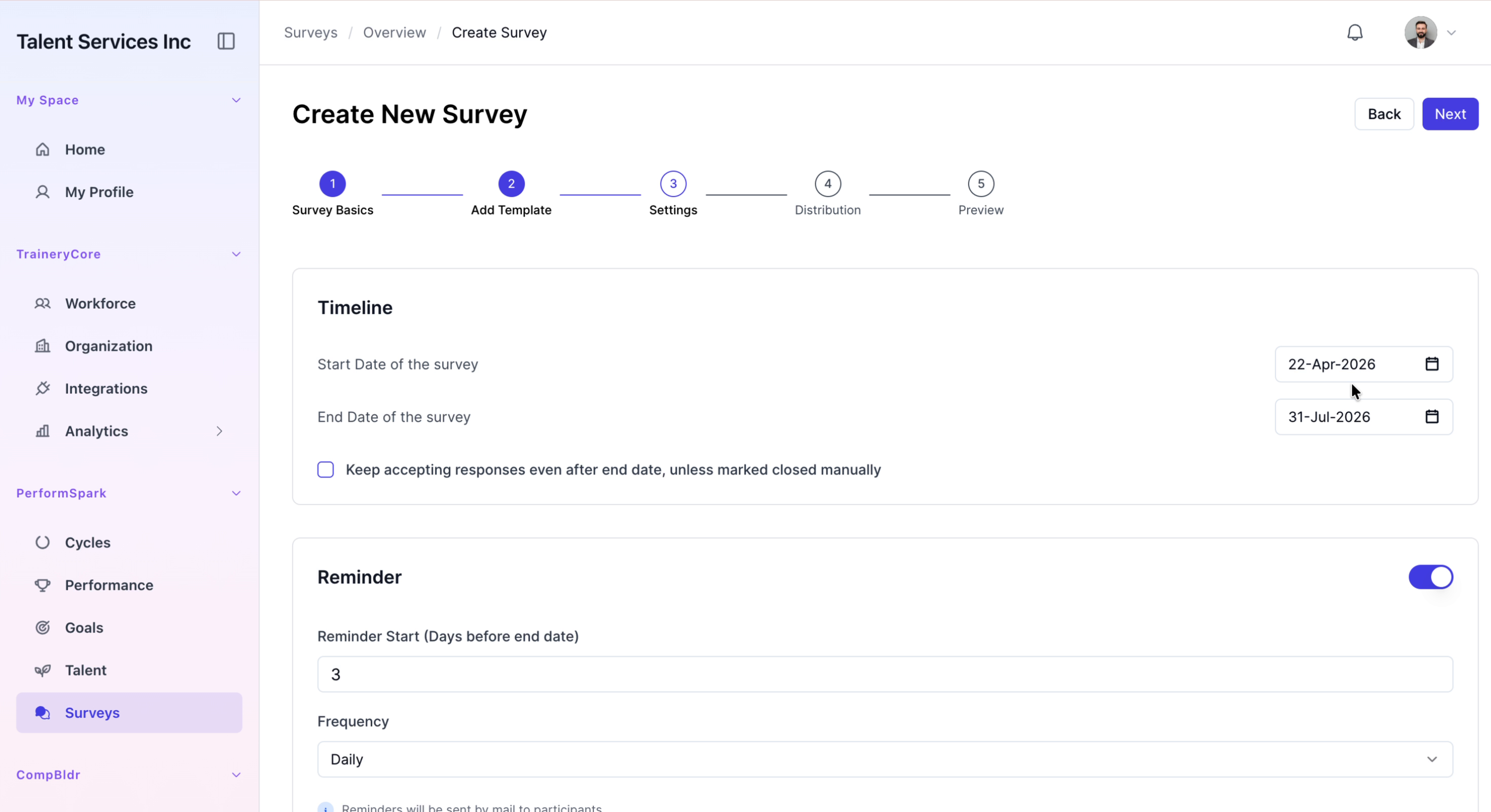
Step 4: Configure End Date and Reminders
Set the survey end date to July 31, 2026. Enable the option to keep accepting responses after the end date, and turn on daily reminders for participants so they receive regular notifications until they complete the survey.
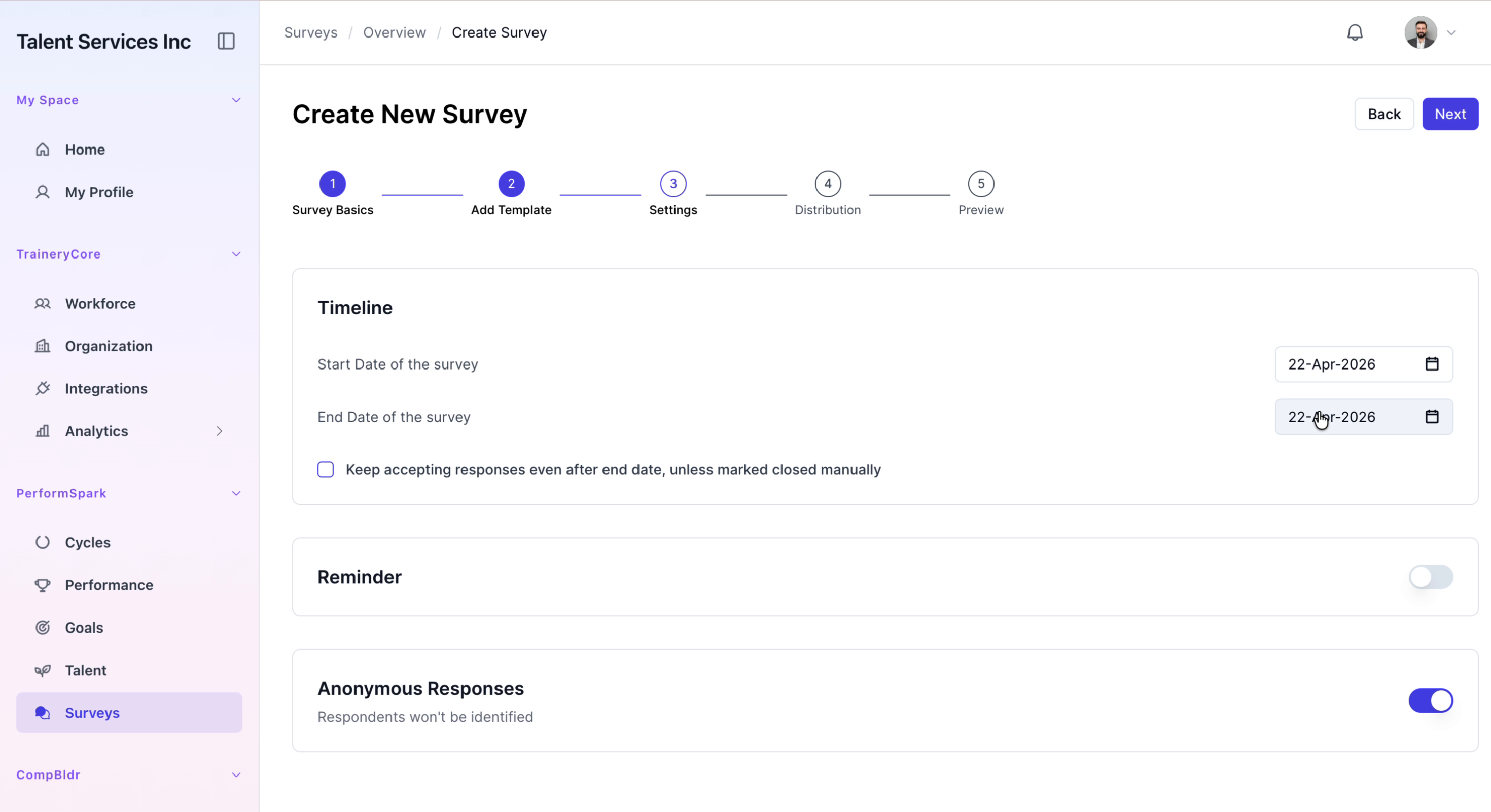

Step 5: Adjust Start Date and Select Participants
Update the survey start date to May 1, 2026. Proceed to the distribution step and select all internal participants as the recipients for this survey.

Step 6: Review and Create the Survey
Carefully review all survey details, including name, type, dates, reminders, and participant list. When everything is correct, click Finish to create the survey and verify that a confirmation message appears indicating the survey was created successfully.

Step 7: Send the Survey to Participants
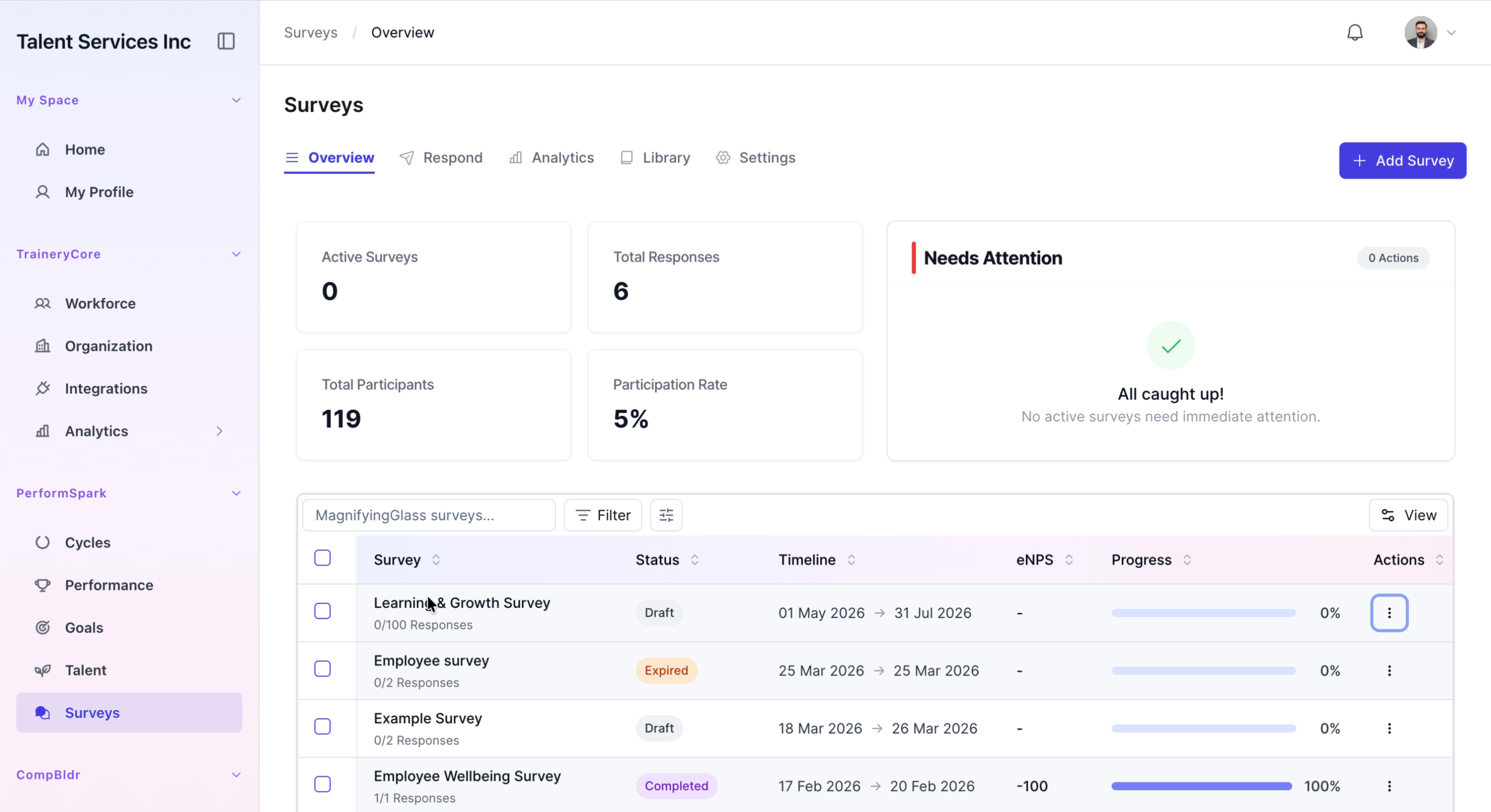
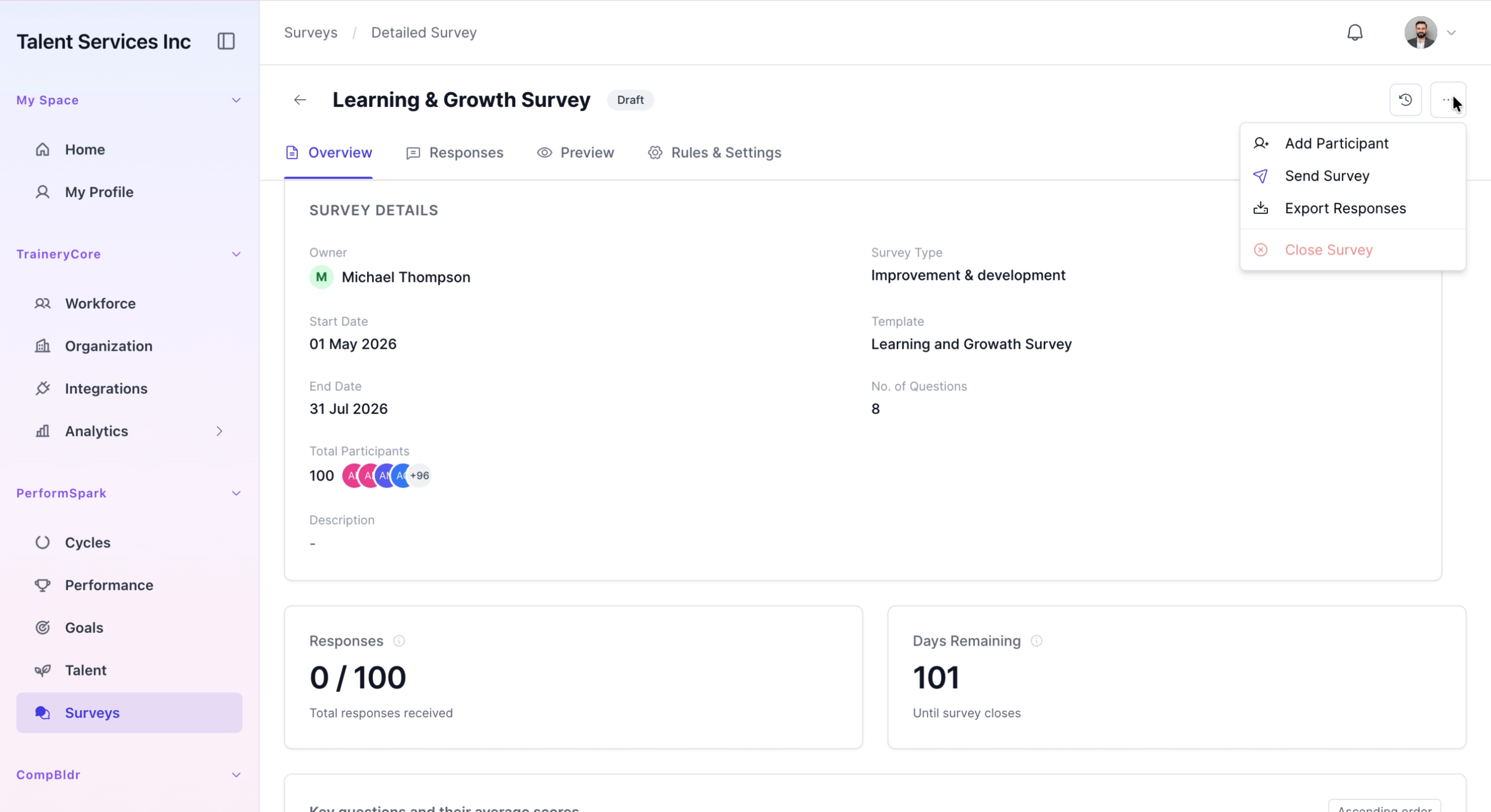
Open the newly created Learning & Growth Survey from the list. Open the options menu, then click Send Survey to distribute it to the selected participants.
Step 8: Confirm the Scheduled Status
Return to the main survey overview page. Confirm that the "Learning & Growth Survey" now appears in the list with a Scheduled status, indicating it is set up and ready to run.
