Assigning and Launching Performance Review Cycles
Last updated: July 1, 2026
Initiating a Performance Evaluation Cycle for an Employee
This document outlines how to add an employee to a performance evaluation cycle, assign a review template, and launch their review from the Cycle Summary page.
Step 1: Open the Relevant Performance Evaluation Cycle
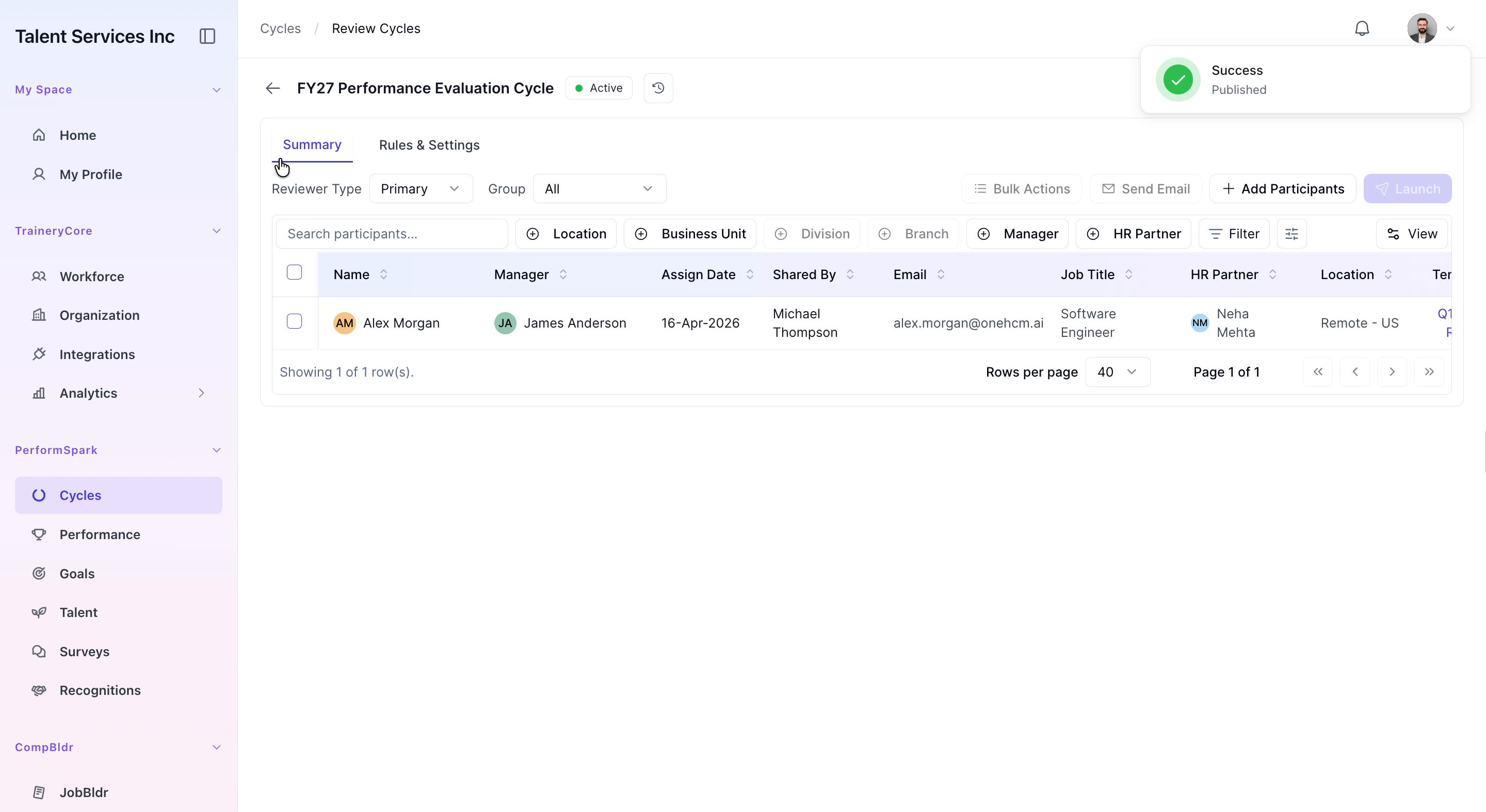
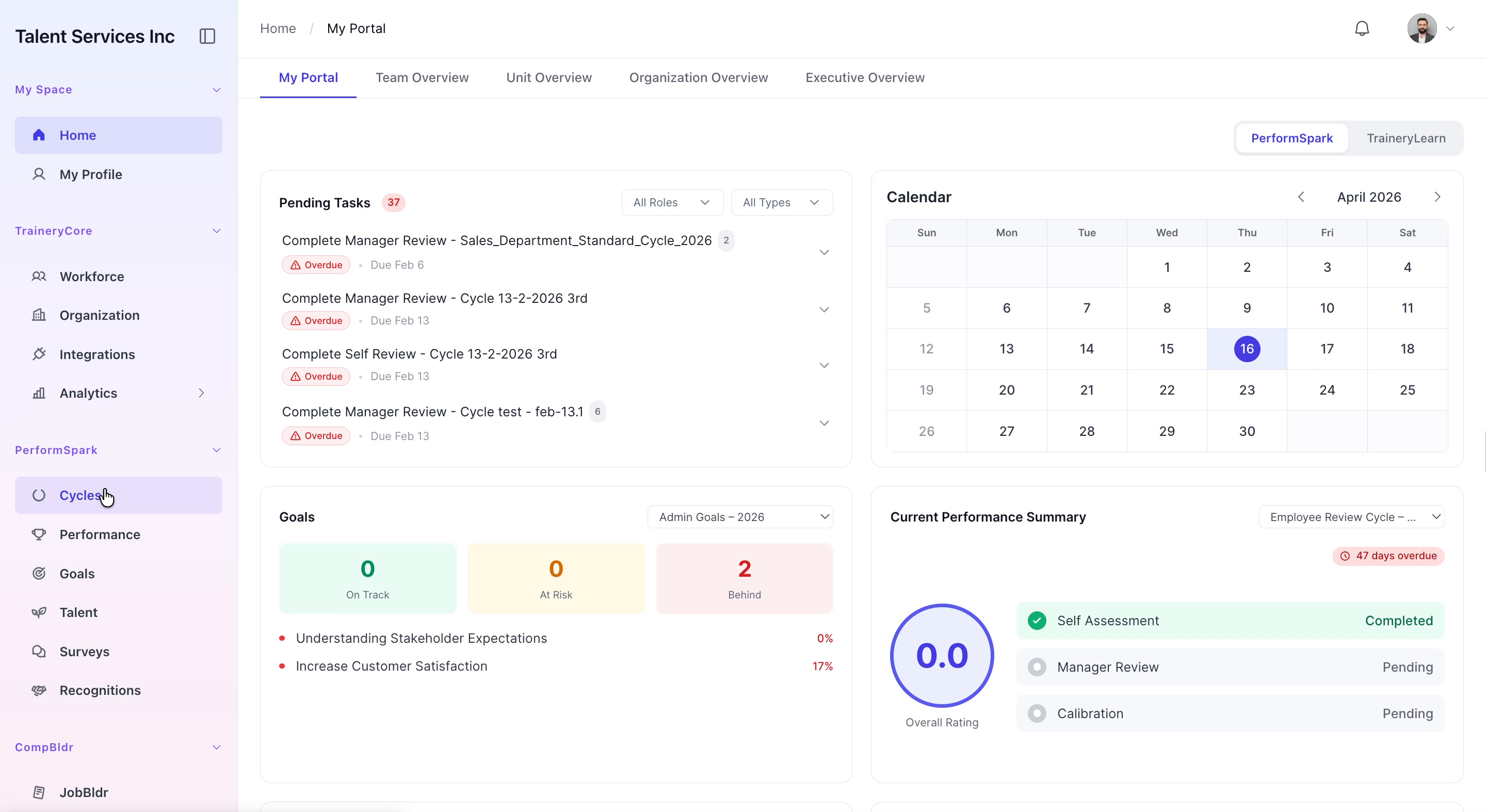
1. Navigate to the Cycles section in your application. 2. Click on the Cycle Summary tab. 3. From the list of available cycles, select FY27 Performance Evaluation Cycle. 4. Click Add Participants to begin adding employees to this cycle.

Step 2: Add the Employee and Assign a Review Template
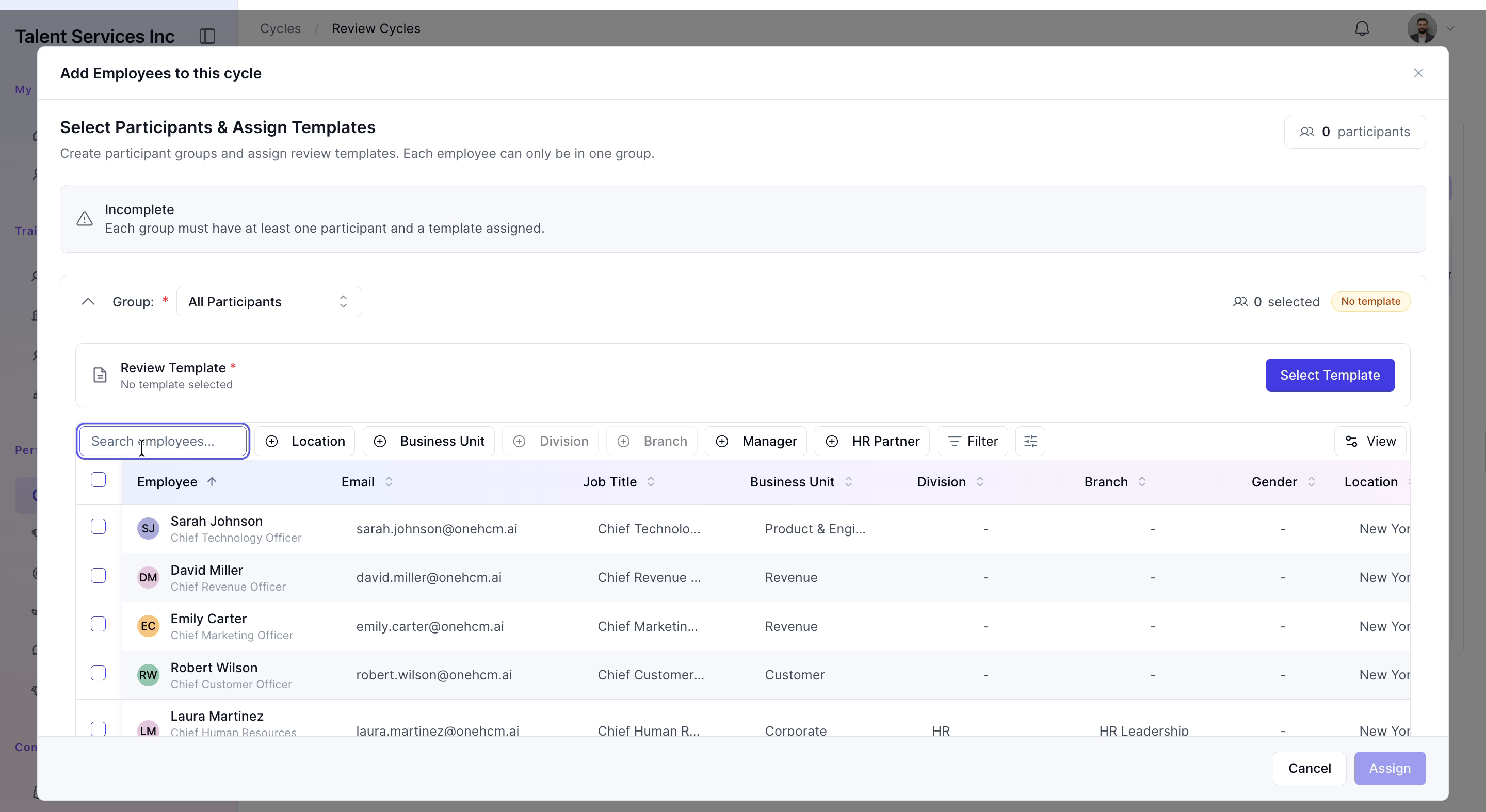
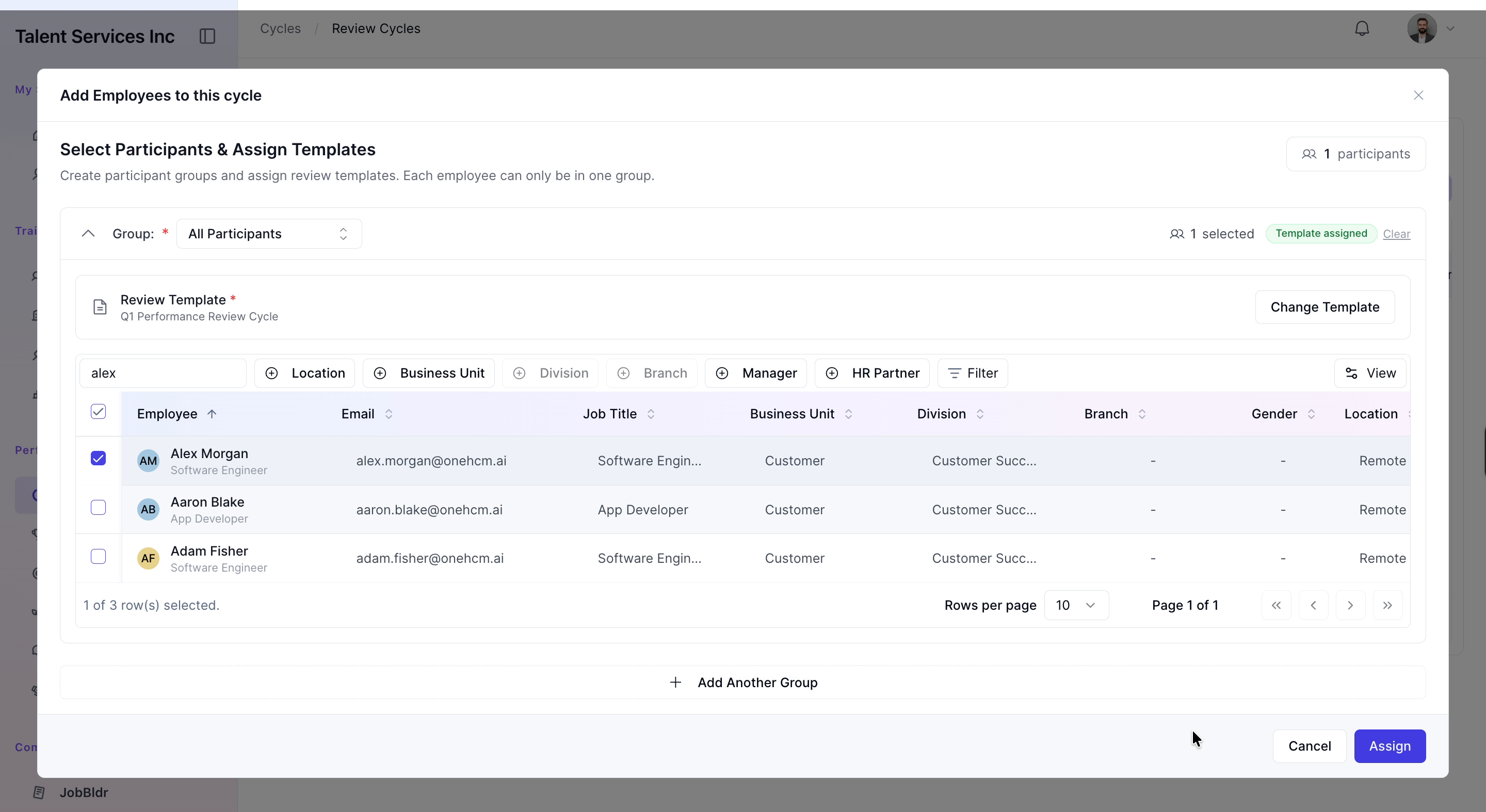
1. In the participant search field, type Alex and locate the correct employee record. 2. Select Alex from the search results. 3. Click Select Template to choose a review template. 4. From the template list, select Q1 Performance Review Cycle as the template for this evaluation. 5. Confirm your template selection. 6. Click Assign to assign the selected template to Alex within the FY27 cycle.
Step 3: Launch the Review and Return to Cycle Summary
1. In the participant list, select the newly added participant (Alex). 2. Click the Launch button to start the performance review. 3. Confirm the launch action when prompted to officially start the review for Alex. 4. After launching, click the back arrow to return to the Cycle Summary page and verify the participant’s status.