Approving Employee Performance Reviews
Last updated: July 1, 2026
Approving a Pending Performance Review
This document describes how to locate and approve a pending performance review, including reviewing detailed evaluation sections and finalizing the approval with comments.
Step 1: Open the Pending Reviews List
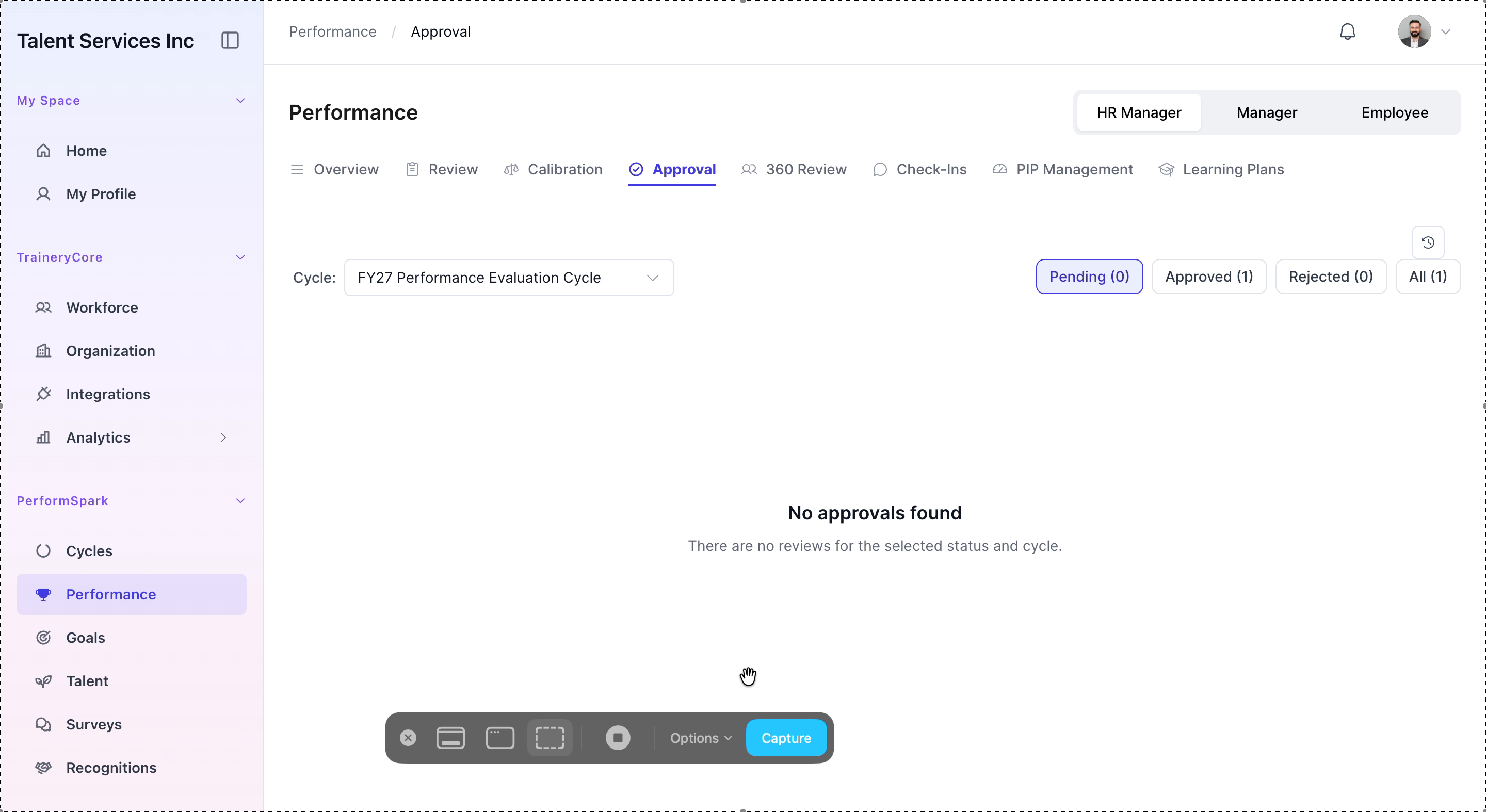
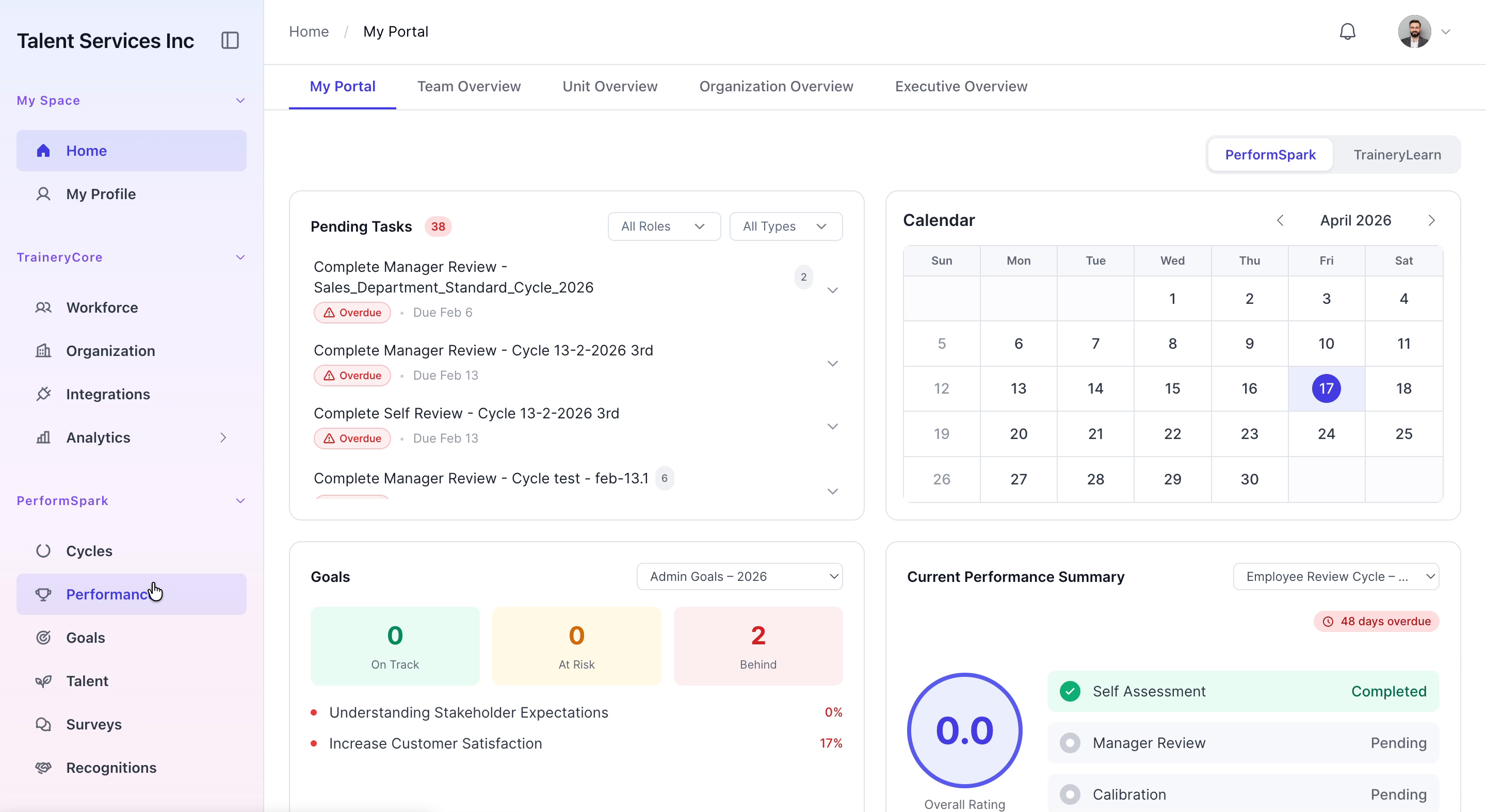
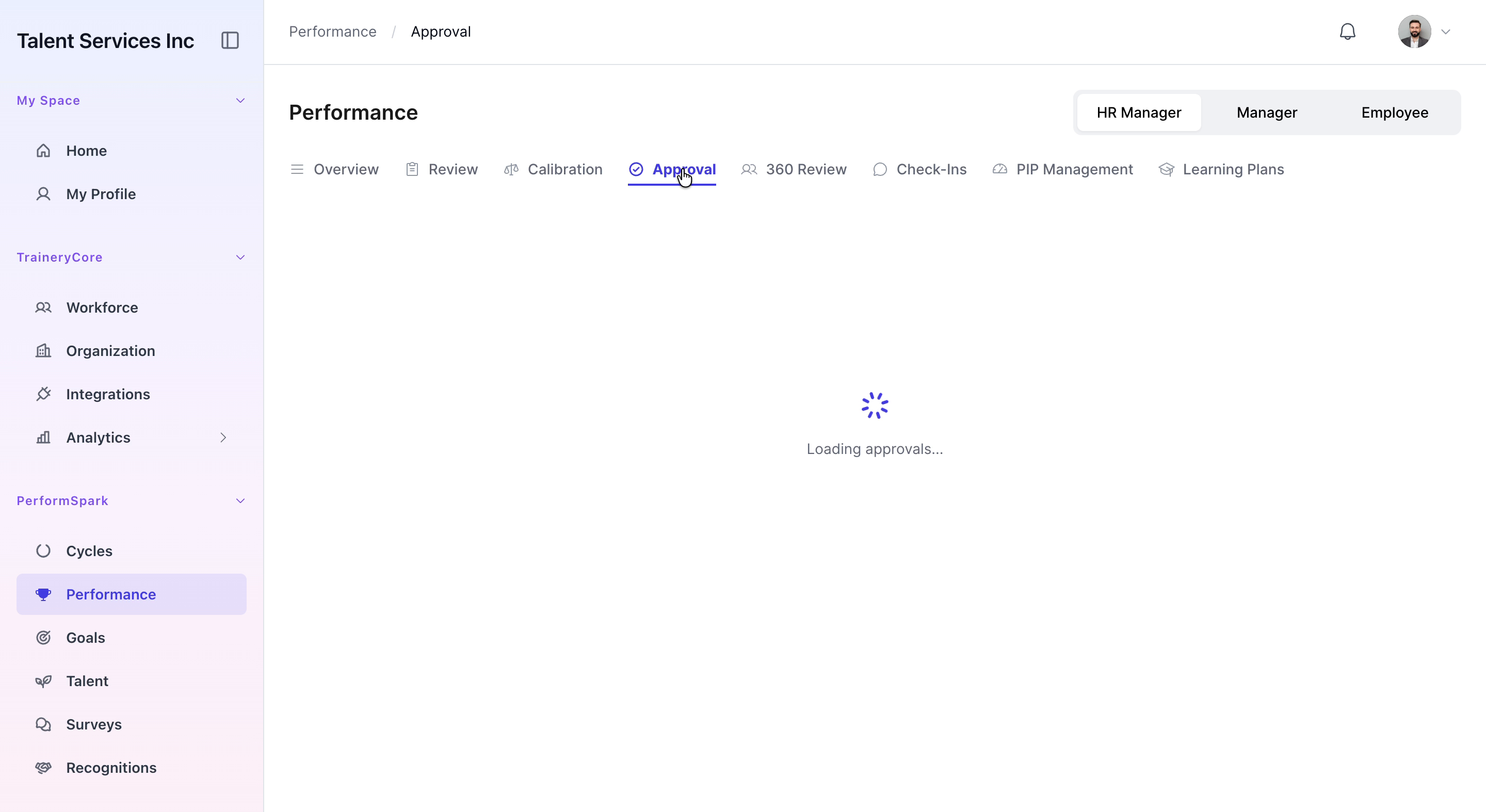
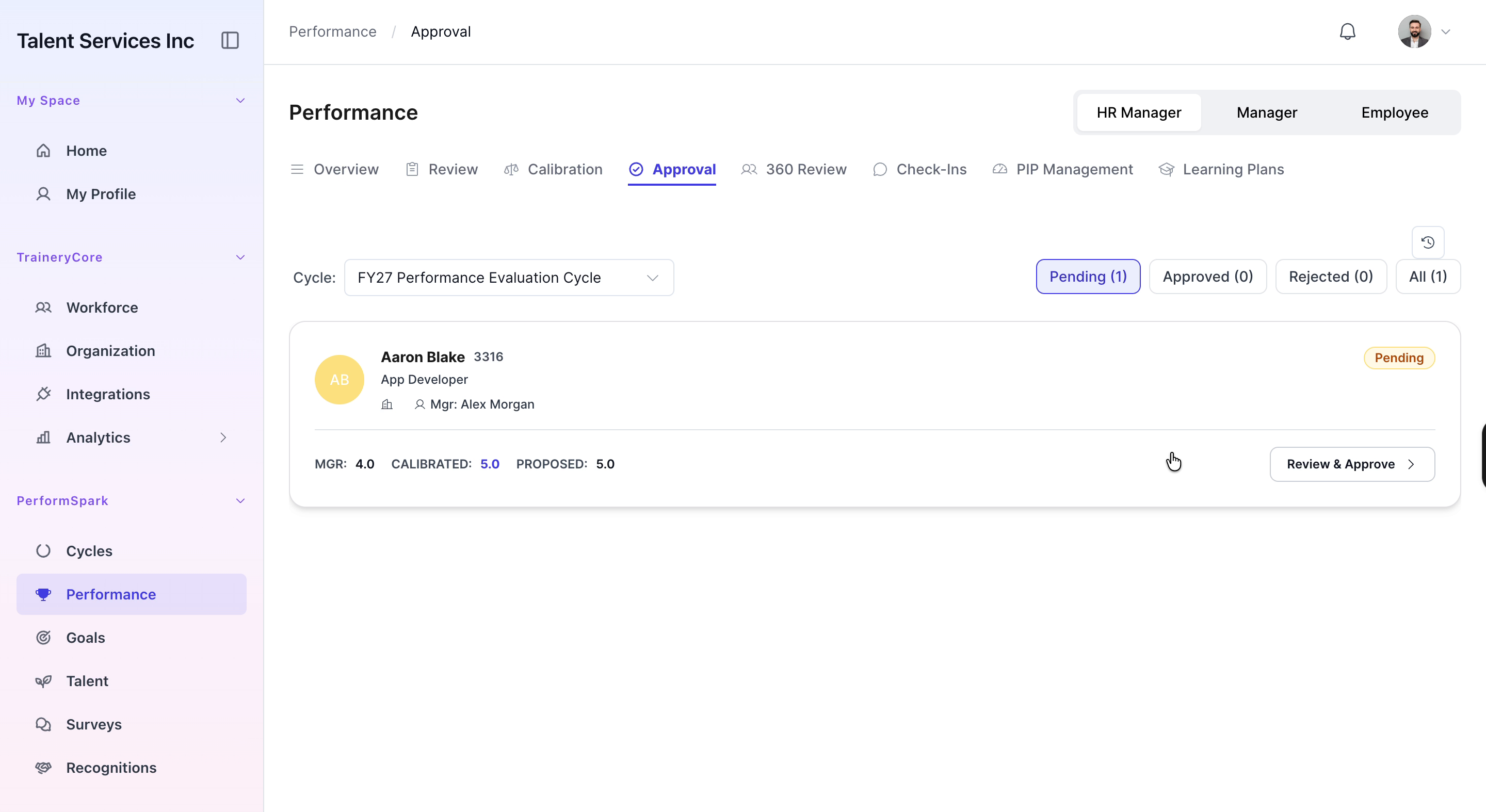
Navigate to the Performance section in the system and select the Approval tab to view all pending reviews.
Step 2: Open the Specific Employee Review
In the pending reviews list, locate the review for Aaron Blake and click Review and Approve to open the detailed performance evaluation.
Step 3: Review All Evaluation Details
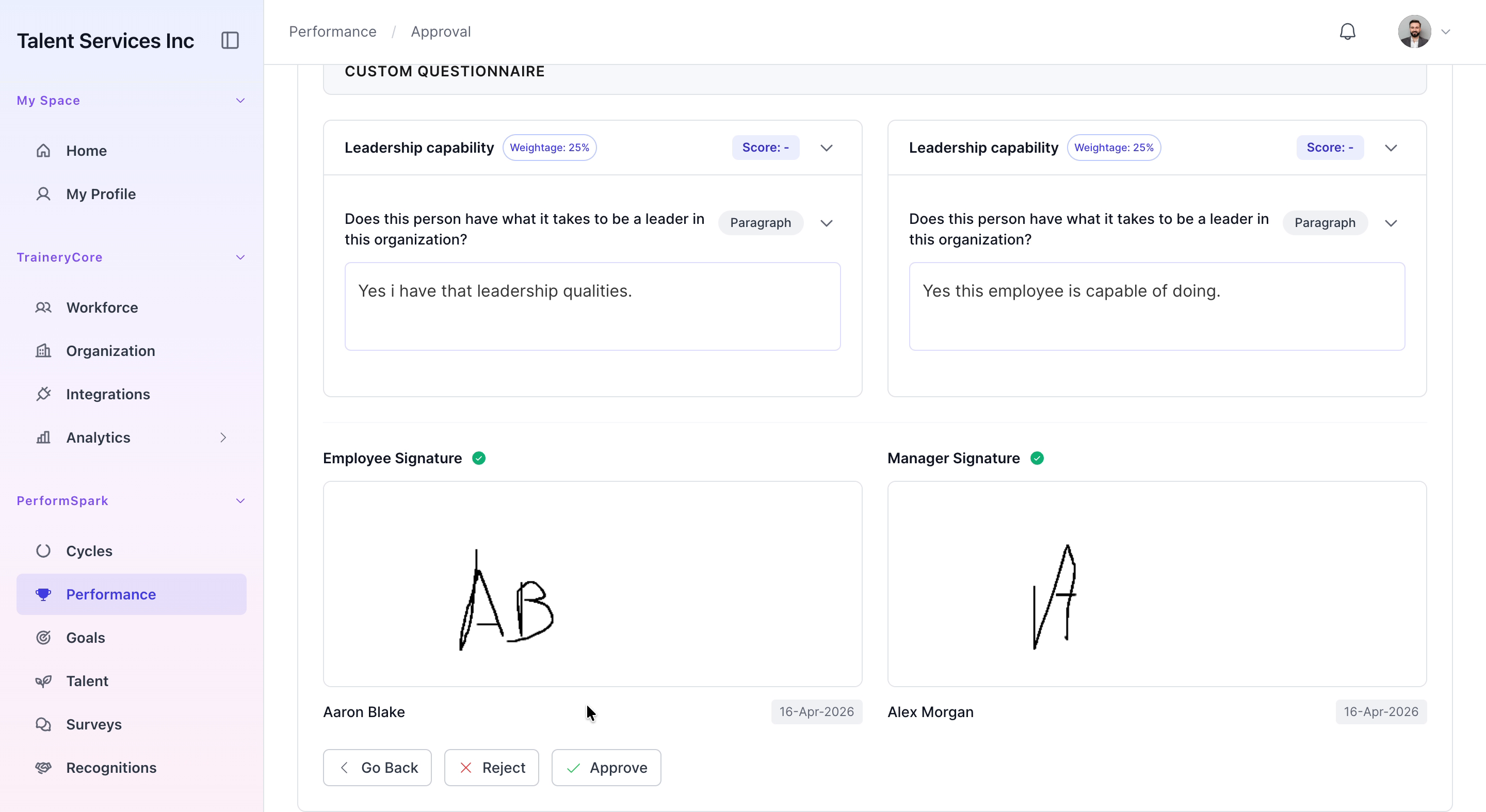
Scroll through the performance evaluation, carefully reviewing all sections, including: - Competencies (e.g., stakeholder communication, strategic visioning) - Custom questionnaire responses - Employee signatures and any related acknowledgements
Ensure you have thoroughly checked each section before proceeding.
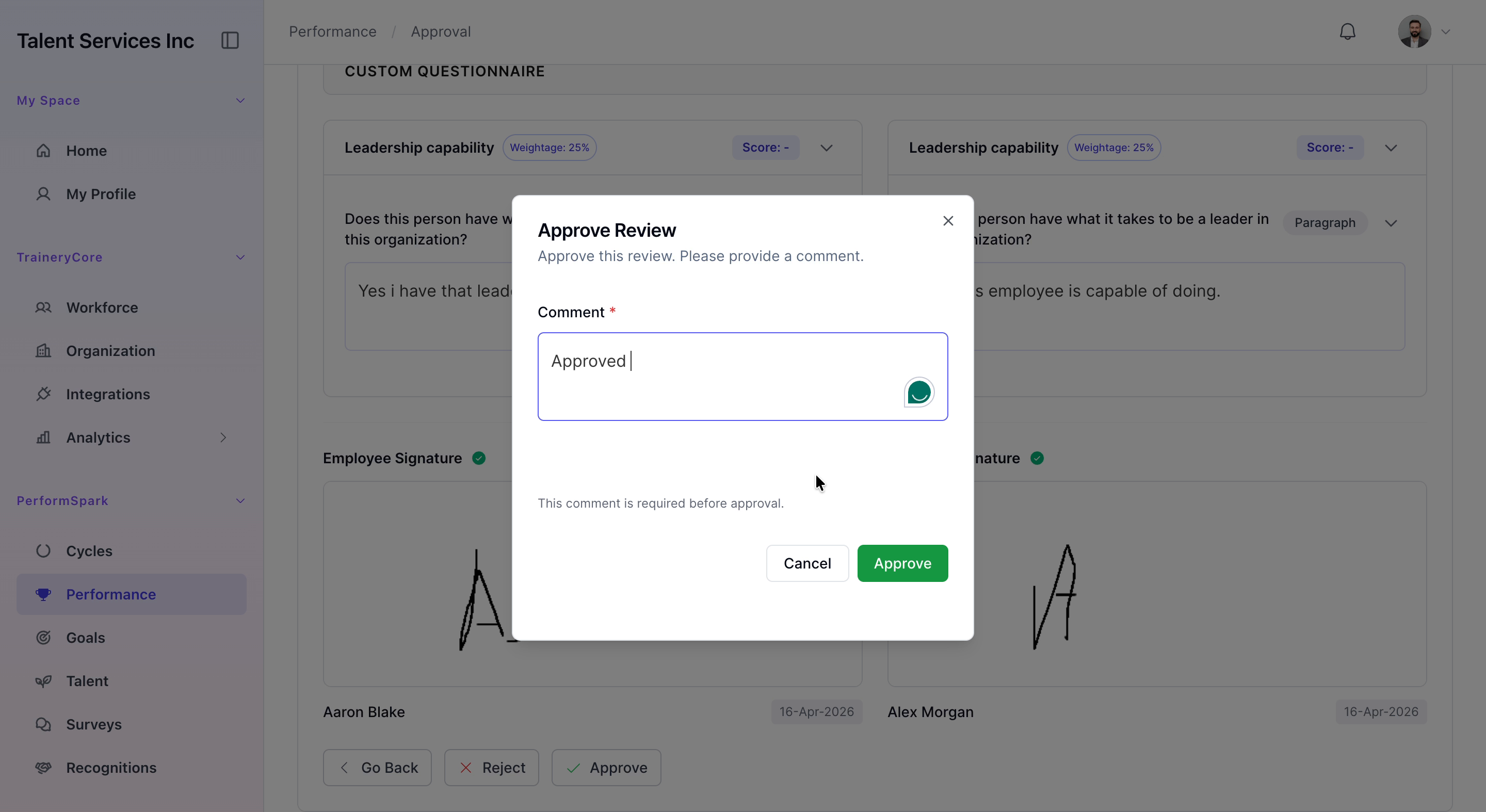
Step 4: Approve the Review and Confirm
At the bottom of the evaluation, click the Approve button. In the comment box that appears, type “Approved”, then click Approve again to finalize the process. A success confirmation message will appear, indicating that the review has been successfully approved.