Submitting a Performance Evaluation Review
Last updated: May 3, 2026
Completing a Performance Evaluation for an Employee
This document outlines the steps to complete and submit a performance evaluation for an employee, including assigning ratings, entering qualitative feedback, using AI drafting assistance, and finalizing the review for calibration.
Step 1: Open the Employee’s Performance Evaluation
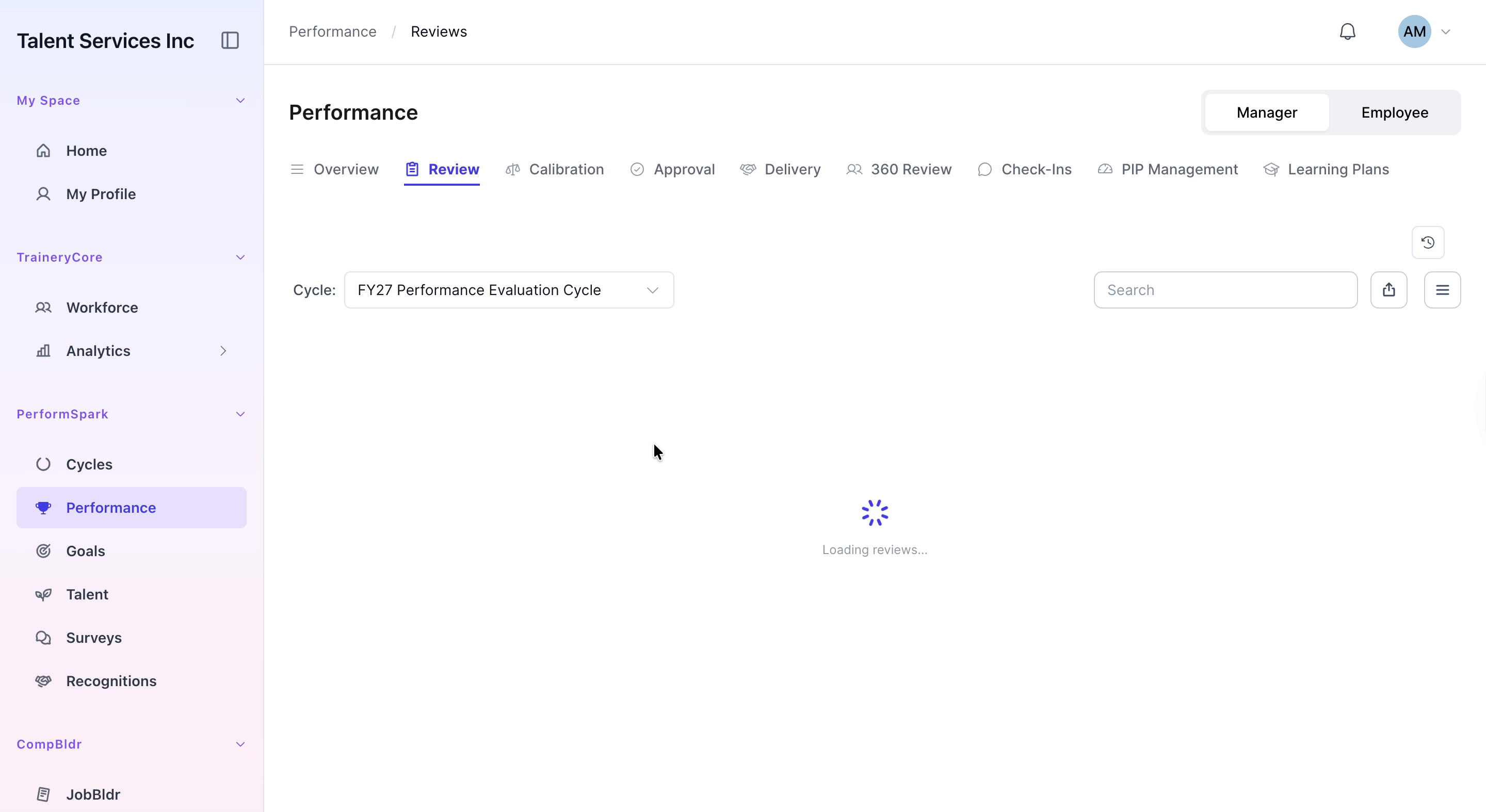
Navigate to the Performance section of the system. Click the Review tab and open the performance evaluation for Aaron Blake.

Step 2: Rate Company Review and Comment on Stakeholder Communication
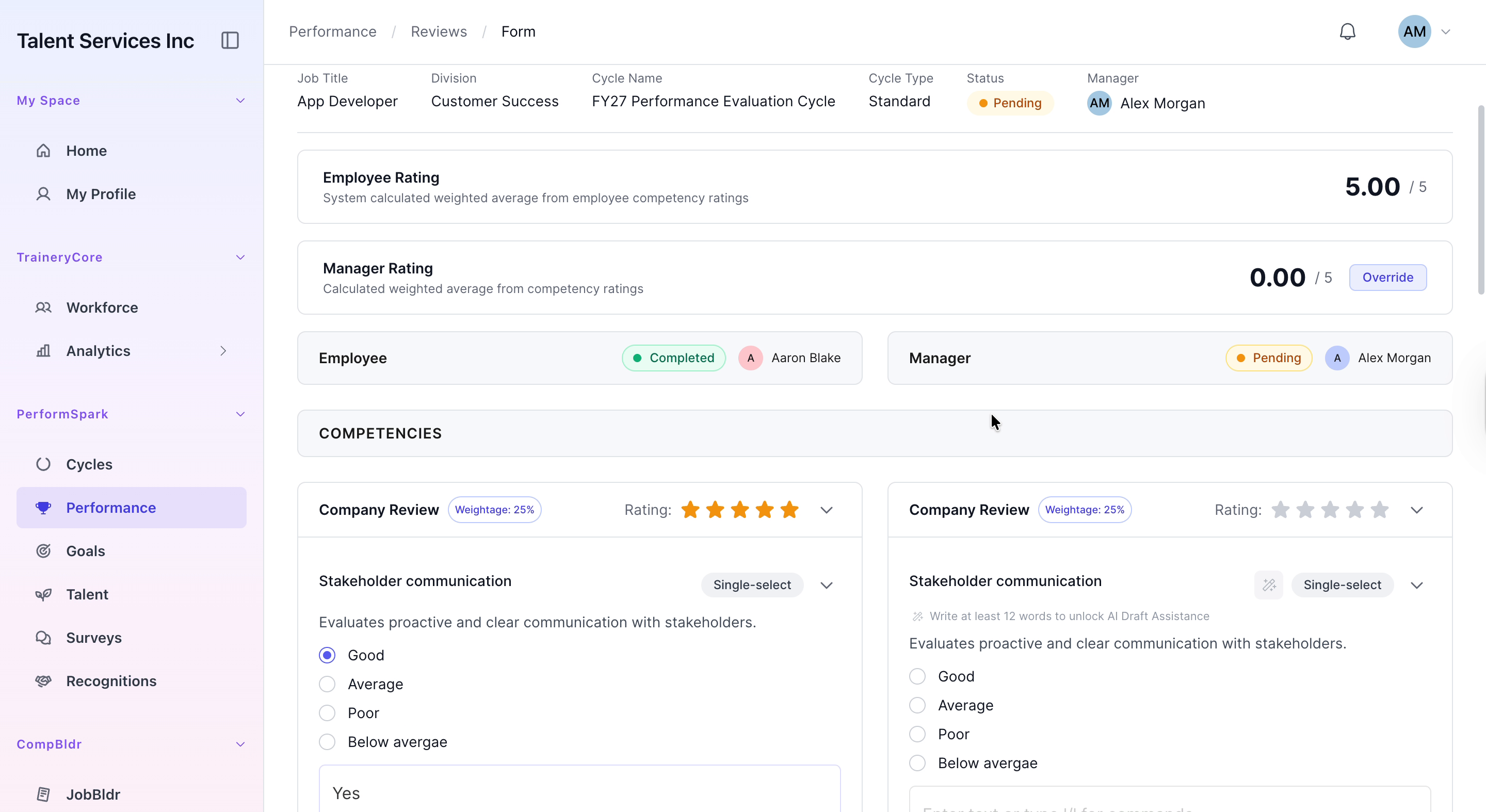
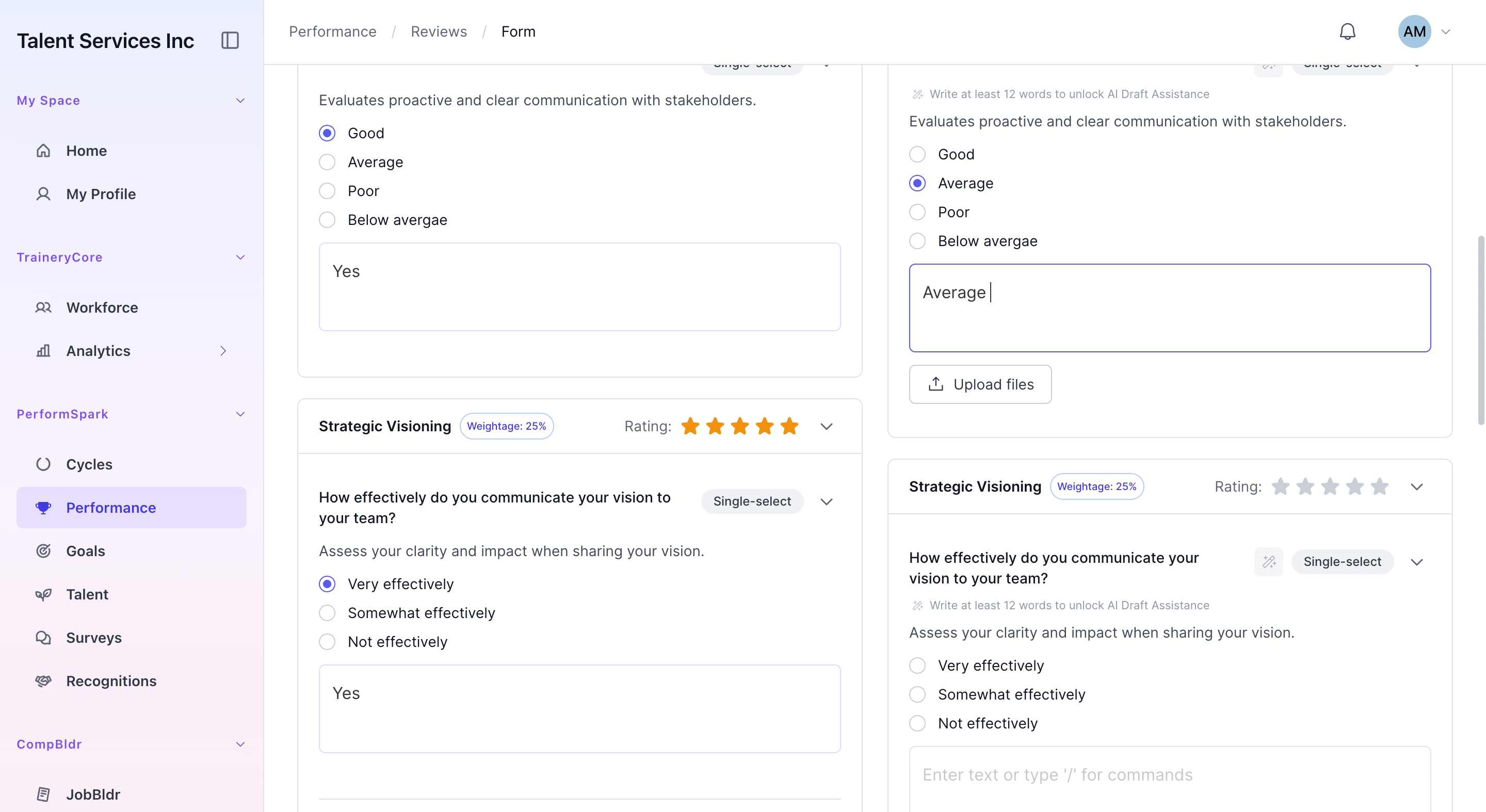
Assign a four-star rating for the Company Review section. Then, in the Stakeholder Communication area, select Average from the rating options and type a brief comment describing Aaron’s communication performance.

Step 3: Evaluate Strategic Visioning and Provide Feedback
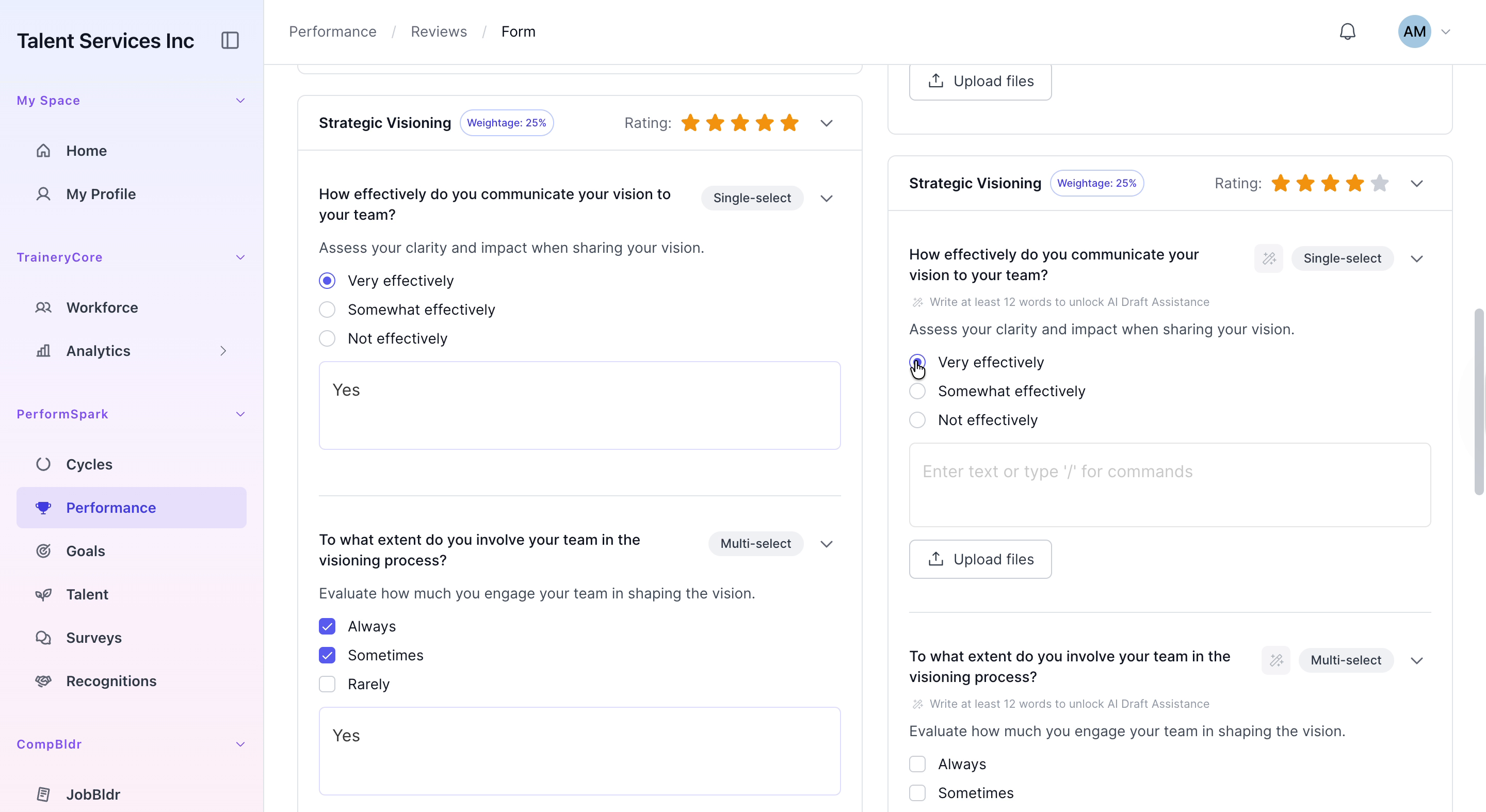
In the Strategic Visioning section, select a four-star rating. Choose Somewhat effectively to describe how effectively Aaron demonstrates strategic visioning, and enter Yes in the corresponding feedback field to confirm that expectations are being met.
Step 4: Assess Team Involvement in Visioning
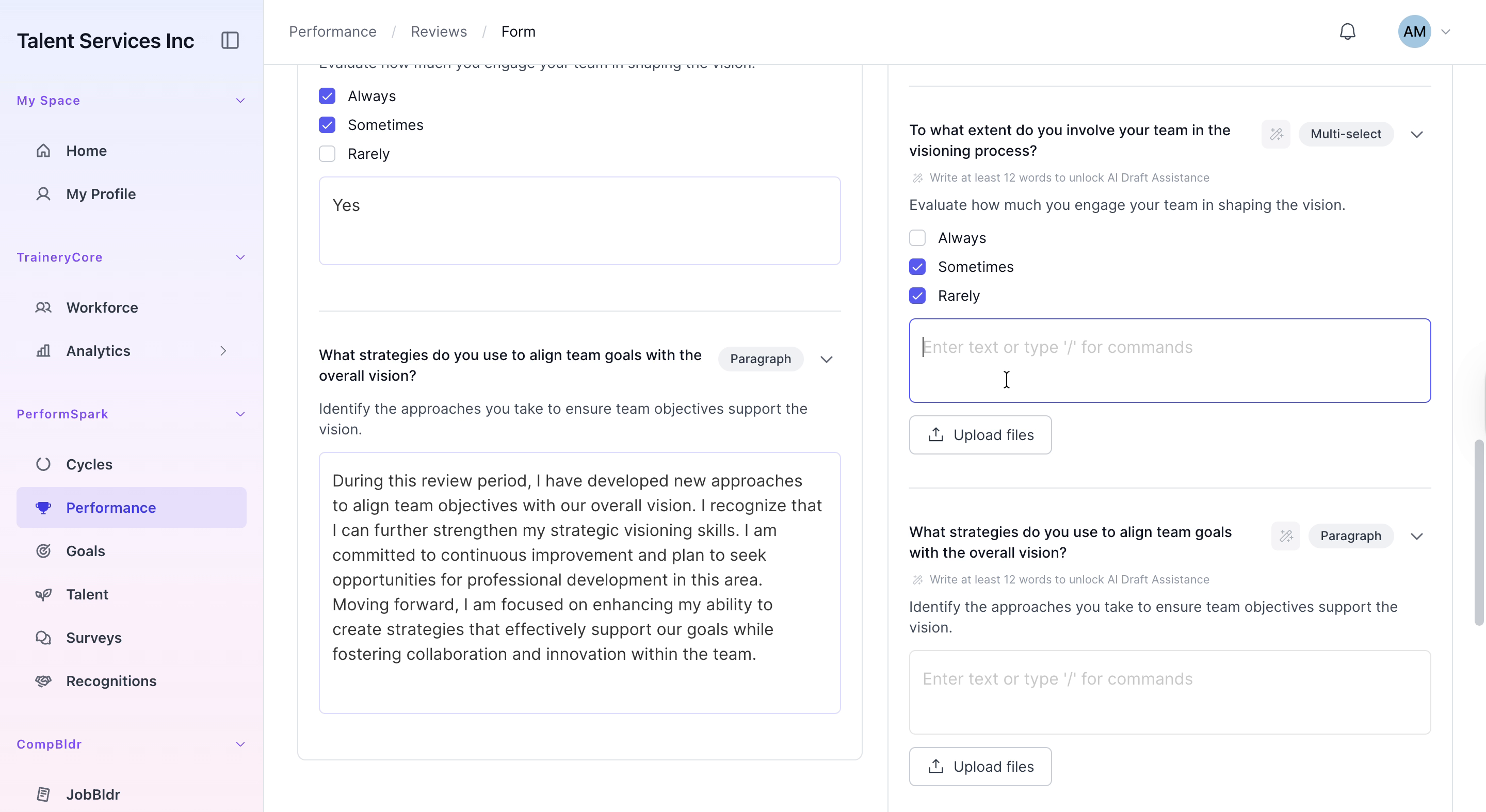
For the questions on team involvement in visioning, select Sometimes and Rarely as appropriate for Aaron’s participation levels. Type a corresponding note in the text area to explain the context behind these selections.

Step 5: Draft and Refine Alignment Strategies Feedback
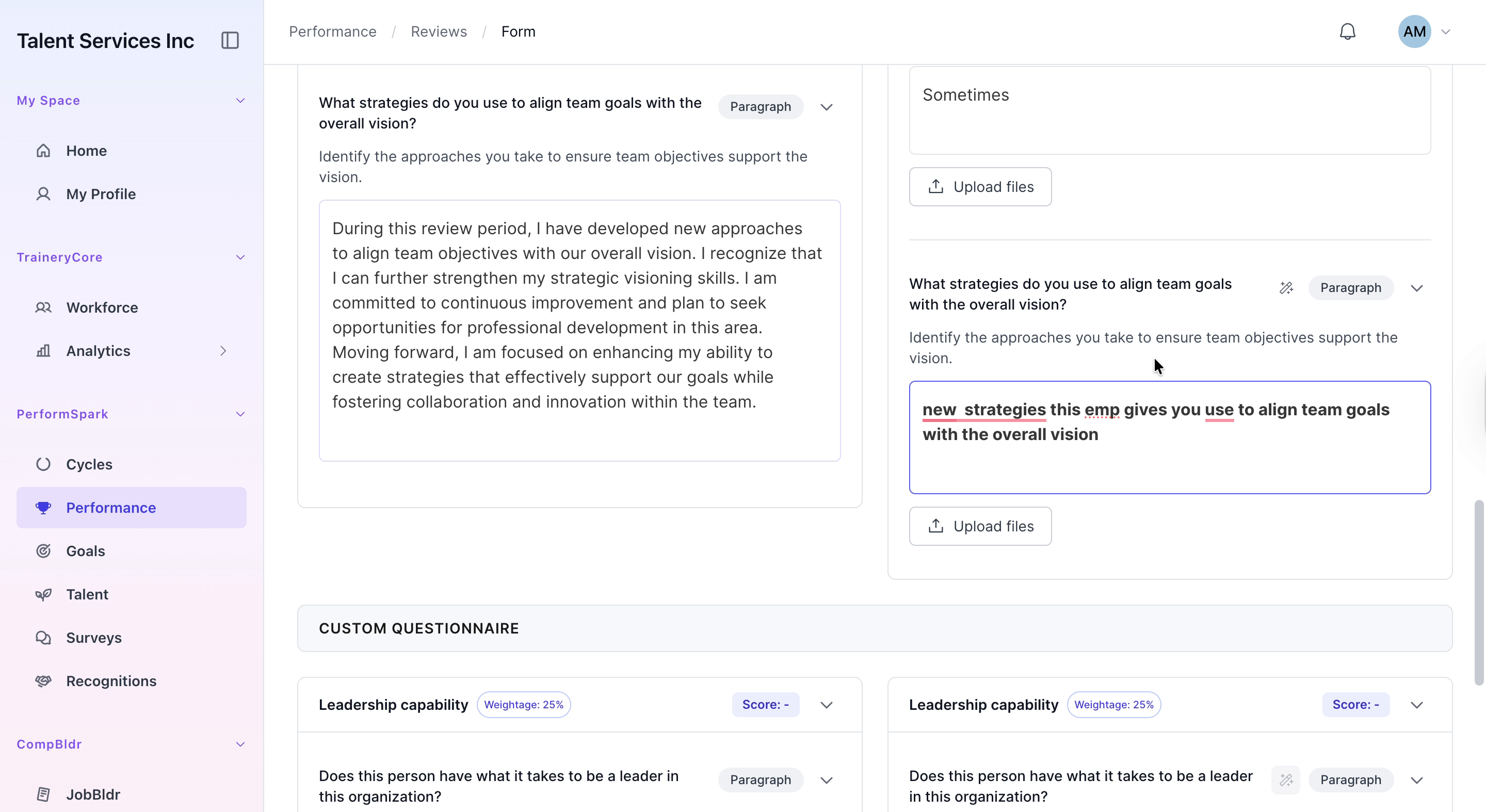
In the Alignment Strategies section, begin typing a detailed explanation of how new strategies are being used to align team goals with the overall organizational vision. Carefully review and edit the text for clarity, ensuring correct grammar and a professional tone before moving on.

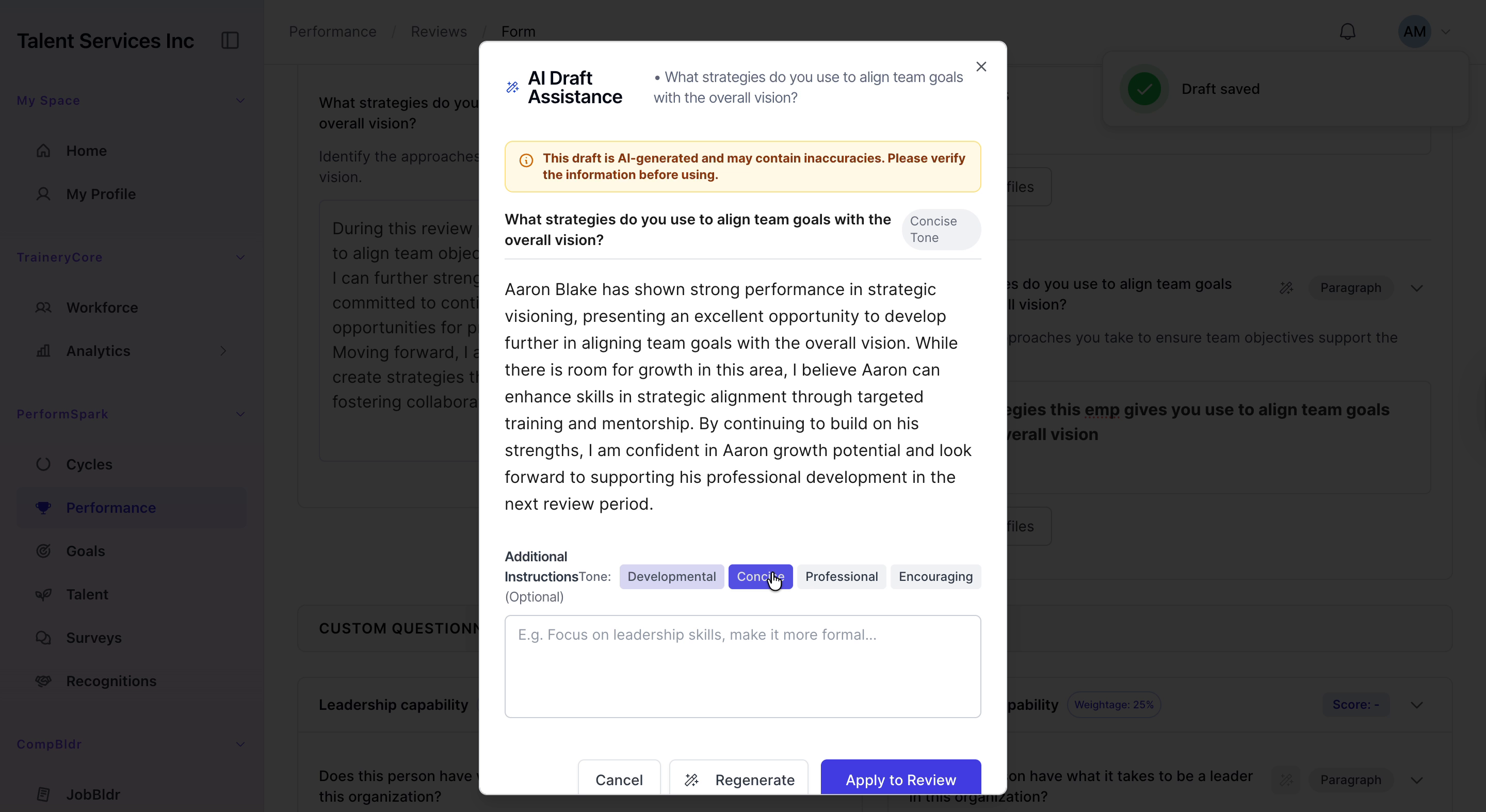
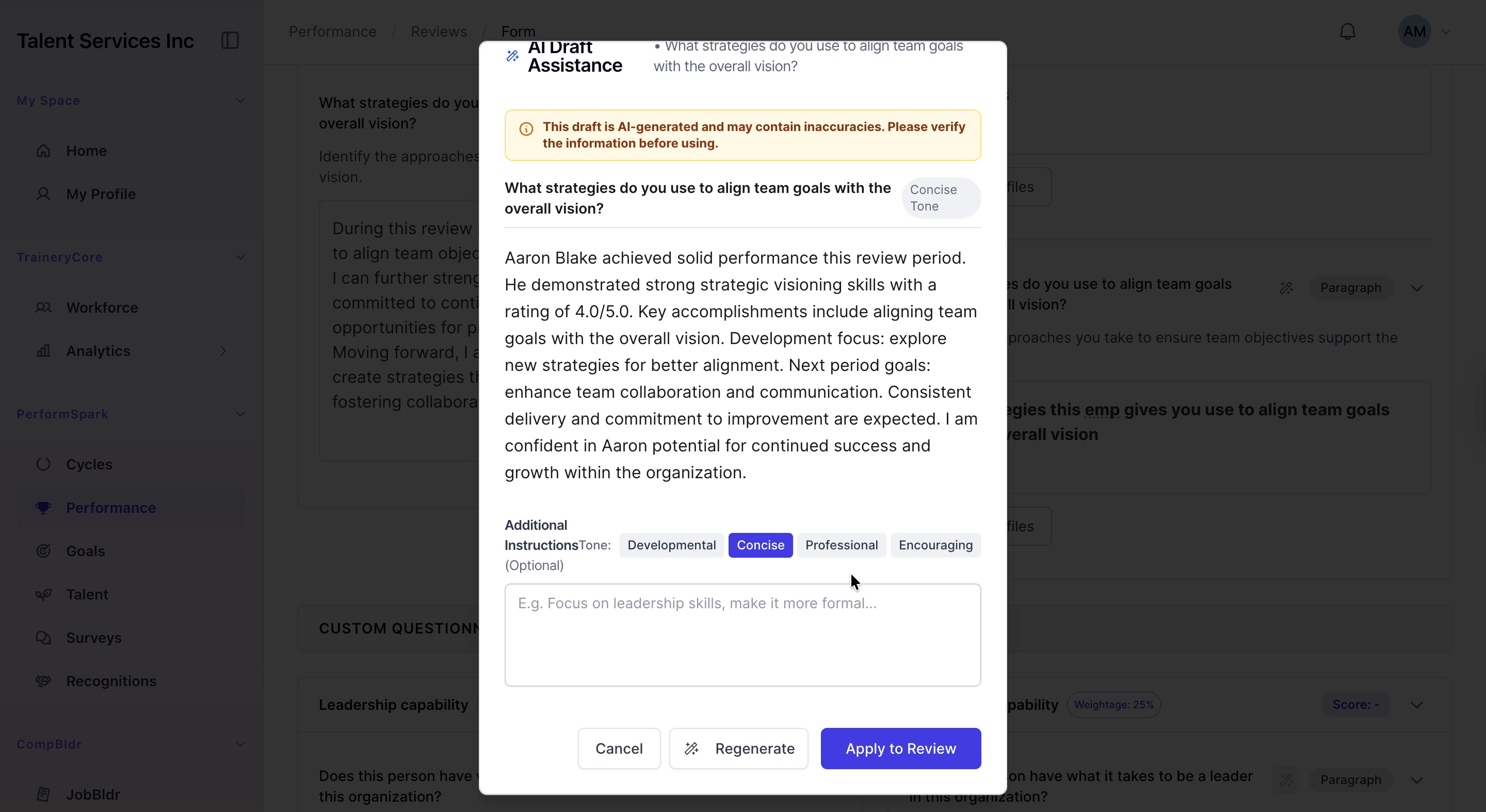
Step 6: Use AI Draft Assistance to Improve the Narrative
Open the AI Draft Assistance tool and use it to regenerate and refine your alignment strategies text. Review the AI-suggested content, make any necessary edits, and then apply or insert the updated narrative into the review form.
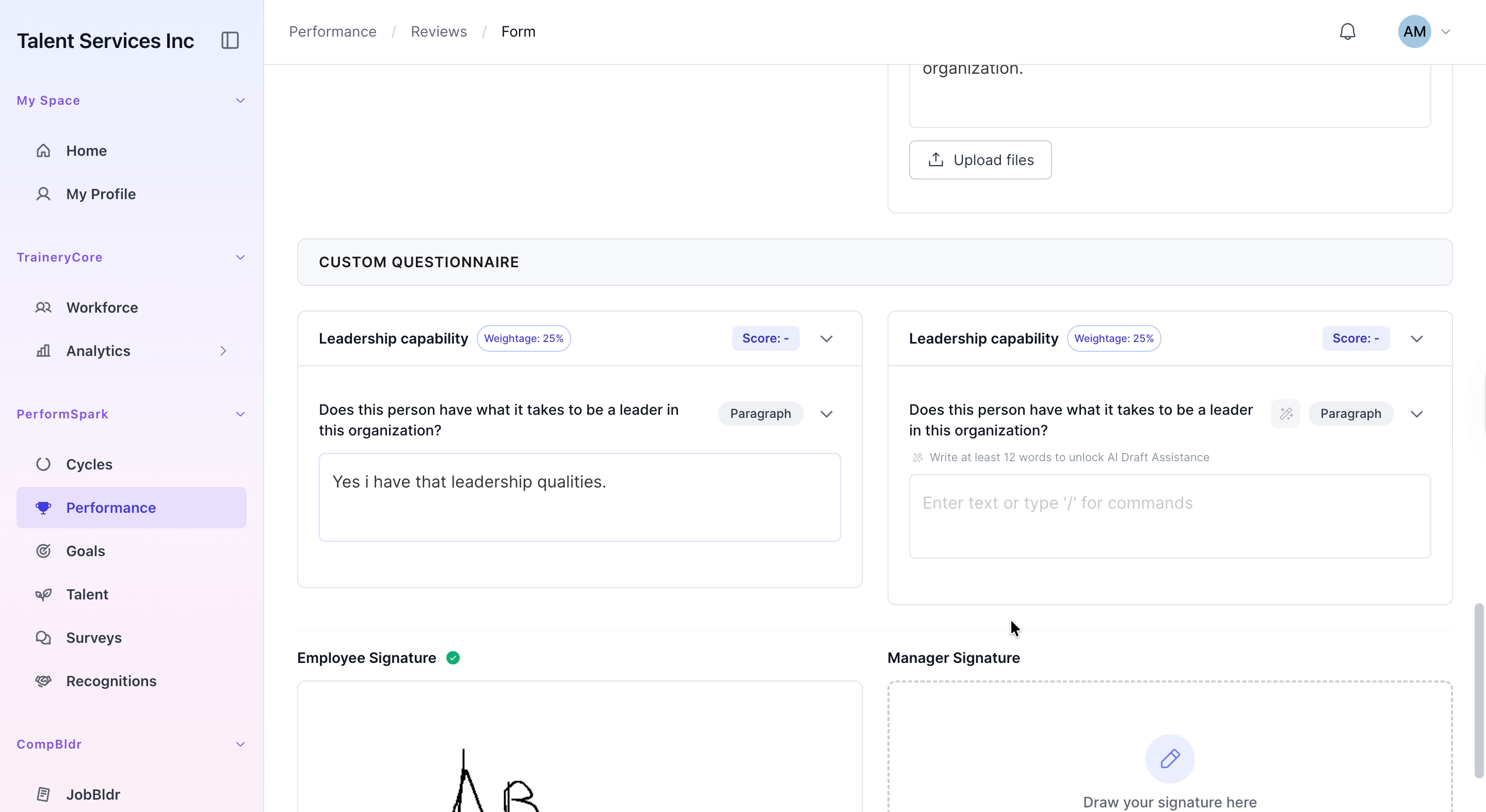
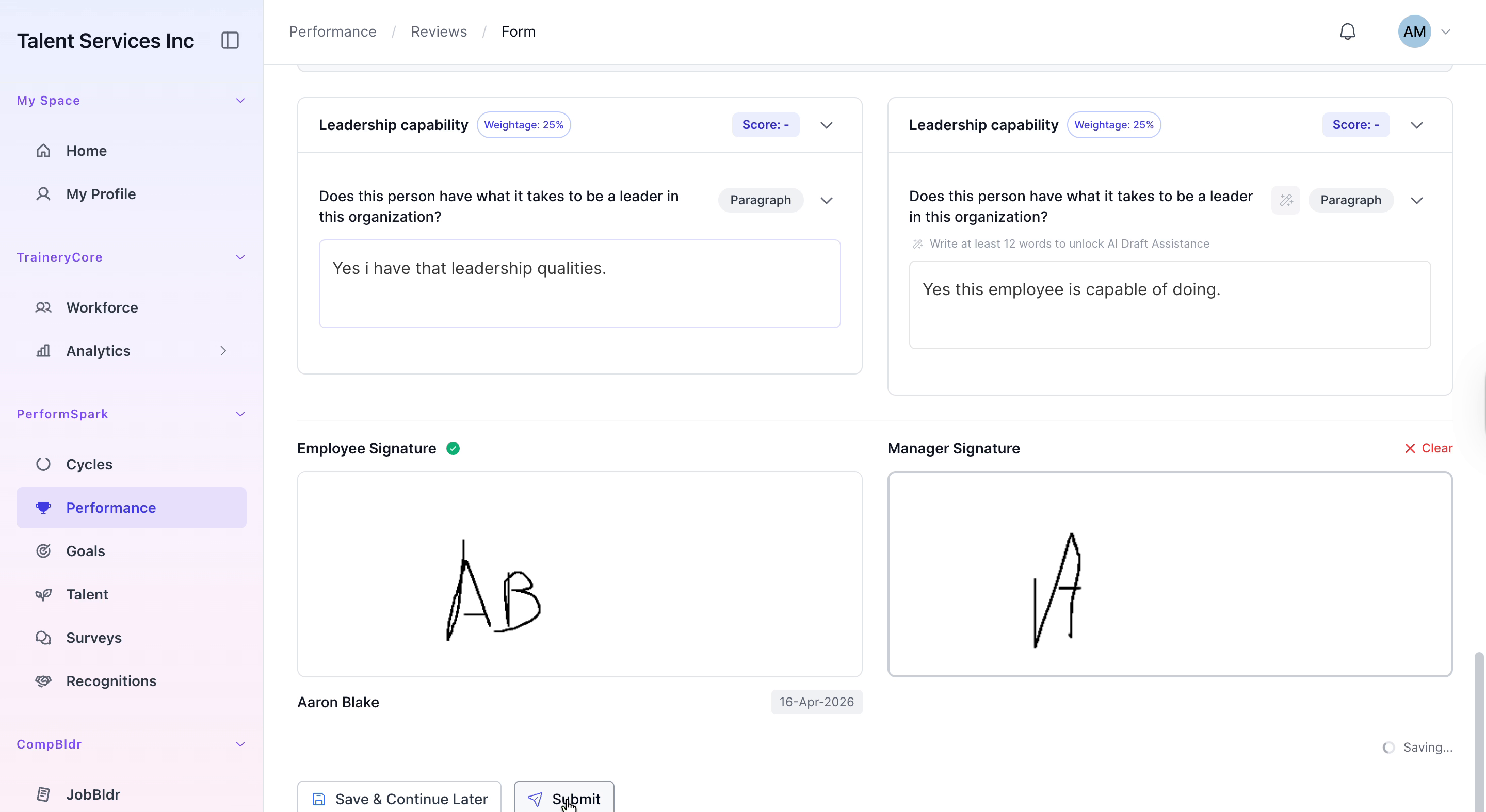
Step 7: Complete the Questionnaire, Sign, and Submit
Answer the custom questionnaire by typing your responses in the provided fields. Enter your digital signature in the manager signature box to confirm and approve the evaluation, then click Submit to finalize the review. Wait while the system processes the submission; you will be returned to the dashboard, where the review status will show as in calibration.