Employee Performance Review Delivery
Last updated: May 3, 2026
Managing and Delivering Performance Reviews
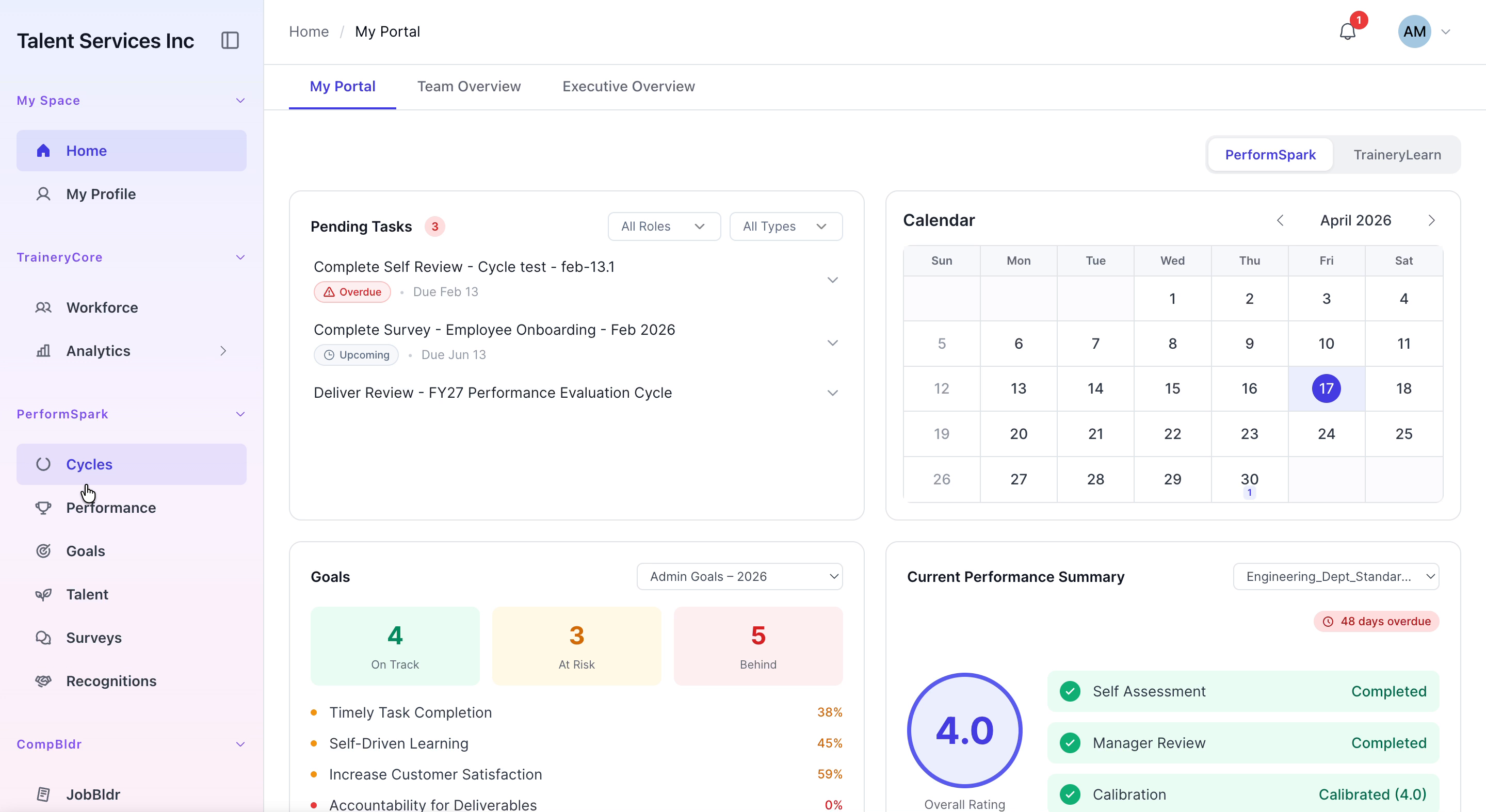
This document describes how to schedule a performance review meeting, review the performance details, and deliver the finalized review to a team member within the Performance section of the application.
Step 1: Open the Delivery Tab in the Performance Section
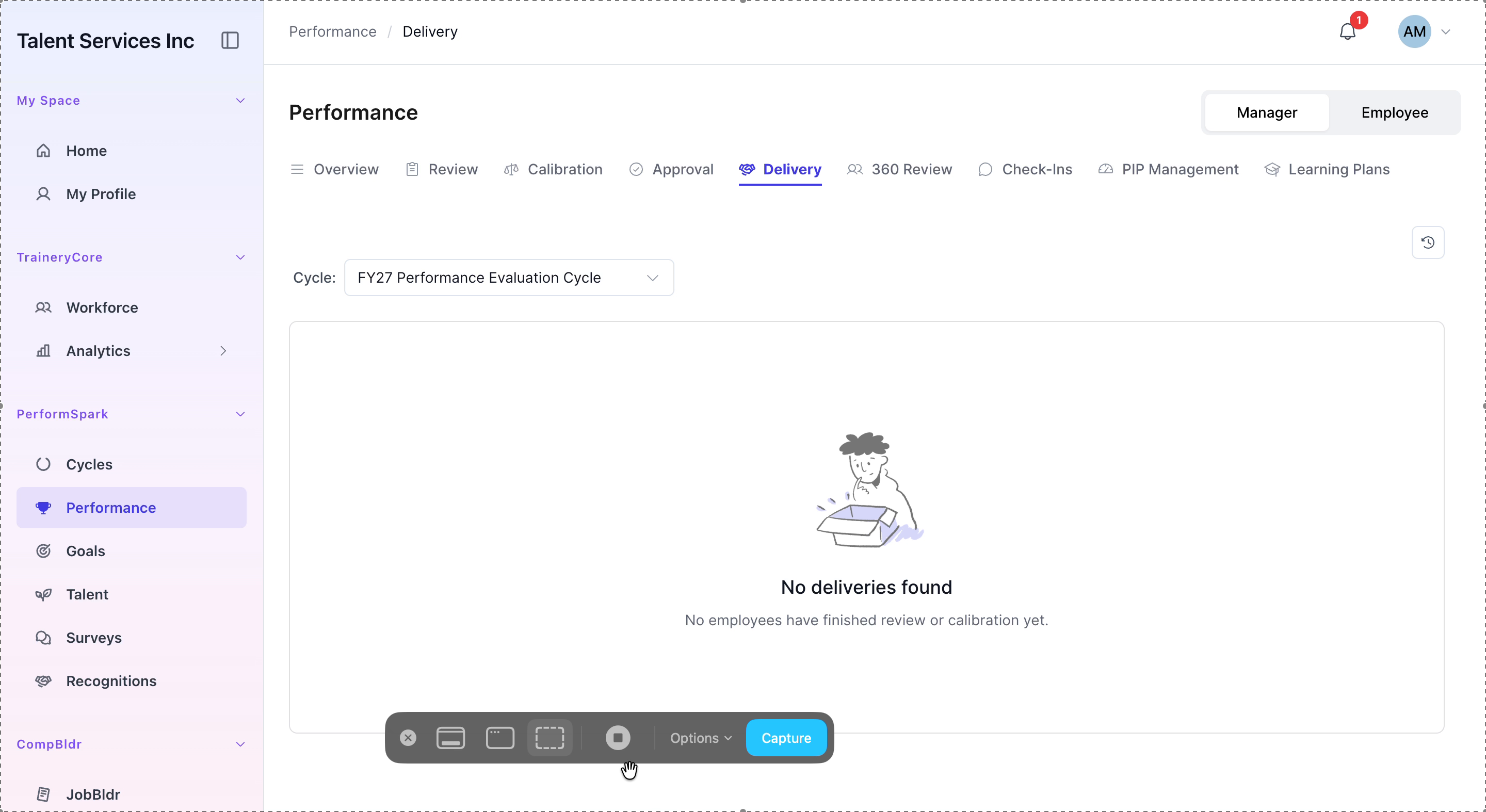
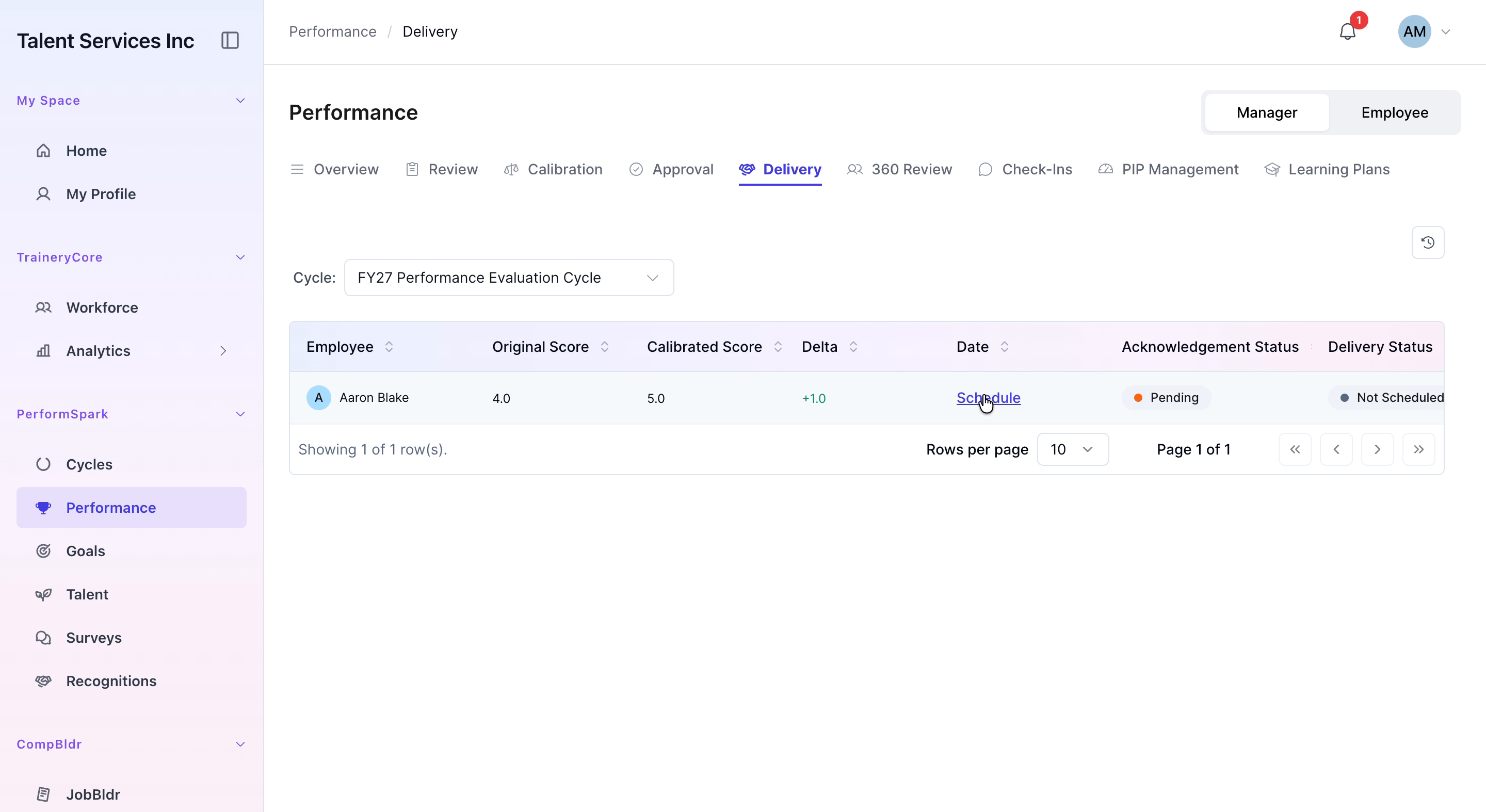
Navigate to the Performance section from the sidebar, then click on the Delivery tab to access scheduled and pending reviews.
Step 2: Schedule a Performance Review Meeting
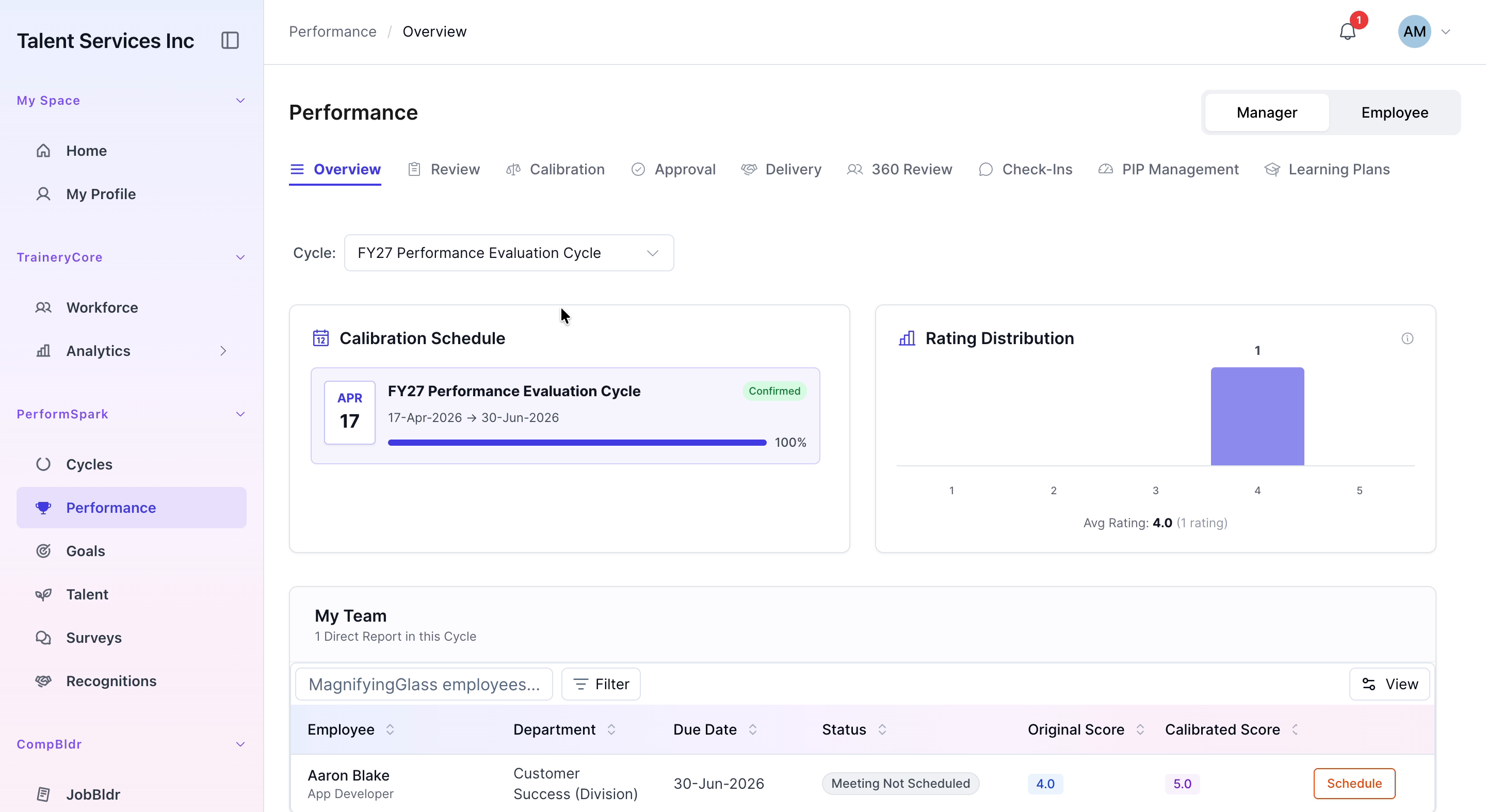
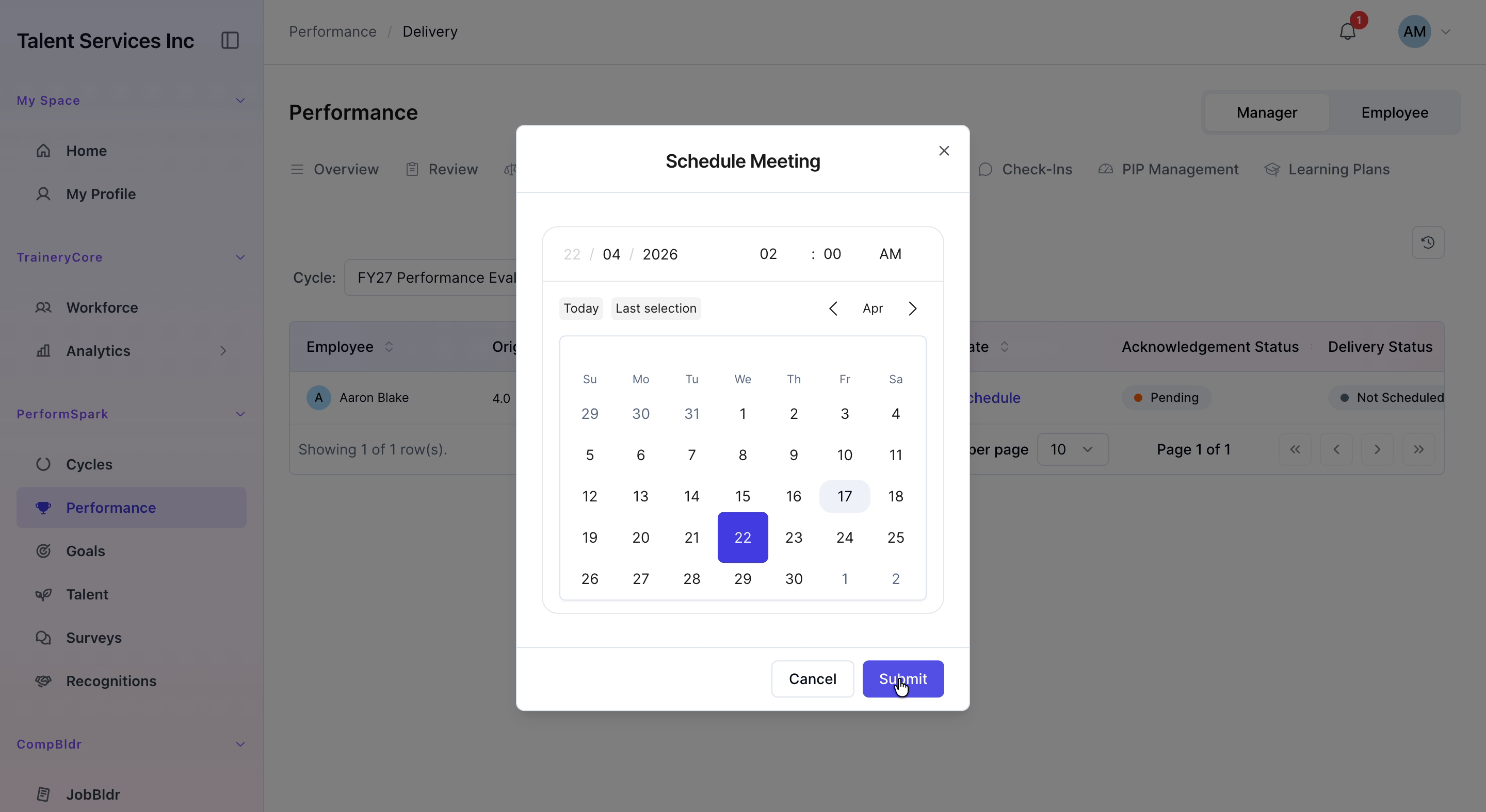
Click Schedule for the relevant team member. In the calendar that appears, select April 22nd, then click Submit to confirm and schedule the performance review meeting.
Step 3: Open and Review the Performance Details
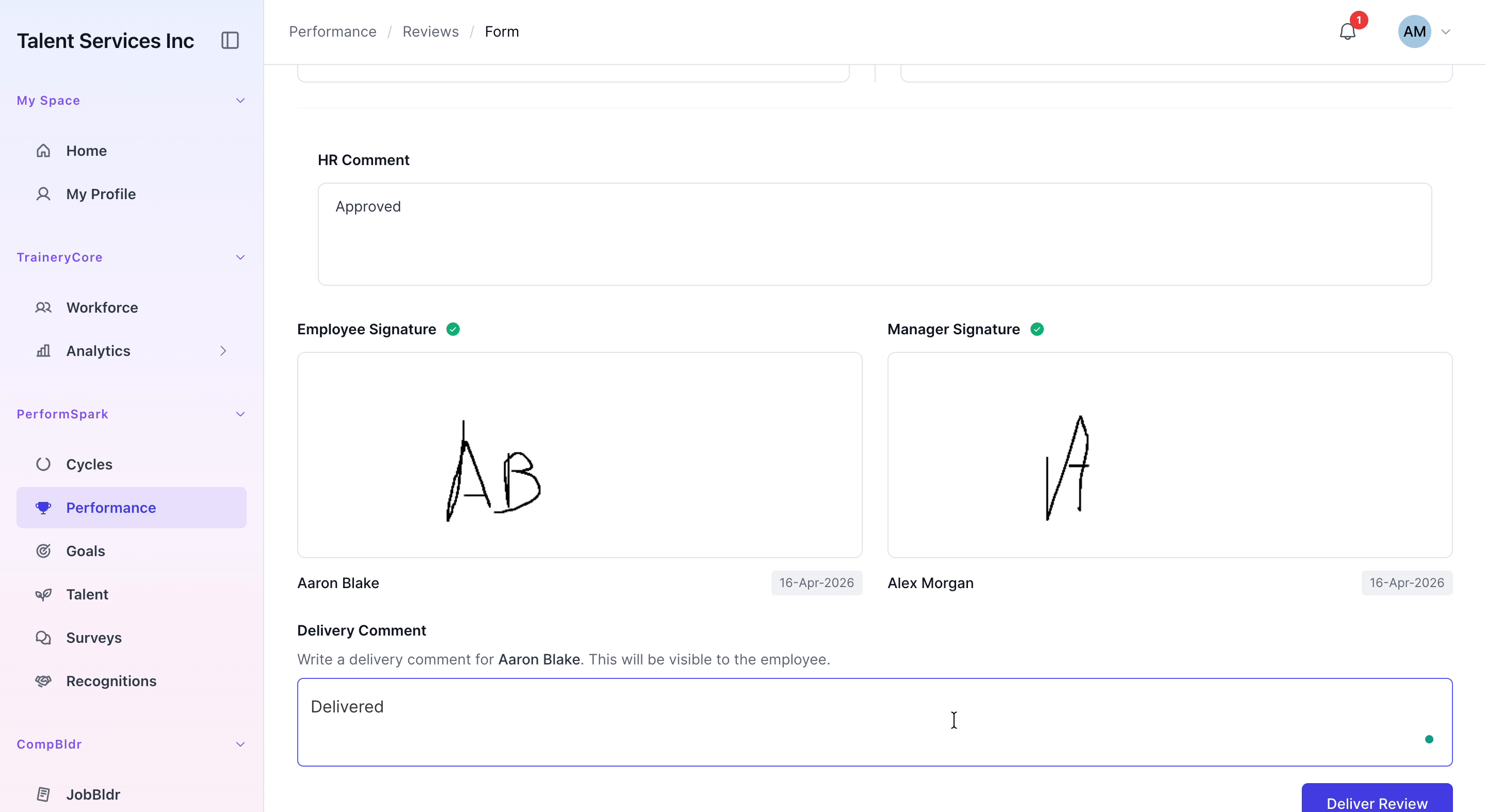
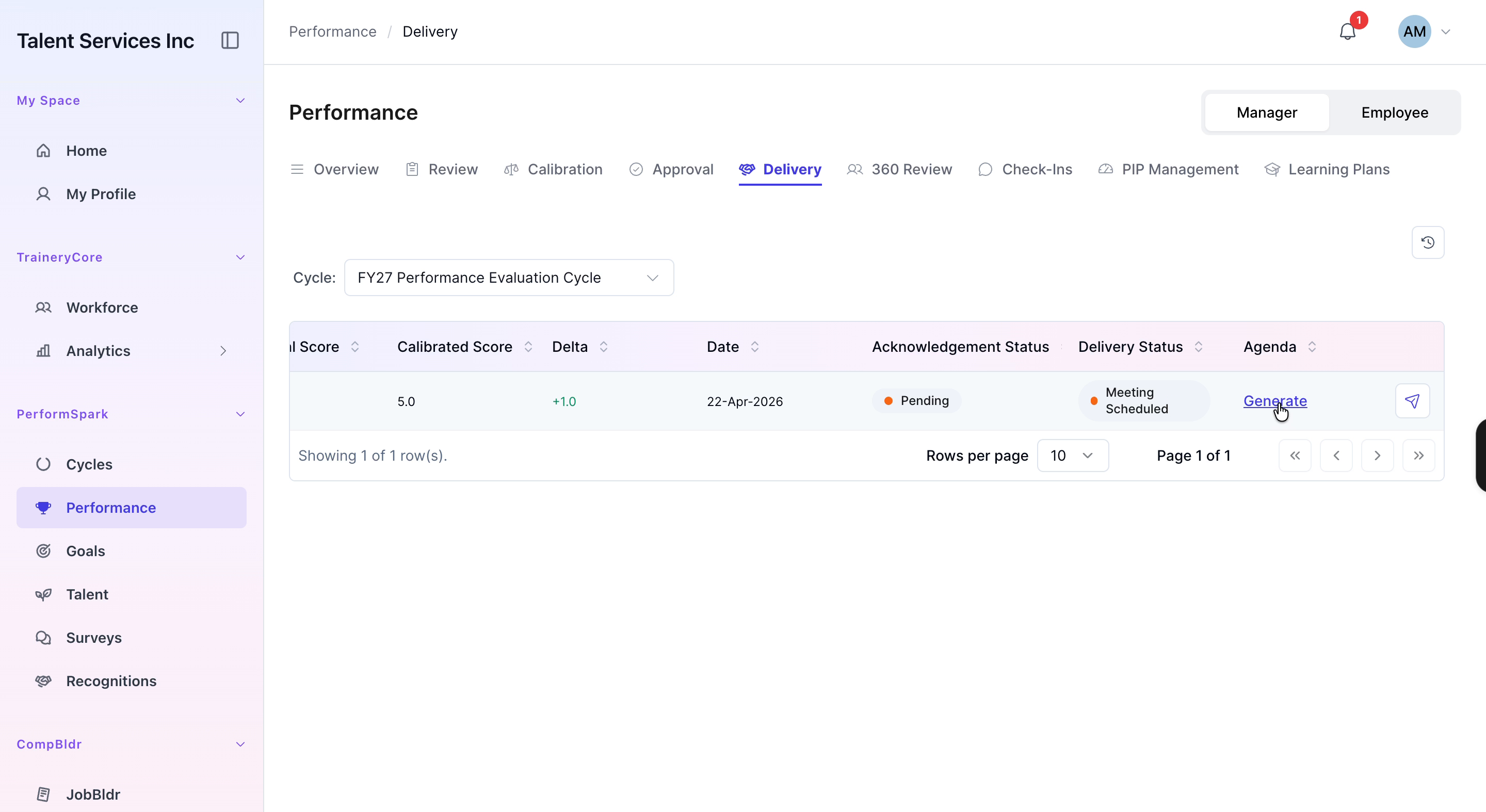
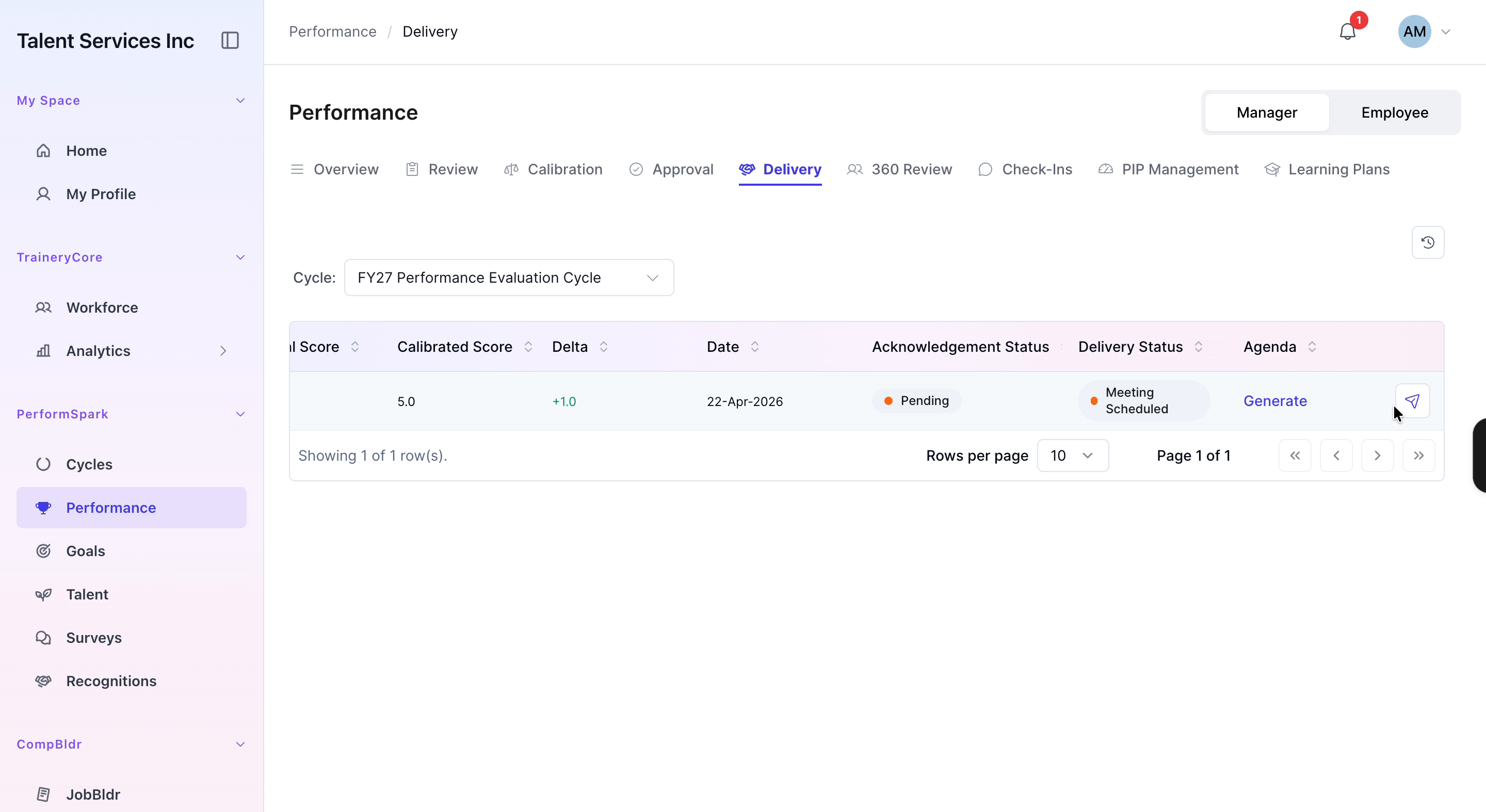
Click the view icon for the team member’s review to open the full performance review. Scroll down through the document to carefully examine all ratings and comments provided.
Step 4: Add Delivery Comment and Finalize the Review
In the delivery comment field, enter “Delivered” to record that the review has been communicated. Click Deliver Review to finalize and officially complete the performance review process.