Nominating Reviewers in 360 Performance Review
Last updated: May 3, 2026
Managing 360 Review Nominations for a Direct Report
This document describes how to nominate both internal and external reviewers for a direct report in a specific 360 Review performance cycle, and how to verify that the nominations were successfully added.
Step 1: Open the Manager 360 Review View
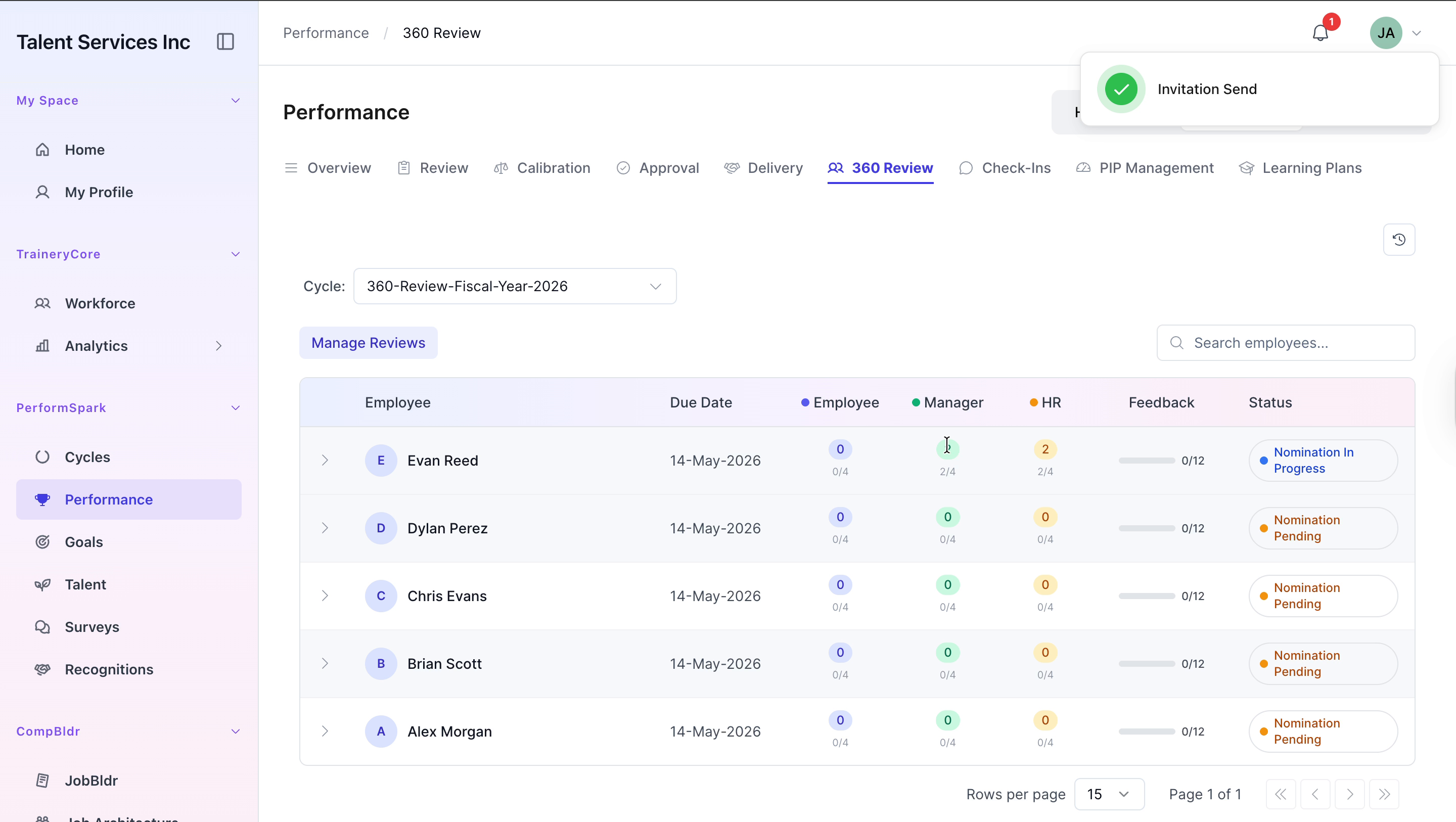
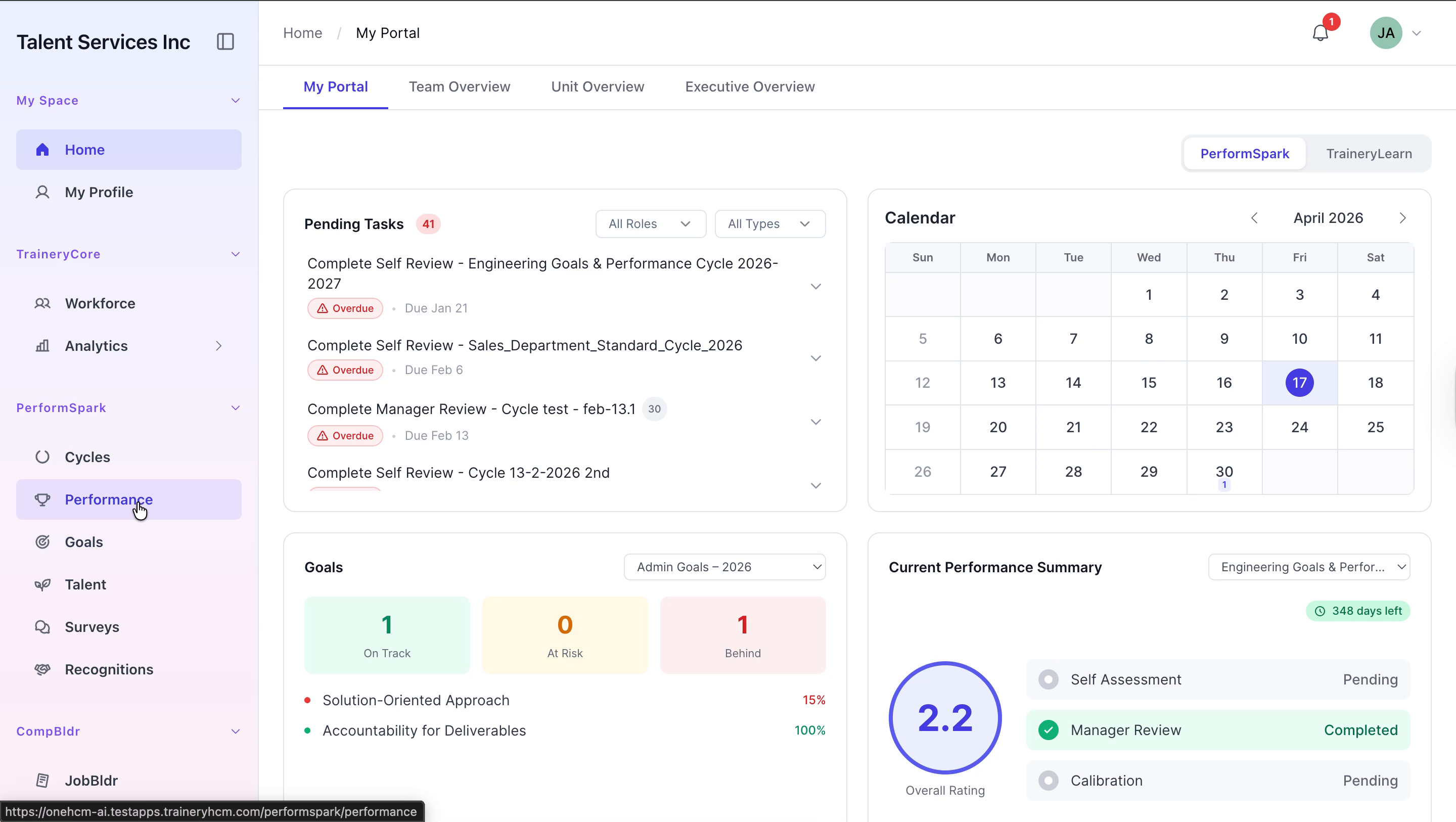
1. In the left sidebar, click Performance. 2. From the performance cycle selector, choose the relevant cycle. 3. Navigate to the 360 Review tab. 4. Click Manager to access the manager view for 360 reviews.

Step 2: Select the Correct Cycle and Add an Internal Nominee
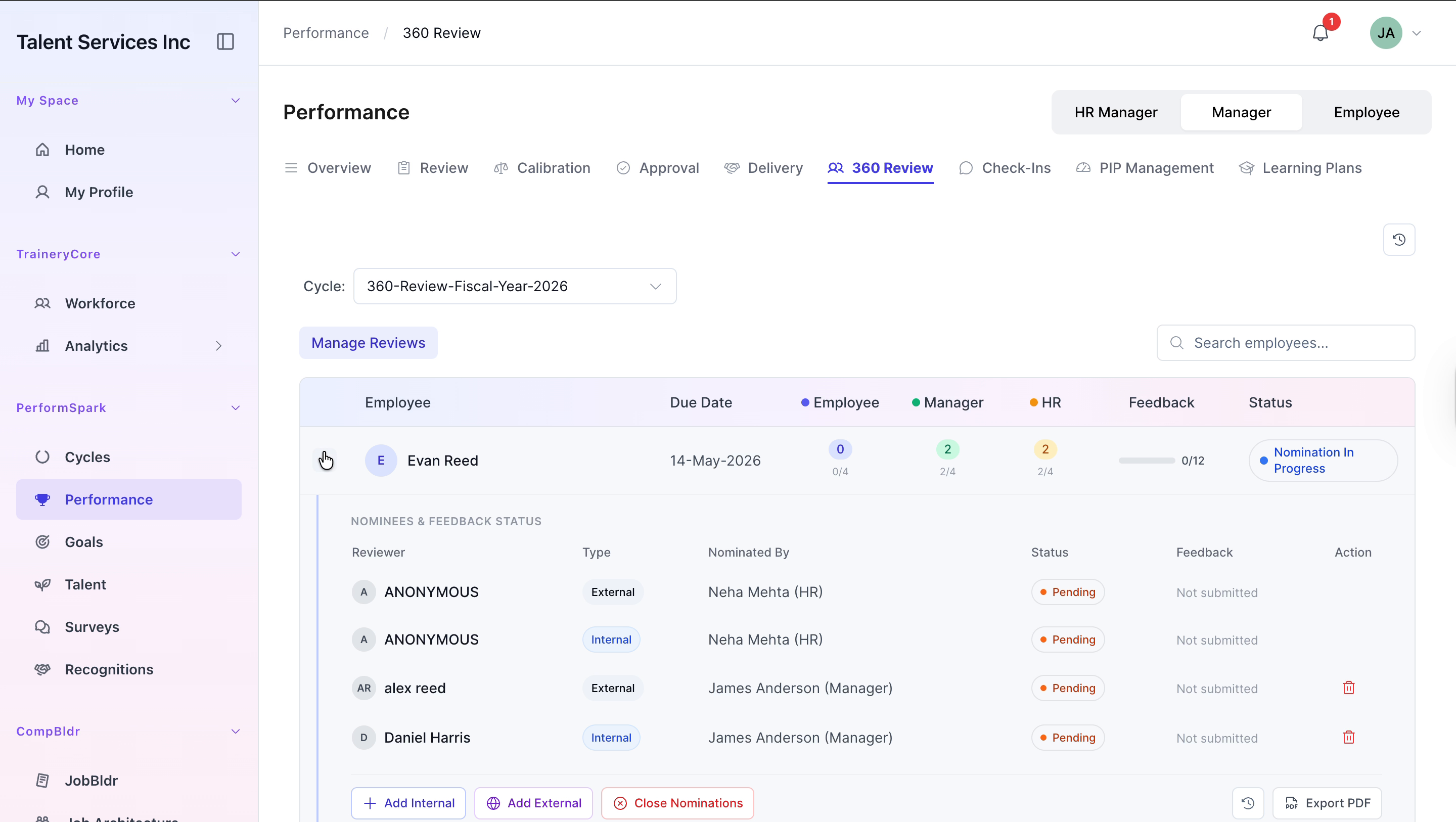
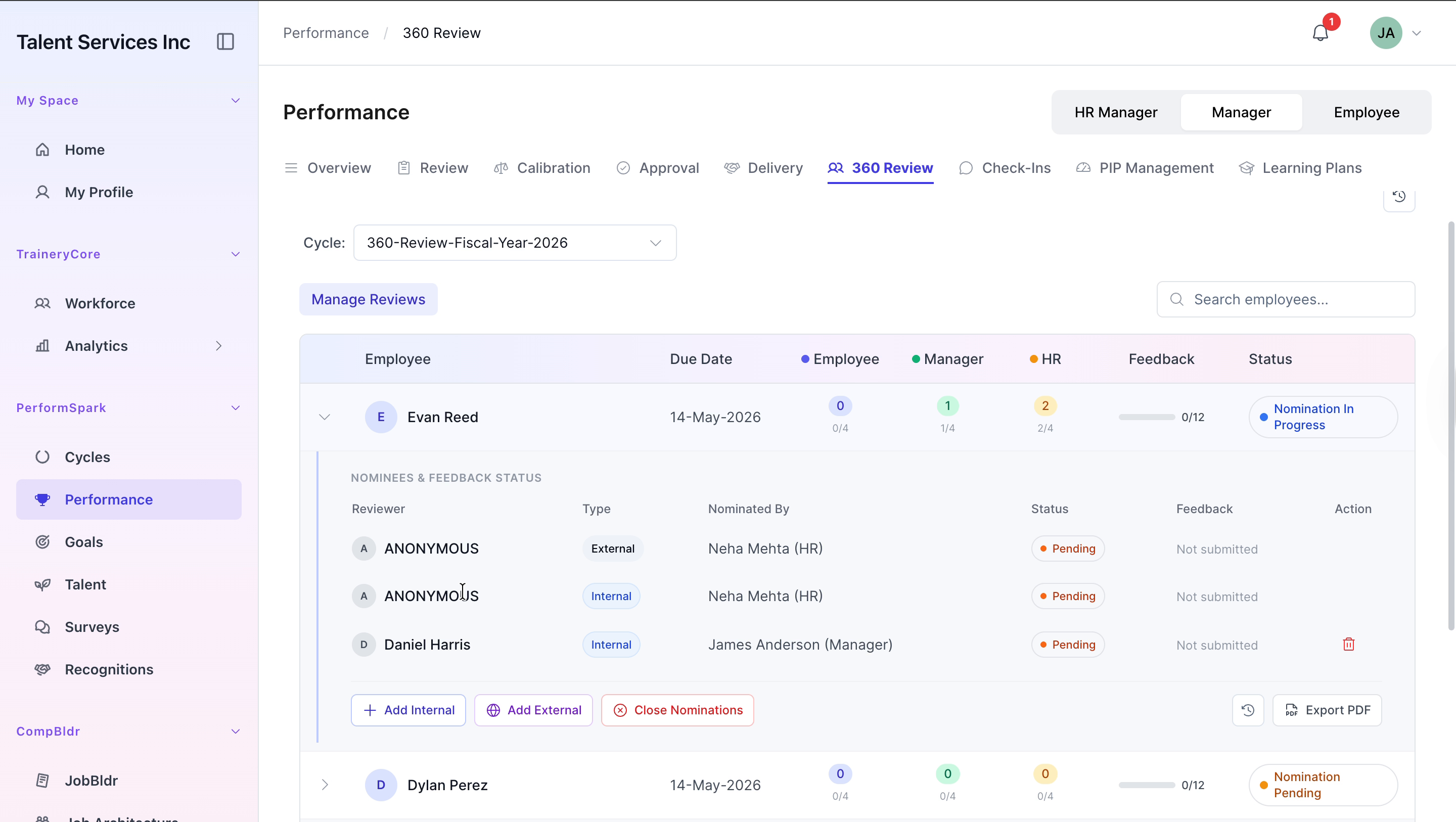
1. From the cycle dropdown, select 360-Review-Fiscal-Year-2026. 2. Locate Evan Reed in the list and expand his row to view details. 3. Click the + Add Internal button to start adding an internal reviewer.

Step 3: Nominate an Internal Reviewer
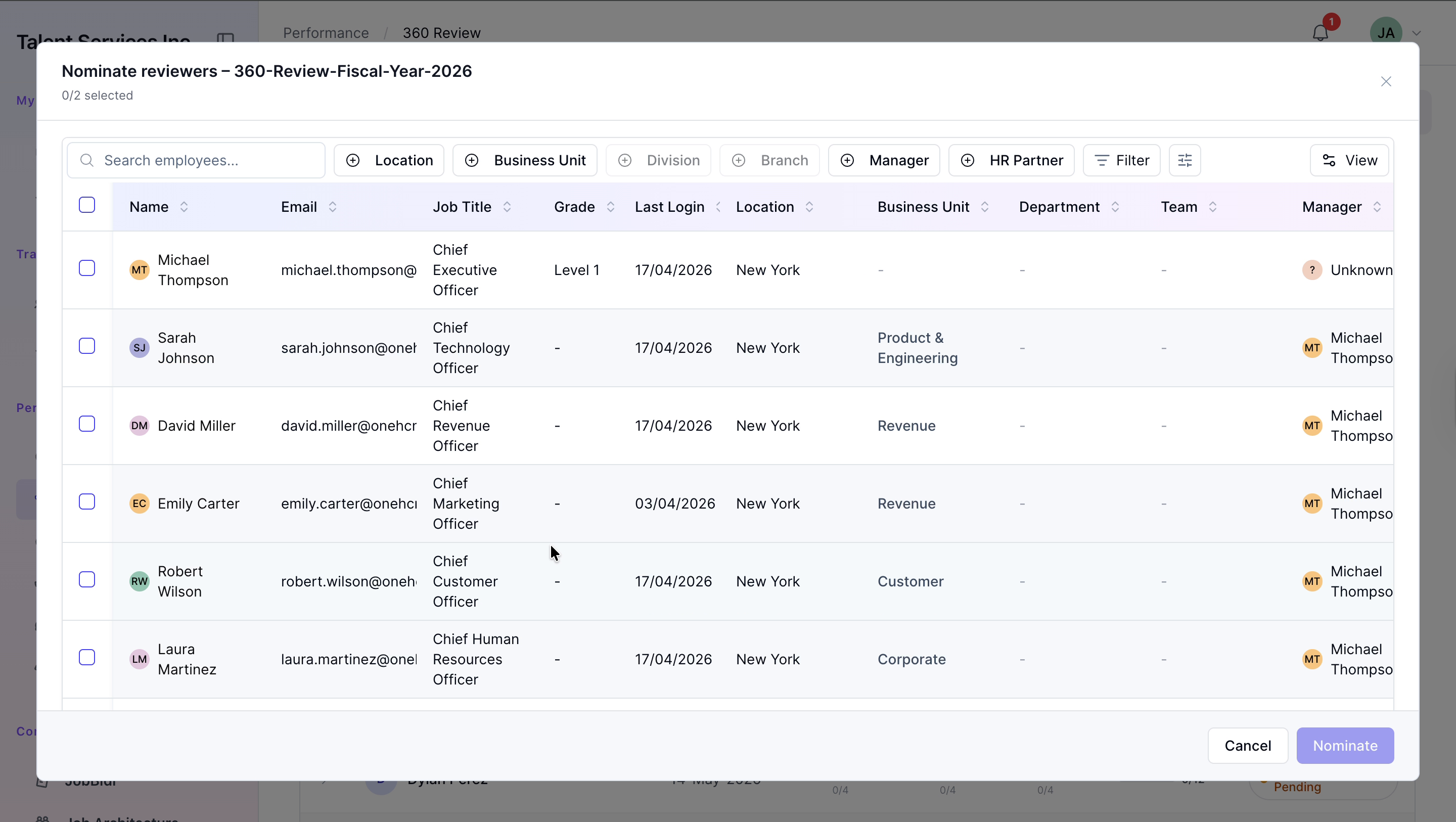
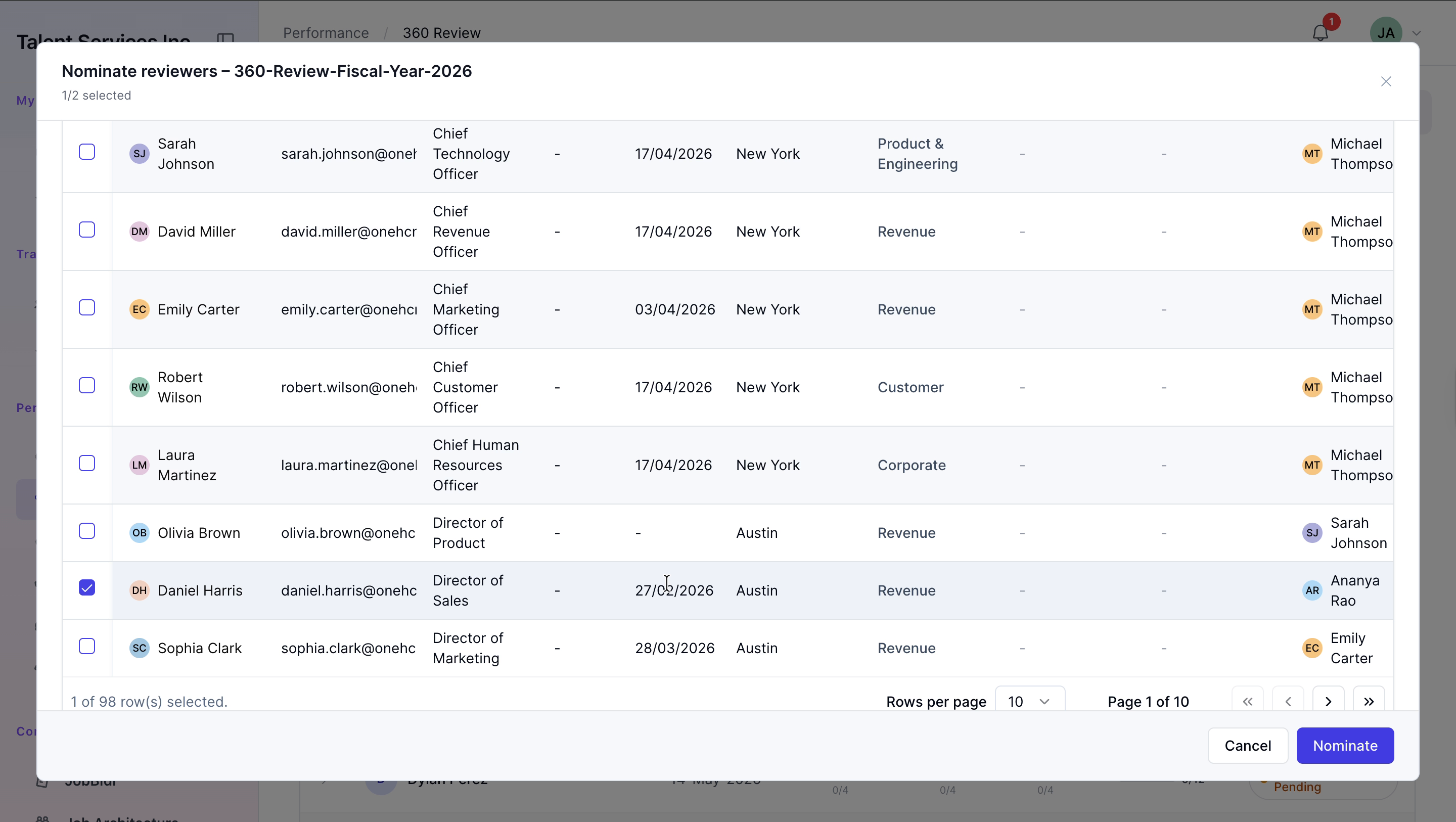
1. In the Nominate reviewers modal, scroll through the list of eligible internal reviewers. 2. Find Daniel Harris and select the checkbox next to his name. 3. Click Nominate to add him as an internal reviewer for Evan Reed.
Step 4: Verify and Add an External Nominee
1. Expand Evan Reed’s record again to confirm Daniel Harris appears as an internal nominee. 2. Click the + Add External button to add an external reviewer.

Step 5: Enter External Nominee Details
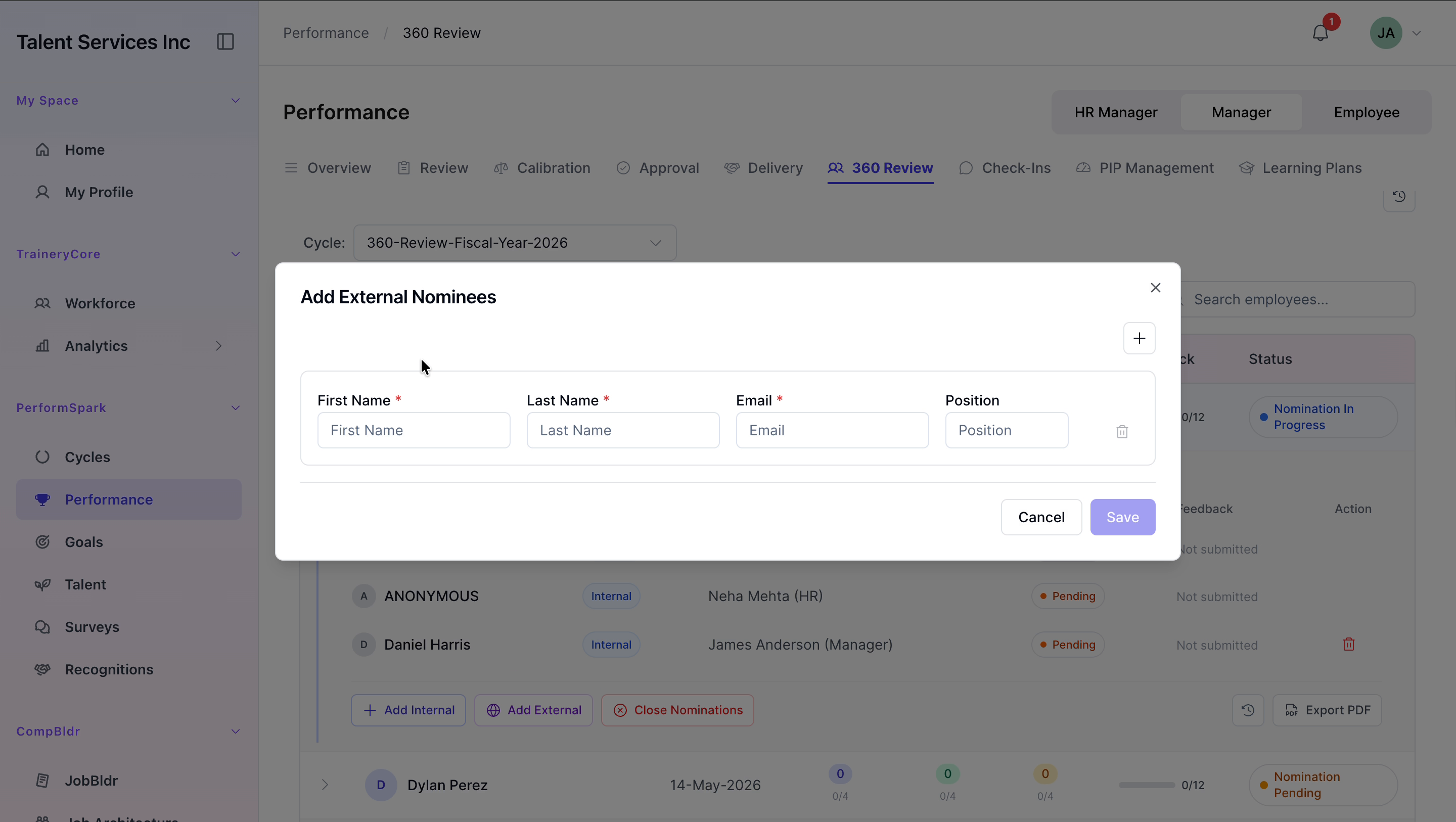
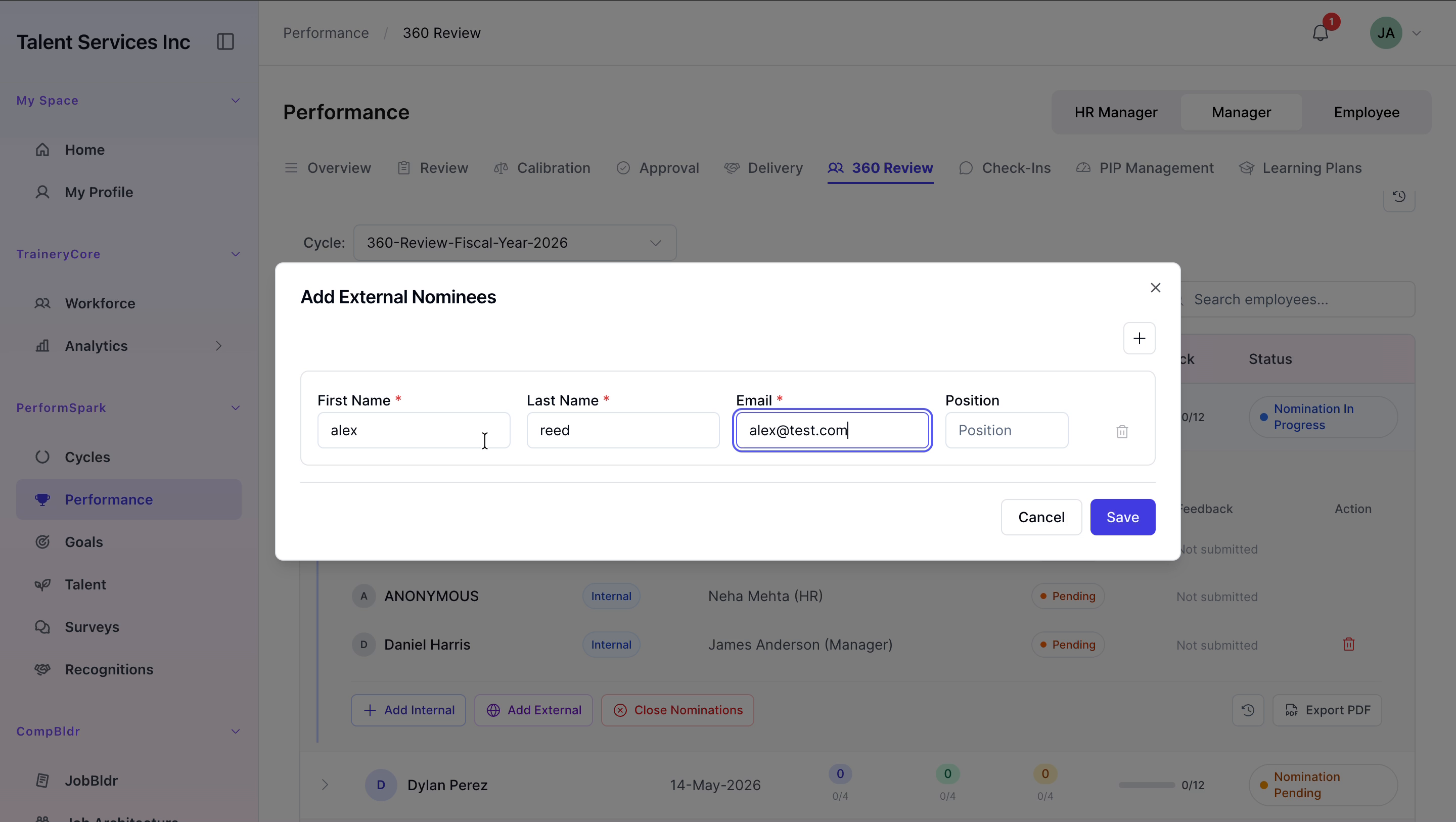
1. In the Add External Nominees window: - Enter alex in the First name field. - Enter reed in the Last name field. - Enter alex@test.com in the Email field. 2. Click Save to add the external nominee.
Step 6: Confirm Internal and External Nominees
1. Expand Evan Reed’s row once more. 2. Confirm that both the internal nominee (Daniel Harris) and the external nominee (Alex Reed) are listed under his 360 Review nominations.