Sharing Analytics Dashboards
Last updated: May 3, 2026
Sharing and Viewing the Managerial Dashboard as Another User
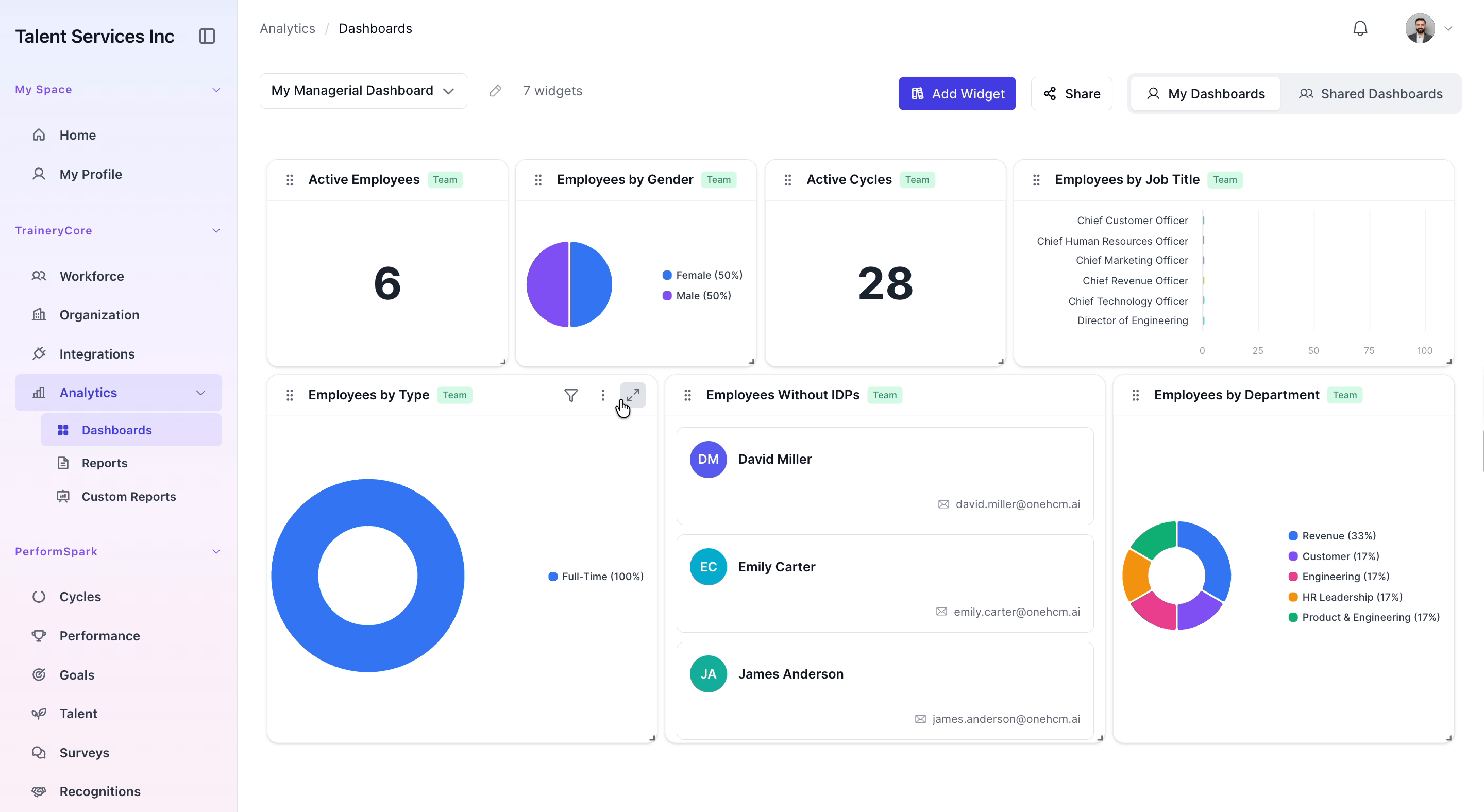
This process walks you through sharing your managerial dashboard with another user, logging in as that user to access the shared dashboard, and updating a specific chart visualization within the dashboard.
Step 1: Open the Share Options from Your Managerial Dashboard
From your managerial dashboard, locate and click your profile icon to open the user options menu. Then click the Share option to begin sharing your dashboard.

Step 2: Share the Dashboard with Sarah Johnson
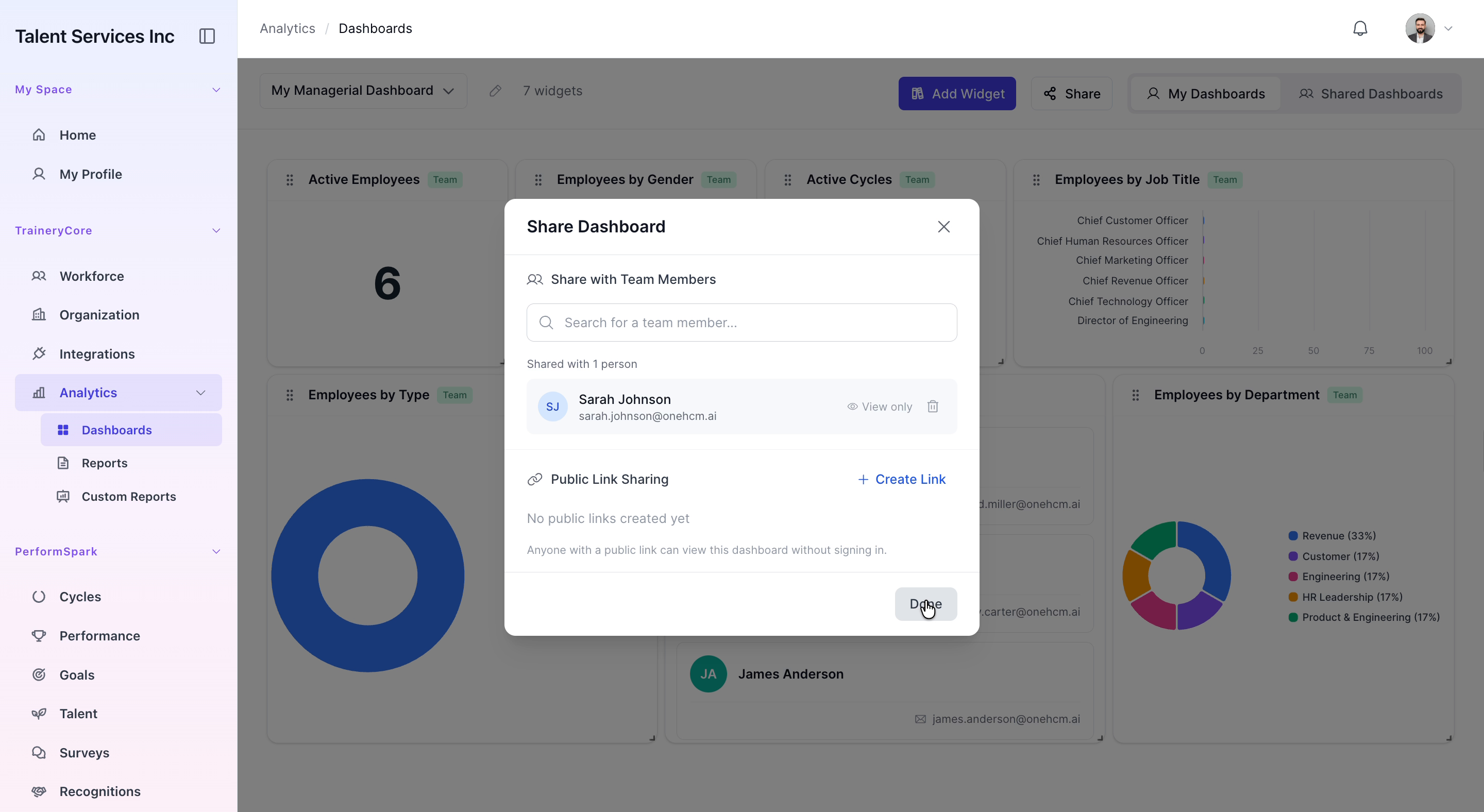
In the sharing dialog, use the search field to type sara, then select Sarah Johnson from the search results. Confirm the selection and click Done to share your managerial dashboard with her.
Step 3: Log In as Sarah Johnson and Access Shared Dashboards
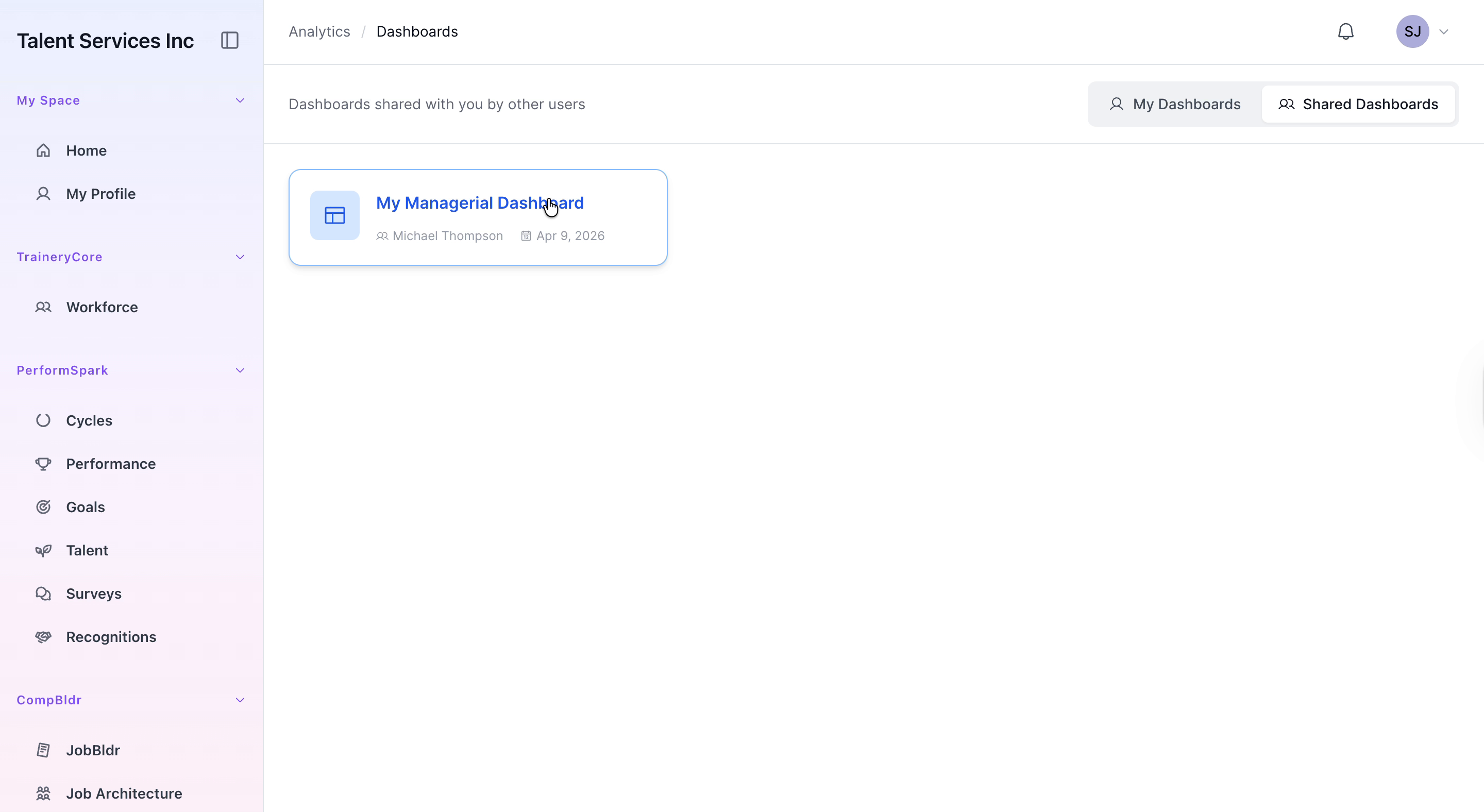
Log in as Sarah Johnson, then navigate to the Shared Dashboards section. From the list of shared items, open the My Managerial Dashboard that was shared with you.

Step 4: Update the Employees by Type Chart Visualization
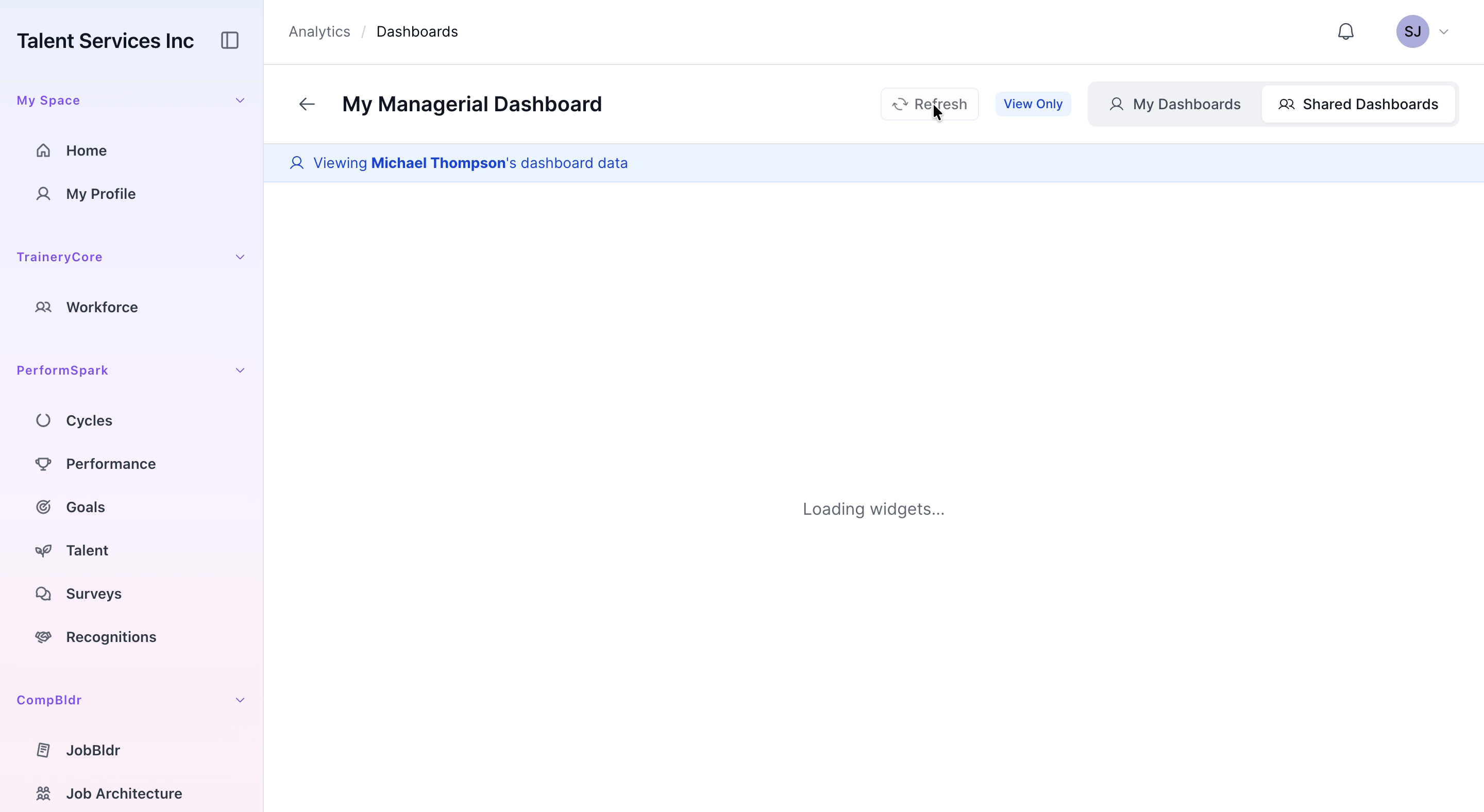
Within the shared managerial dashboard, locate the Employees by Type chart. Change its visualization type from a donut chart to a pie chart, then click Refresh to apply the change and update the dashboard view.