Configuring and Exporting the Customized Analytics Report
Last updated: May 3, 2026
Accessing and Exporting the My Performance Dashboard Report
This document explains how to access the My Performance Dashboard from the Analytics Reports section, interact with and sort its data, and export the results to a CSV file for detailed review in a spreadsheet.
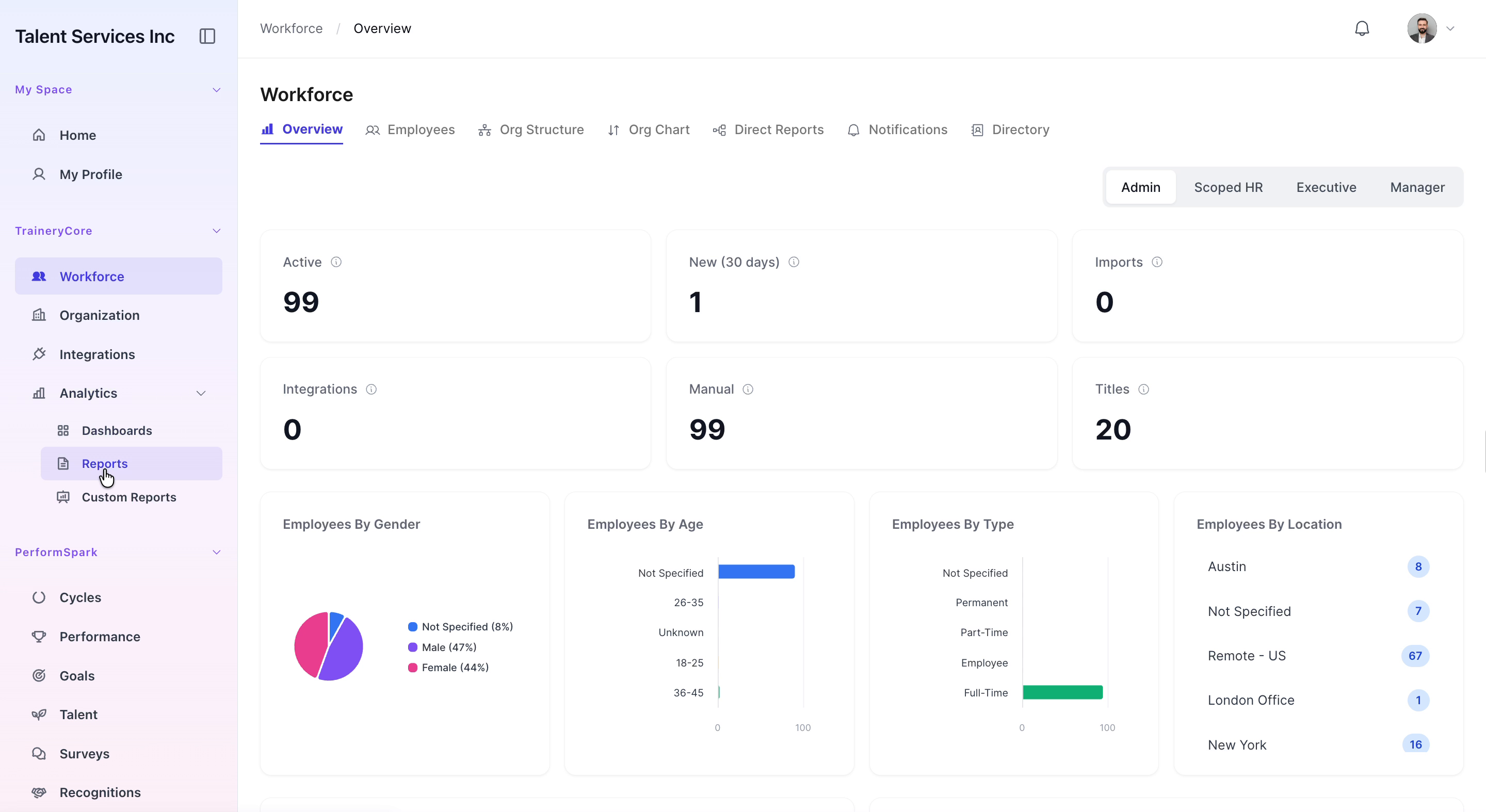
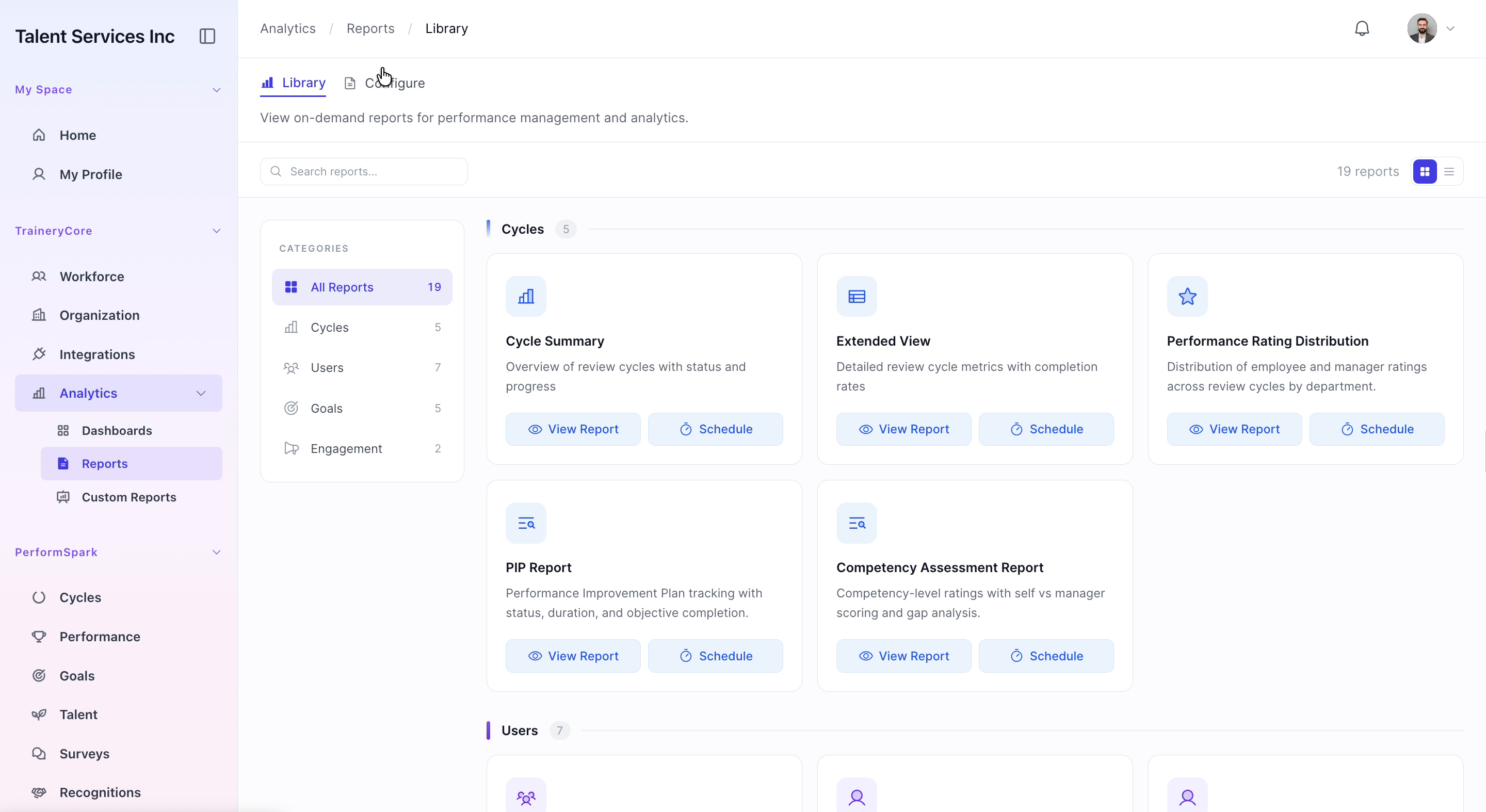
Step 1: Open the Reports Library in Analytics
Navigate to the Analytics section of your application, then select Reports to open the full reports library.
Step 2: View Scheduled Reports in the Configure Tab
Click the Configure tab to display the list of scheduled reports, then scroll through the list to locate the relevant report.
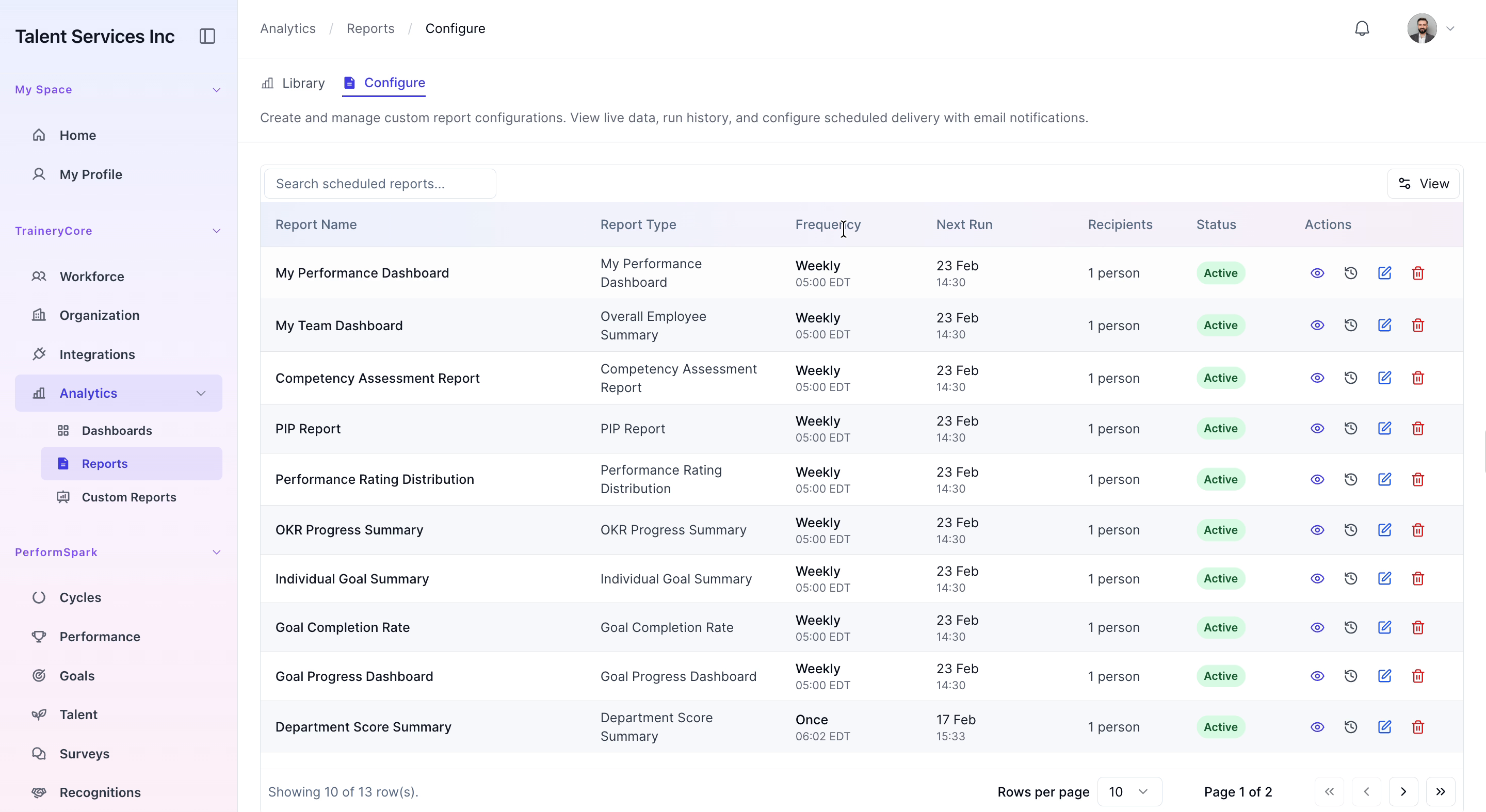
Step 3: Open the My Performance Dashboard Report
In the list of scheduled reports, find My Performance Dashboard and click the View icon to load the live dashboard data.
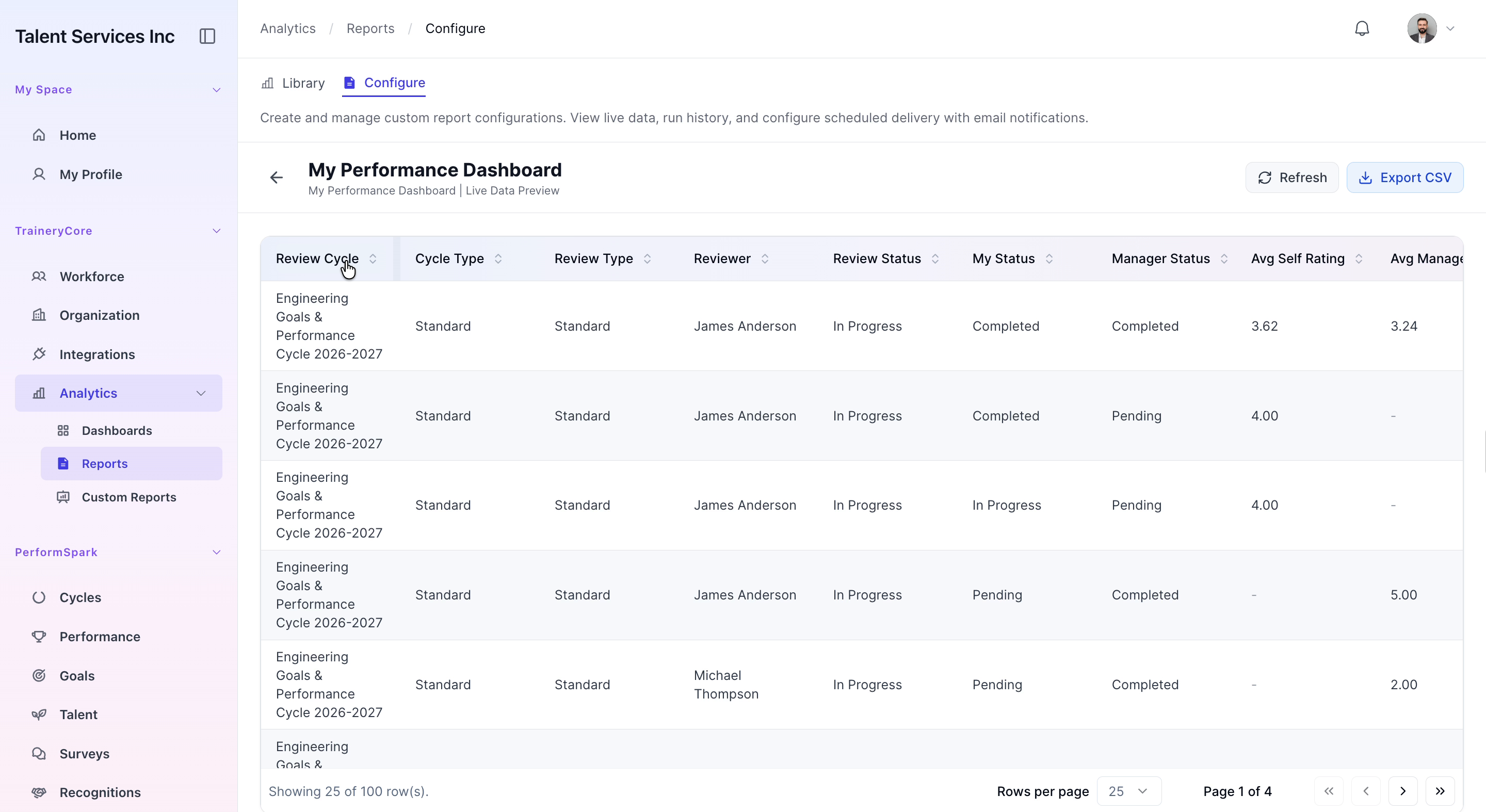
Step 4: Sort and Organize Dashboard Columns
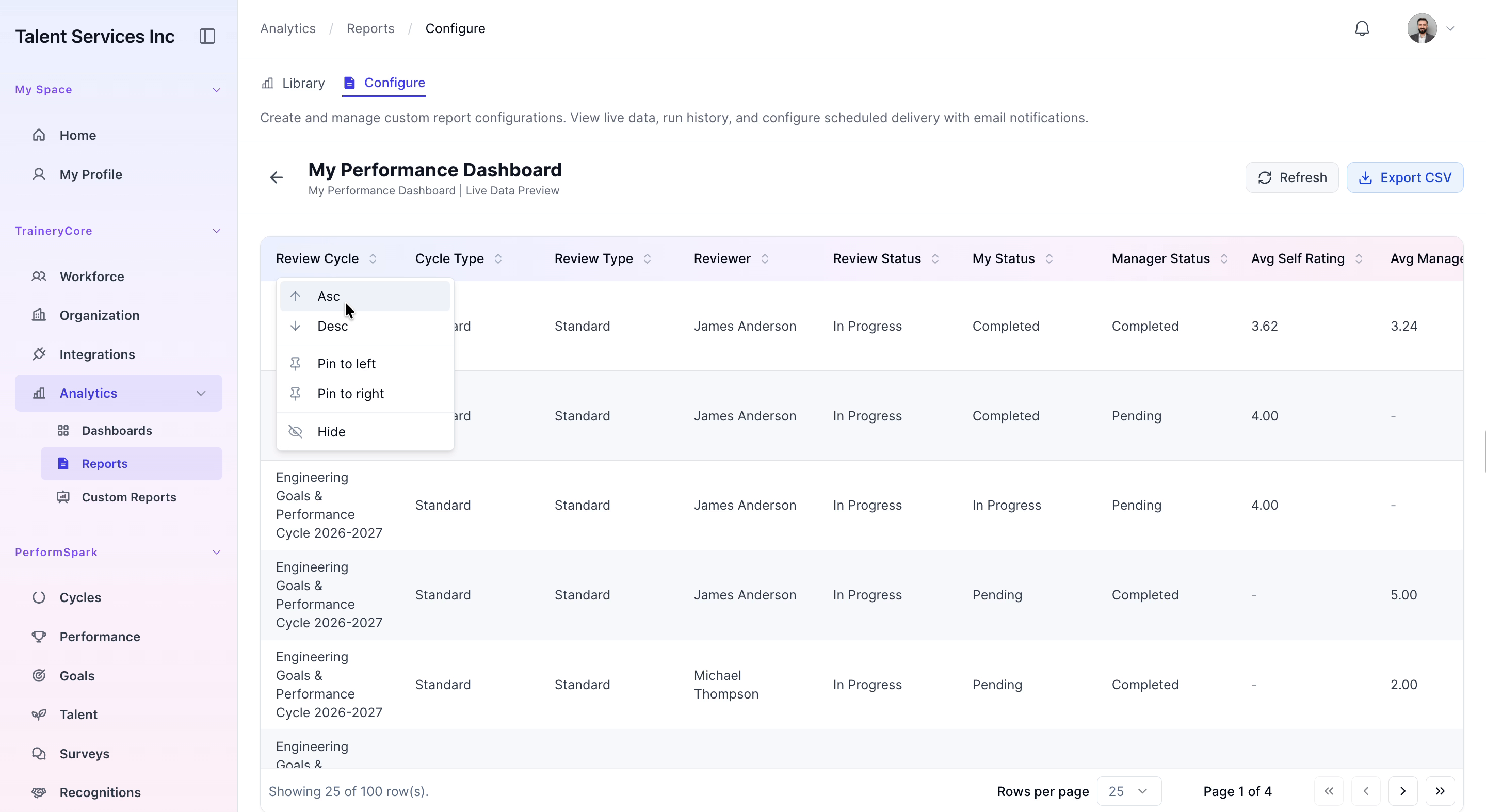
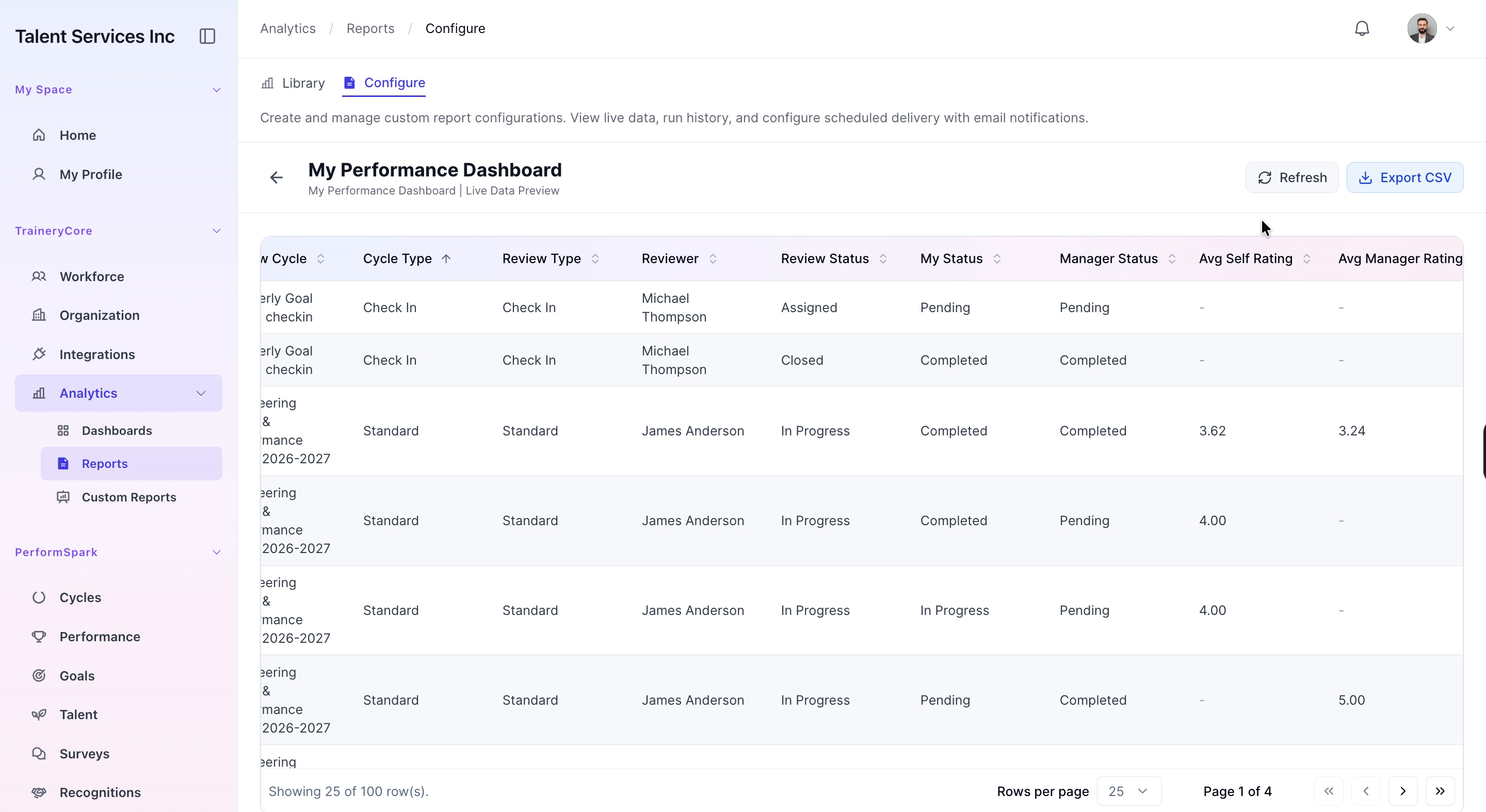
Within the My Performance Dashboard, interact with column headers such as Review Cycle and Cycle Type to sort and organize the displayed information according to your needs.
Step 5: Export Dashboard Data to CSV
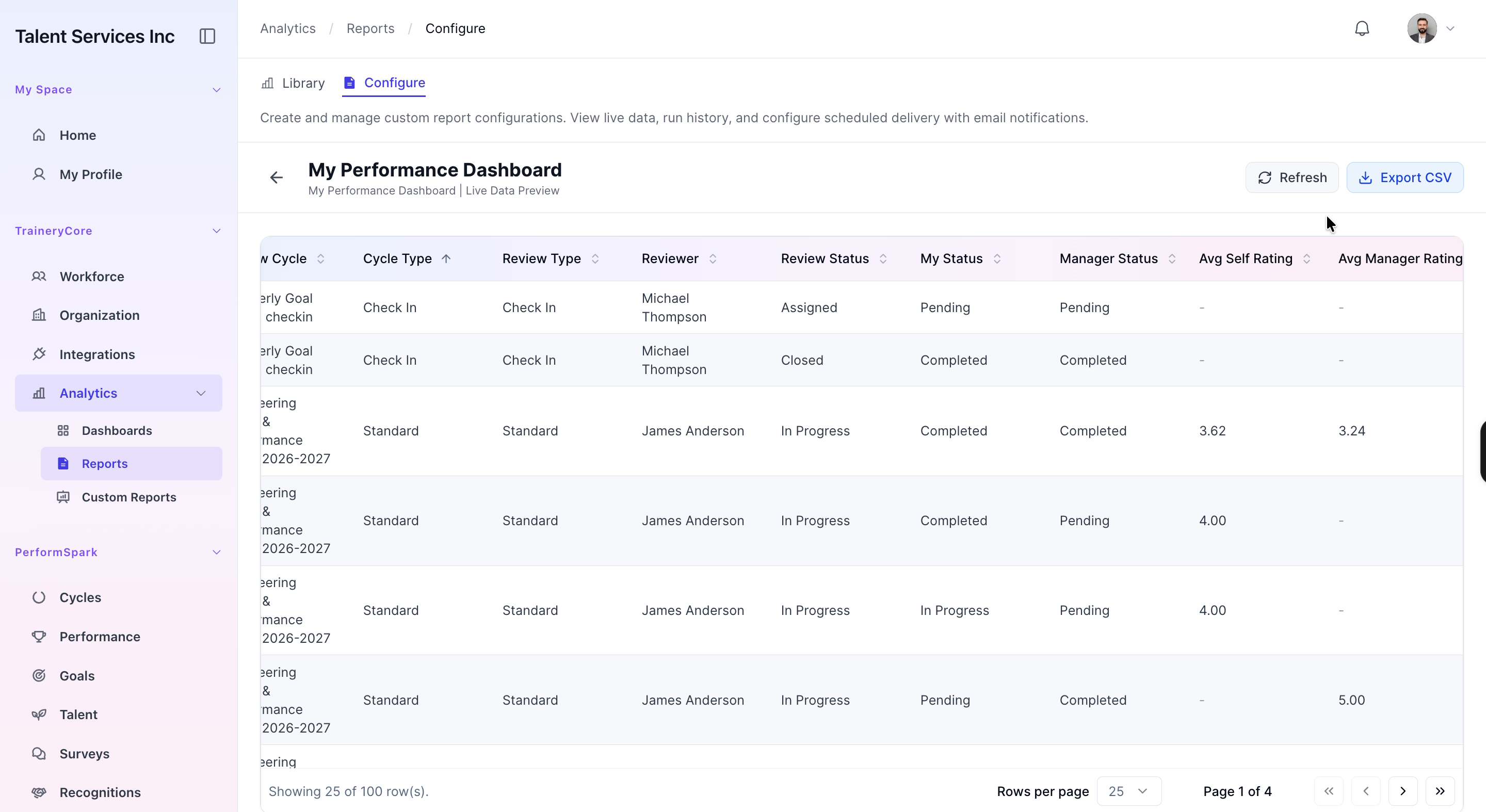
Click the Export CSV button on the dashboard to download the current view of the performance data, then open the downloaded CSV file from your browser.

Step 6: Review the Exported Data in a Spreadsheet
Open the CSV file in your preferred spreadsheet application to review, filter, and analyze the exported performance records in detail.