Connecting Zoho Calendar in Trainery HCM
Last updated: October 14, 2026
This process explains how to connect your Zoho Calendar to the Trainery HCM platform so that your calendar events sync and appear on your dashboard.
Step 1: Log In and Open Your Dashboard
Log in to the Trainery HCM platform using your credentials to access your main dashboard.
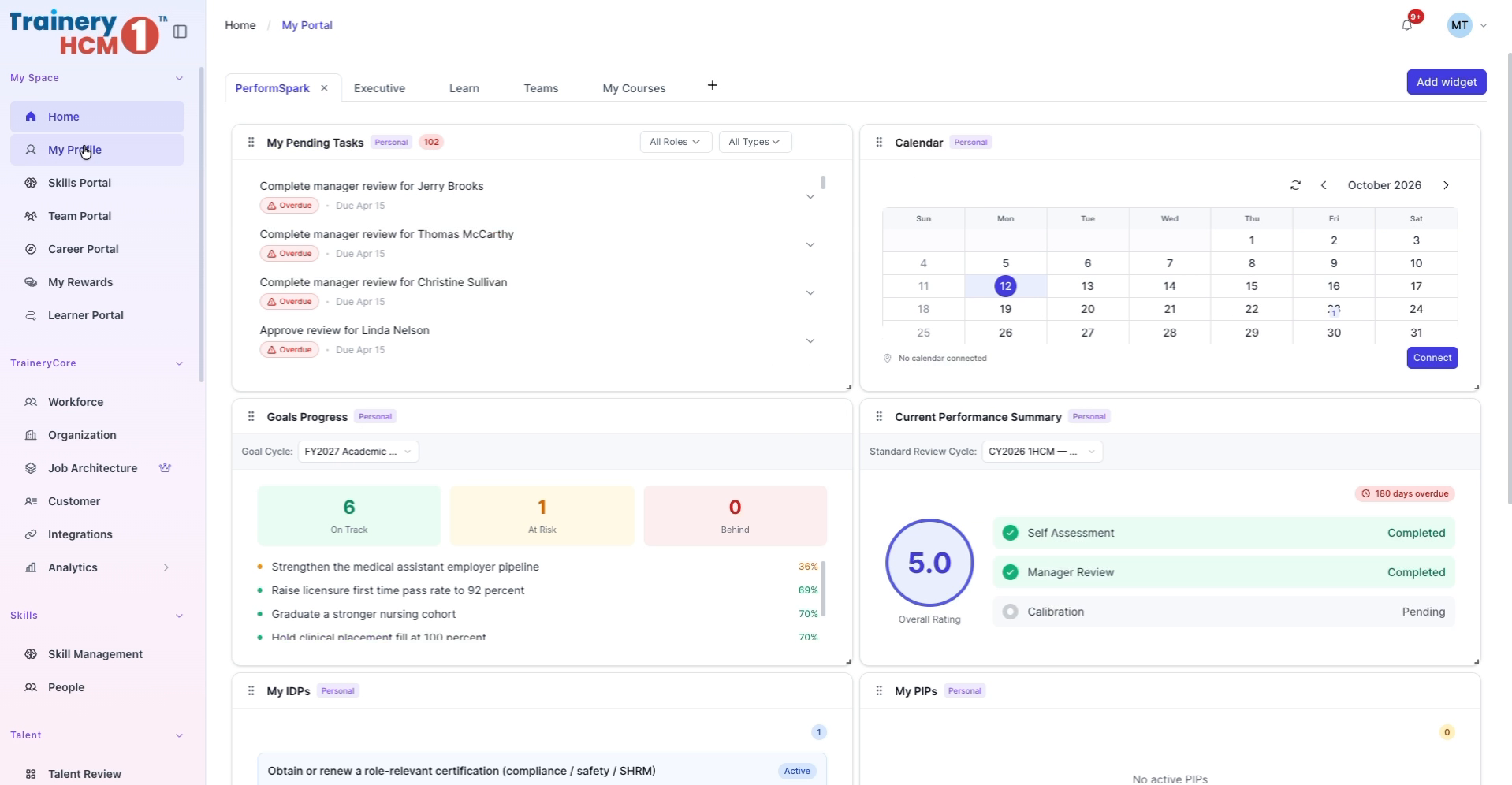
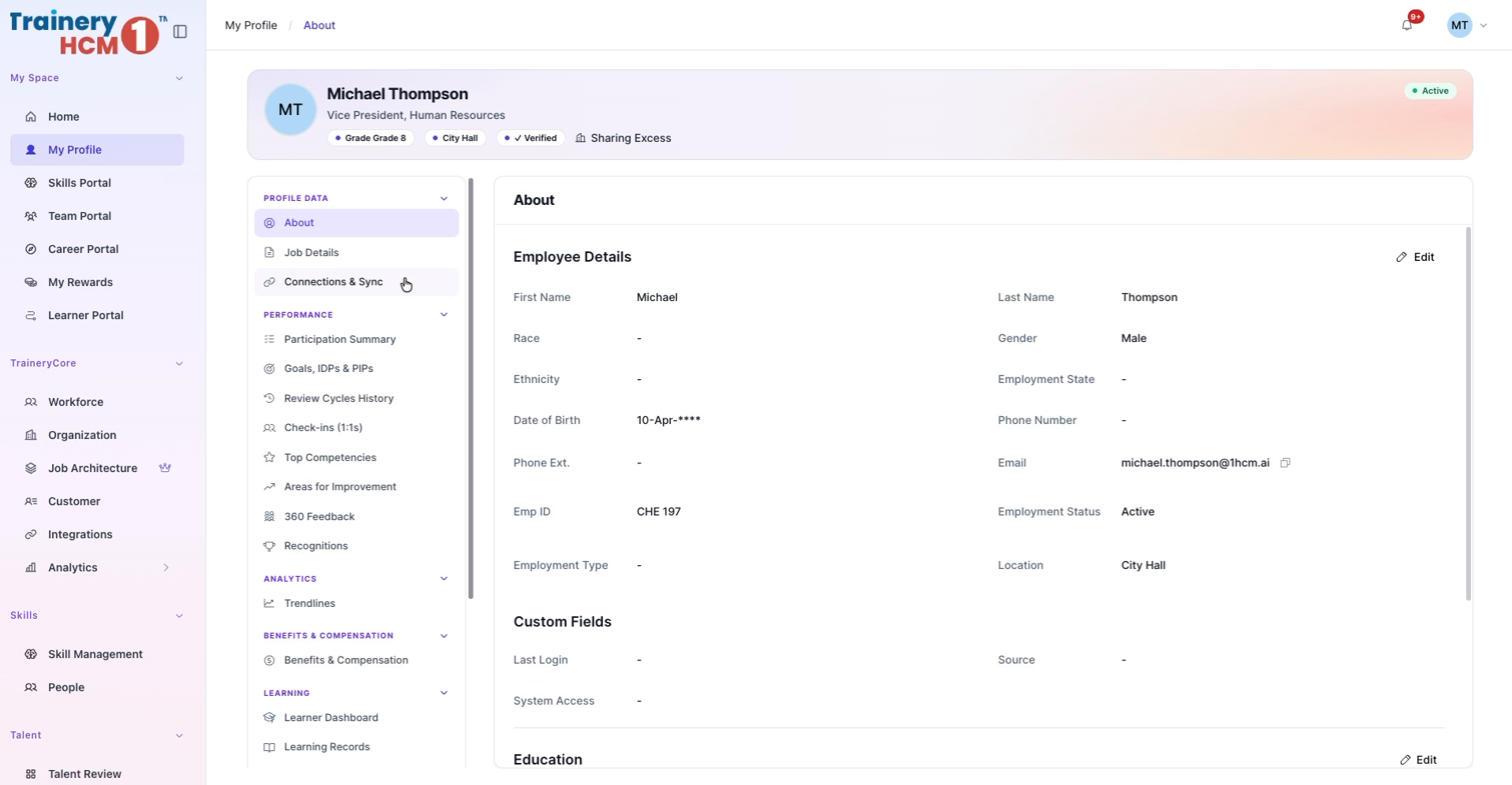
Step 2: Navigate to Profile Connections
In the left-hand navigation menu, click on My Profile. Under the Profile Data section, select Connections and Sync.
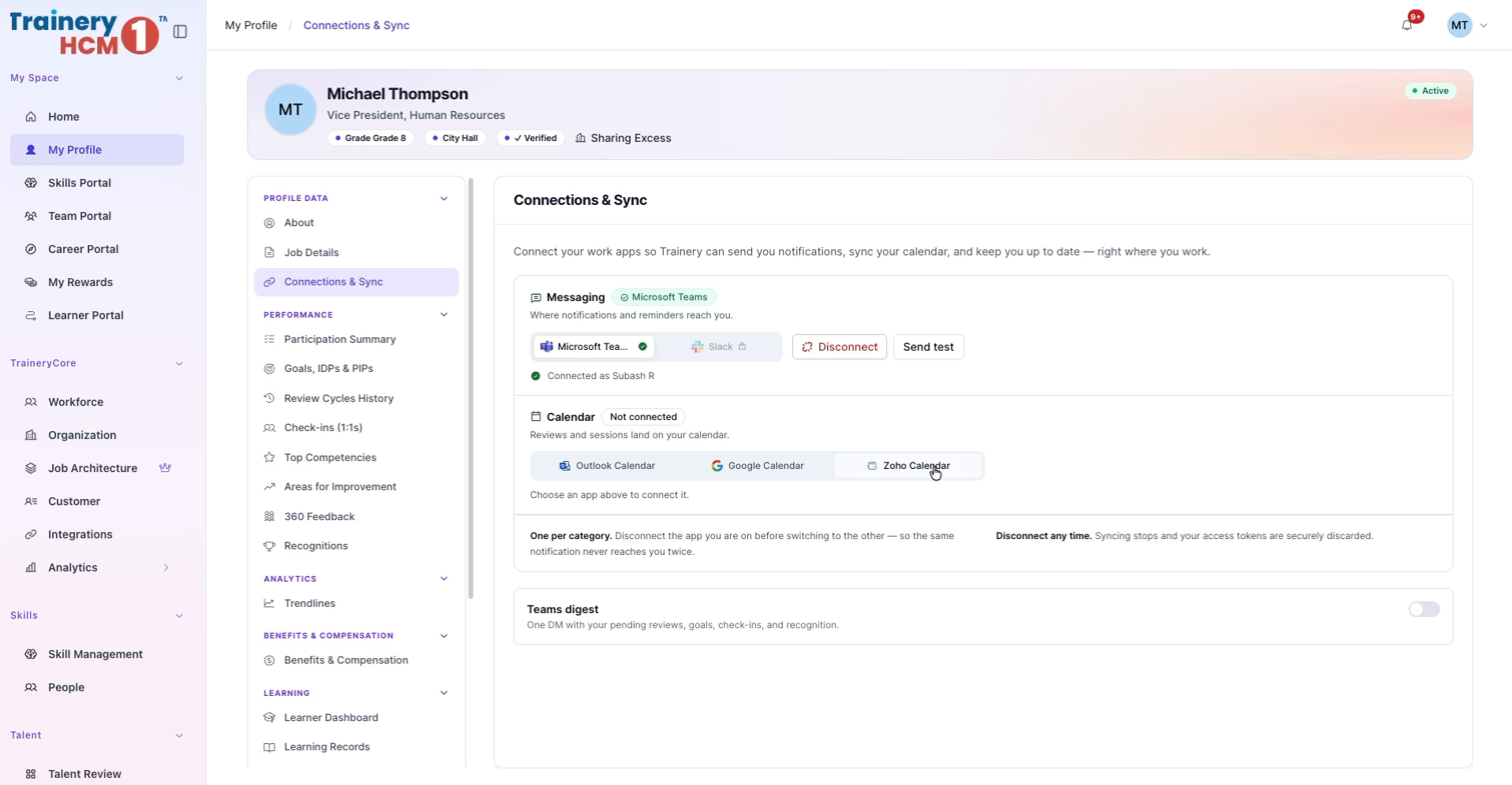
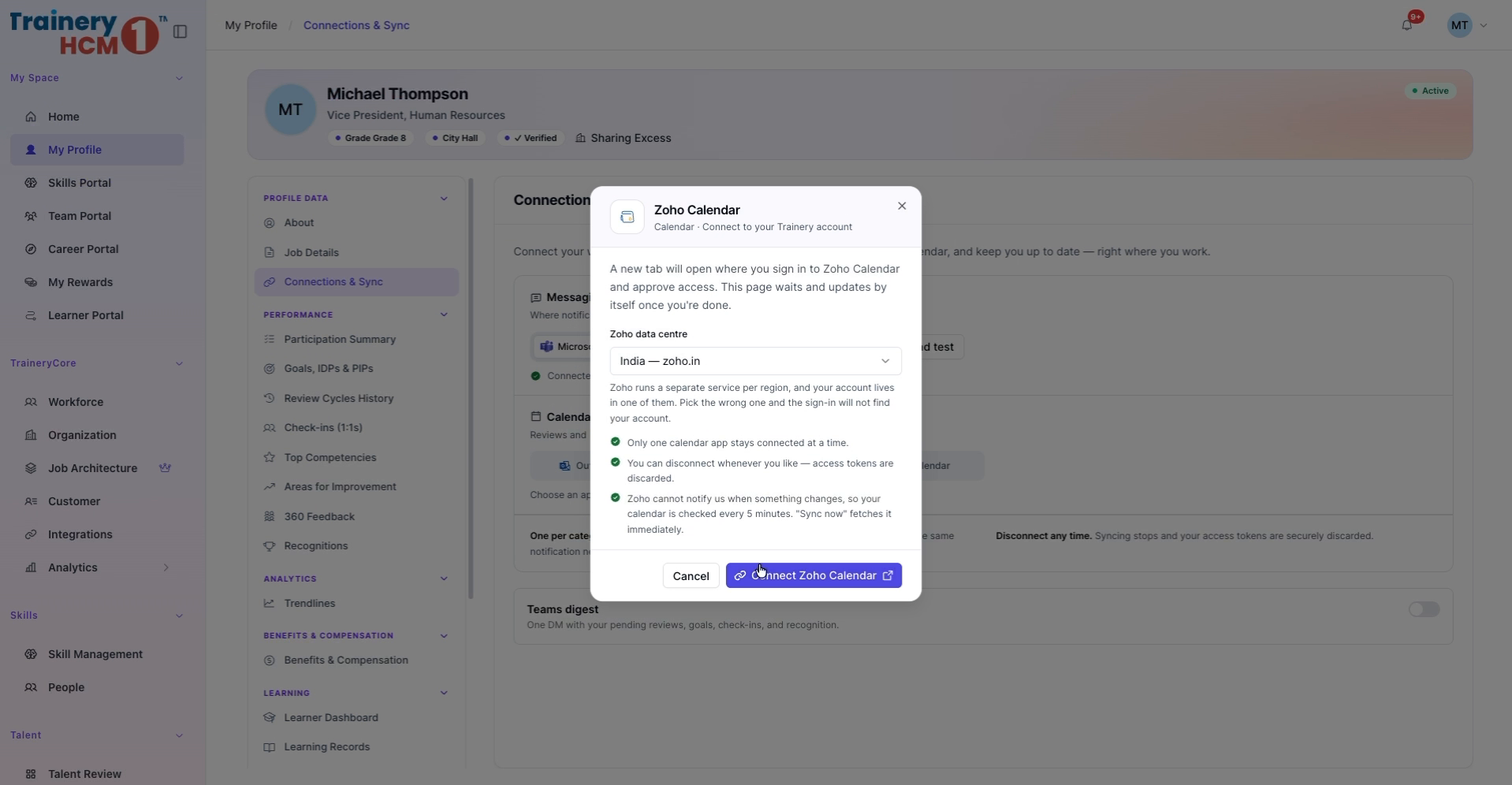
Step 3: Select Zoho Calendar and Start Connection
In the Connections and Sync area, click on Zoho Calendar, choose your appropriate data realm, and then click Connect Zoho Calendar to begin the integration.

Step 4: Authorize Access in Zoho
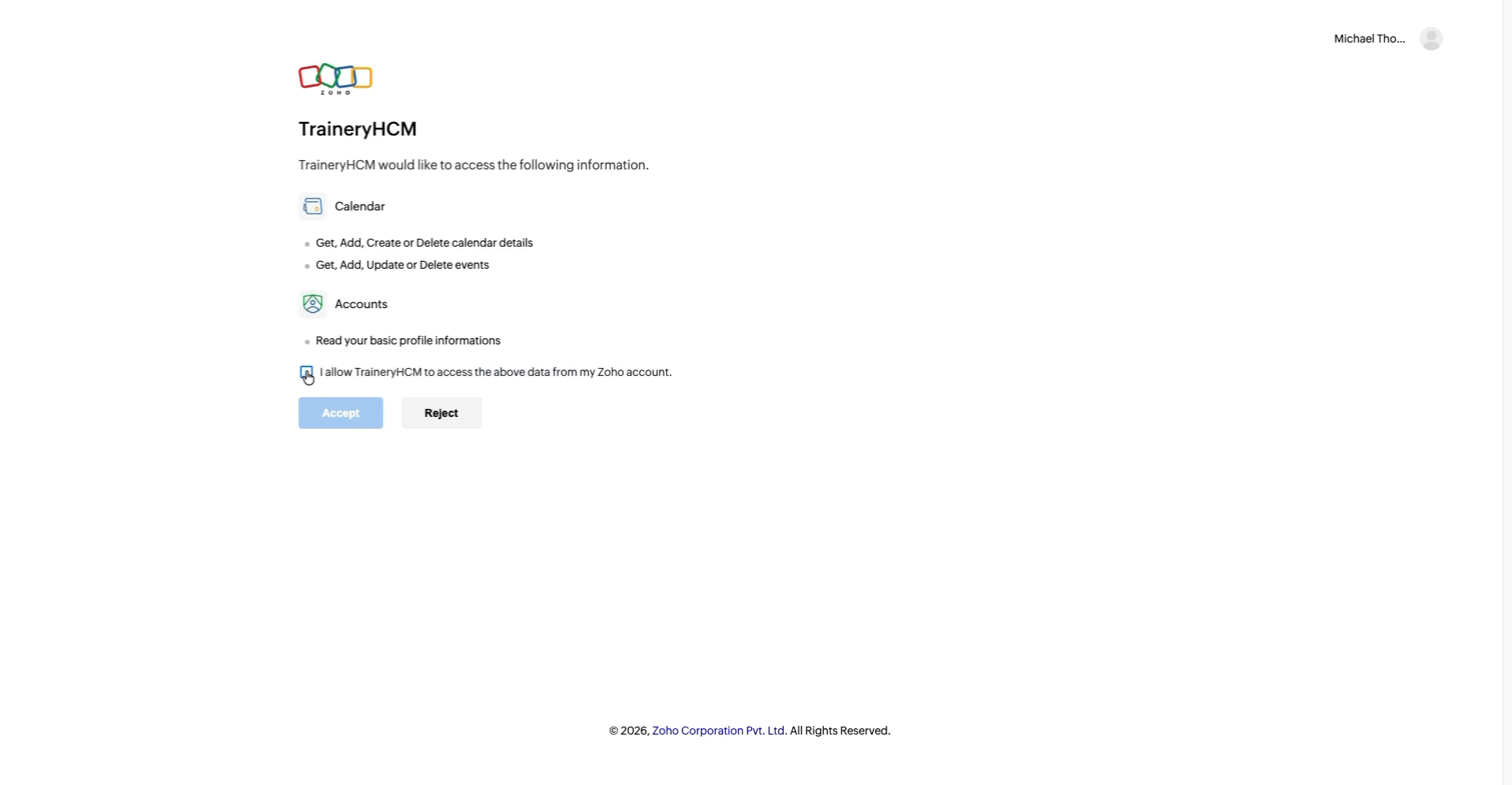
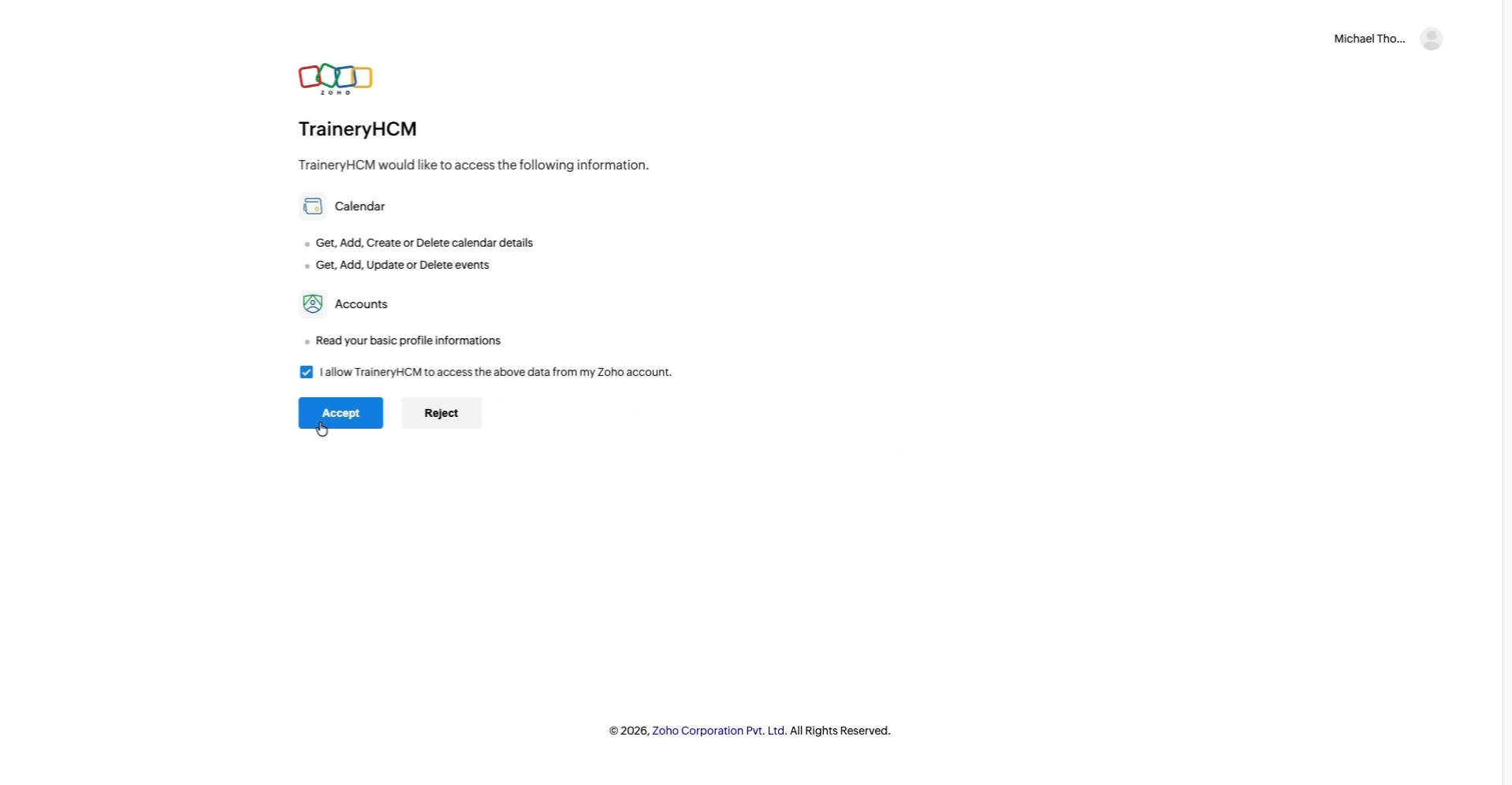
In the Zoho authorization tab that opens, grant Trainery HCM permission to access your calendar by checking the required access box and clicking Accept.
Step 5: Verify Sync and View Calendar Events
Return to your profile in Trainery HCM to confirm that Zoho Calendar is shown as connected and syncing. Then navigate back to Home to view your updated Zoho calendar events displayed on the portal.
