TraineryHCM Platform Administration
Last updated: September 8, 2026
This document walks through how to sign in to TraineryHCM and navigate core areas including the home portal, workforce and organization management, access controls, integrations, analytics, and personal profile connections.
Step 1: Sign In to TraineryHCM
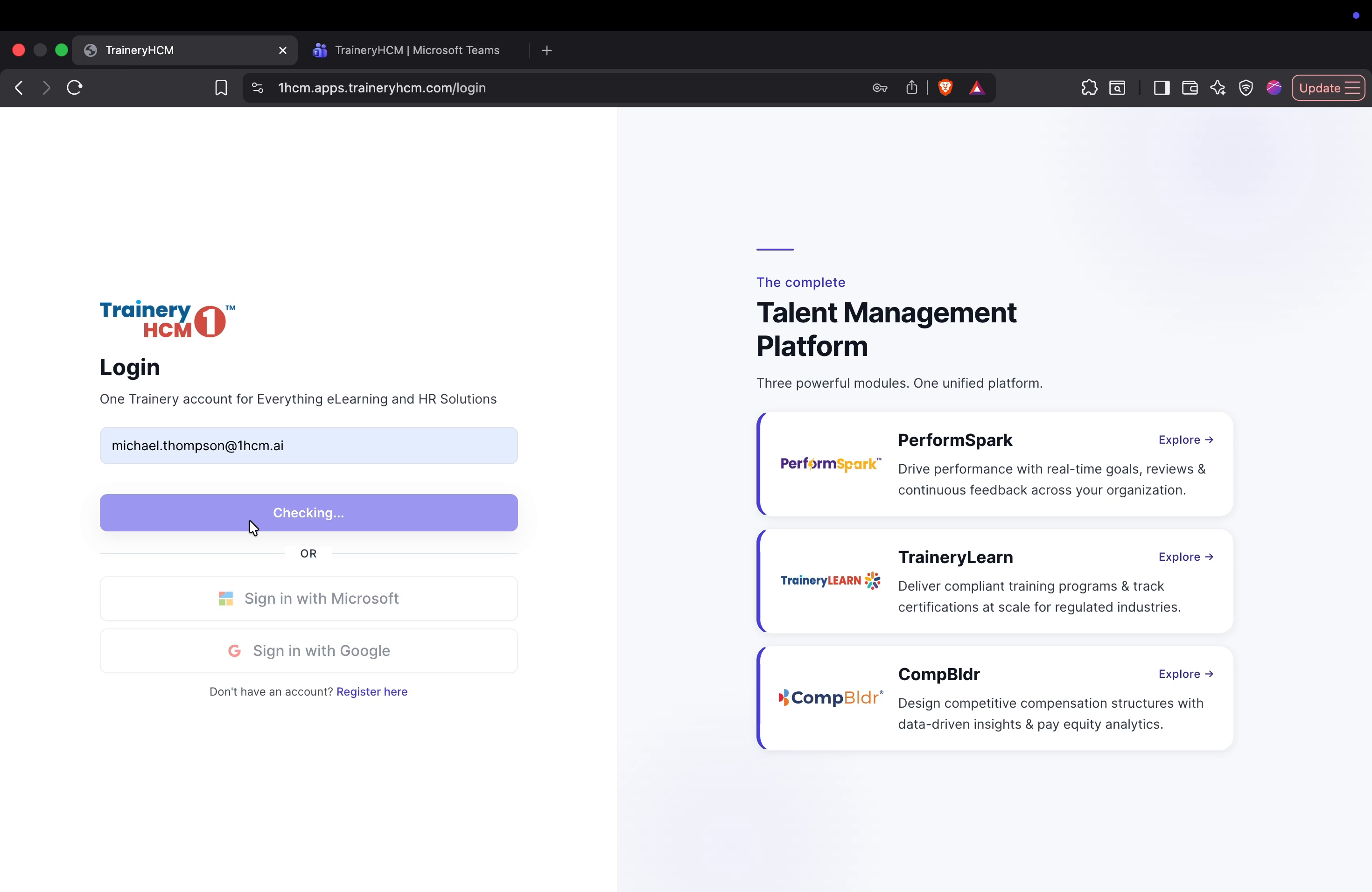
Enter your email address, click the check/continue button, provide your password, and sign in to the TraineryHCM platform.

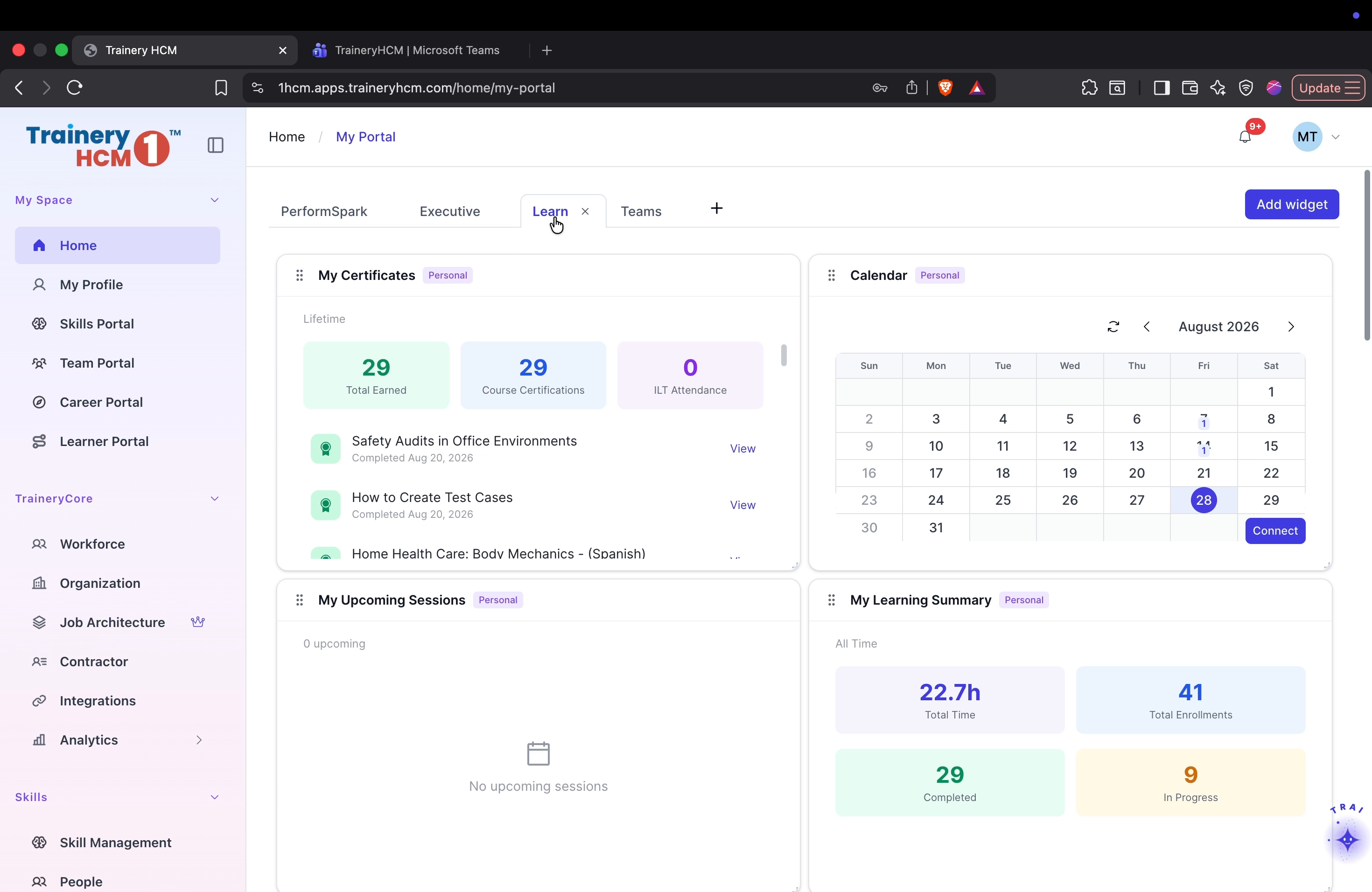
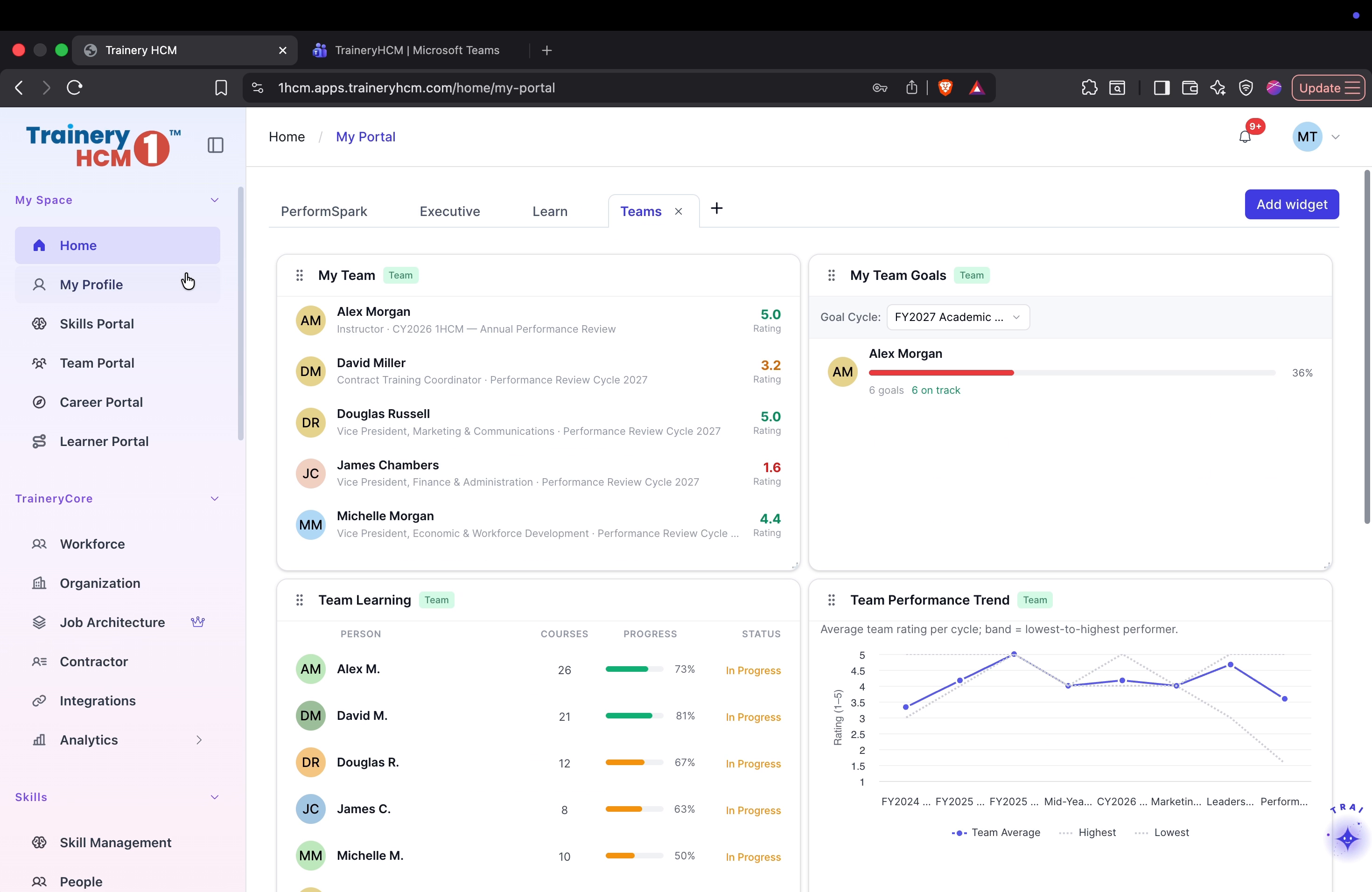
Step 2: Review the Home Portal and PerformSpark Tabs
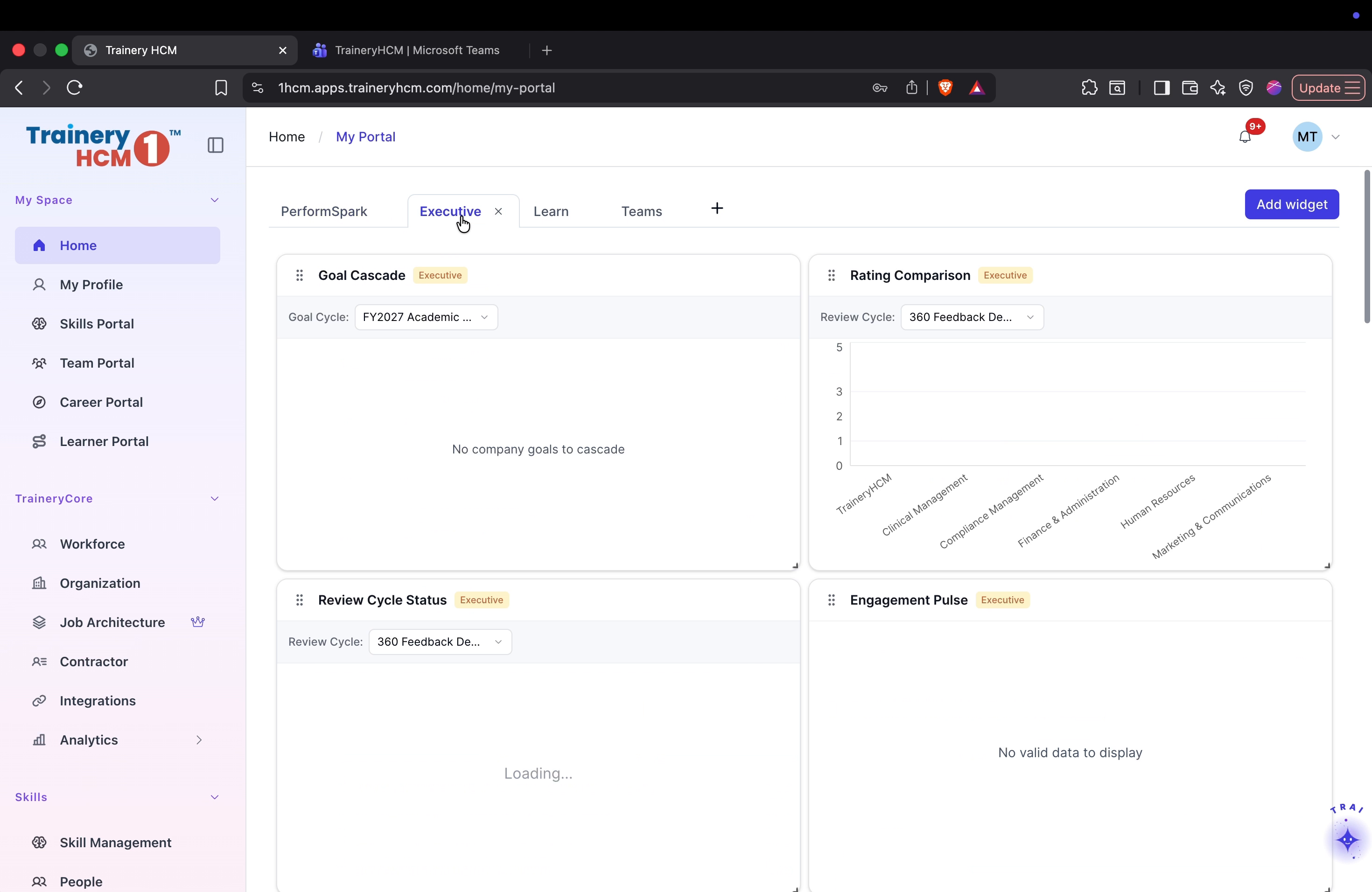
After signing in, allow the home portal to load and review your dashboard, including pending tasks, goal progress, and personal calendar. Then navigate through the PerformSpark tabs to explore executive insights, learning modules, and team performance metrics.
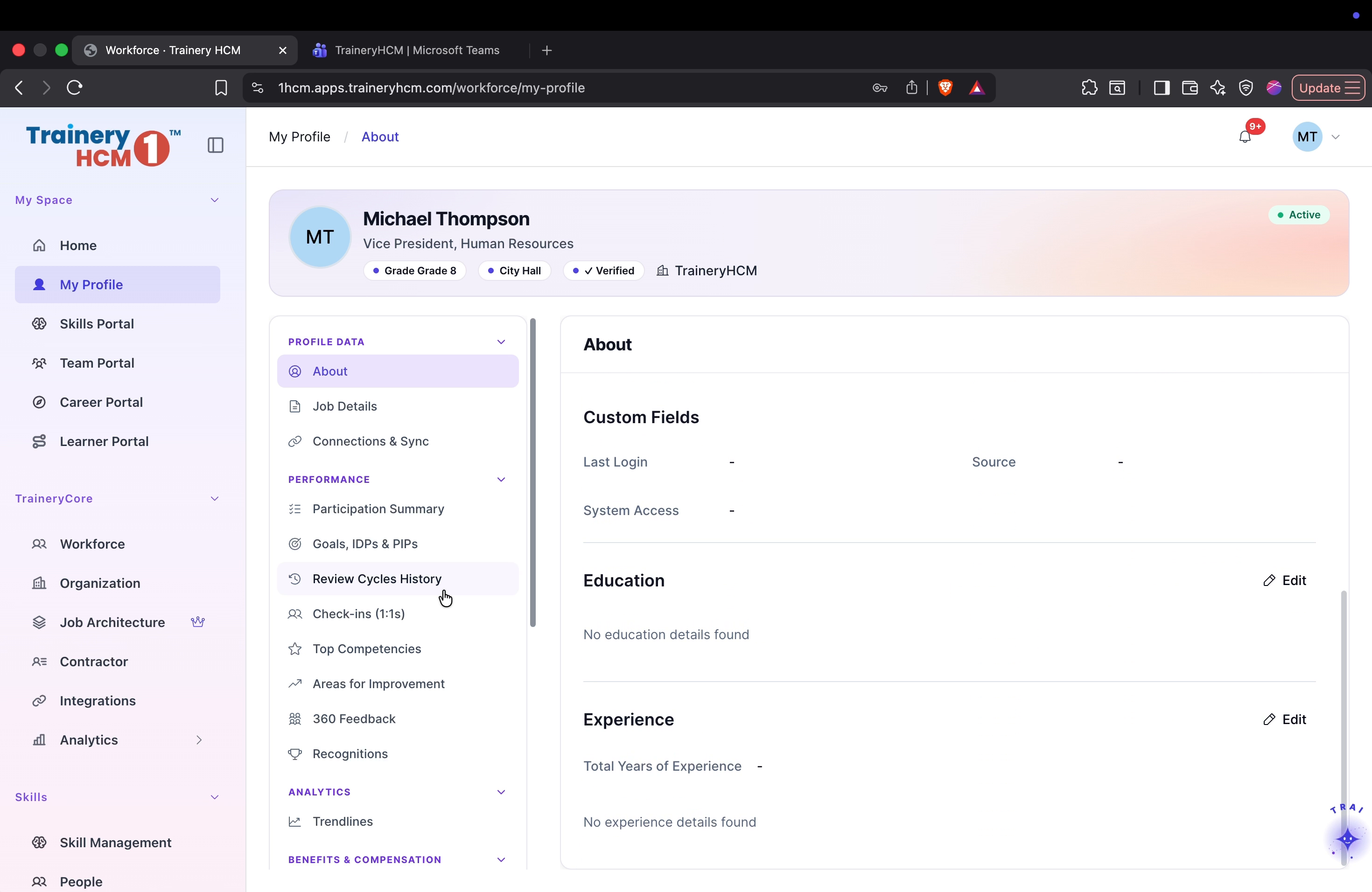
Step 3: View Your Profile Details
Click your profile to open your personal details, including sections such as education and work experience.
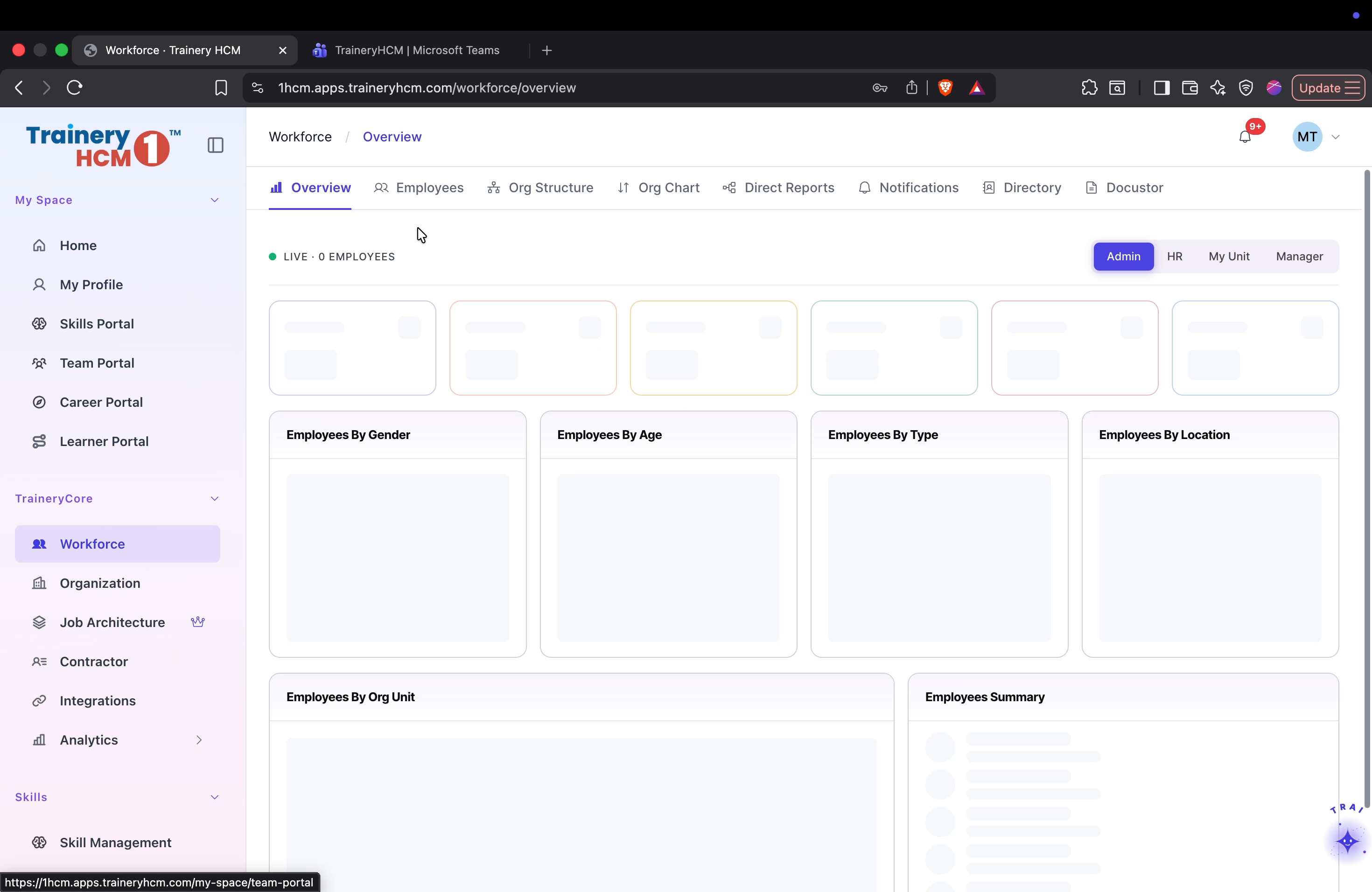
Step 4: Access Workforce and the Employee Directory
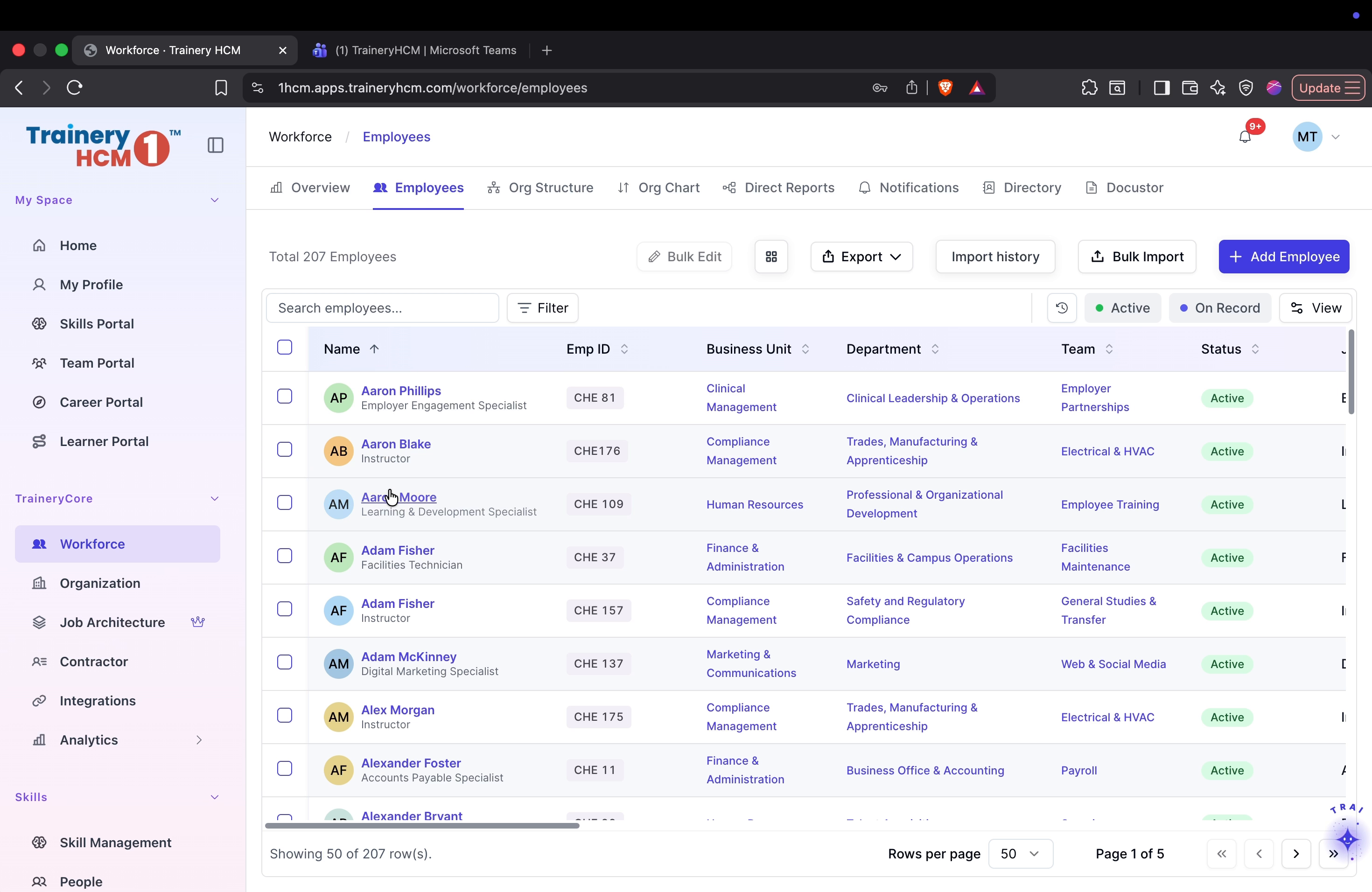
Go to the Workforce section and open the employee directory to view and manage staff records.
Step 5: Explore an Employee Profile and Related Records
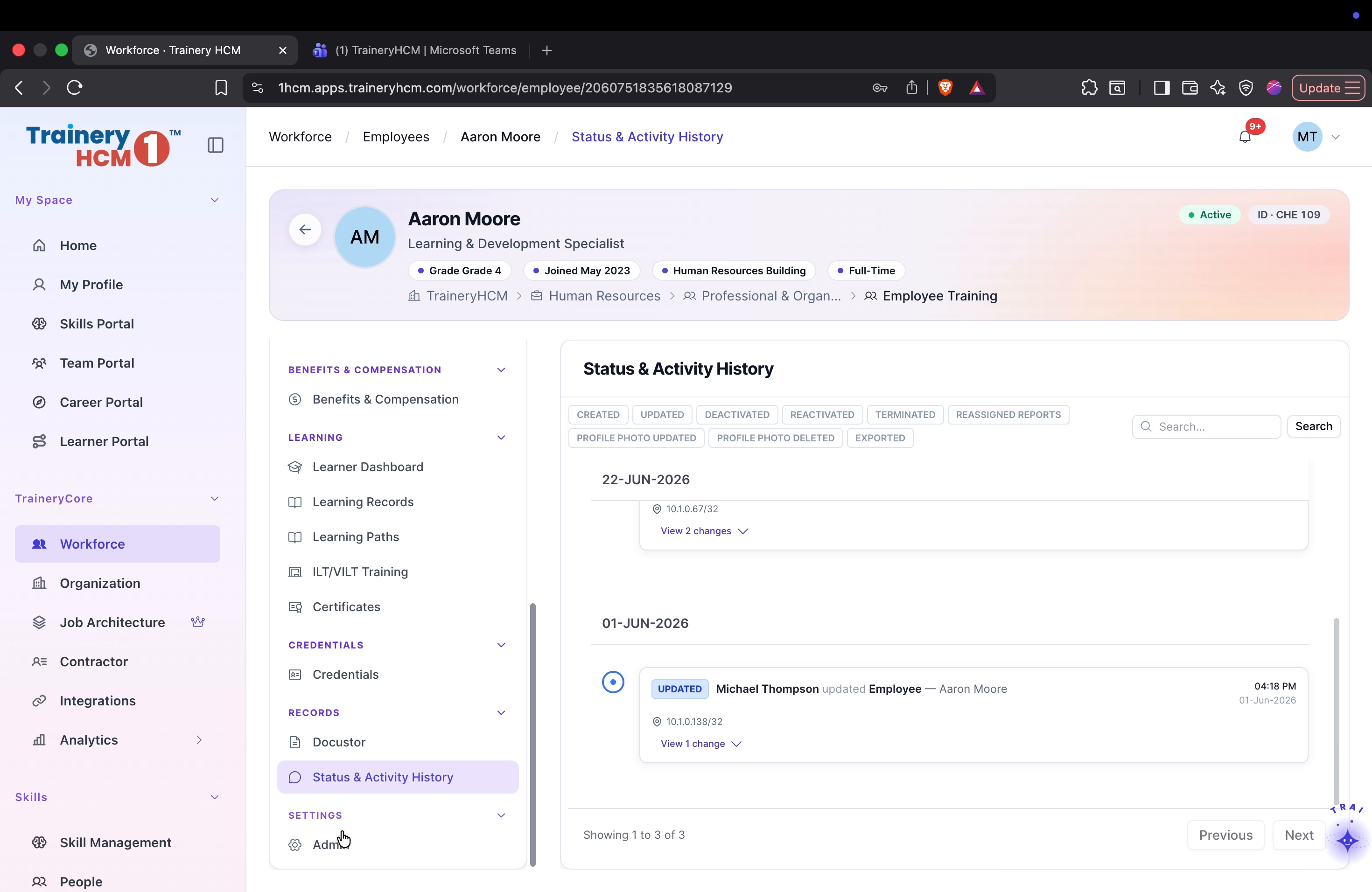
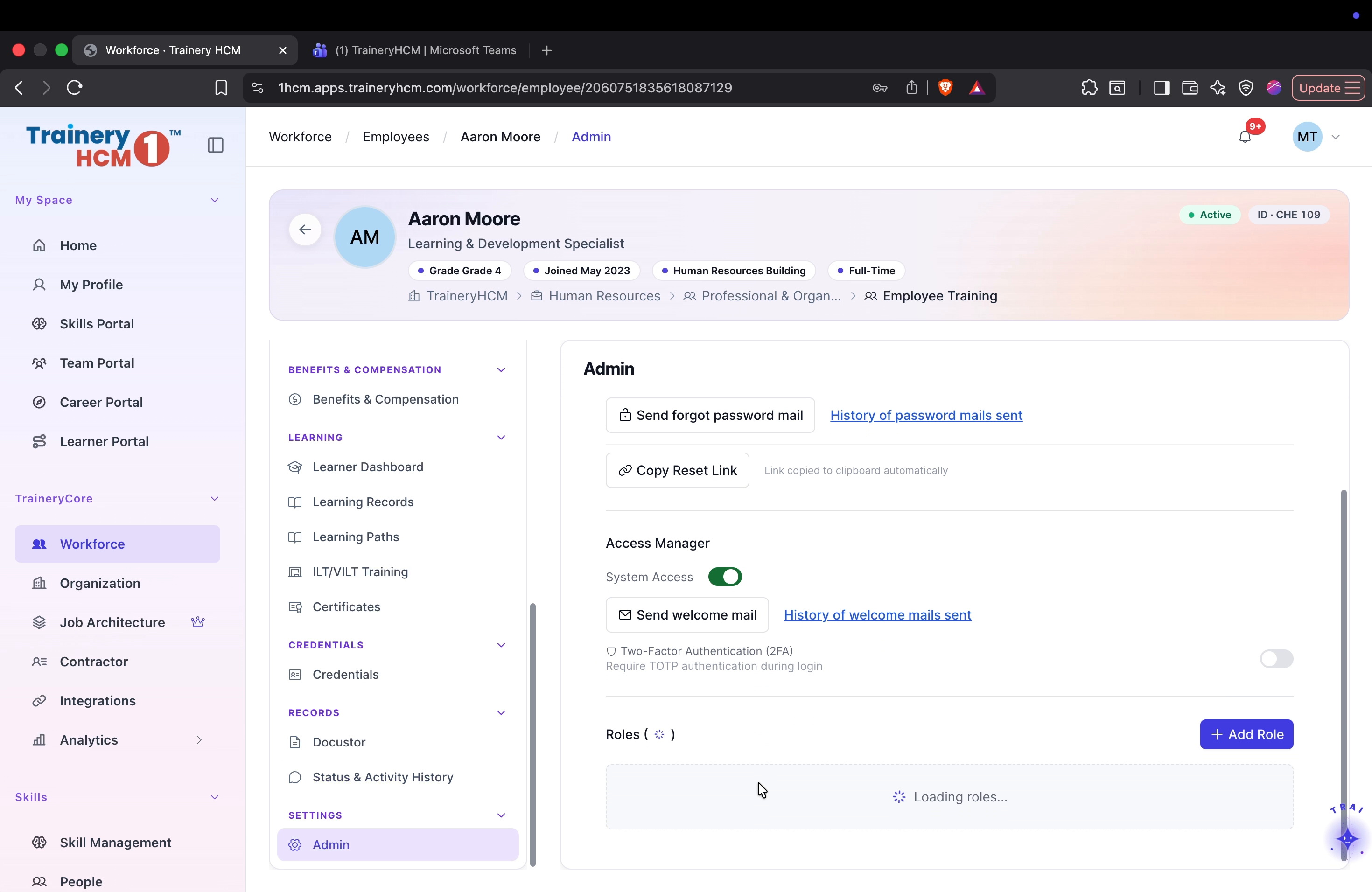
Select Aaron Moore’s profile (or any employee) and review key sections such as job details, participation summary, goals, and trendlines. Then check the learner dashboard, document storage, and status history before proceeding to admin settings.
Step 6: Navigate Workforce Structure and Shared Resources
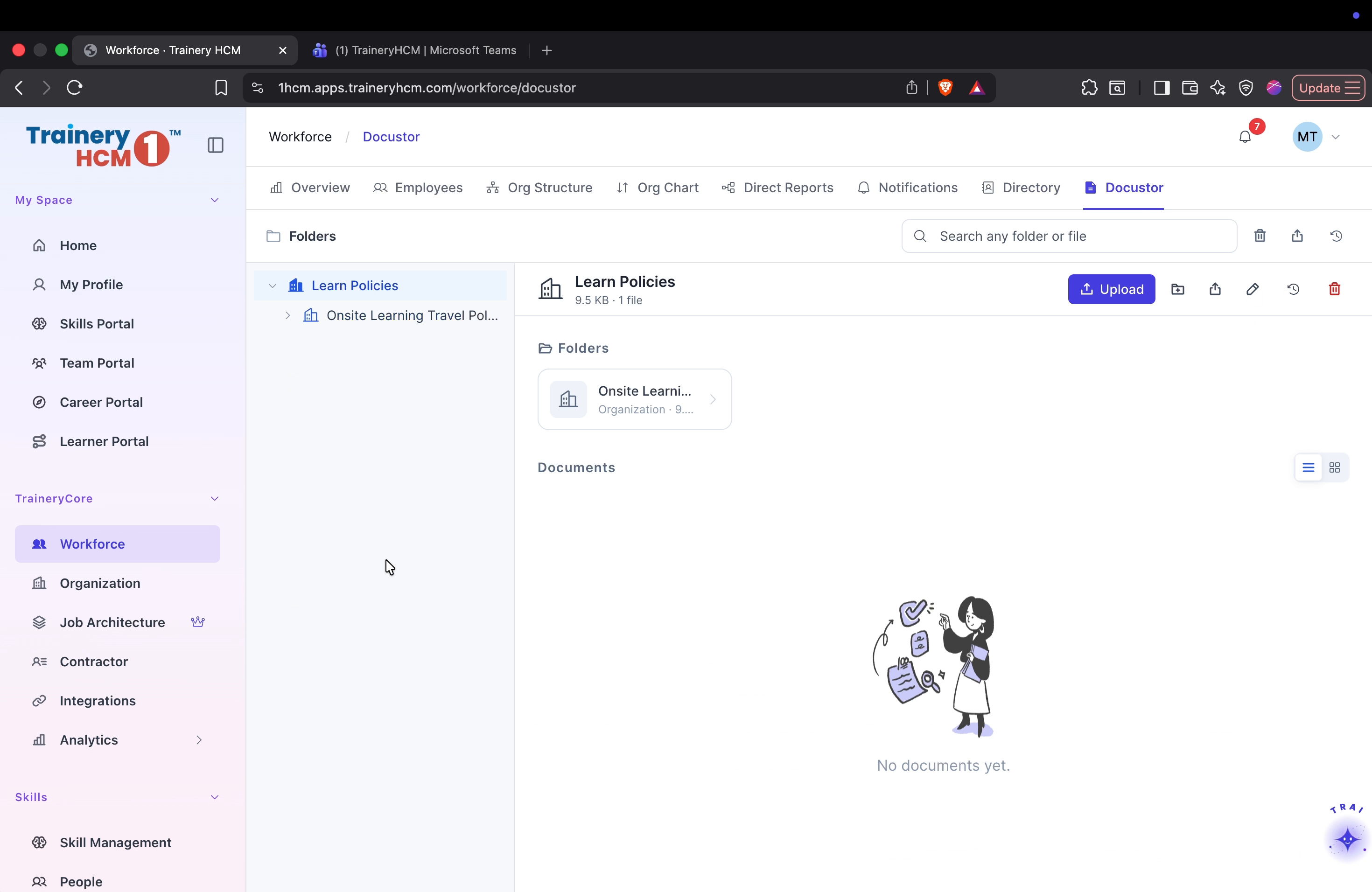
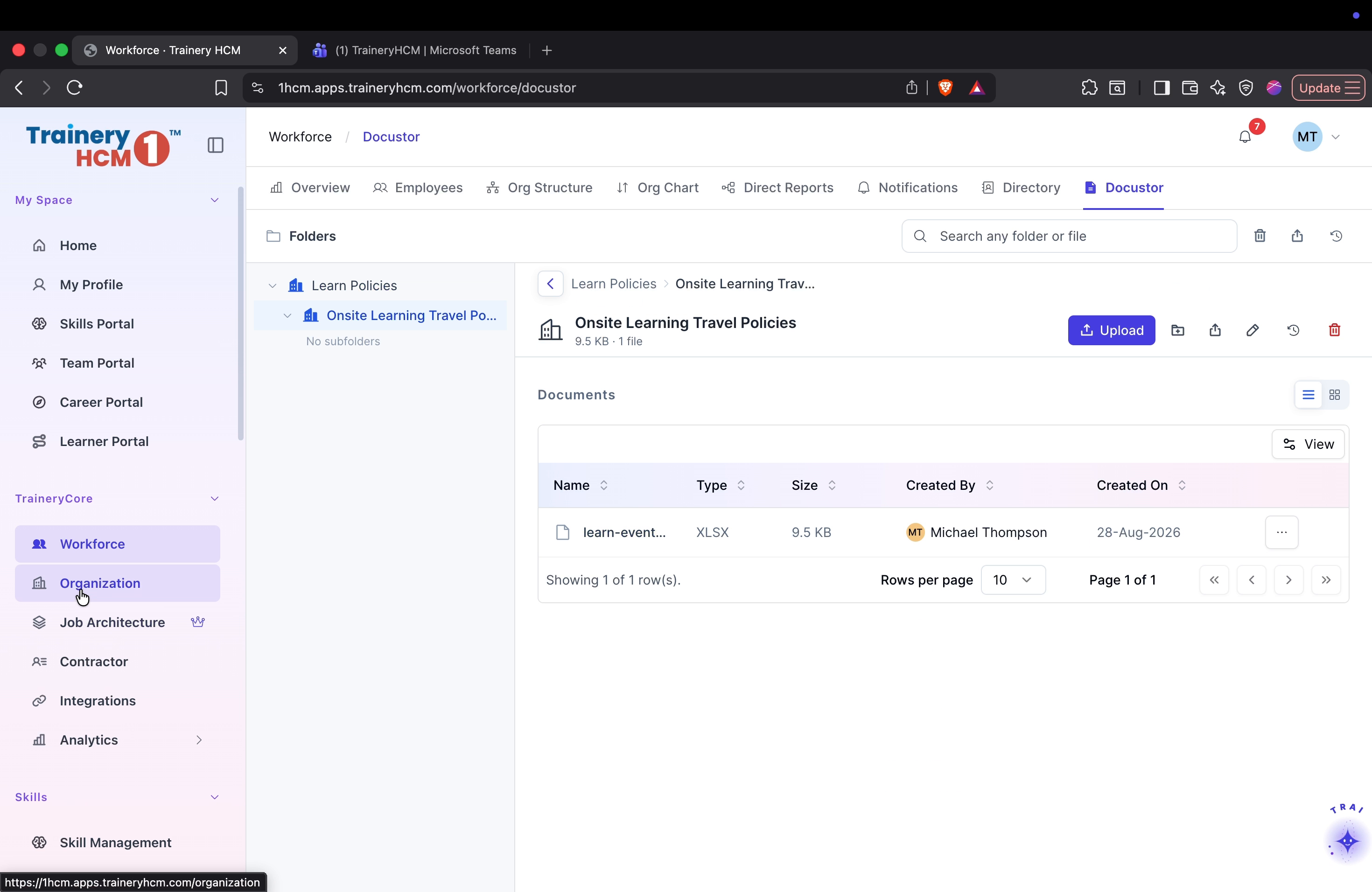
Within the Workforce module, switch between different organization structure views, the org chart, and direct reports. Also review system notifications, the employee directory, and shared documents in the Docustor tab.
Step 7: Configure Organization Settings
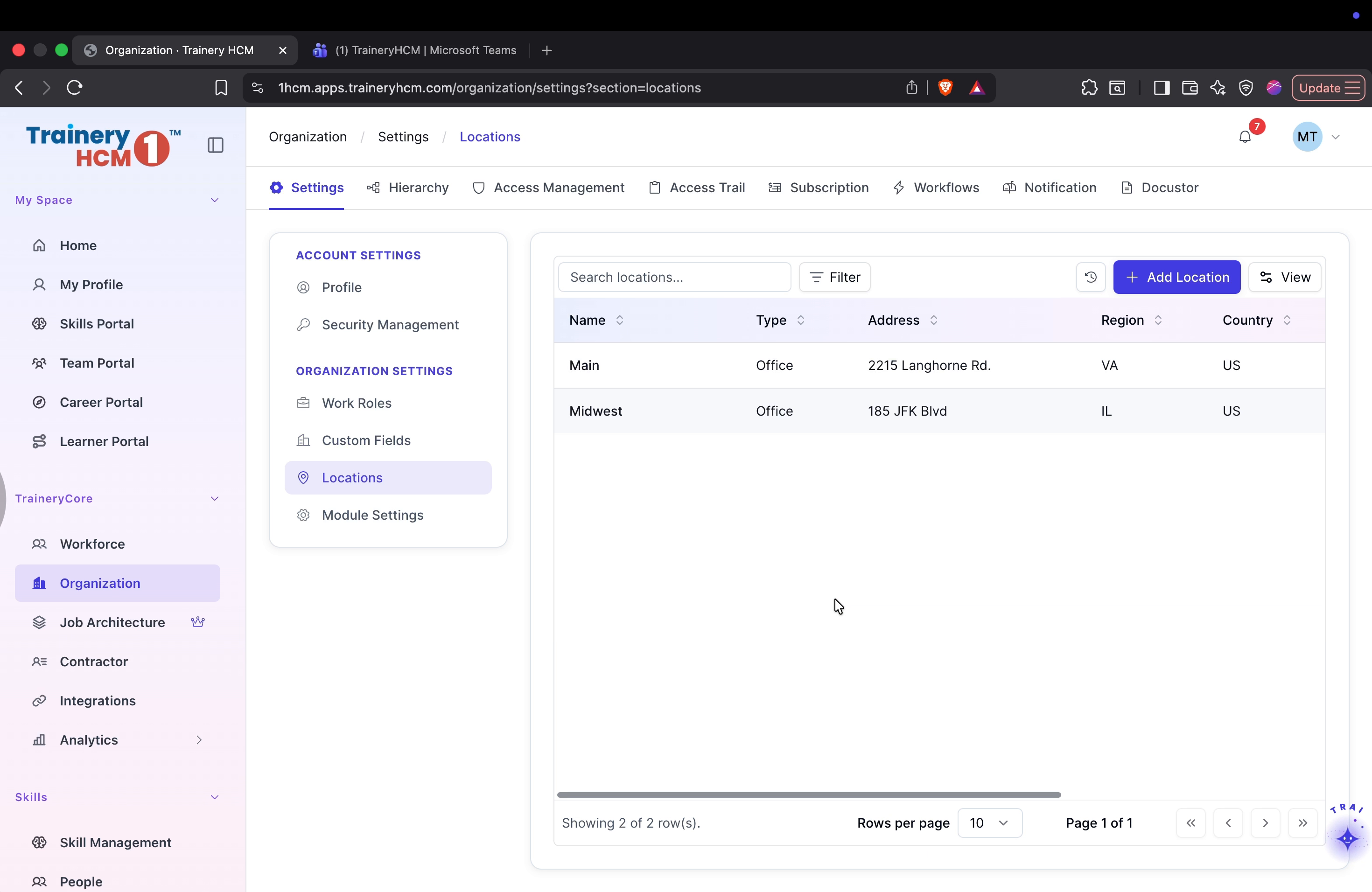
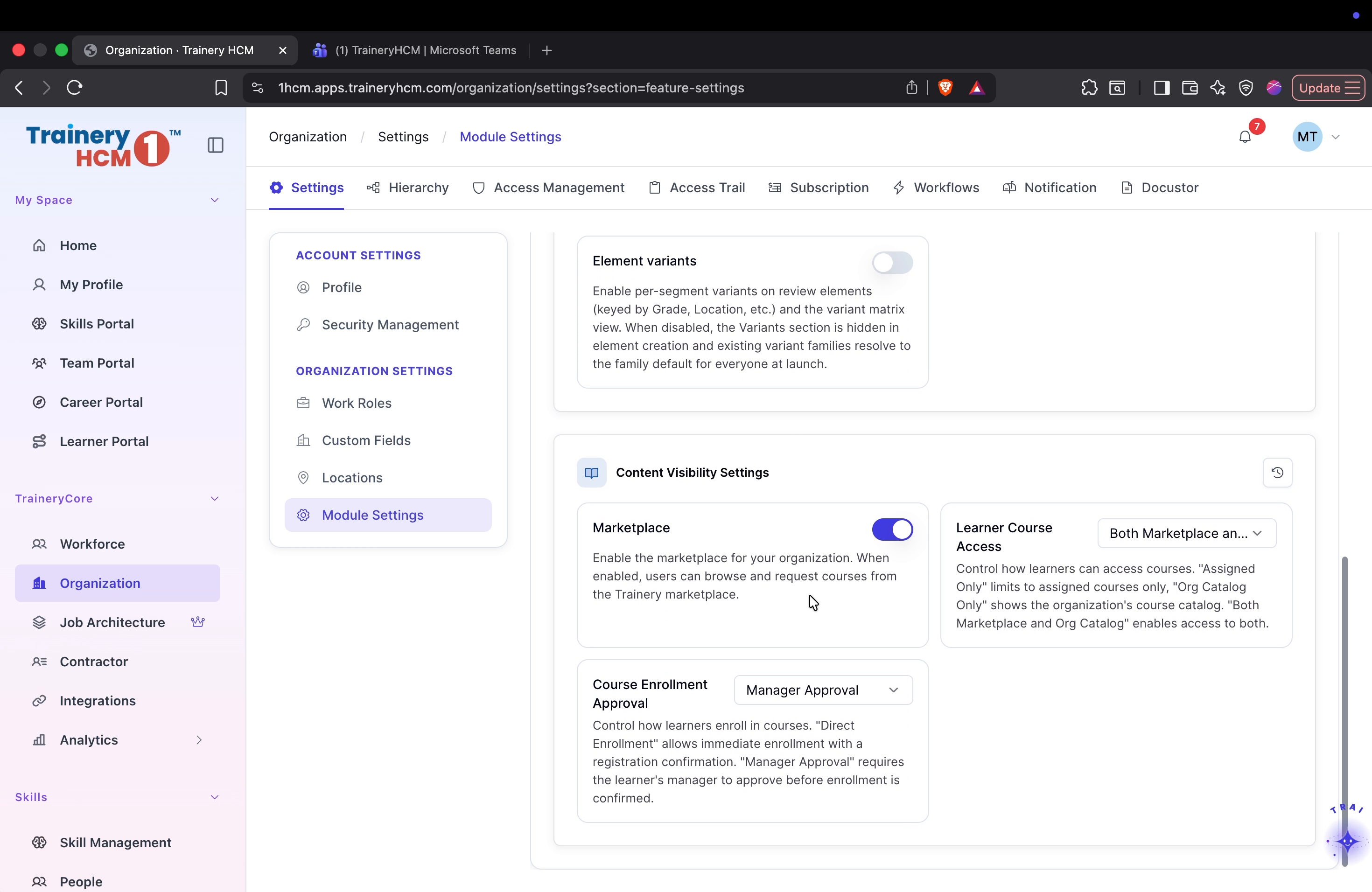
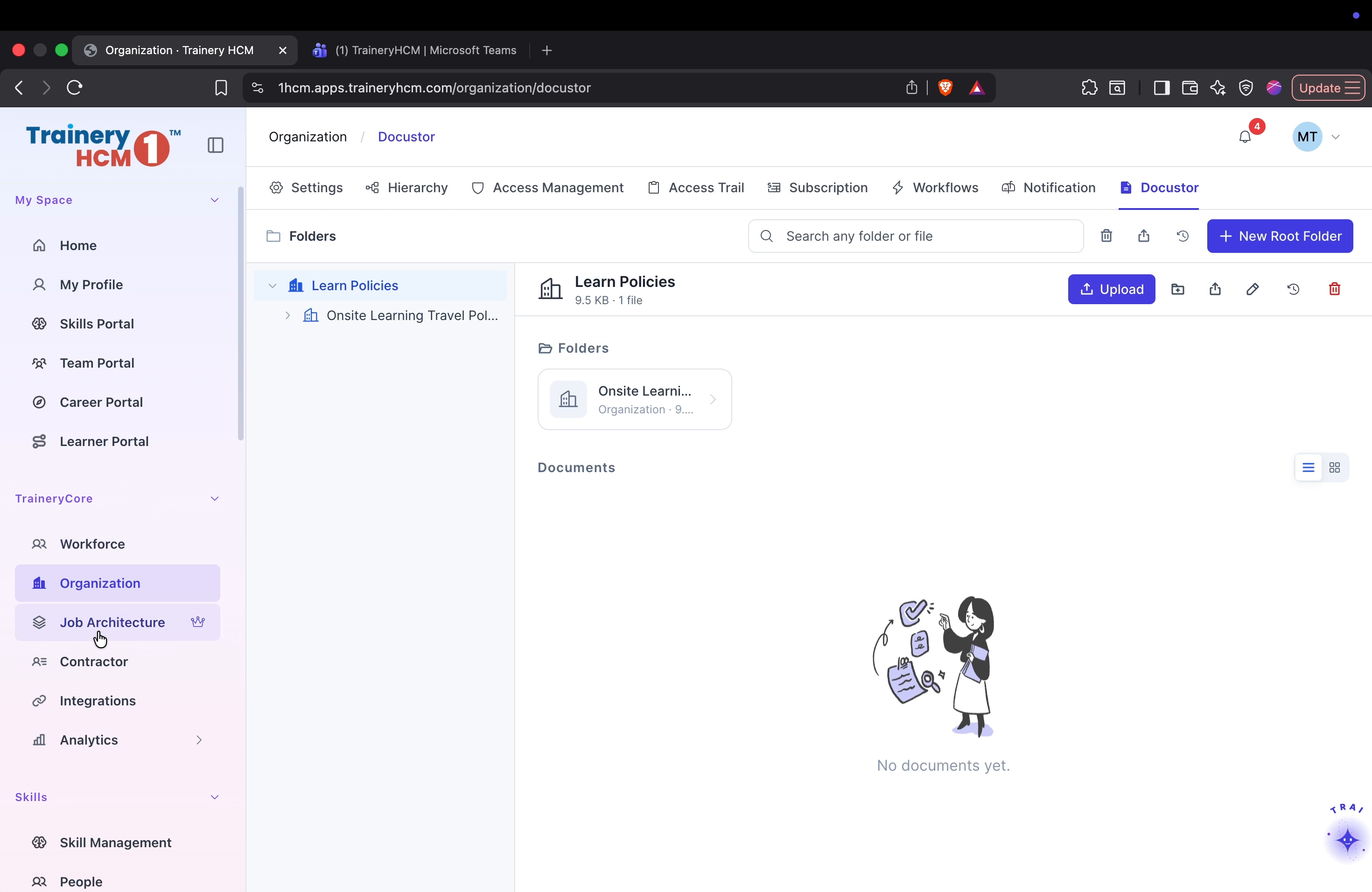
Open Organization Settings to manage your company’s basic information, security protocols, work roles, custom fields, and module configurations.
Step 8: Work with the Organization Hierarchy
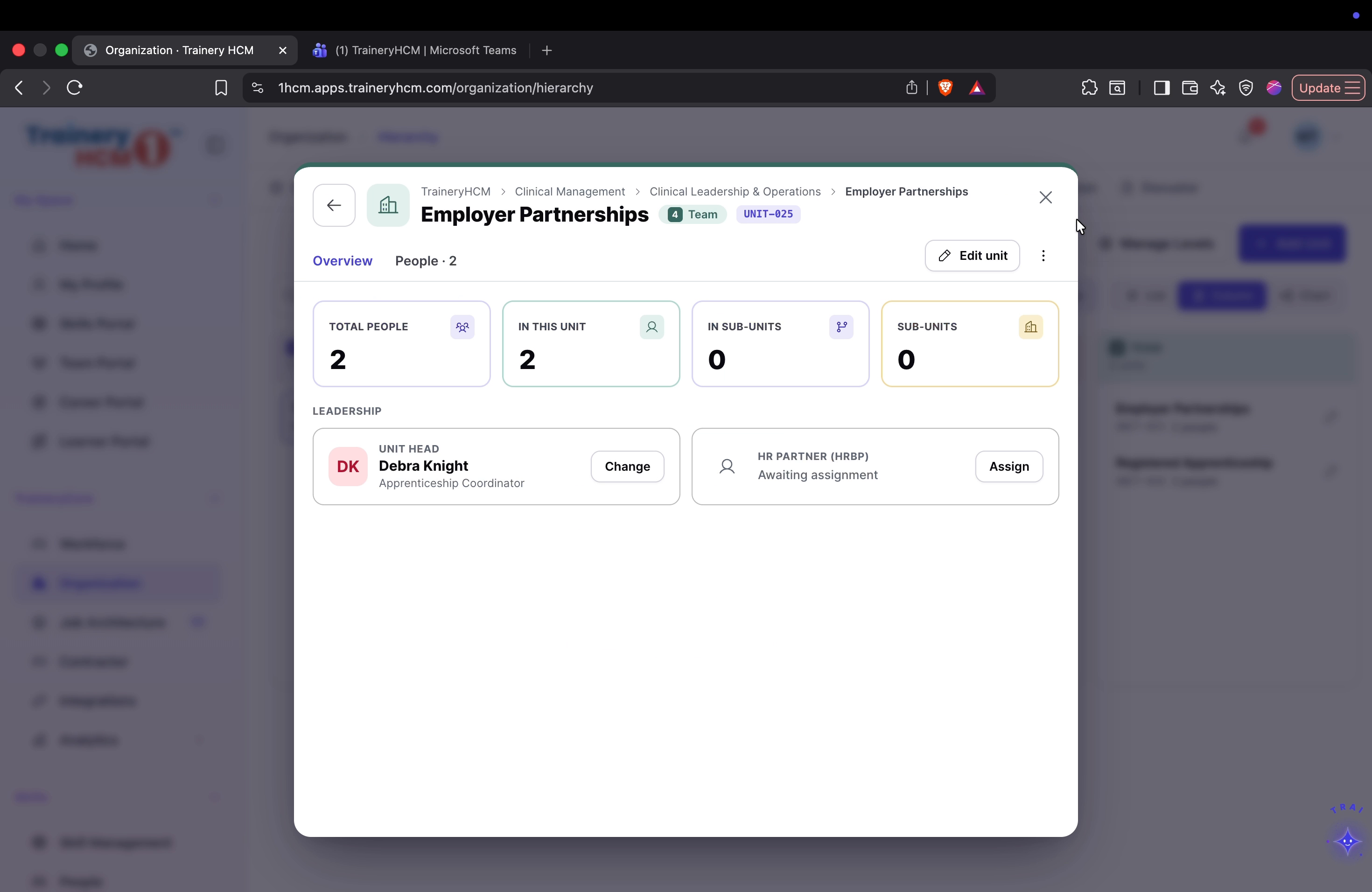
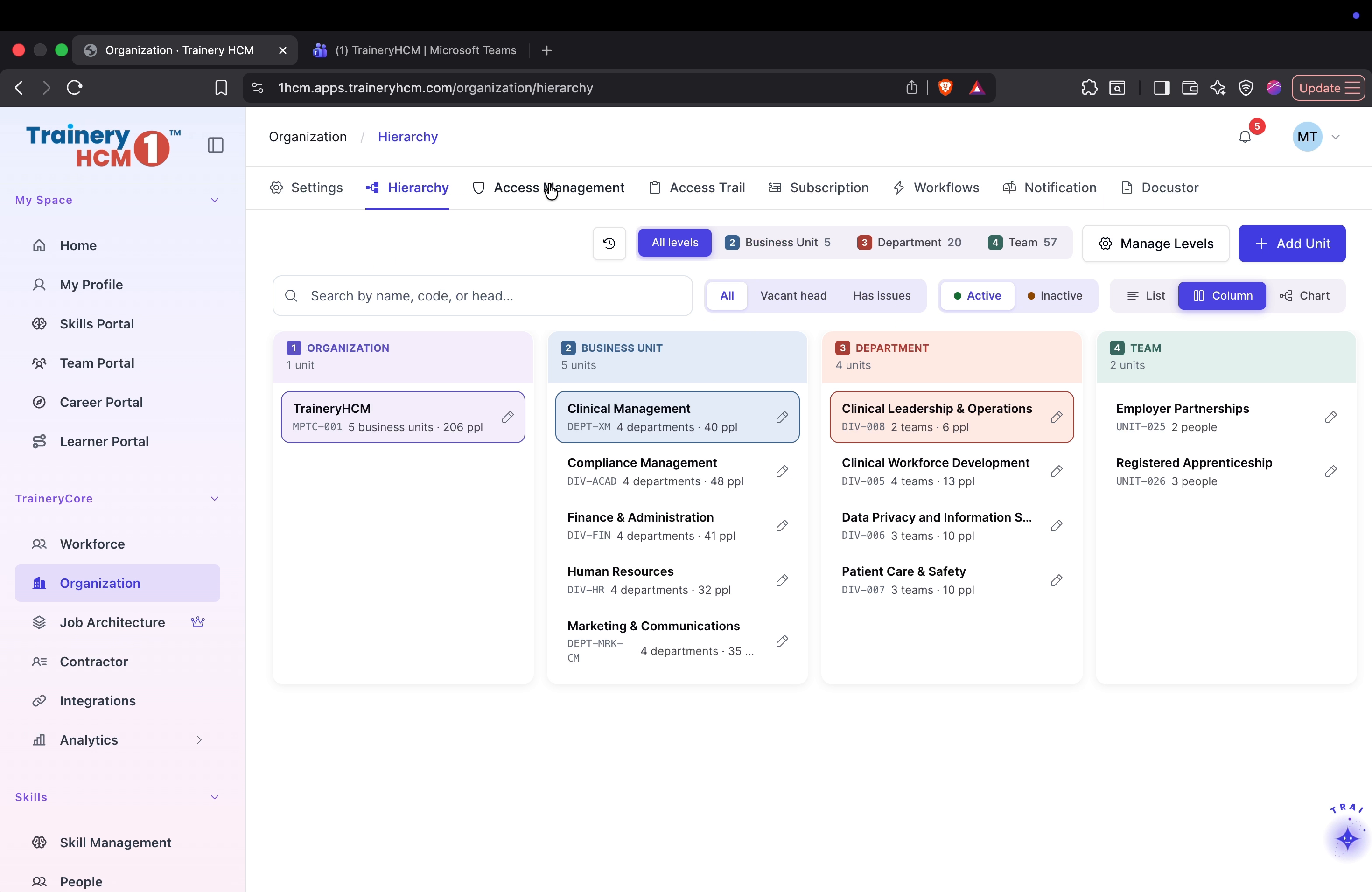
Navigate to the organization hierarchy view and filter by business unit and department. Drill down into specific teams, such as the procurement and purchasing team, to see member details and structure.
Step 9: Review Access Management and Permissions
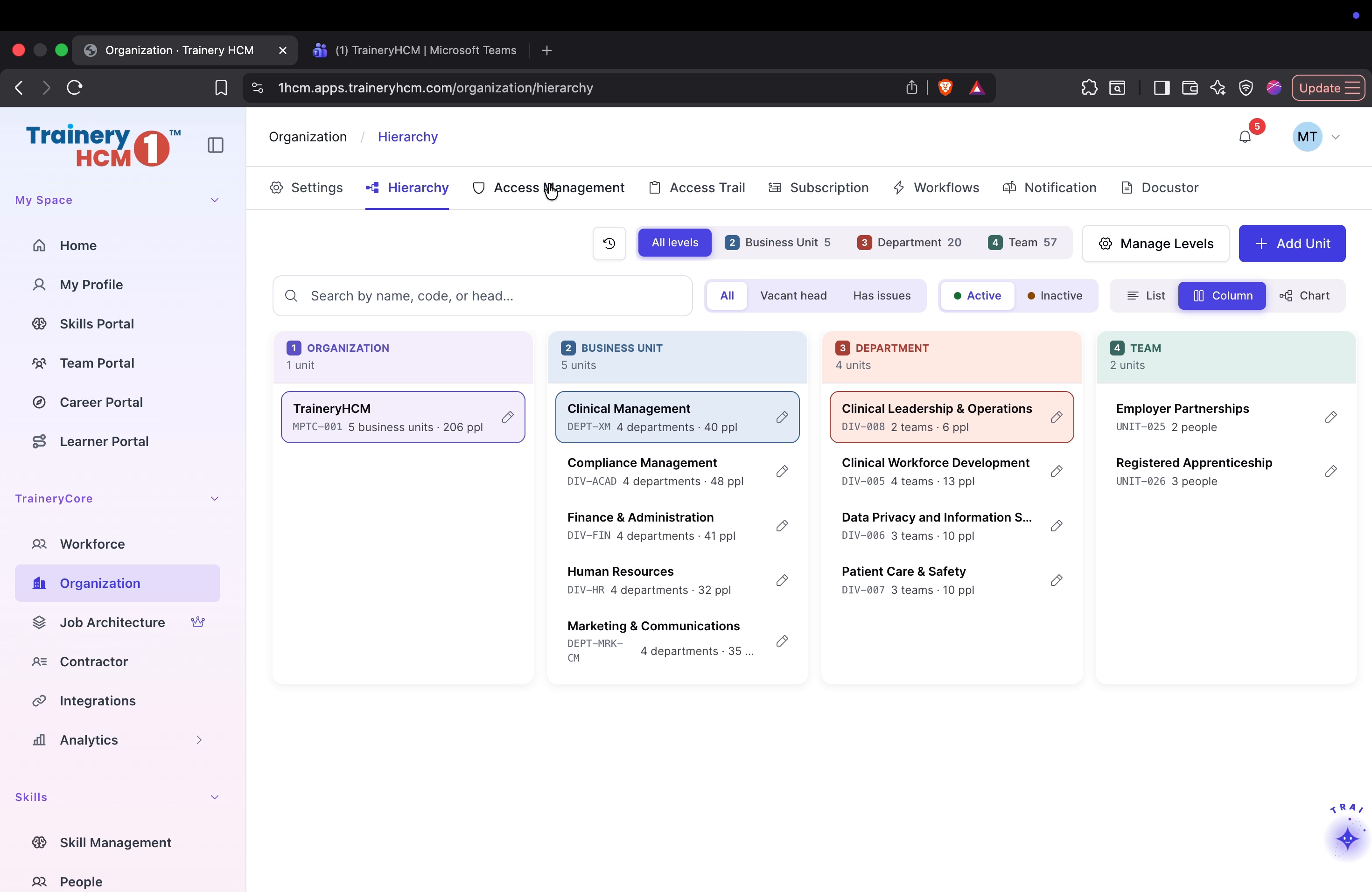
Open Access Management and review system roles such as Admin and Manager, examining their specific permissions and the overall permission matrix.
Step 10: Audit Access, Workflows, and Communications
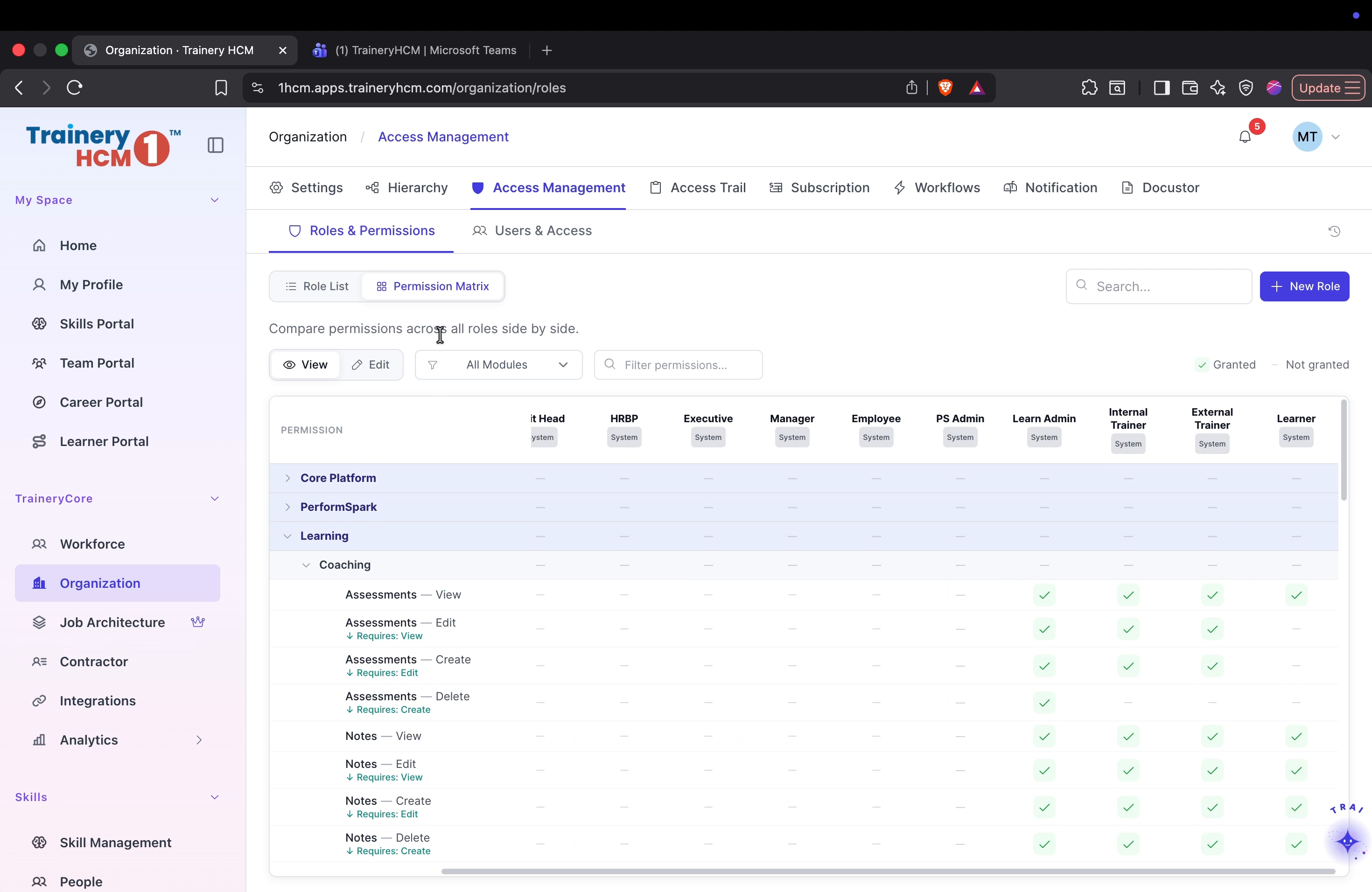
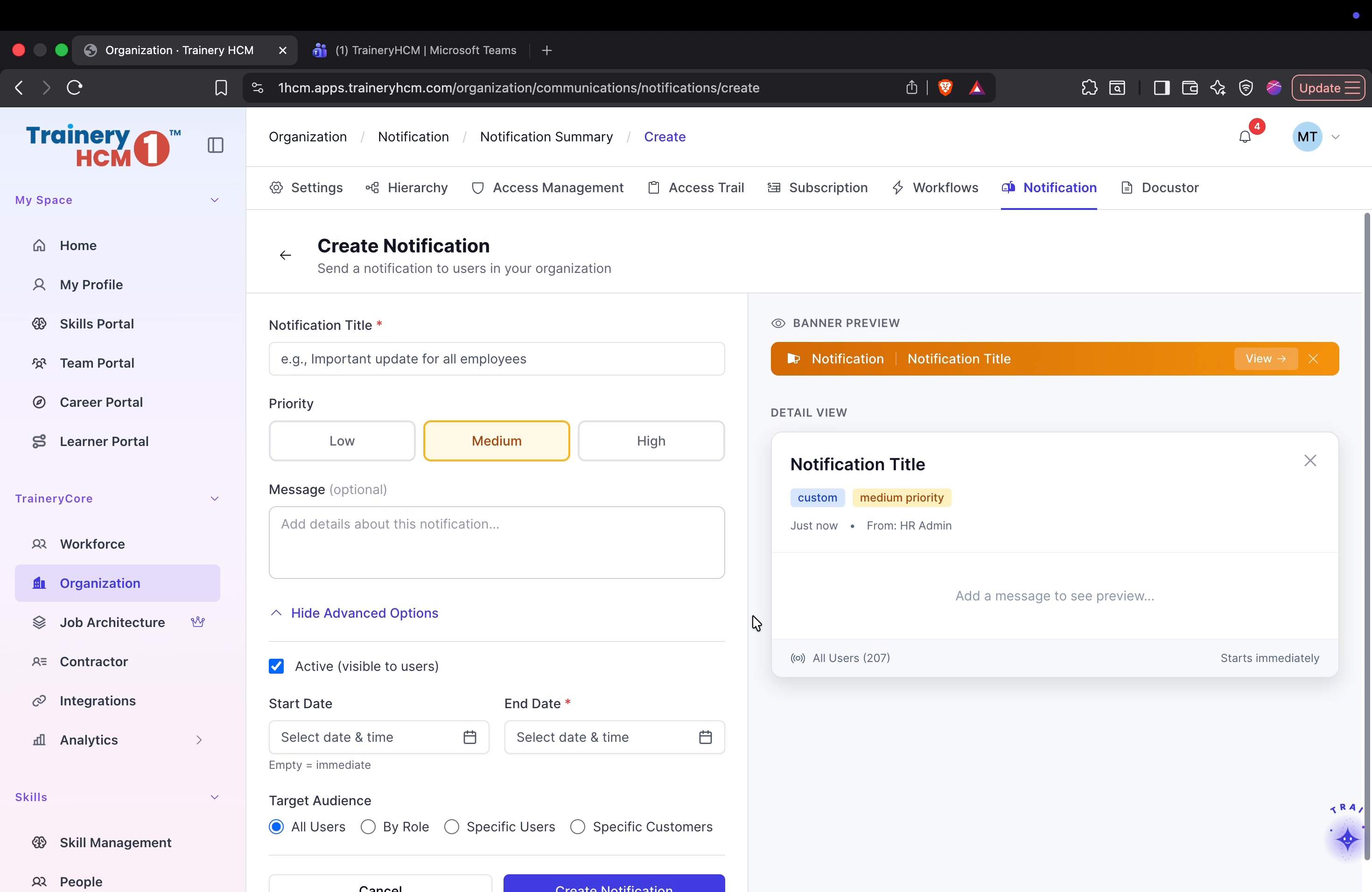
Check the access trail for login and activity audits. Then move to the Workflows area to view automated processes, and review communication notifications and document storage settings.
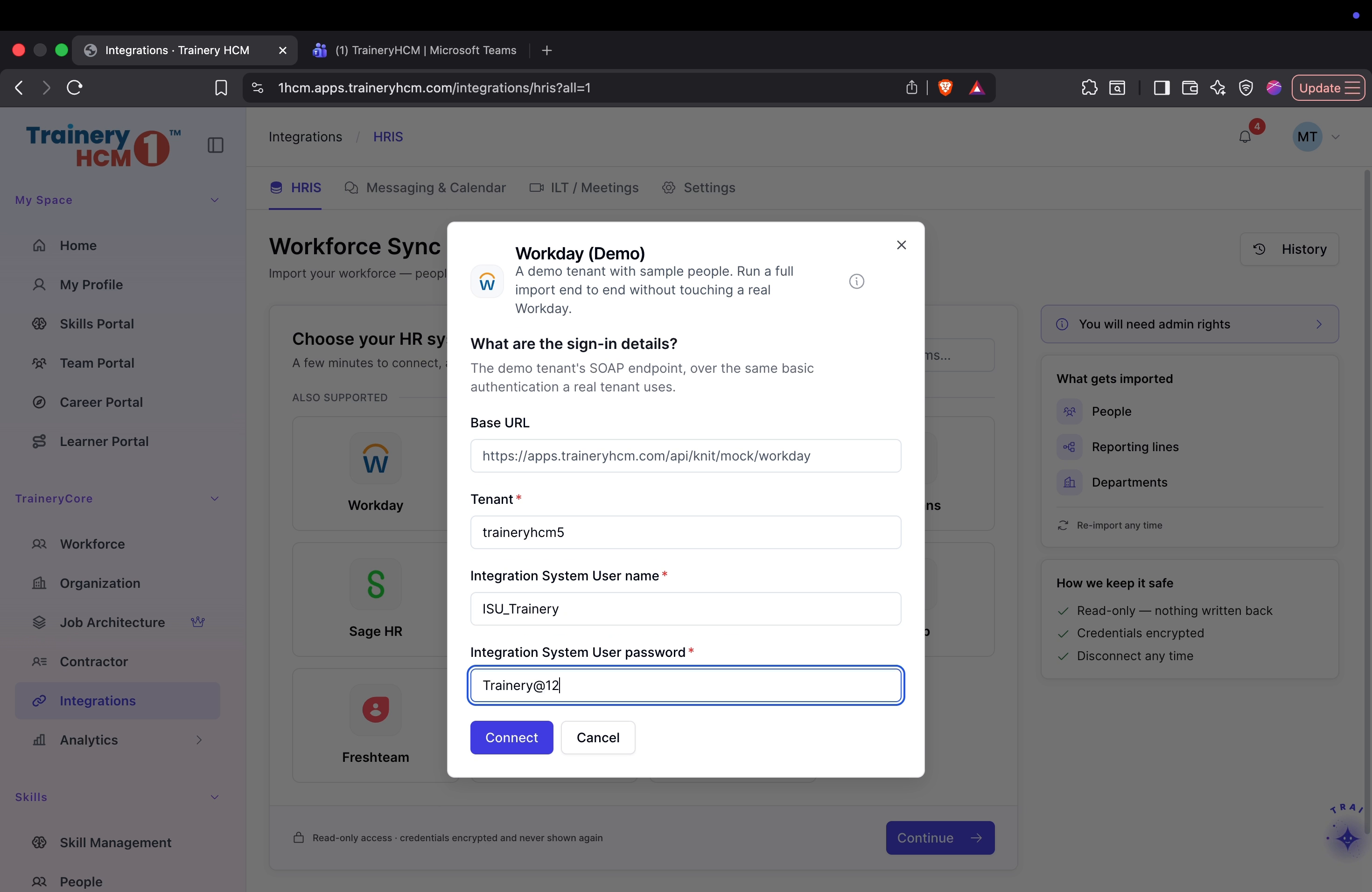
Step 11: Set Up the Workday Integration
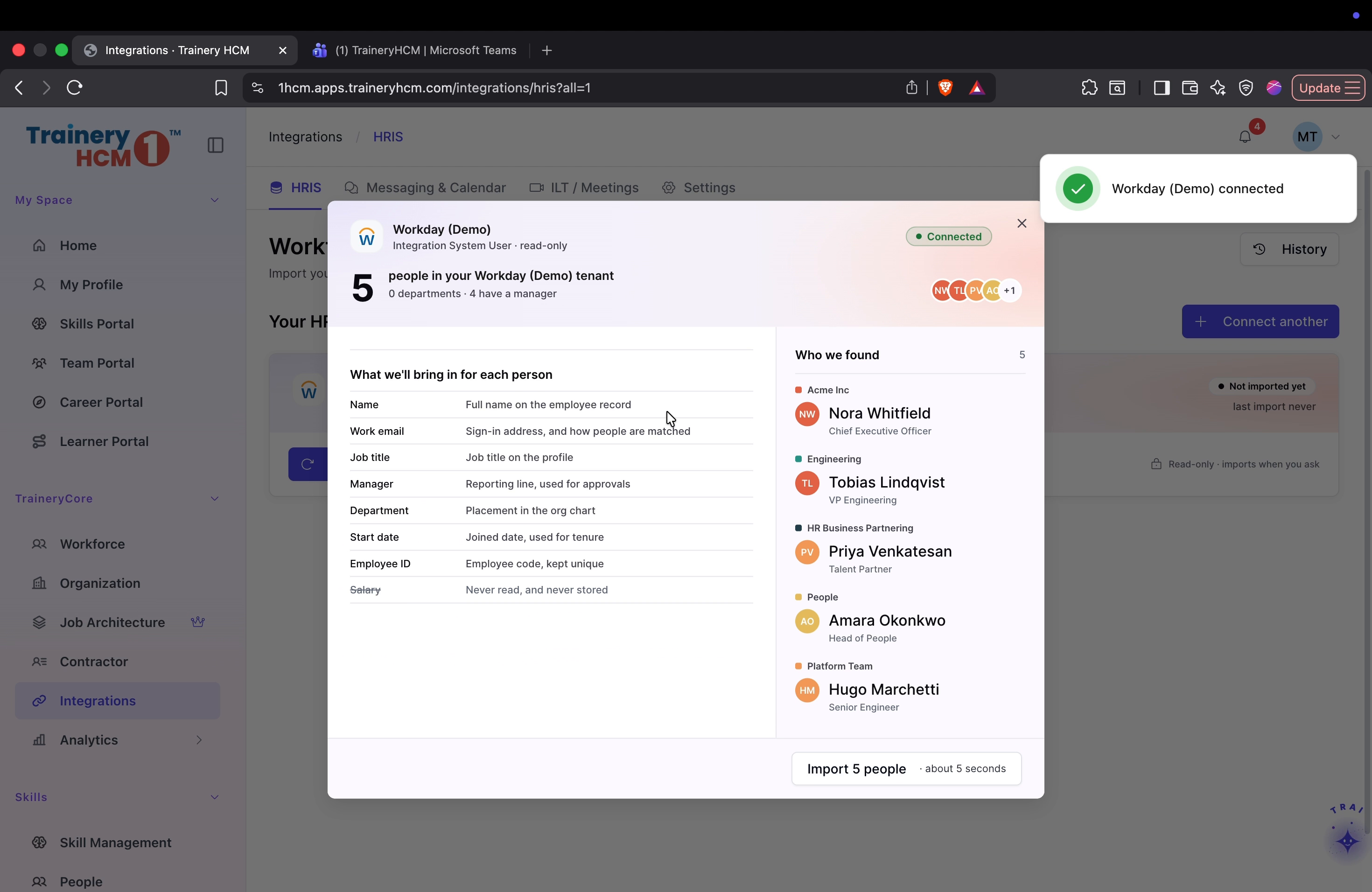
Navigate to the Integrations section and initiate a connection with a Workday demo account. Follow the setup prompts to authenticate and sync workforce data.
Step 12: Review Additional Integration Settings
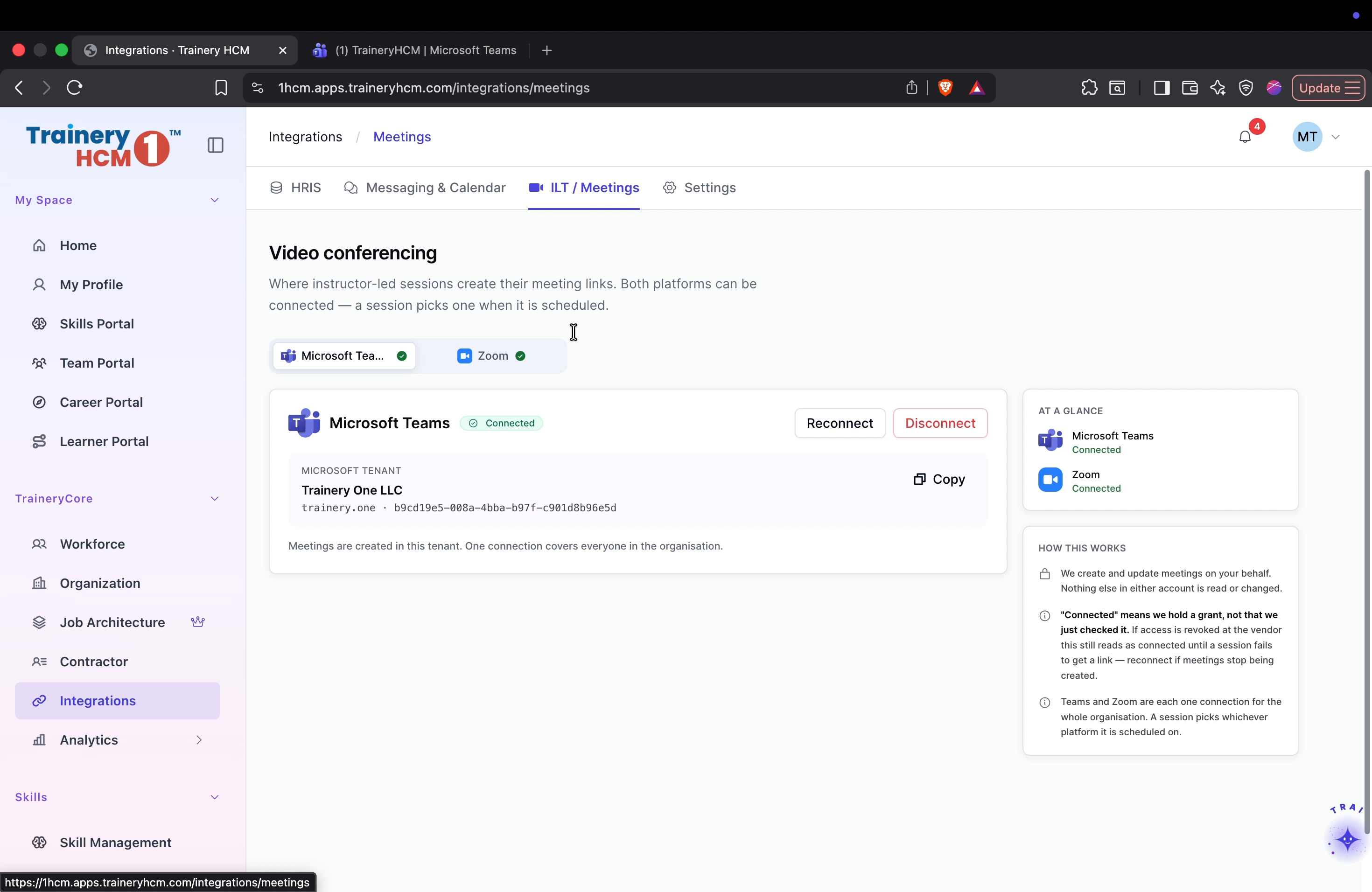
Browse the integration settings relevant to IT meetings and general system approvals, confirming that required integrations and approval flows are configured.
Step 13: Analyze Workforce Metrics in Analytics
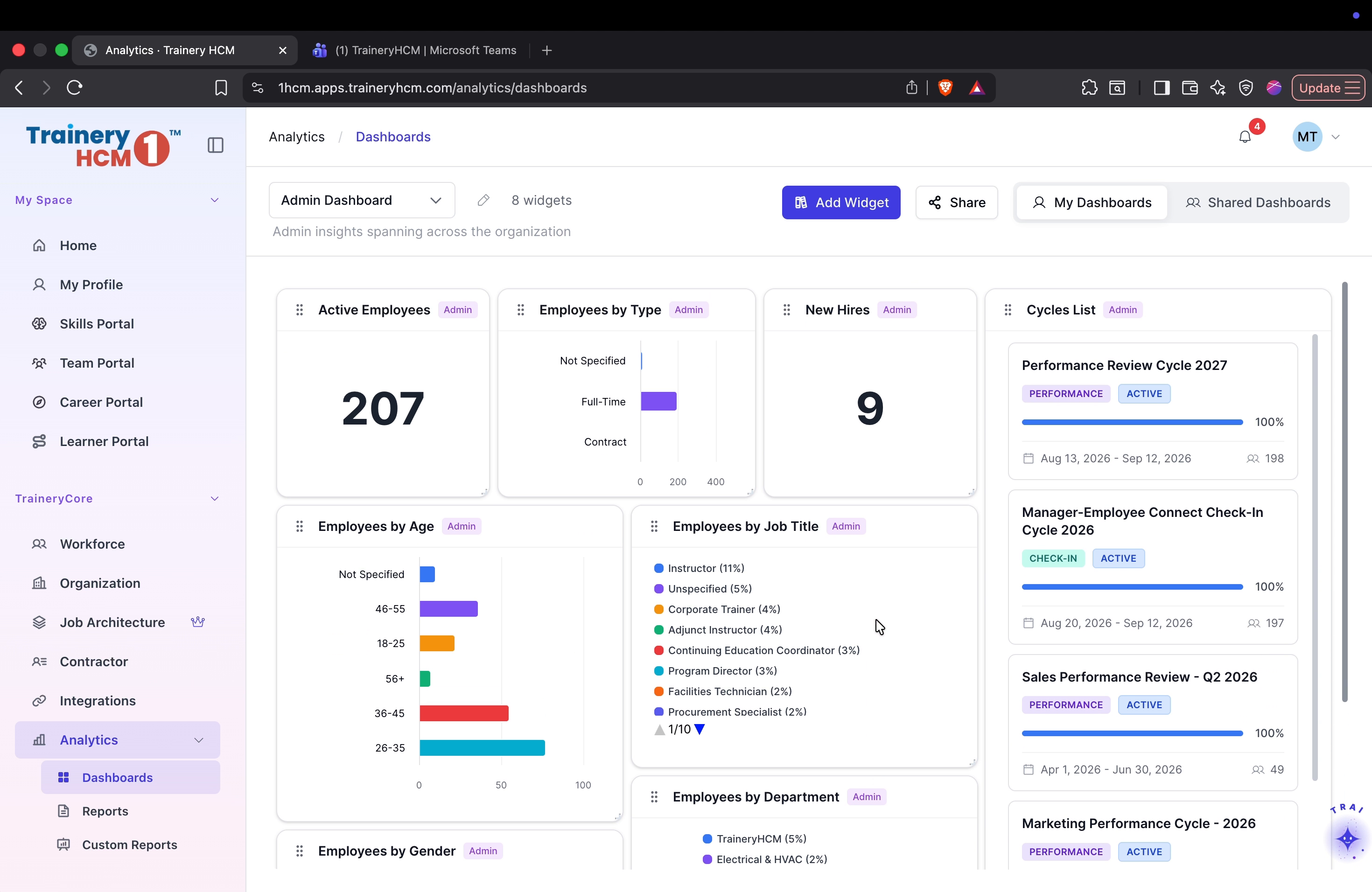
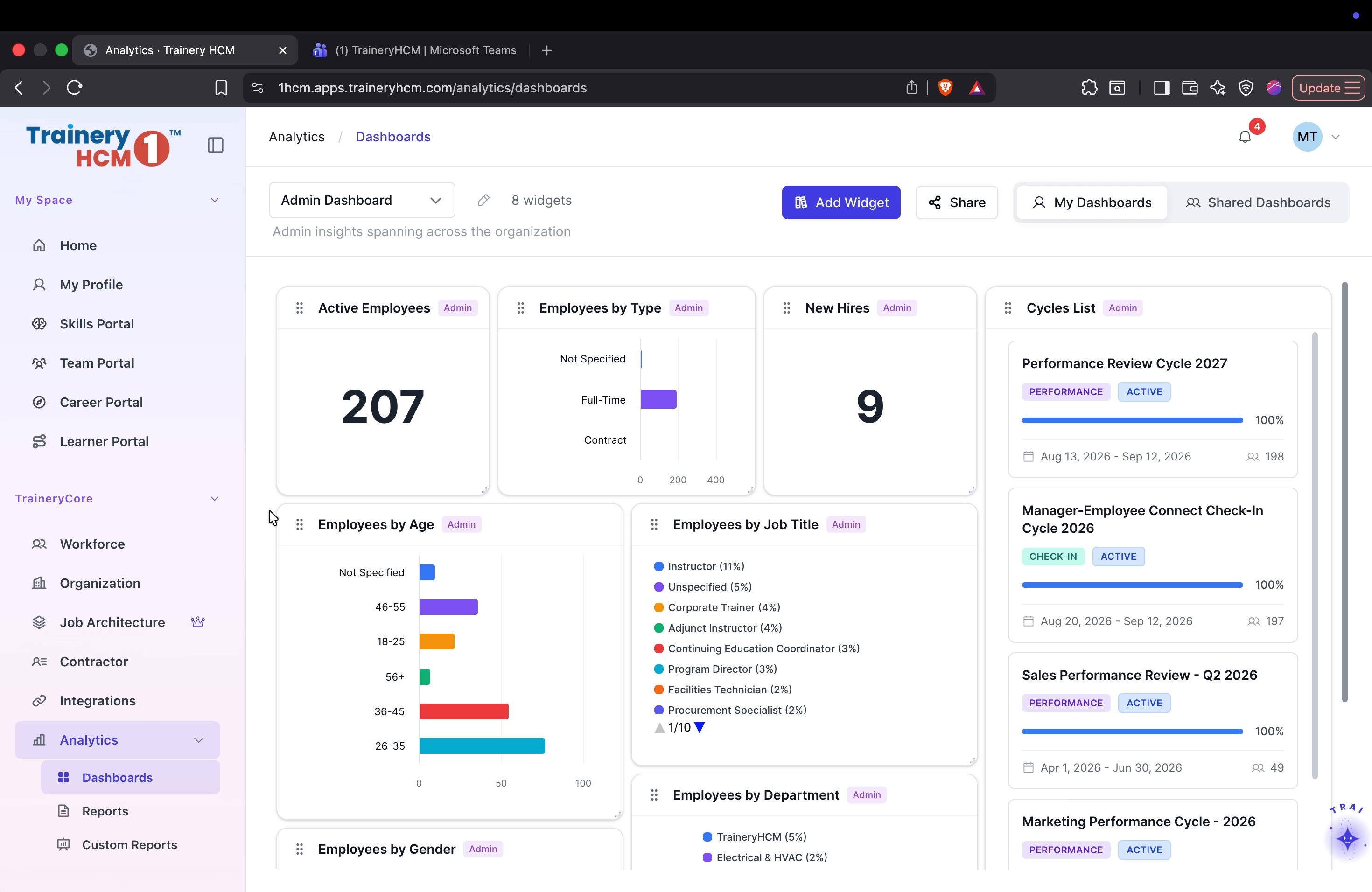
Open the Analytics dashboard and review key metrics such as active employee counts, hiring trends, and performance cycle progress.

Step 14: Connect Your Zoho Calendar
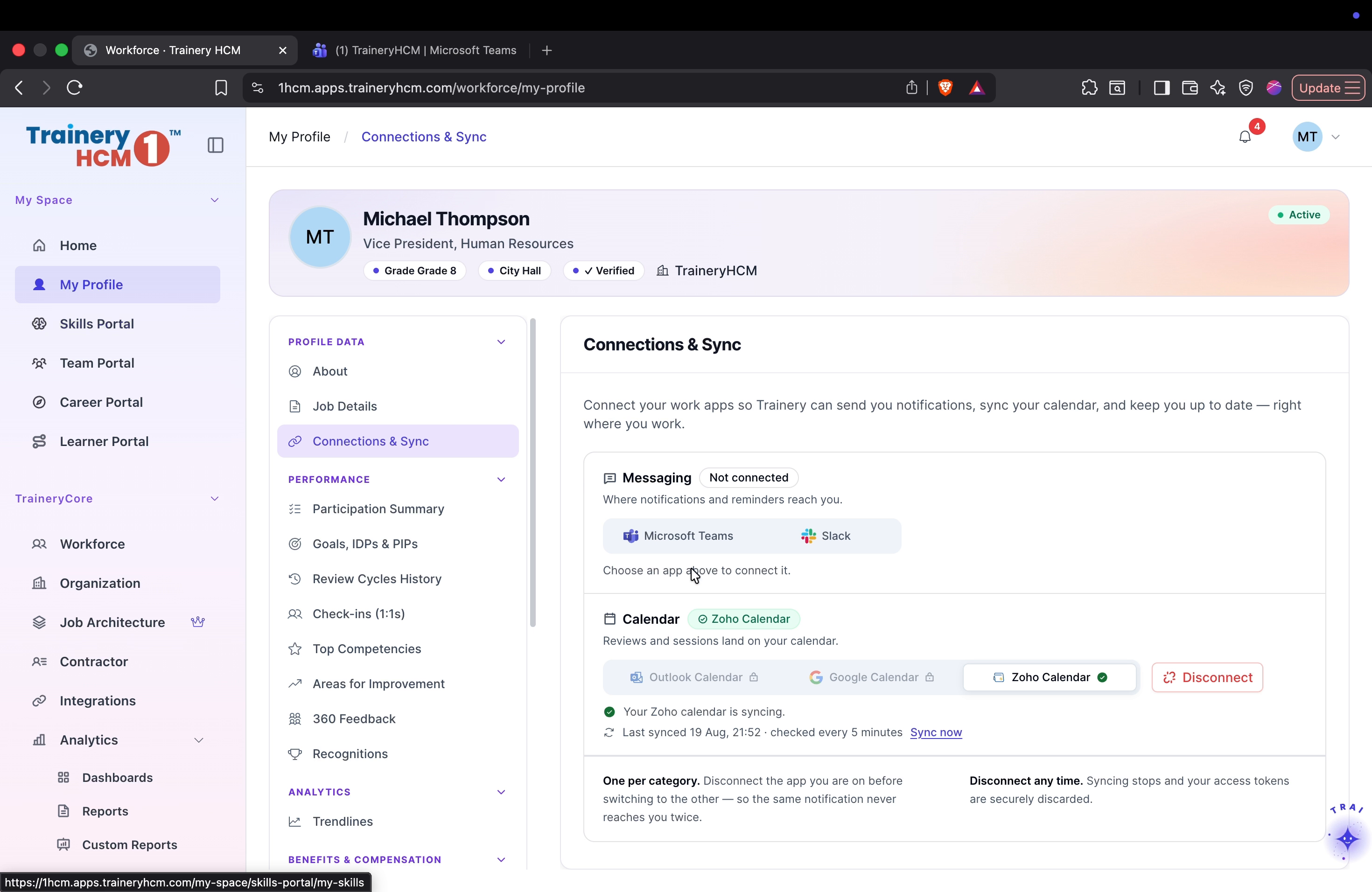
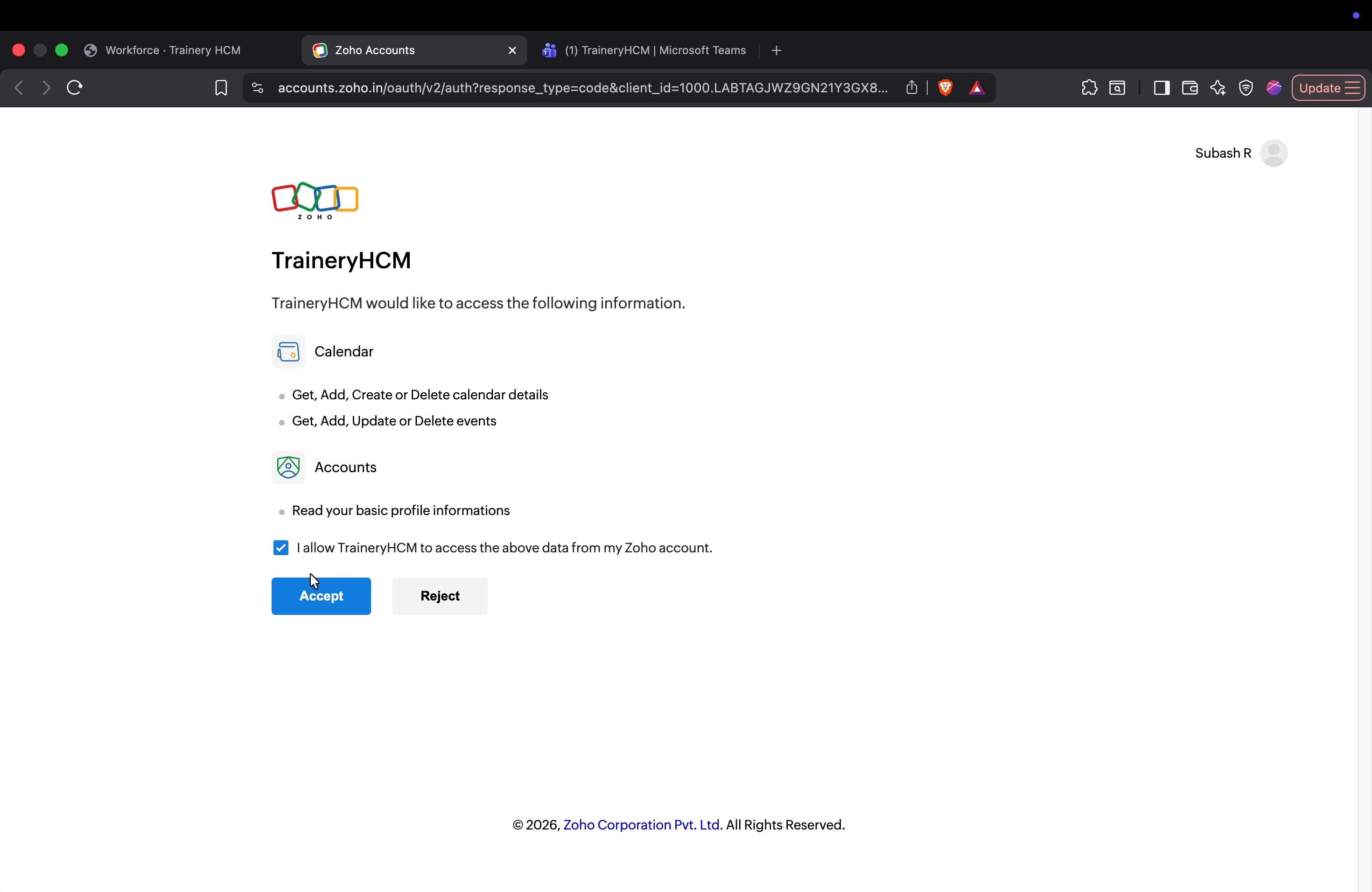
Return to your profile and go to the Connections section. Start the Zoho calendar sync, select your region, and complete the authorization steps to link your calendar with TraineryHCM.
Step 15: Connect Microsoft Teams for Messaging Sync
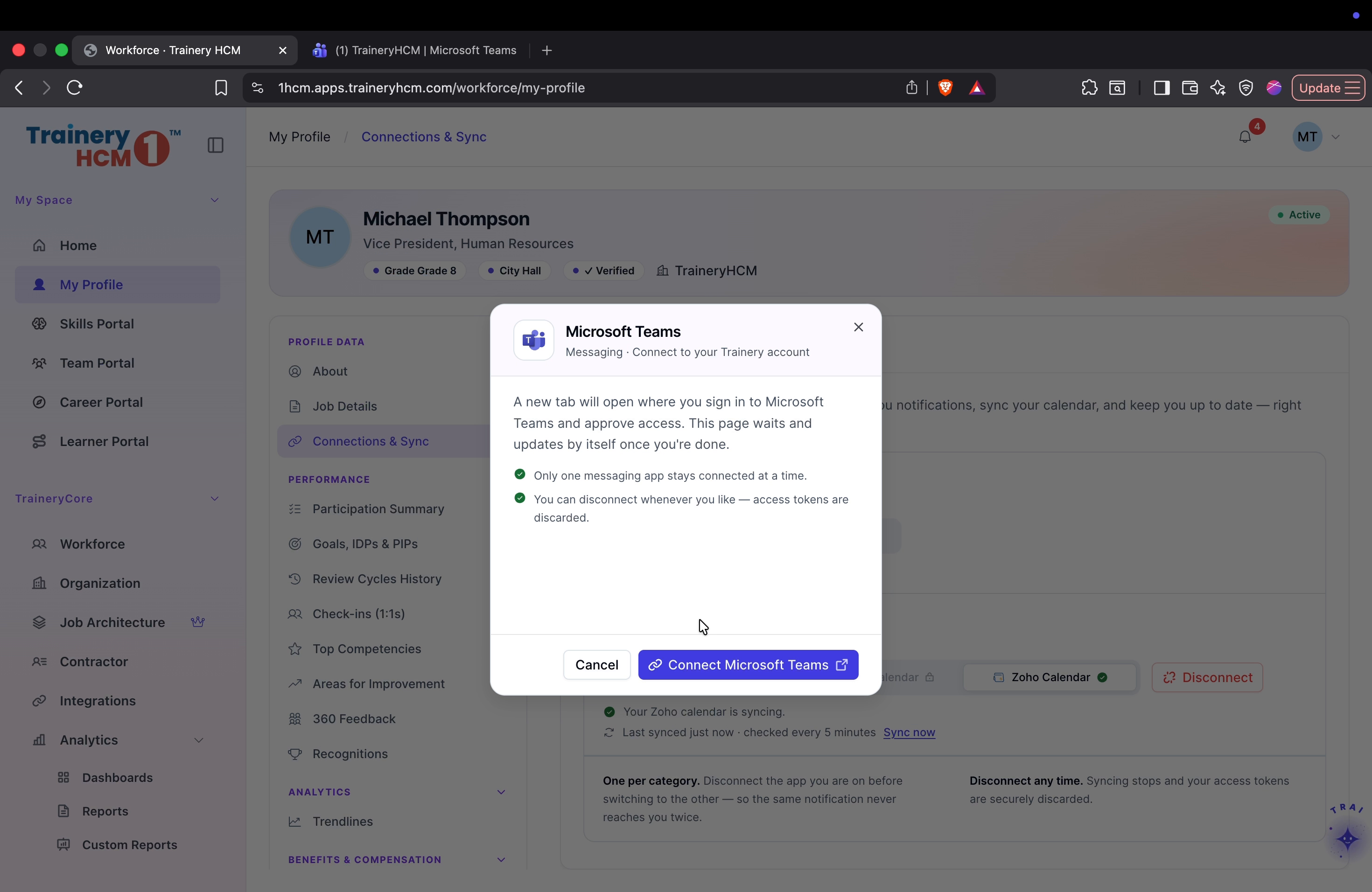
From the home portal, go back into your profile settings and choose the option to connect your Microsoft Teams account. Authorize the connection to enable messaging sync between TraineryHCM and Teams.