Connecting Google Calendar to Trainery HCM
Last updated: October 14, 2026
This process explains how to connect your Google Calendar to Trainery HCM so that your events and schedules are synchronised and visible within your dashboard.
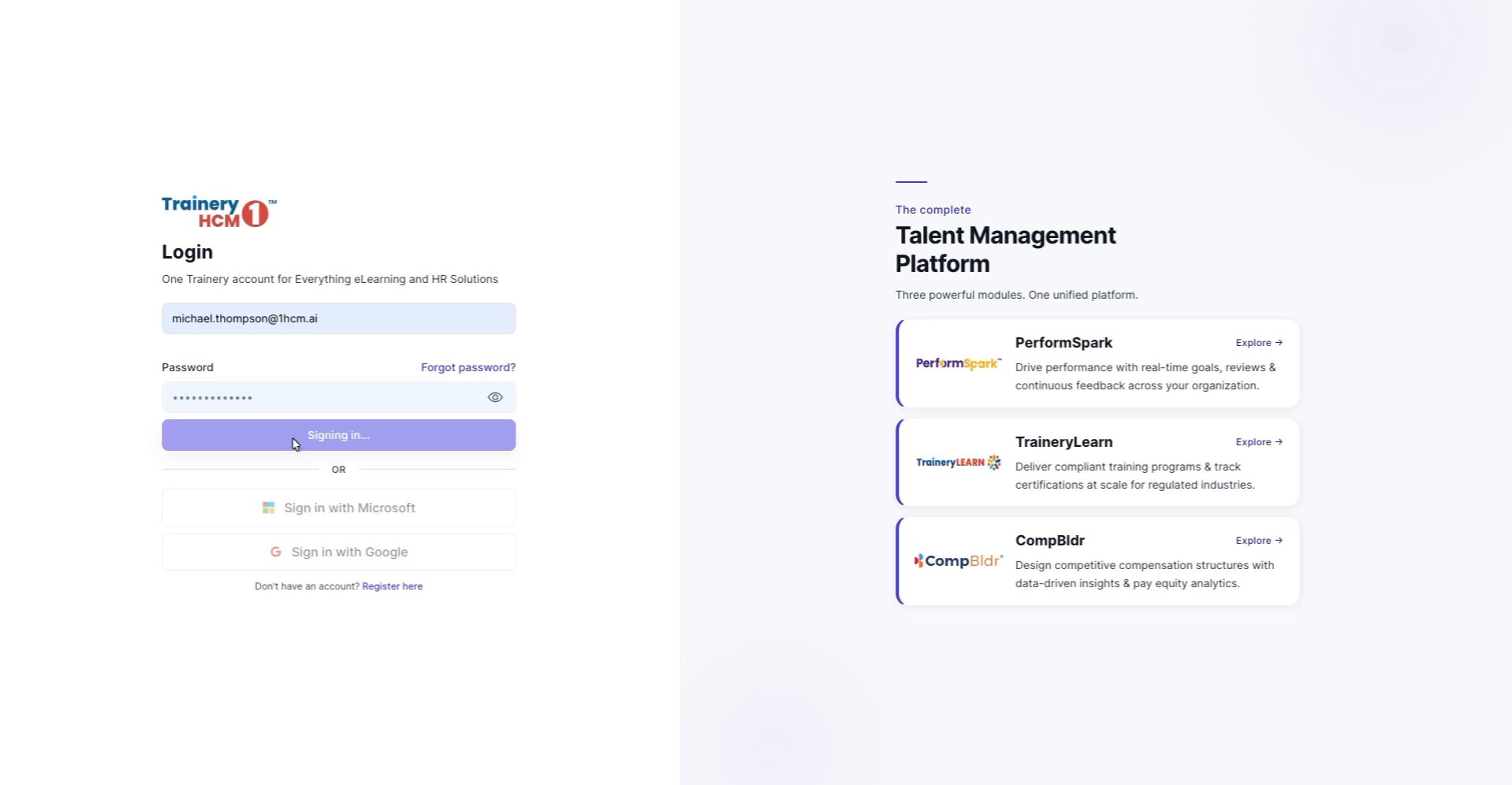
Step 1: Sign In to Trainery HCM
Log in to your Trainery HCM account by clicking Sign in on the login page.
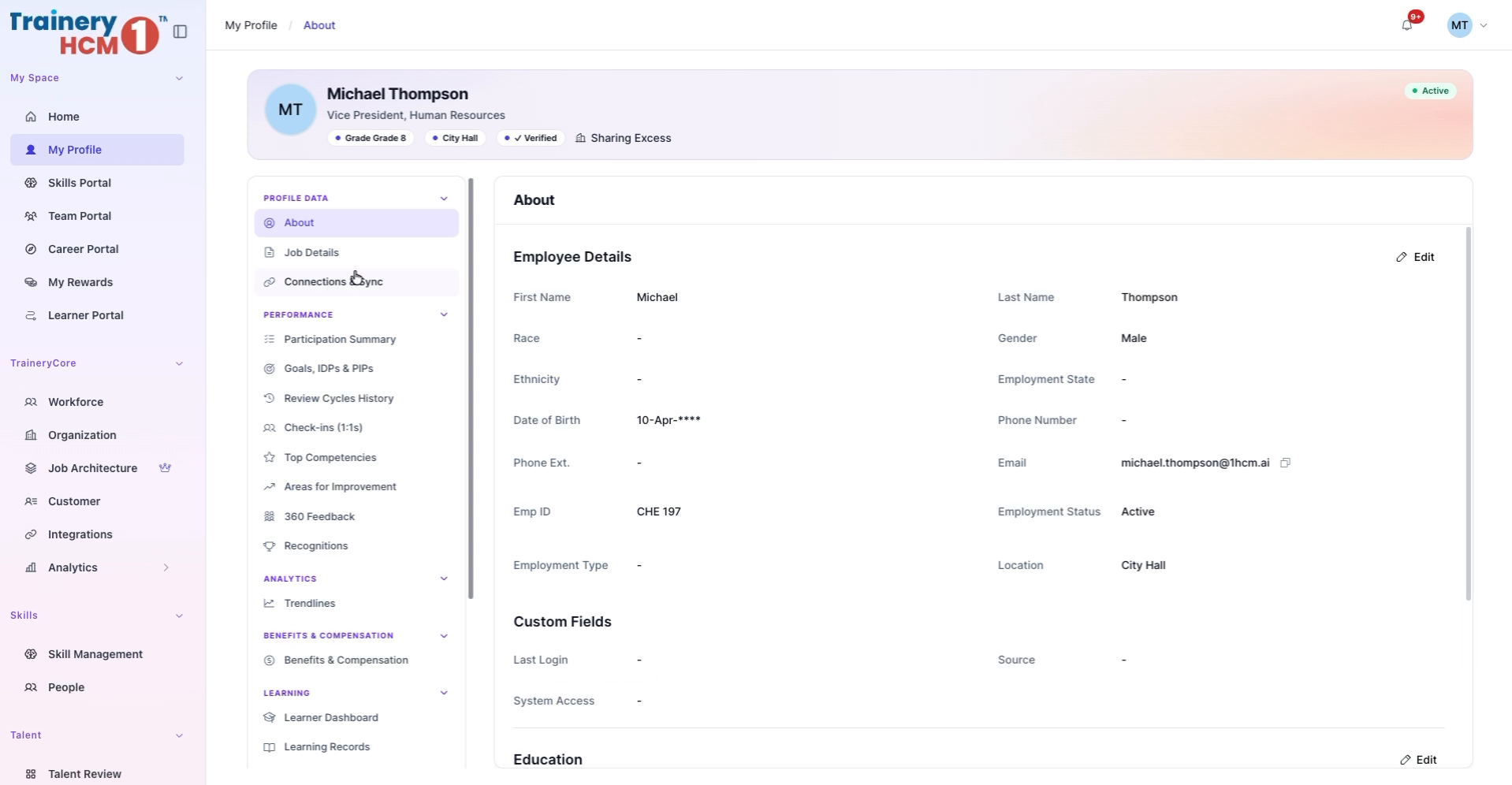
Step 2: Open Your Profile
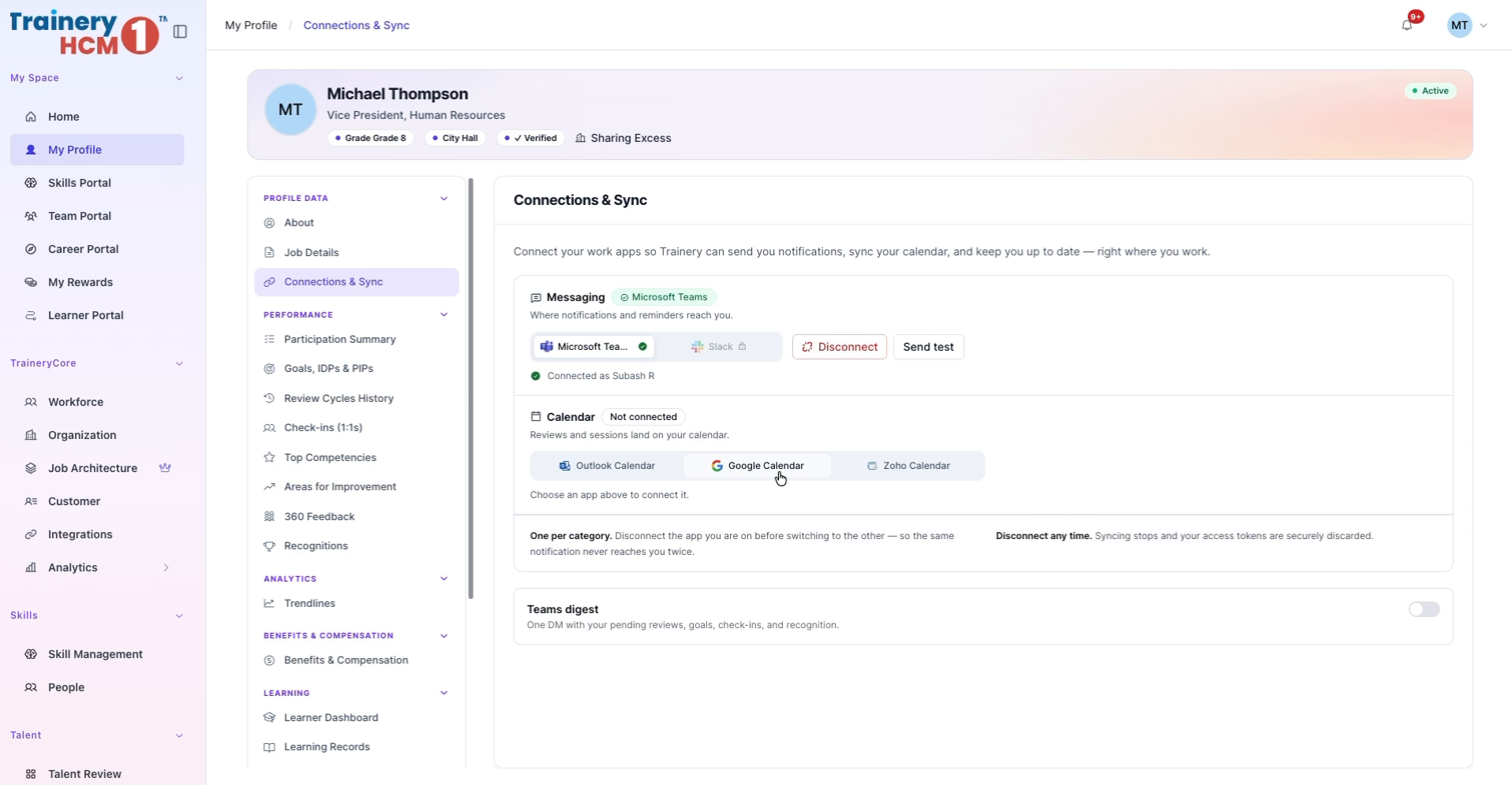
In the left navigation sidebar, under My Space, click My Profile to access your personal settings.
Step 3: Access Connections & Sync
Within your profile, locate the Profile Data section and select Connections & Sync to manage integrations.
Step 4: Start Google Calendar Connection
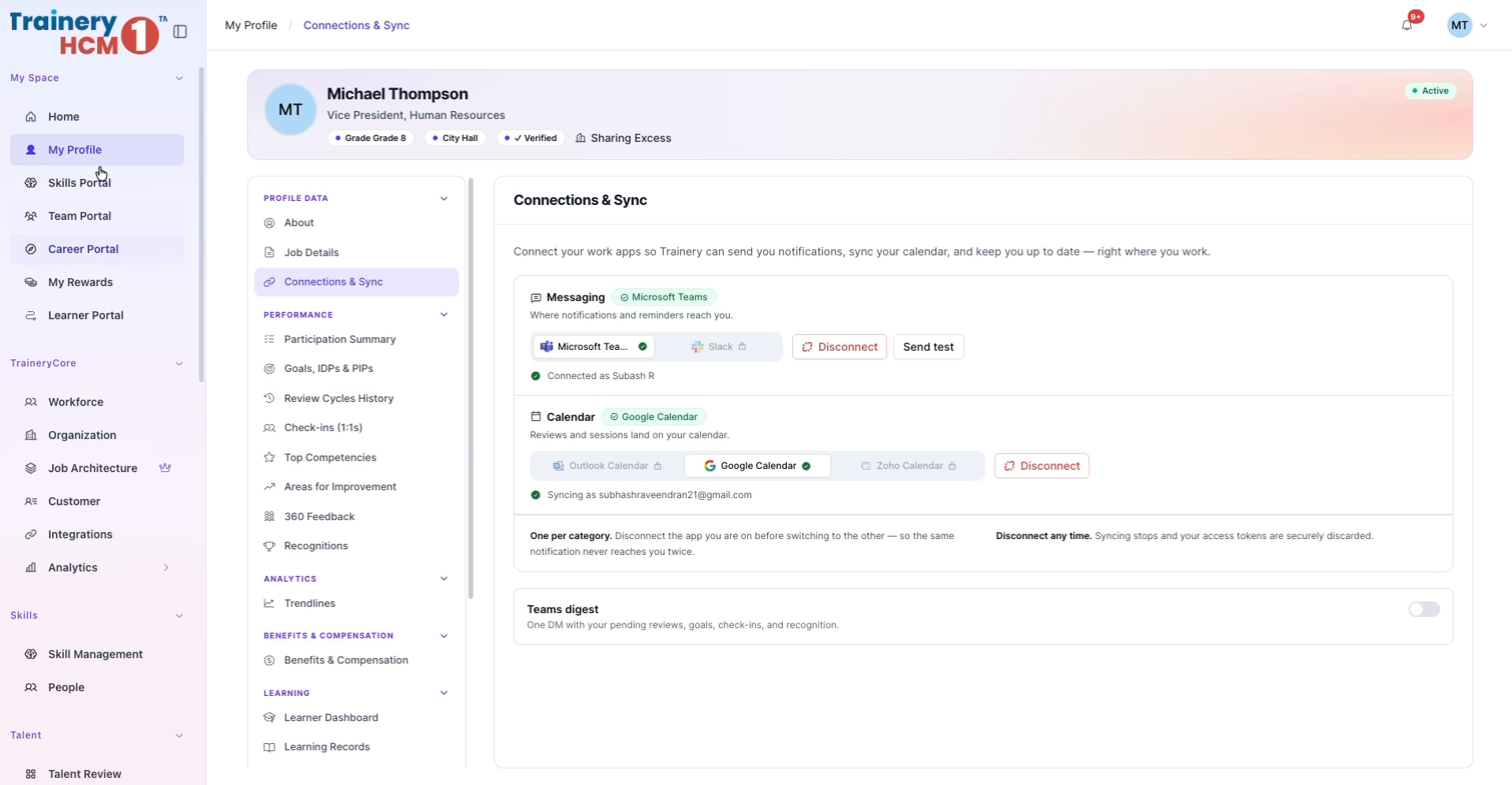
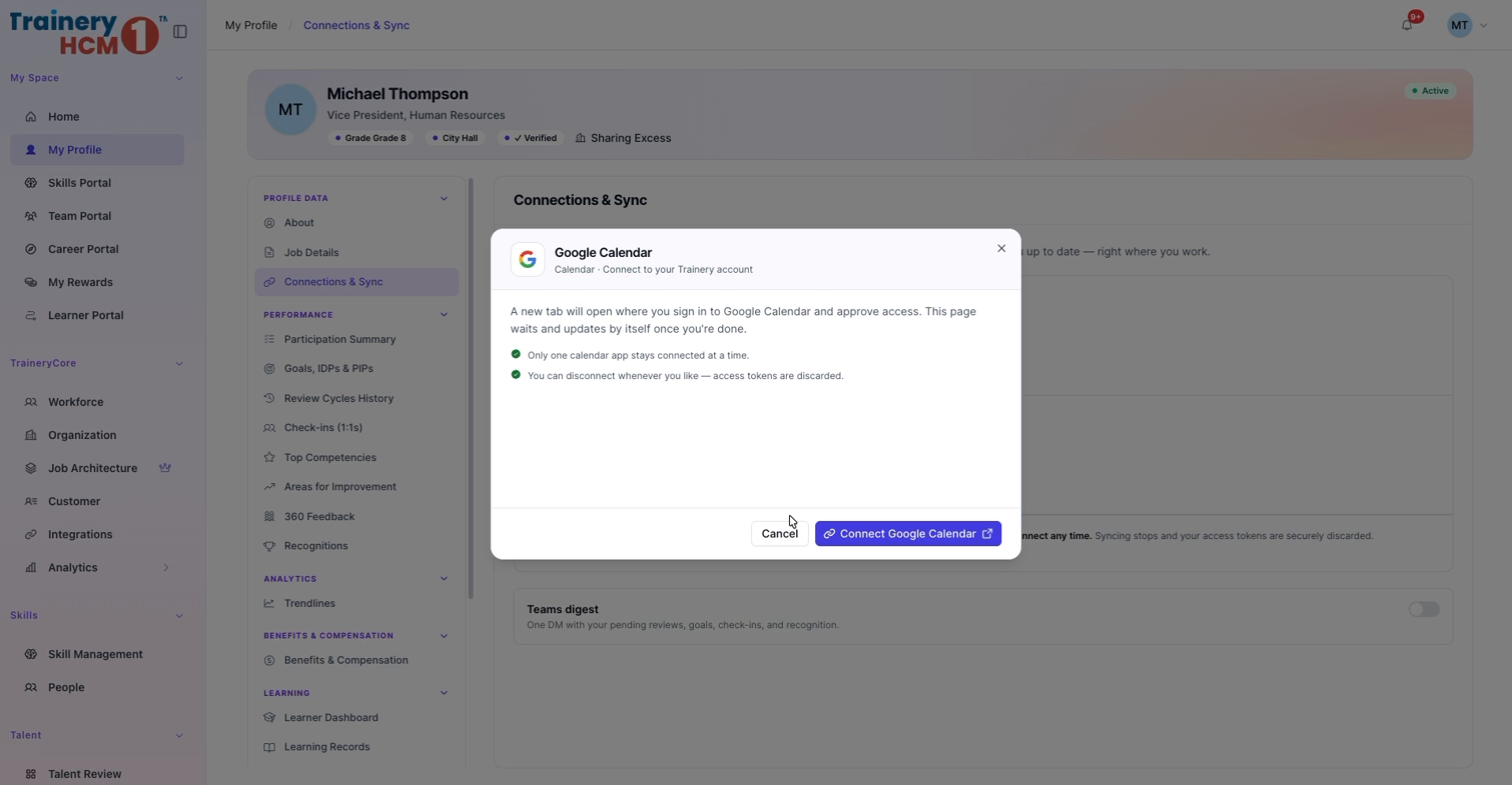
In the Calendar section, select Google Calendar, then click Connect Google Calendar to begin the integration process.
Step 5: Choose Your Google Account
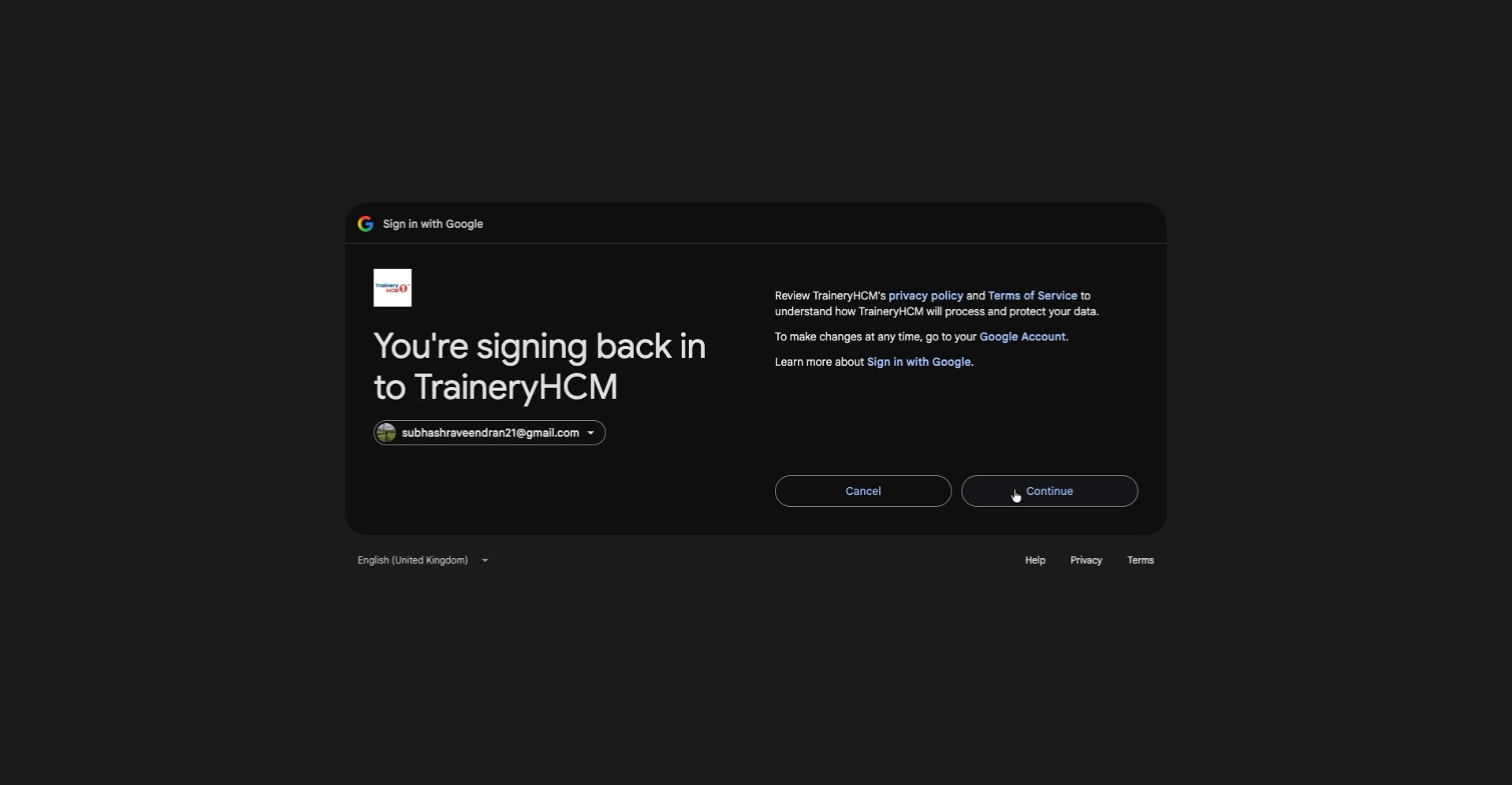
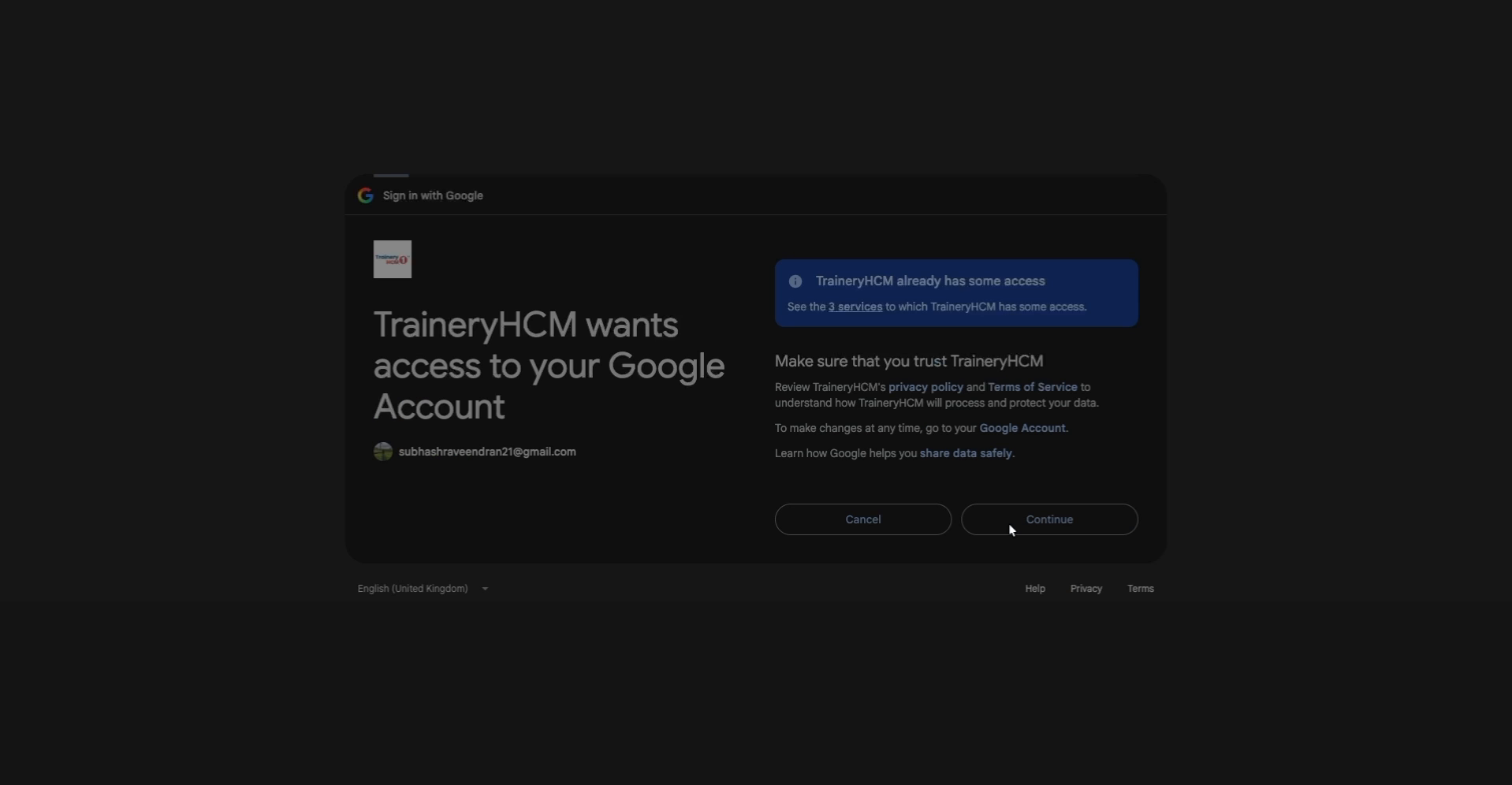
Select the Google account you want to connect to Trainery HCM. Review the sign-in details and requested permissions, then click Continue to grant access and complete the Google Calendar integration.
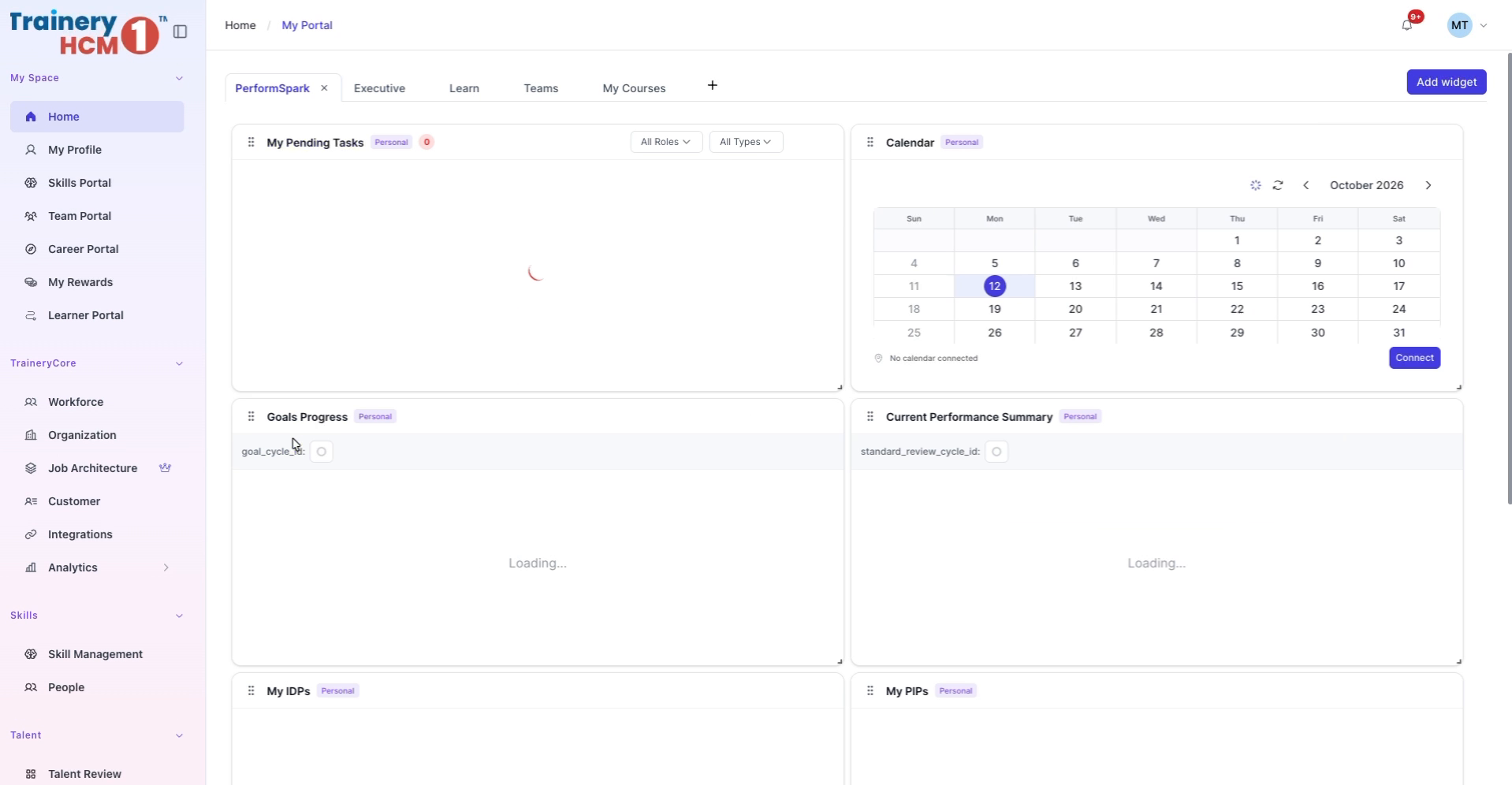
Step 7: Confirm Connection and Return Home
Wait for the confirmation that the connection was successful and verify that Google Calendar is shown as connected. Then, in the sidebar menu, click Home to return to your portal dashboard and view your synchronized calendar widget.