Google Calendar Integration Guide
Last updated: September 8, 2026
This document explains how to connect your Google Calendar to the application and verify that your scheduled events appear correctly in the built‑in calendar.
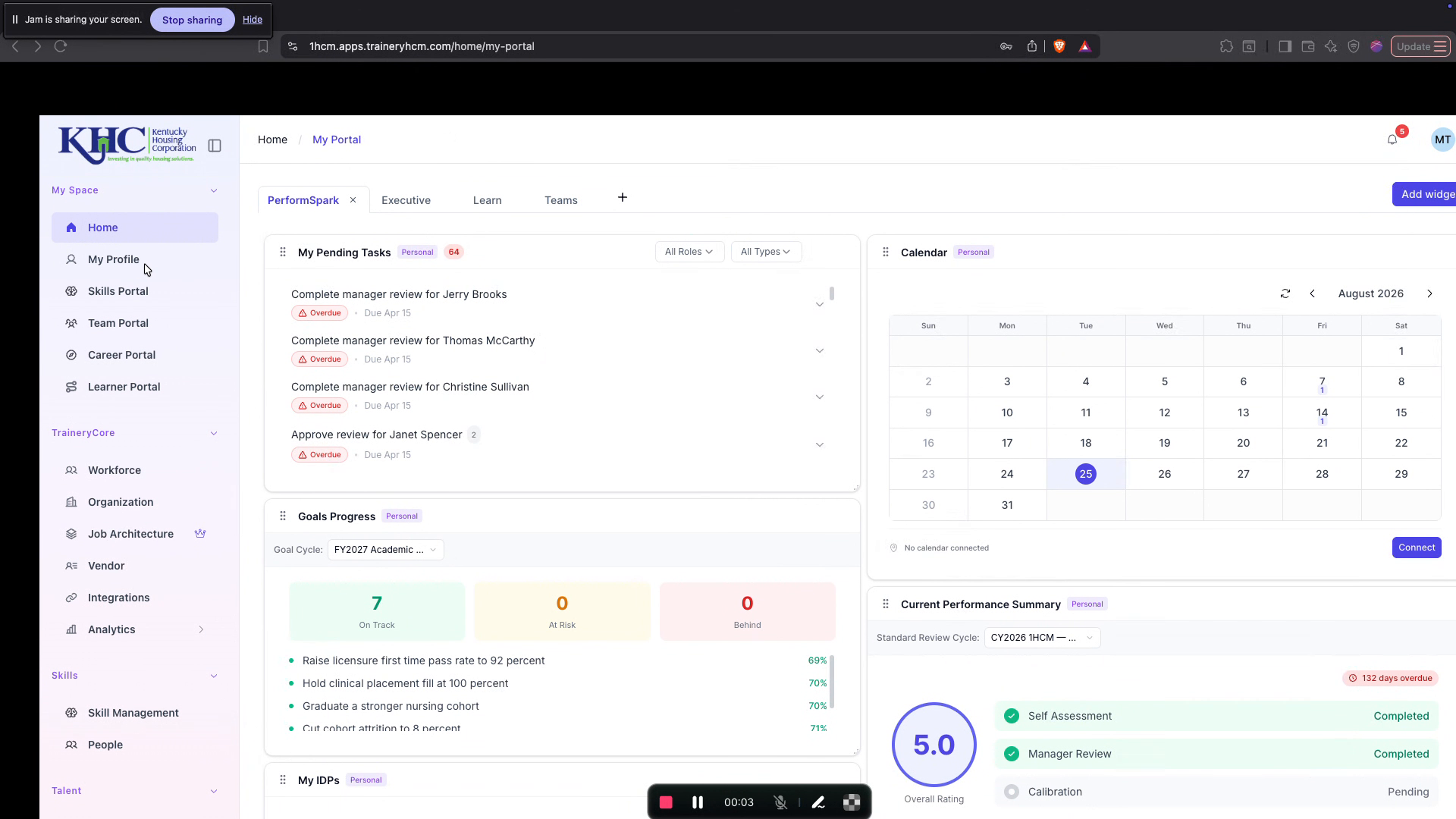
Step 1: Open Your Profile from the Dashboard
From the dashboard, open your profile by clicking “My Profile” in the left sidebar.
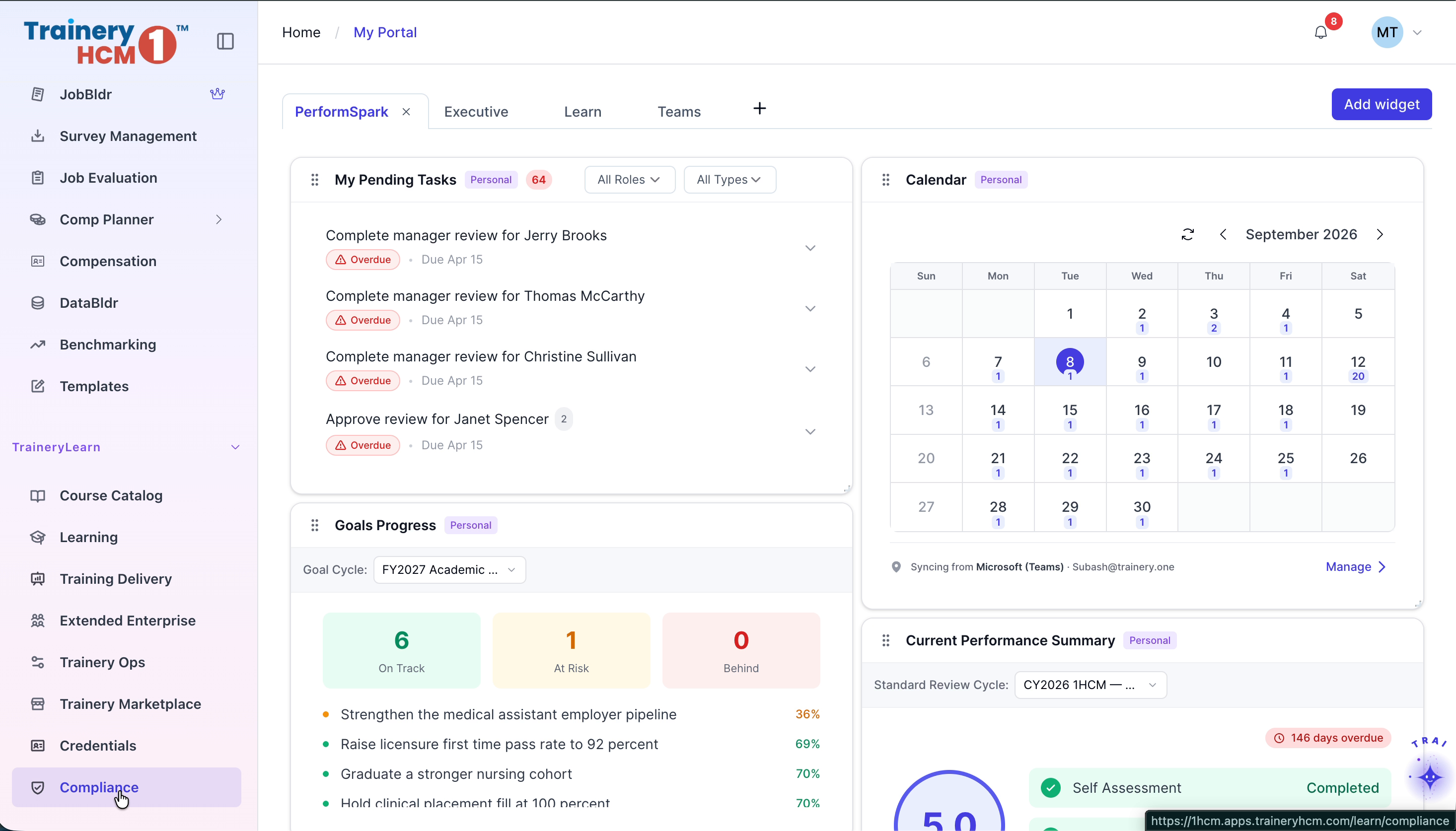
Step 2: Access Connections & Sync and Select Google Calendar
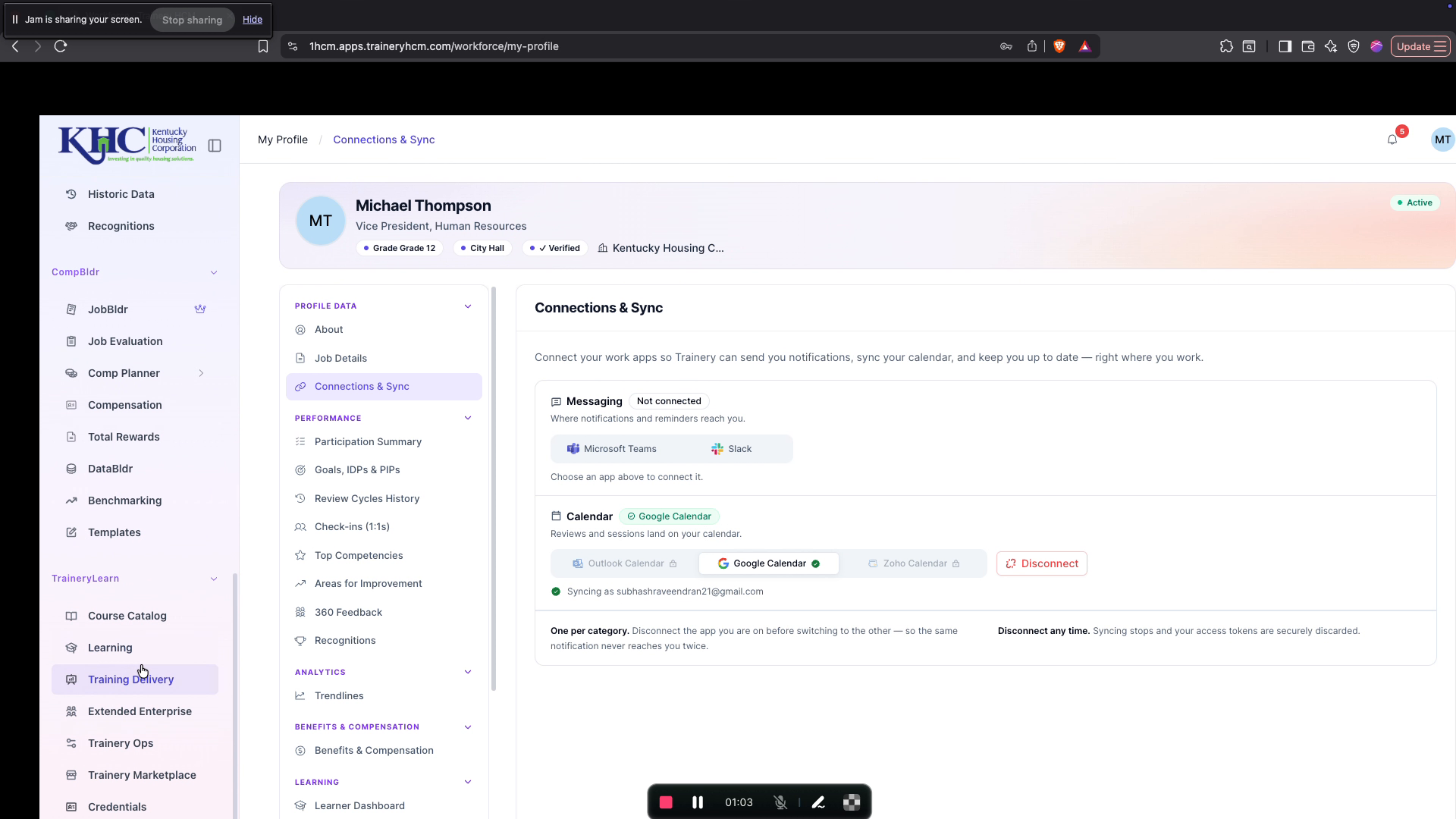
In your profile, go to the “Connections & Sync” tab, then click the “Google Calendar” option to start the integration process.
Step 3: Initiate the Google Calendar Connection
In the modal window that appears, confirm you want to connect by clicking the “Connect Google Calendar” button.

Step 4: Choose Your Google Account and Bypass the Warning
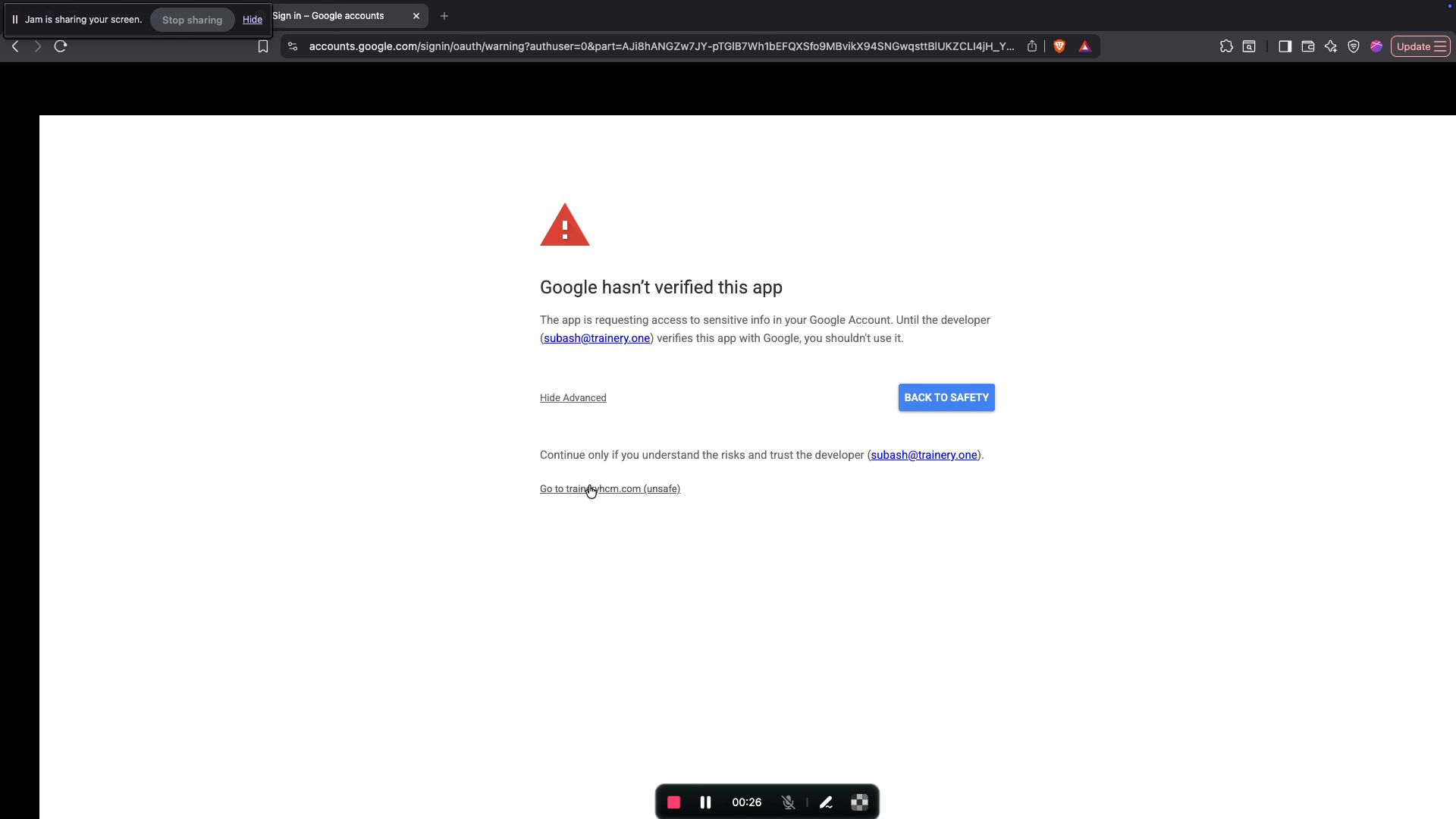
Select the Google account you want to connect. On the Google warning screen, click “Advanced”, then proceed to the site to continue the authorization flow.
Step 5: Return to the Application
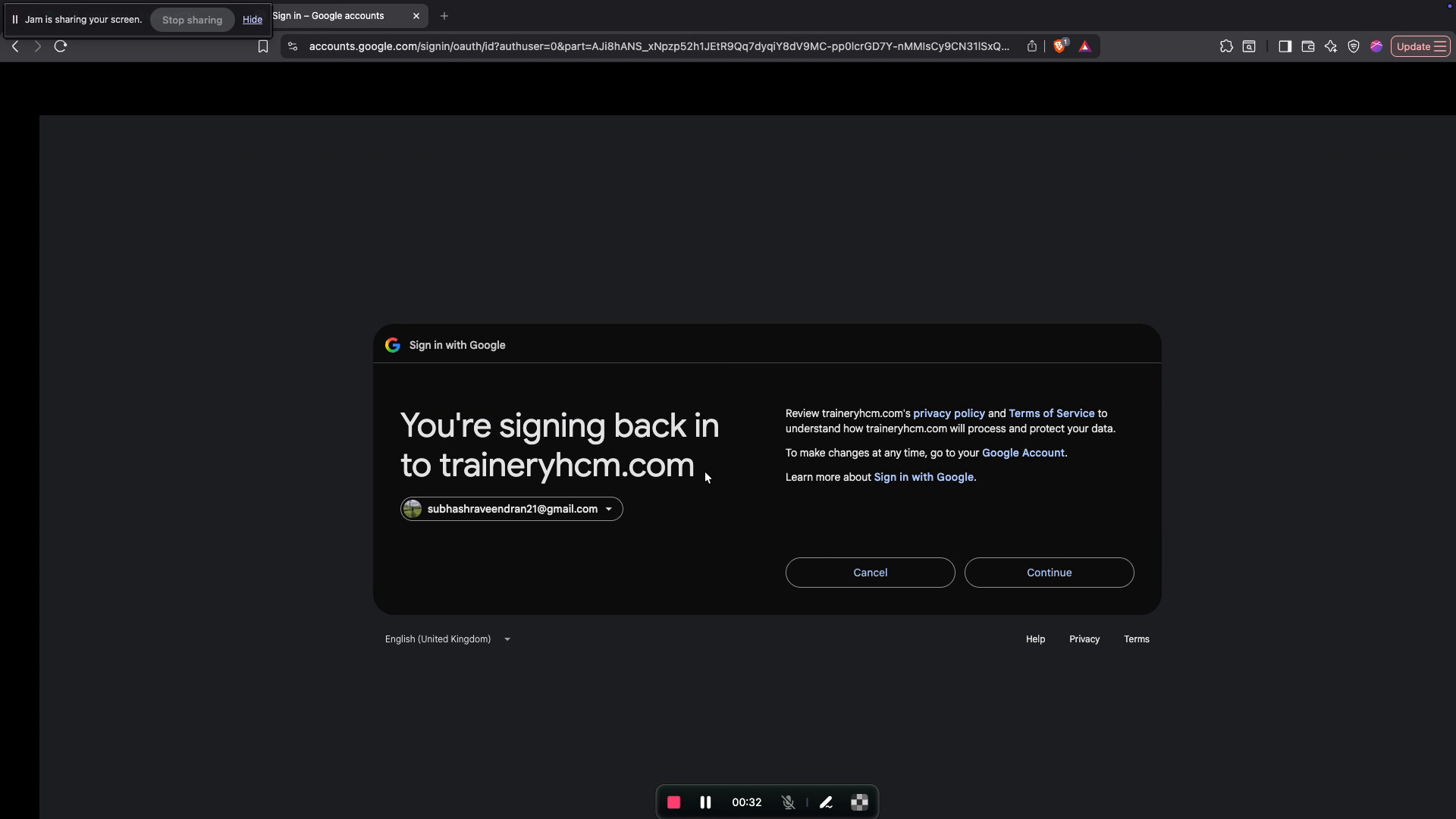
After completing the Google prompts, click the “Continue” button to sign back into the application and resume the integration.
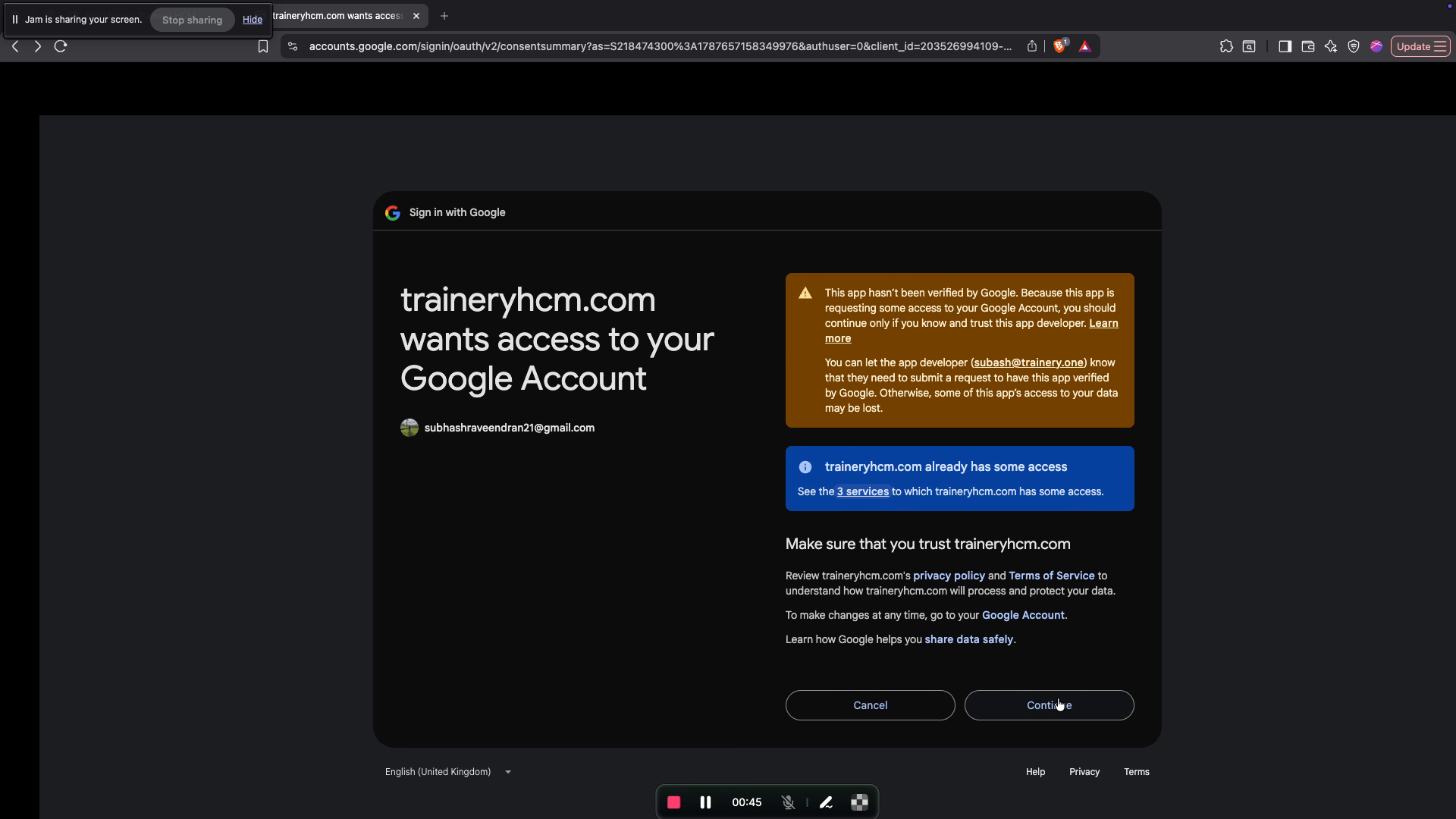
Step 6: Review and Authorize Permissions
Review the list of permissions requested for Google Calendar access. Click “Done” to close the permission details, then click “Continue” to grant access and finalize the connection.
Step 7: Open the Learning Calendar
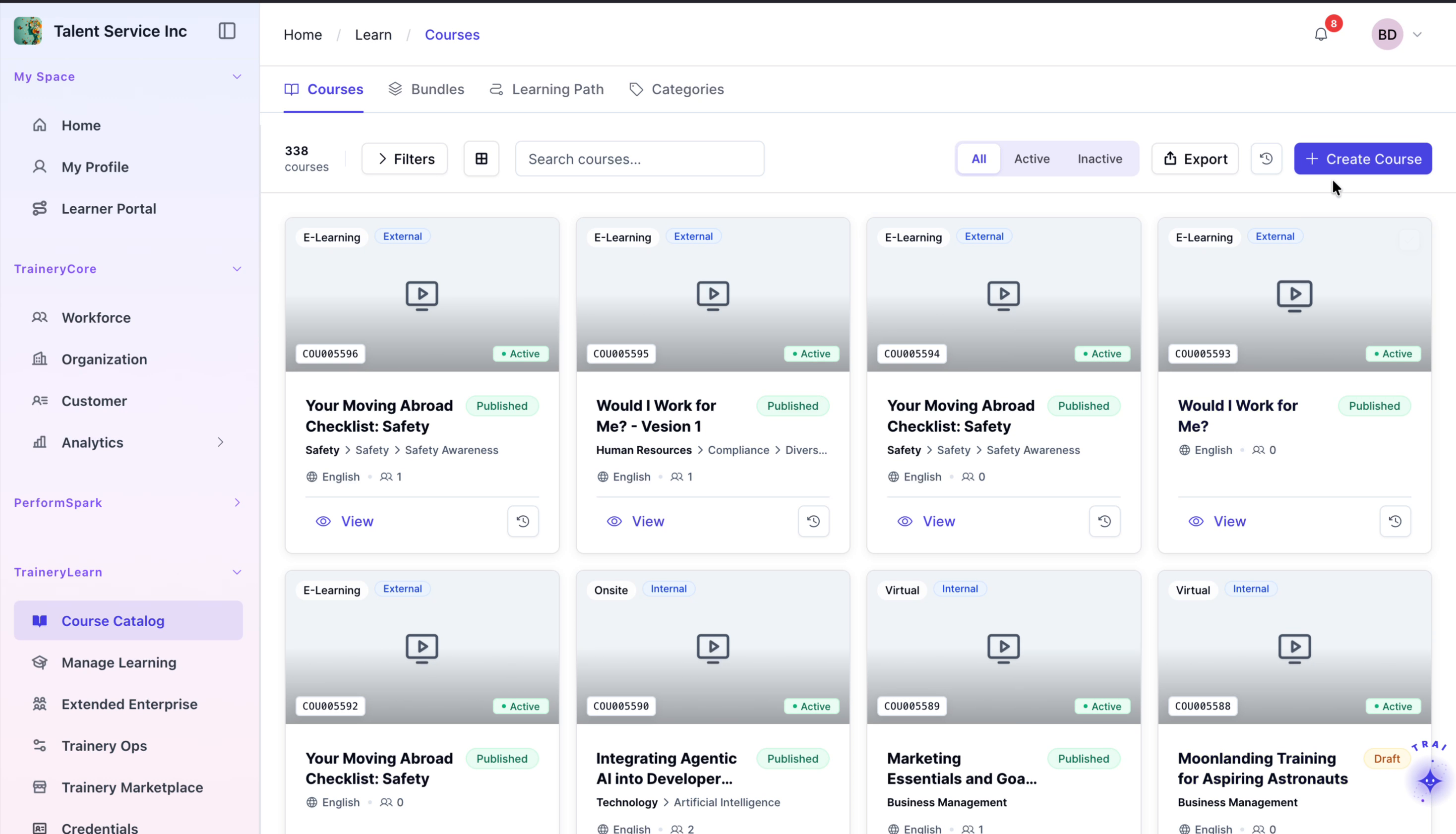
In the sidebar, navigate to the “Learning” section, then click the “Calendar” tab at the top to view your synced events.
Step 8: View Event Details
In the calendar view, click on any scheduled event to open a popup displaying the event’s details and confirm it has synced correctly.