Work Roles
Last updated: May 3, 2026
Creating a New Work Role in the Organization Module
This document explains how to create a new work role in the Organization module, including setting its name, ID, job category, job group, and location, and then saving it.
Step 1: Open the Work Roles Section
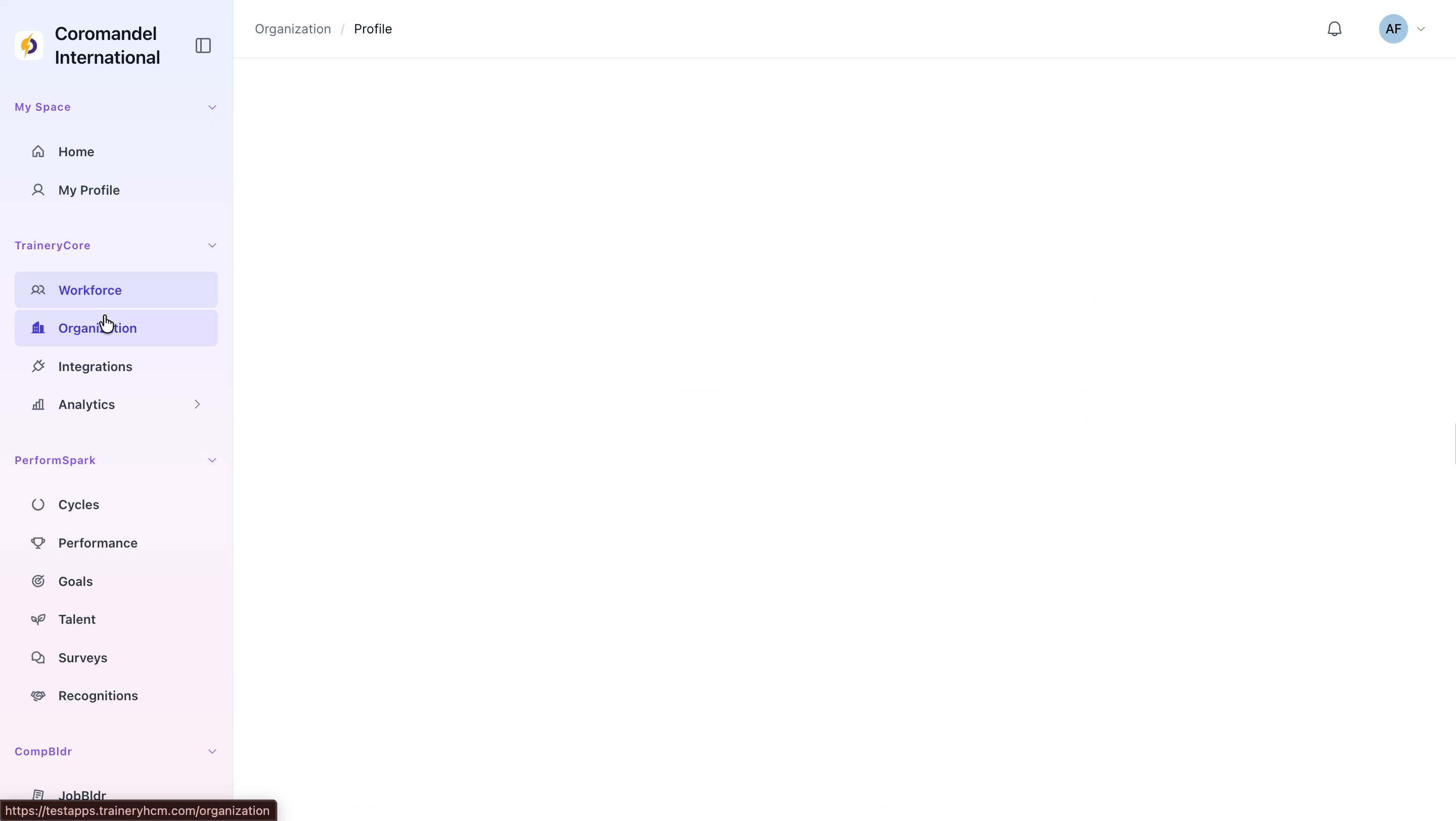
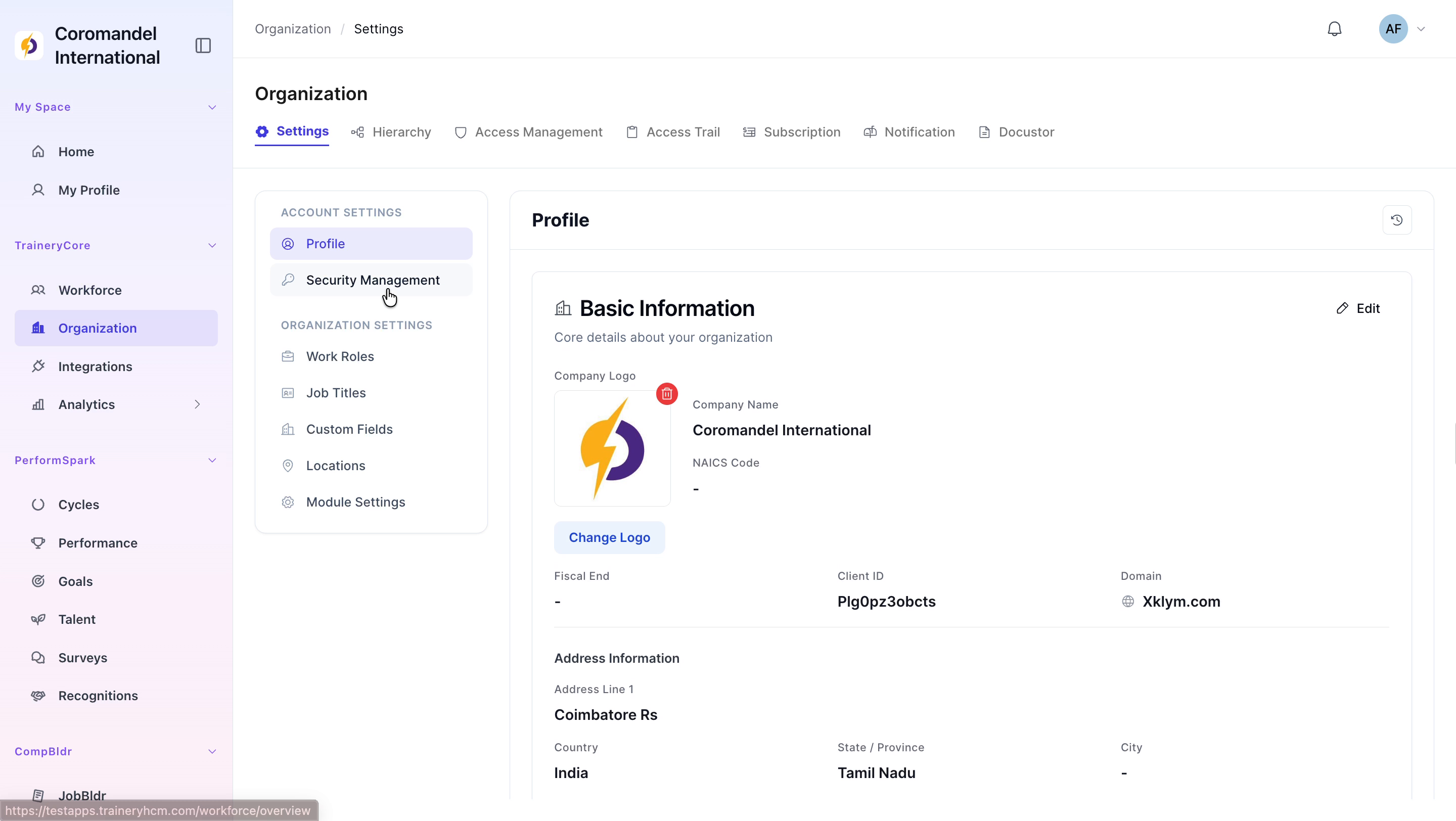
Navigate to the Organization section in the application, then select Work Roles from the sidebar to open the list of existing work roles.
Step 2: Start Adding a New Work Role
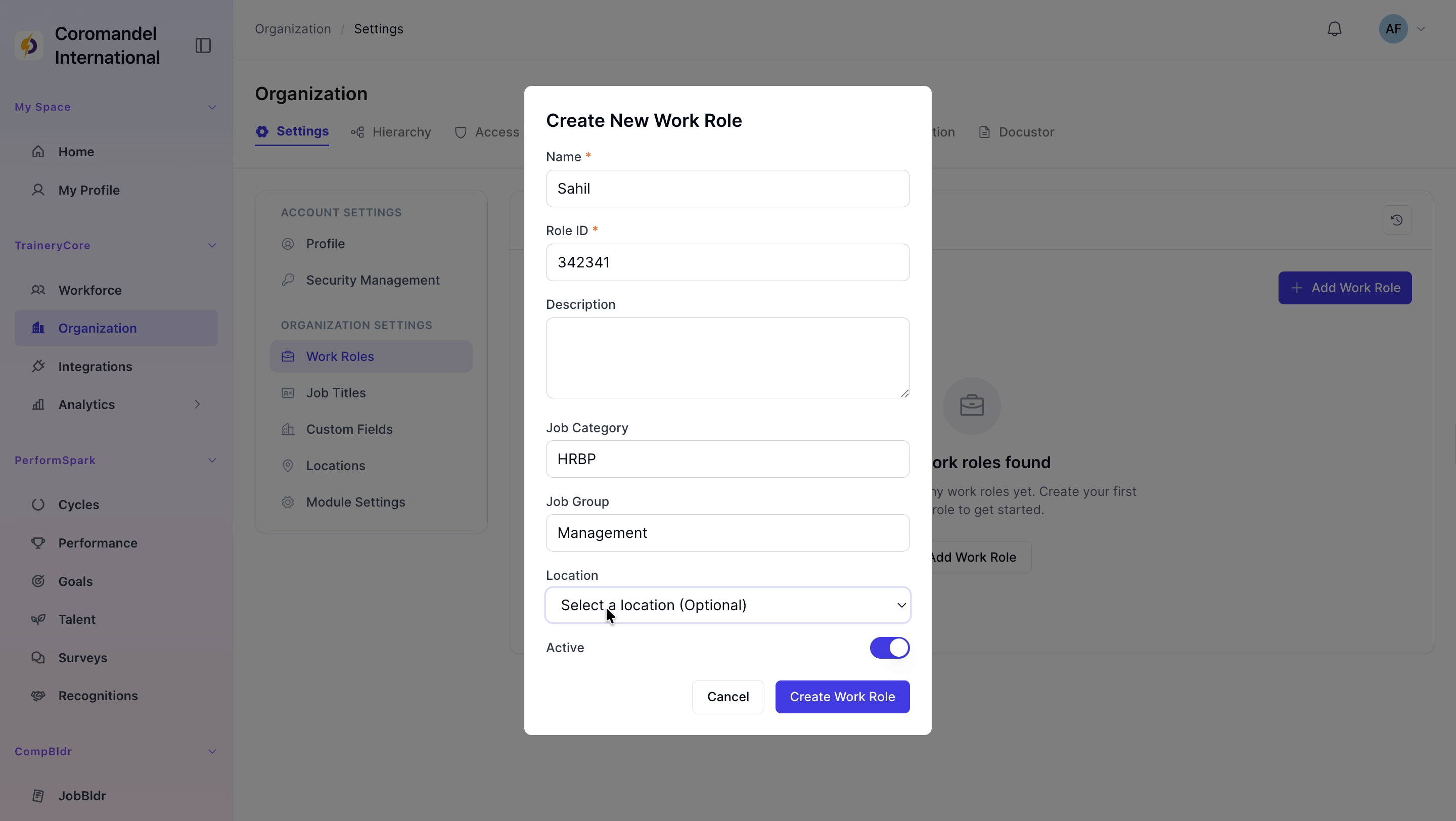
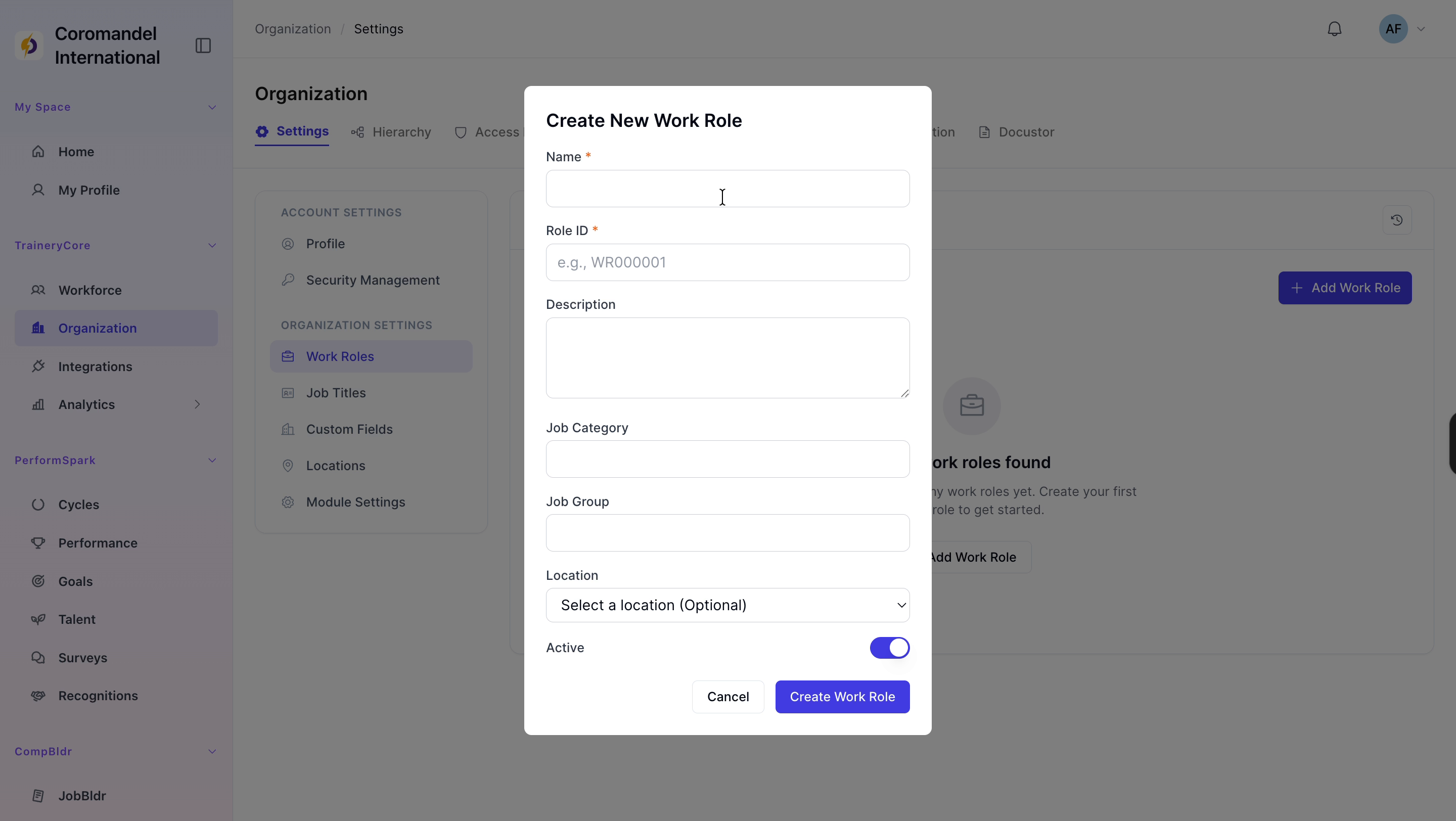
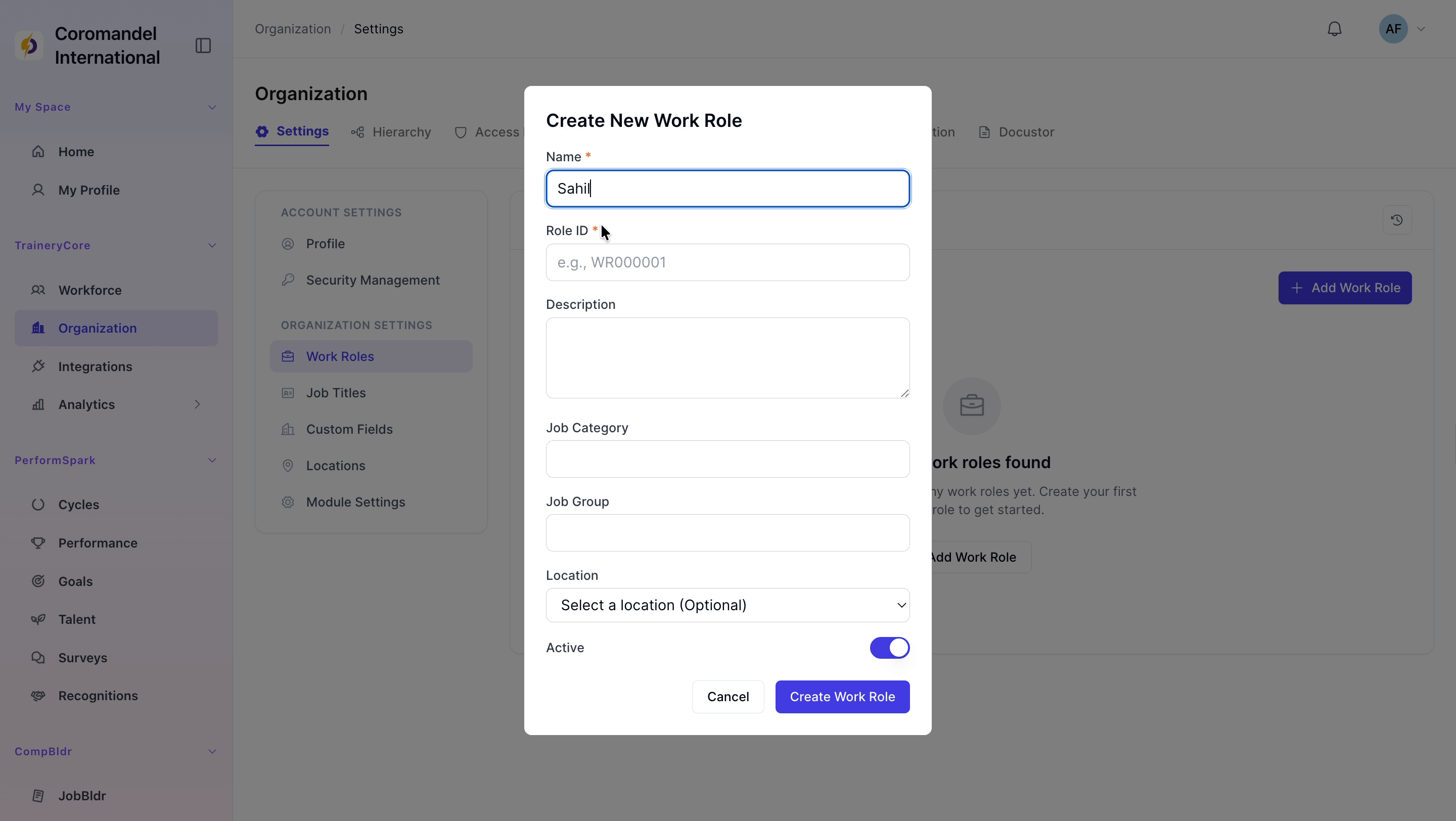
Click the Add Work Role button to open the work role creation form. In the Name field, enter the work role name, for example: Sahil.

Step 3: Enter Role ID, Job Category, and Job Group
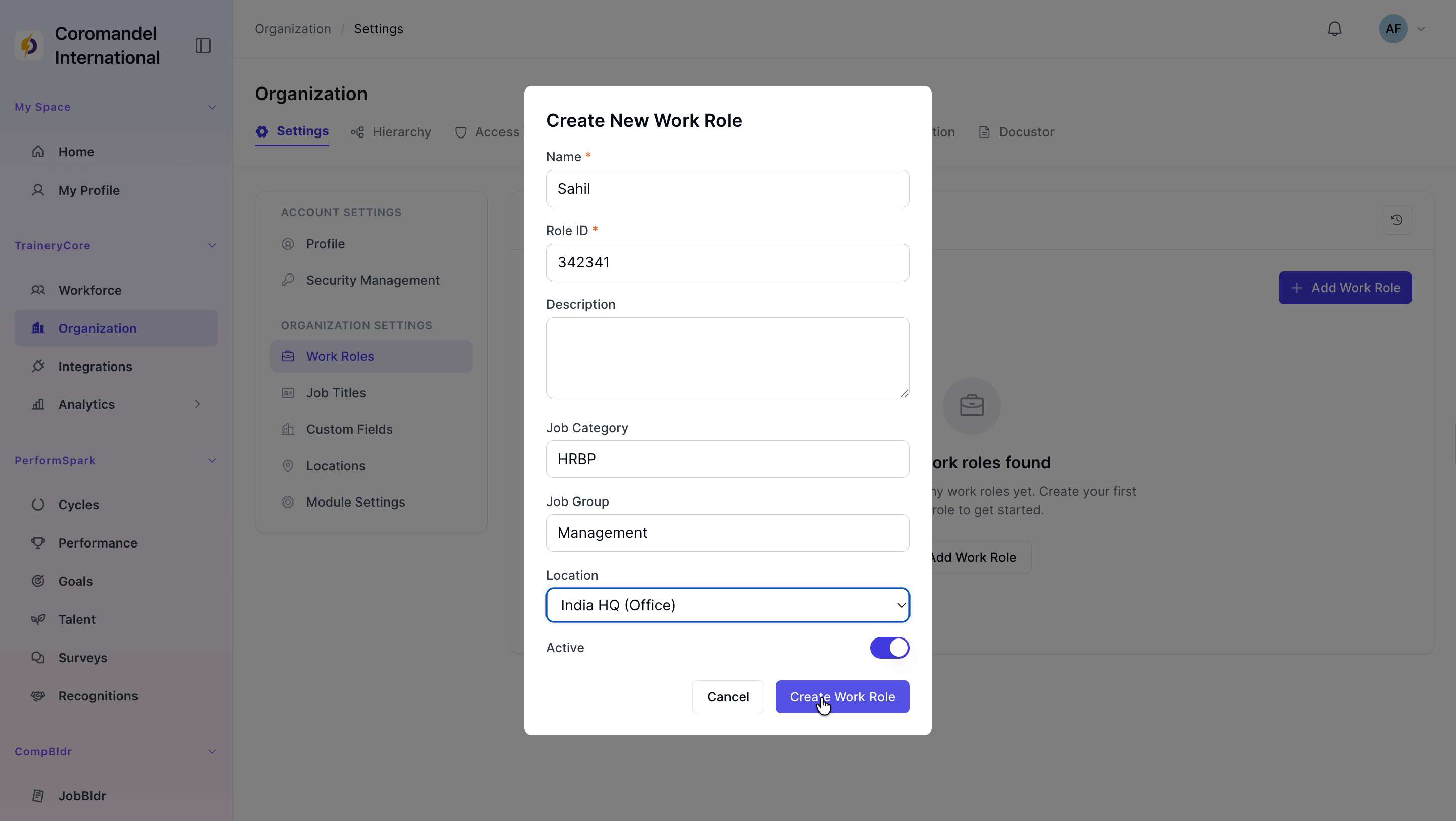
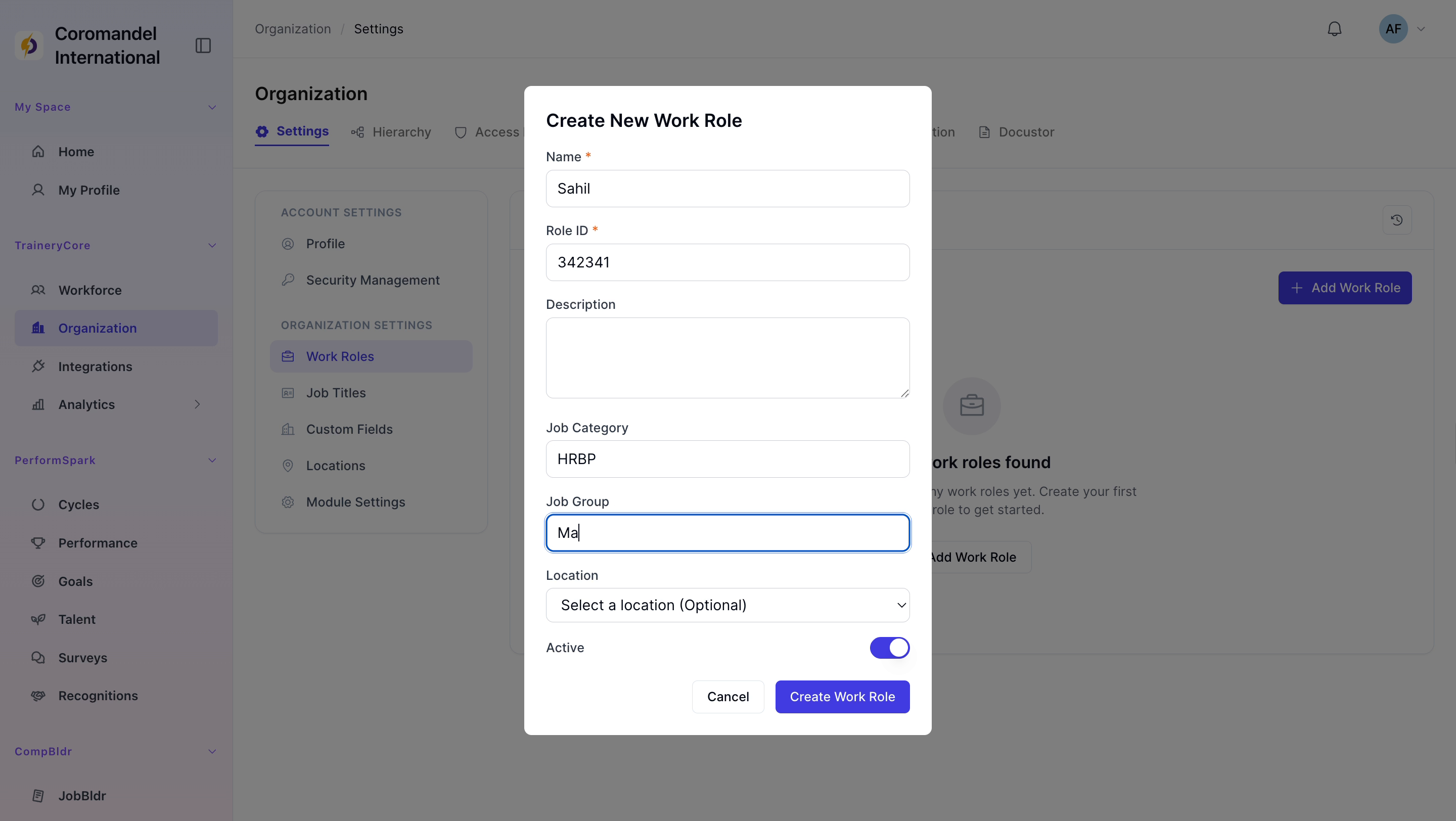
Enter the Role ID in the designated field. Then set the Job Category to HRBP and the Job Group to Management.
Step 4: Set Location and Create the Work Role
From the Location list, select India HQ. Once all required fields are completed, click Create Work Role to save the new work role.