Managing Email Notification Templates & Triggers
Last updated: July 1, 2026
Managing Notification Templates, Triggers, and Logs
This document outlines how to navigate the Notifications area to manage email templates, review and edit trigger configurations, and inspect email logs for sent notifications.
Step 1: Open the Templates List
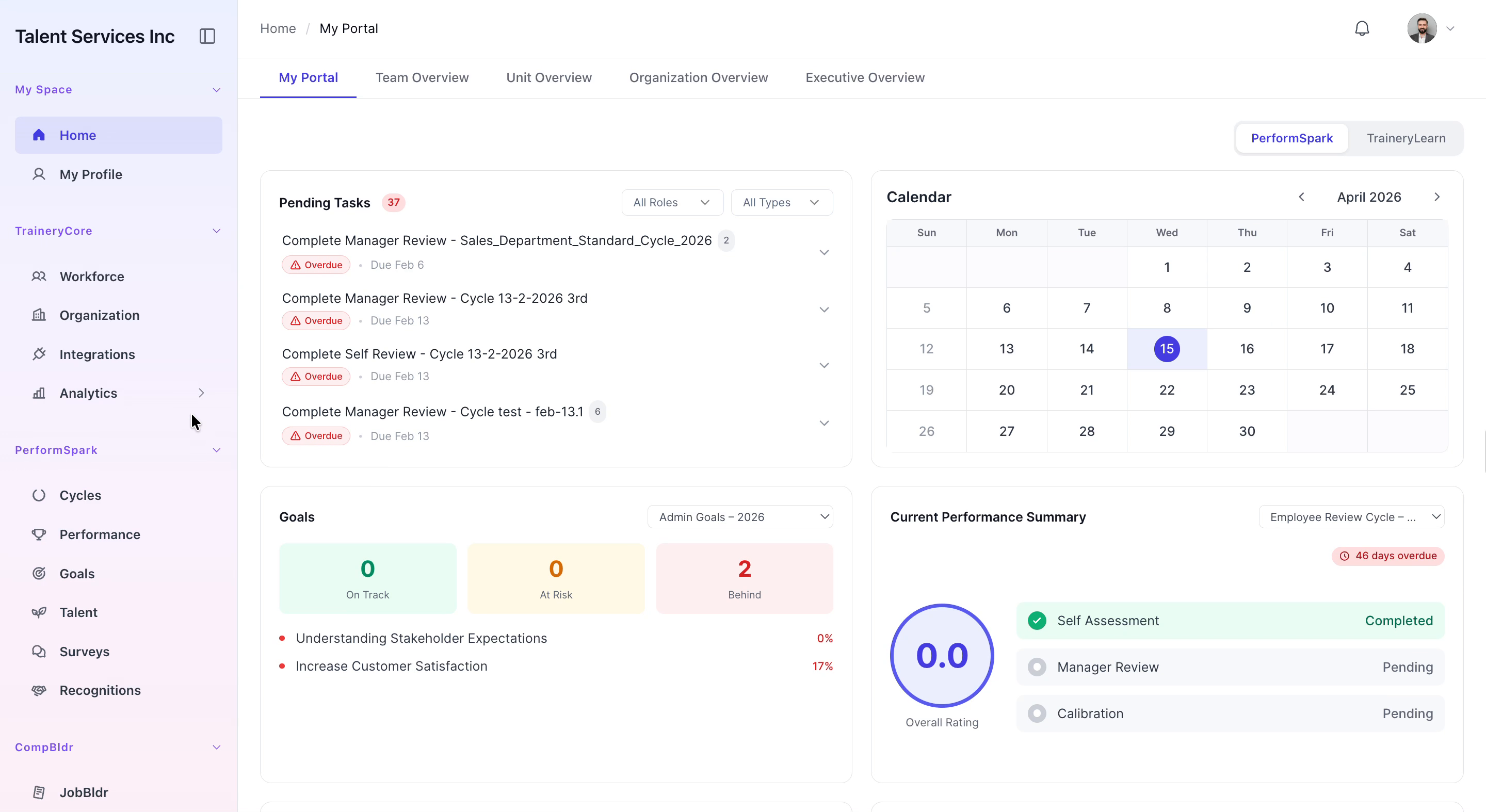
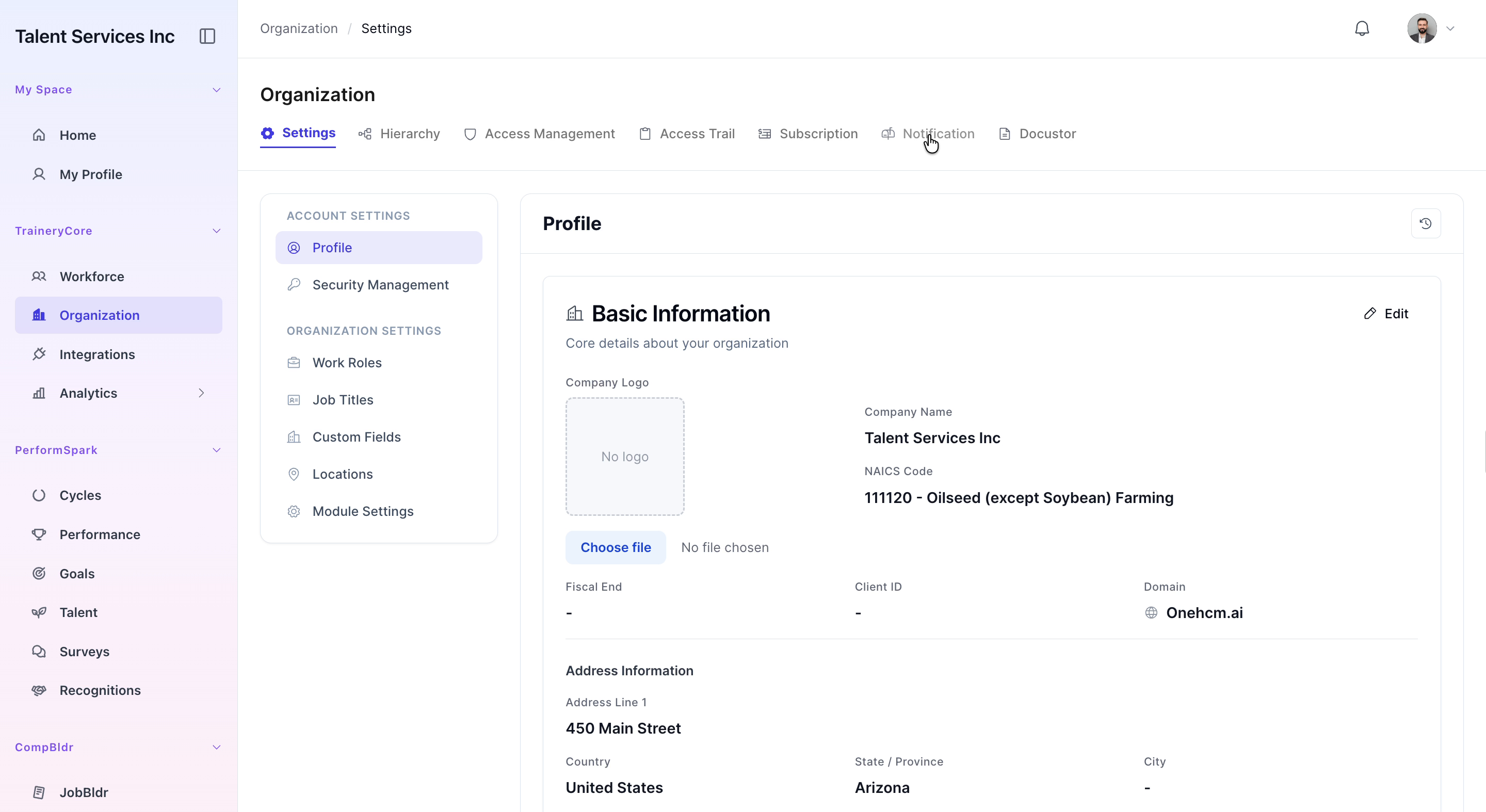
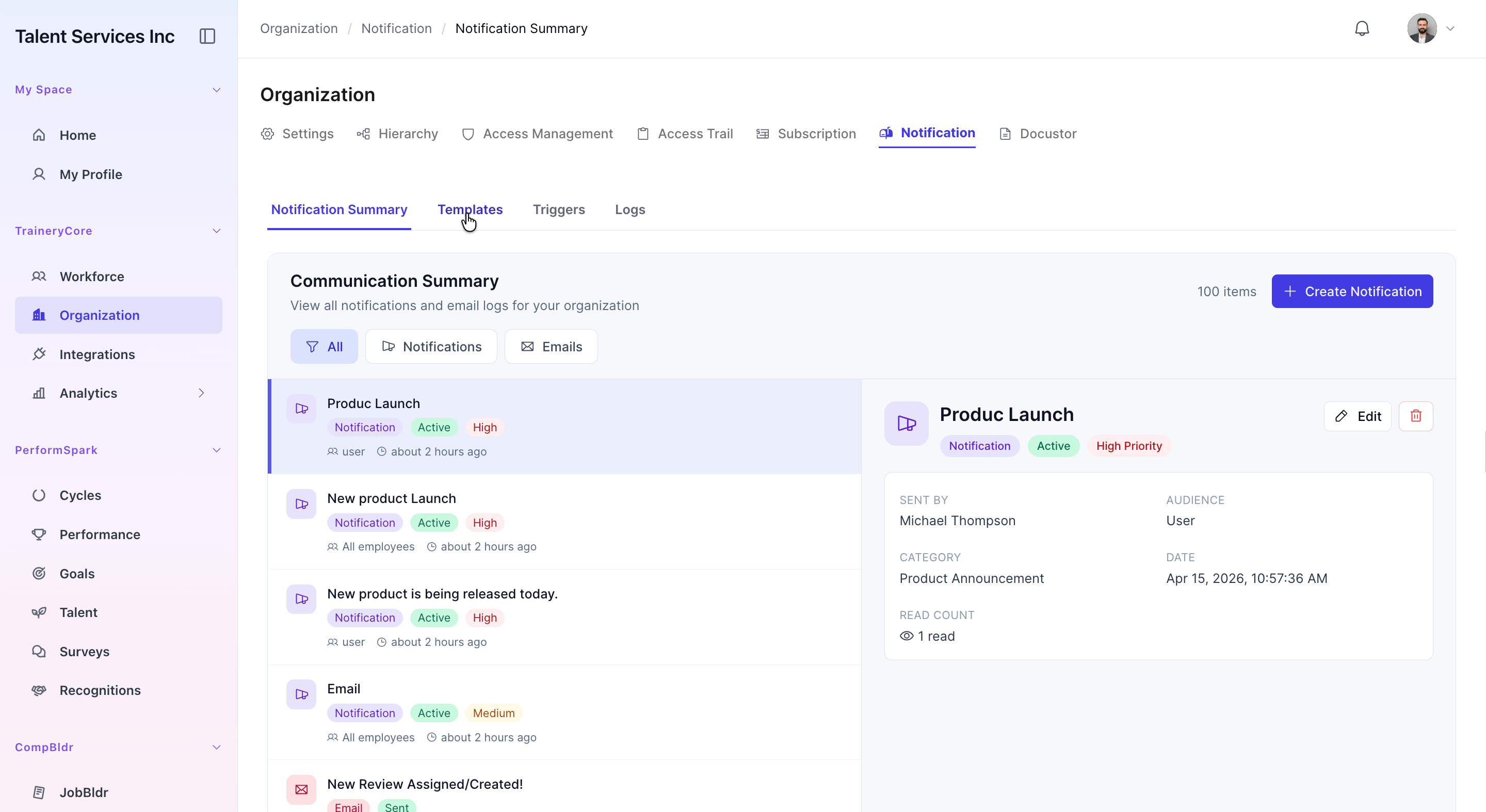
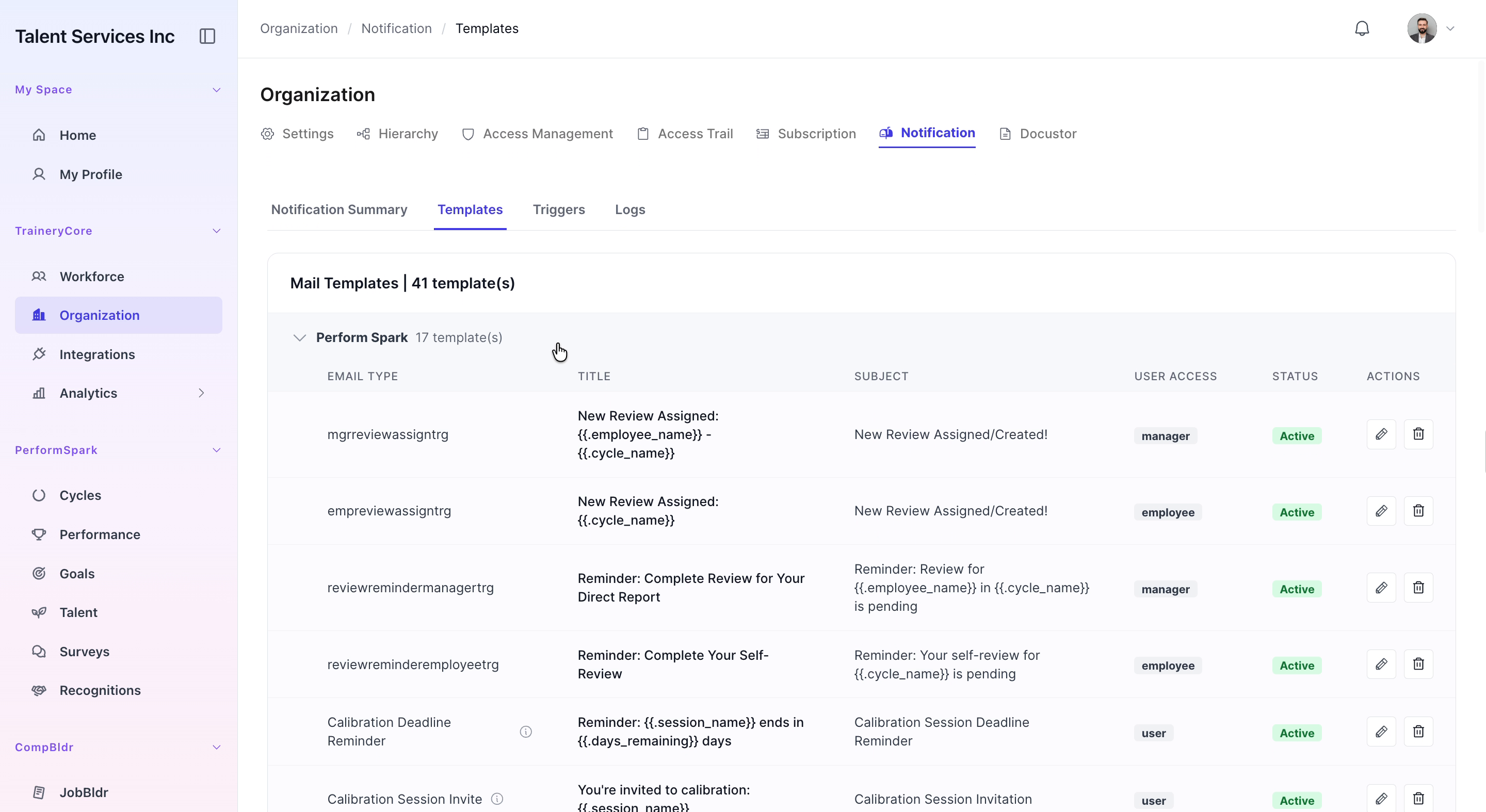
From the main application sidebar, click Organization, then open the Notification tab and select Templates to view the list of available email templates.
Step 2: Edit and Update a Template
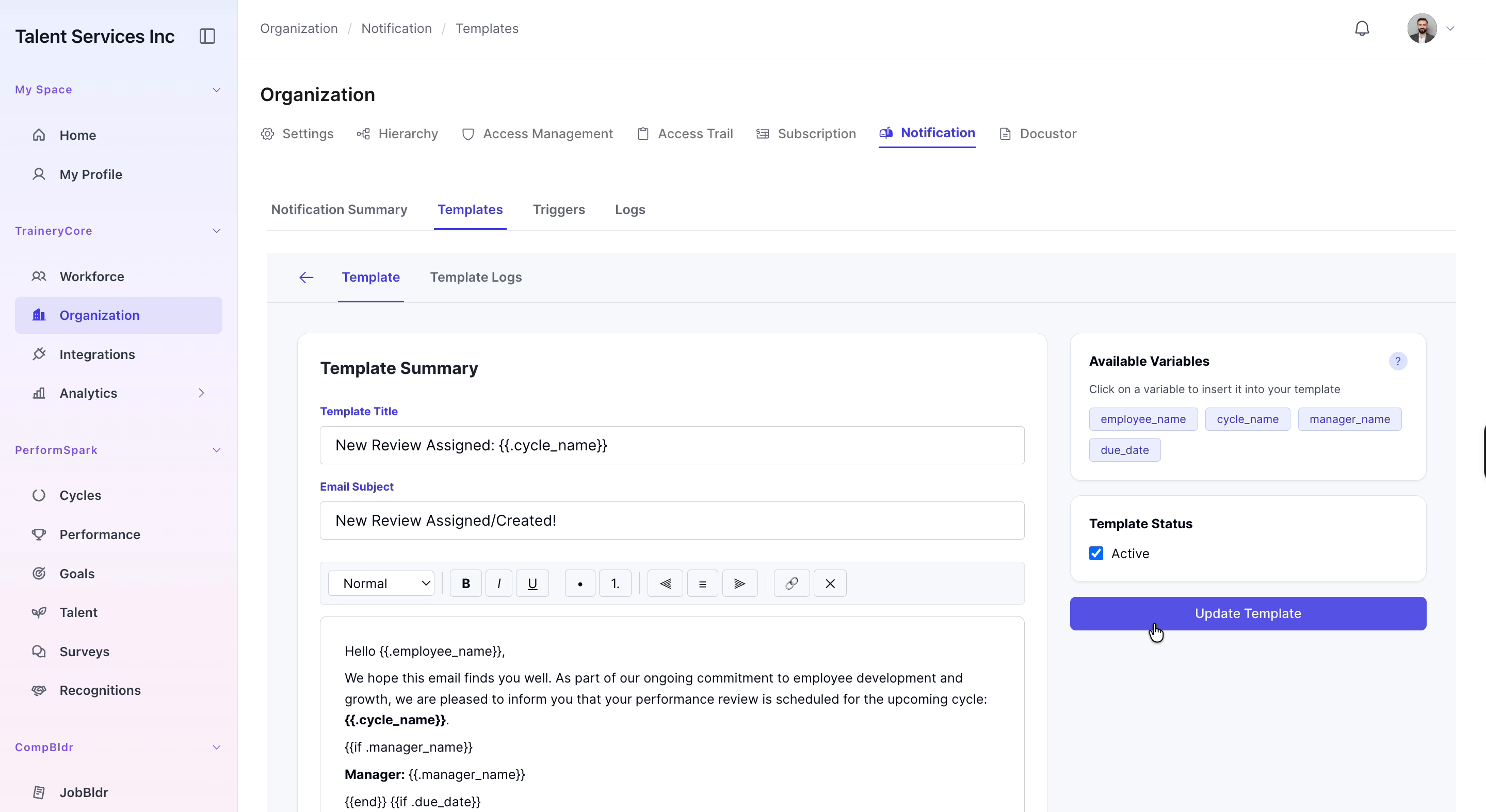
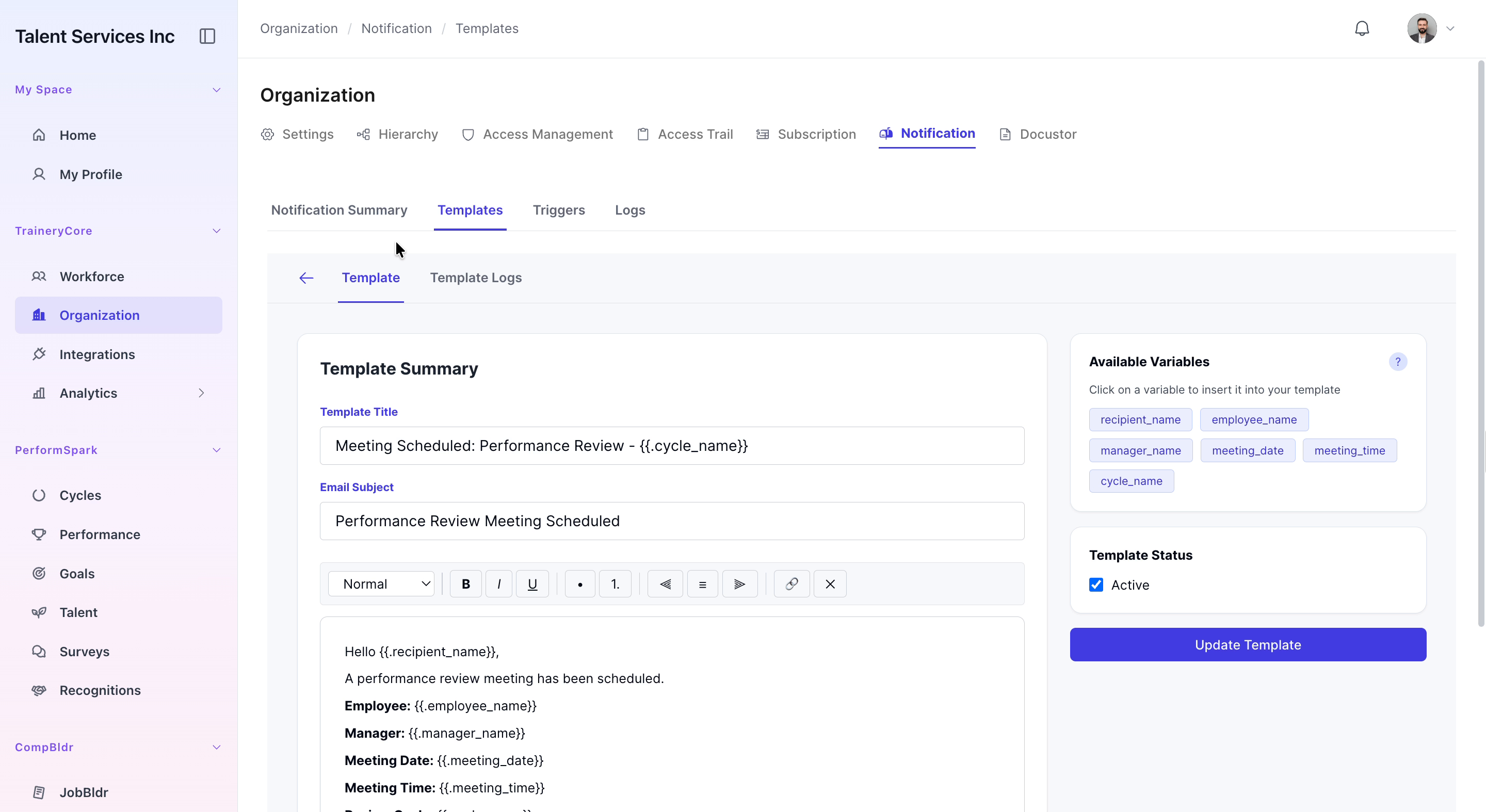
In the templates list, click the Edit icon for the first template. Review the template summary and body, make any necessary changes, and then click Update Template to save your edits.
Step 3: Review Additional Template Categories
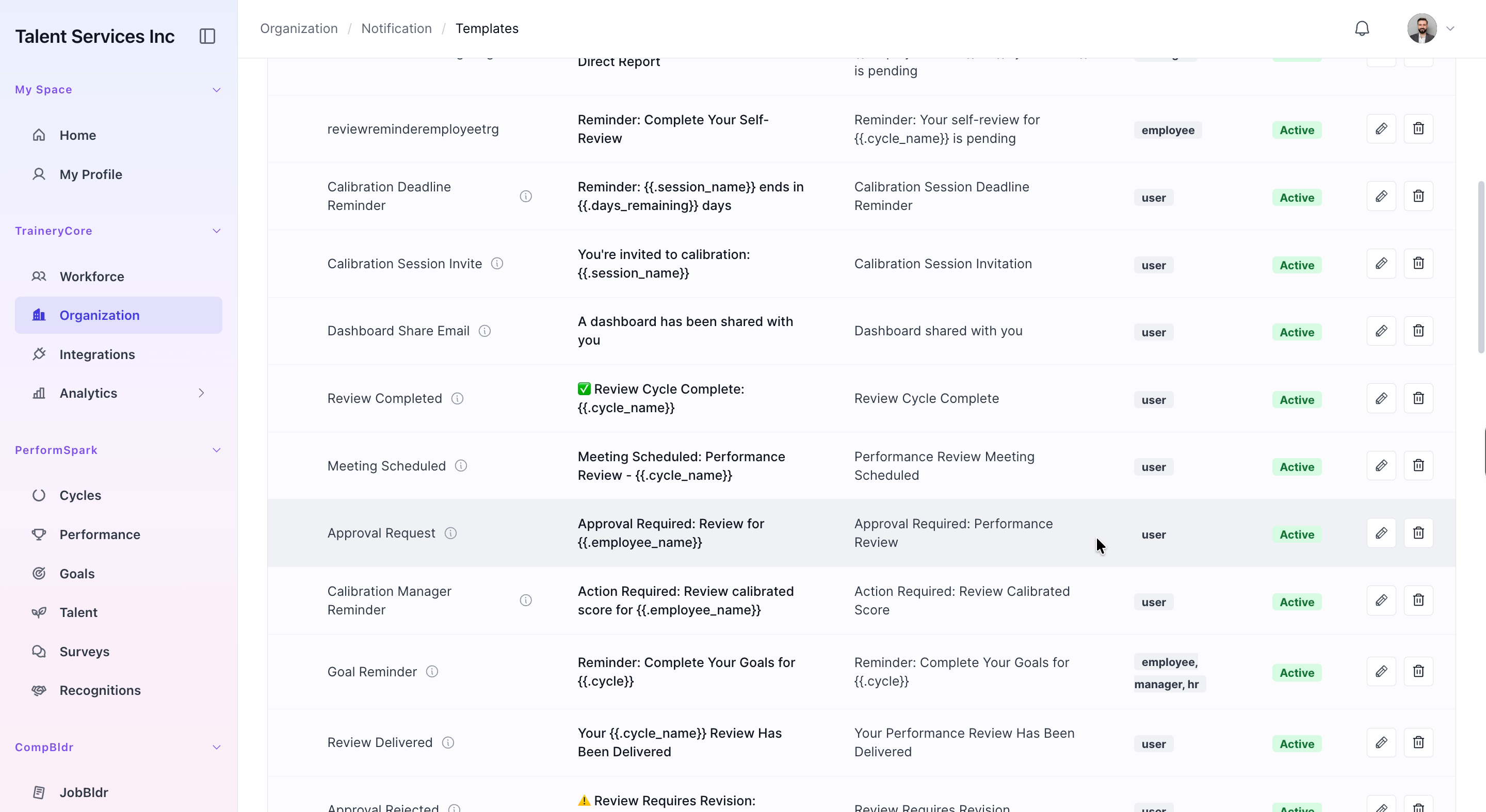
Back in the templates list, scroll down to review the various template categories such as Perform Spark, Job Builder, Training Learn, Coaching, and Core. Open the Performance Review Meeting Scheduled template to quickly check its content, then return to the main templates list.
Step 4: Inspect Trigger Configurations
Switch to the Triggers tab and scroll through the list of system triggers. Click to edit the Course Enrollment Trigger and then the Policyholder Verification Trigger to review their configurations. After inspecting them, return to the triggers summary view.

Step 5: Review Email Logs
Click on the Logs tab to open the email logs. Review the history of sent notifications, including details such as the recipient and the template used for each email.
