Org-Notifications
Last updated: July 1, 2026
Creating a High-Priority Product Launch Notification
This document describes how to create, schedule, target, and verify a high-priority “New Product Launch” notification in the Organization module, and then confirm how it appears to an end user.
Step 1: Open the Notifications Area
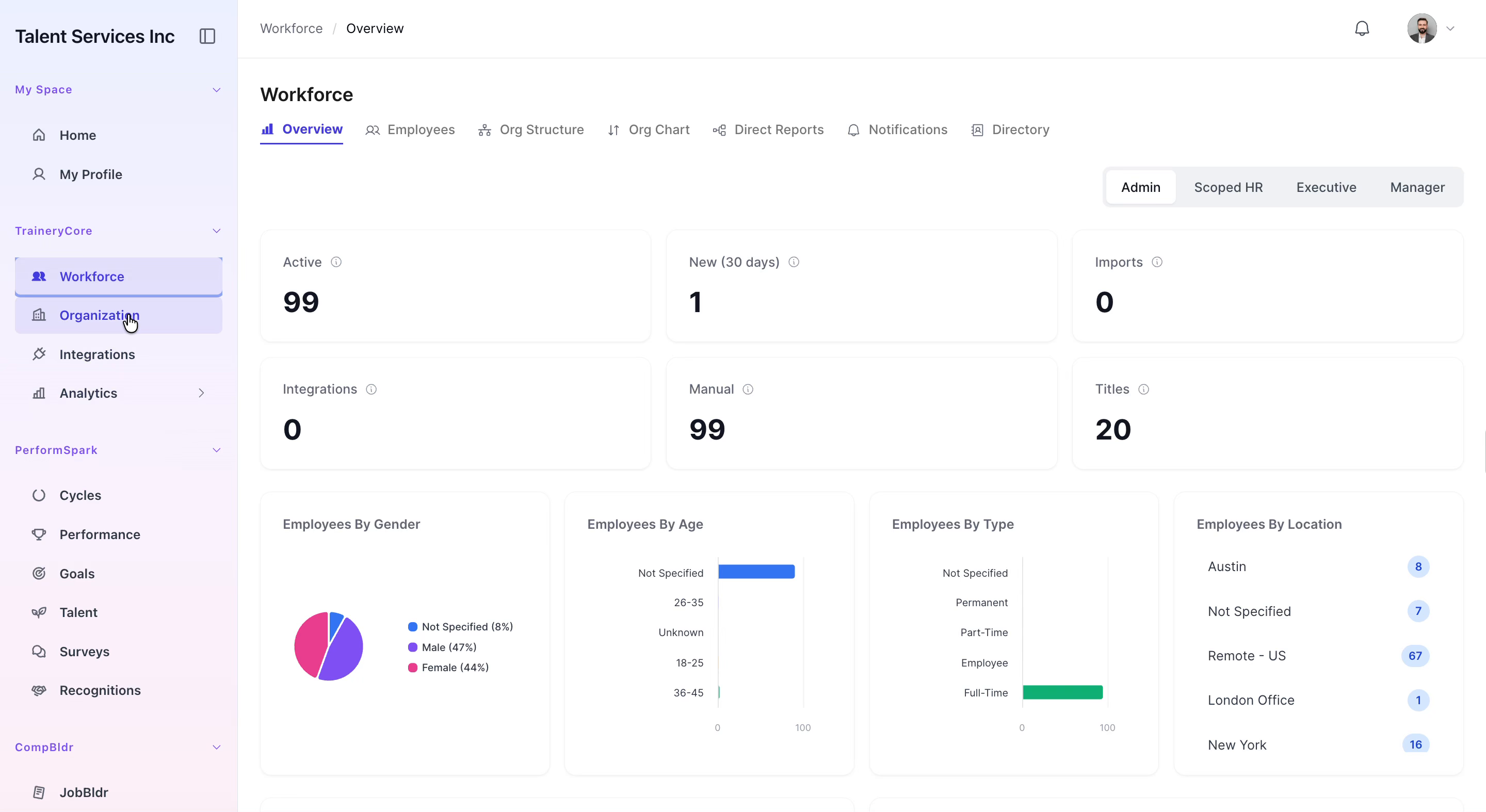
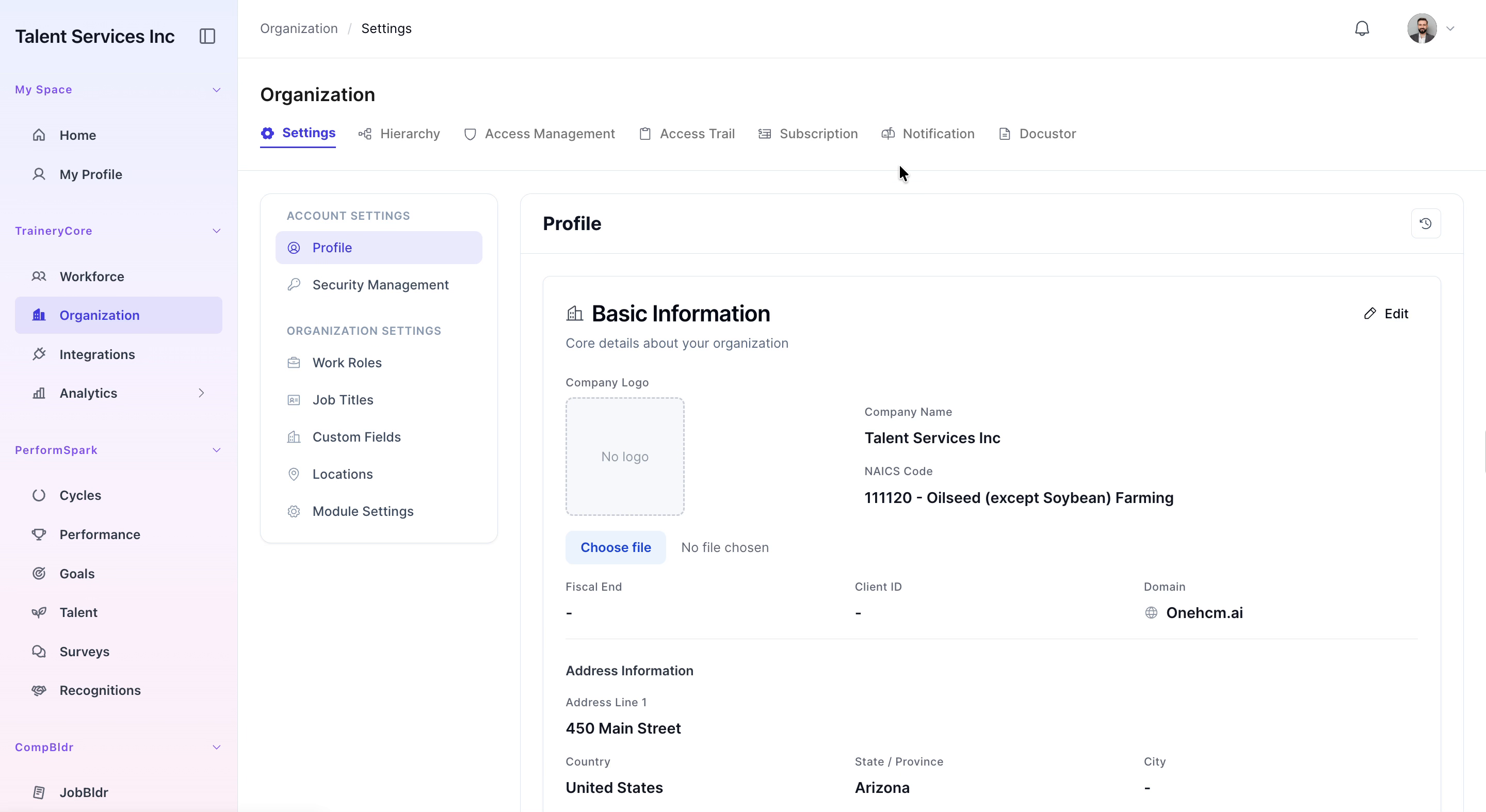
Navigate to the Organization section in your application, then select the Notification tab to manage notifications.
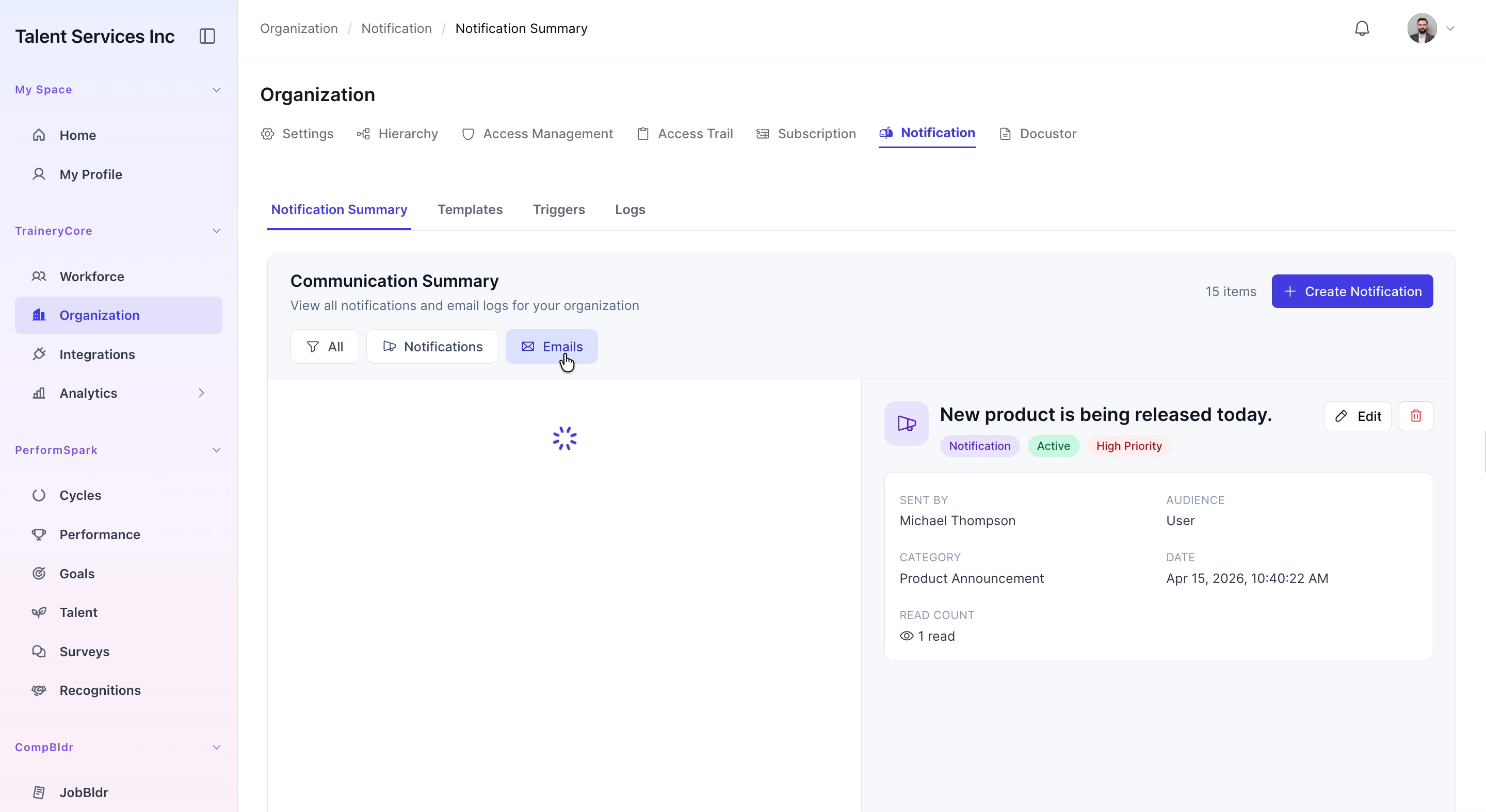
Step 2: Filter the Communication Summary
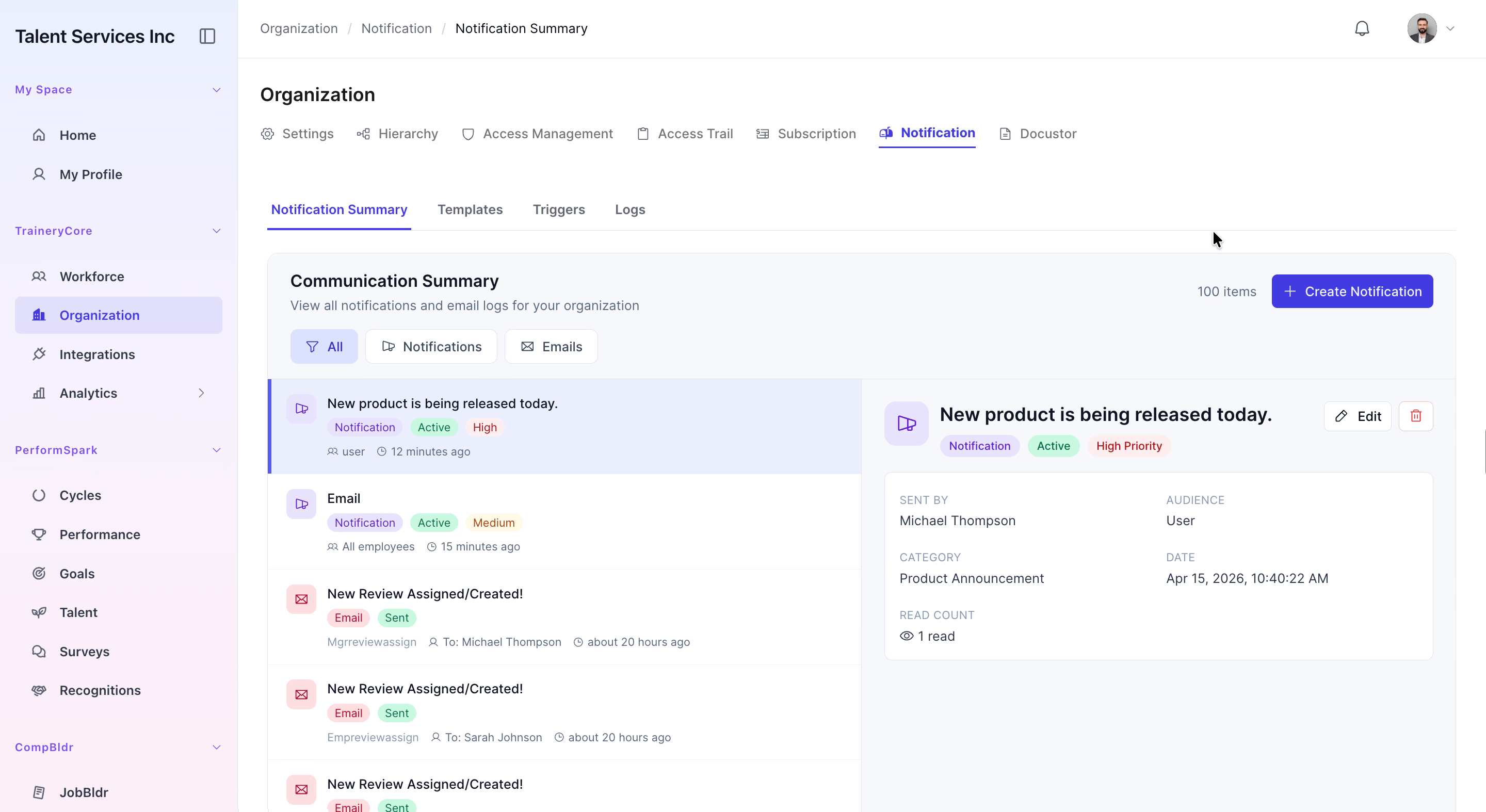
In the communication summary area, apply filters to show only Notifications and Emails so you can focus on relevant items.
Step 3: Start Creating a New Notification
Click Create Notification. In the notification form, enter the title “New product Launch” and type a clear message describing the new product and its key details.
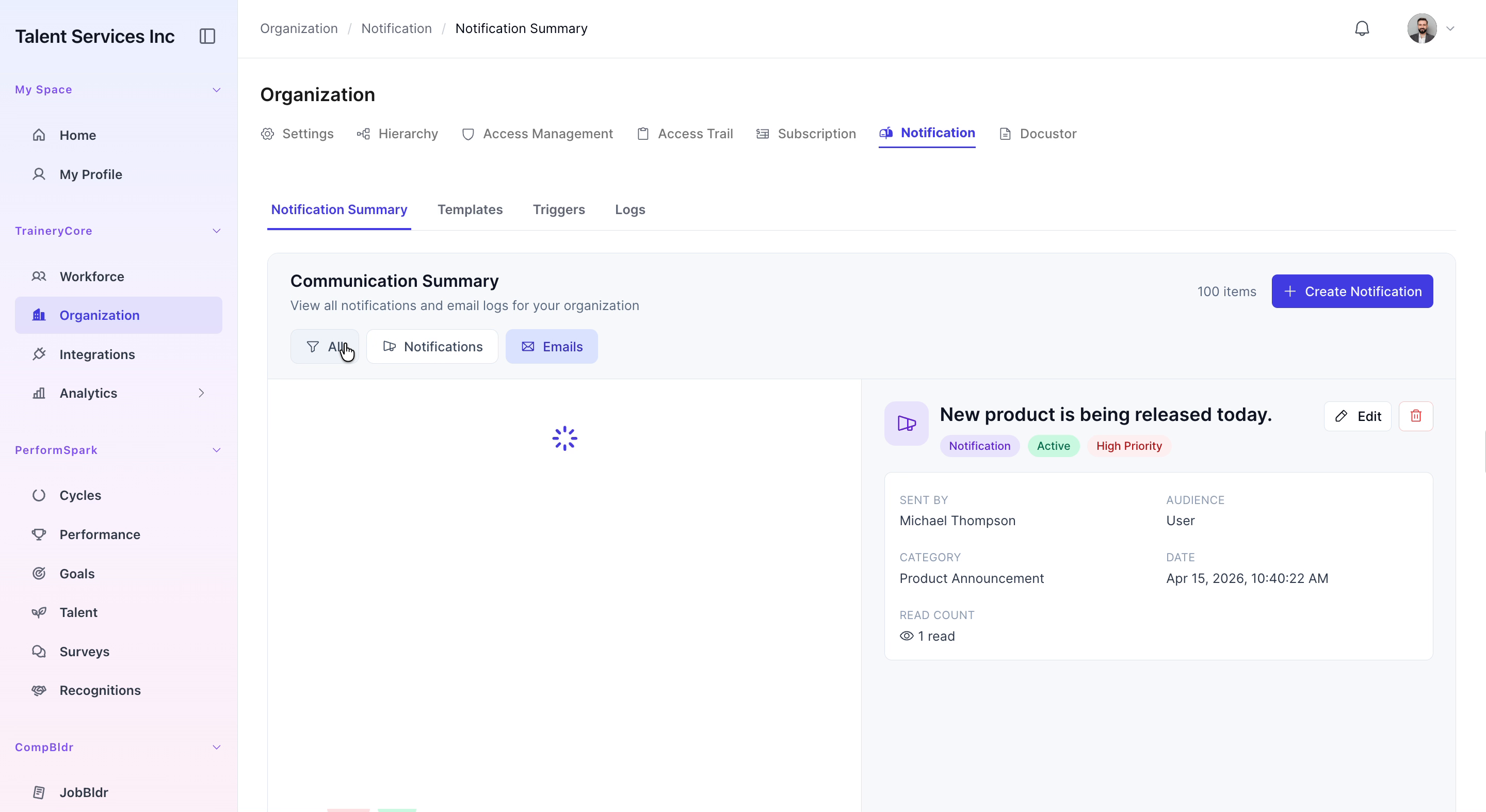
Step 4: Set Priority and Category
Set the notification Priority to High to highlight its importance. Then select Product Announcement as the Category so it is grouped correctly with other product-related messages.
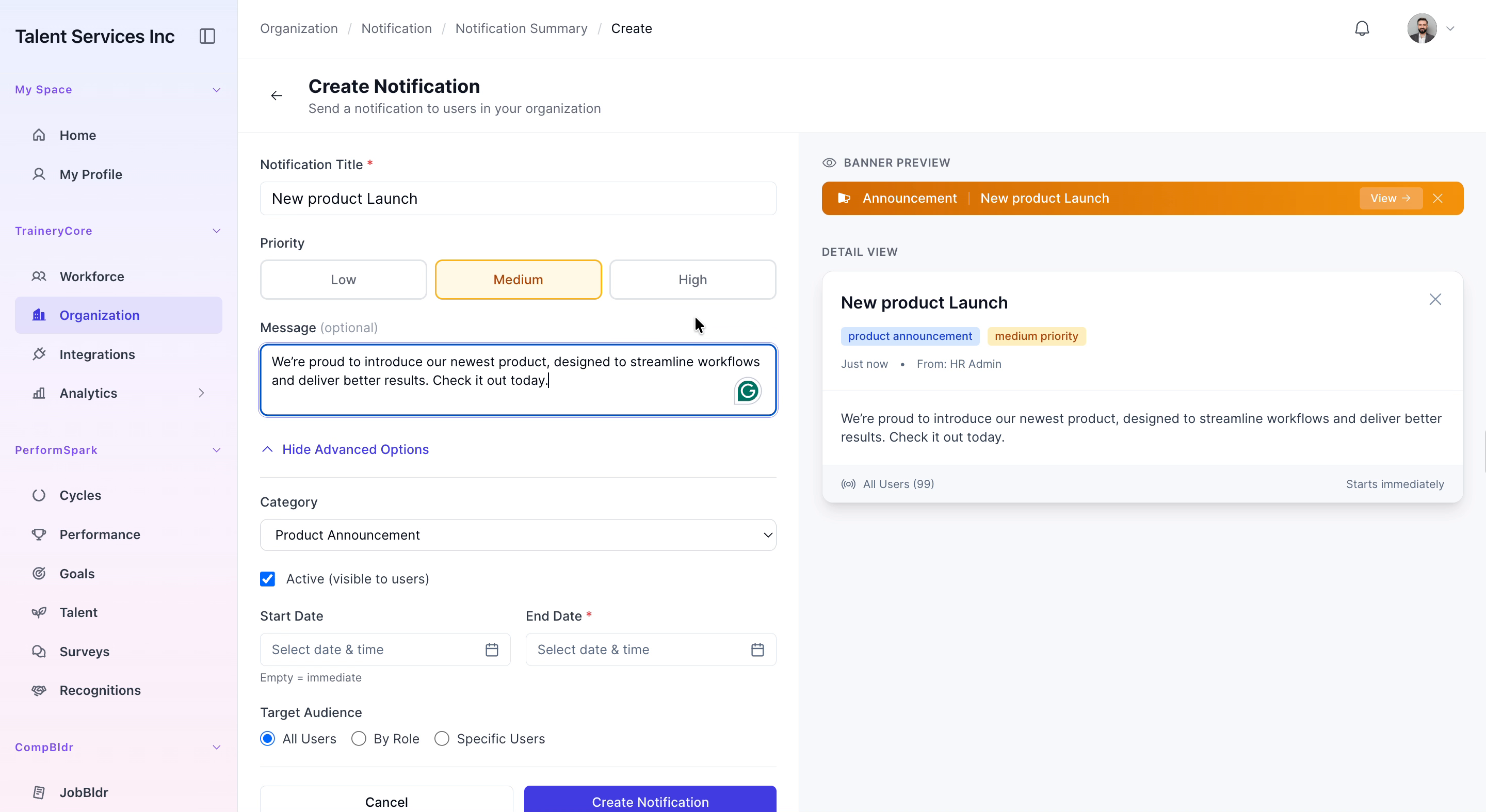
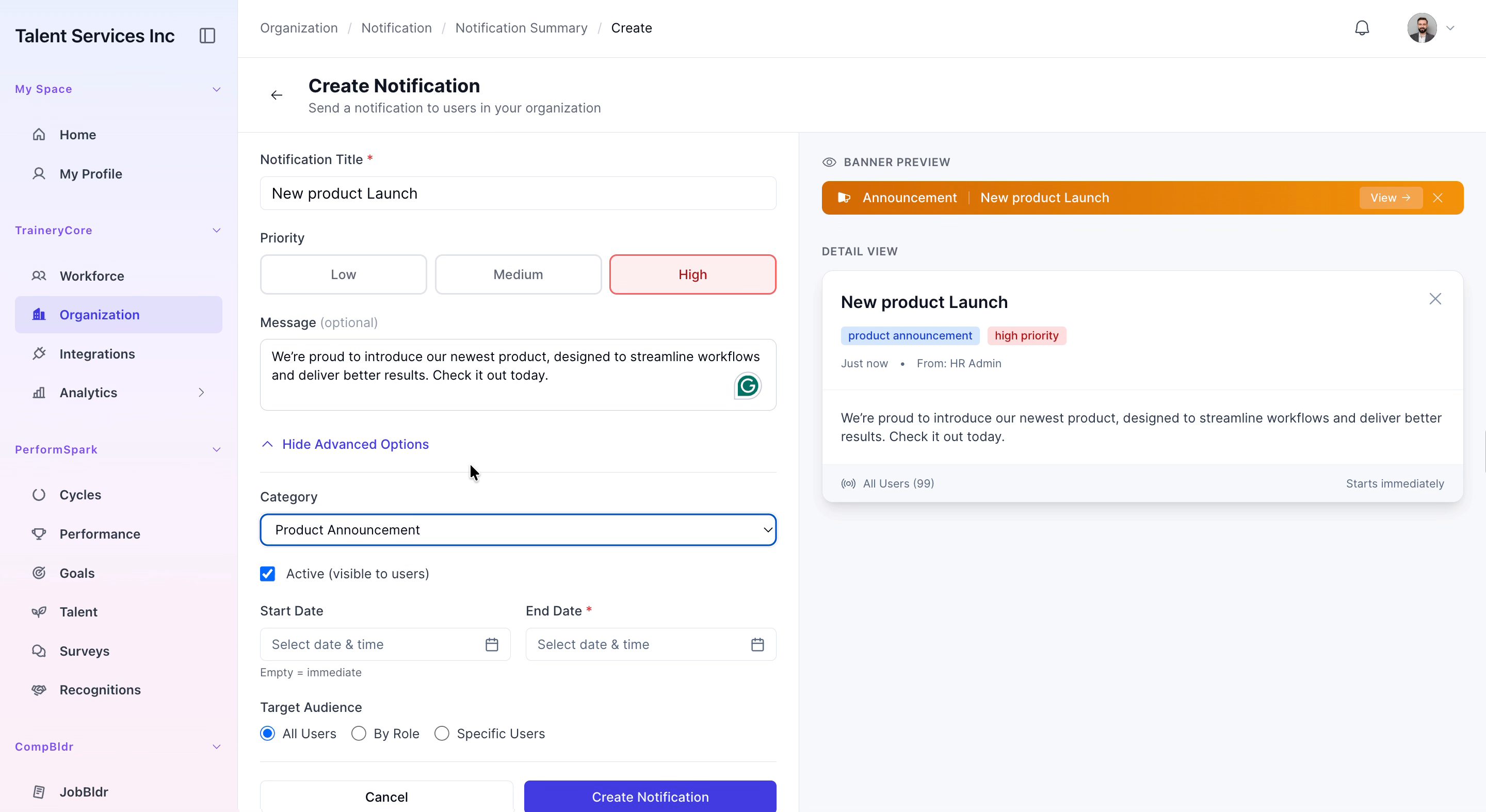
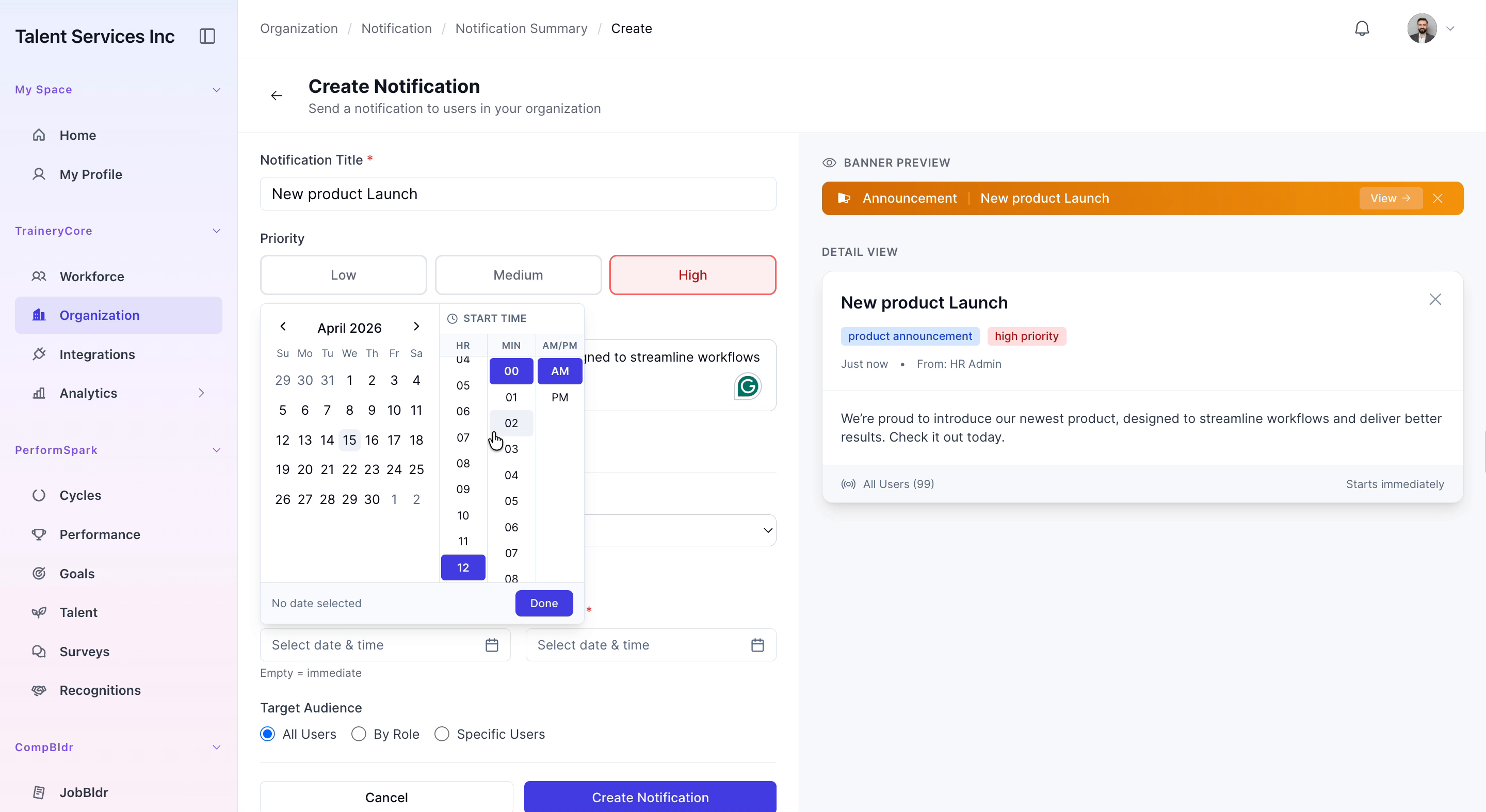
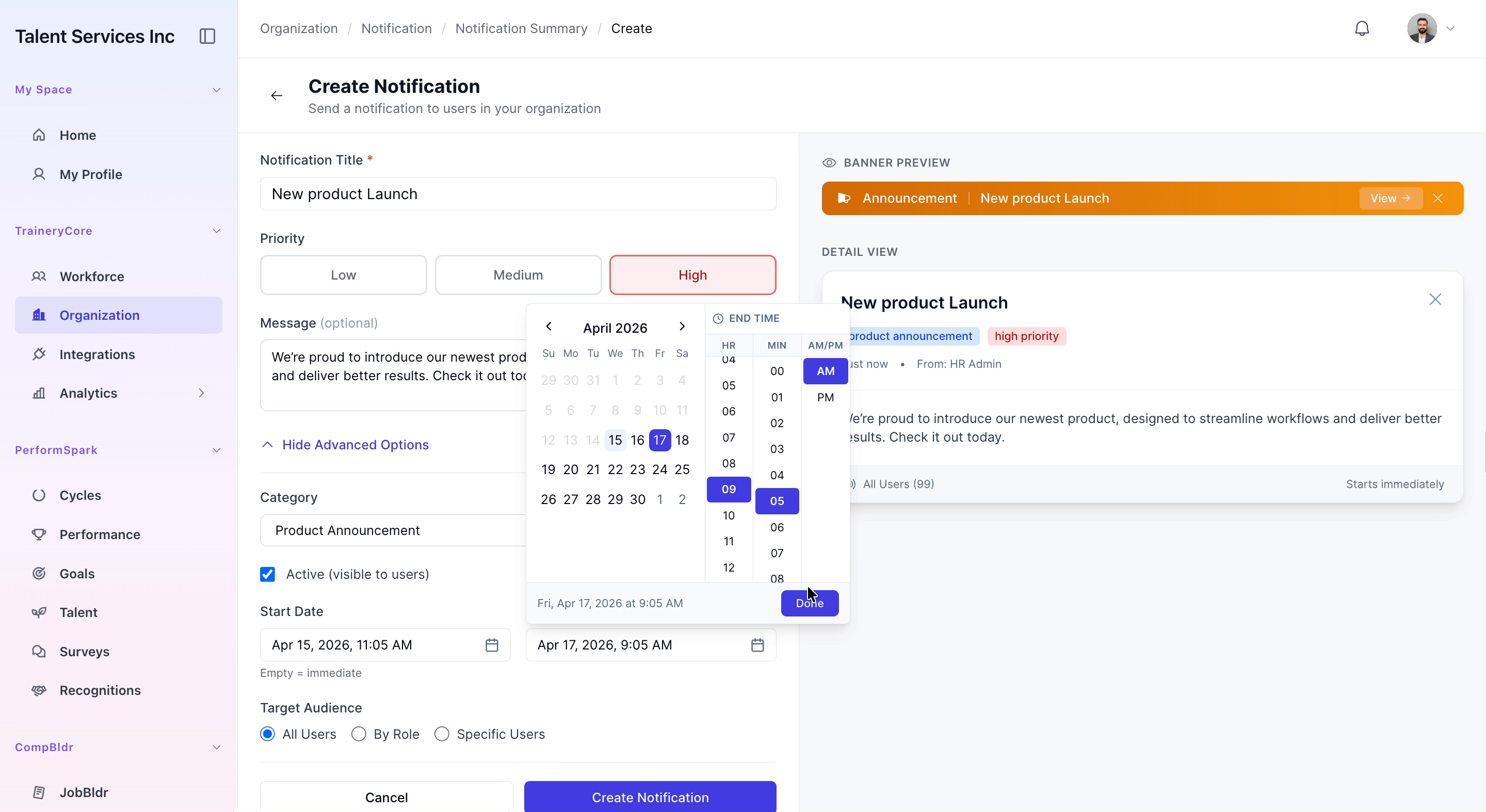
Step 5: Schedule Start and End Date/Time
Open the date and time picker for the Start Date and set it to April 15th at 11:05 AM. Then open the date and time picker for the End Date and set it to April 17th at 9:05 AM, defining the active window for this notification.
Step 6: Choose the Target Audience
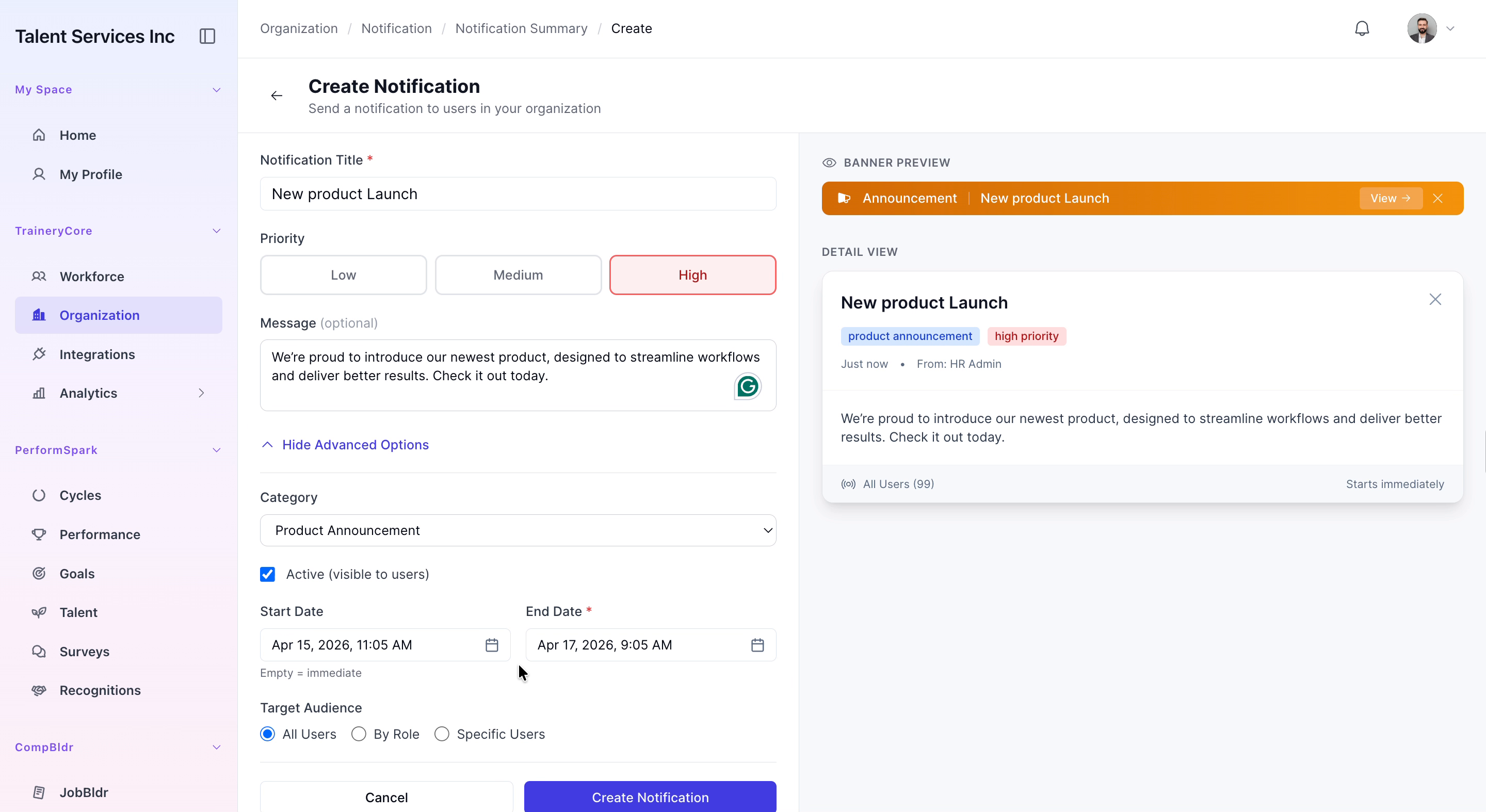
Review the targeting options, including by role and specific users, to understand how you can narrow the audience. Finally, select All Users so the announcement reaches everyone in the organization.

Step 7: Create and Confirm the Notification
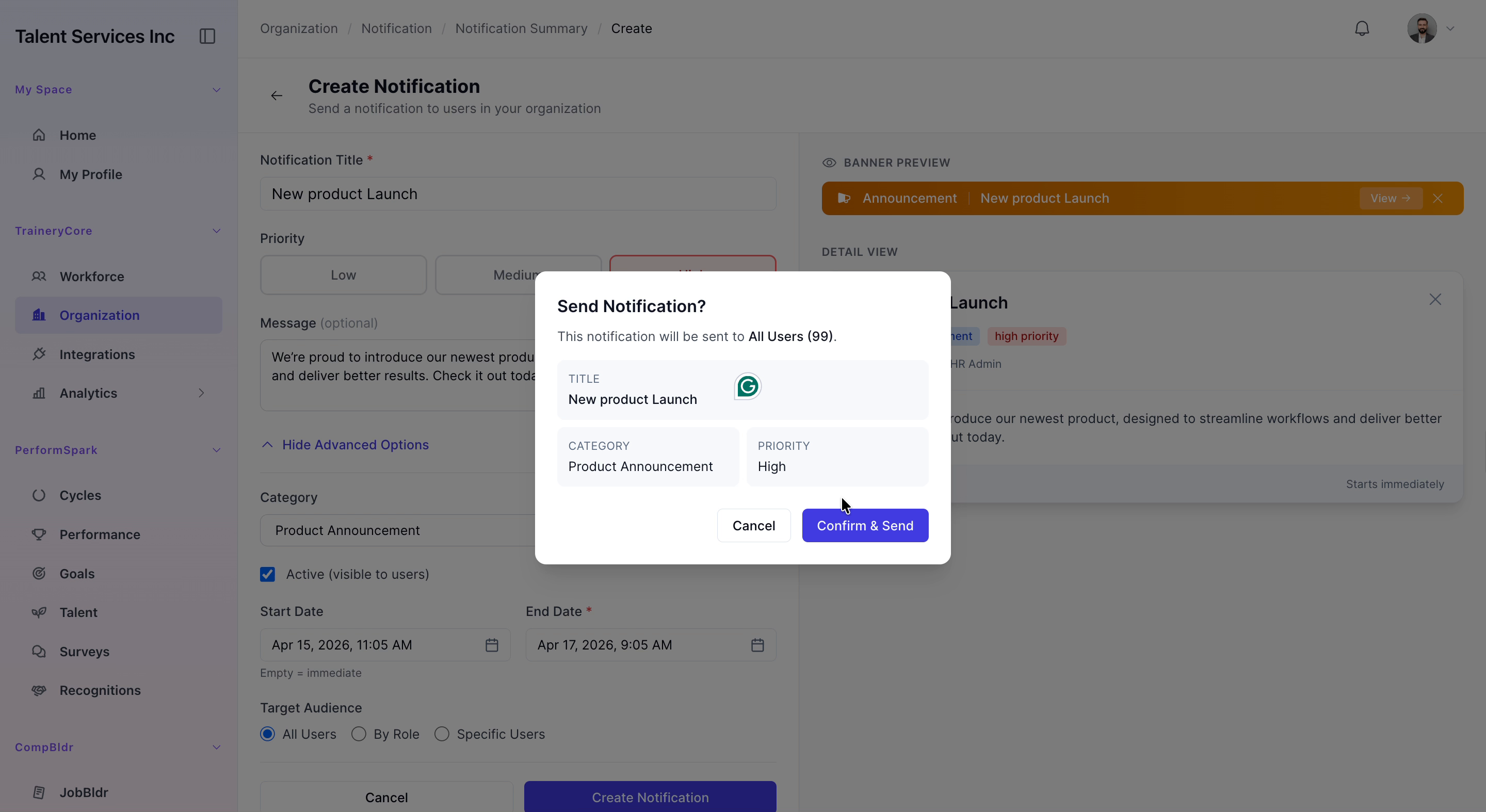
Click Create Notification to submit the new announcement. When prompted, confirm the action so the notification is scheduled and sent to all users as configured.

Step 8: Log In as an End User
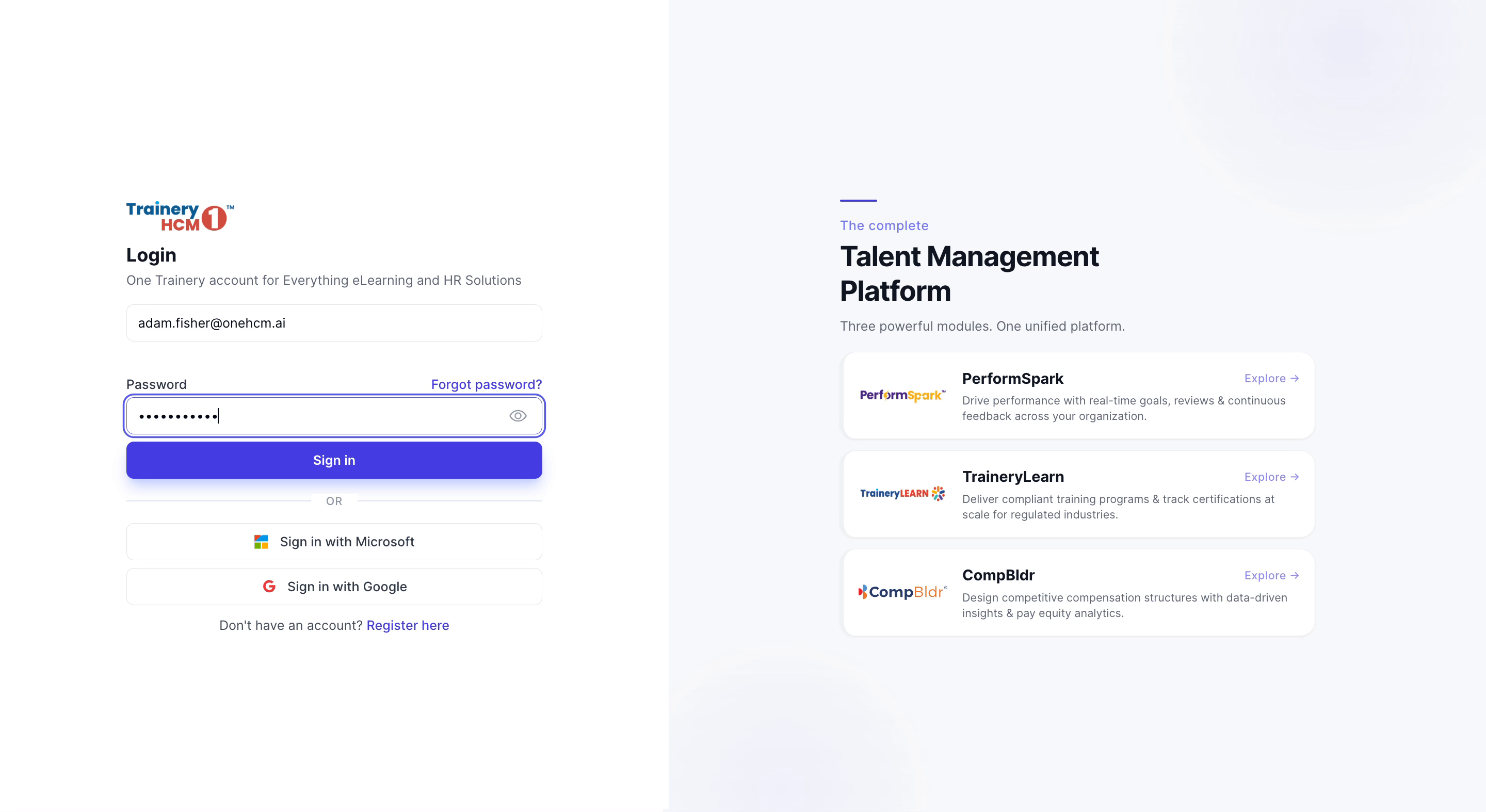
Go to the sign-in page and log in as a typical user by entering your email address and password, then proceed to sign in.
Step 9: Verify the Notification on the Dashboard
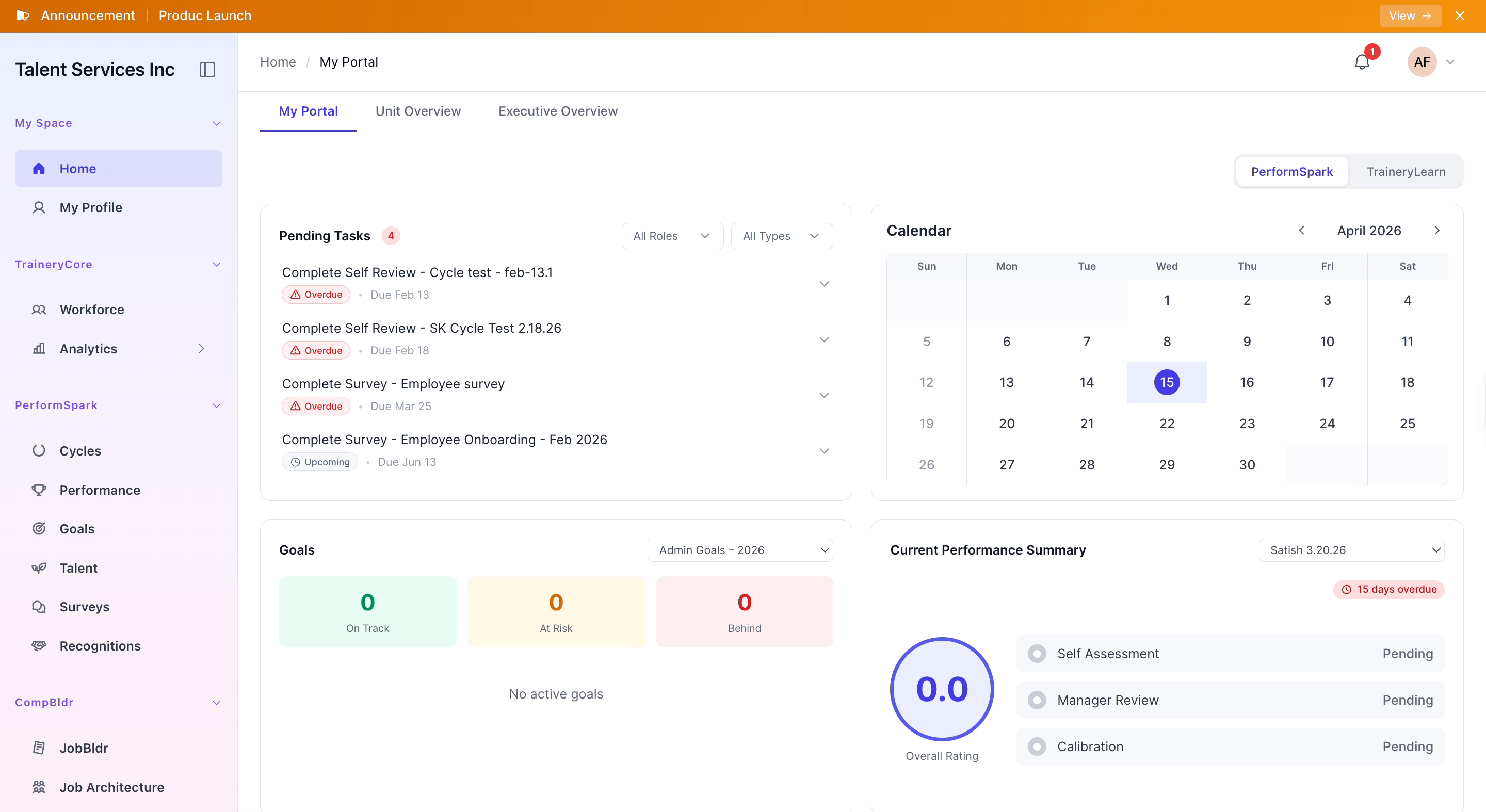
On the user dashboard, locate the new notification banner for the New product Launch. Click View to open and read the full product launch details, confirming that the notification appears and functions as expected.