Managing Folders and Document Permissions in Docustor
Last updated: July 1, 2026
Managing Organization Policy Documents in Docustor
This document explains how to create a public policy folder in Docustor, configure its permissions, upload an engineering policy document, and then access and download that document from a user profile.
Step 1: Open the Docustor Section in Your Organization Workspace
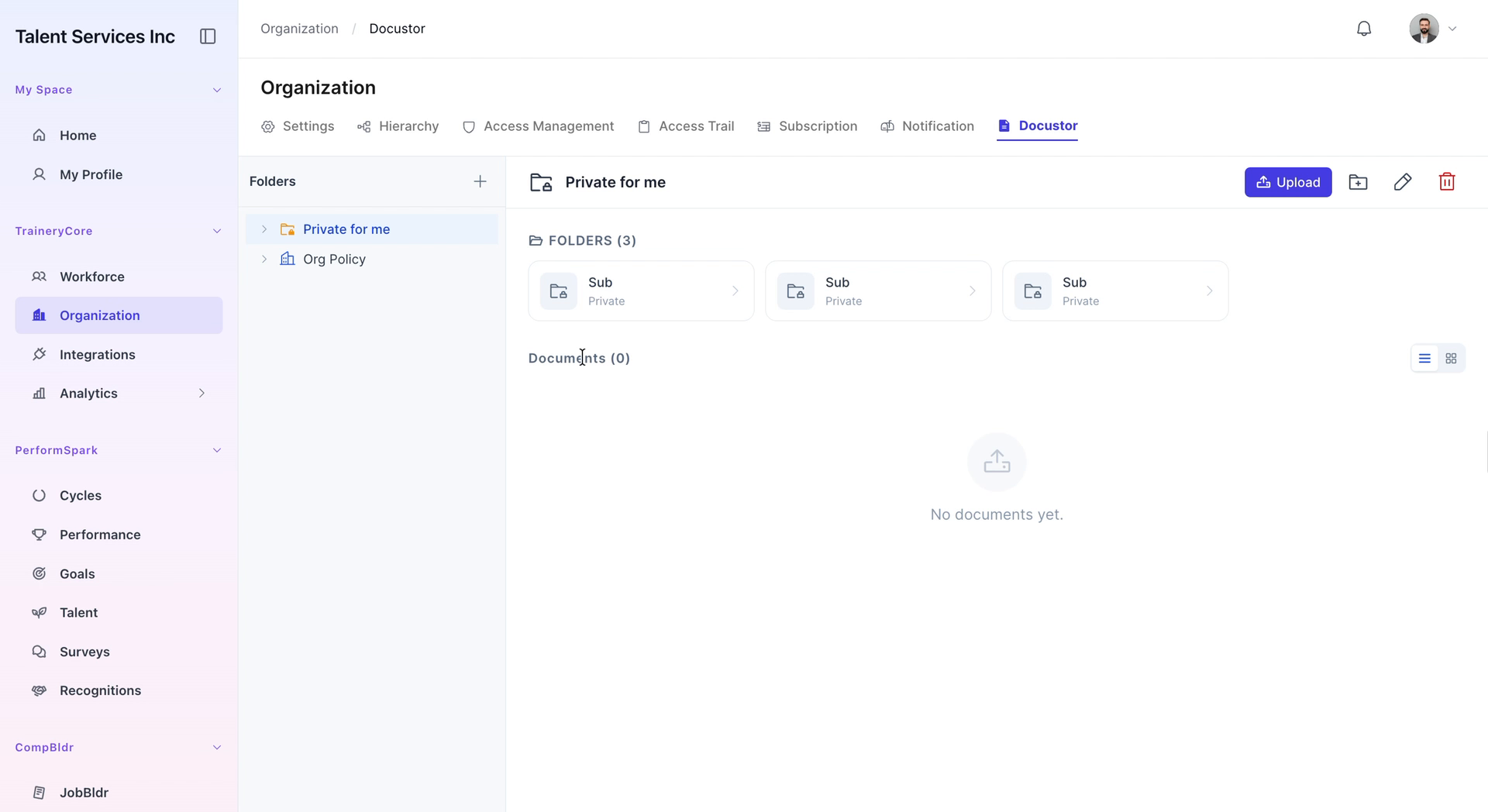
Navigate to the Organization section in your workspace and click on the Docustor tab to access document storage and management.


Step 2: Create a New Folder for Organization Policies
Click the plus (+) icon to begin creating a new folder.
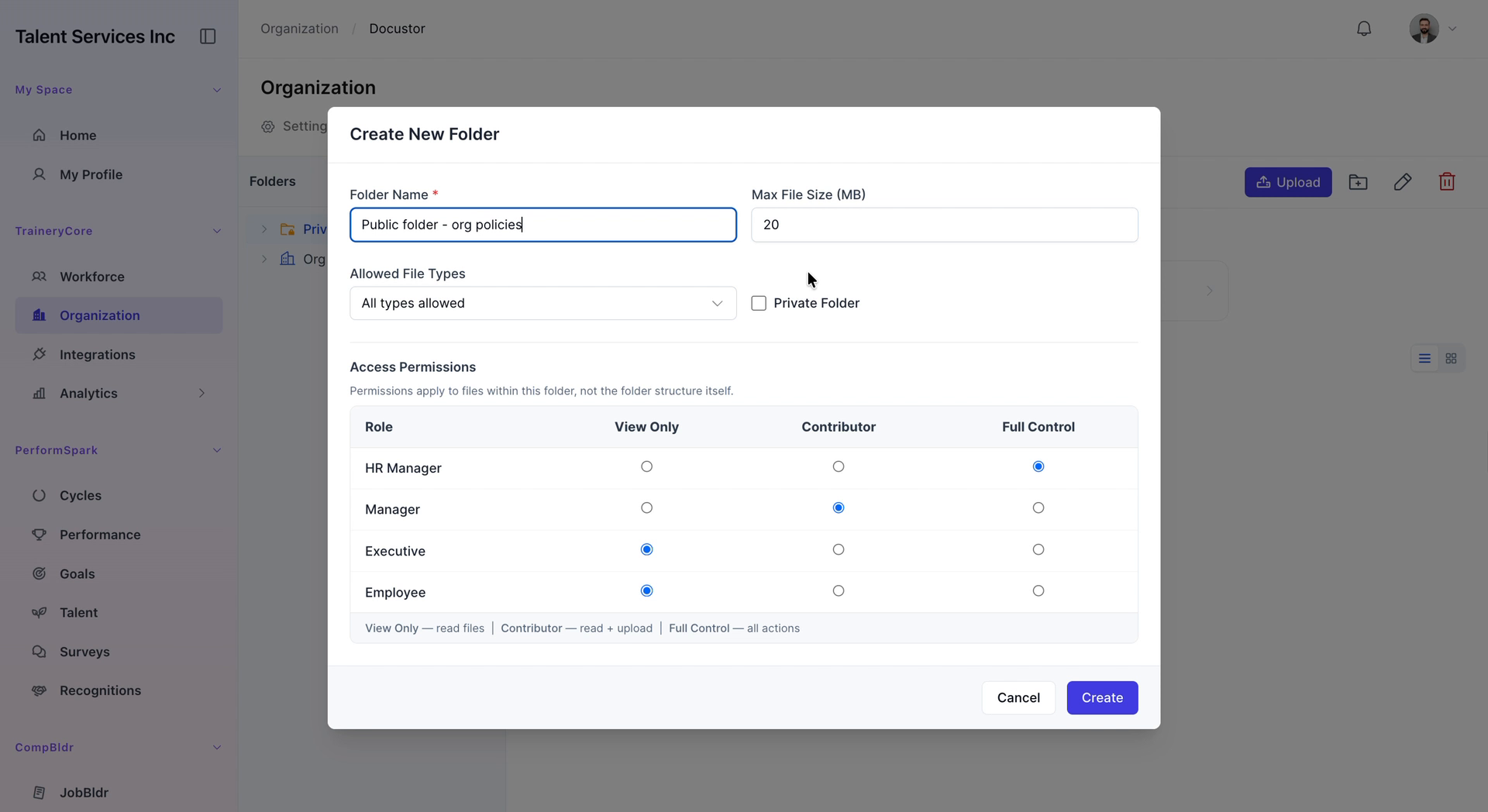
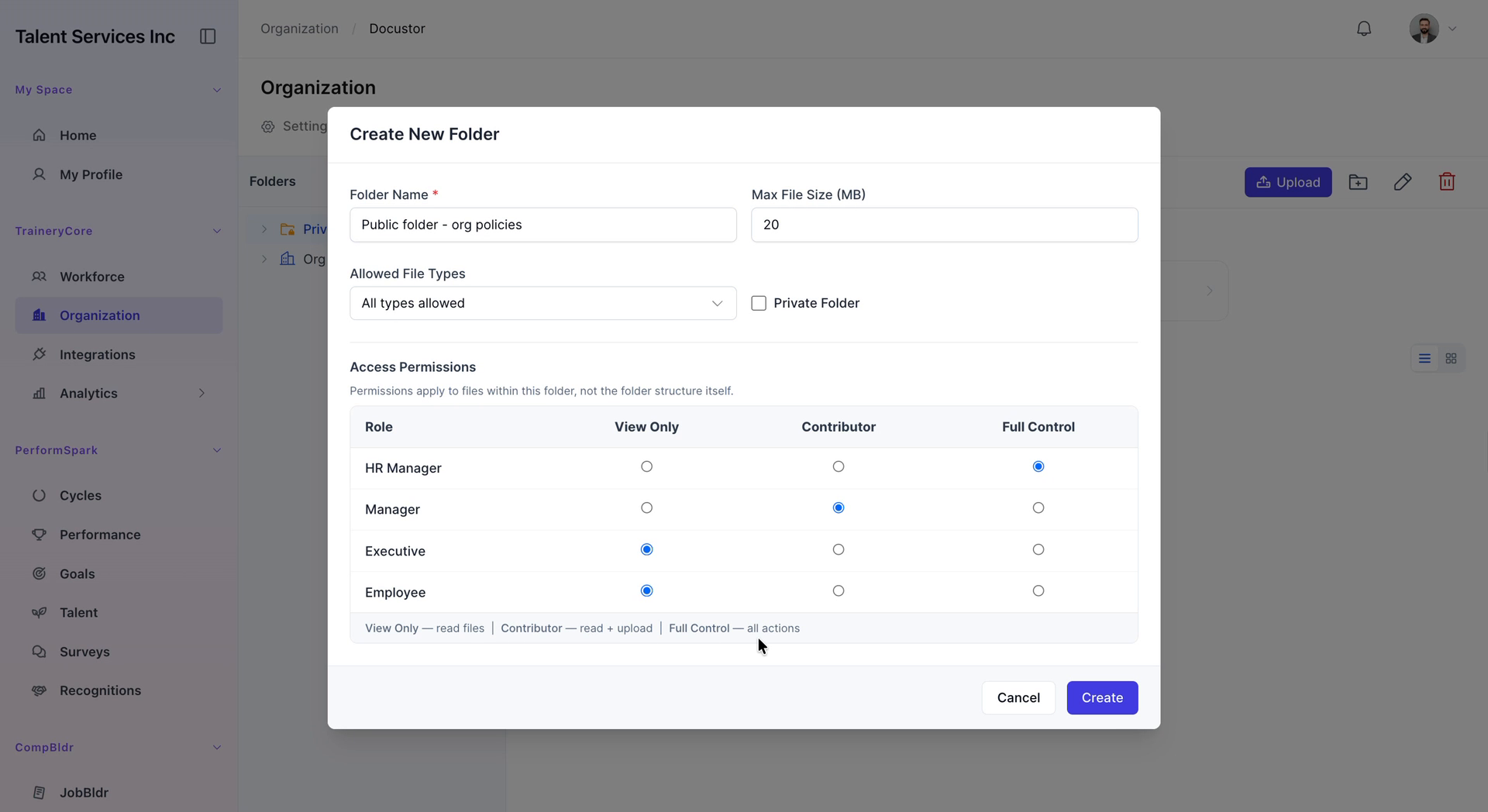
In the folder name field, enter “Public folder - org policies” to clearly label the directory for your organization. Toggle the Private folder setting as needed, then configure access permissions for HR Managers, Executives, and Employees across the available control levels. When finished, click Create to add the new folder.
Step 3: Upload the Engineering Policy Document
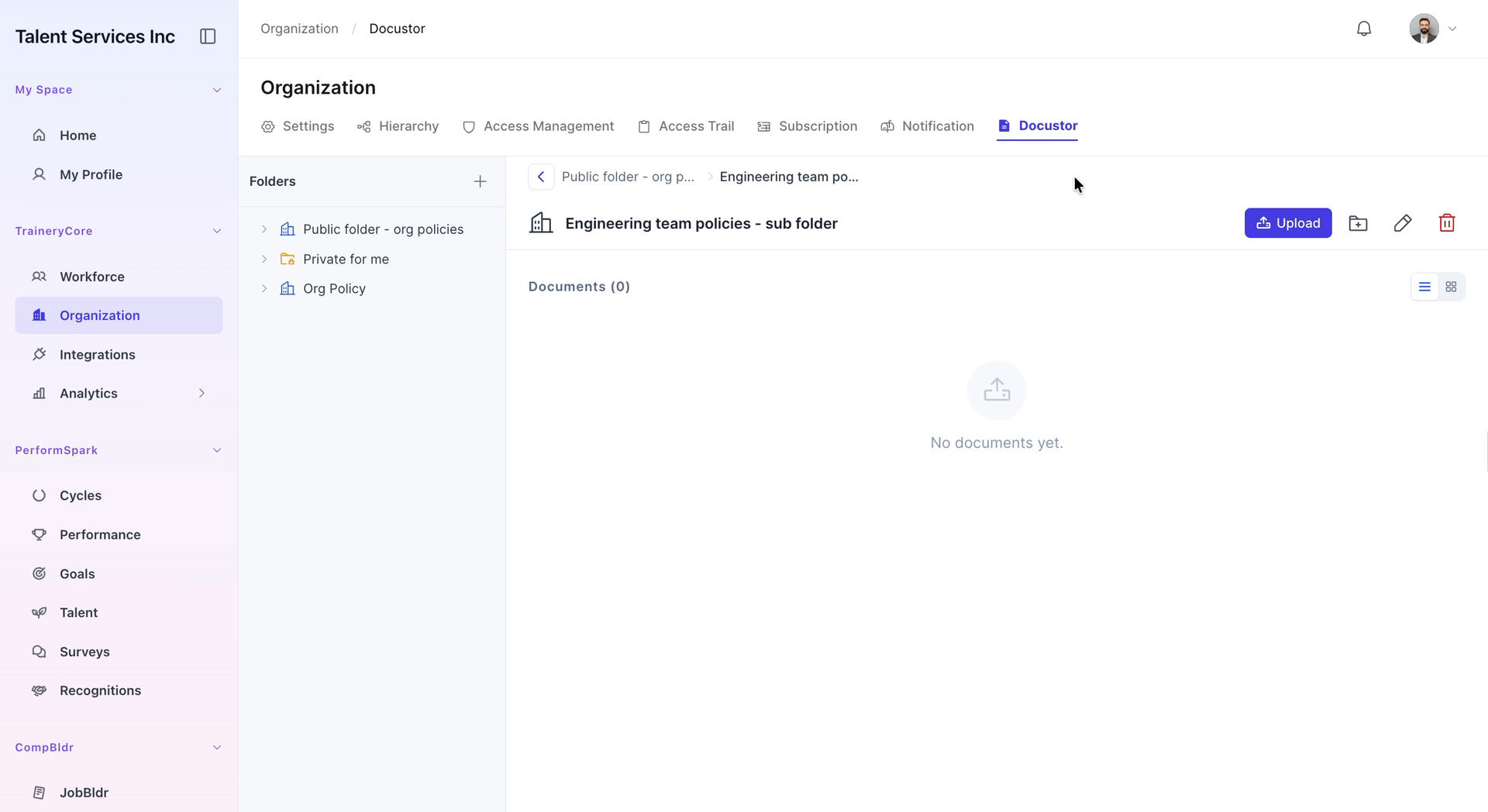
Open the newly created Public folder - org policies, then navigate into the engineering team subfolder. Click the Upload button to add a new document.

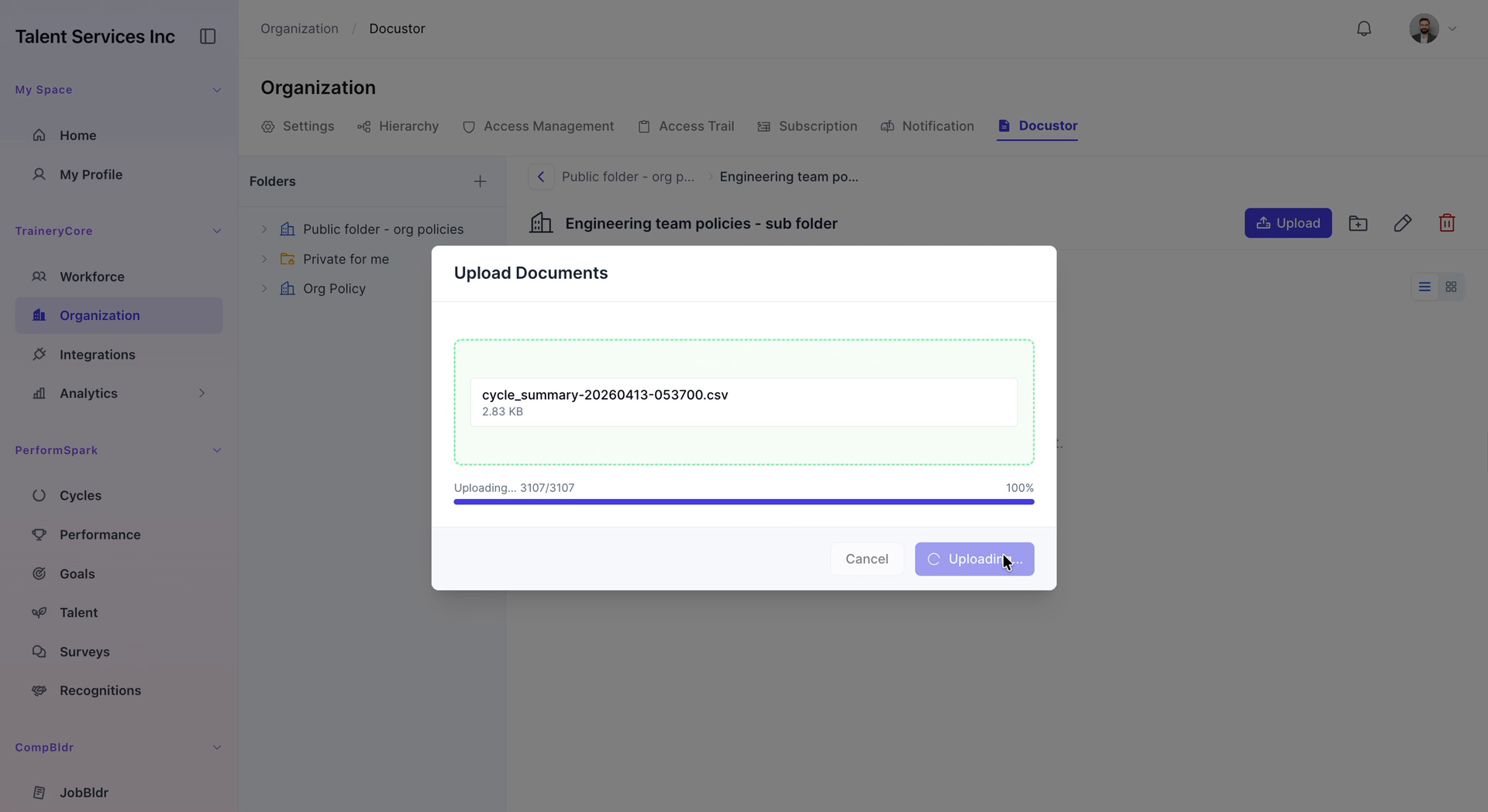
From your desktop, select the cycle summary CSV file and click Upload to add it to the folder.

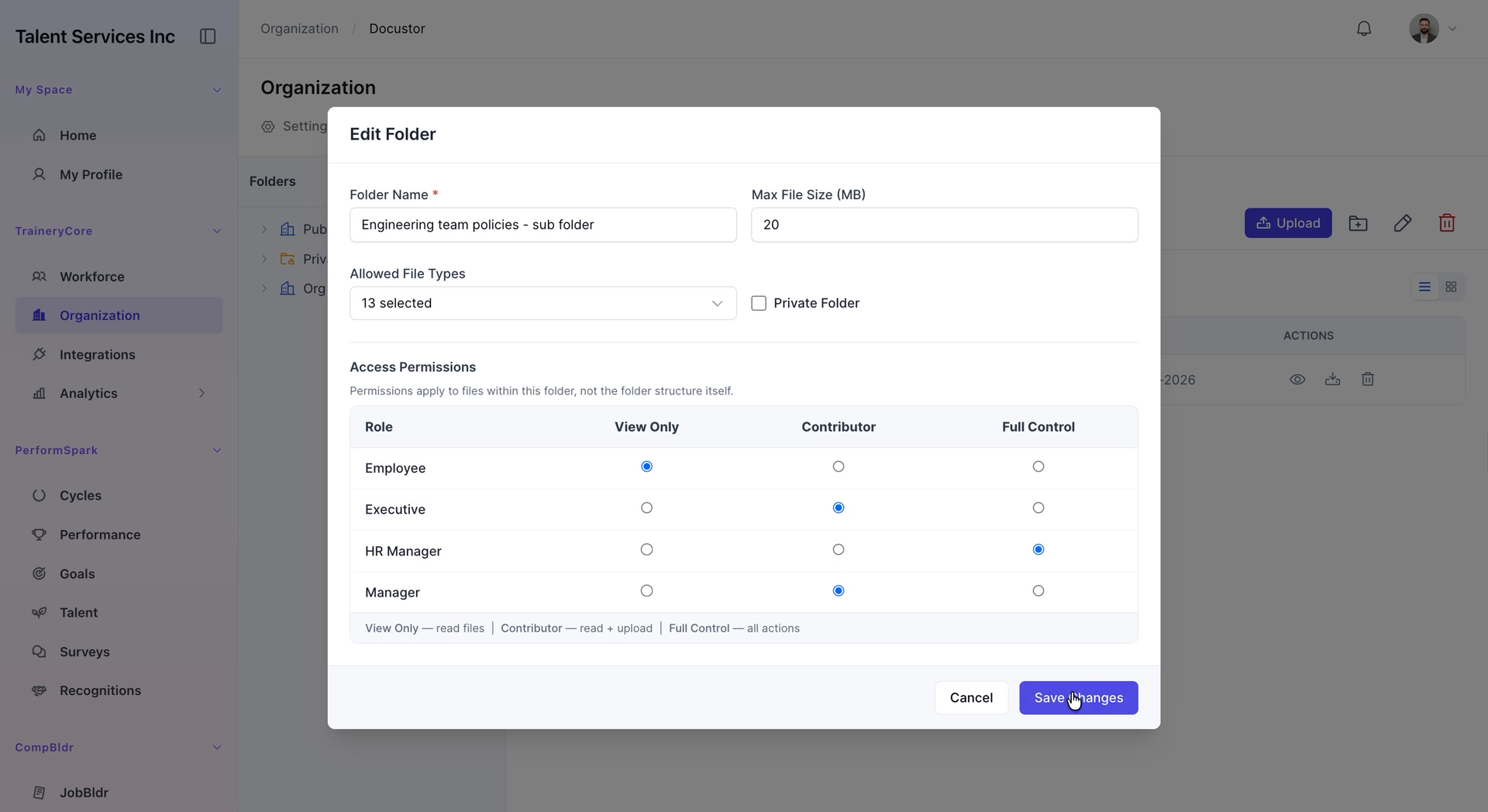
Step 4: Review Folder Permissions
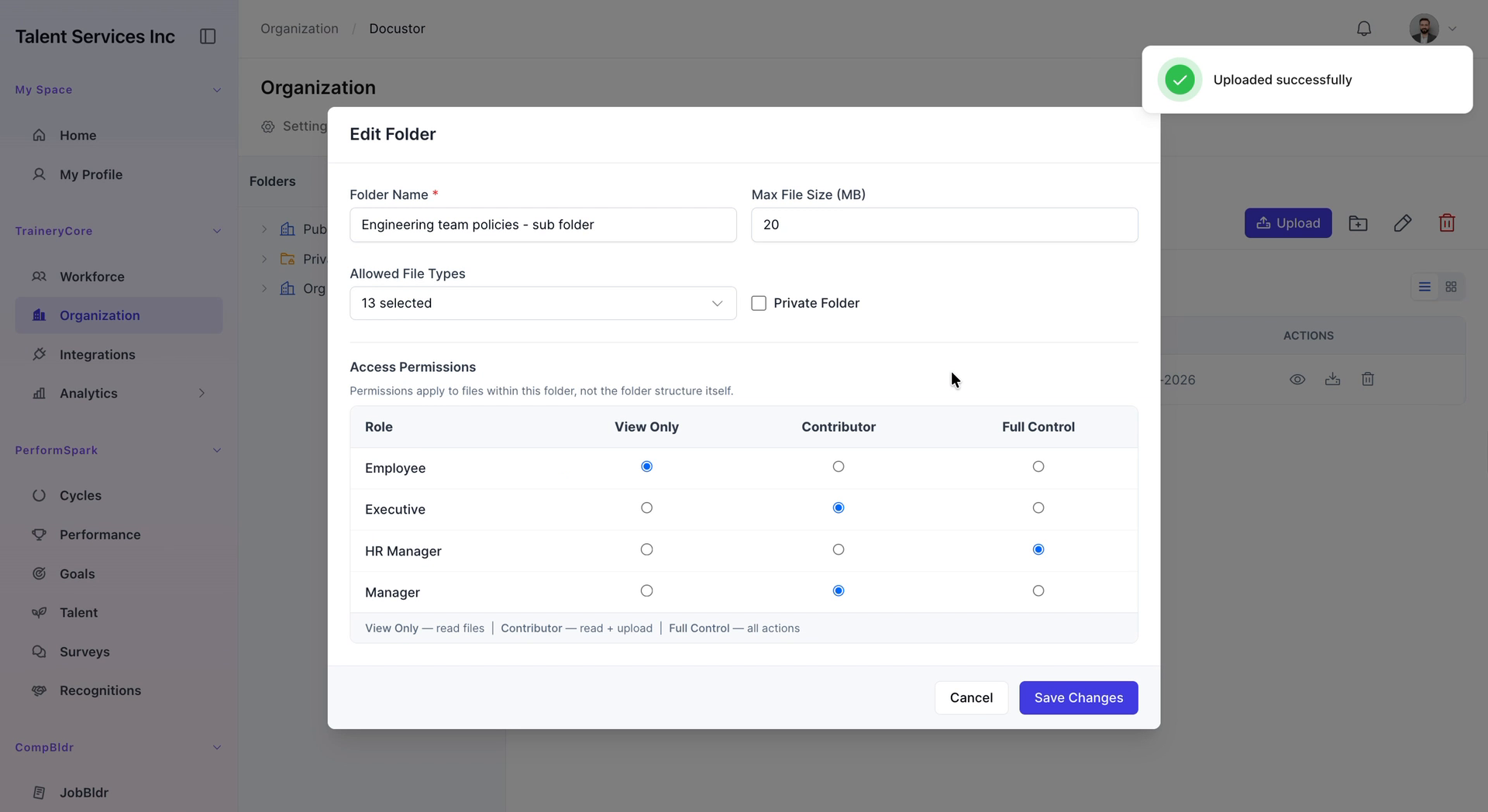
Open the folder Settings to review the current permission configuration for HR Managers, Executives, and Employees. After confirming the settings, click Cancel to exit the edit screen without making further changes.
Step 5: Sign In to Access the Workspace
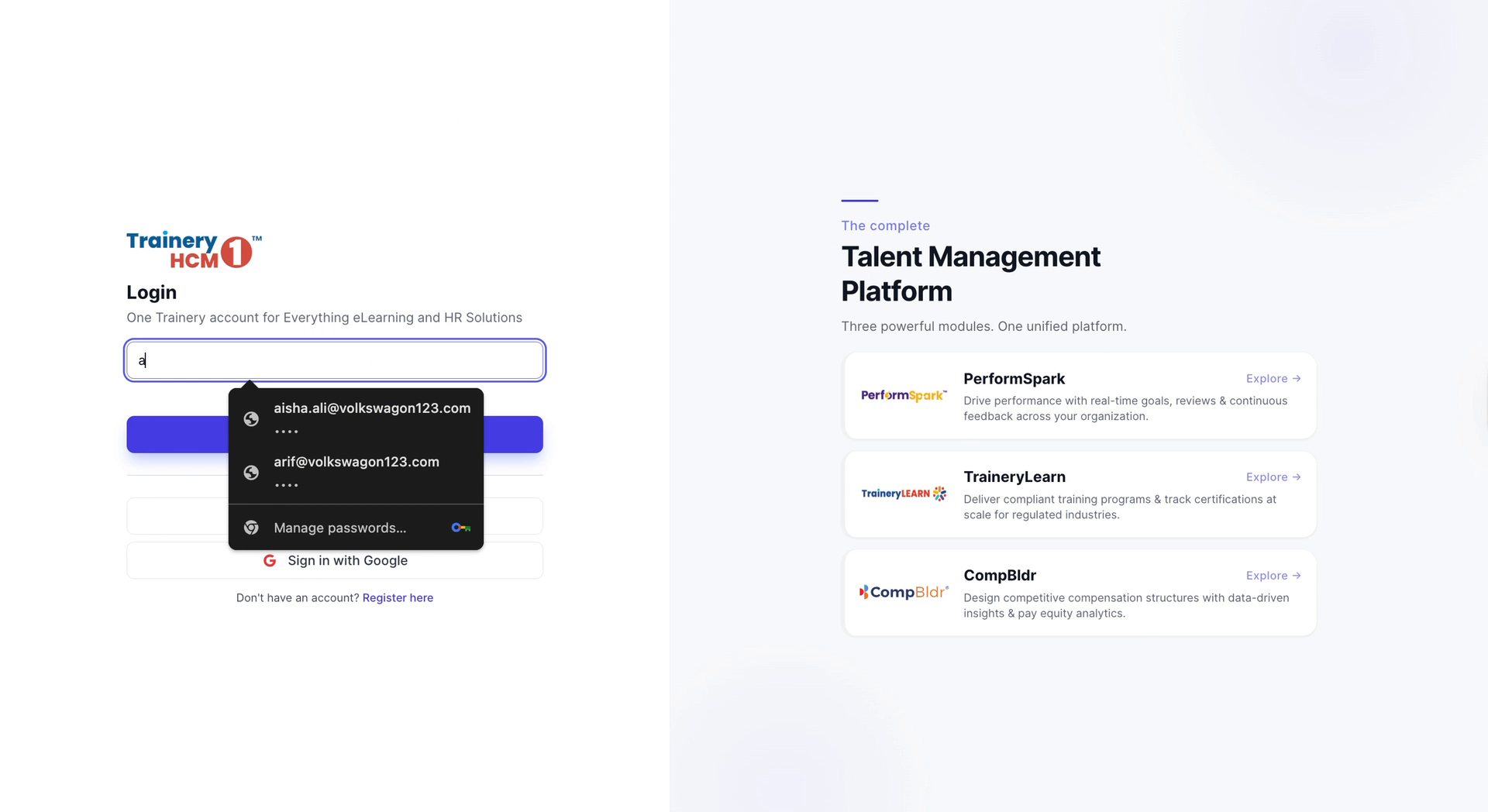
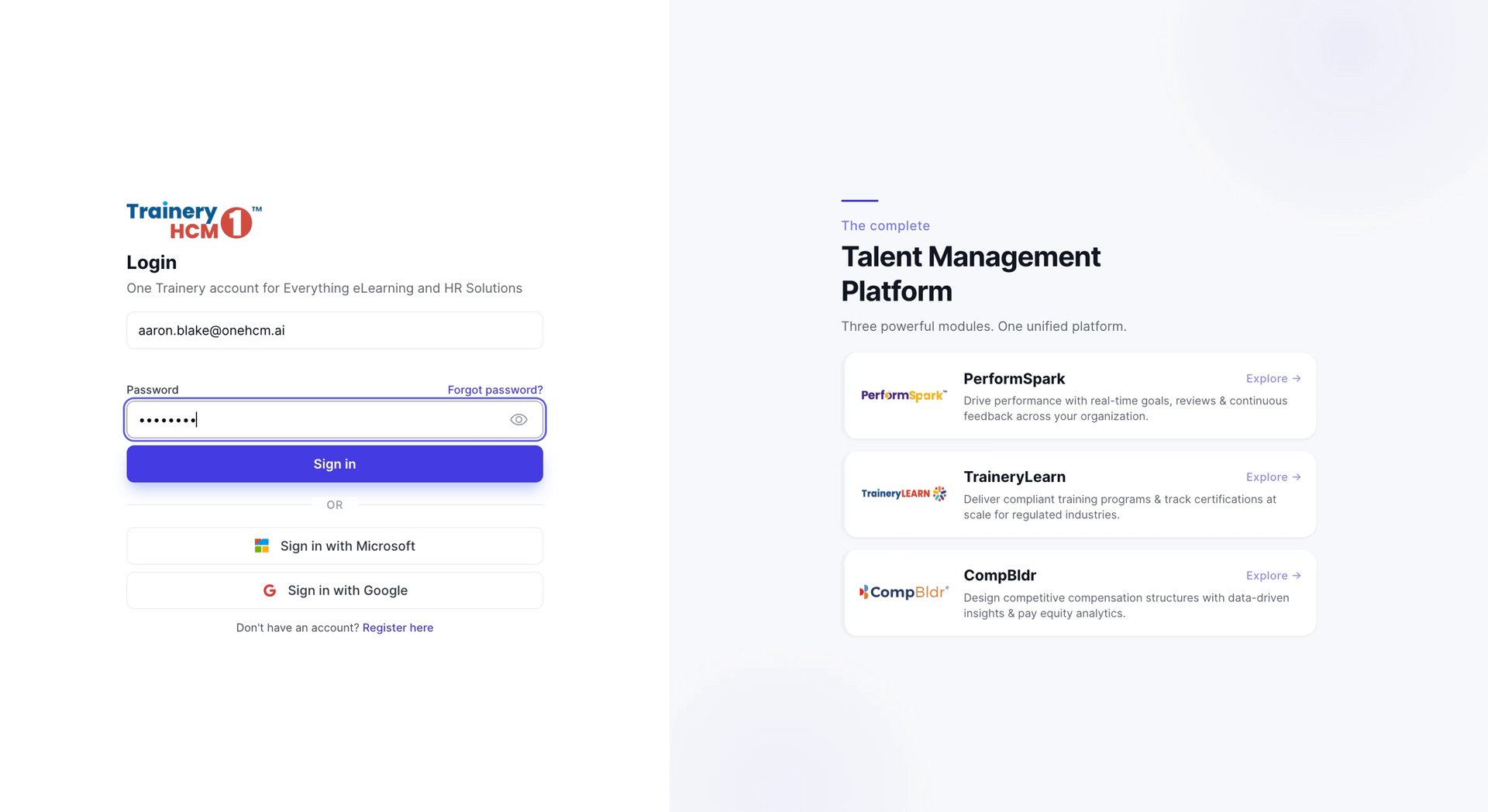
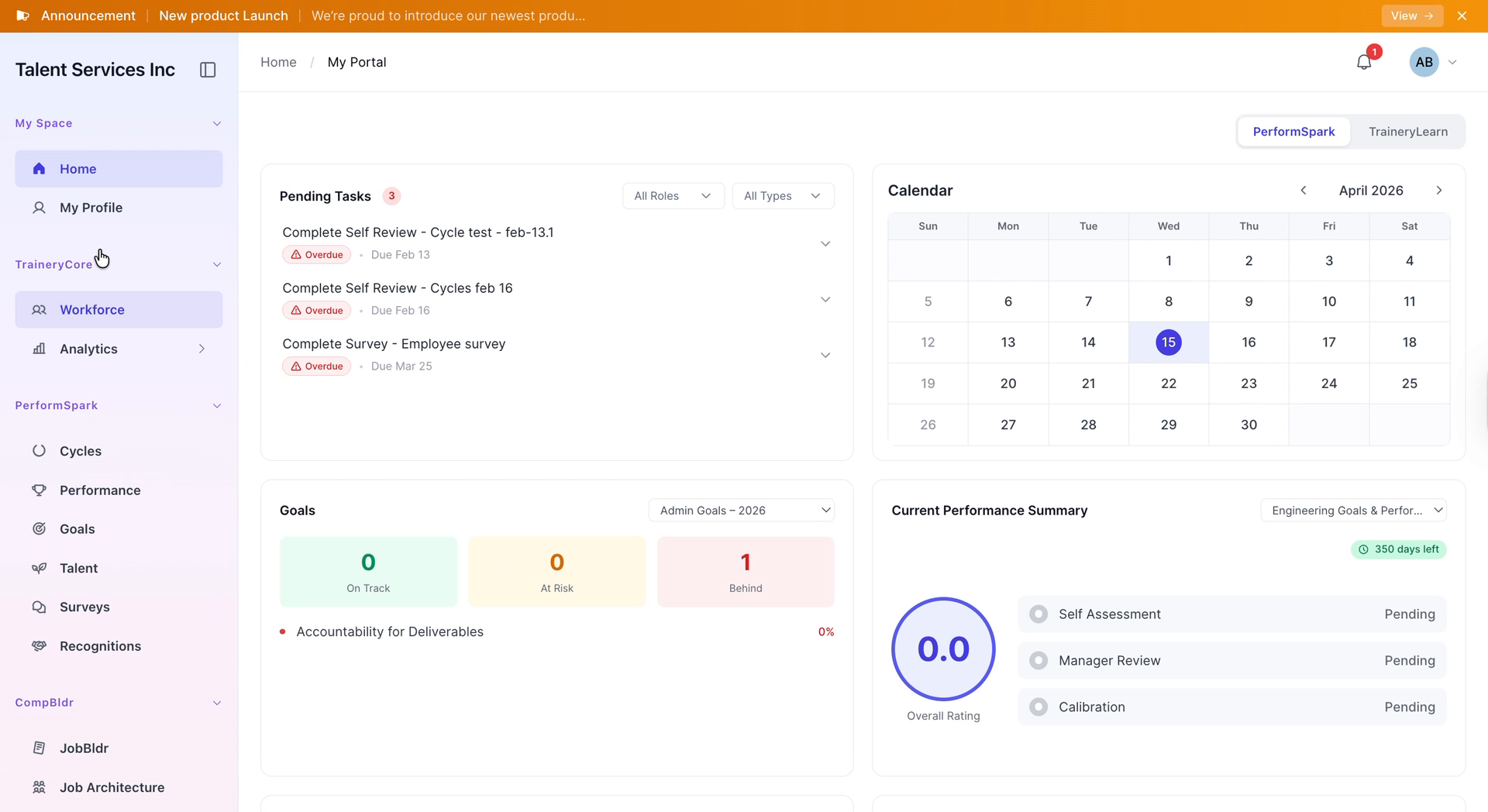
On the login screen, enter your email address and password, then click Sign In to access your workspace and associated records.
Step 6: Locate the Public Engineering Policies Folder
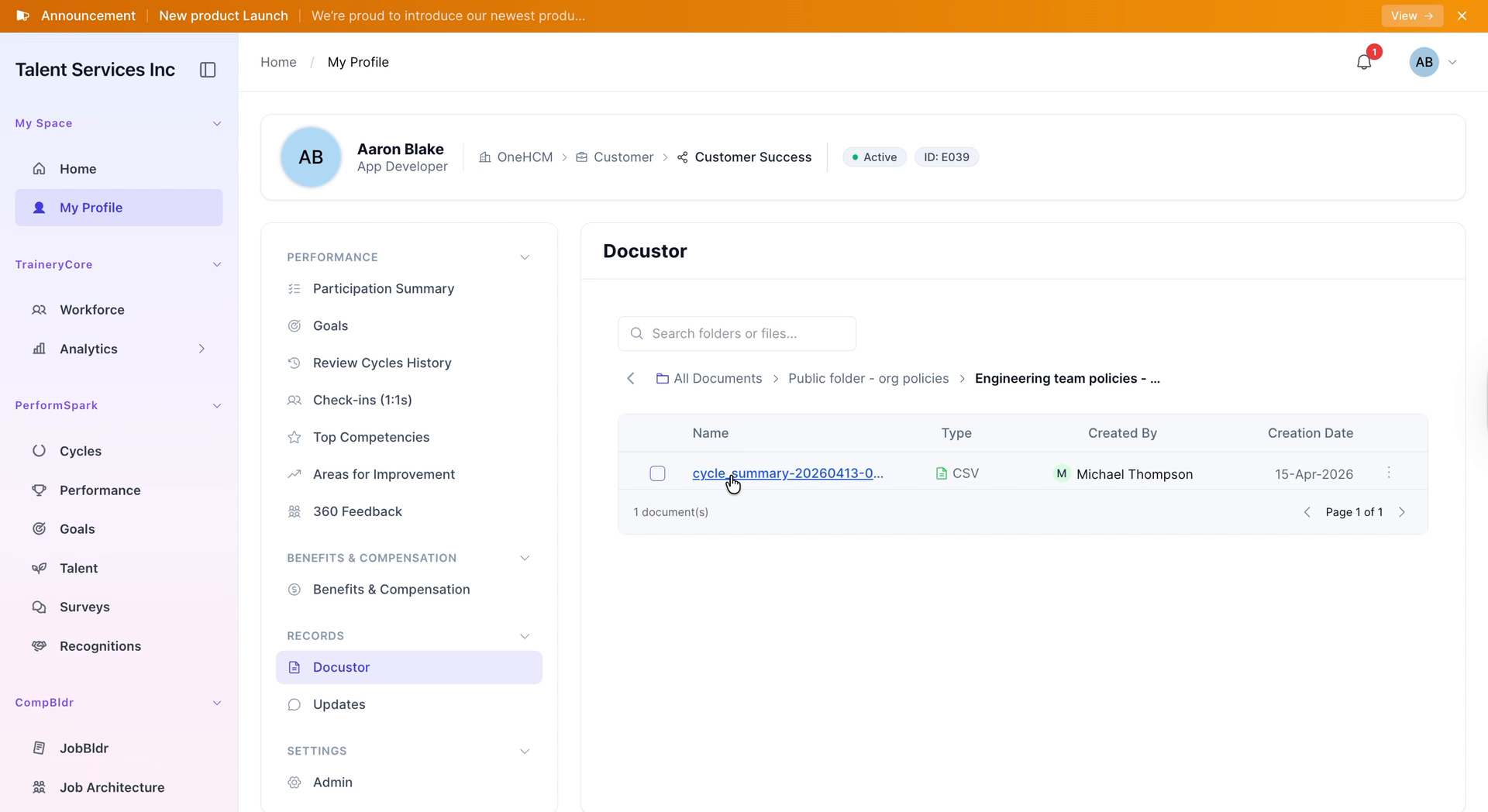
From your profile, navigate to the Records section and click on Docustor. Open the public folder to locate the engineering policies documents stored there.
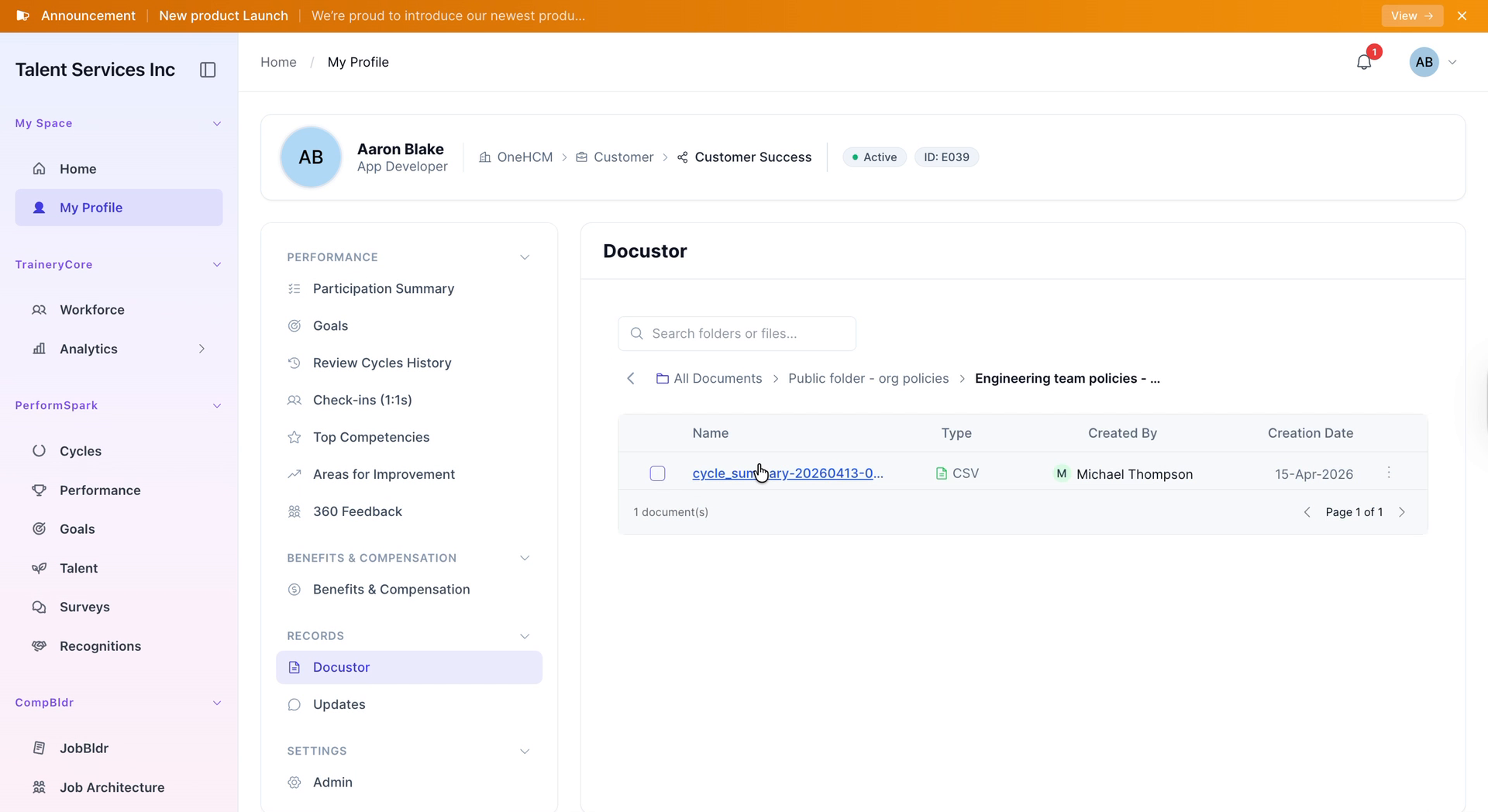
Step 7: Preview and Download the Policy Document
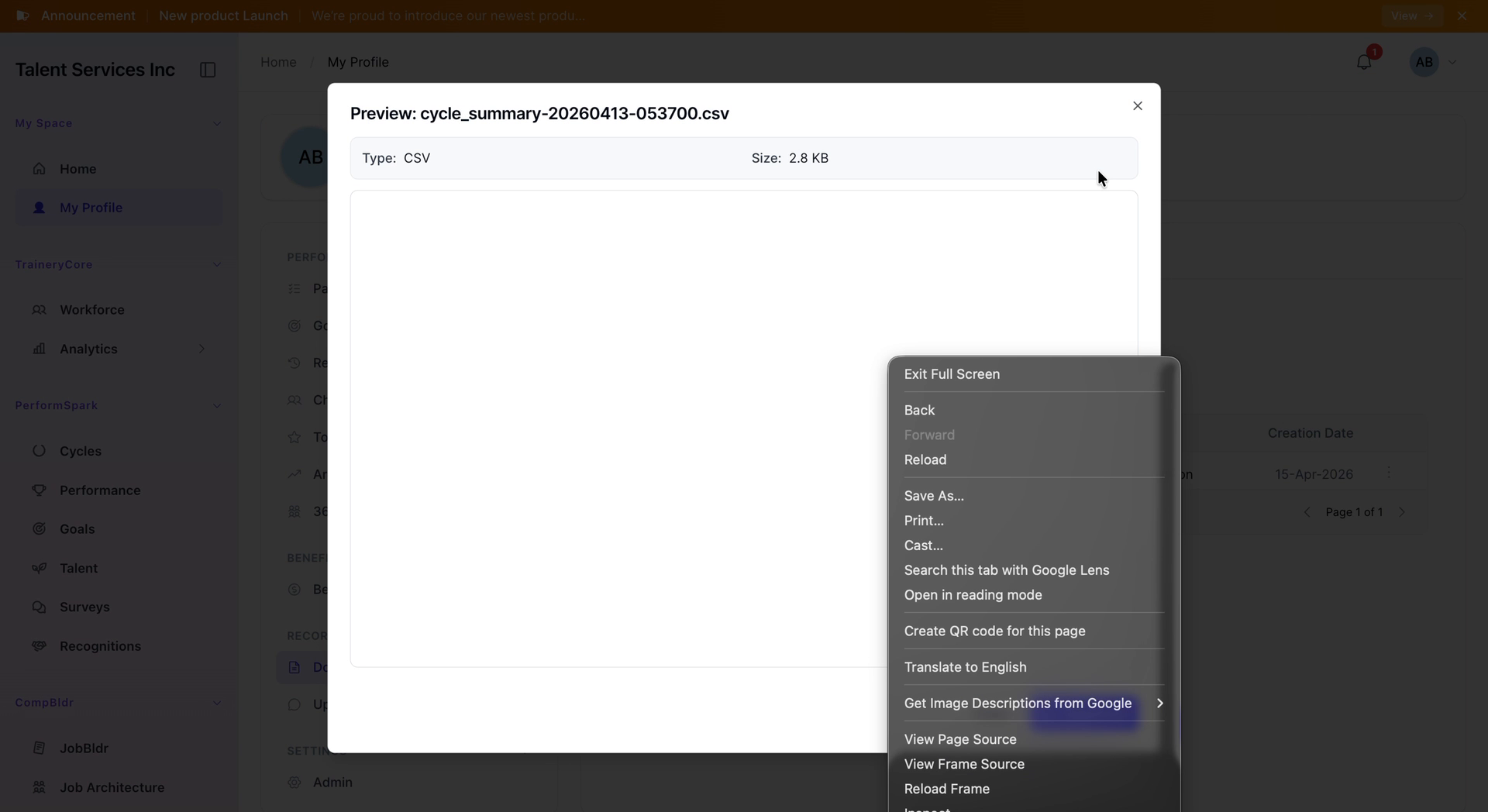
Click the desired document to open a preview. Then click Download to save the file locally to your device. When finished, close the preview window.