Adding an Allowed Domain
Last updated: July 23, 2026
Last updated 16 days agoEdit in Pylon
PerformSpark only lets you add employees whose email address is on your organization's list of allowed domains. If you see a message that a domain isn't recognized when adding a new Employee, it means that domain hasn't been added yet. This article shows an administrator how to add it.
Step 1: Open your Organization Profile settings
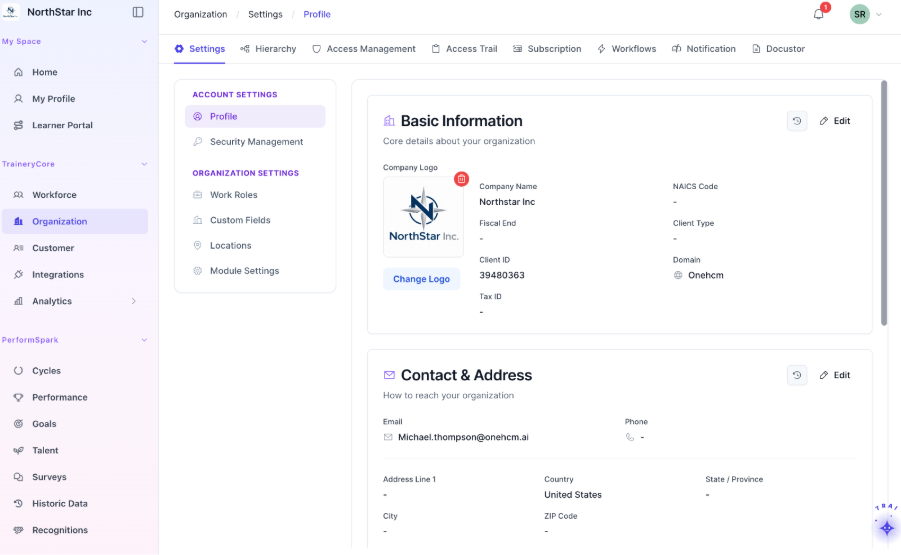
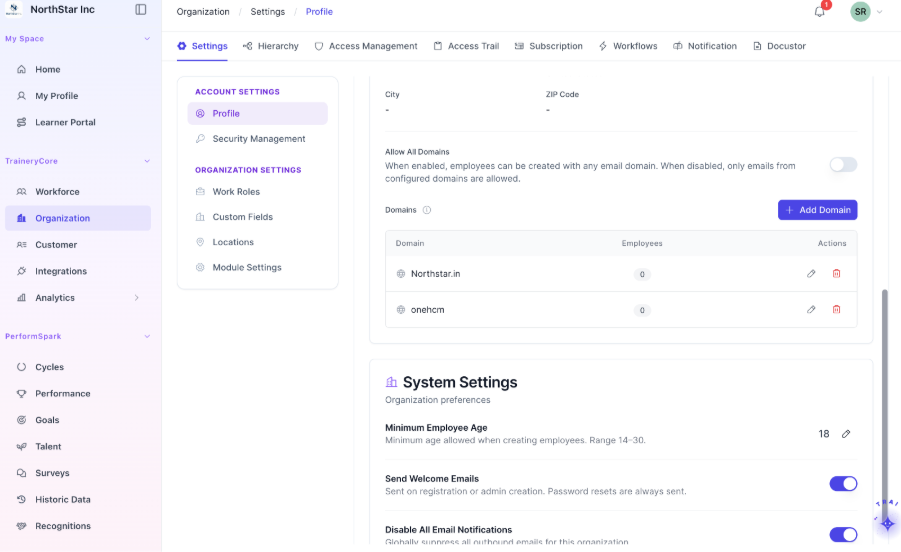
From the sidebar, click Organization. The page opens to Settings, then Profile.
Step 2: Find the Domains section
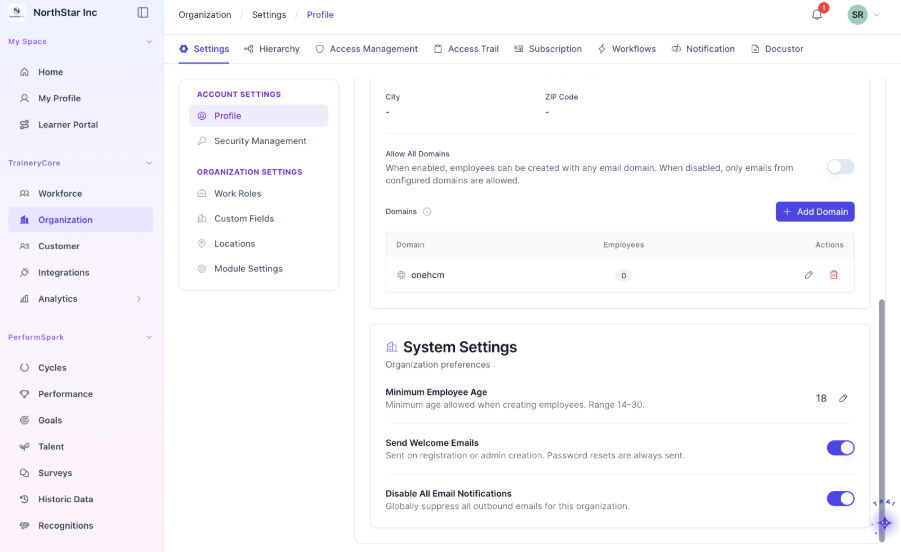
Scroll down the Profile page to the Domains section. This lists every email domain allowed for your organization.
Step 3: Add your domain
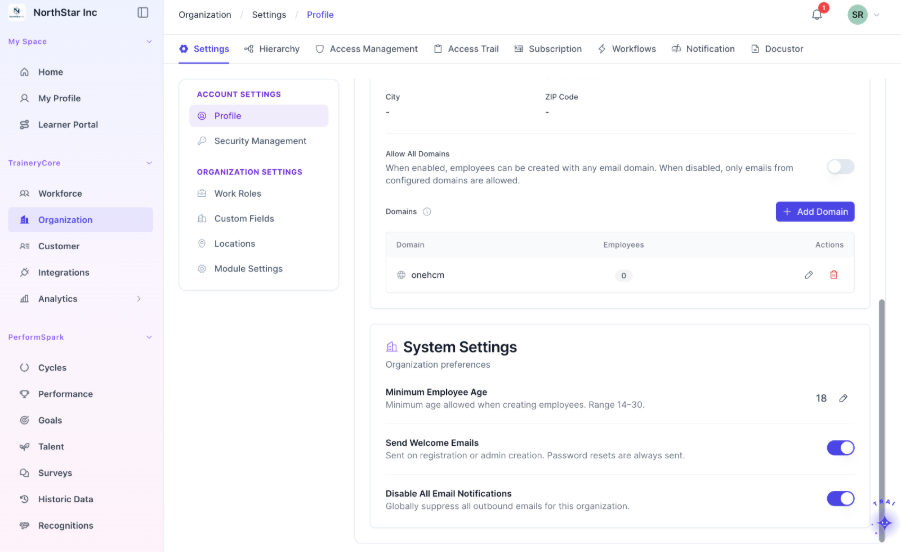
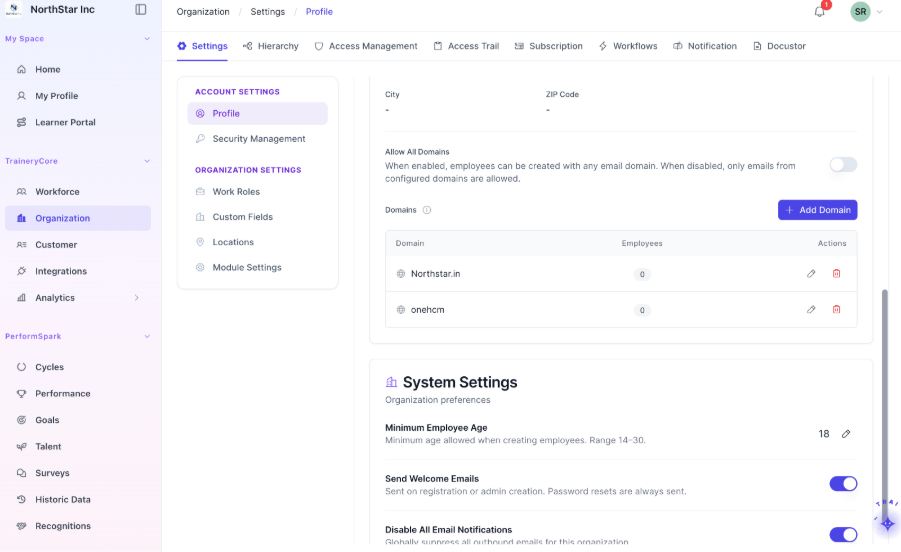
Click + Add Domain, enter your organization's email domain (for example, yourcompany.org), and save.
Step 4: Add the employee again
Return to your People area and add the employee. Their email address will now be accepted.
A note on access: These settings are visible only to users with an Administrator role. If you don't see Organization or the Domains section, ask your account admin to add the domain, or contact support.
A note on "Allow All Domains": There is an option to allow all domains, which accepts employees on any email address. We don't recommend it, because it removes a safeguard against accidentally adding people from outside your organization. Add individual domains instead.
Related Articles: Adding Location · Work Roles · Configuring PerformSpark Module Settings