Updating Organization Profile Information
Last updated: May 3, 2026
Updating Organization Profile Settings
This document outlines how to update an organization’s profile details, including basic company information, address, contact details, age validation settings, and email settings, and then save all changes.
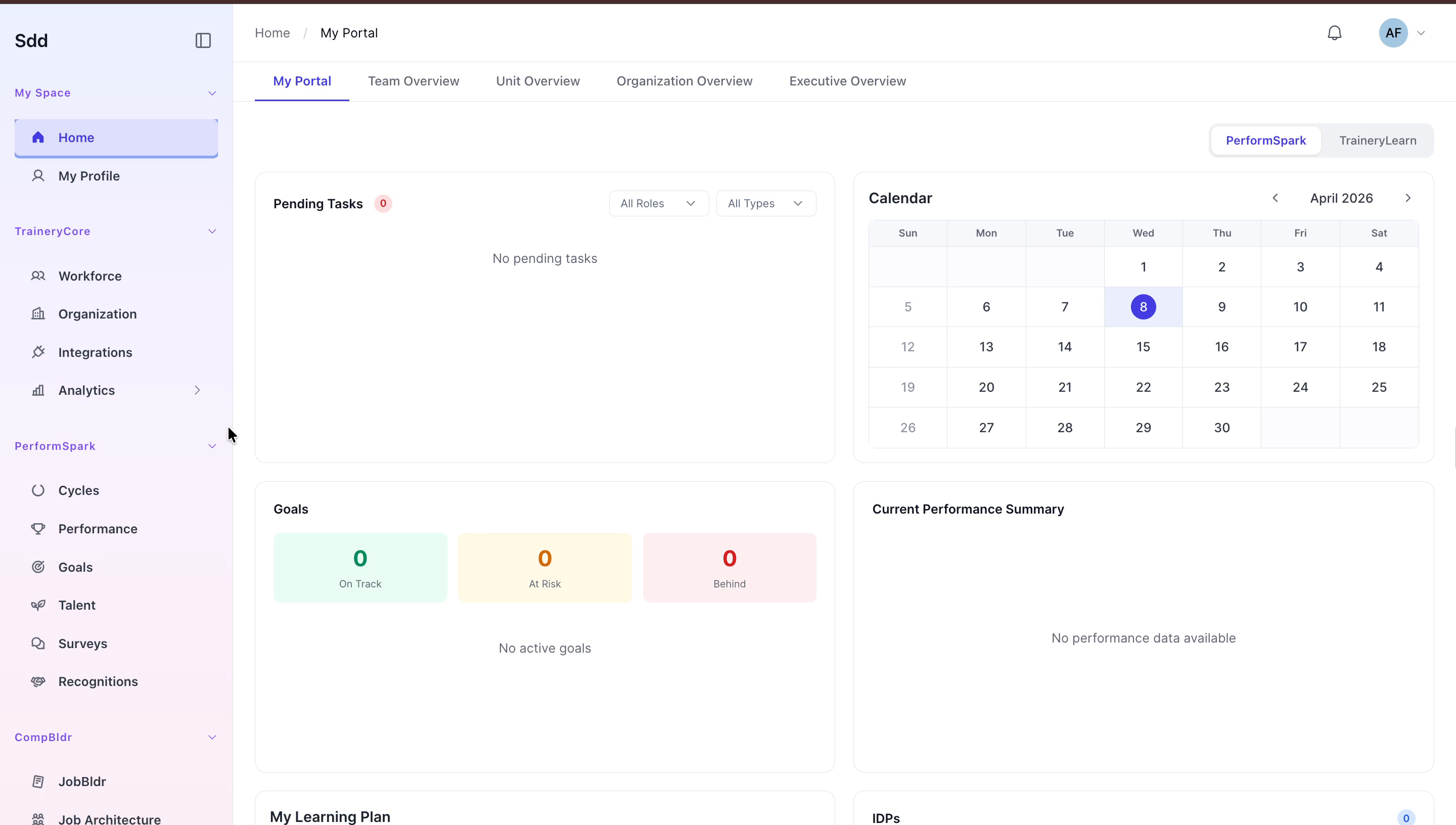
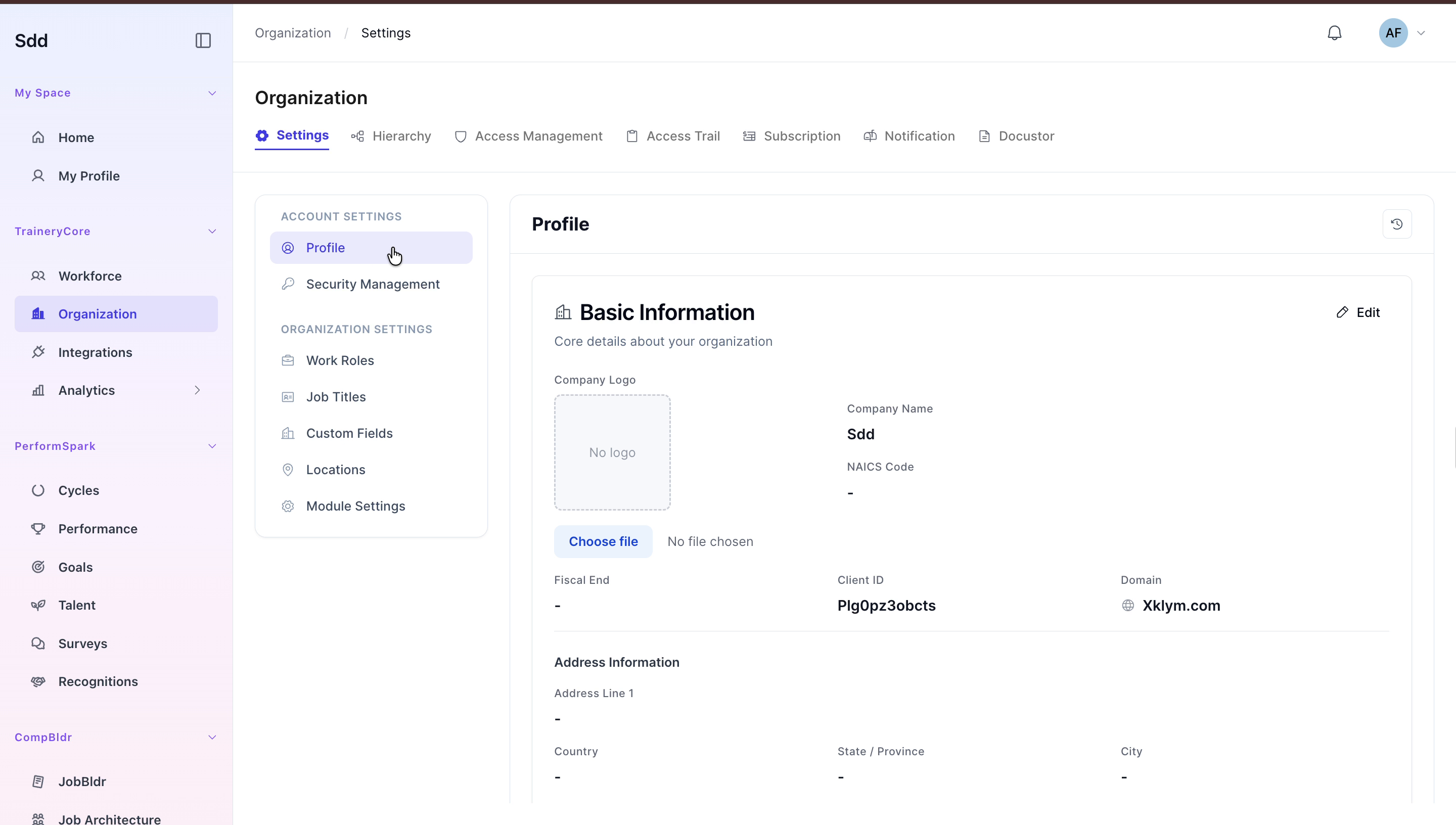
Step 1: Open the Organization Profile for Editing
1. Click on Organization in the main menu. 2. Navigate to the Profile tab. 3. Click the Edit button to enable editing of the basic information.
Step 2: Update Basic Company Information
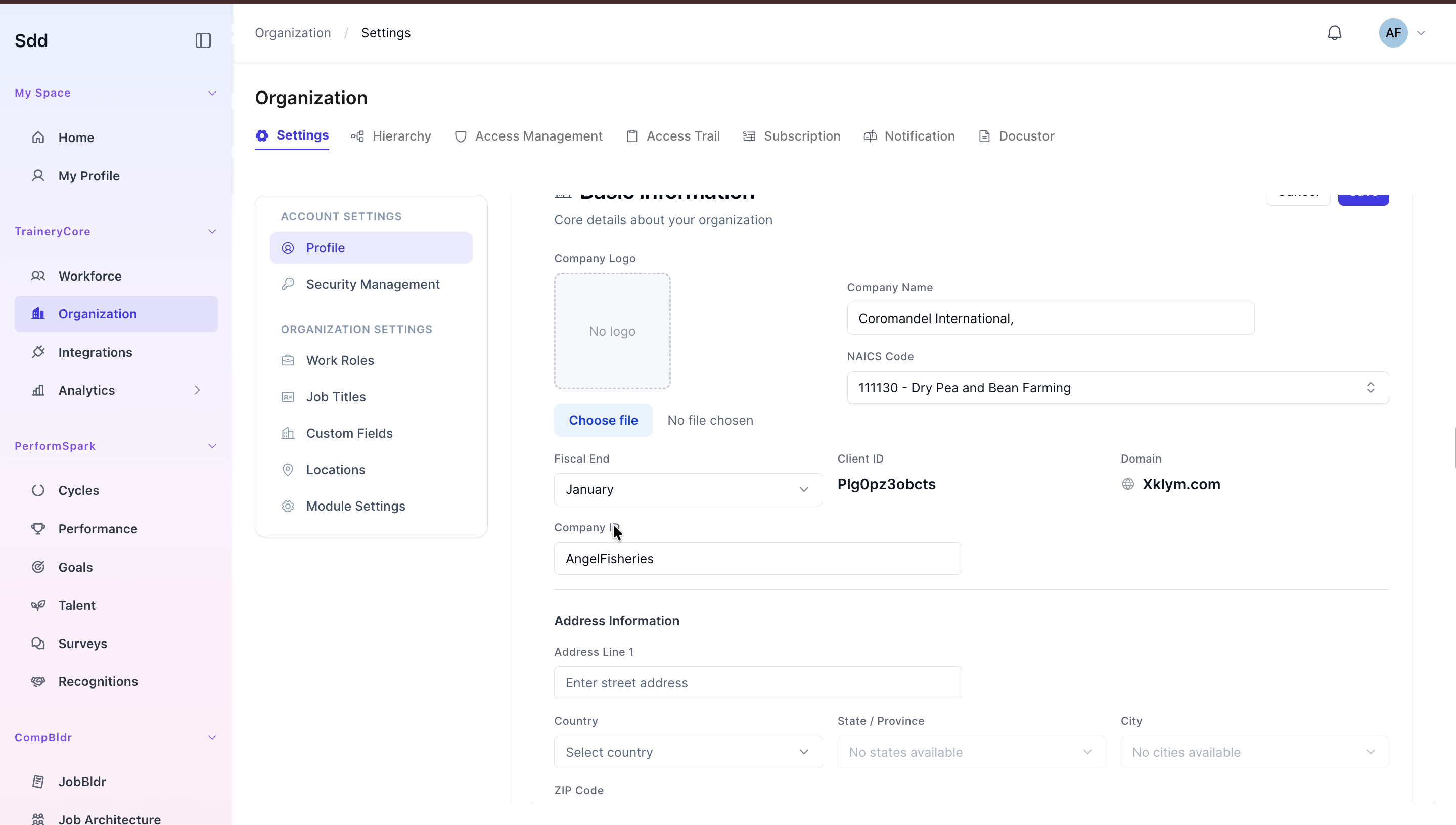
1. In the basic information section: - Update the Company Name to Coromandel International. - Select the appropriate NAICS code from the dropdown list. - Set the Fiscal End Month to January. - Enter the Company ID in the designated field.

Step 3: Enter Address Information (Street, Country, State)
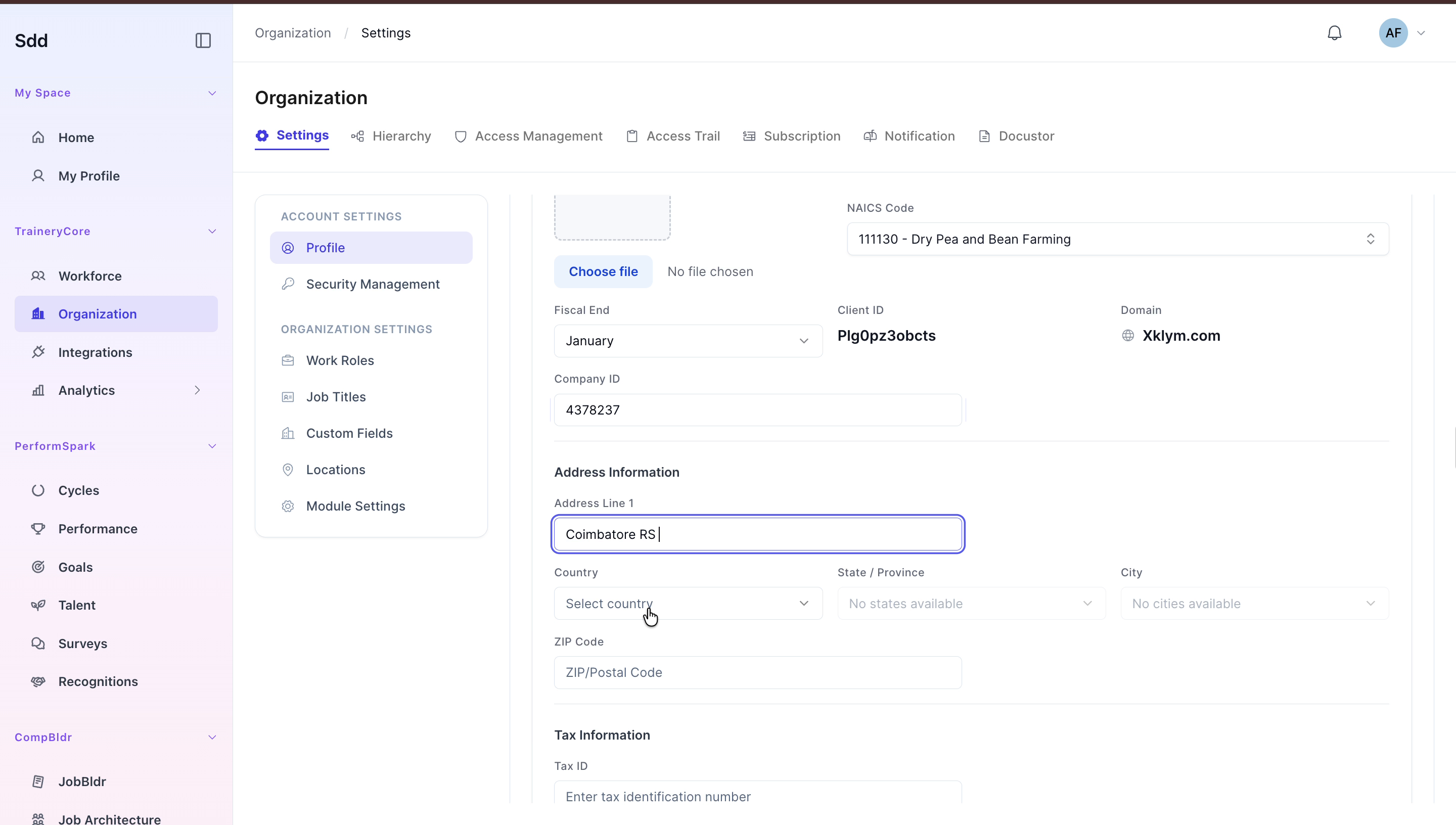
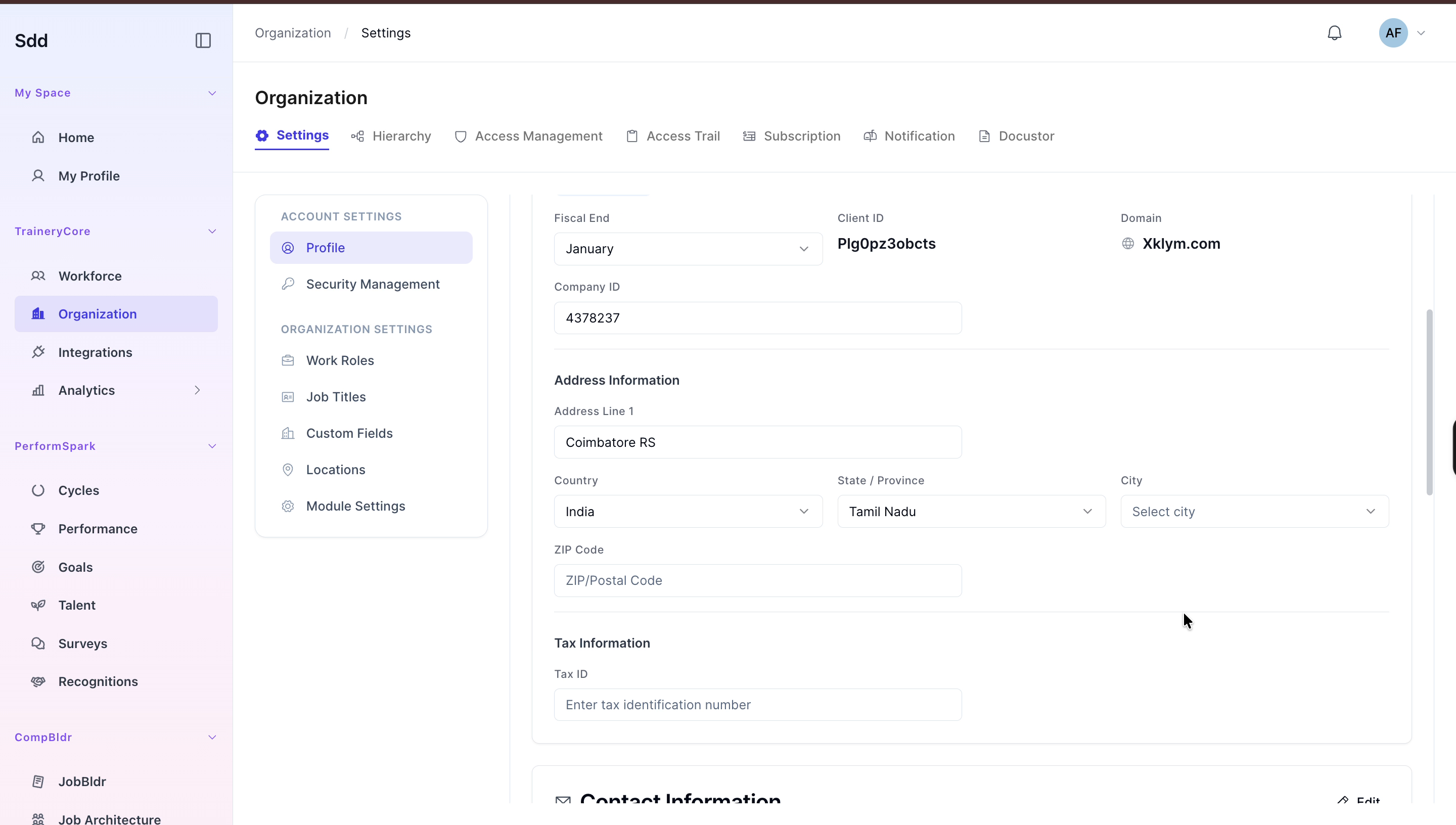
1. In the Address Information section: - Type Coimbatore RS in the Street Address field. - Select India from the Country list. - Select Tamil Nadu from the State dropdown menu.

Step 4: Complete Address and Tax Details
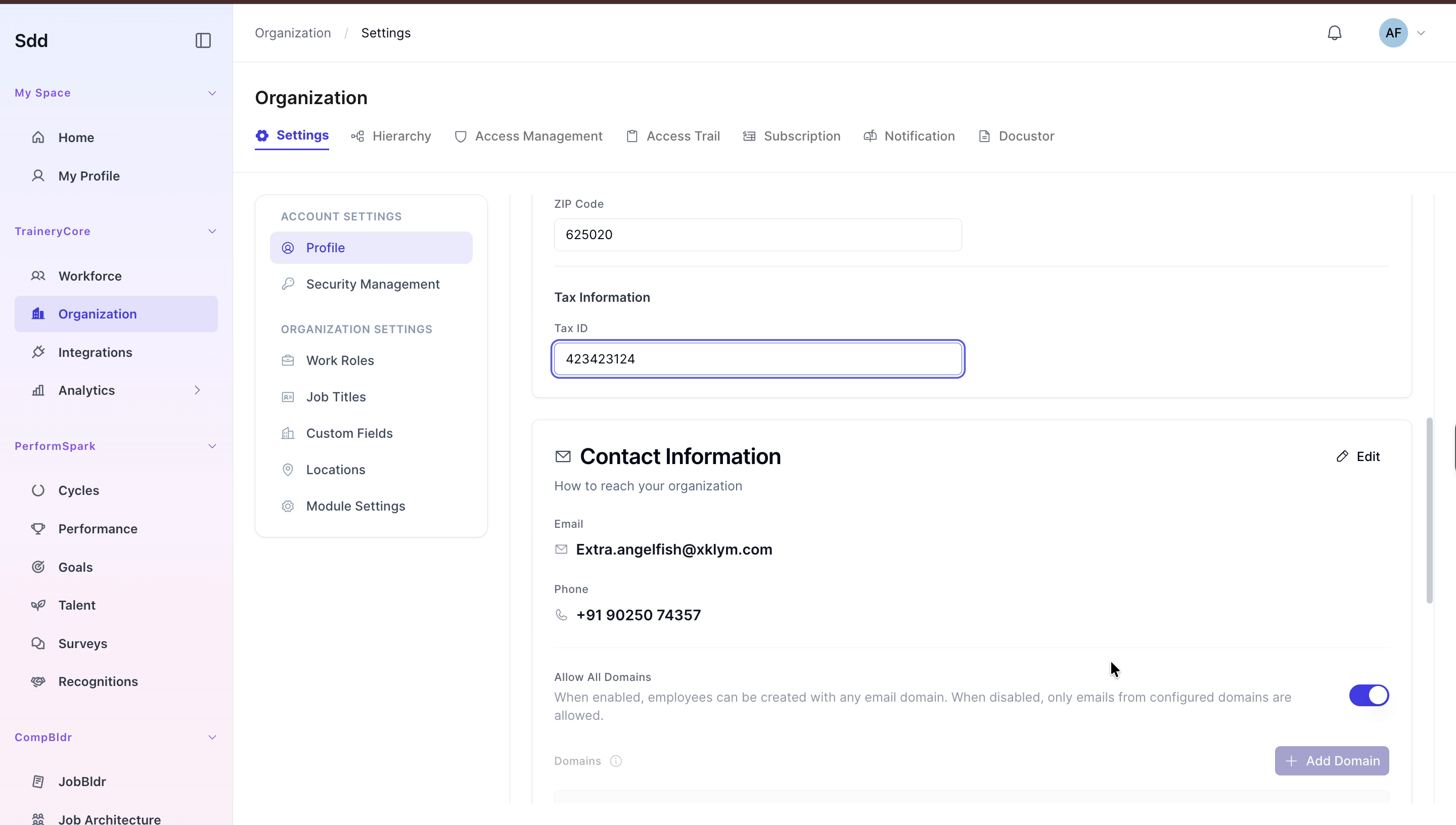
1. Continue completing the address: - Select Coimbatore as the City. - Enter 625020 as the ZIP/Postal Code. 2. Enter the organization’s Tax Identification Number in the appropriate field.
Step 5: Update Contact Information
1. In the Contact Information section, click the Edit button. 2. Update the Email Address to the new organization email (e.g., coromandelinternational.com as specified). 3. Adjust the Phone Number as needed.
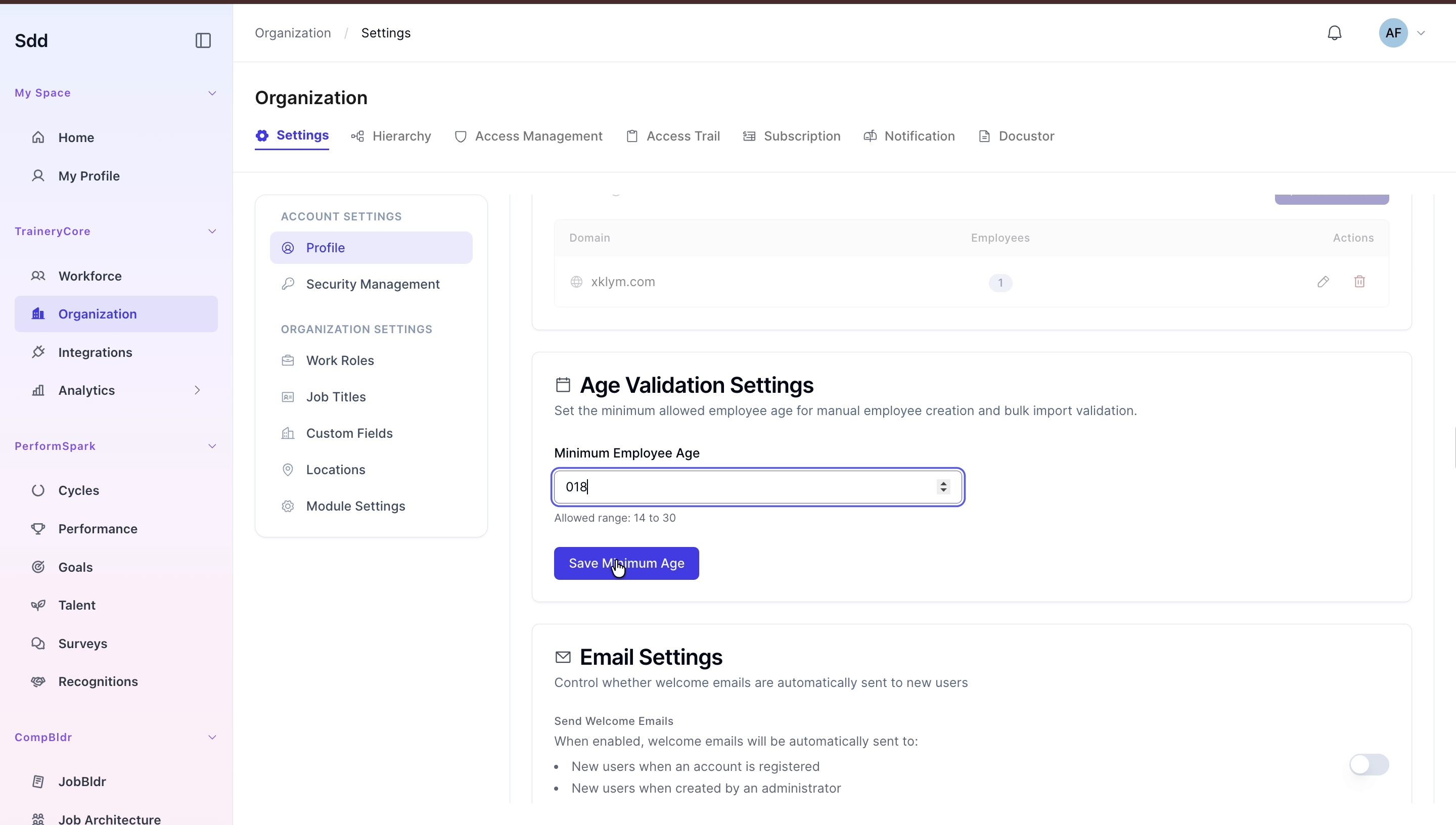
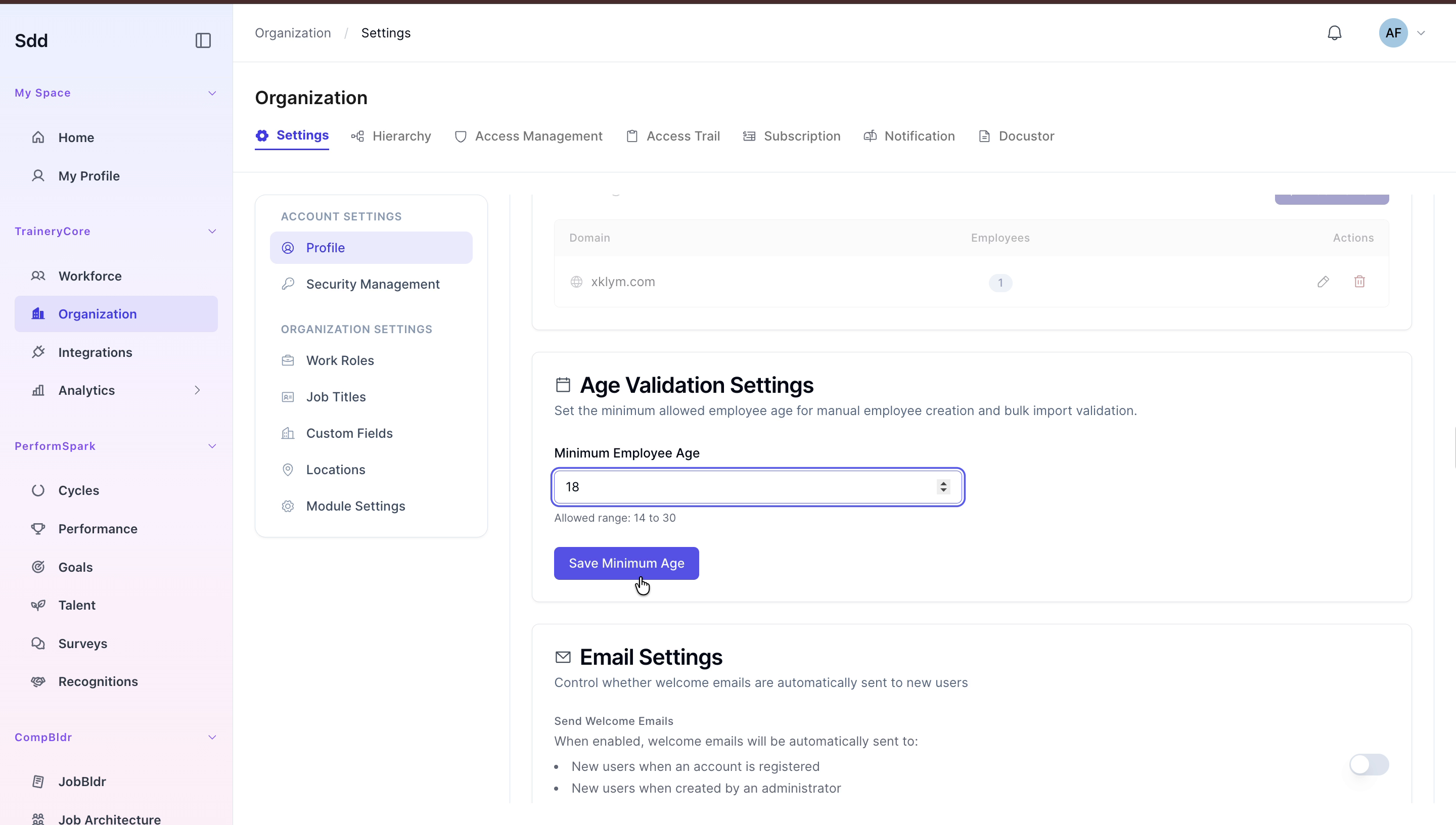
Step 6: Configure Age Validation Settings
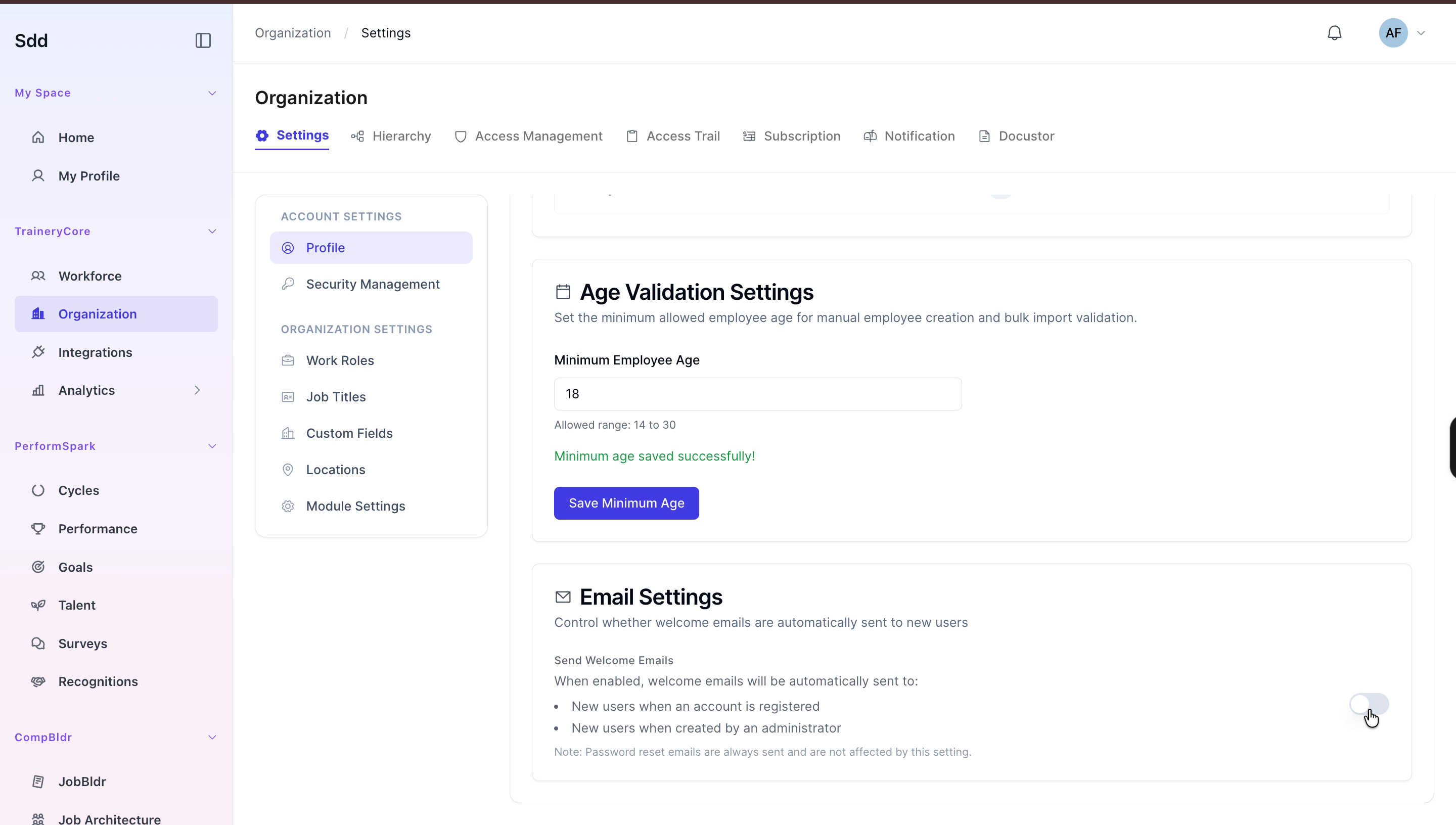
1. Scroll down to the Age Validation Settings section. 2. Change the Minimum Employee Age to 18. 3. Click the Save Minimum Age button to apply the update.
Step 7: Enable Email Settings and Save the Profile
1. Toggle the switch to enable Email Settings.
2. Scroll back to the top of the profile page. 3. Click the Save button to finalize and store all changes to the organization profile.
