Security Configuration Guide
Last updated: May 3, 2026
Configuring Security and Privacy Settings in the Organization Panel
This document describes how to configure key security and privacy settings in the Organization section, including access by email, login attempt limits, multi-factor authentication, single sign-on, and directory privacy controls.
Step 1: Open Security Management in the Organization Section
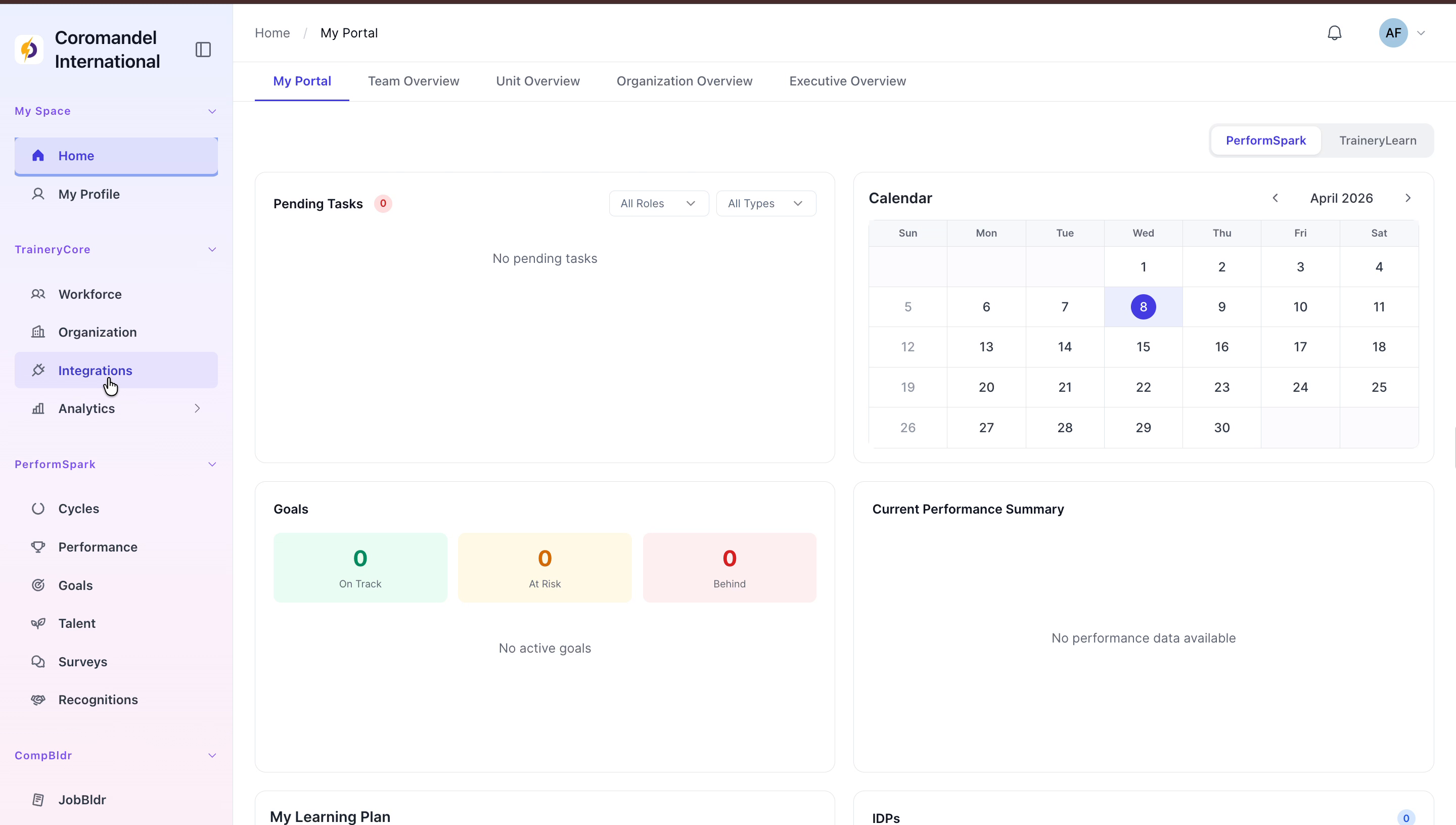
Navigate to the Organization section from the sidebar, then select Security Management to access the security configuration options.

Step 2: Enable Access by Email
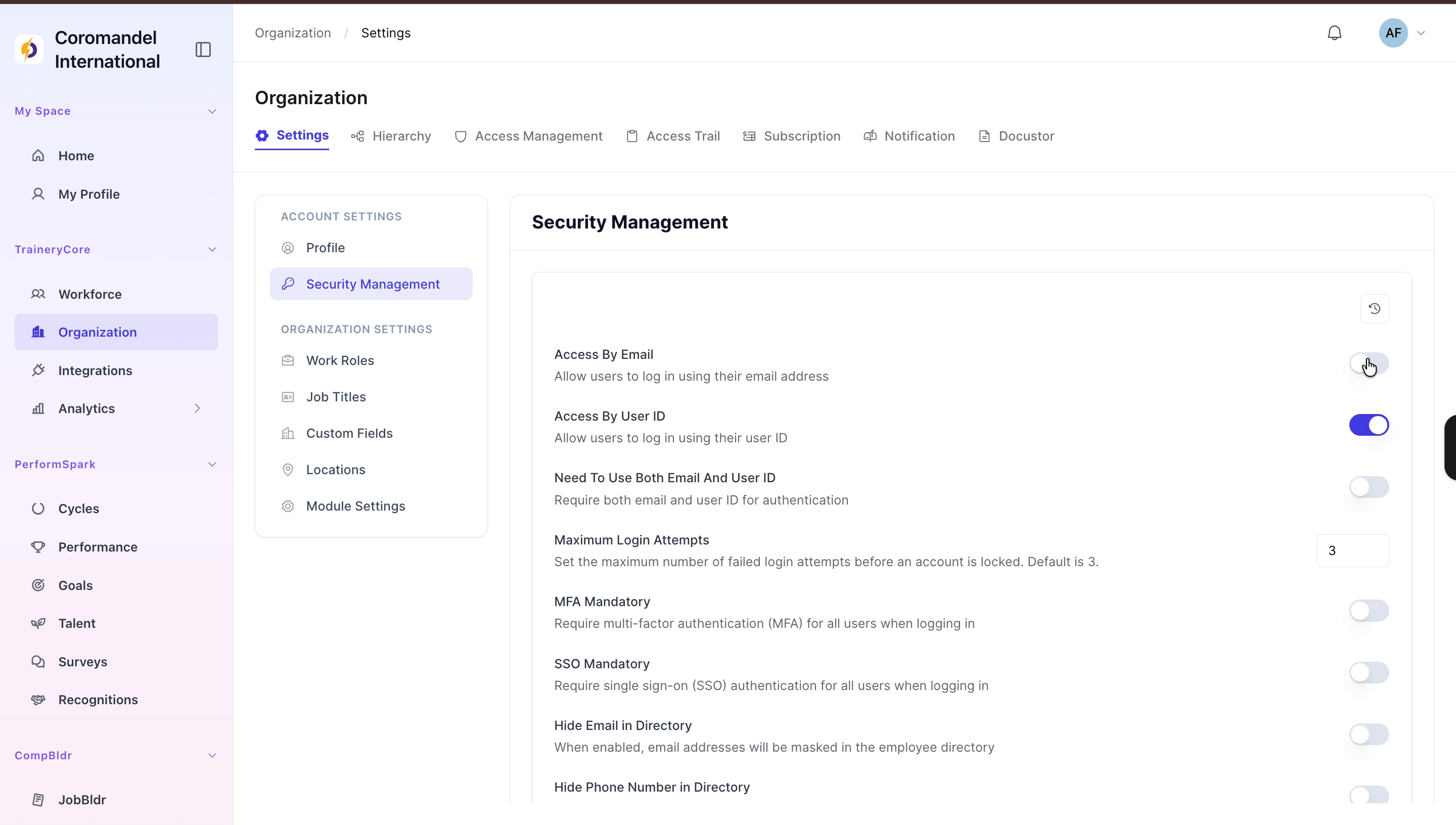
In the Security Management panel, locate the Access By Email setting and enable it to allow users to log in using their email address. Confirm that the system displays a success notification for this change.
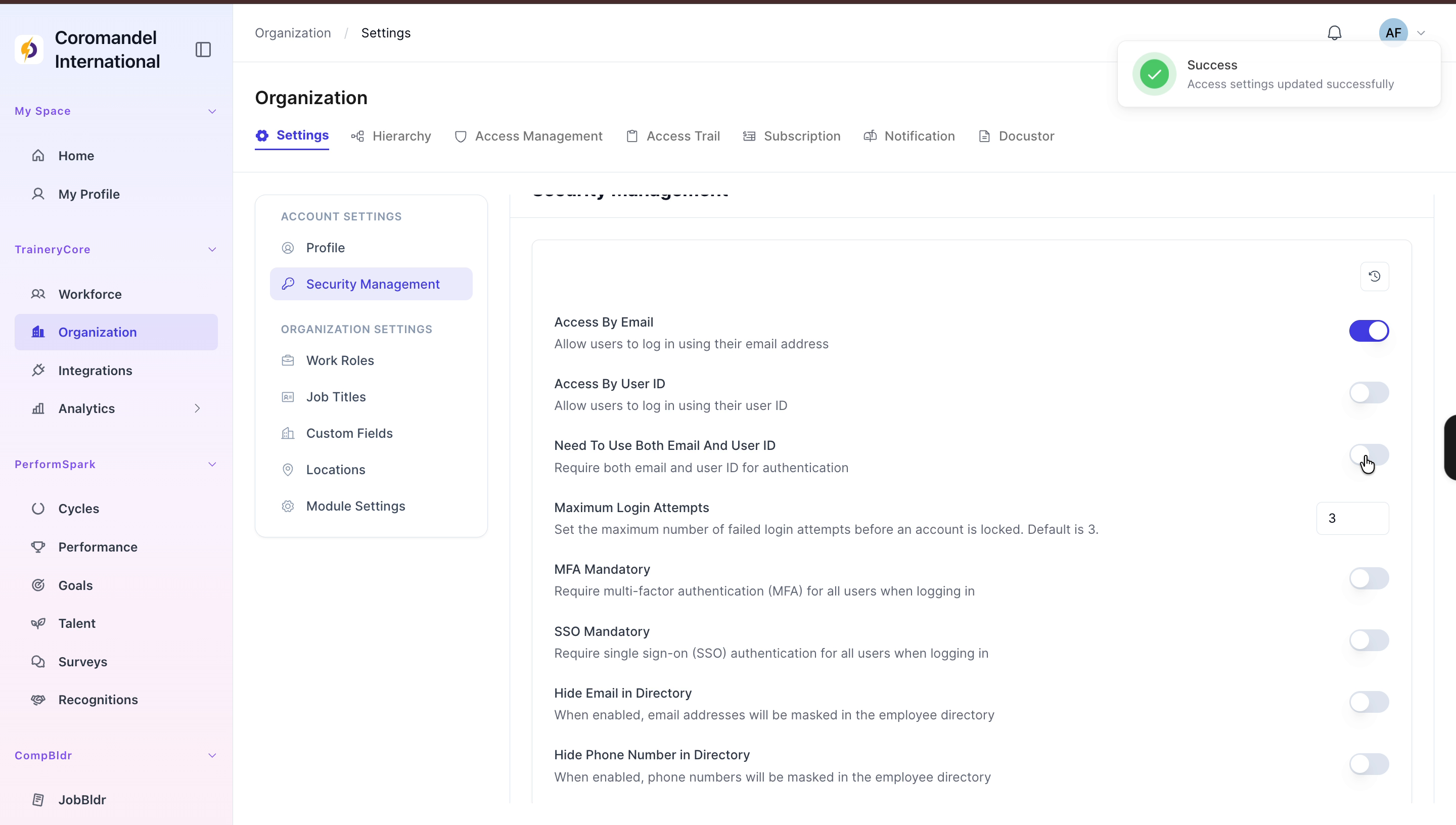
Step 3: Require Both Email and User ID for Login
Toggle on the option that requires users to authenticate using both email and user ID. Verify that the change is saved by checking for the success notification.
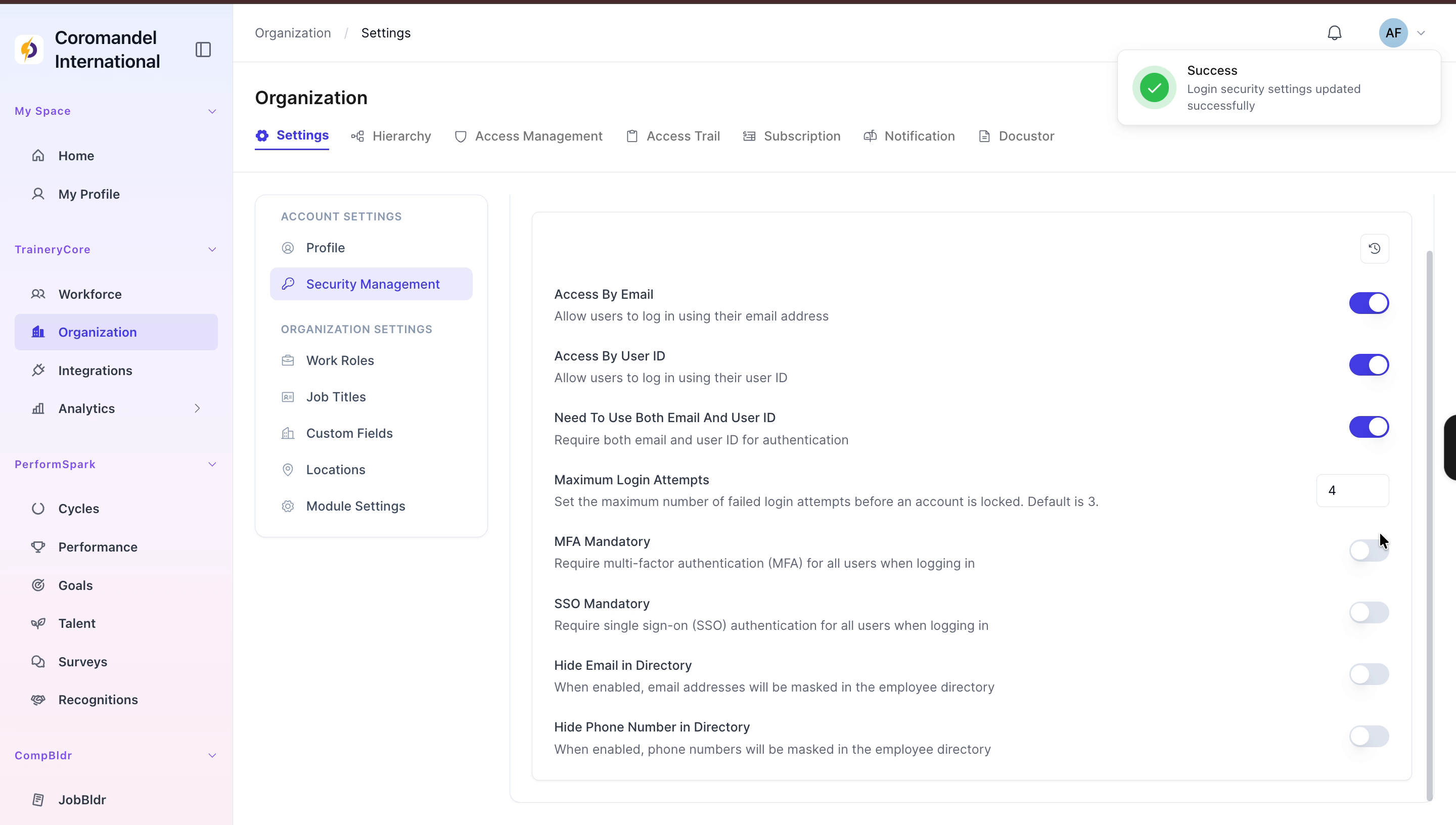
Step 4: Increase Maximum Login Attempts to Four
Adjust the maximum login attempts setting to 4 to strengthen account protection, then save the change and confirm it via the success notification.

Step 5: Enable Mandatory MFA and Single Sign-On
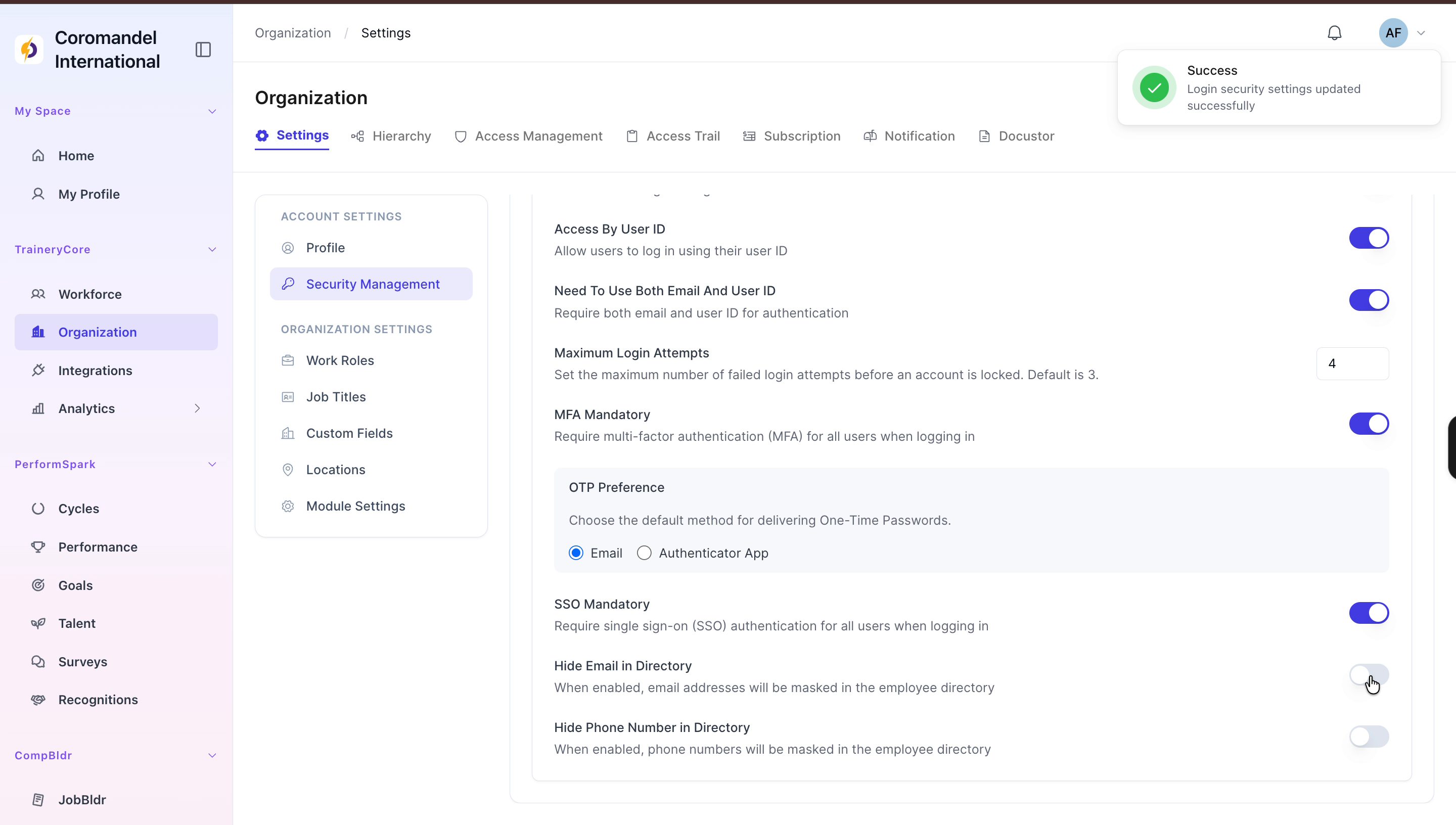
Enable mandatory multi-factor authentication (MFA) for all users, then turn on single sign-on (SSO) so that all users must authenticate via your SSO provider. Confirm that both settings are successfully applied by reviewing the system alerts.

Step 6: Hide Email Addresses and Phone Numbers in the Employee Directory
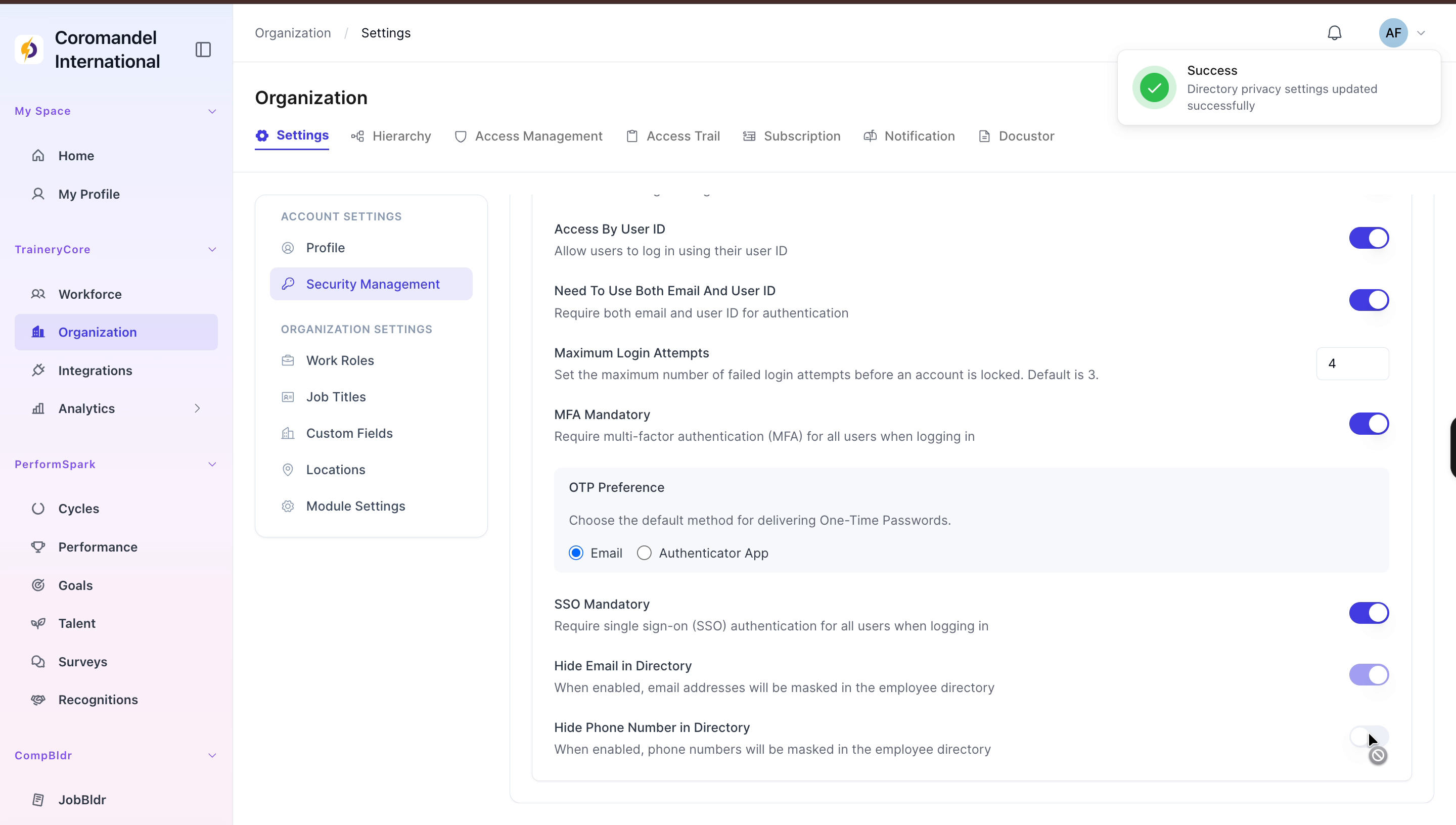
Toggle on the privacy options to hide email addresses and hide phone numbers in the employee directory, ensuring that this contact information is not visible to general users. Confirm that the system alerts indicate these privacy settings have been successfully enabled.