Budget Management and Allocation Workflow
Last updated: May 3, 2026
Managing Compensation Budgets in Comp Planner
This document outlines how to adjust proposed base budgets in Comp Planner, publish those budgets to managers, and verify that the status updates correctly from both the admin and manager perspectives.
Step 1: Open Comp Planner and Access Budget Management
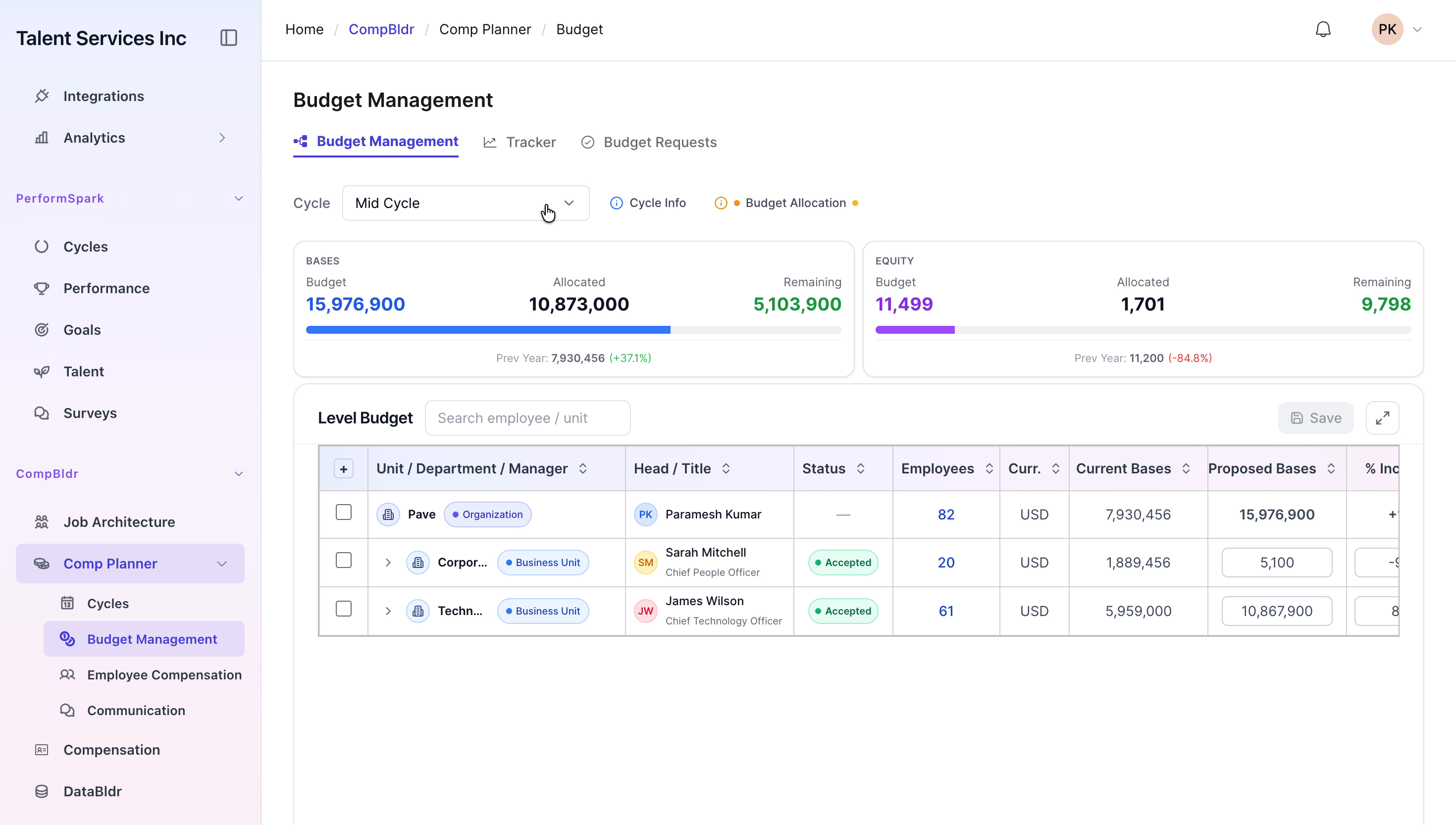
Navigate to the Comp Planner application and, from the sidebar menu, select Budget Management to open the budget configuration dashboard.


Step 2: Update the Proposed Base Budget for a Business Unit
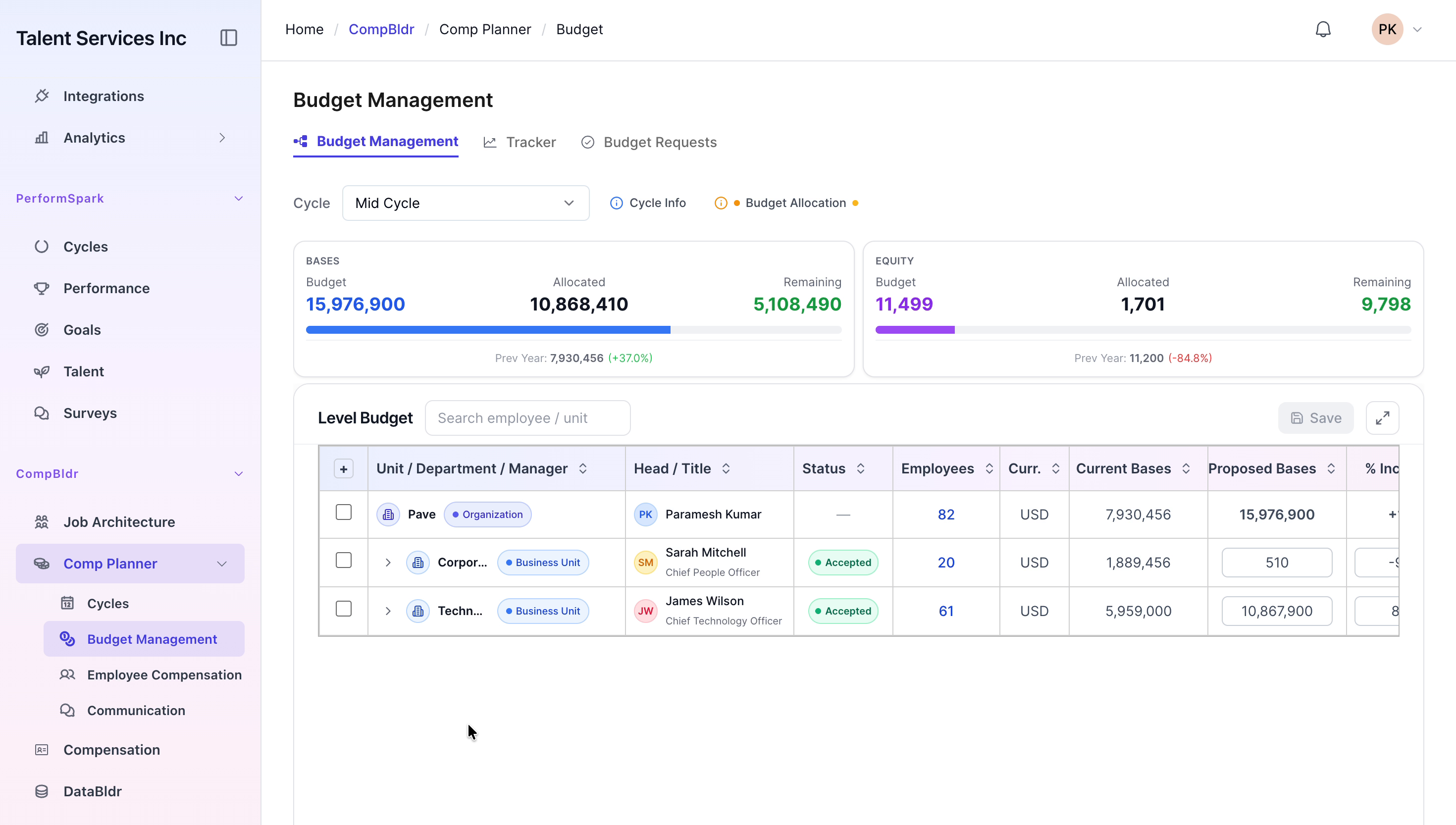
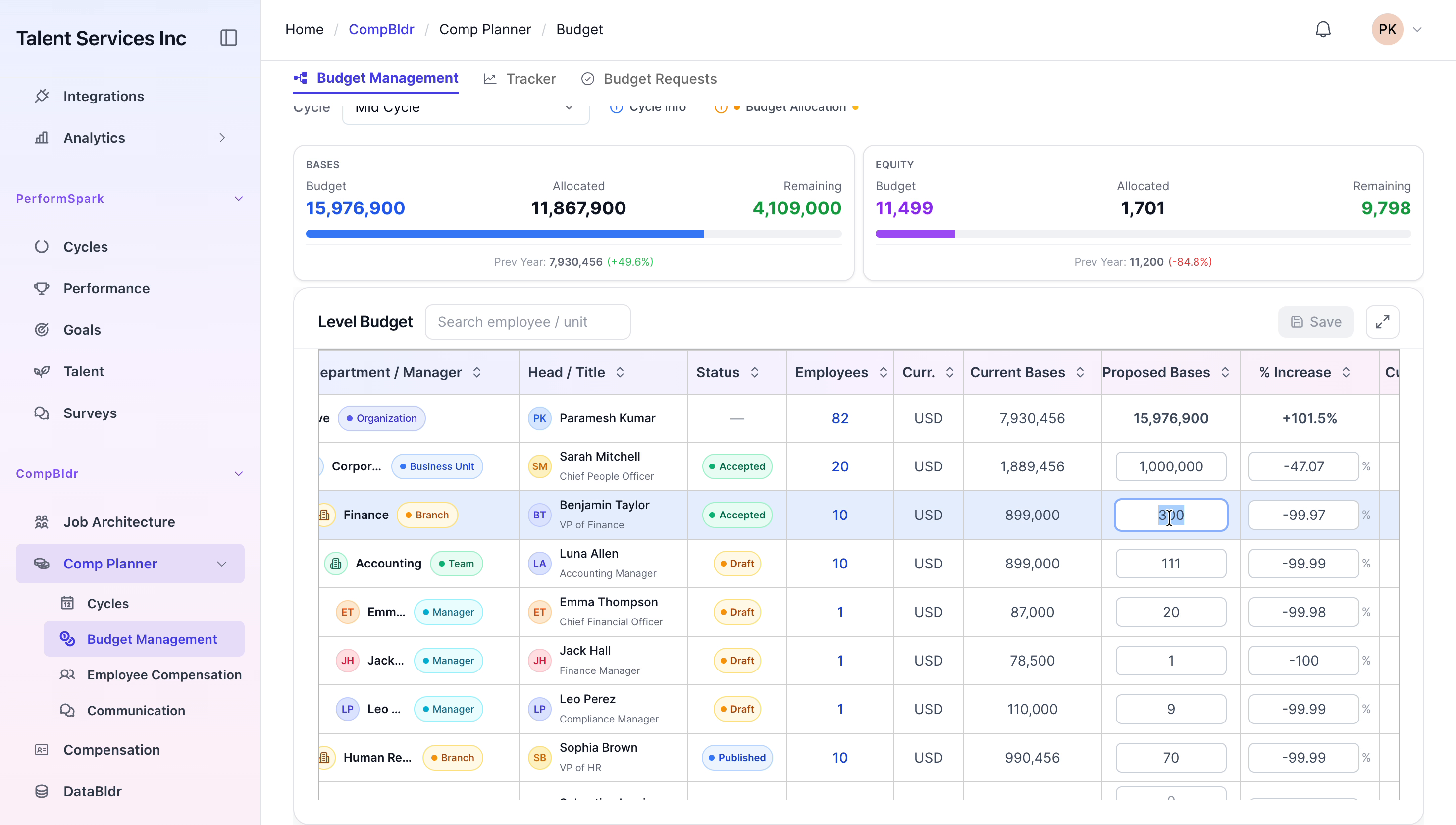
In the Budget Management dashboard, locate the relevant business unit in the list. Edit the Proposed Base Budget value for that unit to reflect the new budget target, and confirm the change in the interface.
Step 3: Expand the Organizational Hierarchy
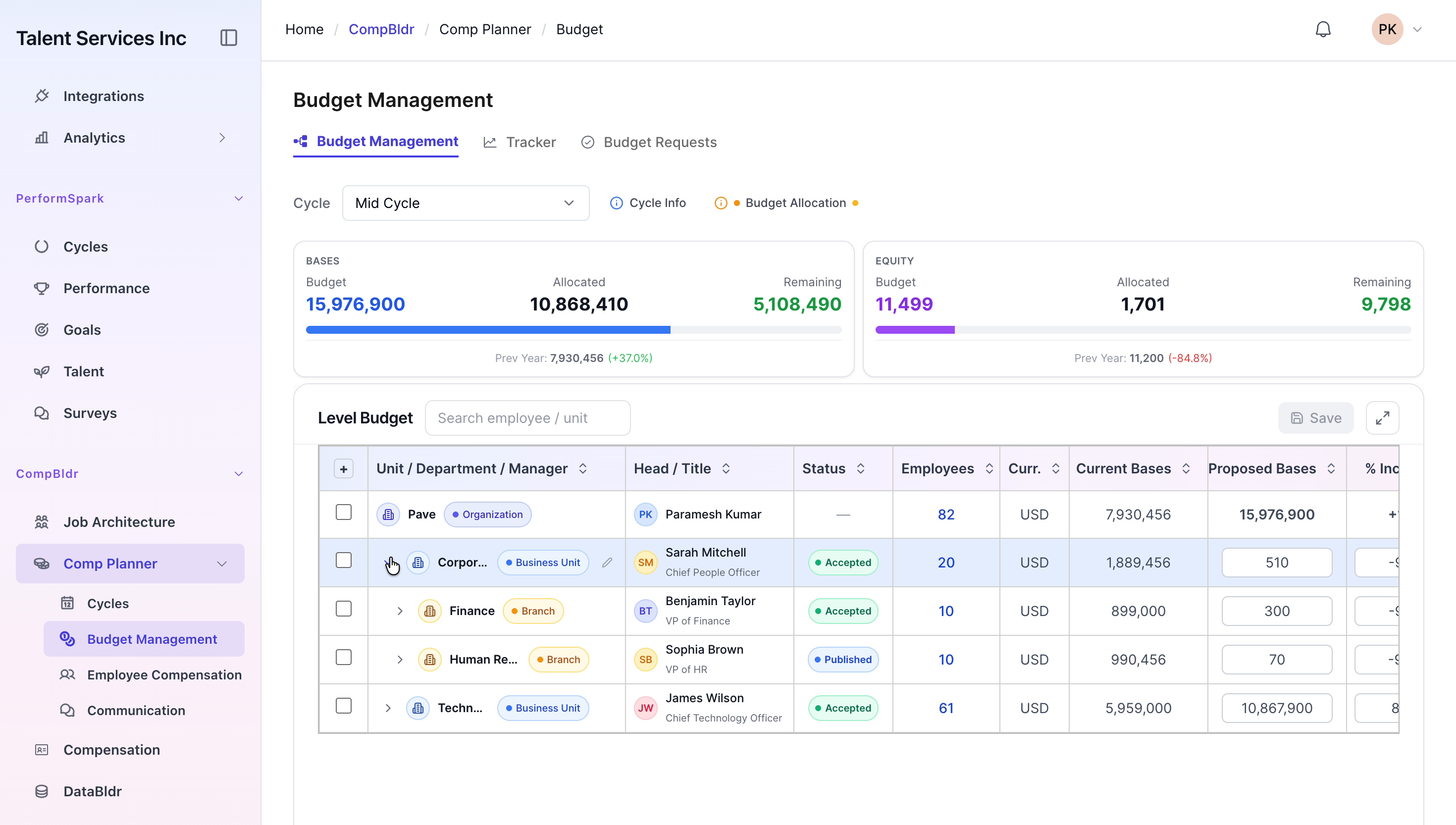
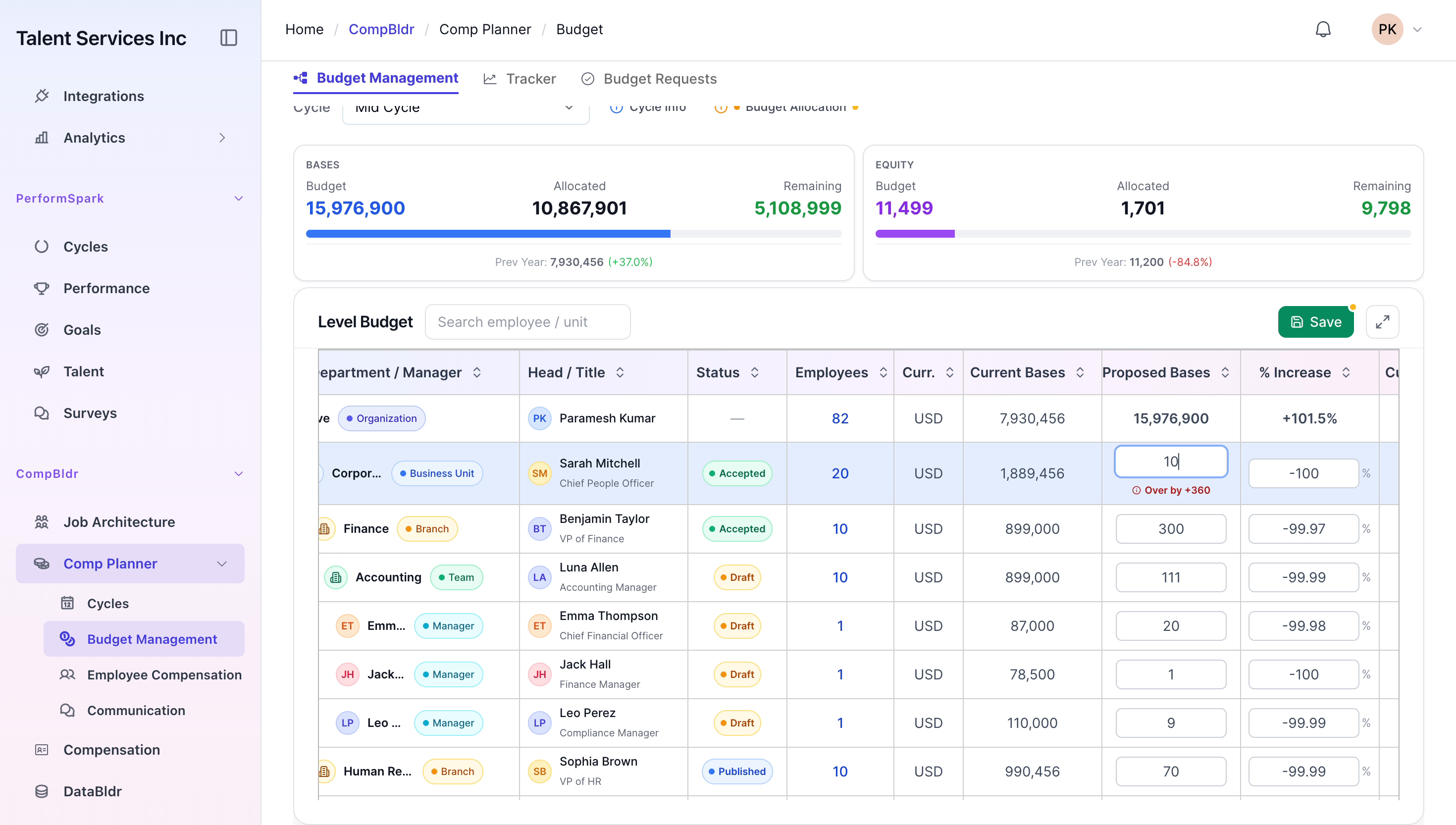
Expand the organizational hierarchy to manage budgets at lower levels. First, click the Finance Branch to reveal its sub-units, then click the Accounting Team to display individual team members and their respective budgets for detailed management.
Step 4: Adjust Proposed Bases for Individual Team Members
Within the Accounting Team, review the list of employees and adjust their Proposed Base amounts as needed. Update the values for specific team members such as Luna Allen and Emma Thompson, entering the exact amounts required to align with the new budget guidelines.

Step 5: Save Changes, Use Bulk Actions, and Publish Budgets
Save your individual budget changes to ensure all updates are recorded. Then, select the relevant rows and explore available Bulk Actions (for example, applying common adjustments or settings across multiple entries). When ready to distribute the finalized budgets to managers, click the Publish button to publish the budget allocations.


Step 6: Review and Accept Budgets as a Manager
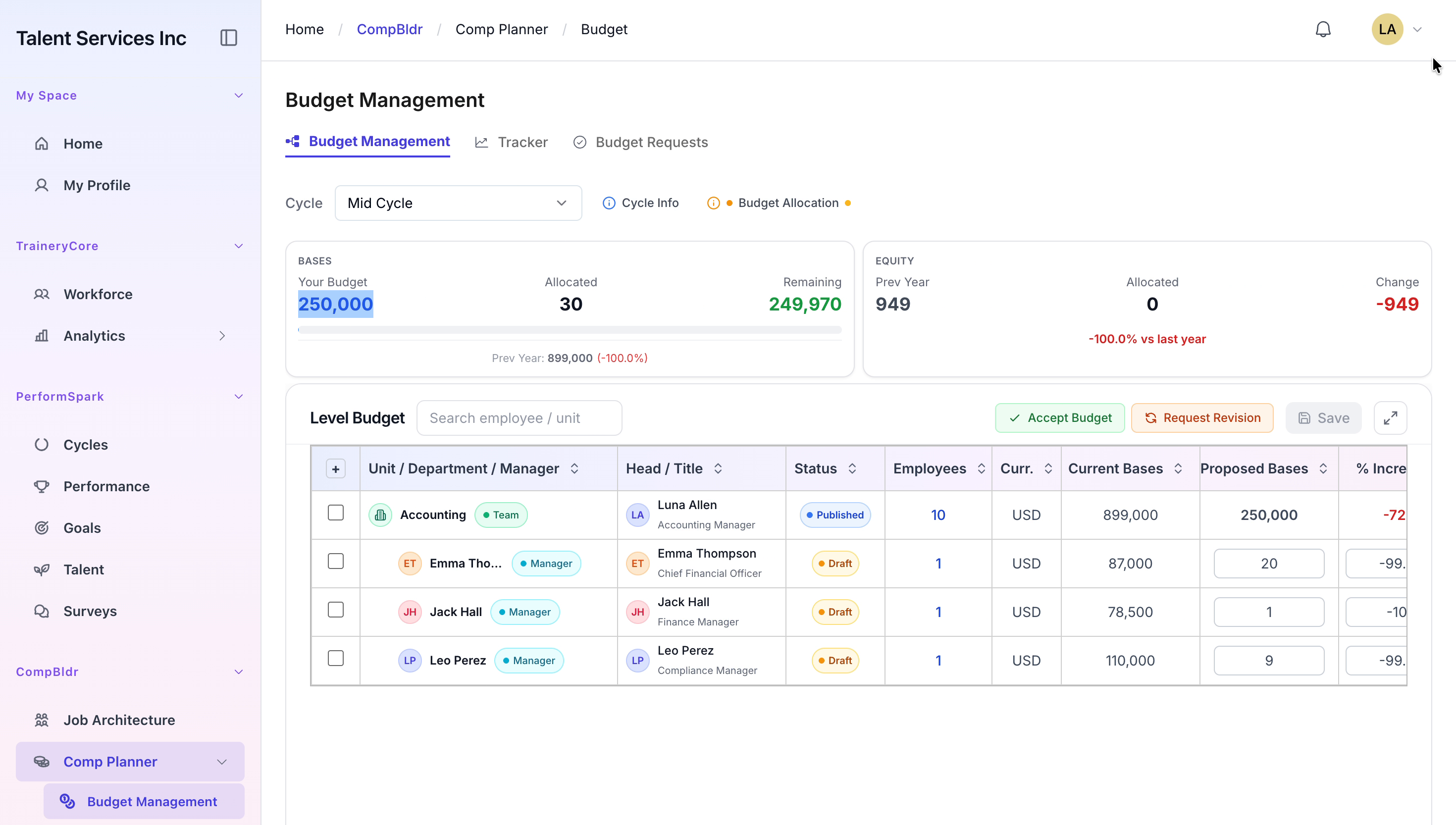
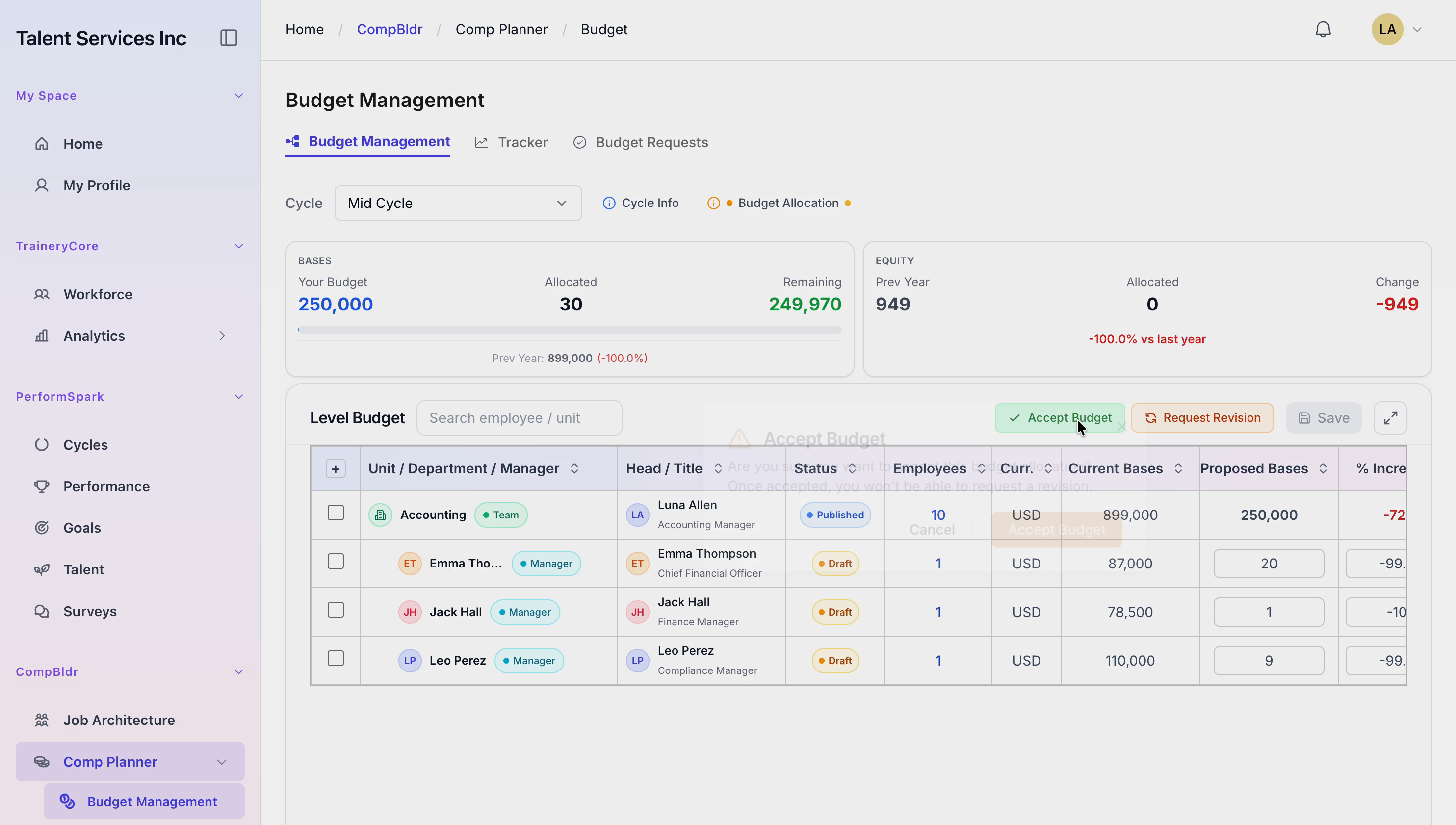
Switch to the manager’s view or impersonate the manager to validate the published budgets. Review the newly allocated budget details for accuracy. Once verified, click the Accept Budget button and confirm the action in the pop-up dialog to formally accept the budget.
Step 7: Verify Budget Status Updates in the Main Dashboard
Return to the main Comp Planner dashboard and navigate to the Level Budget table. Review the relevant entries to ensure that the status values have successfully updated, confirming that budgets are now marked as Accepted and Published.

