Creating and Customizing Compensation Statement Templates
Last updated: May 3, 2026
Creating and Previewing Compensation Communication Templates in Comp Planner
This document describes how to create a custom communication template in Comp Planner, apply existing templates, and preview or download employee compensation statements, including switching between different letter types.
Step 1: Open the Mid Cycle Communication in Comp Planner
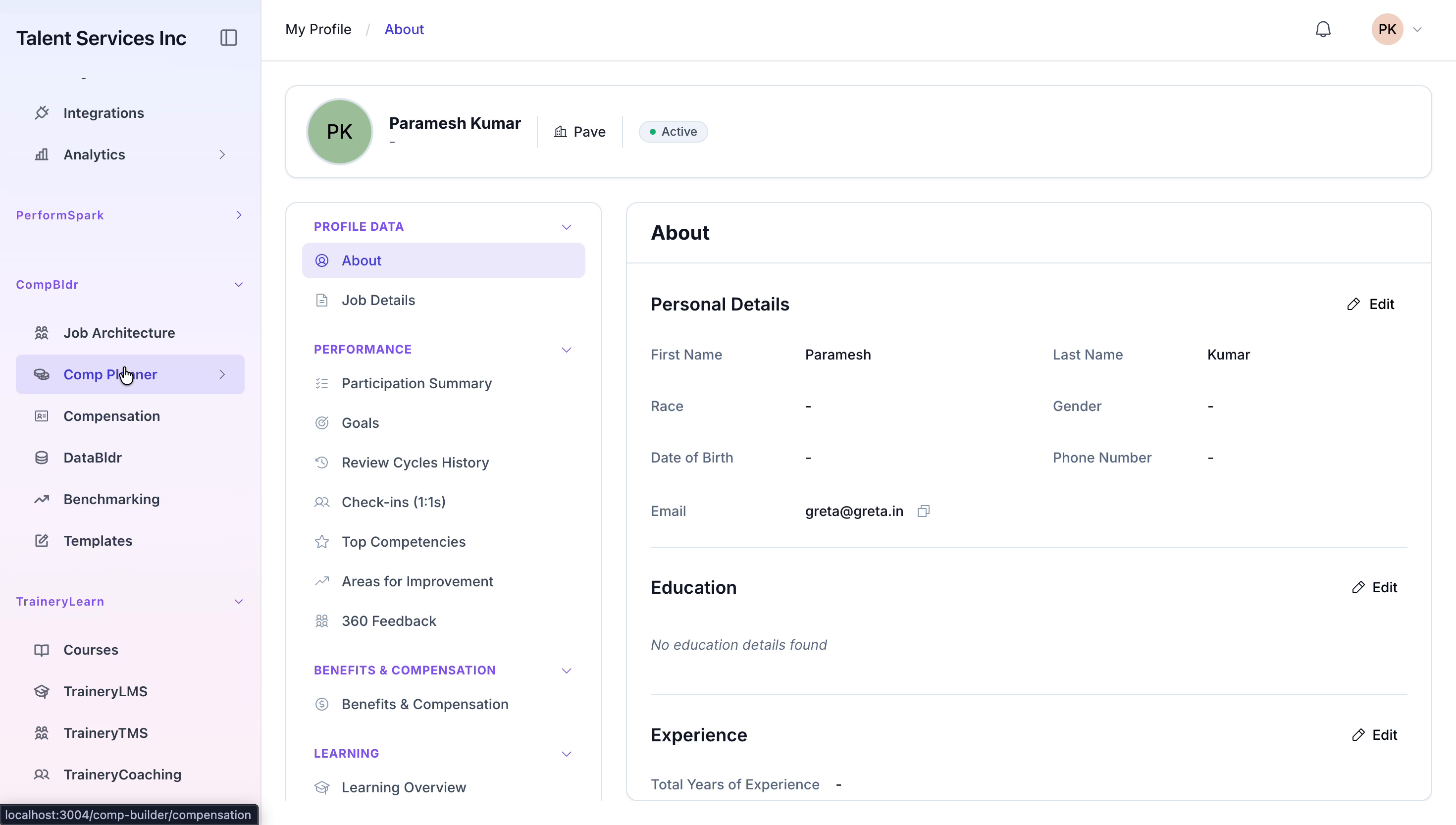
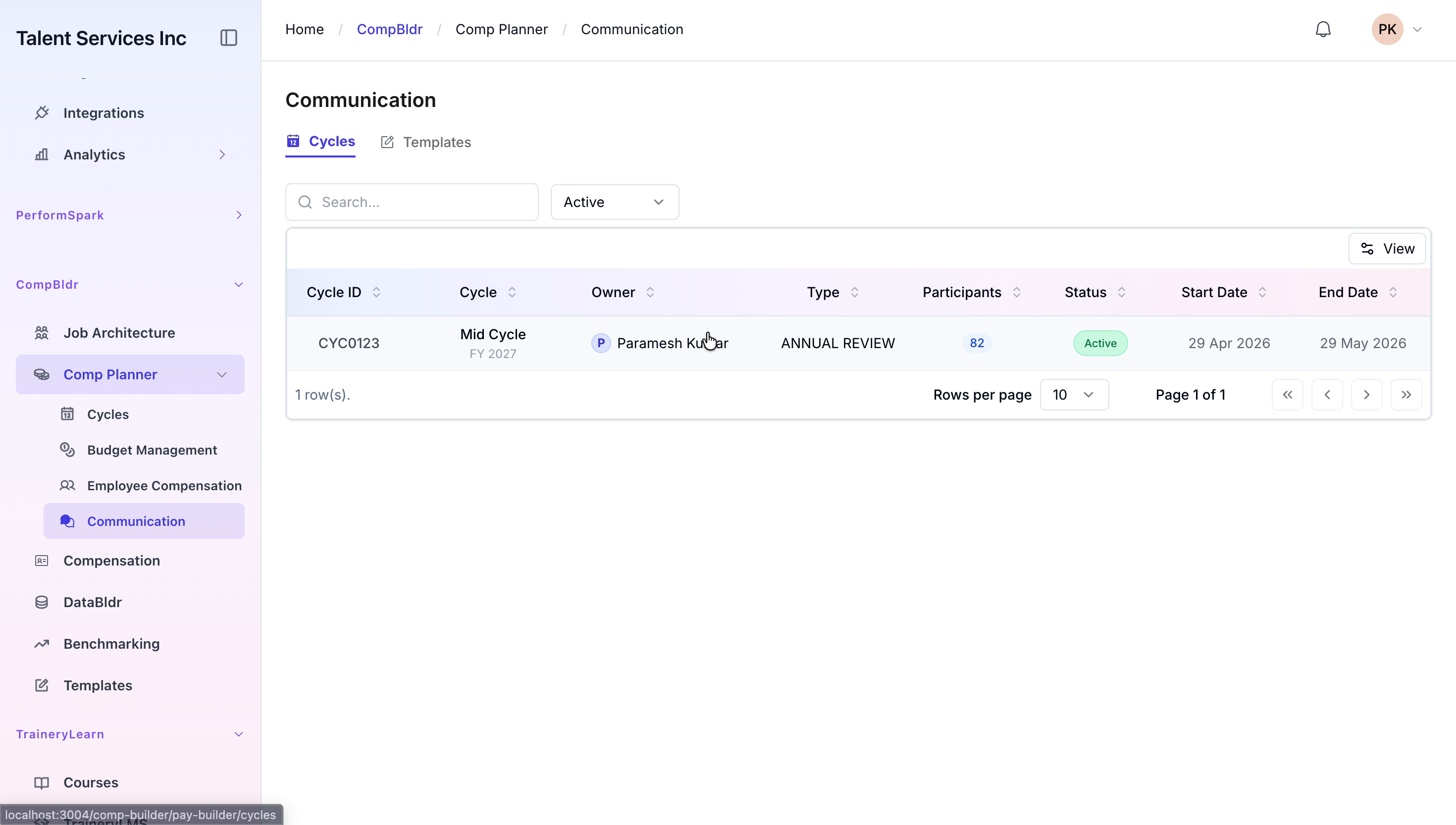
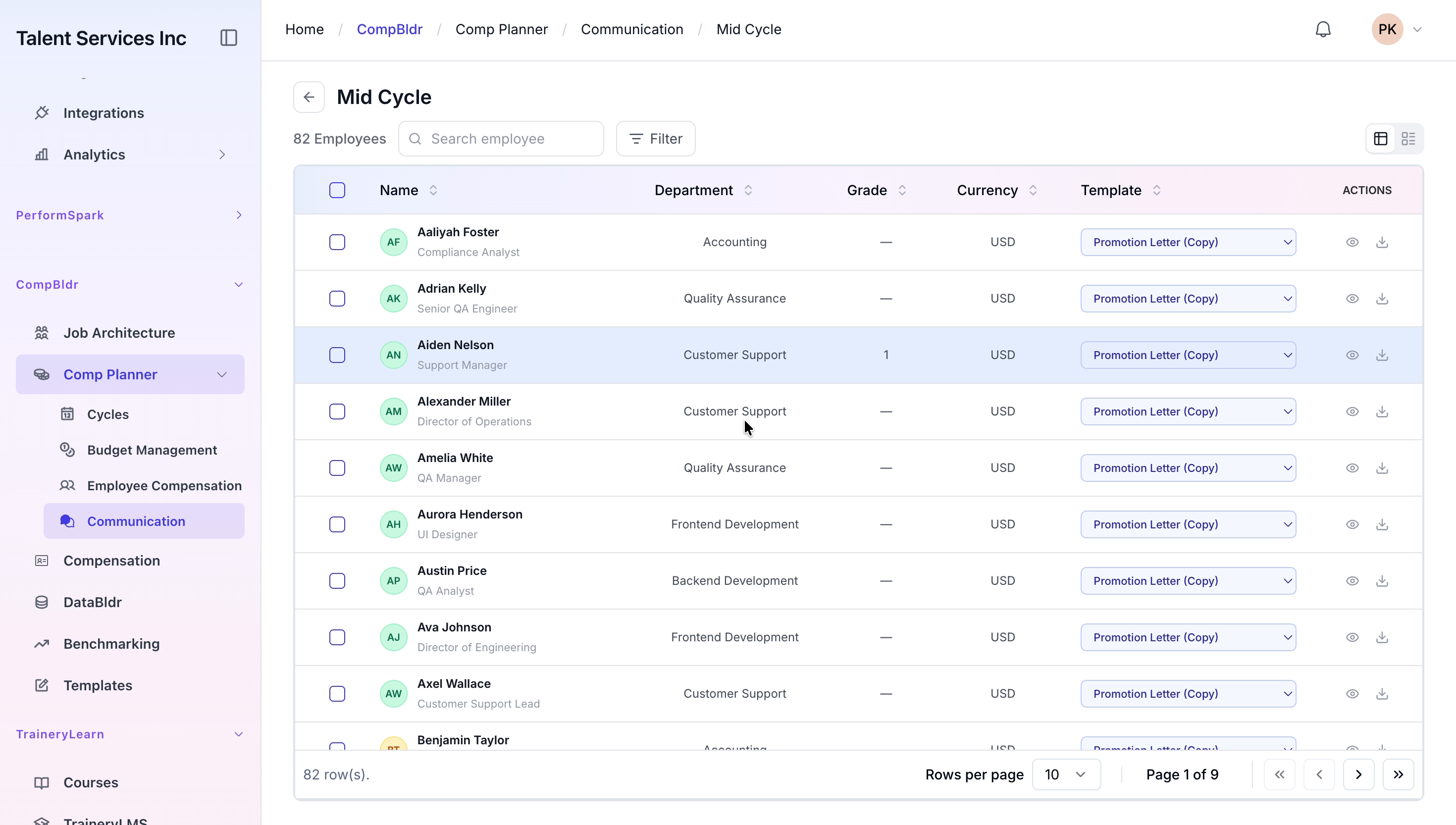
Navigate to the Communication section within Comp Planner, locate the Mid Cycle item, and select it to open and view its communication details.
Step 2: Create a New Custom Template
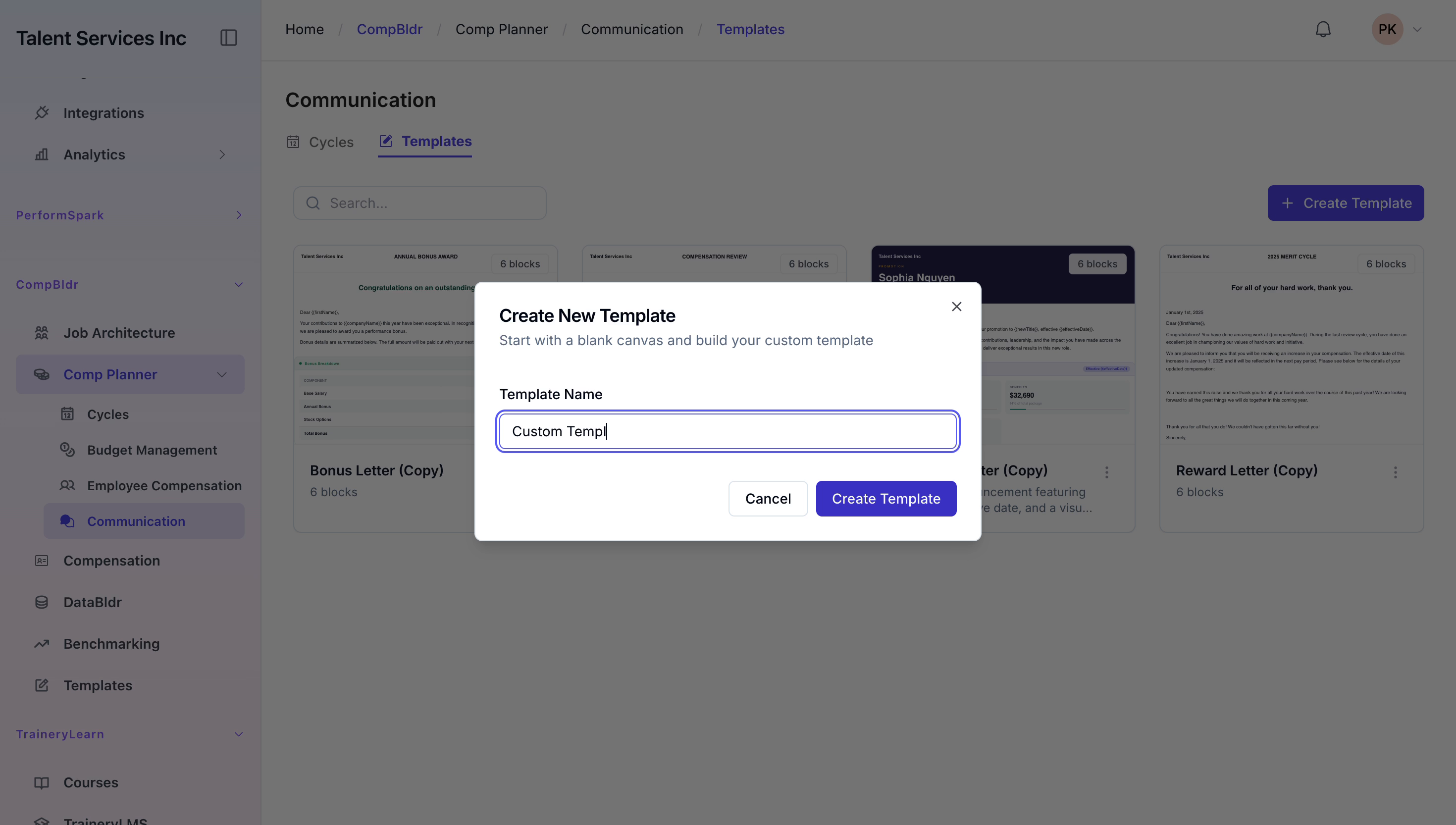
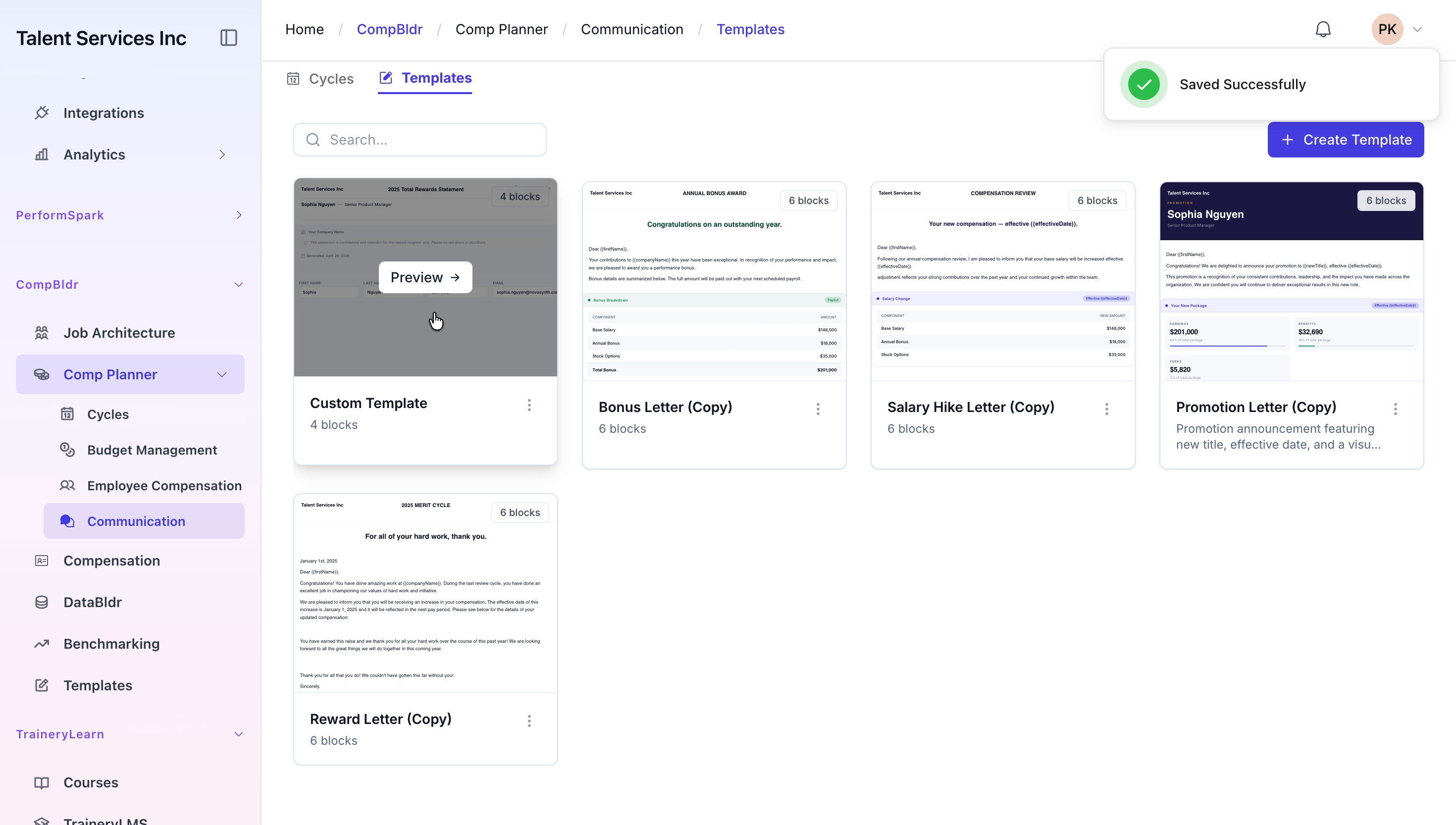
Switch to the Templates tab, click Create Template, and name your new template Custom Template before proceeding to the editor.
Step 3: Build and Save the Template Layout
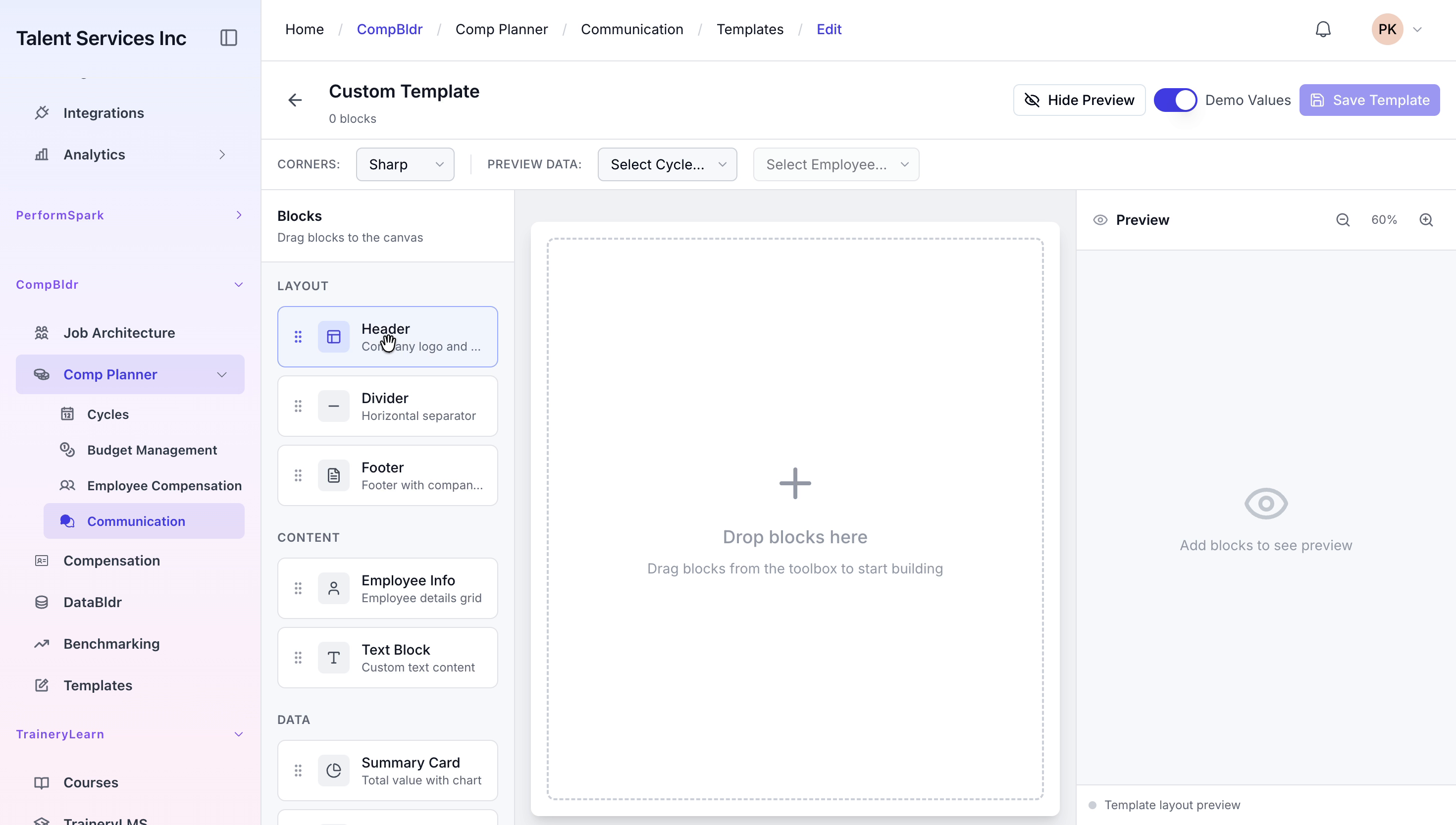
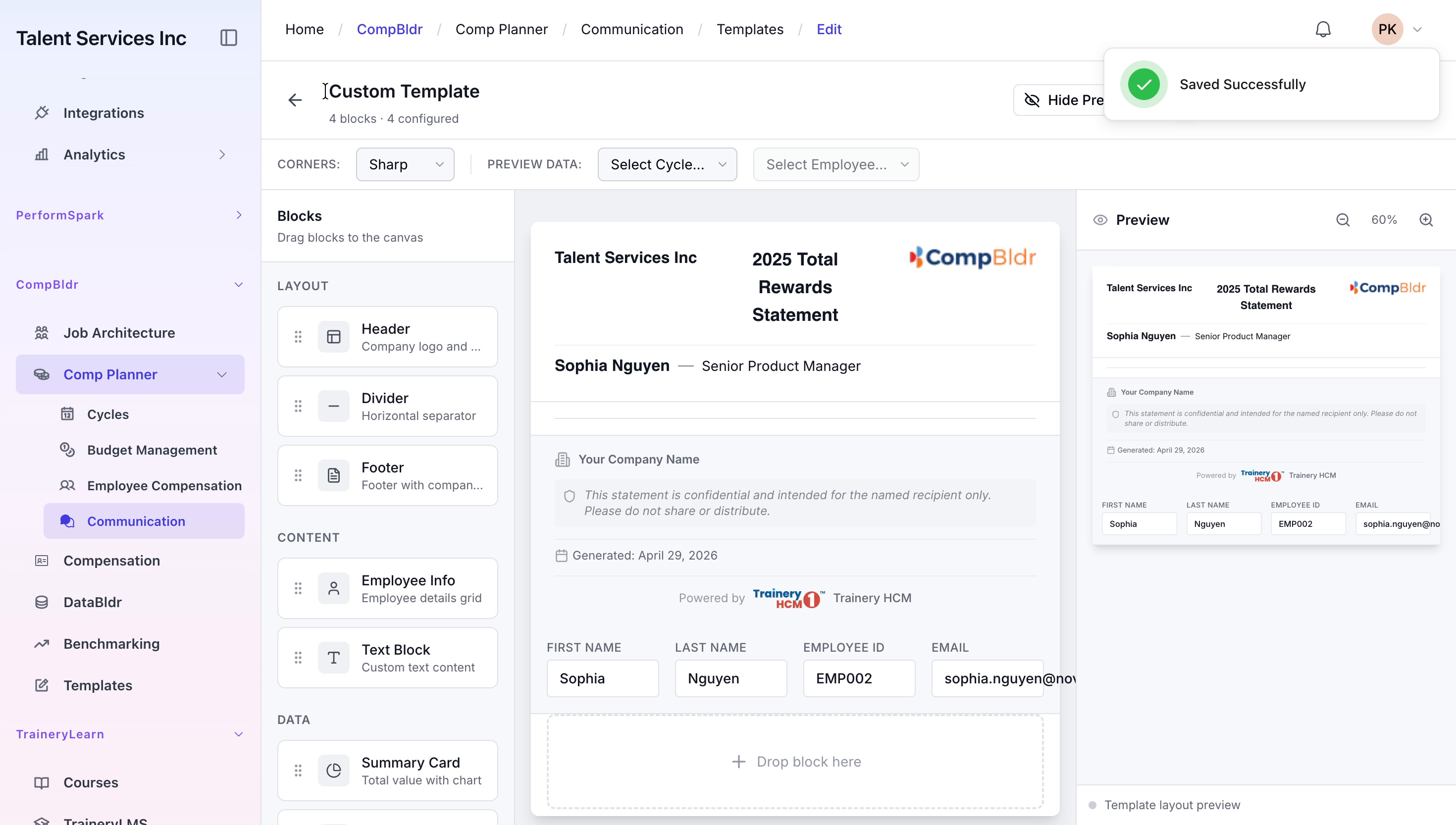
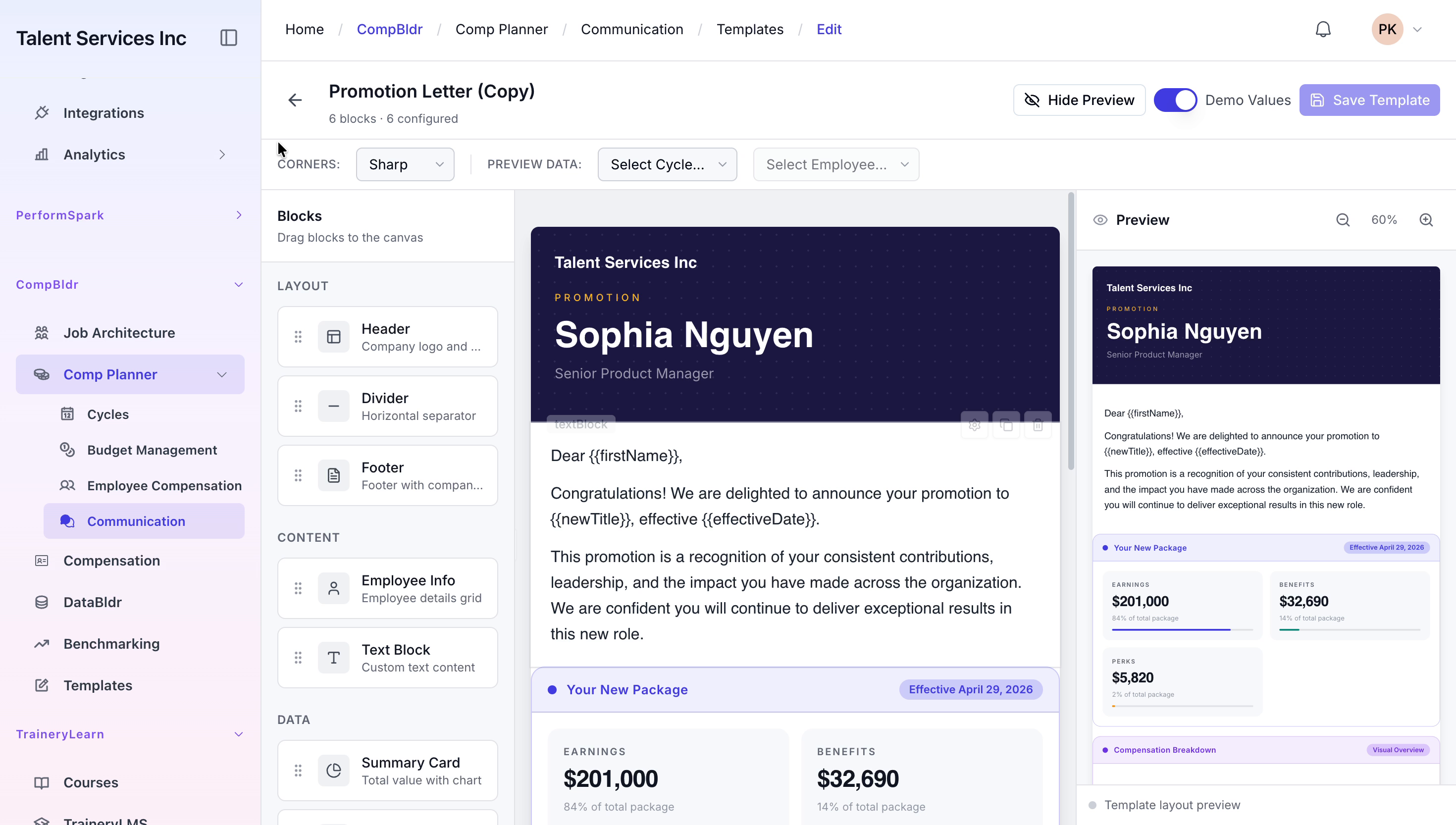
In the template editor, drag the Header, Divider, Footer, and Employee Info content blocks onto the canvas to construct your layout, then click Save to store your template changes.
Step 4: Customize the Promotion Letter Template
From your list of templates, select the Promotion Letter copy and click the Customize button to open it in the template editor for further modification.
Step 5: Preview an Employee’s Compensation Statement
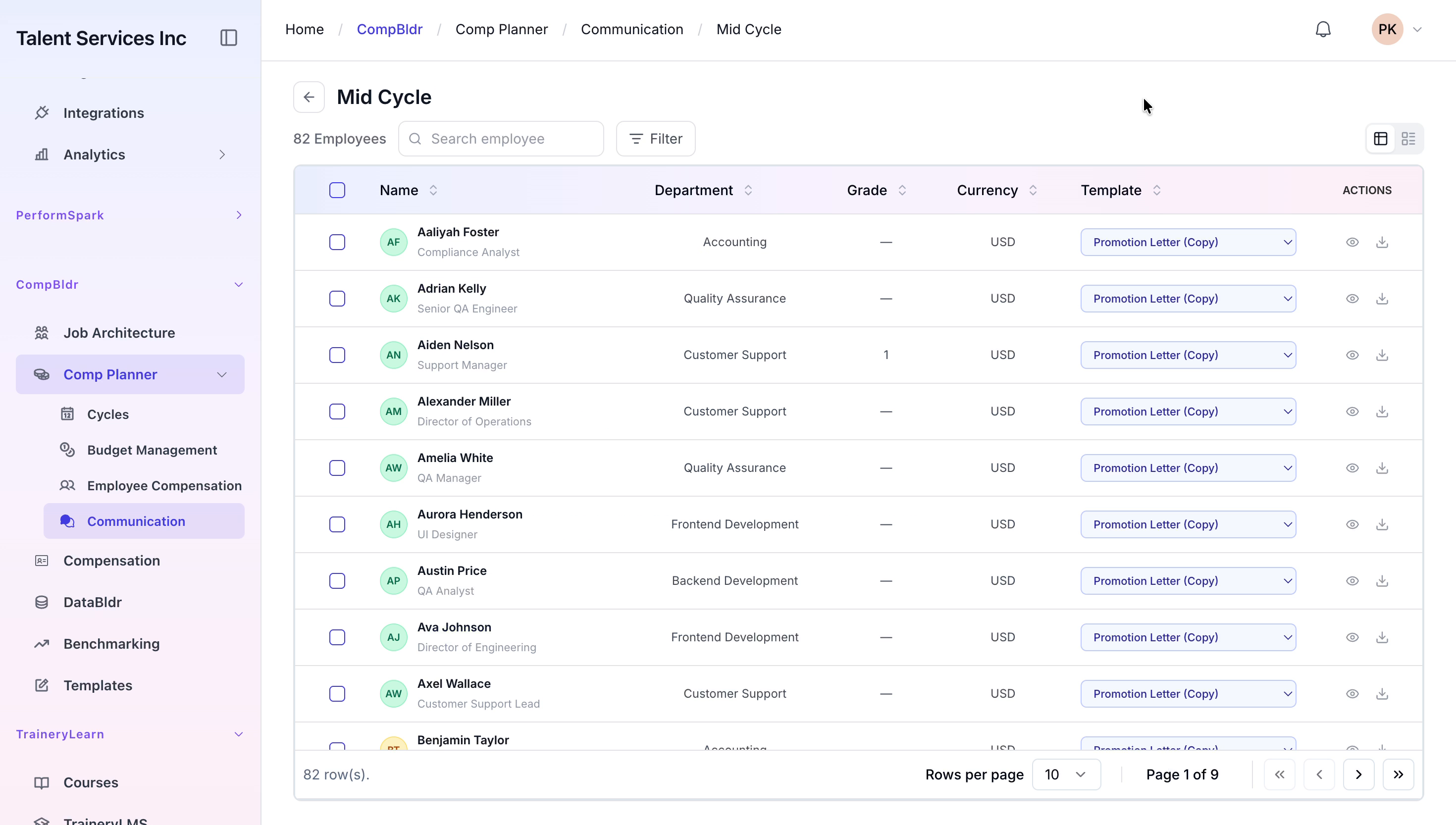
Return to the Cycles list, open the Mid Cycle again, and click the eye icon next to Aaliyah Foster to preview her compensation statement.


Step 6: Use Side-by-Side Preview for Multiple Employees
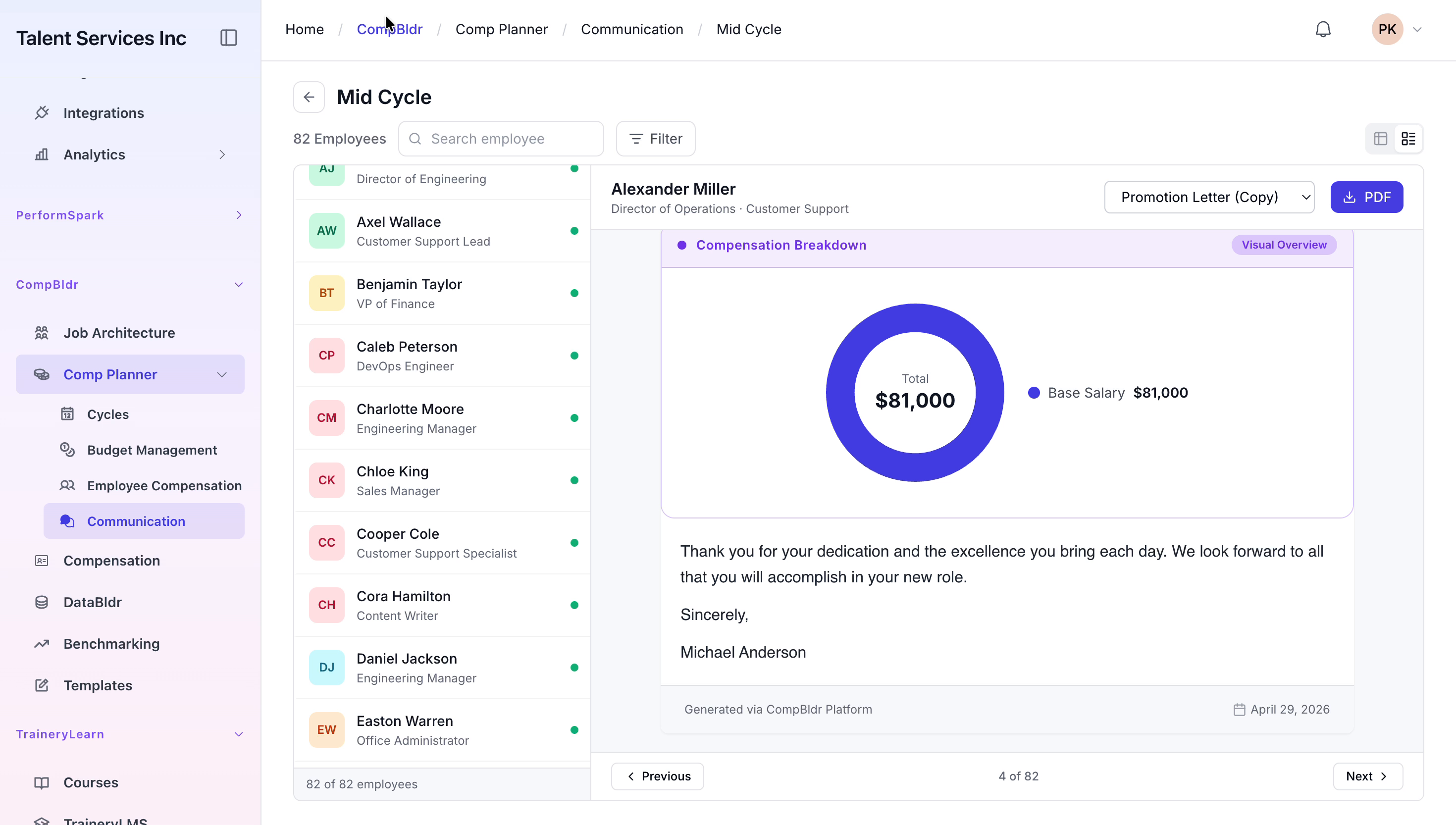
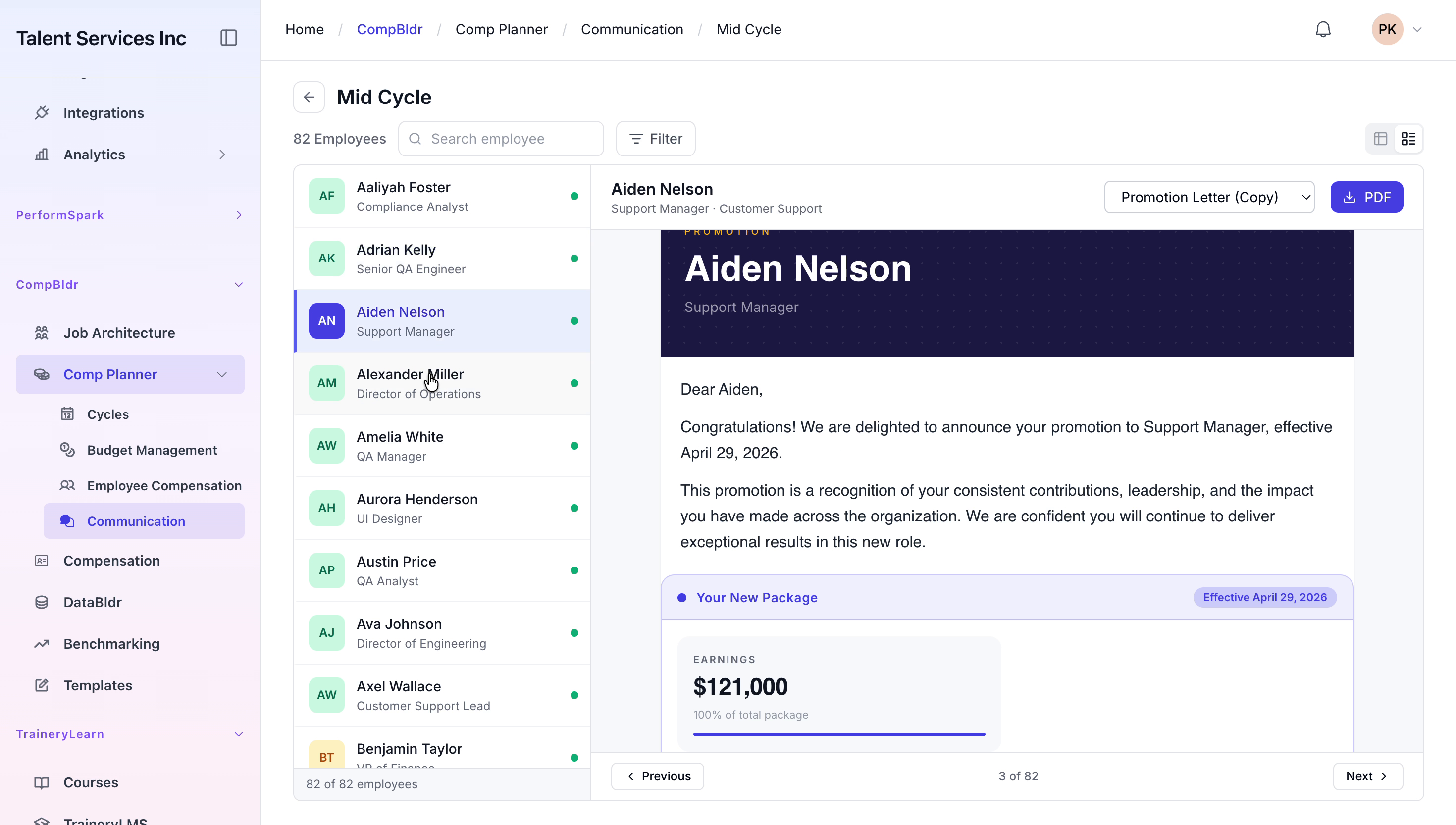
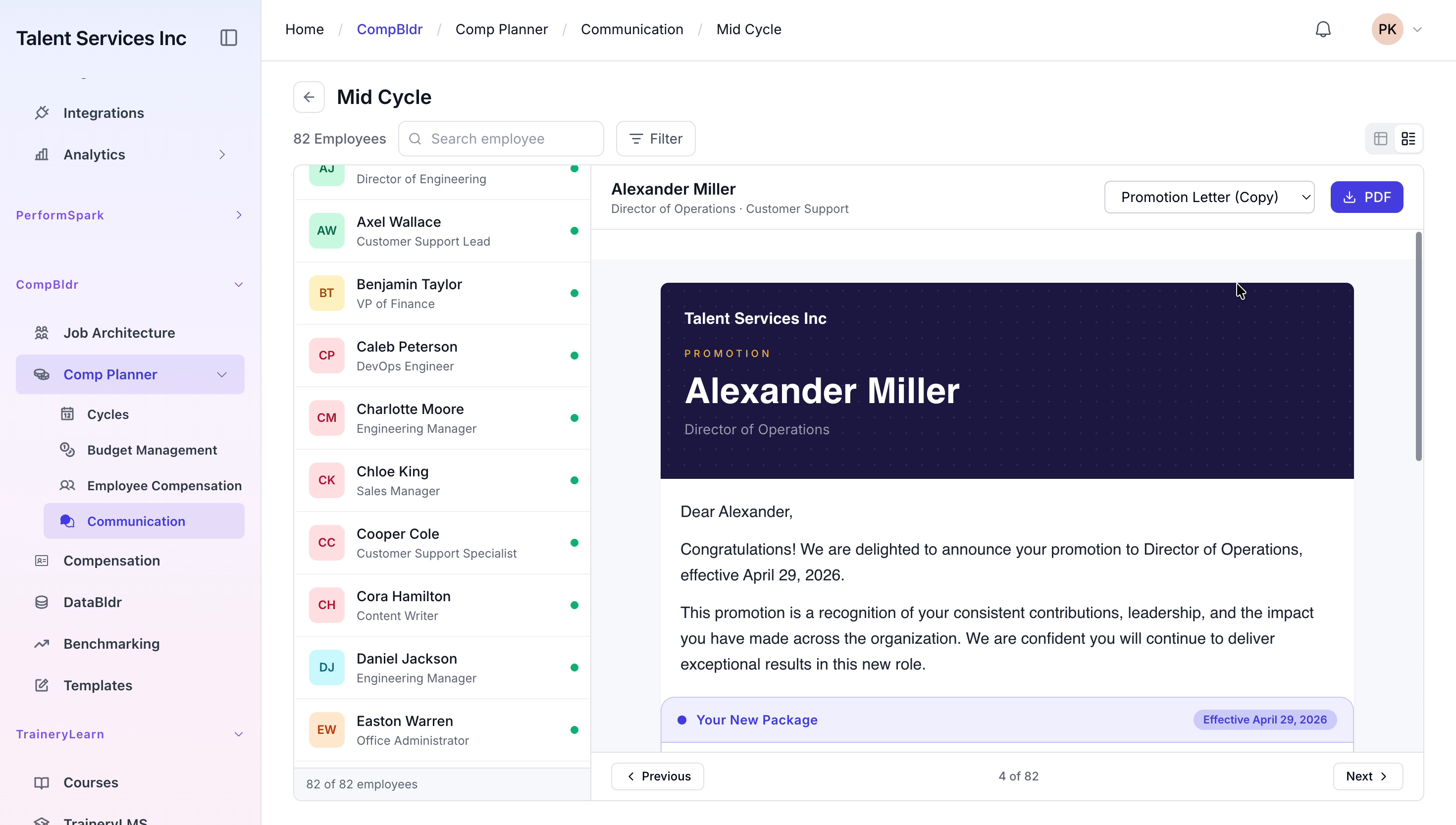
Enable the side-by-side preview mode, then scroll through and review the compensation statements for Adrian Kelly, Aiden Nelson, and Alexander Miller within the preview panel.
Step 7: Generate and View a PDF Version
Click the PDF button in the preview to generate a downloadable PDF version of the current statement, then open and review the resulting document in the new browser tab.
Step 8: Switch Between Different Letter Types
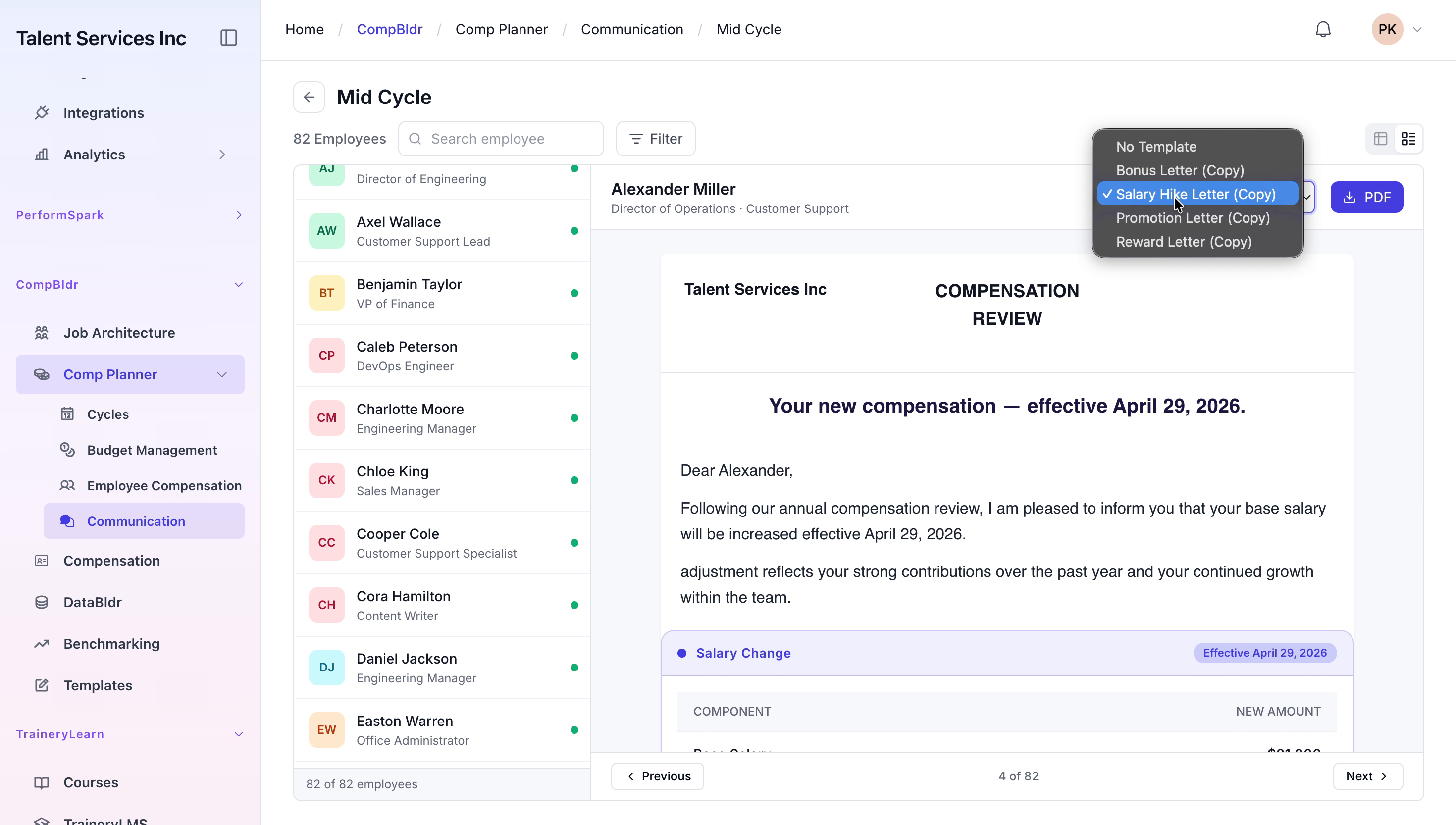
Use the template dropdown in the statement preview to switch between different letter types, such as Salary Hike and Reward Letter, for the currently selected employee, and confirm that the content updates accordingly.