Employee Compensation Submission and Approval Process
Last updated: May 3, 2026
Managing Merit Increases and Approvals in the Compensation Planner
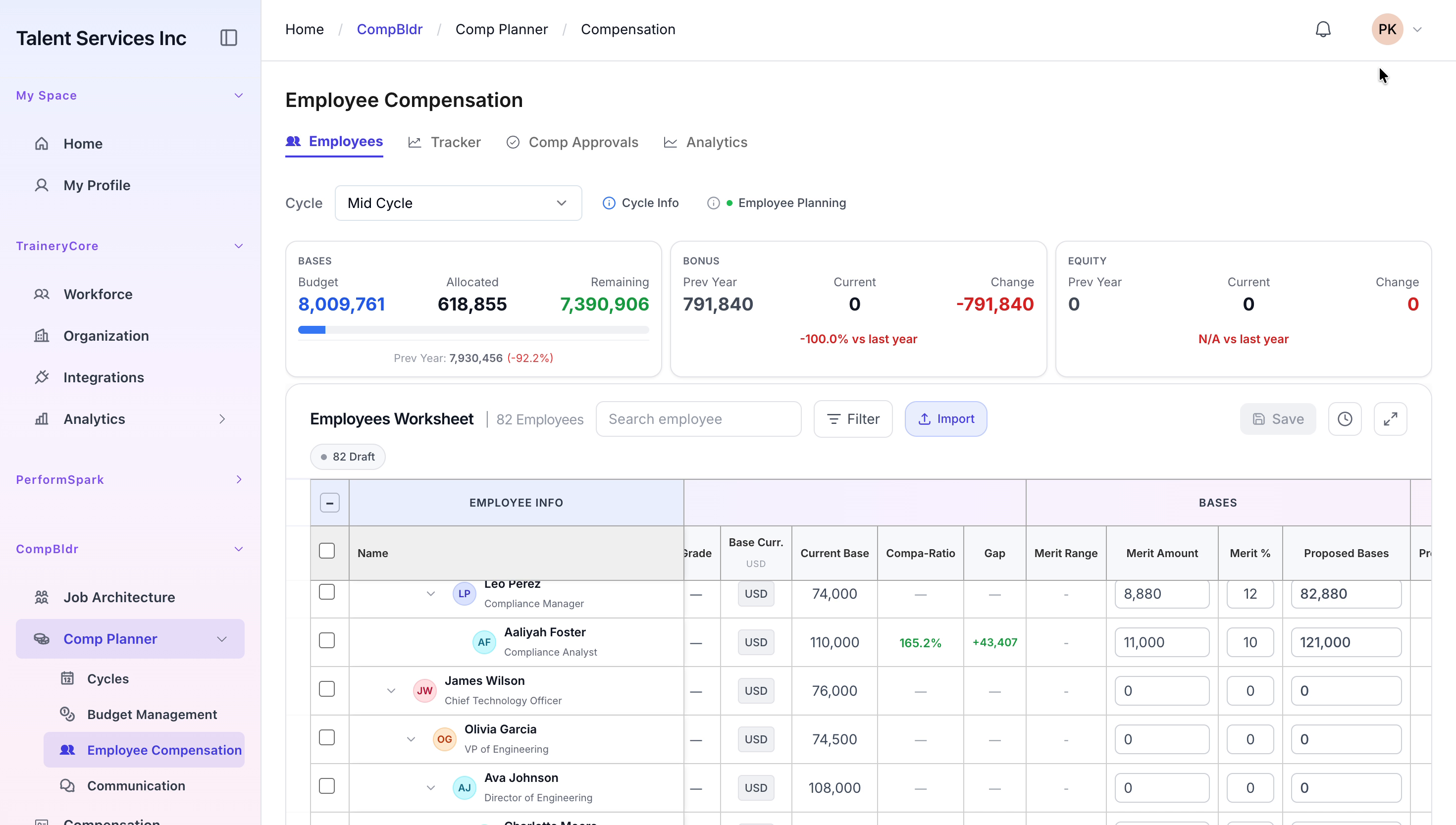
This document outlines how to enter merit amounts, save versions, submit an employee for compensation approval, process that approval, and verify the final status and analytics within the Compensation Planner.
Step 1: Enter Merit Amounts in Employee Compensation
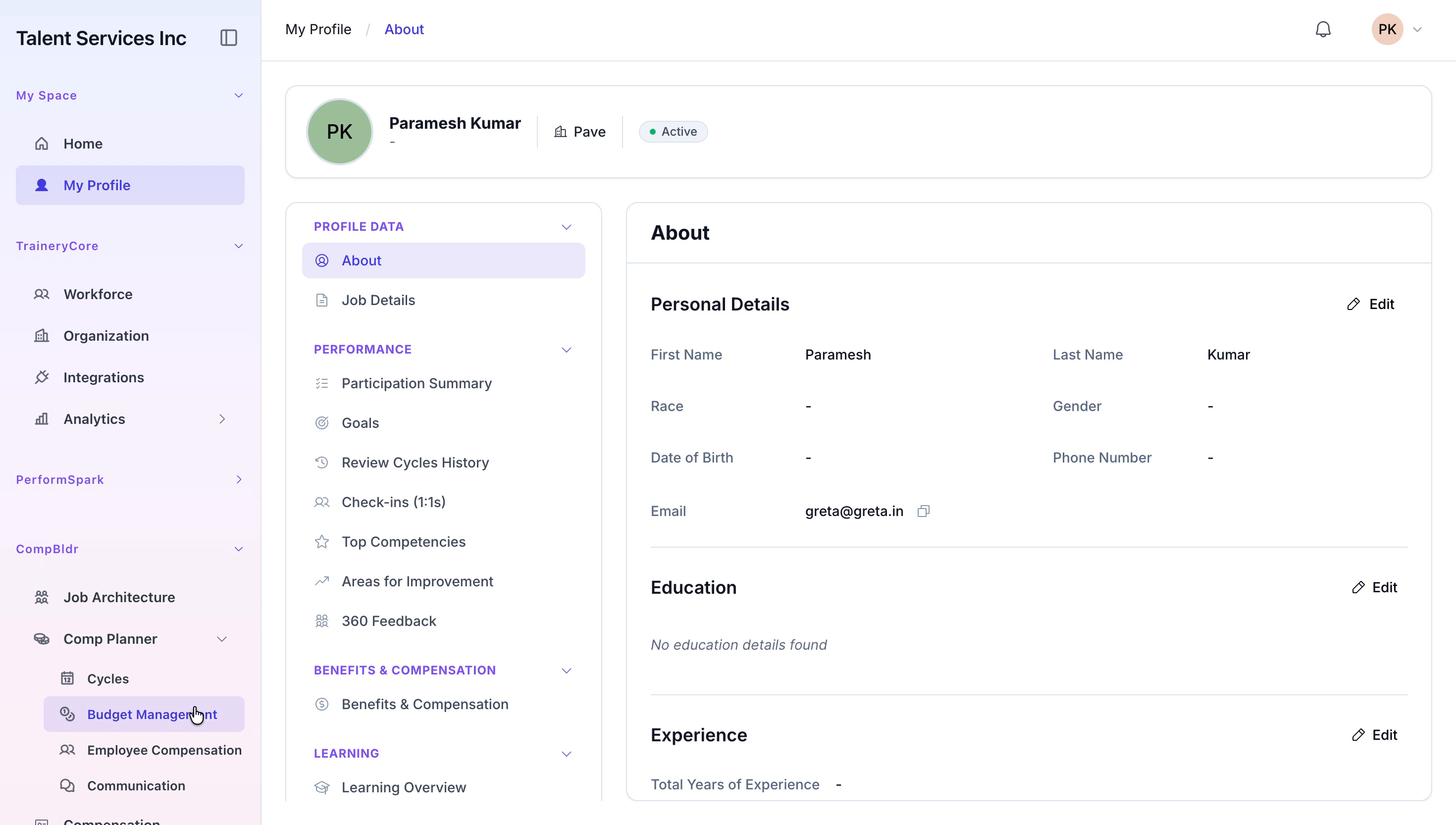
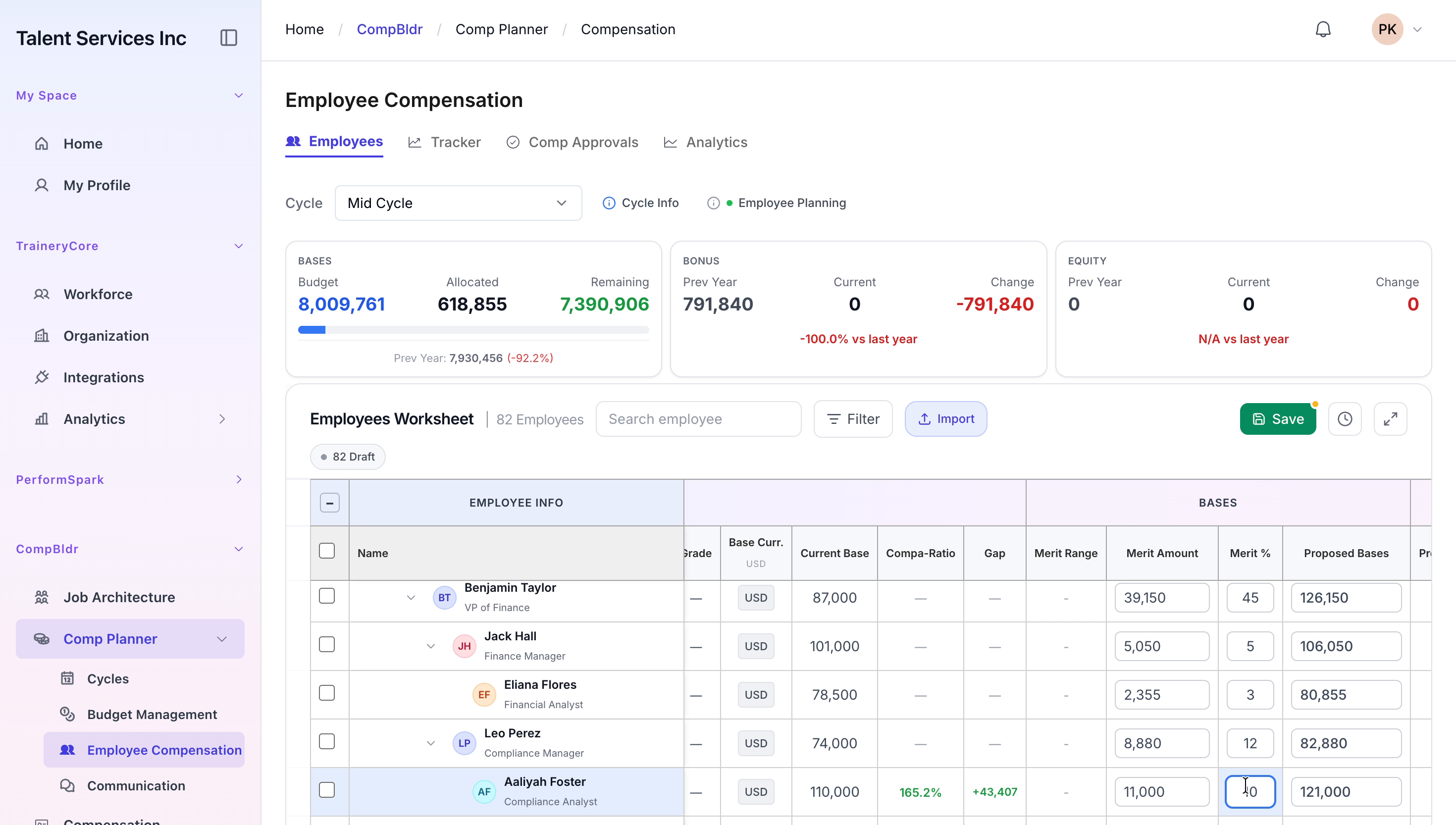
Navigate to the Comp Planner module and open Employee Compensation. In the worksheet, enter or update the merit amounts for the relevant employees.
Step 2: Save the Worksheet as Version 4.0
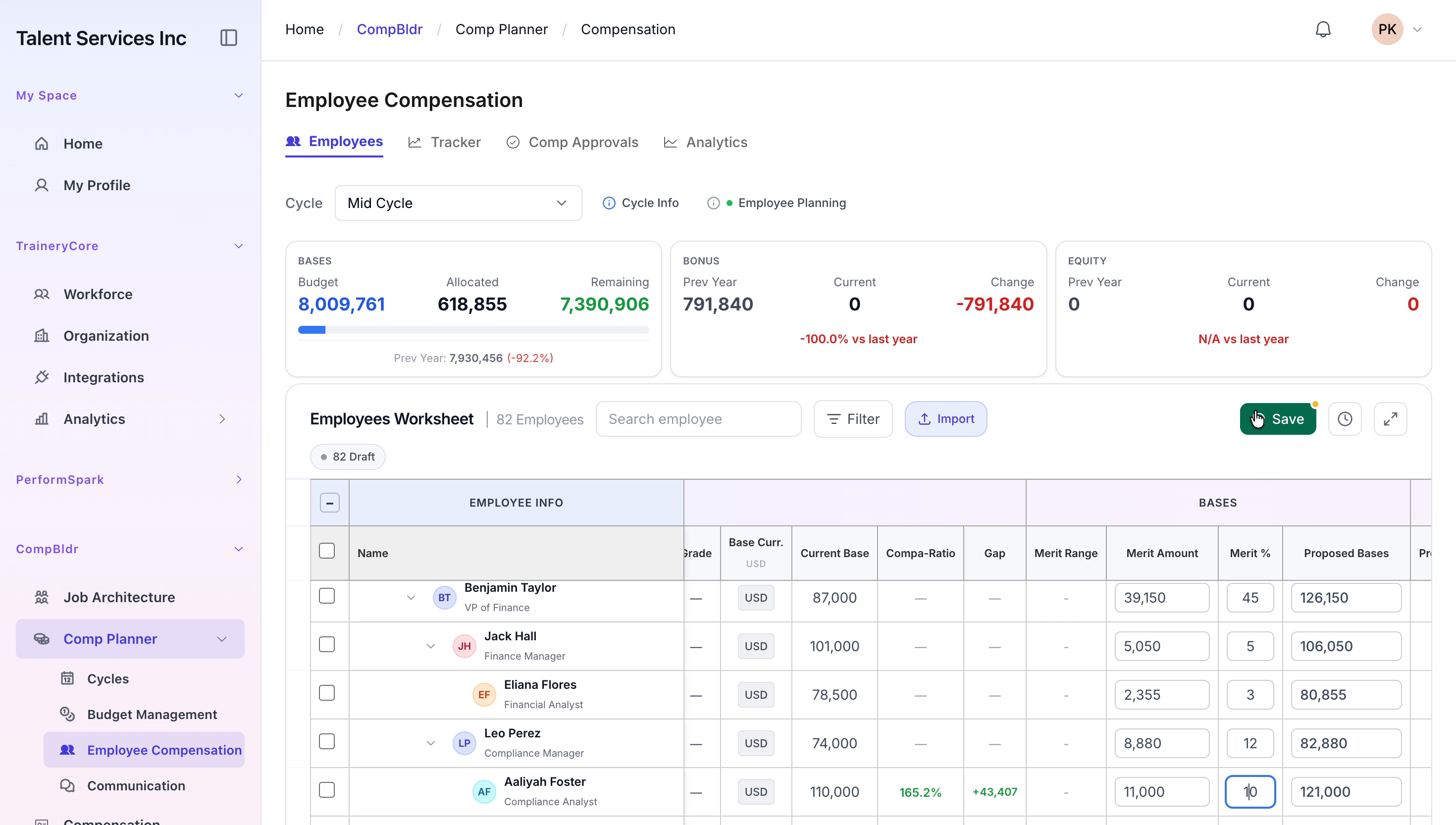
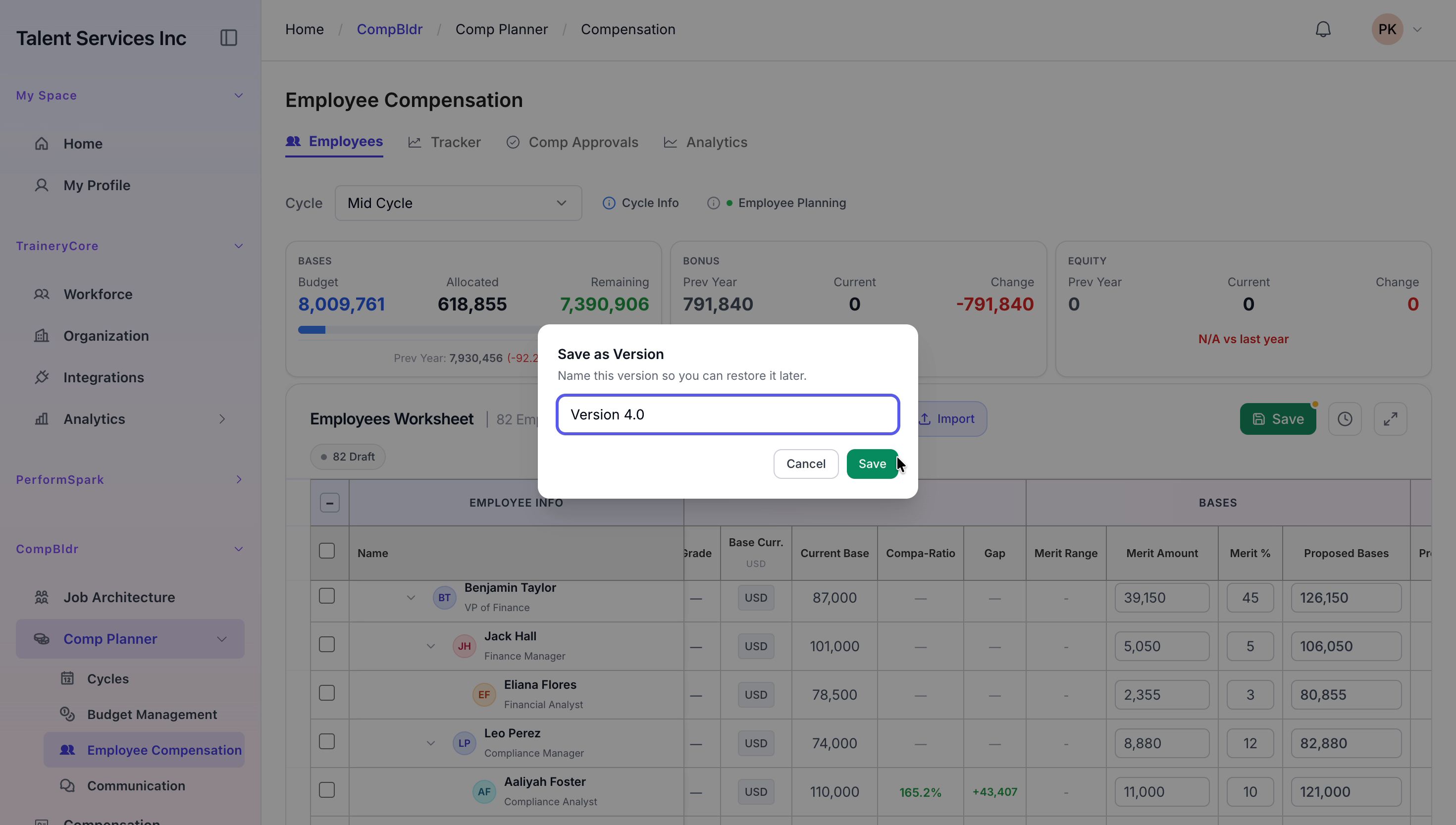
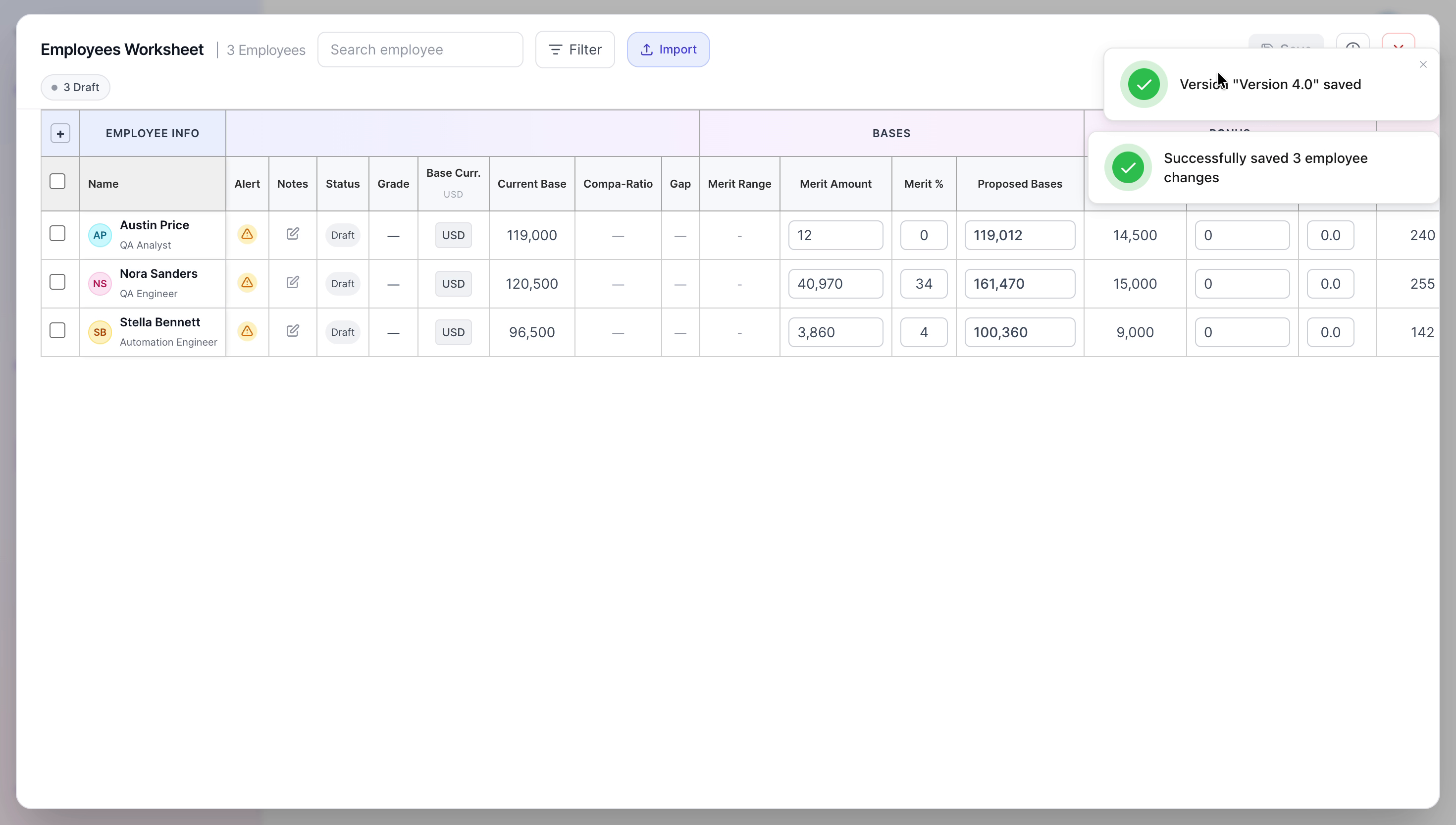
Click Save in the worksheet. When prompted, enter "Version 4.0" as the version name, confirm the action, and ensure the changes are successfully saved.
Step 3: Log In as Amelia White and Reopen Employee Compensation
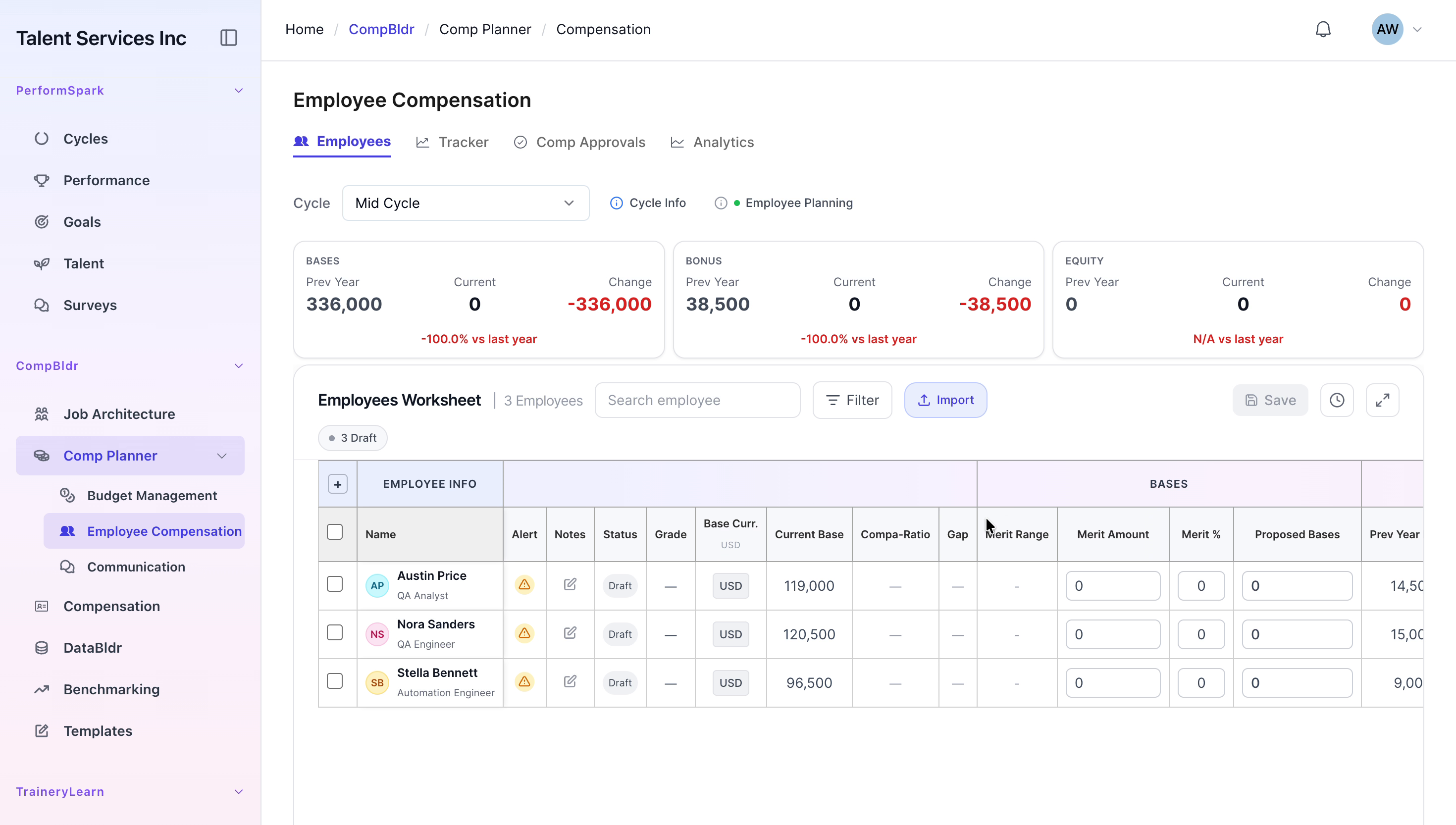
Log out of the current session, then sign in as Amelia White. After logging in, navigate back to Comp Planner > Employee Compensation to continue working on the same plan.
Step 4: Update Merit Amounts for Specific Employees as Amelia
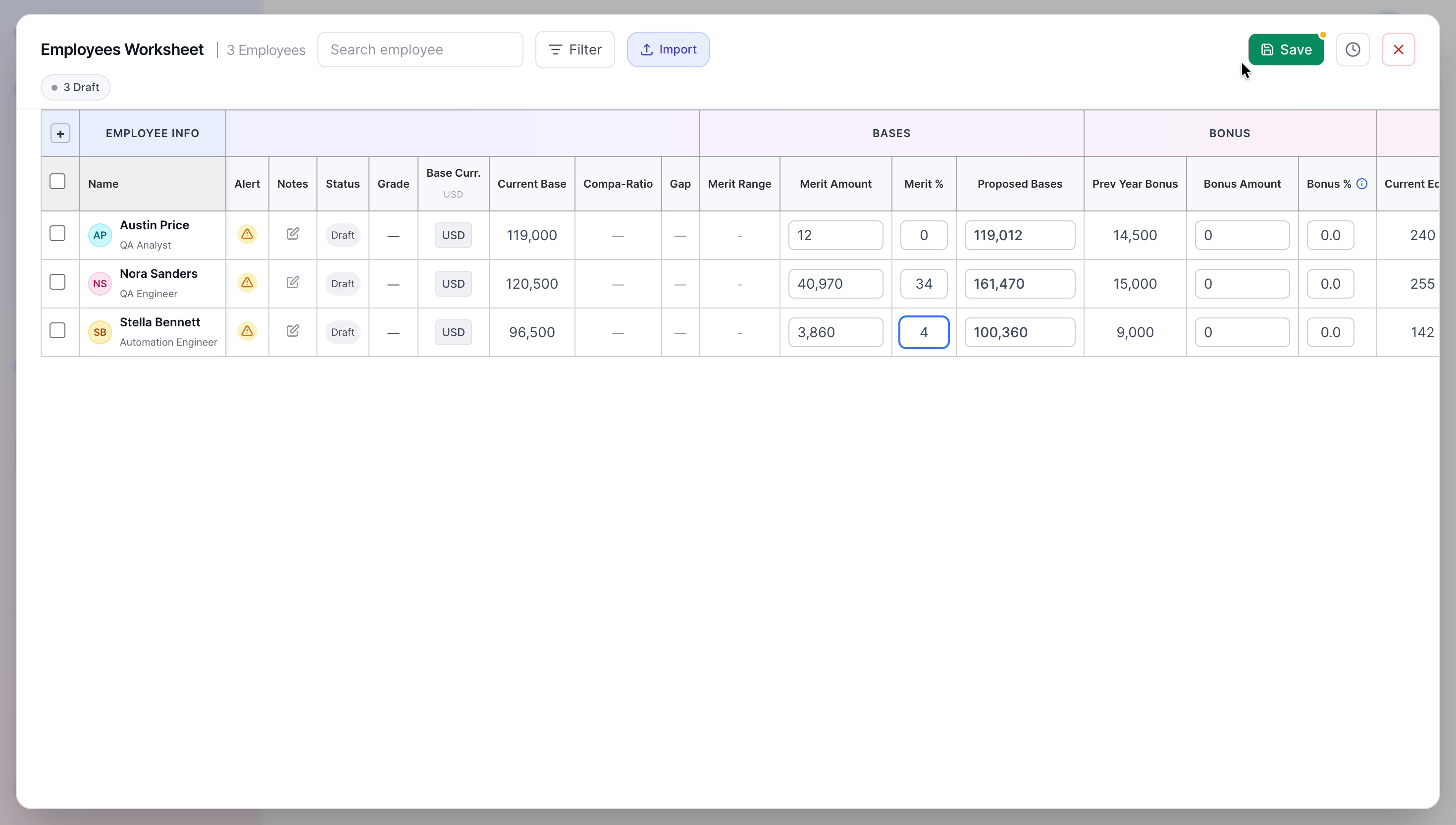
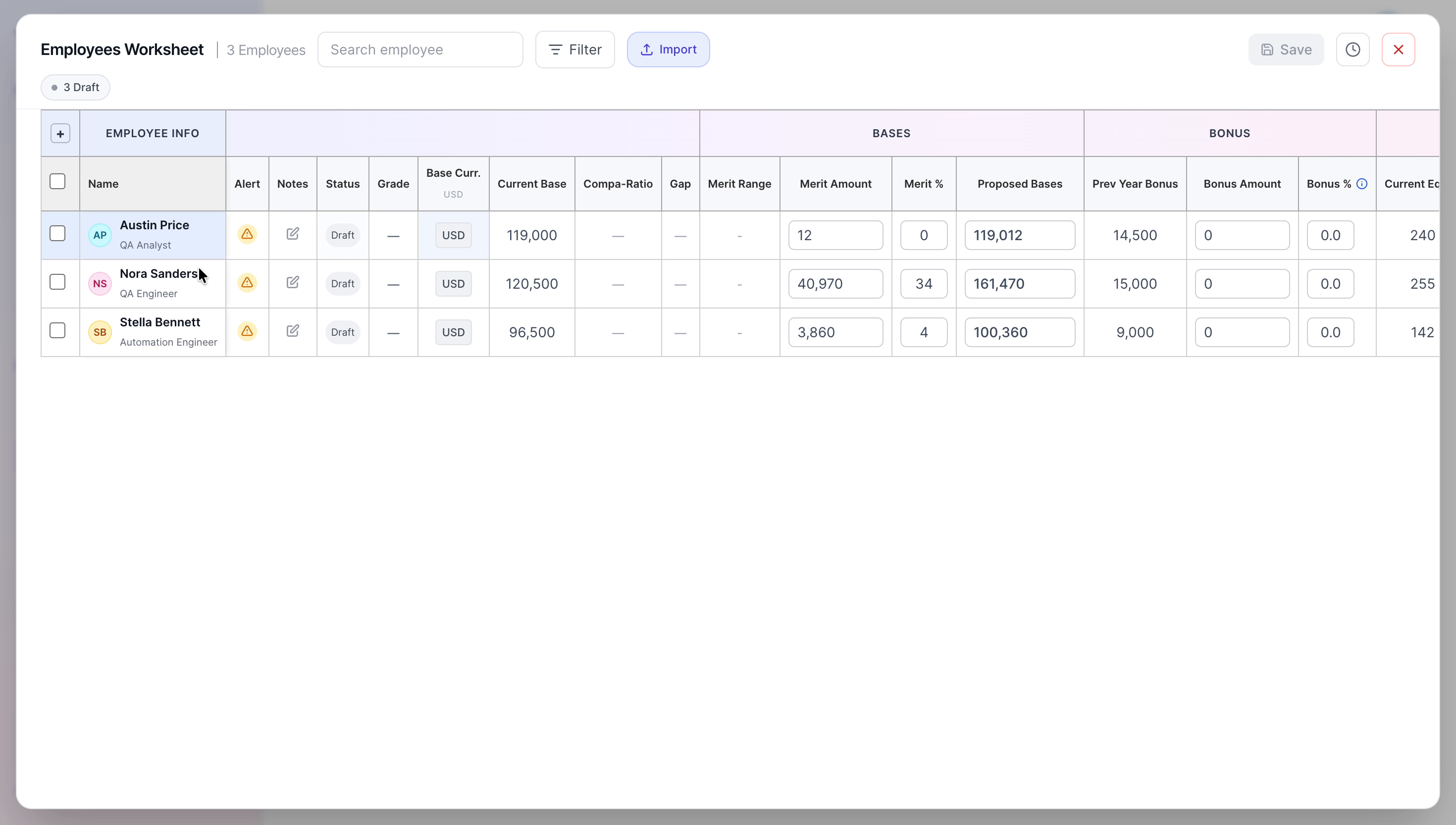
Within the Employee Compensation worksheet, locate Austin Price, Nora Sanders, and Stella Bennett. Update their merit amounts as required and ensure the new values are correctly entered in the list.
Step 5: Save Amelia’s Updates as Version 4.0
After making the updates, click Save again and ensure the changes are stored under Version 4.0 so that Amelia’s progress is fully recorded.
Step 6: Submit Nora Sanders for Head Approval
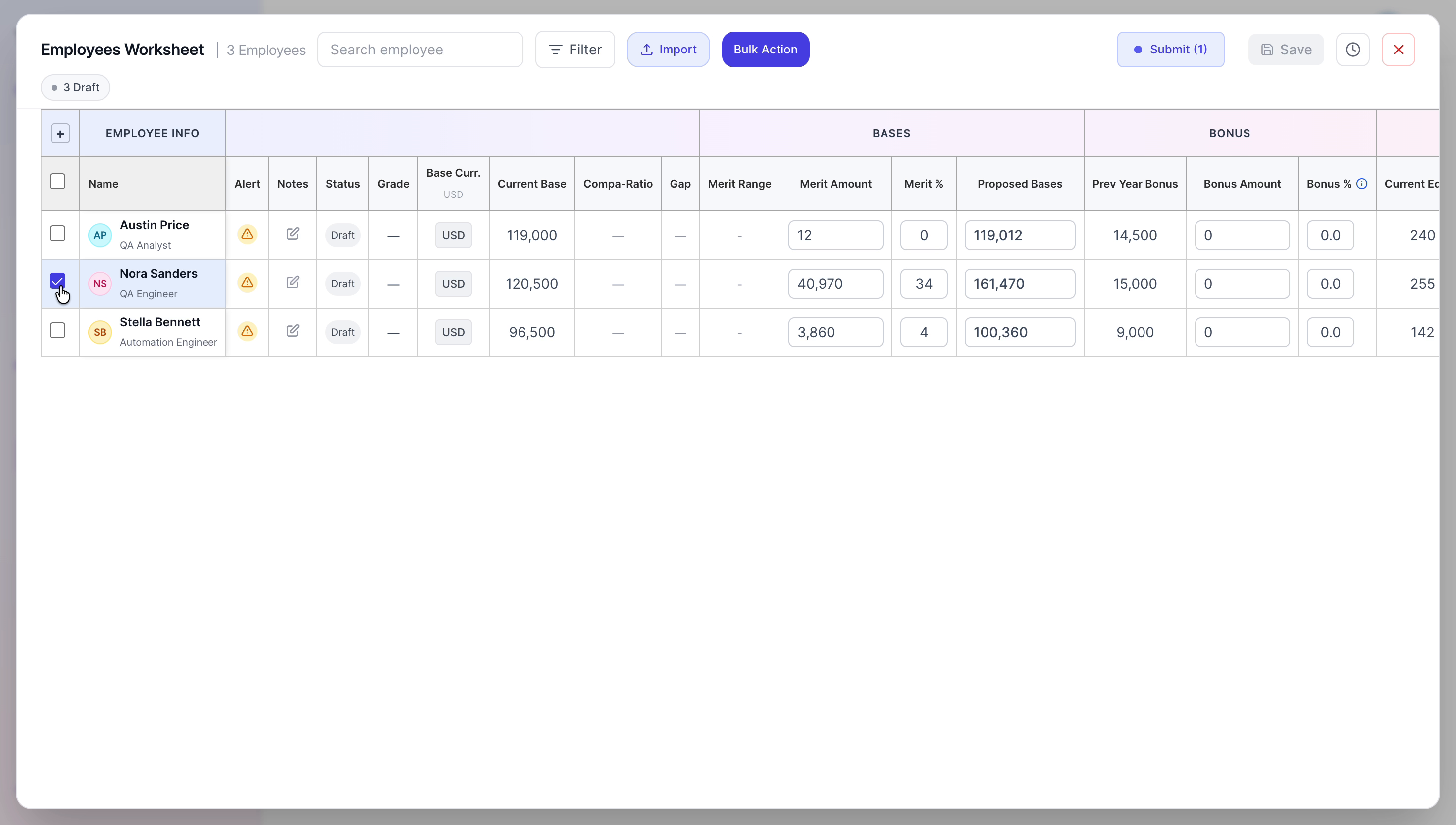
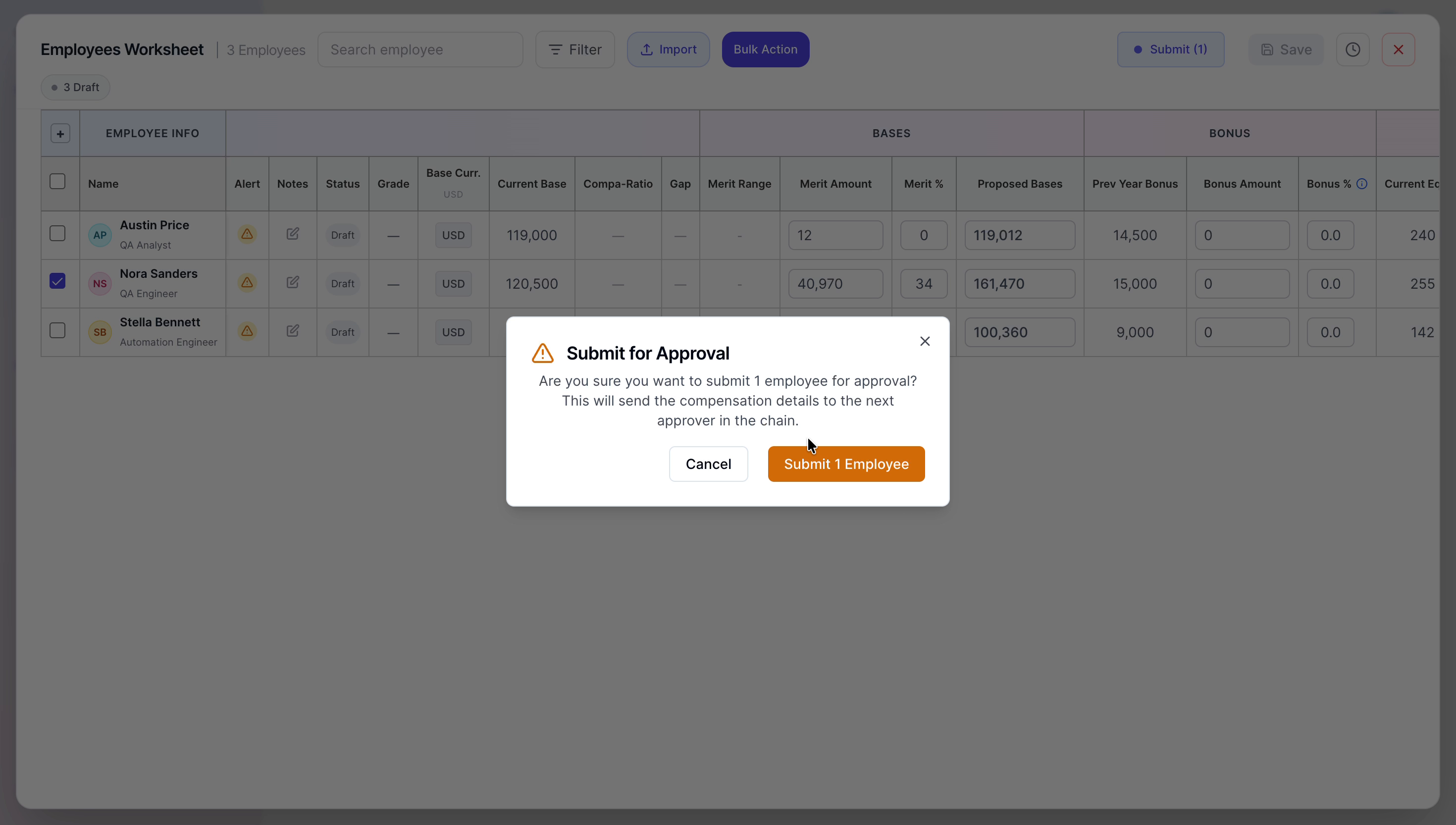
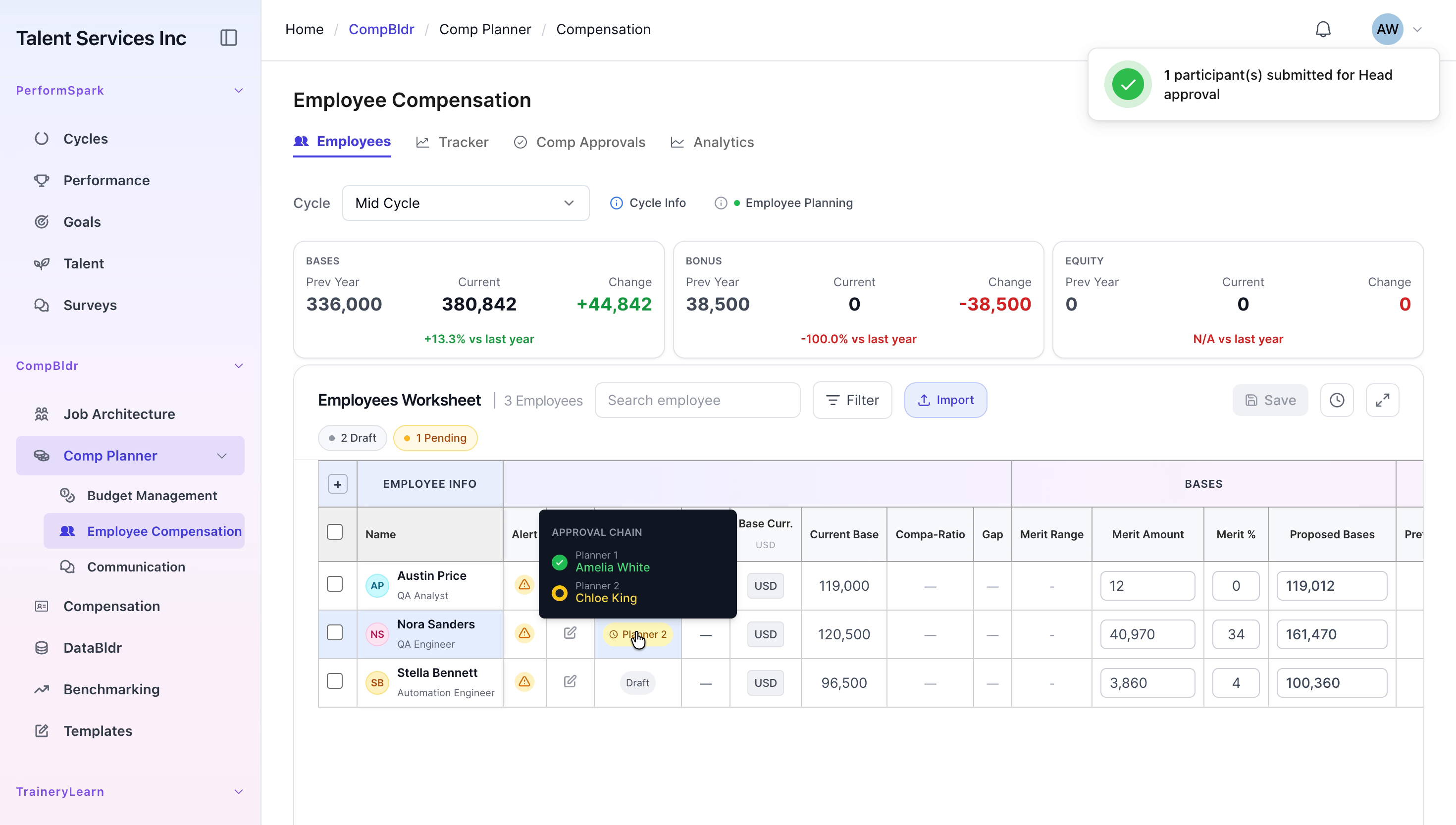
In the worksheet, select Nora Sanders. Click Submit to send her updated compensation details for head approval, and confirm the submission when prompted.
Step 7: Log In as Chloe King and Open Comp Approvals
Switch users and sign in as Chloe King. Navigate to the Comp Approvals tab to access and review all pending compensation approval requests assigned to Chloe.
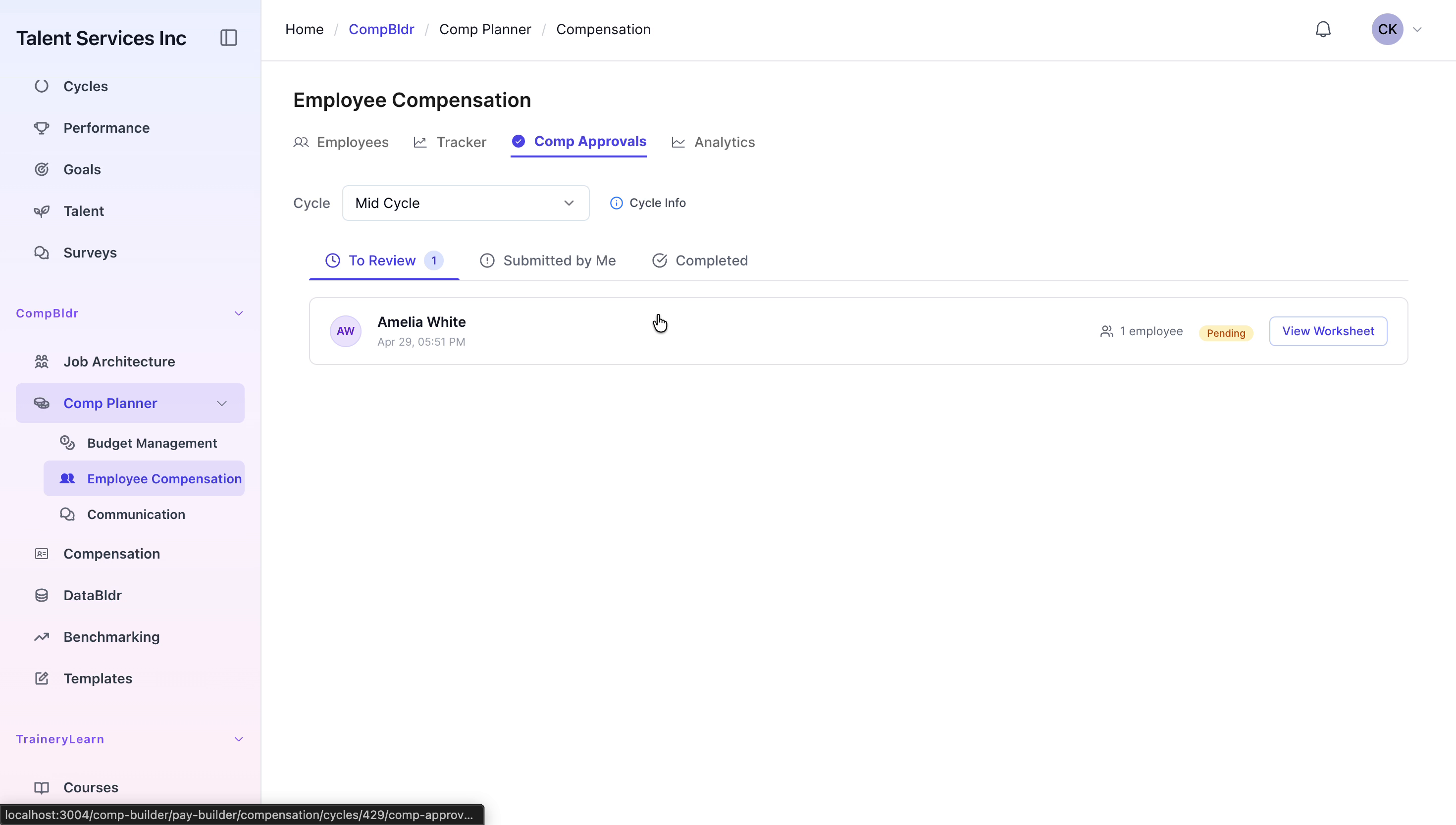
Step 8: Approve Nora Sanders’ Compensation Request
In the Comp Approvals list, locate the submission for Nora Sanders. Open the request, review the compensation details, and click Approve to finalize her merit recommendation.


Step 9: Verify Approval in the Tracker as Administrator
Switch back to the administrator account. Open the Tracker tab and click on the Approved count or link. In the resulting list, find Nora Sanders and verify that her status is Approved, reviewing the full approval chain details to confirm each step is complete.


Step 10: Review Compensation Analytics
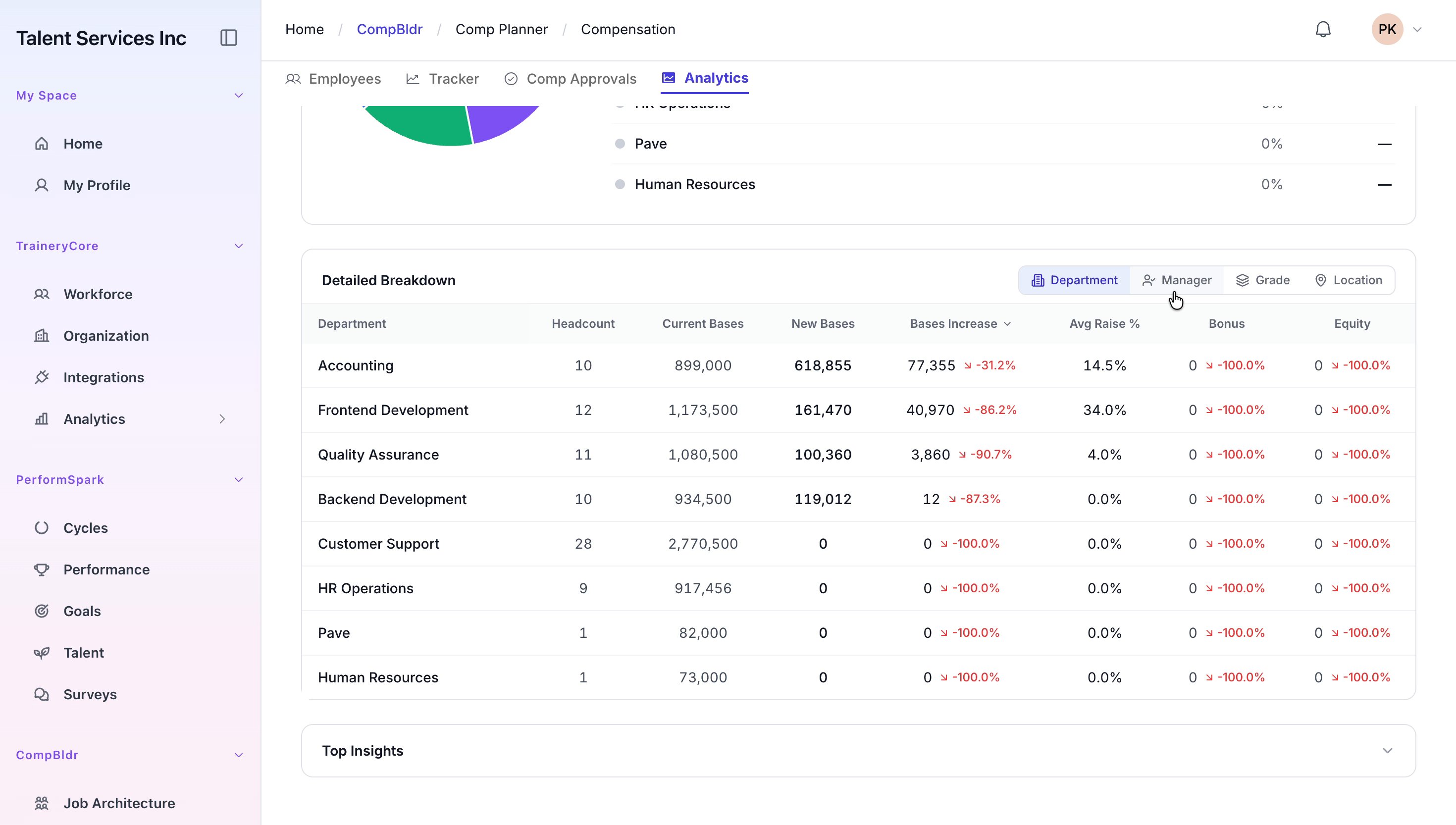
Navigate to the Analytics tab. Review budget utilization, distribution by department, and detailed breakdown charts. Switch views or filters as needed to see data organized by manager and other relevant dimensions.

Step 11: Confirm Nora’s Approved Status in the Employees Tab
Return to the Employees tab. Use the search function to find Nora Sanders and confirm that her approved status and updated compensation details are correctly reflected in the worksheet.
