Compliance Management and Reporting Overview
Last updated: September 8, 2026
This process walks through how to use the Compliance Dashboard to monitor training and credential compliance, review detailed heat maps and audit data, configure escalation rules, and access team-level reports and status.
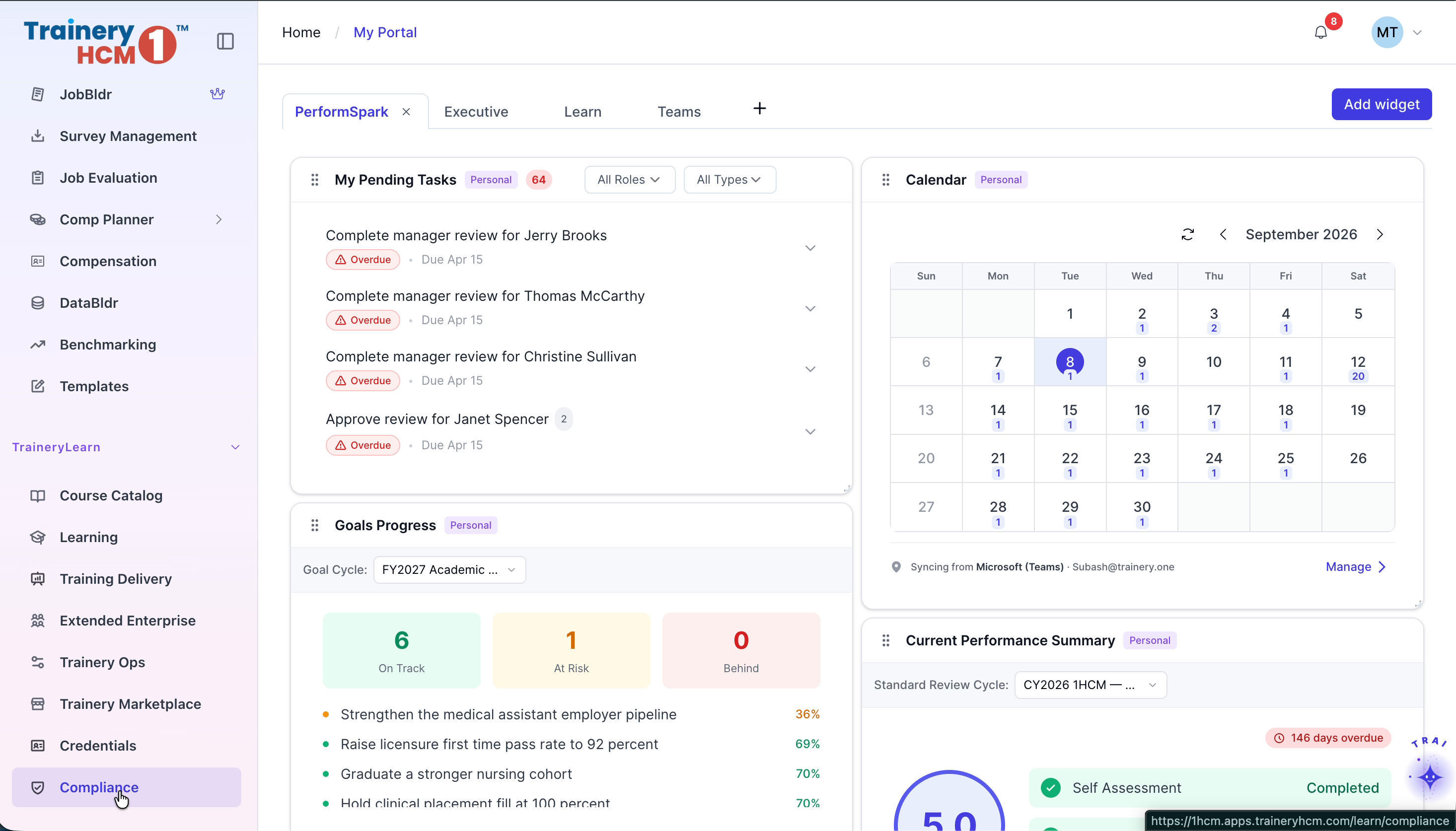
Step 1: Open the Compliance Dashboard
From the main dashboard, navigate to the Compliance section in the sidebar to open the Compliance Dashboard.
Step 2: Review Overall Compliance Metrics
On the Compliance Dashboard, review the high-level overviews of training and credential compliance, including overall team metrics and summary charts.

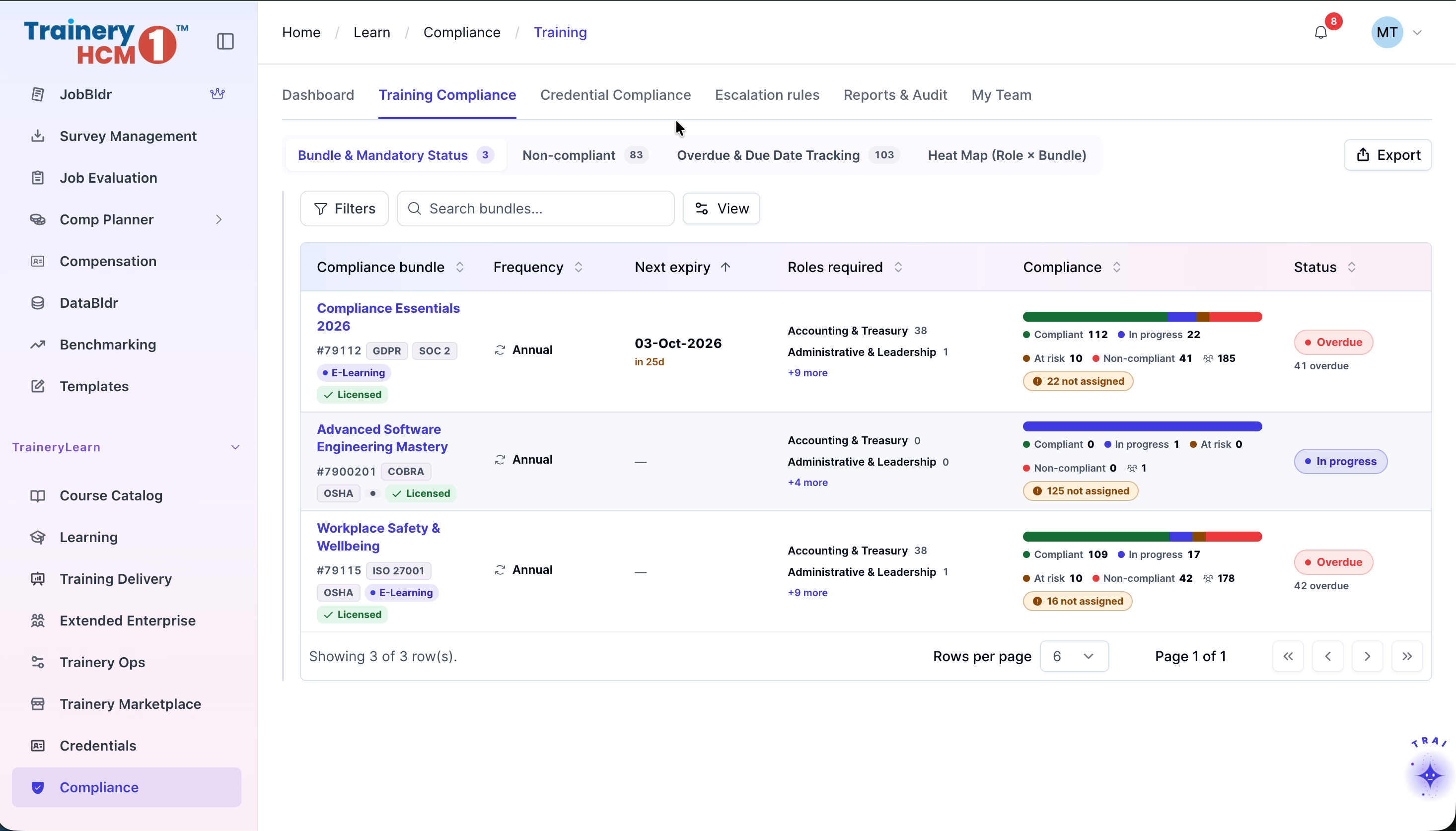
Step 3: Access Training Compliance Bundles
Switch to the Training Compliance tab to view the list of compliance bundles and their current status across your organization.
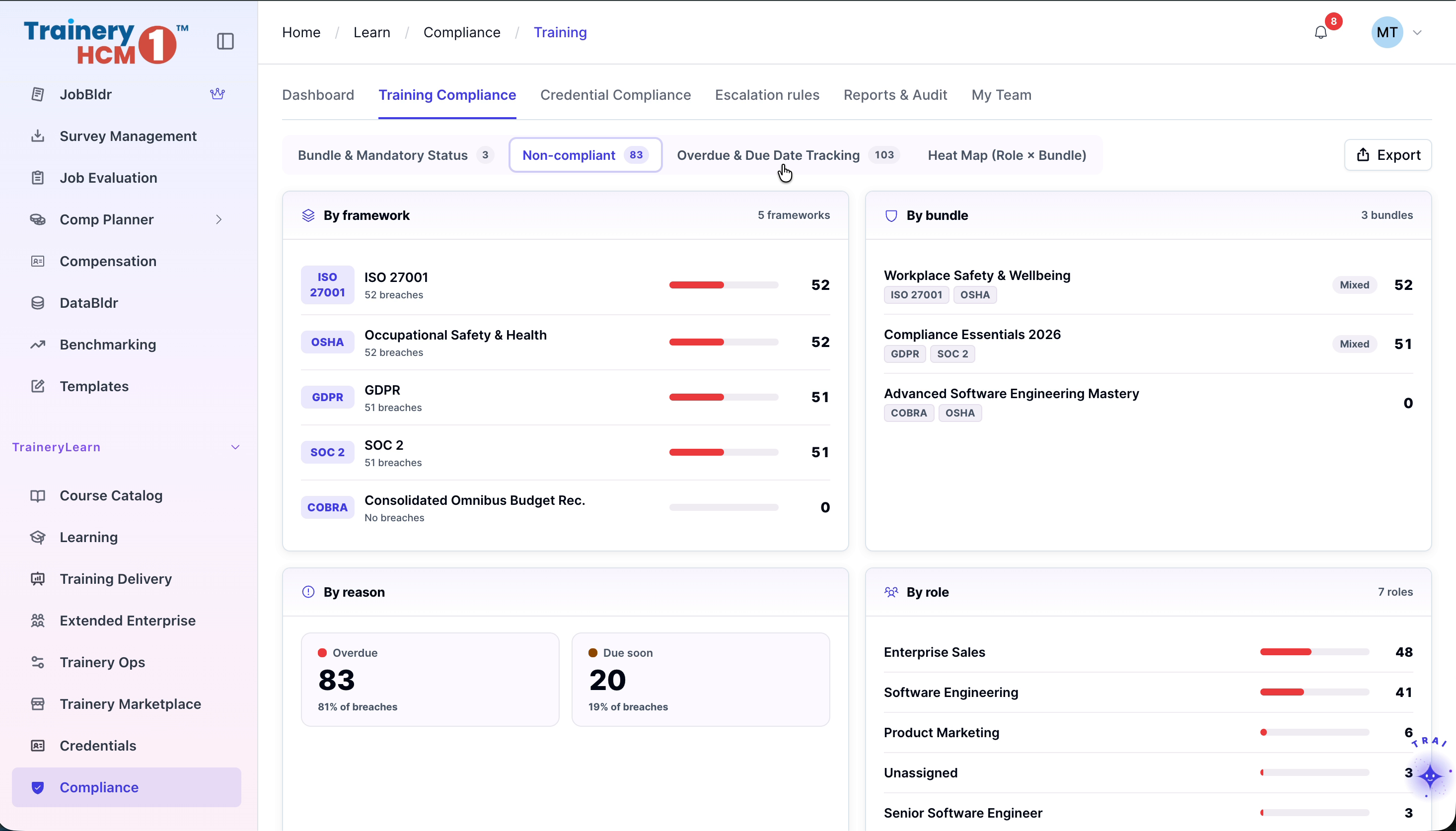
Step 4: Filter for Non‑Compliant Bundles and Analyze Charts
Apply filters to show only non‑compliant bundles, then review the compliance charts broken down by framework, reason, and role to identify key risk areas.
Step 5: Nudge Employees from Overdue and Due Date Tracking
Navigate to the Overdue and Due Date Tracking section and click the Nudge button for an employee to send a reminder about overdue or upcoming training.

Step 6: Review Training Completion Heat Map
Open the Heat Map view to see training completion rates by bundle across different work roles, helping you identify roles with lower completion.

Step 7: Check Credential Compliance CPE Pace Risk
Move to the Credential Compliance tab and review the CPE Pace Risk metrics for employees to see who may be falling behind on required continuing education.
Step 8: Monitor Expiring and Expired Credentials
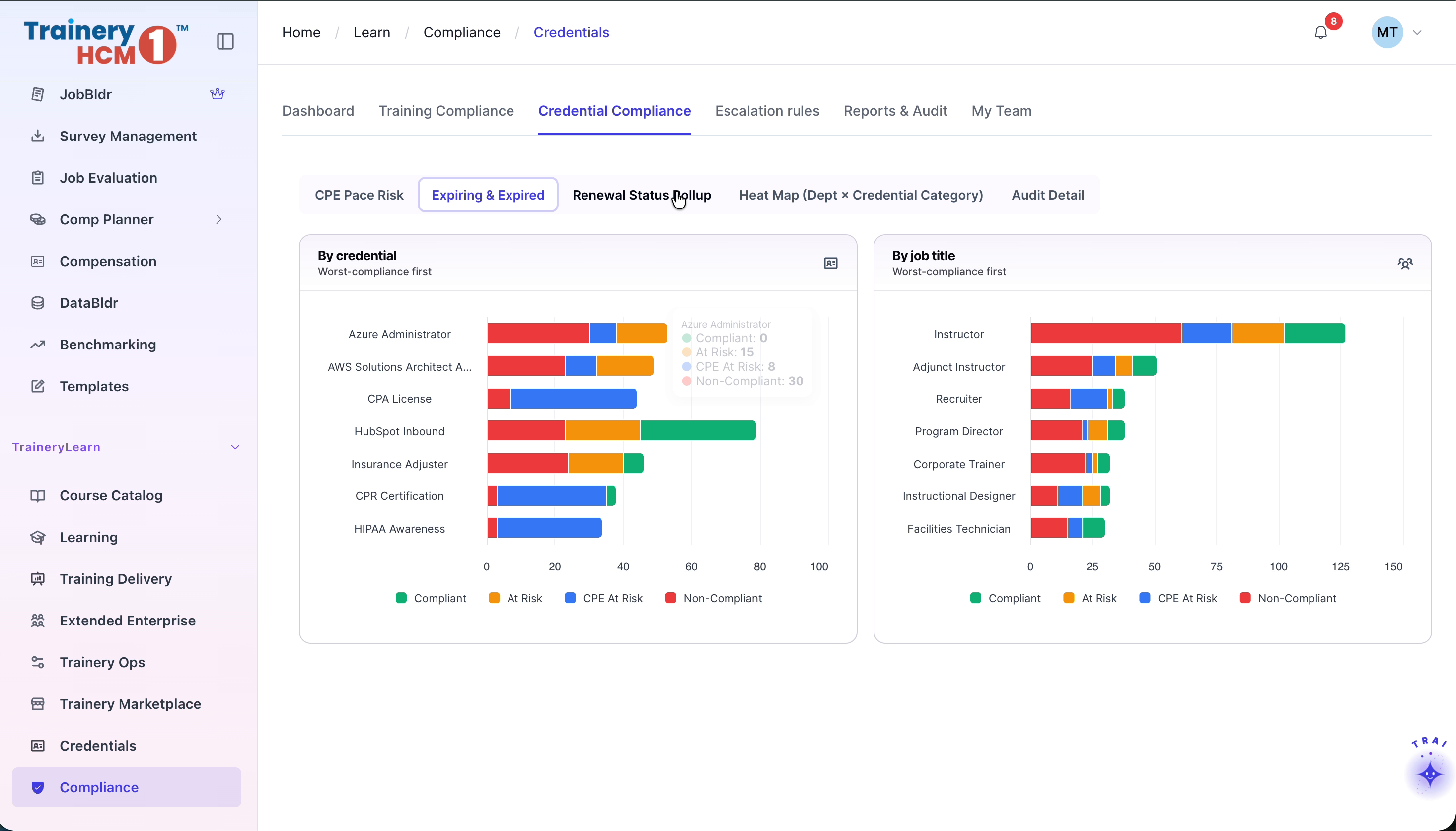
Open the Expiring and Expired tab to view credential compliance charts broken down by credential and job title, focusing on items that are expiring soon or already expired.
Step 9: Drill into Renewal Status Rollup
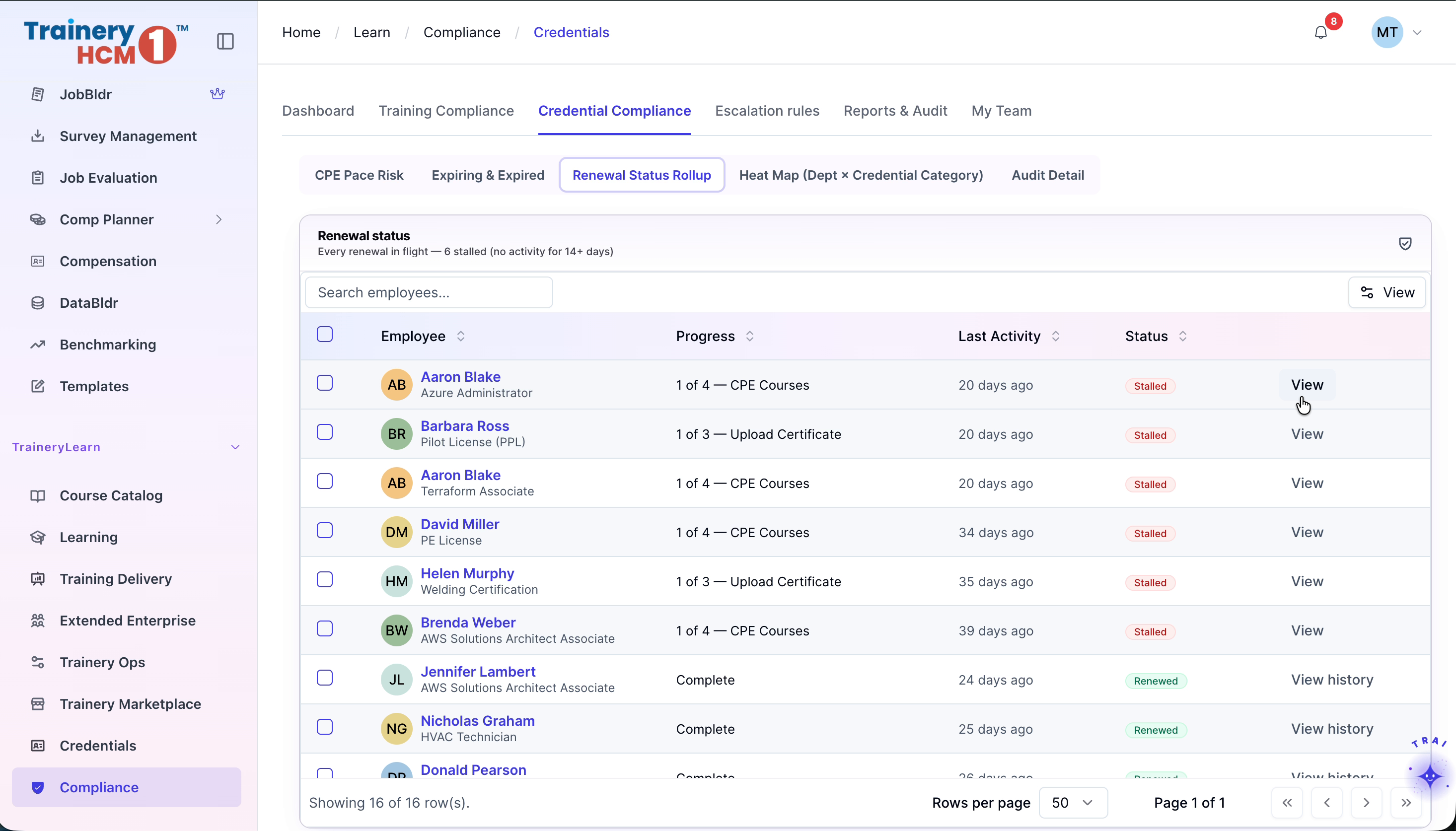
In the Renewal Status Rollup section, click View for a specific employee to open their detailed credential renewal status and review outstanding actions.

Step 10: Analyze Department and Credential Category Heat Map
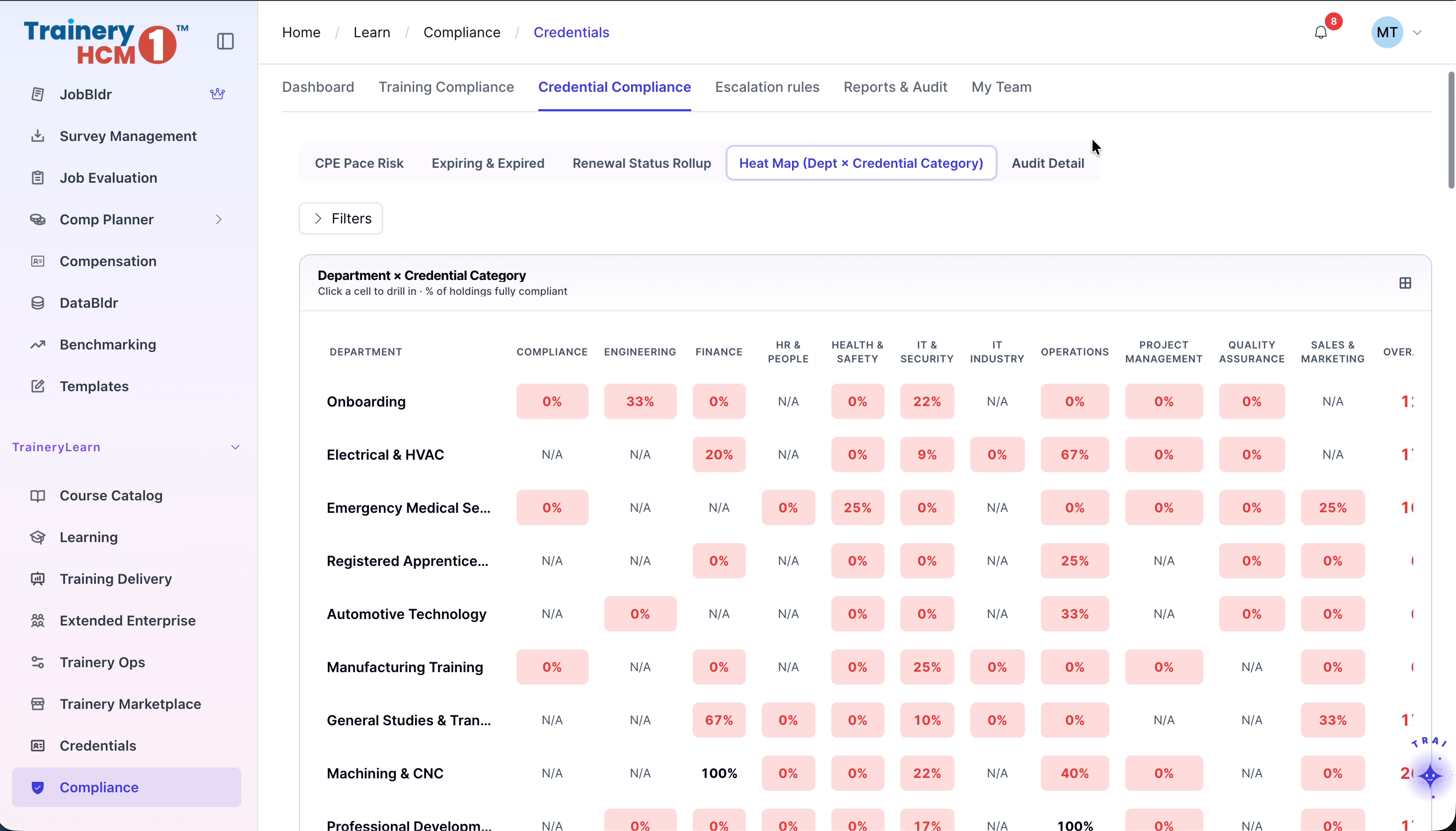
Open the Heat Map for Department and Credential Category to view compliance percentages across departments and identify areas needing attention.
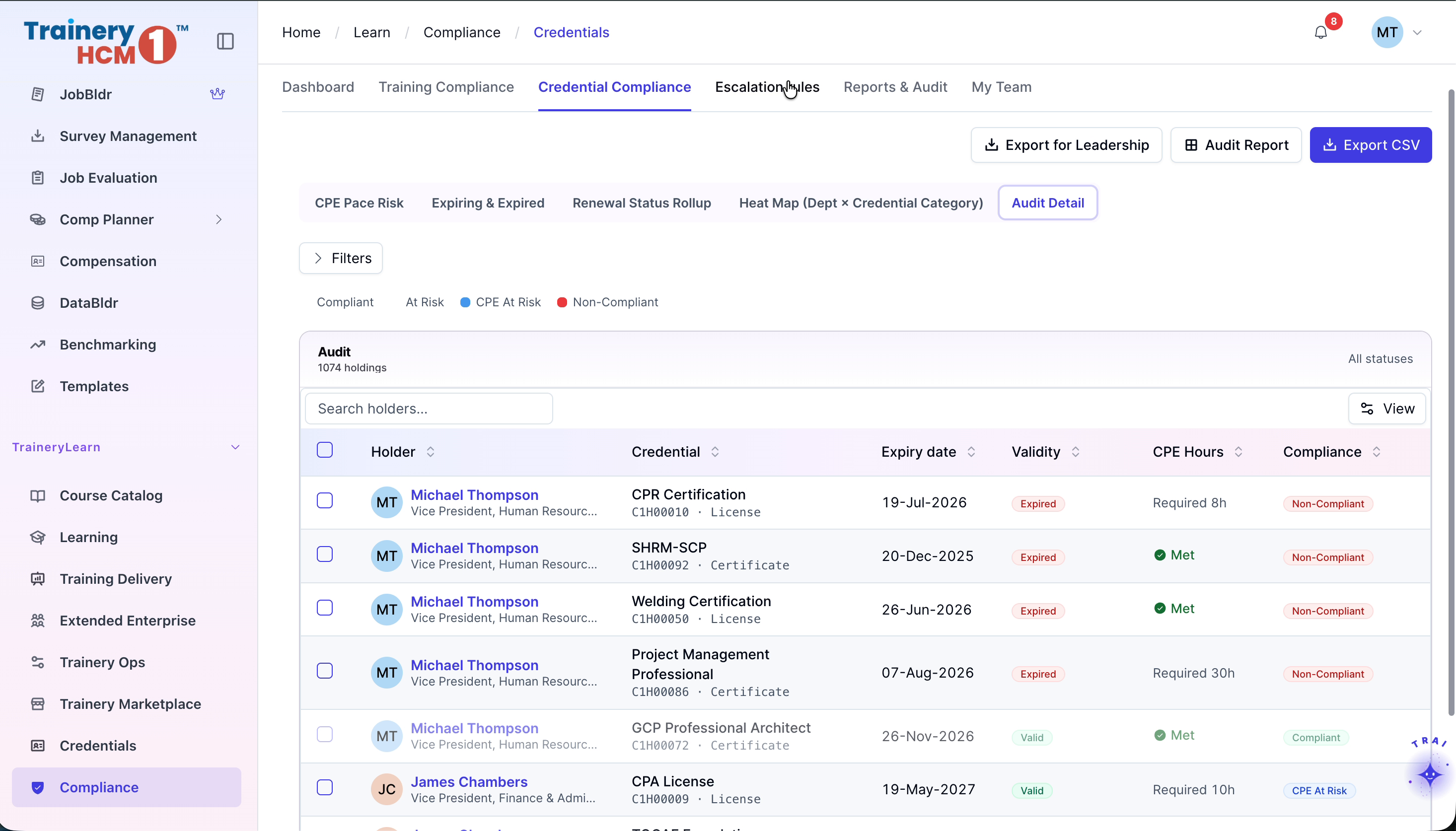
Step 11: Review Credential Audit Details
Access the Audit Detail tab to review specific credential information, including credential type, holder details, and validity dates for individual credential holders.
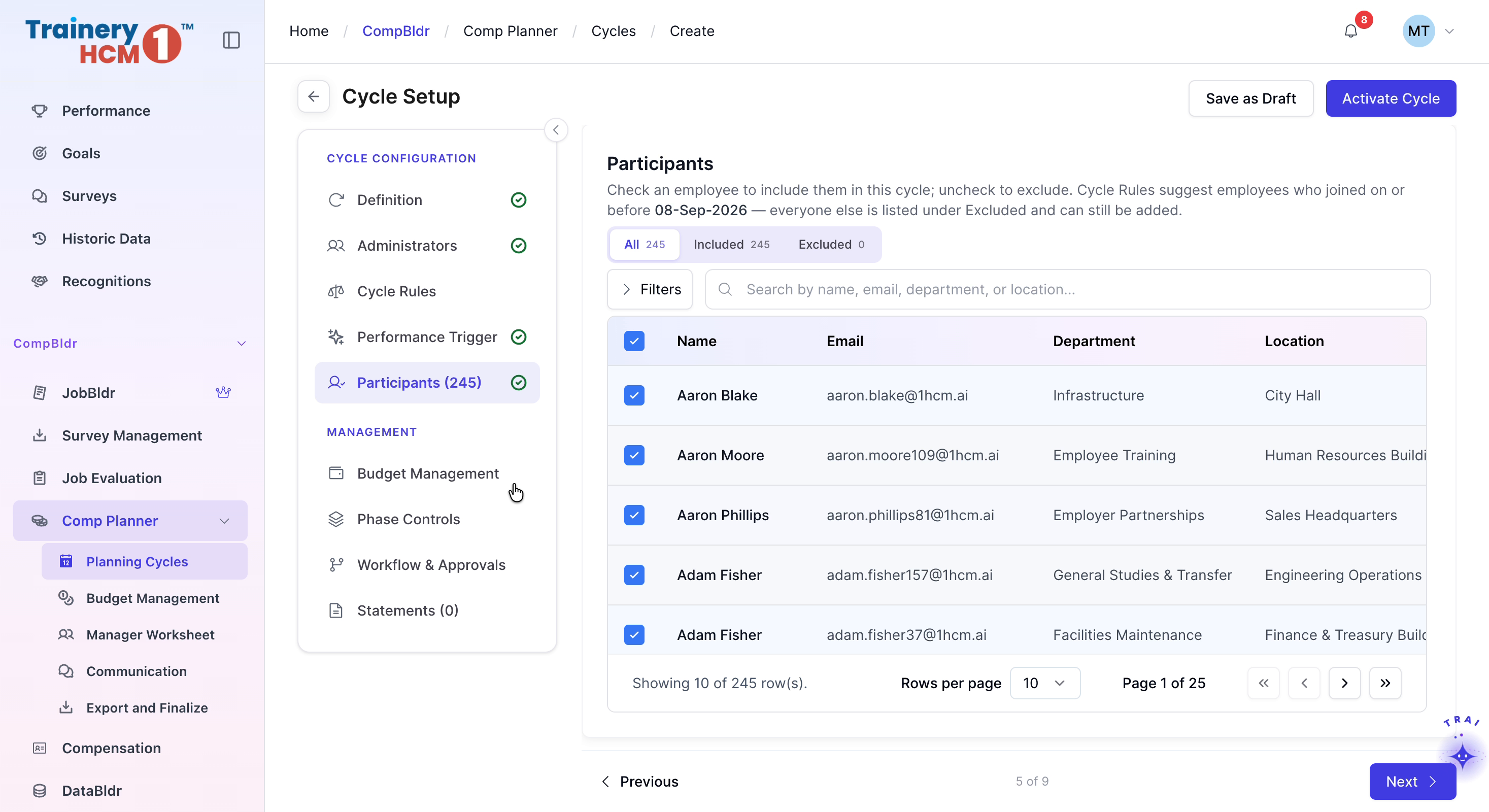
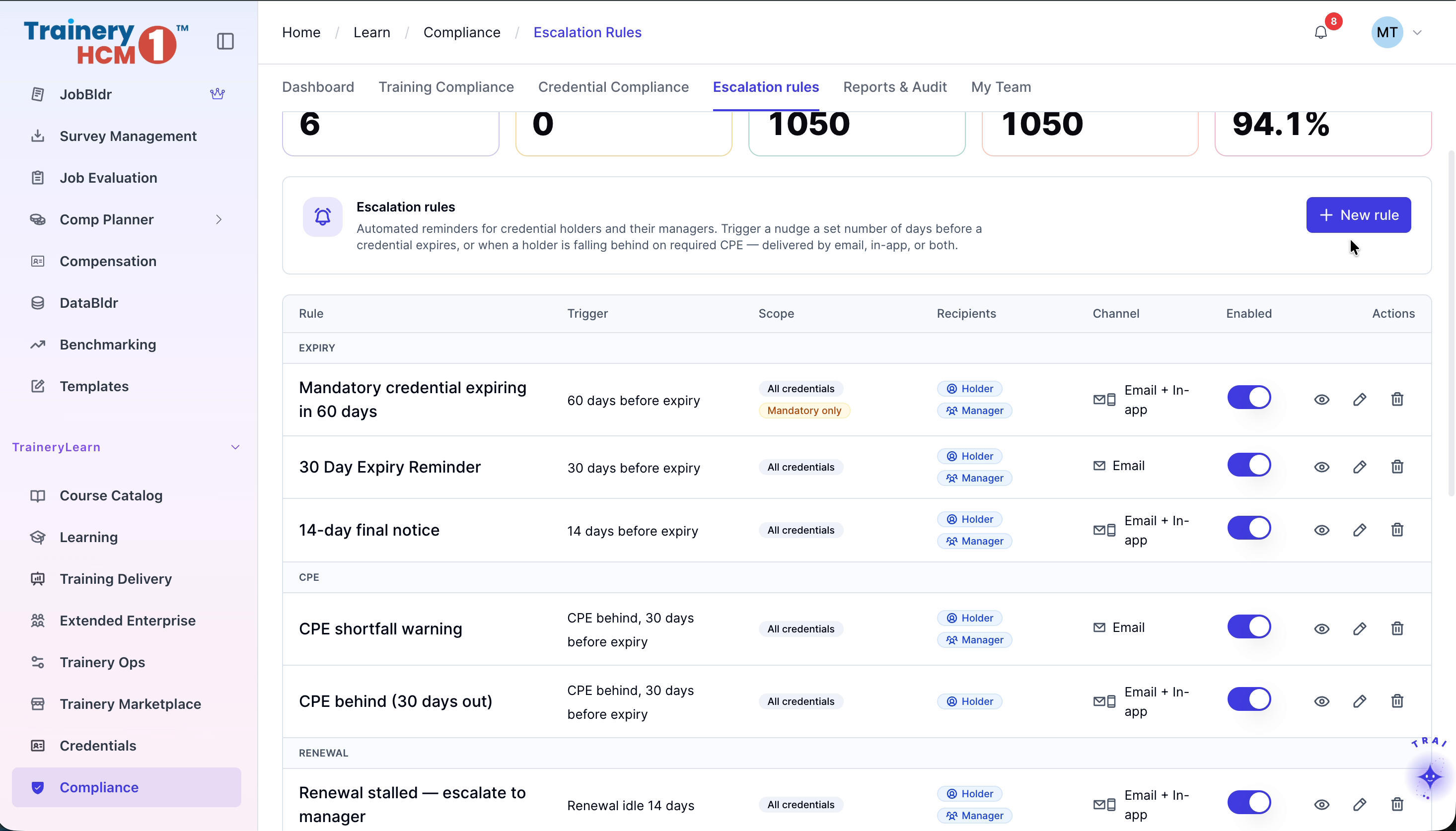
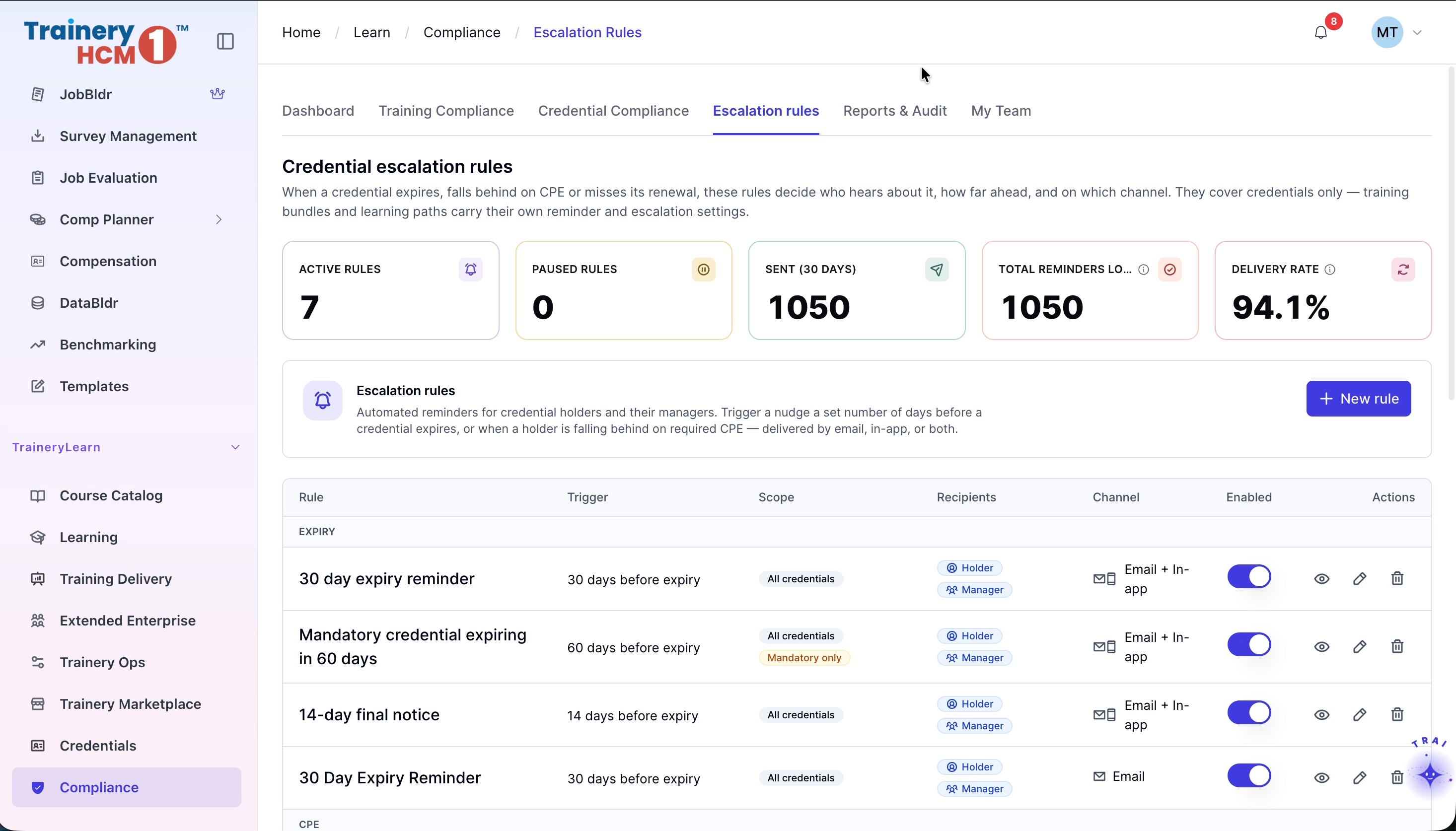
Step 12: Configure Escalation Rules for Credential Reminders
Navigate to the Escalation Rules tab to manage automated reminders sent to credential holders and their managers. Create a new notification rule by entering “30 day expiry reminder” as the rule name, setting the rule scope to all credentials, choosing the appropriate delivery channel (e.g., email or in-app), and saving the new rule.

Step 13: Use Reports and Audit for Snapshots and Trails
Go to the Reports and Audit tab to generate compliance snapshots, review scheduled reports, and check audit trails for historical activity and changes.

Step 14: Review My Team Compliance Status
Navigate to the My Team tab to view the overall compliance status of your team members, including training and credential completion for each individual.