Creating a New Course Bundle
Last updated: August 26, 2026
This process walks you through creating a new bundle, adding all relevant courses, configuring notifications, and finalizing the bundle for use.
Step 1: Start a New Bundle and Enter Details
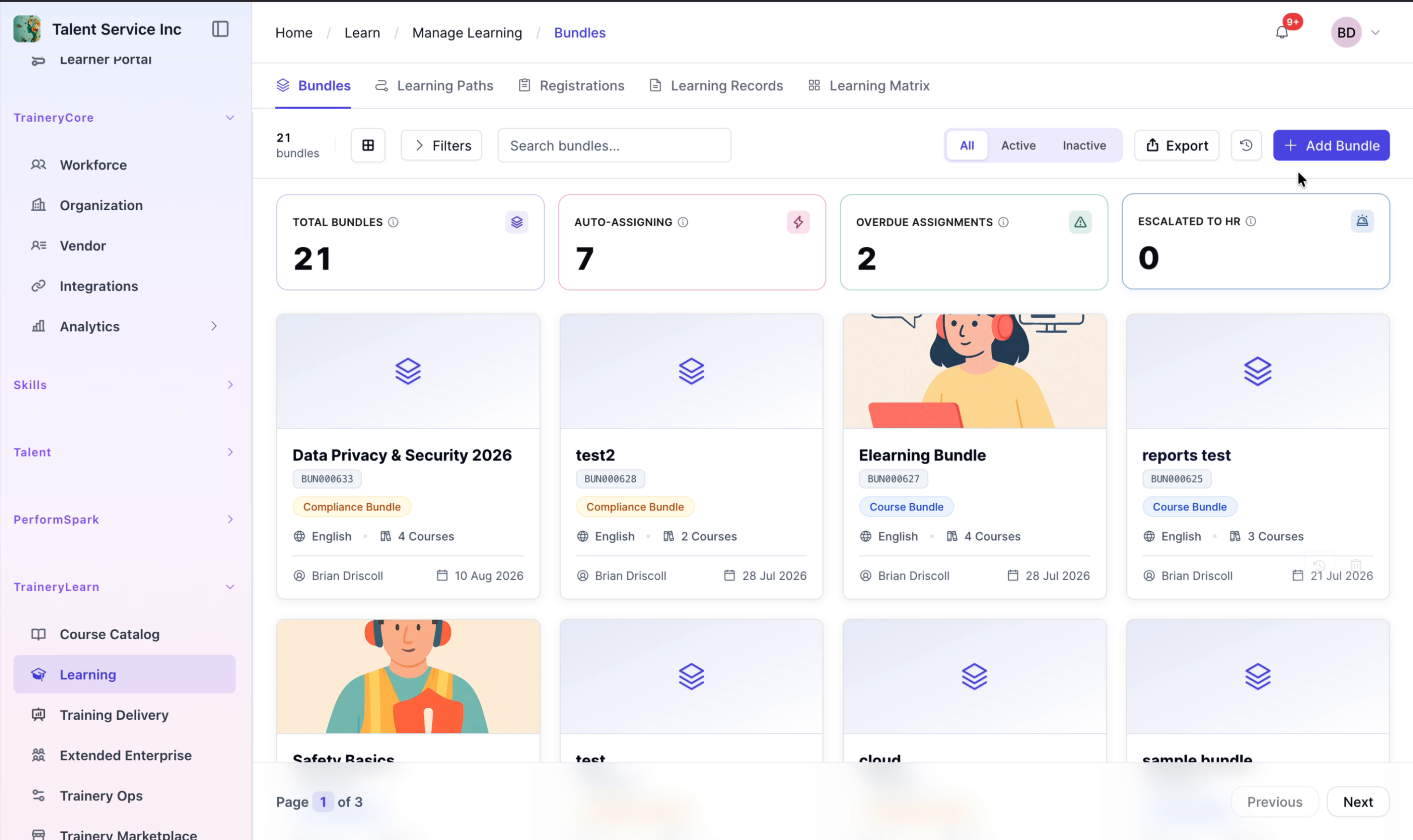
Click the Add Bundle button to create a new course bundle. Select the Standard bundle type, then enter the bundle name. Review the basic details and click Next to proceed to the courses step.
Step 2: Add Courses to the Bundle
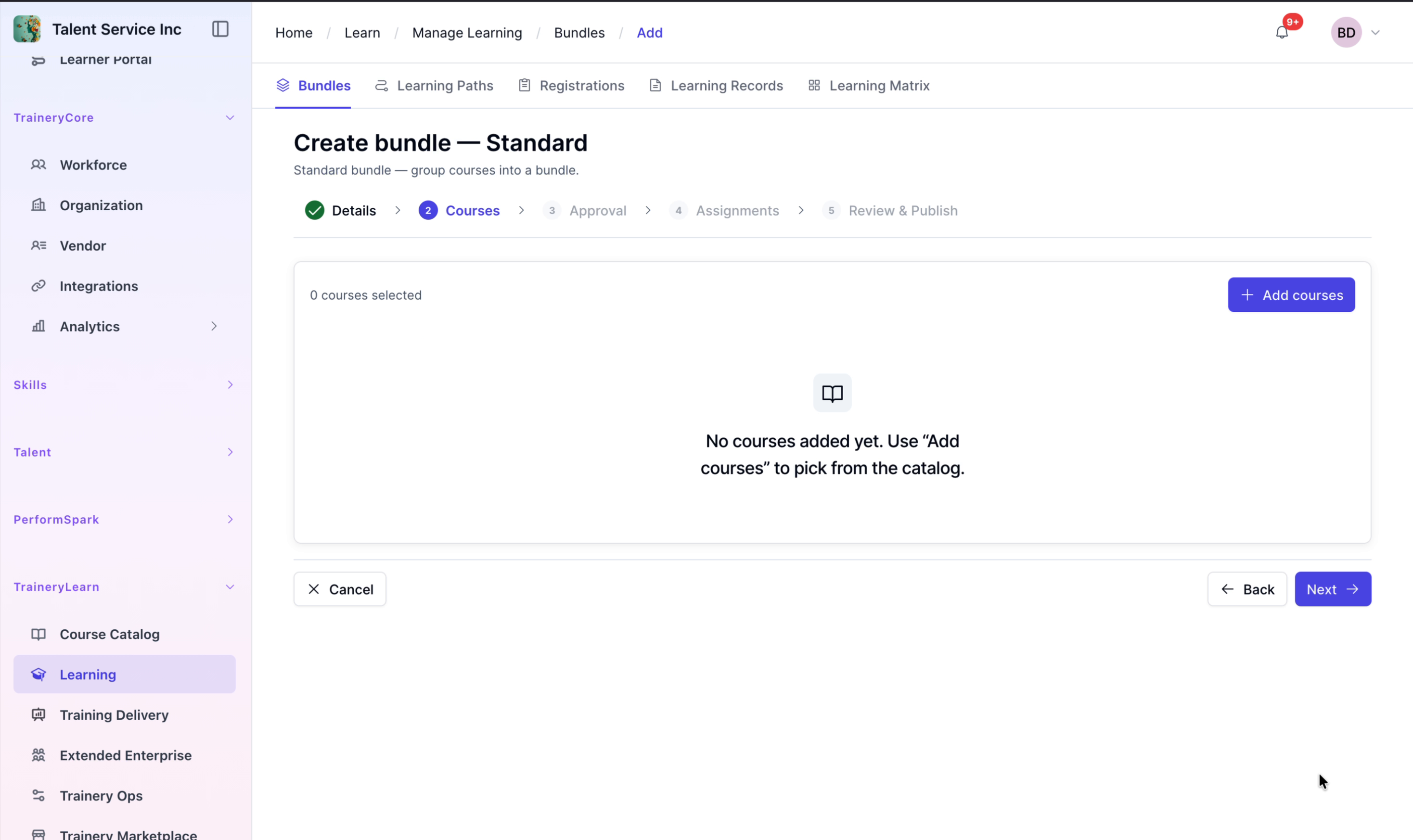
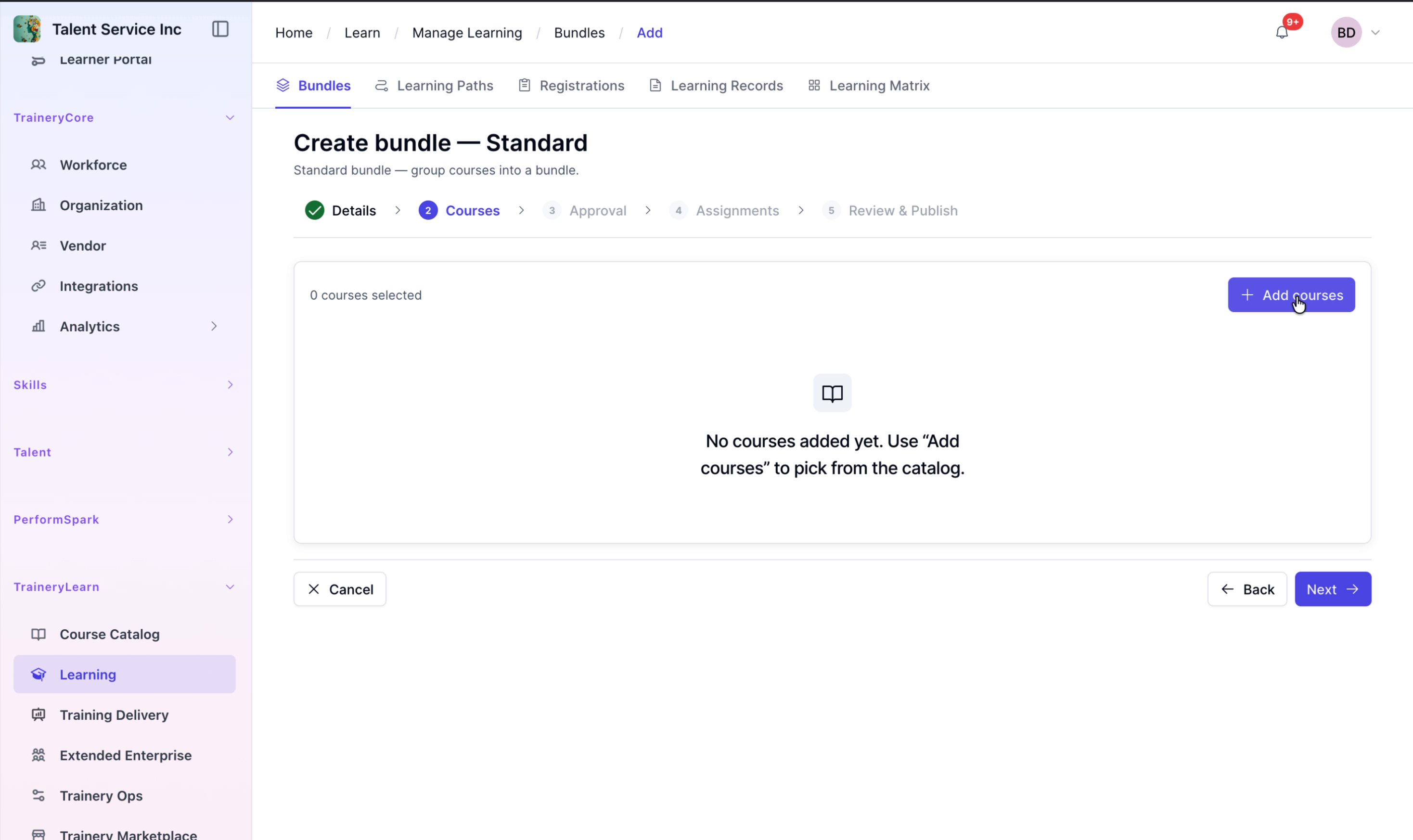
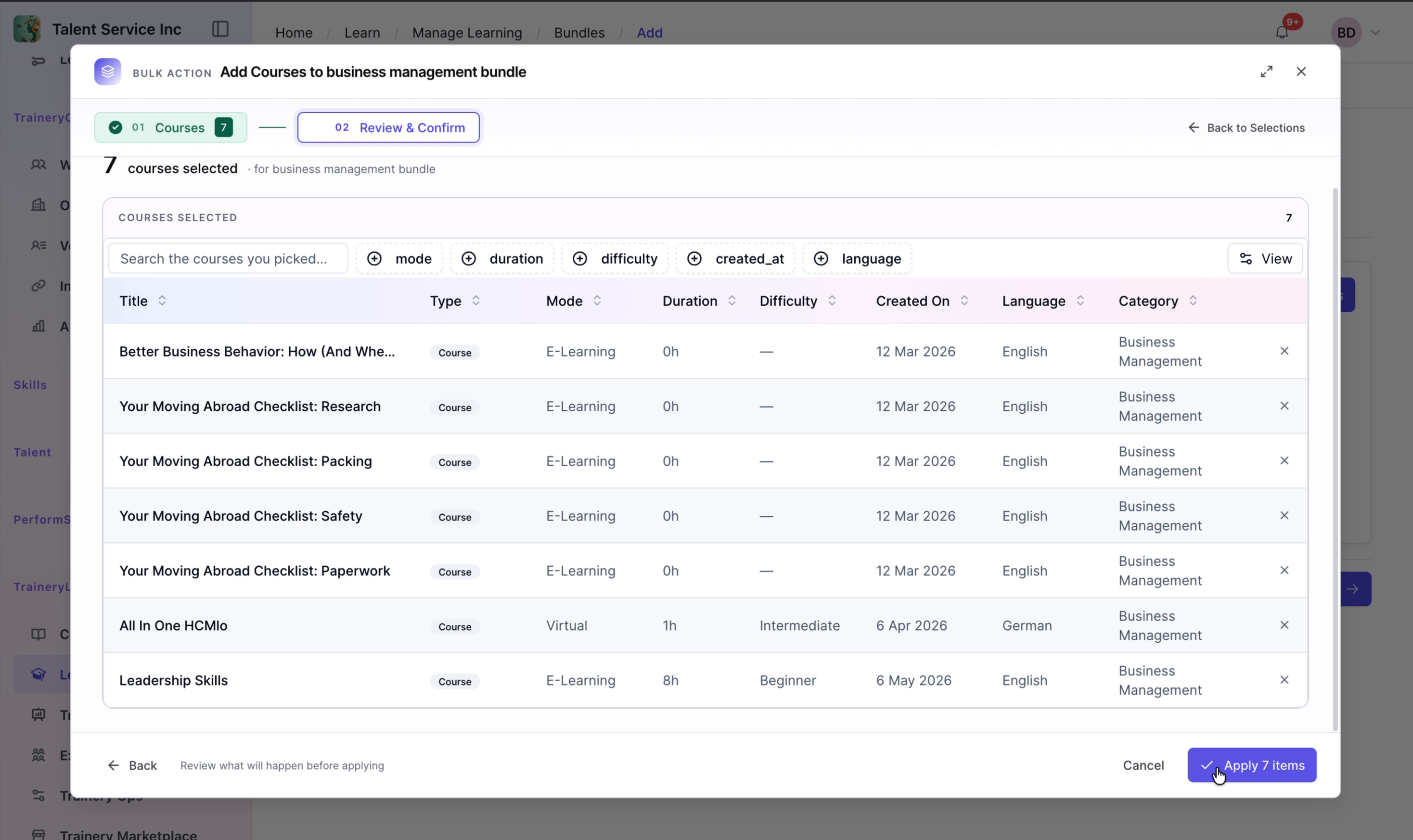
On the courses step, click Add courses. Filter the list by the category, select available items, and click Apply to add them to your bundle.
Step 3: Configure Notifications and Proceed to Assignments
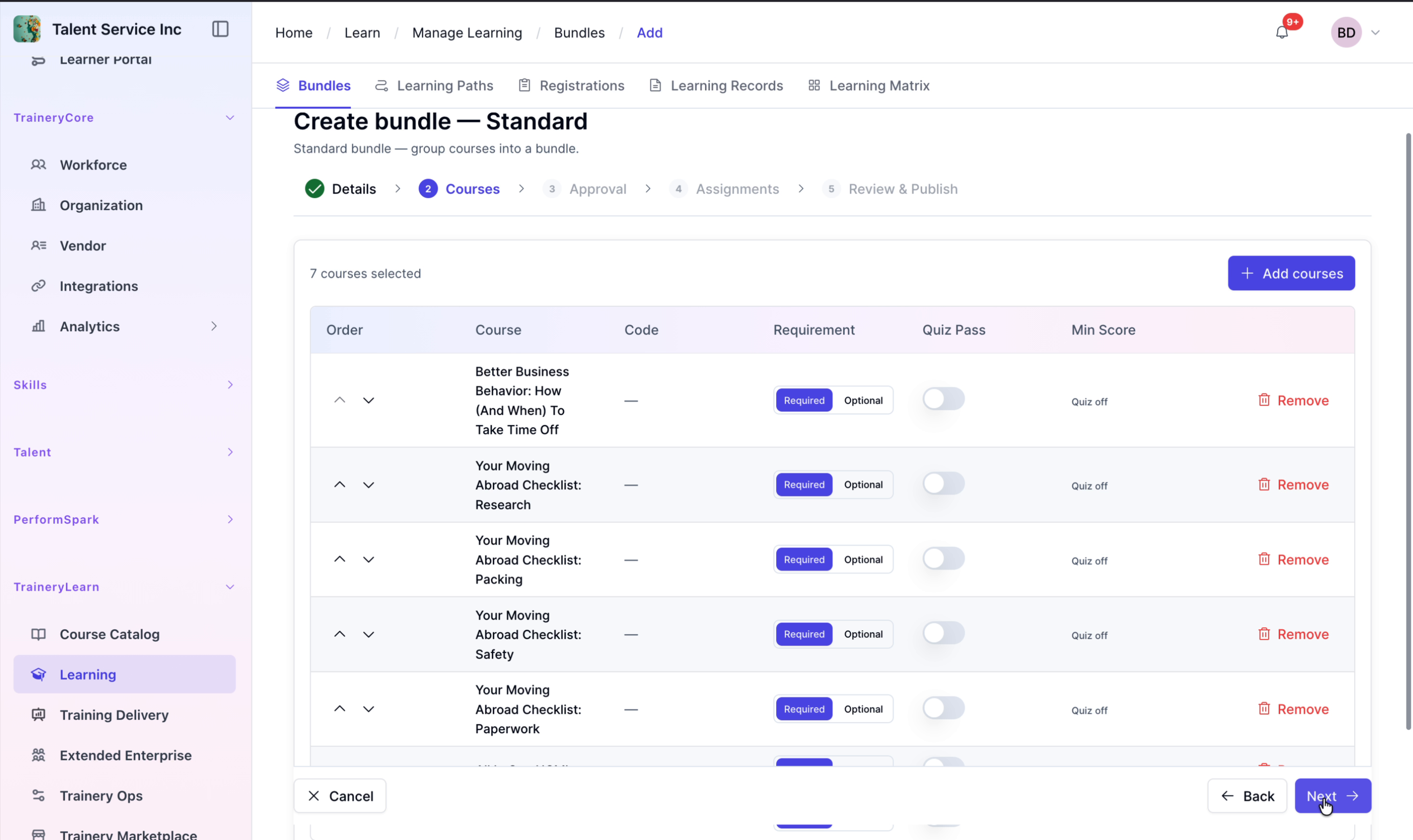
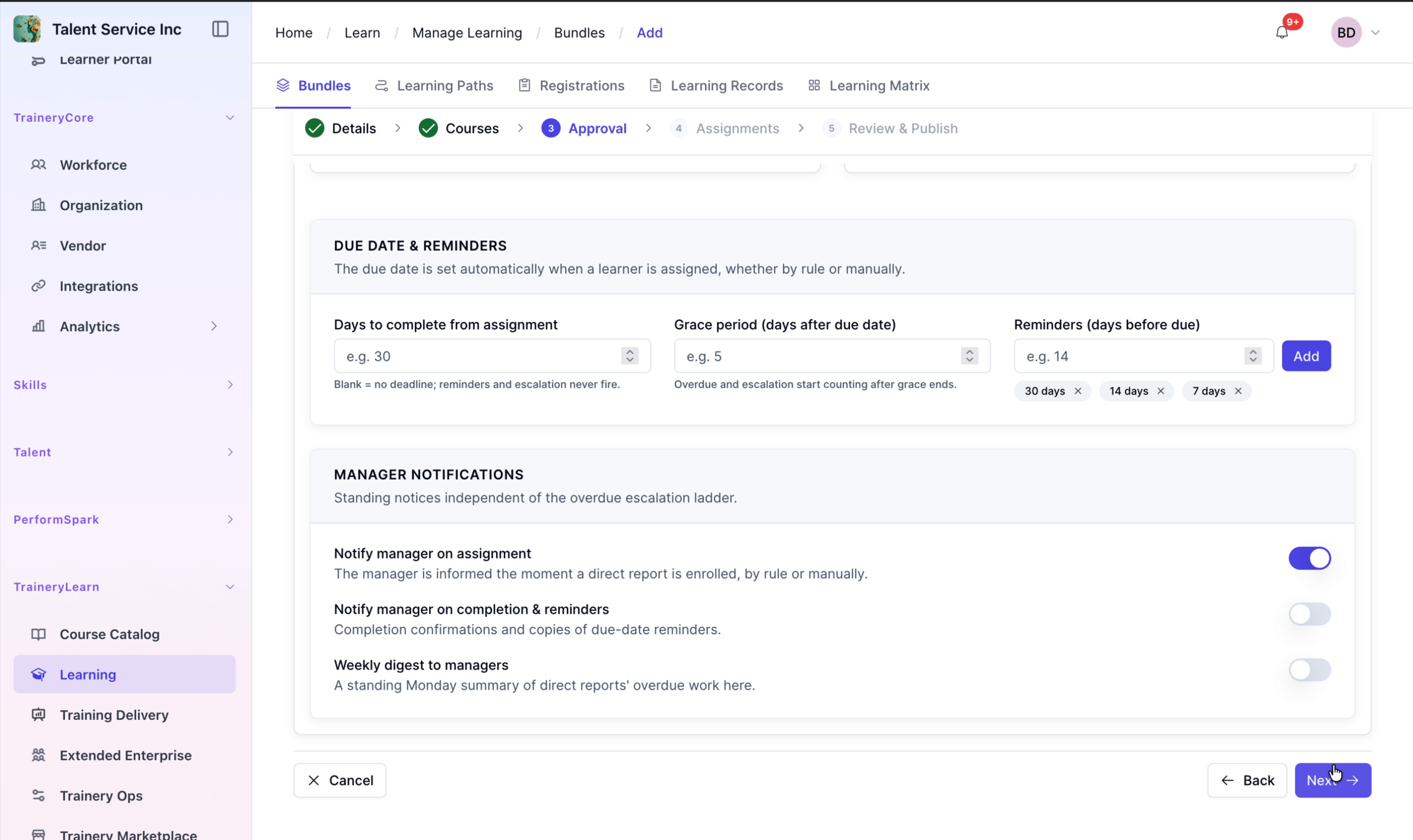
Click Next to review the selected courses and move to the approval step. Enable the manager notification toggle to notify managers about this bundle, then click Next to proceed to the assignments page.
Step 4: Finalize and Create the Bundle
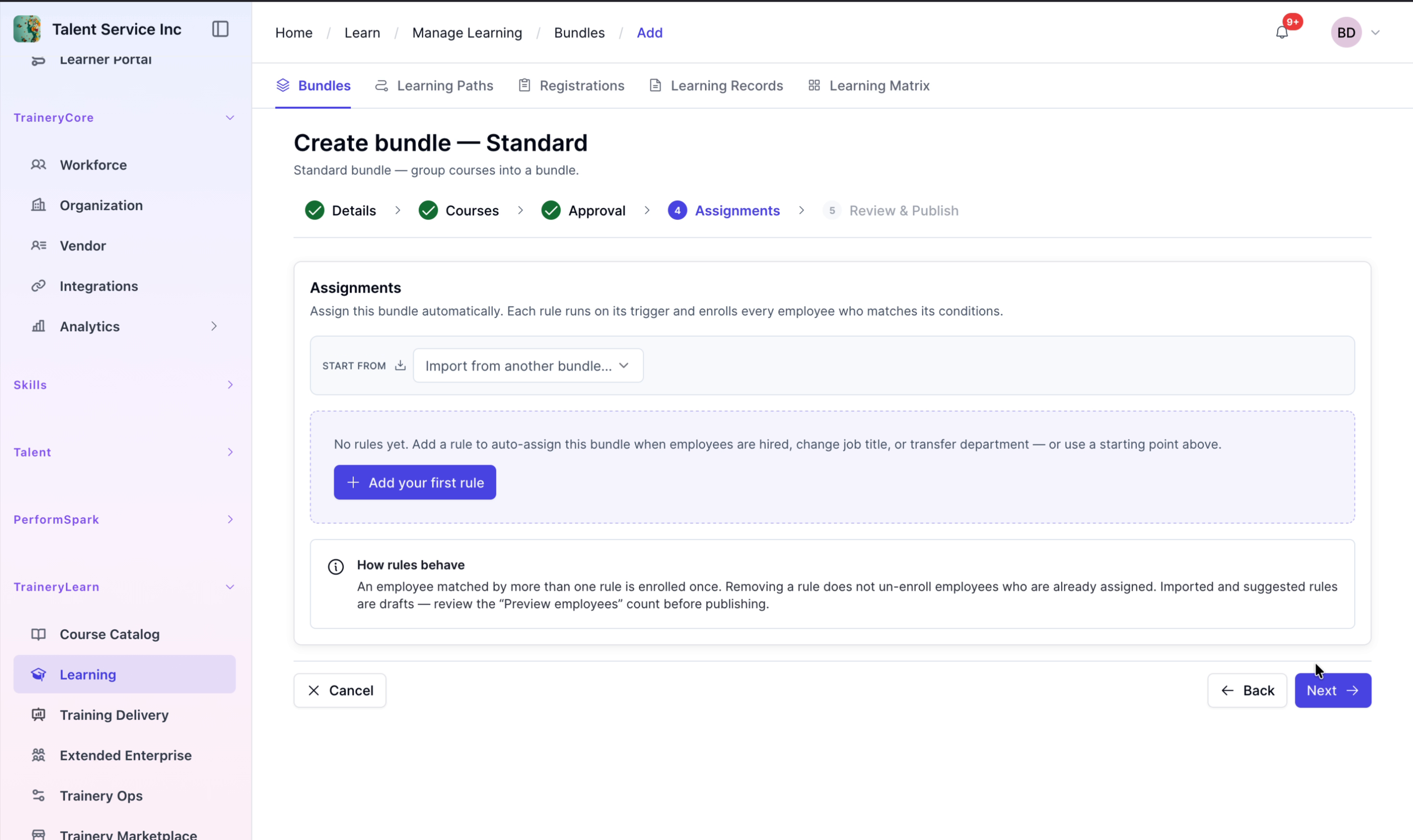
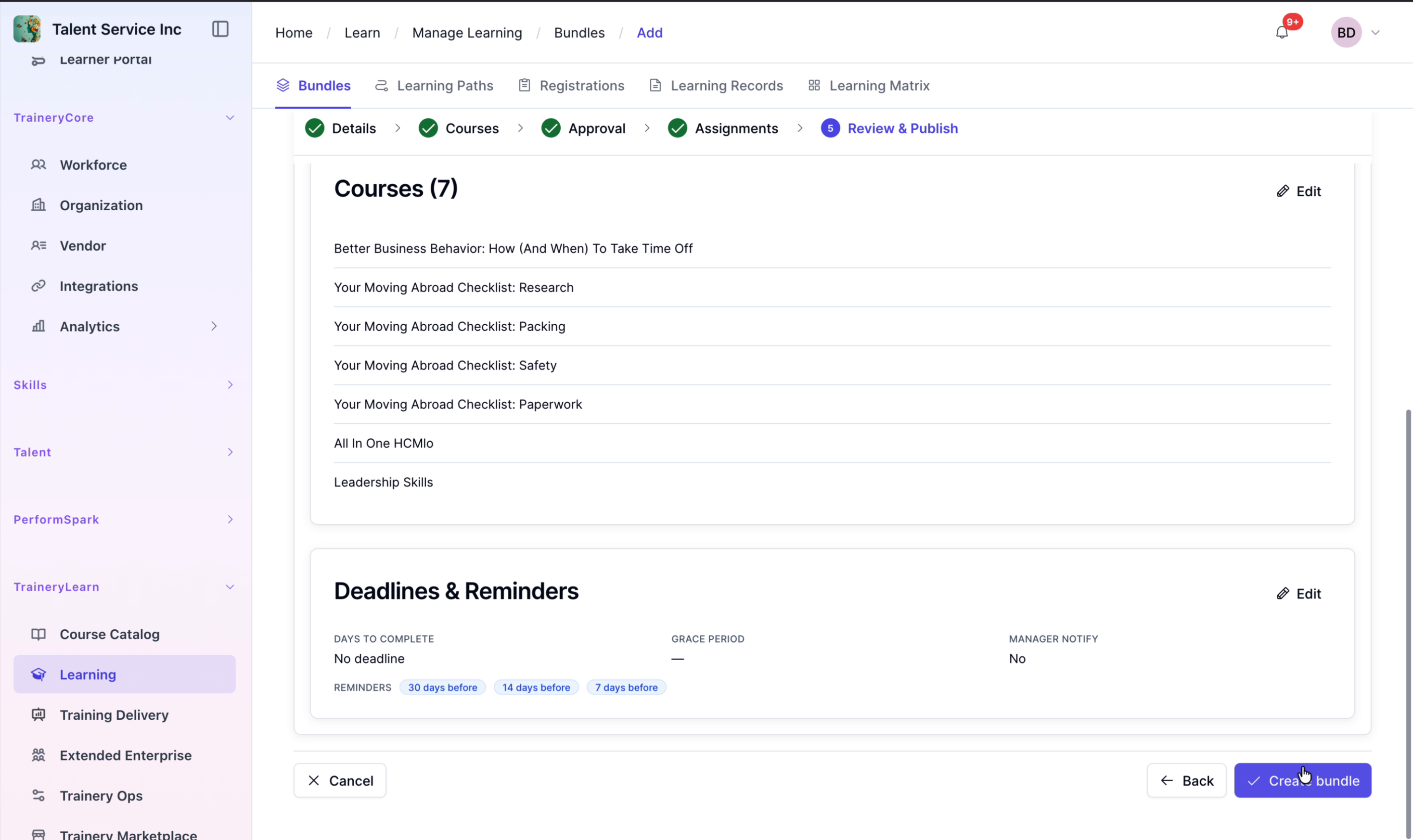
On the assignments page, click Next to accept the default assignment settings (or your configured ones), then select Create bundle to finalize and save your new bundle.