Creating a 360° Performance Review Cycle
Last updated: July 1, 2026
Creating a 360° Performance Review Cycle for Fiscal Year 2026
This document describes how to configure and launch a new 360° performance review cycle for Fiscal Year 2026, including timeline setup, nomination rules, anonymity and privacy settings, notifications, participant selection, and template assignment.
Step 1: Open the Cycles Section and Start a New Cycle
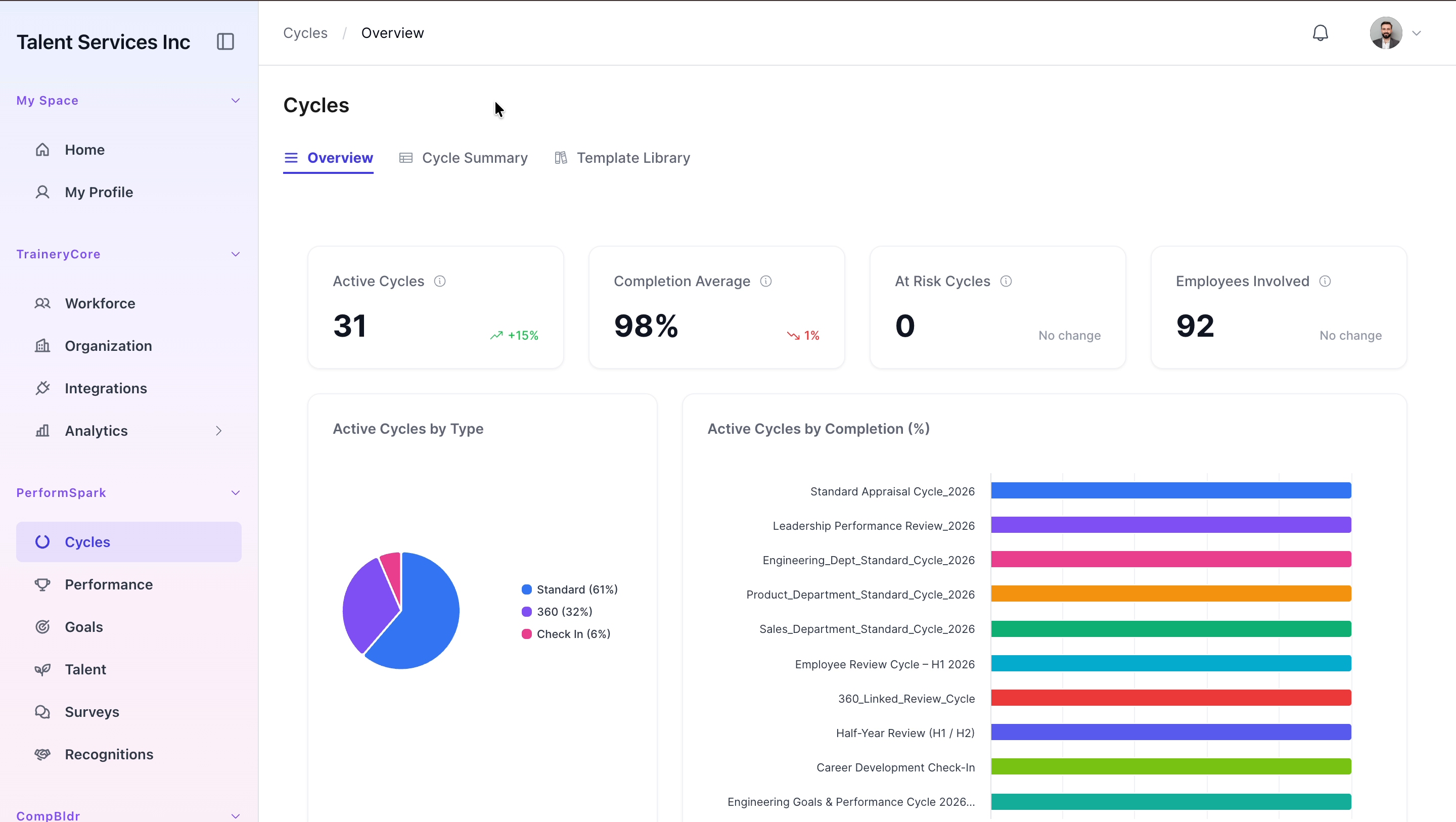
Navigate to the Cycles section of the platform to view the performance cycle overview and analytics.

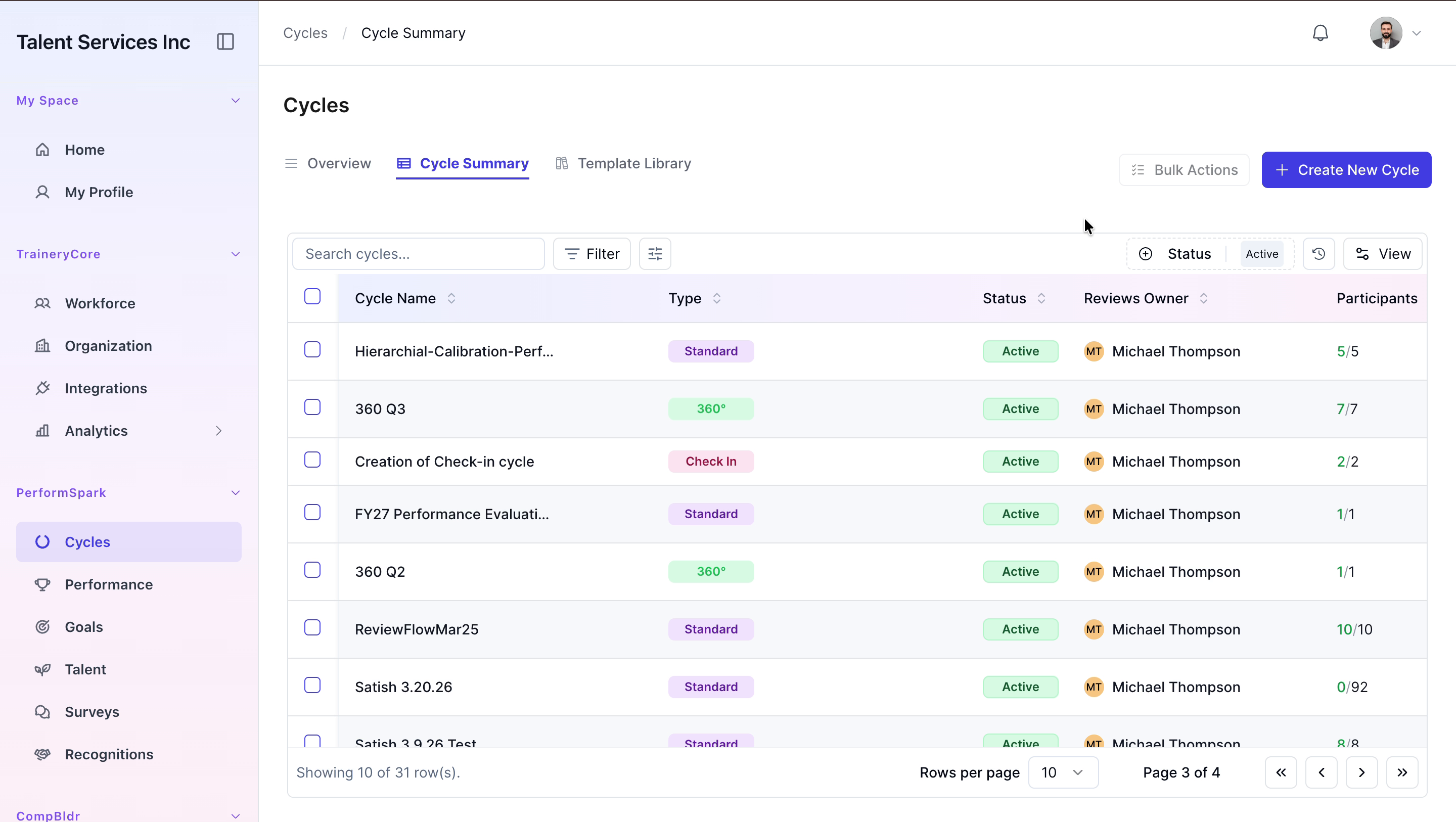
Switch to the Cycle Summary tab and click the Create New Cycle button to begin setting up a new performance cycle.
Step 2: Choose Cycle Type and Name the Cycle
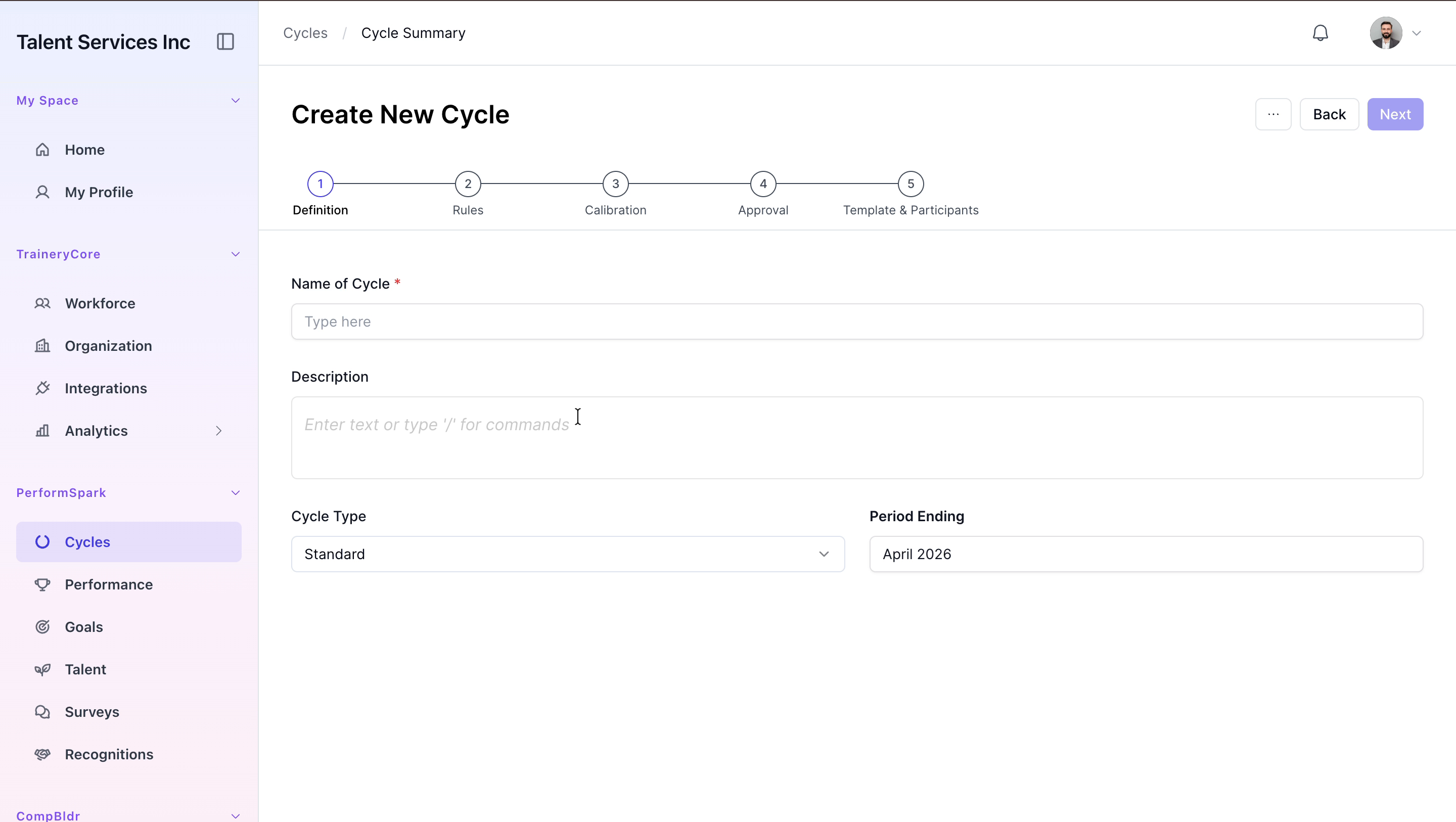
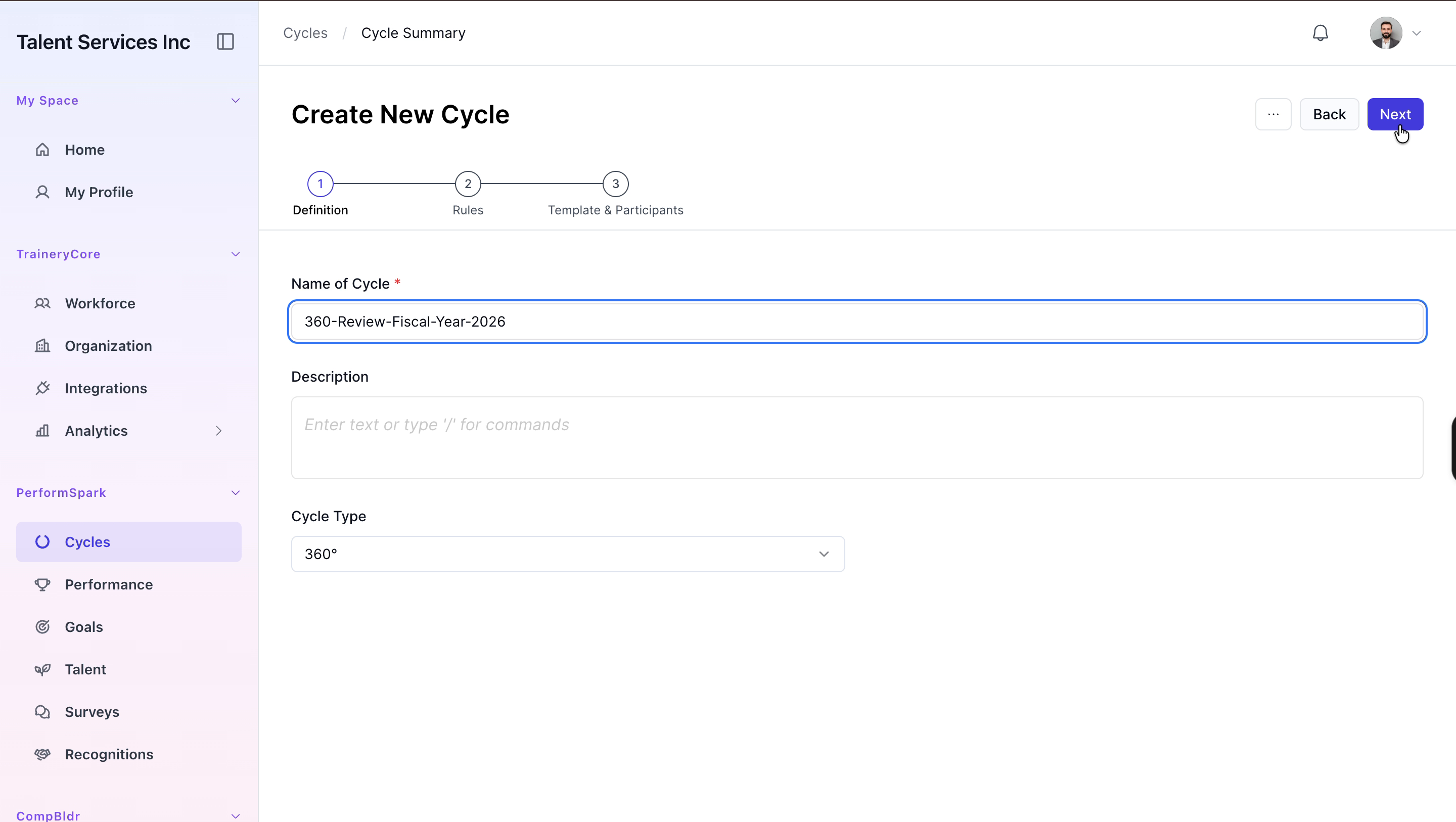
Select 360° as the cycle type. Begin typing the name for the new cycle and complete it as: 360-Review-Fiscal-Year-2026.

Click the Next button to proceed to the rules and timeline configuration.
Step 3: Configure the Timeline
In the Timeline section, set the nomination start and nomination completion dates for May 2026.
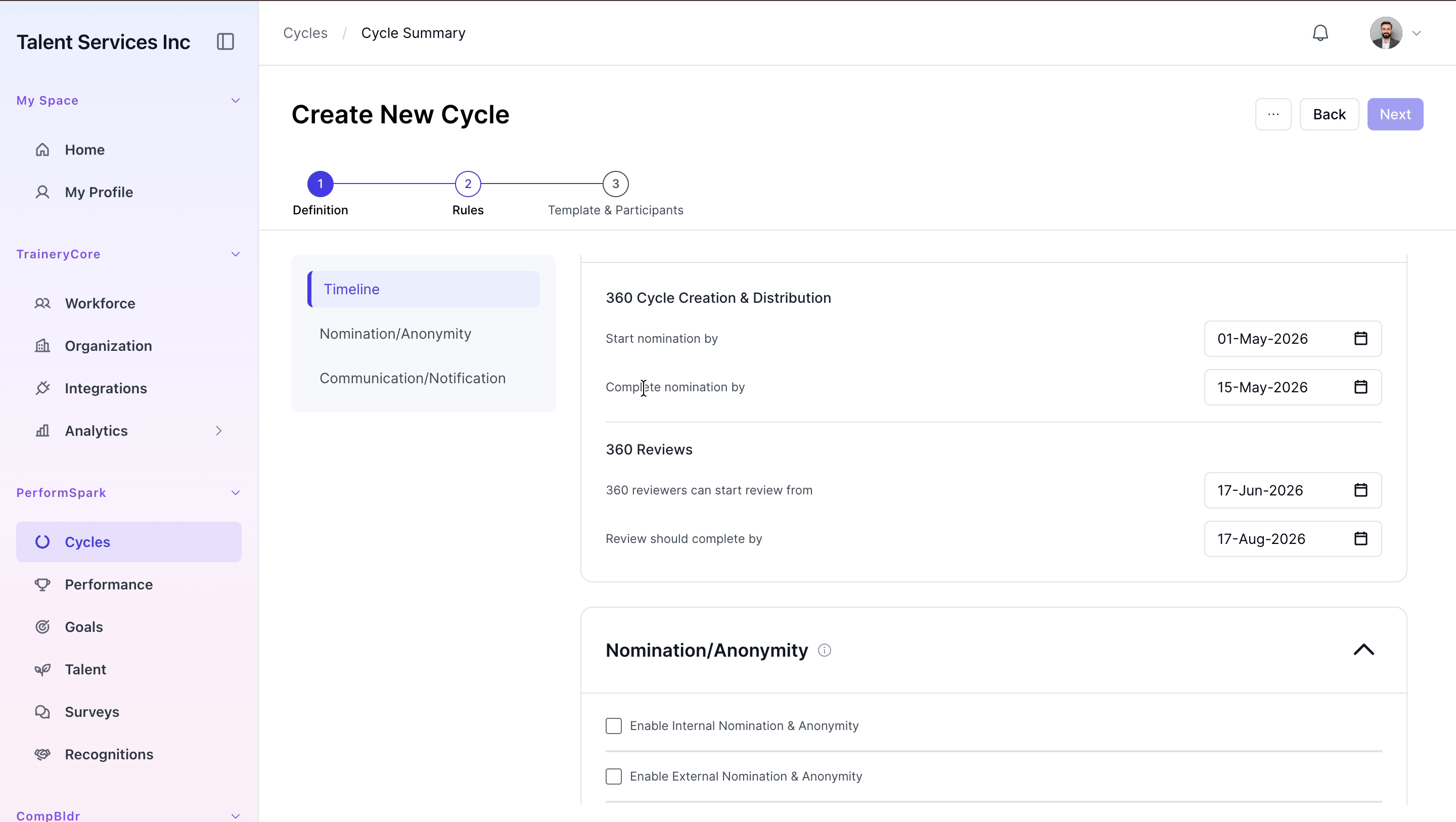
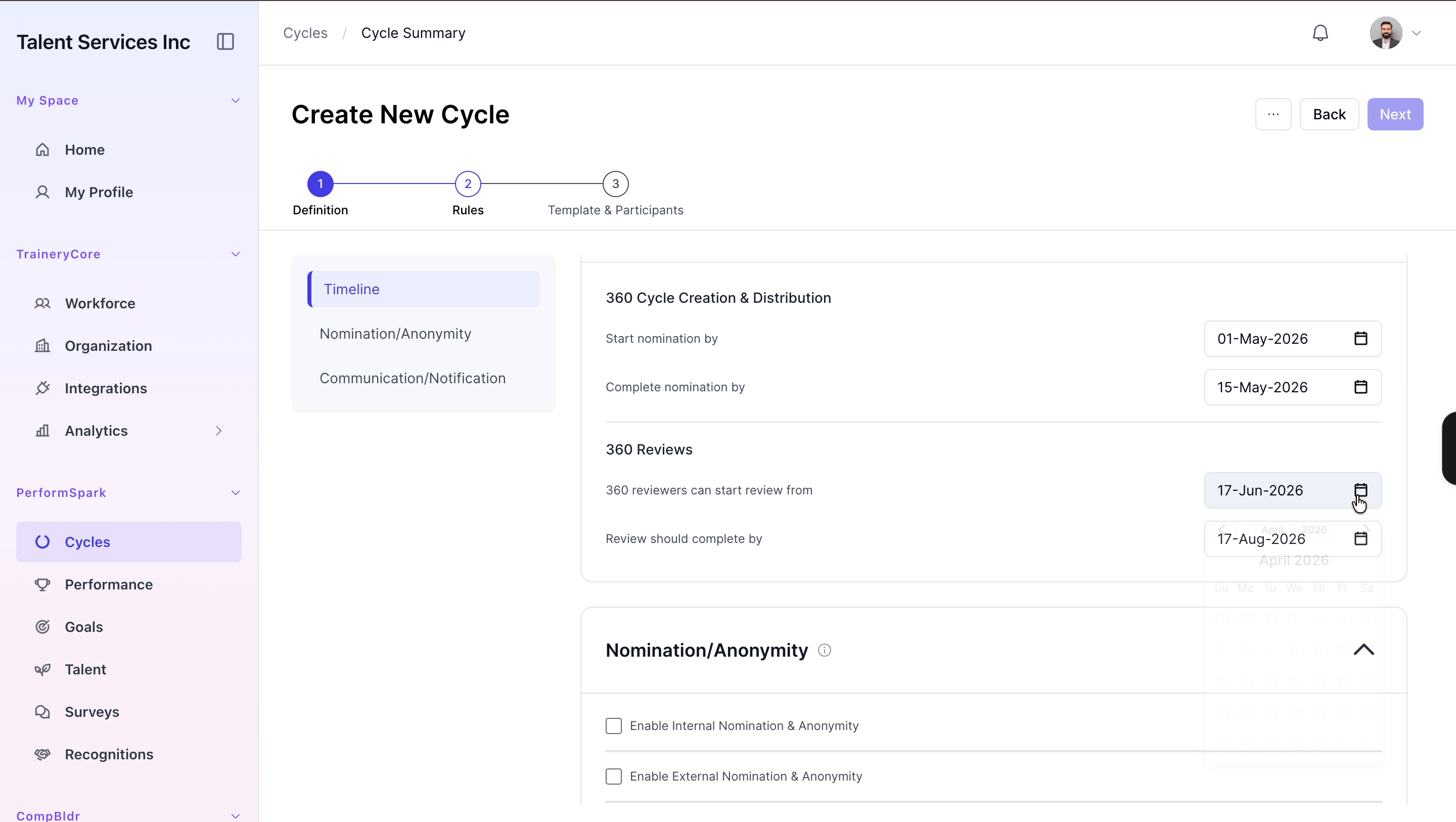
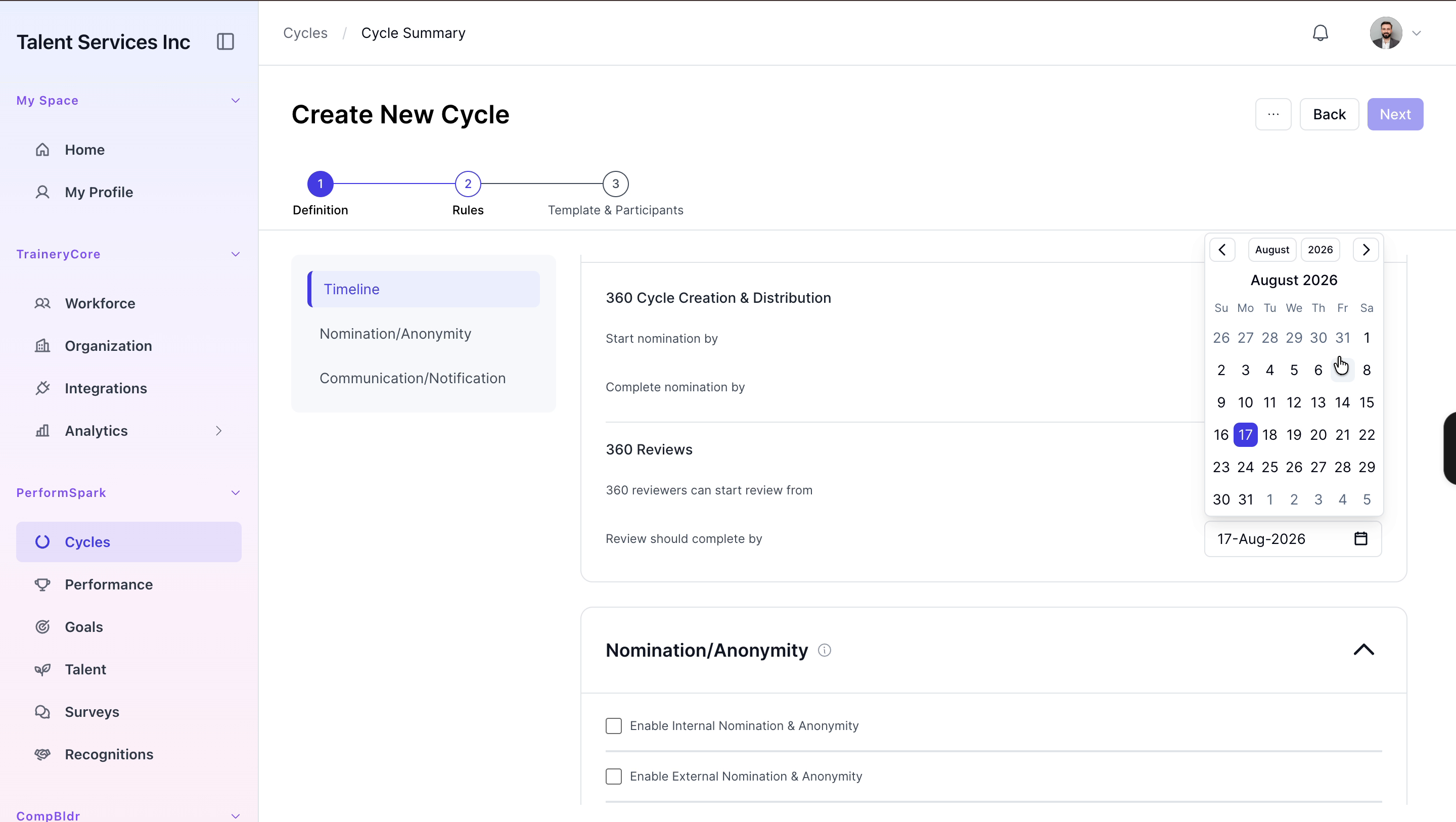
Set the review period start date to June 2026, and finalize the timeline by setting the review completion deadline to the end of August 2026.
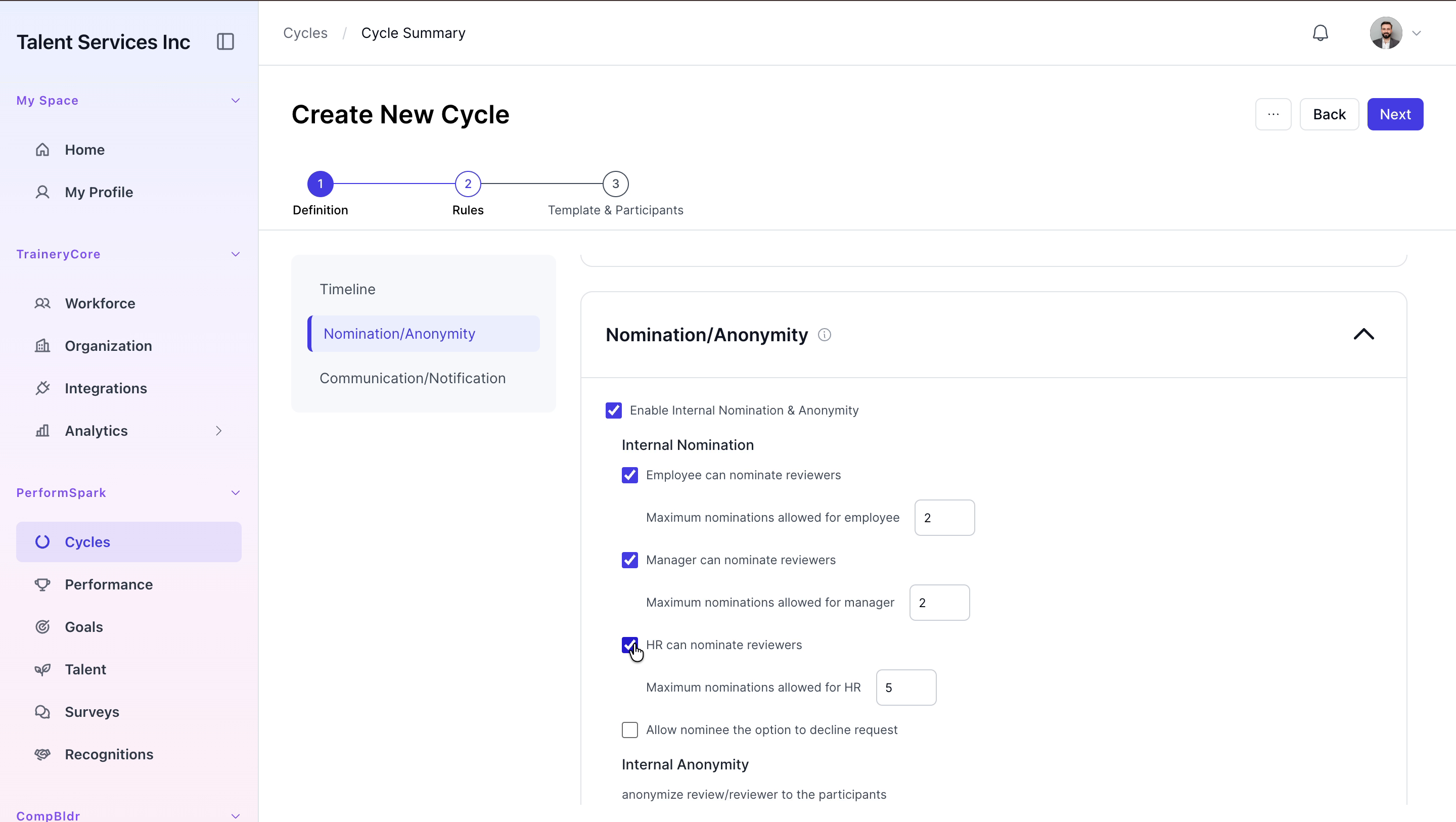
Step 4: Enable and Configure Internal Nominations
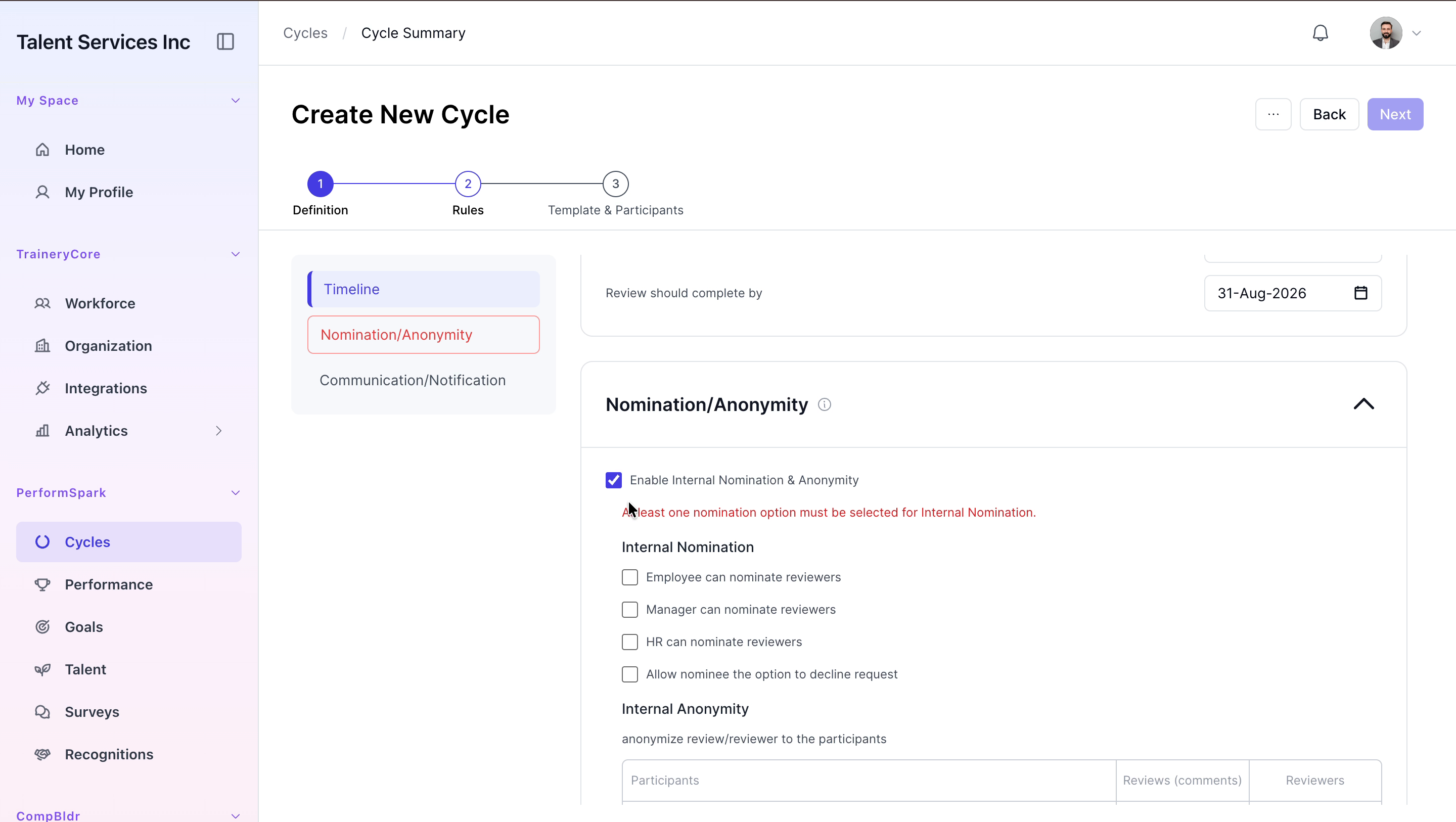
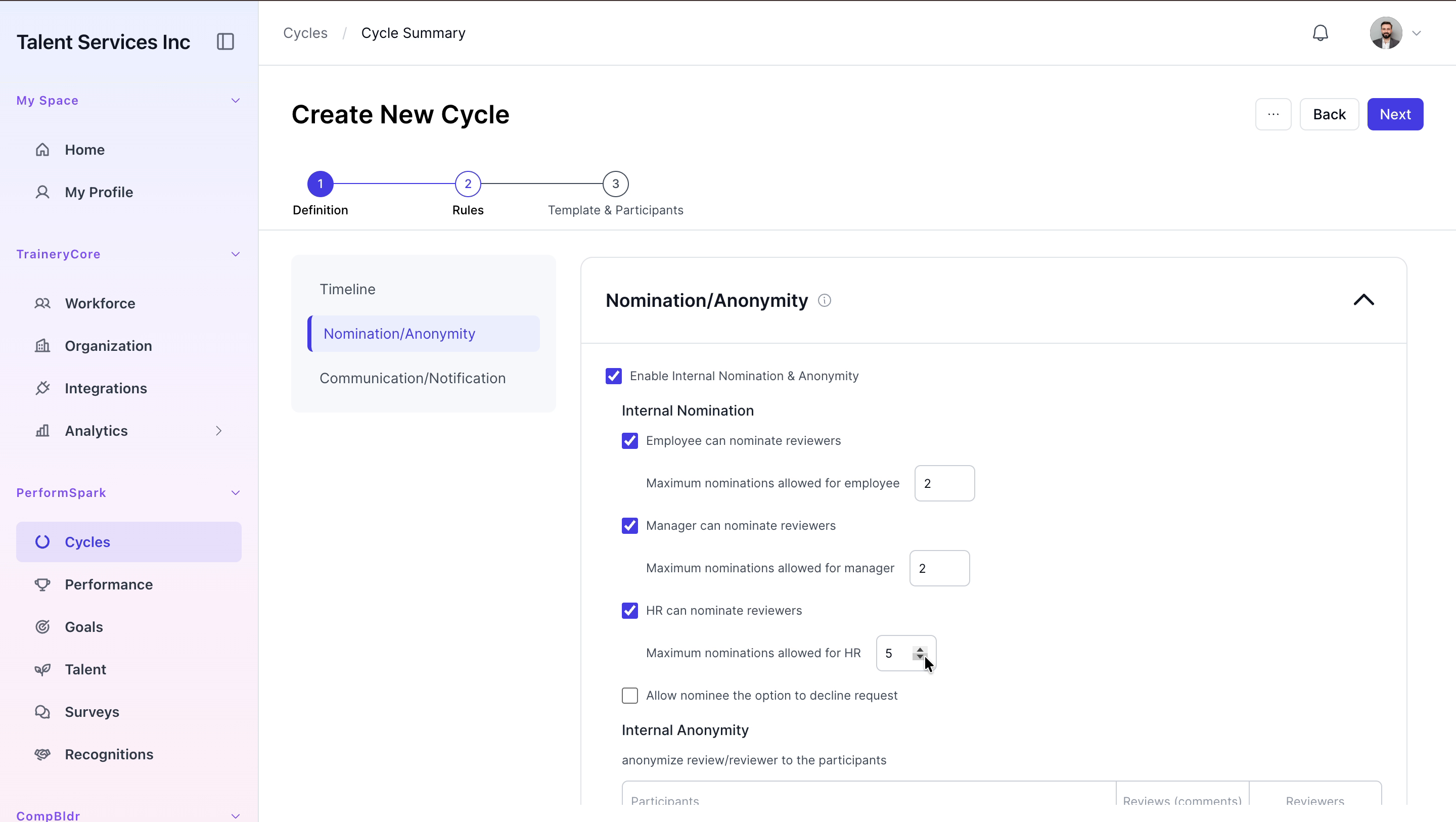
Enable internal nominations so that employees, managers, and HR can each nominate up to two reviewers per employee. Also enable the option that allows nominees to decline nomination requests.
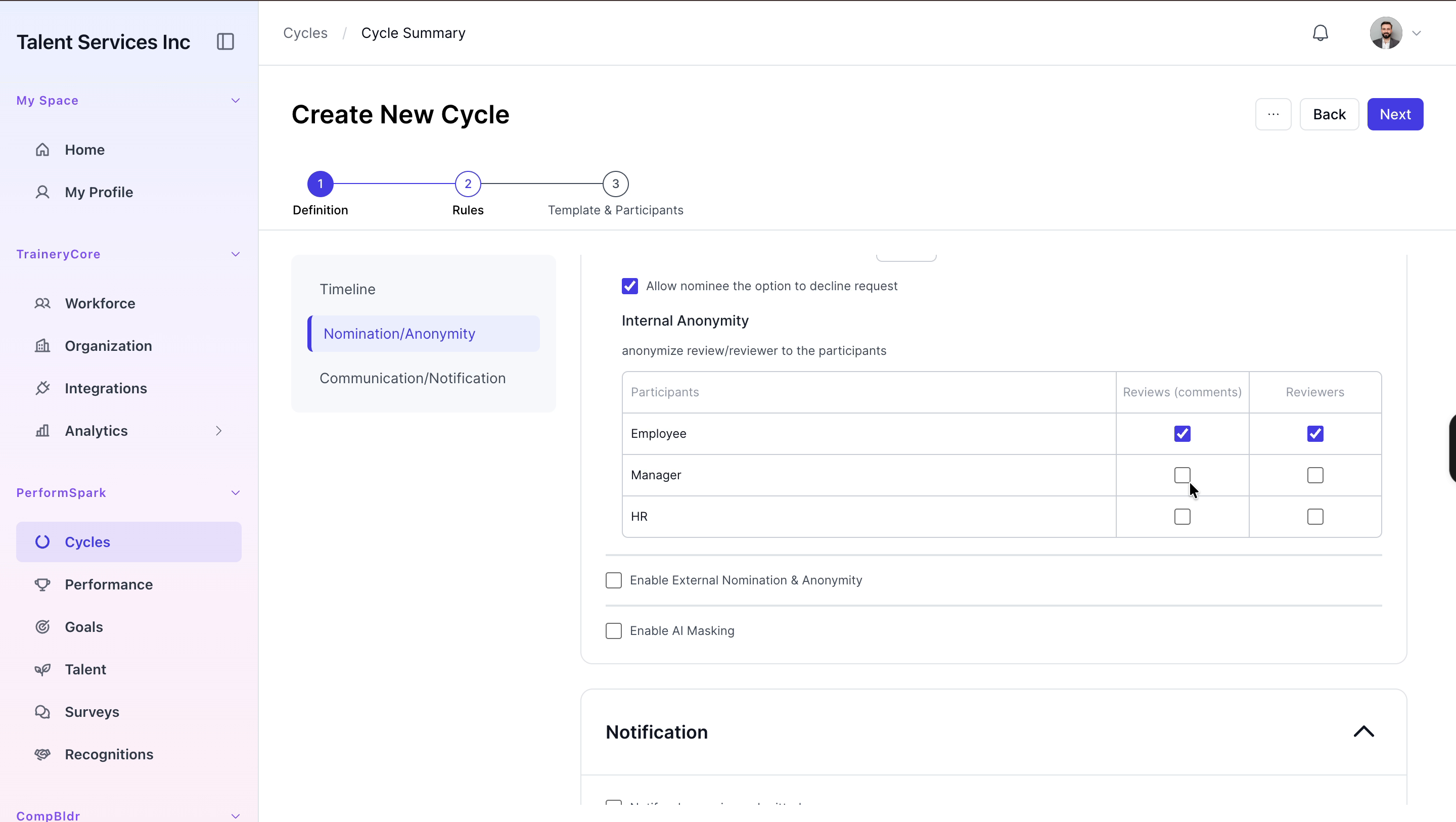
Step 5: Set Internal Anonymity Rules
Configure anonymity settings for internal reviews to ensure that both employee comments and reviewer identities remain anonymous.
Step 6: Enable External Nominations and Anonymity
Enable external nominations, allowing up to two external reviewers per role. Configure anonymity for external reviews so that external reviewer comments are also anonymous.
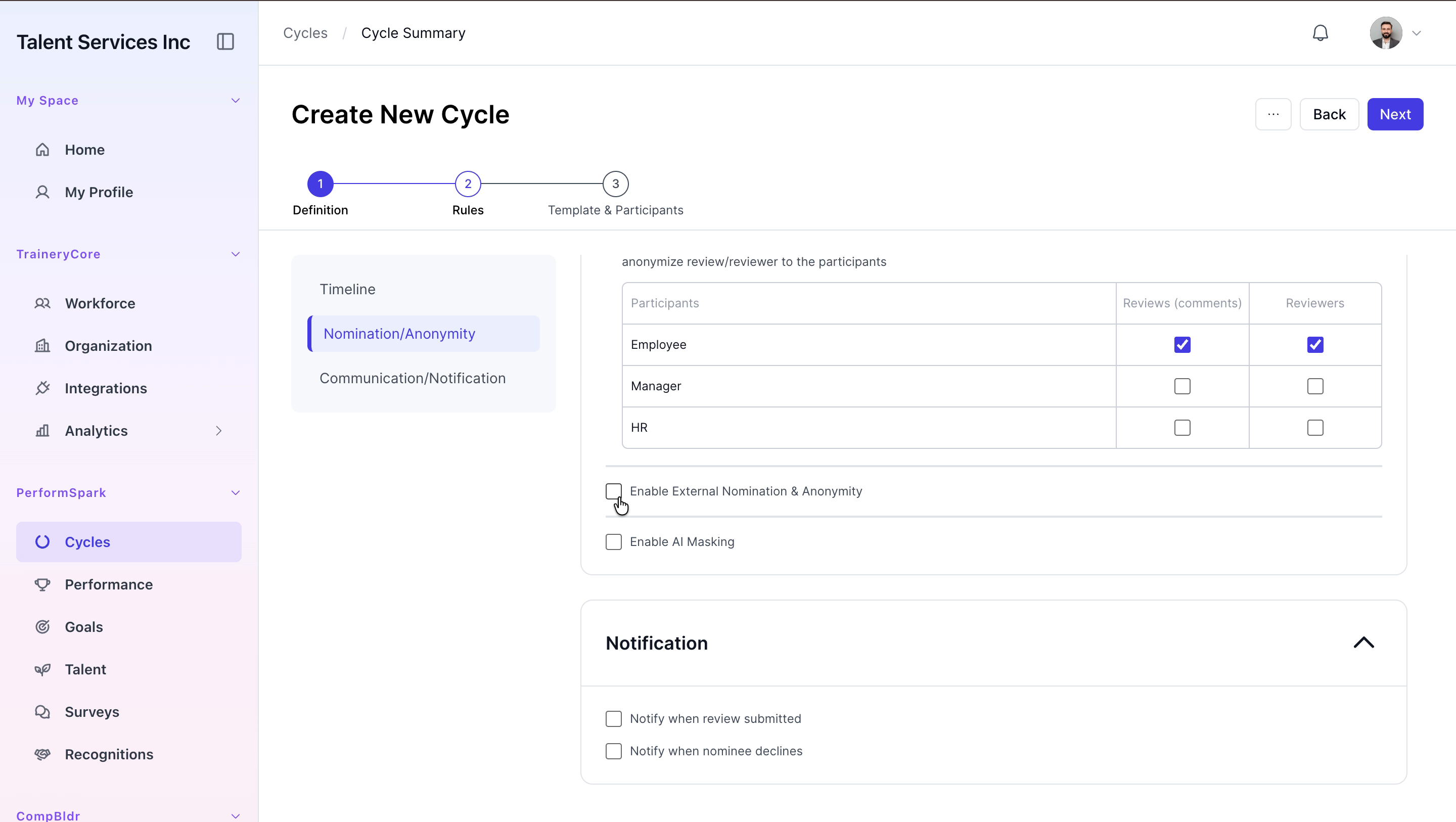
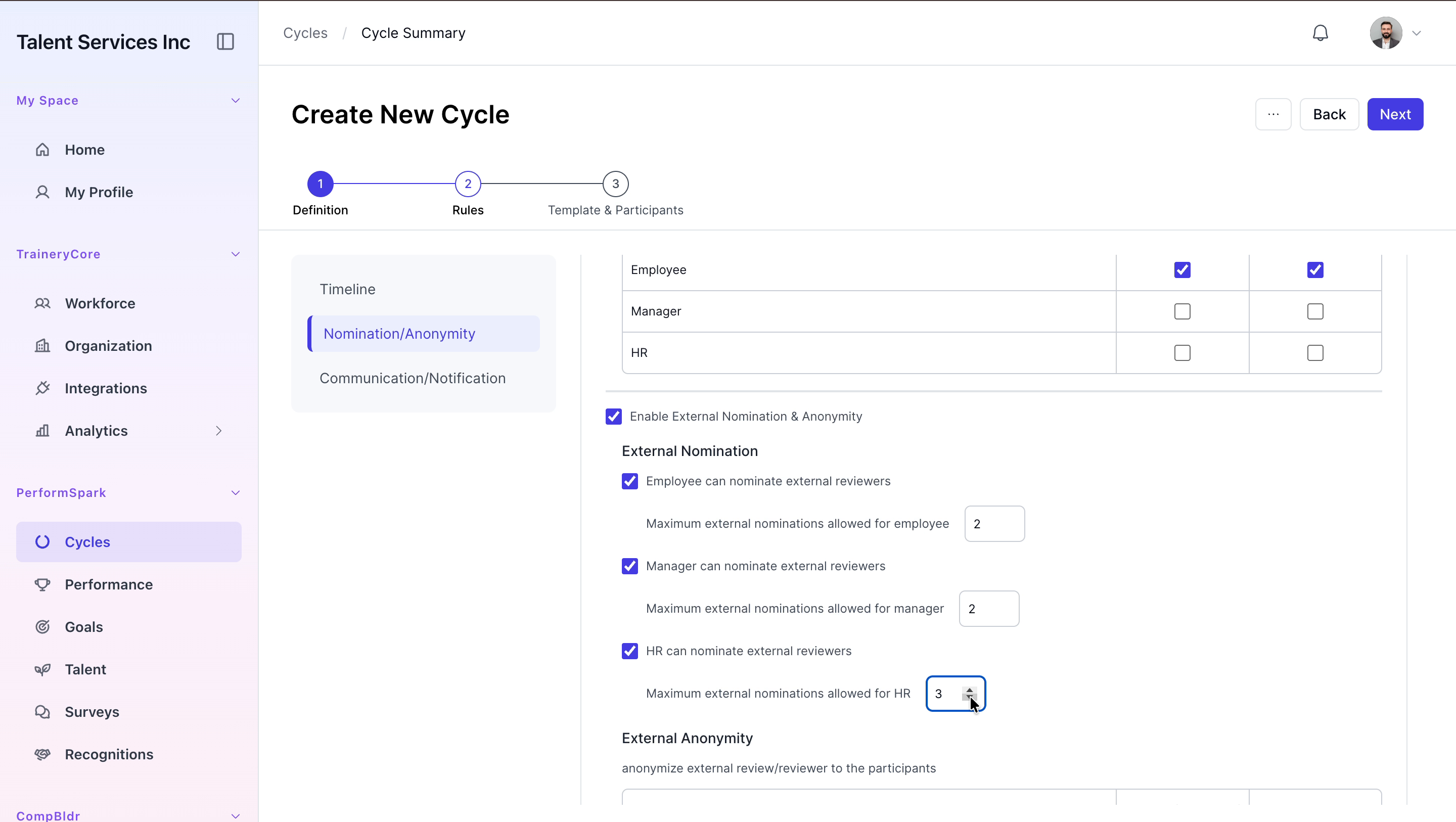
Step 7: Configure Privacy and Notifications, Then Proceed
Enable AI masking to enhance privacy for review data. Turn on notifications for both review submissions and nomination declines. After confirming these settings, click Next to move to participant selection.

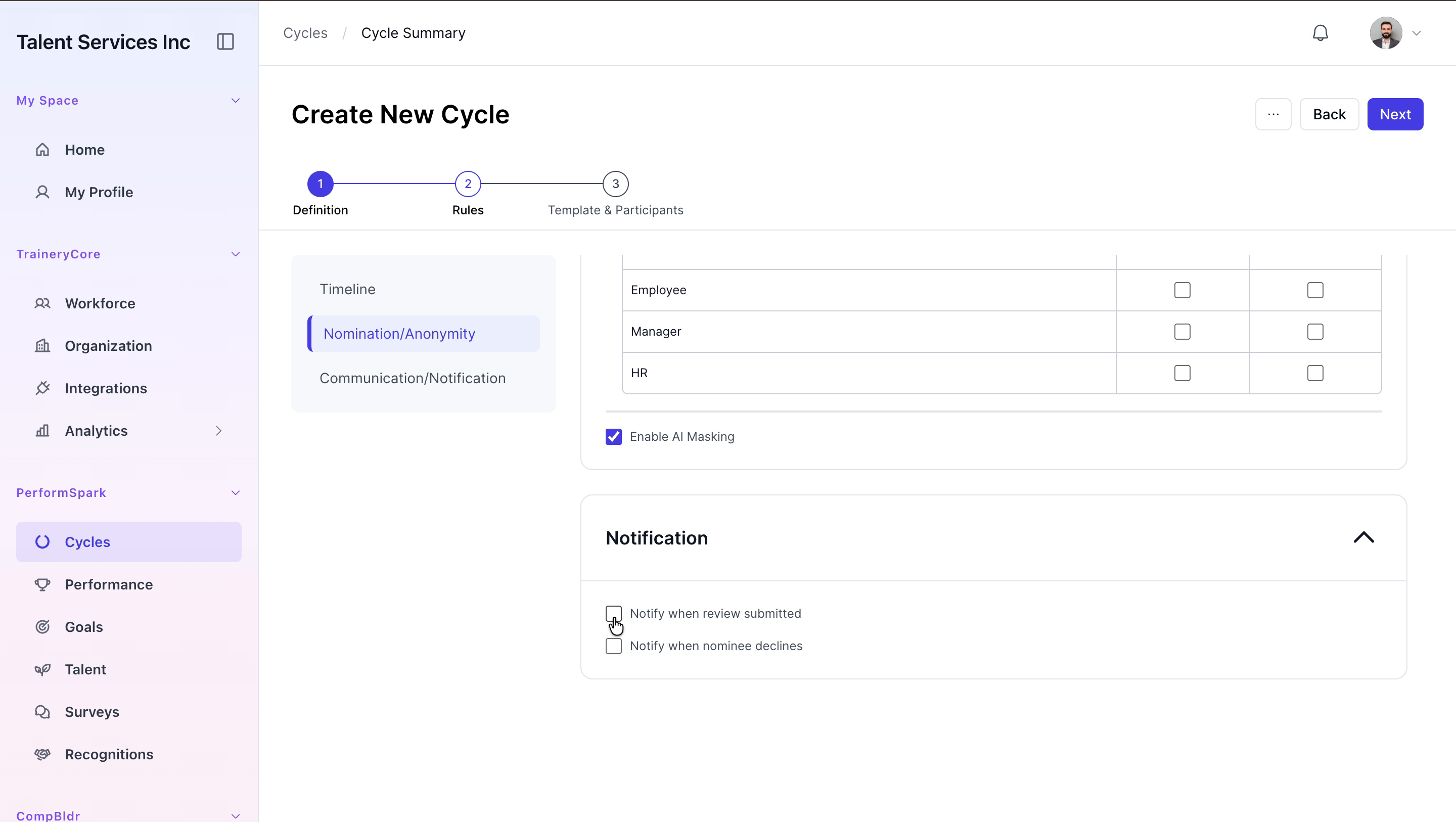
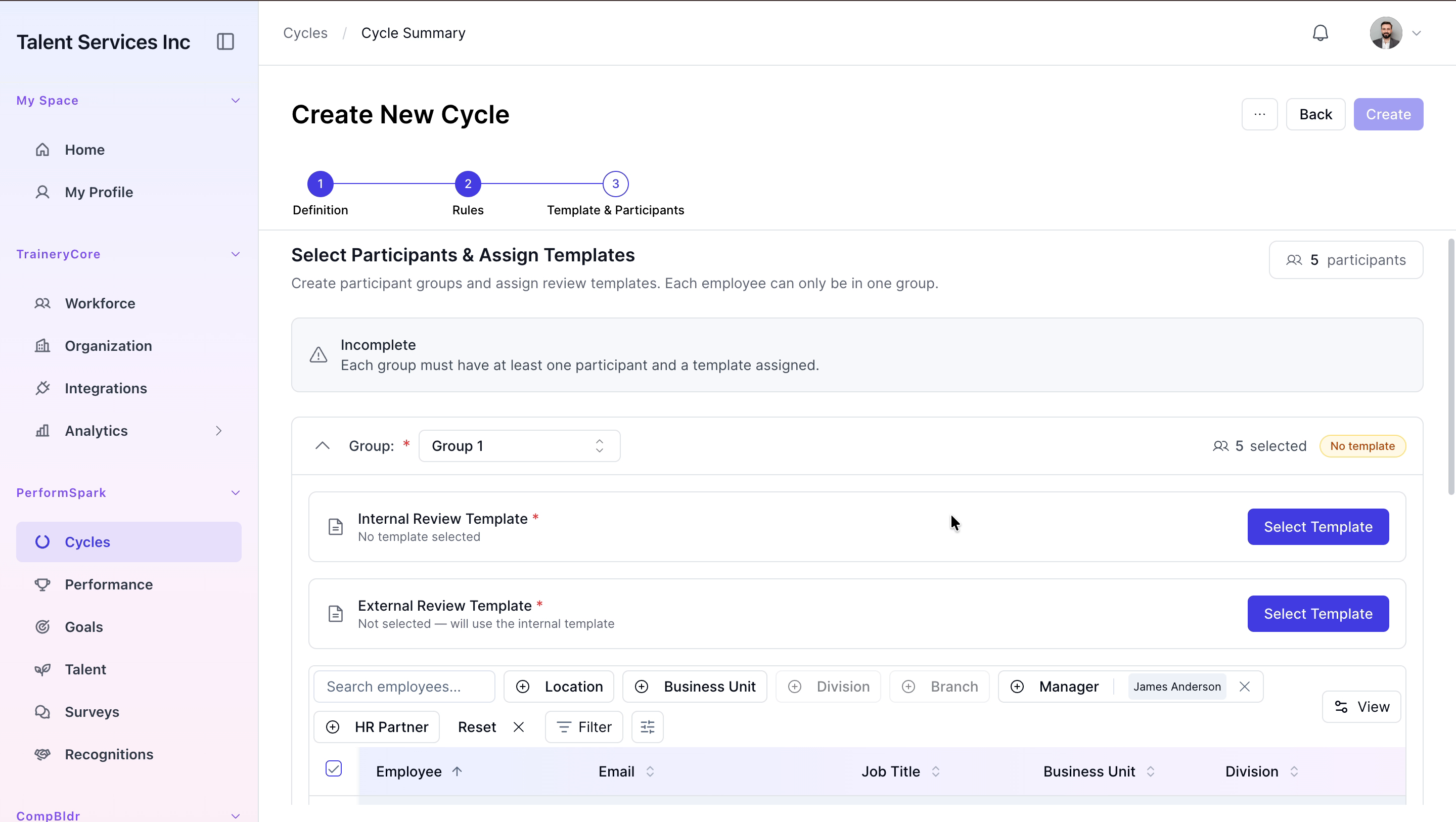
Step 8: Select Participants and Assign Template
On the final configuration step, filter the employee list by manager to easily locate and select the employees who will participate in the new performance cycle.
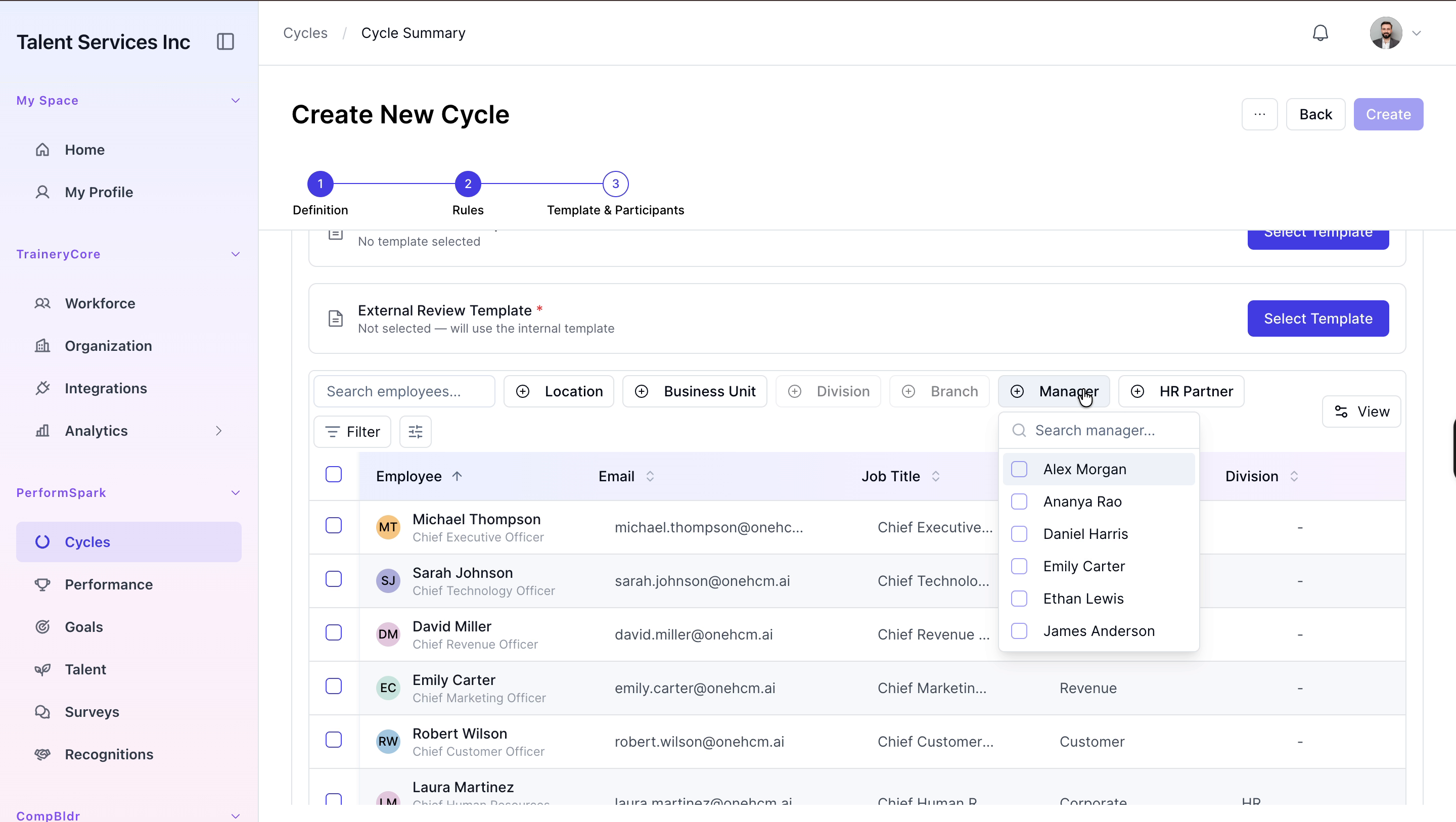
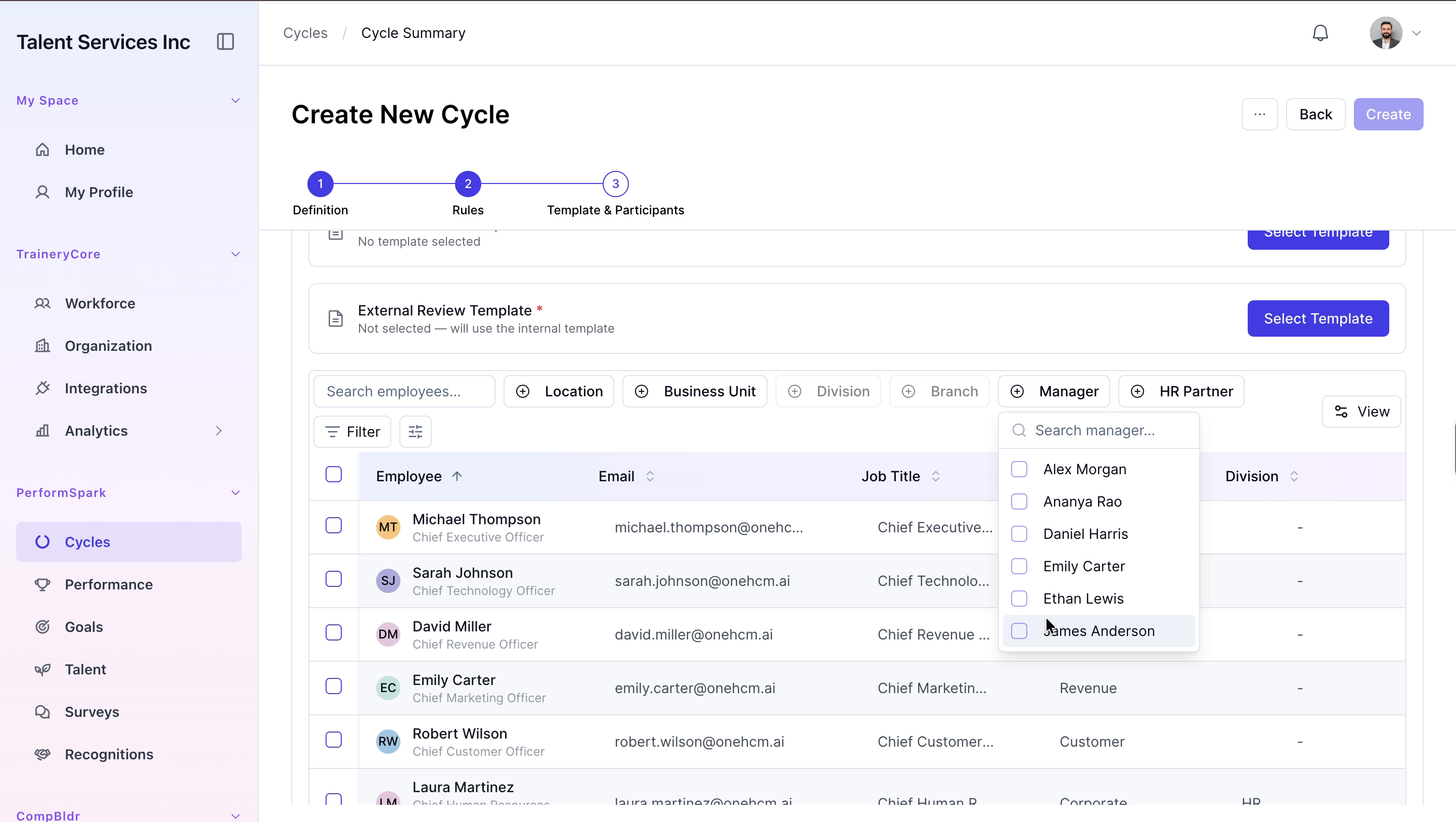
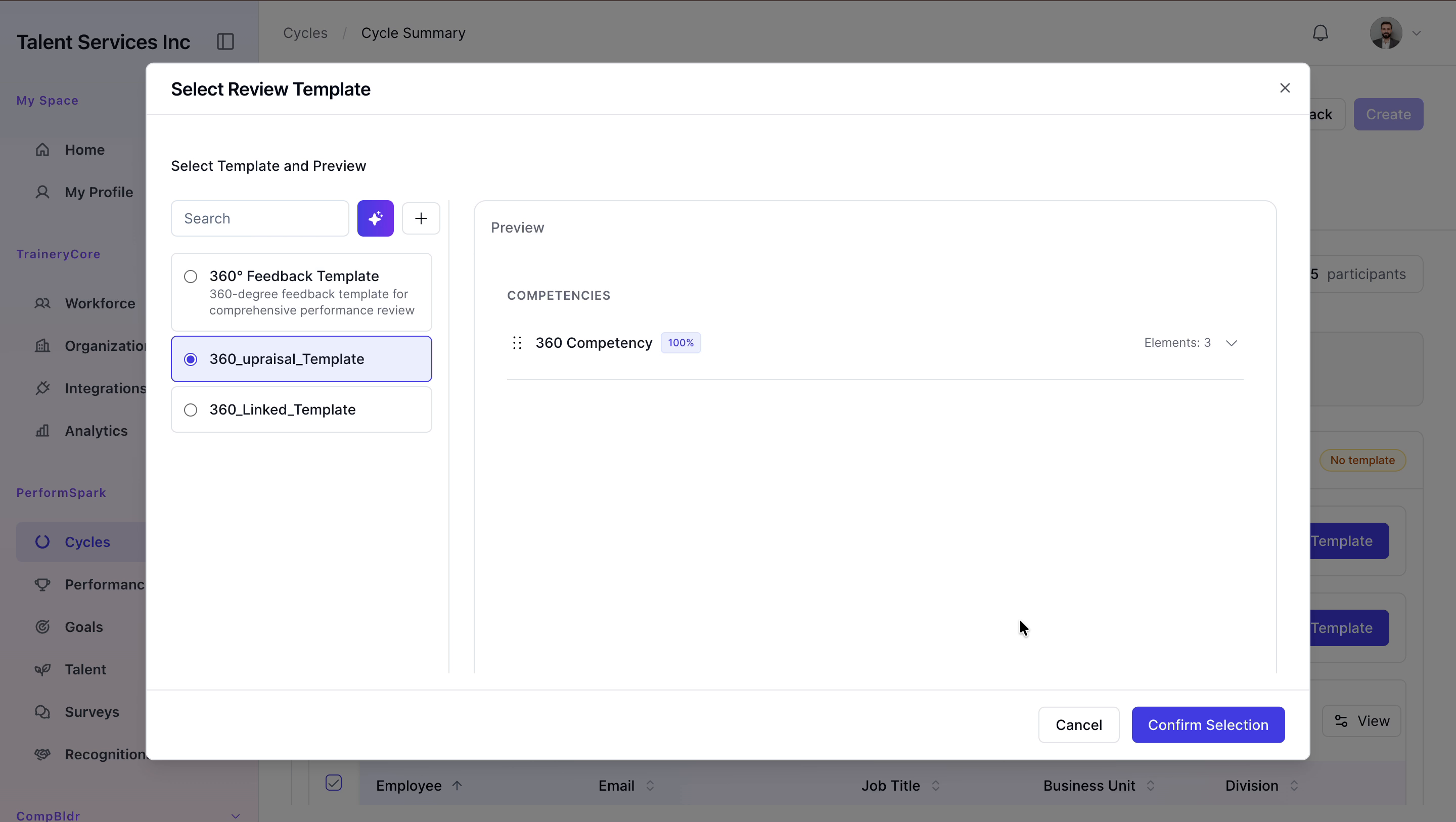
Click Select Template, choose the 360 appraisal Template for internal reviews, and confirm your selection.
Step 9: Create and Verify the New Cycle
Click the Create button to finalize the setup of the new 360° performance review cycle.
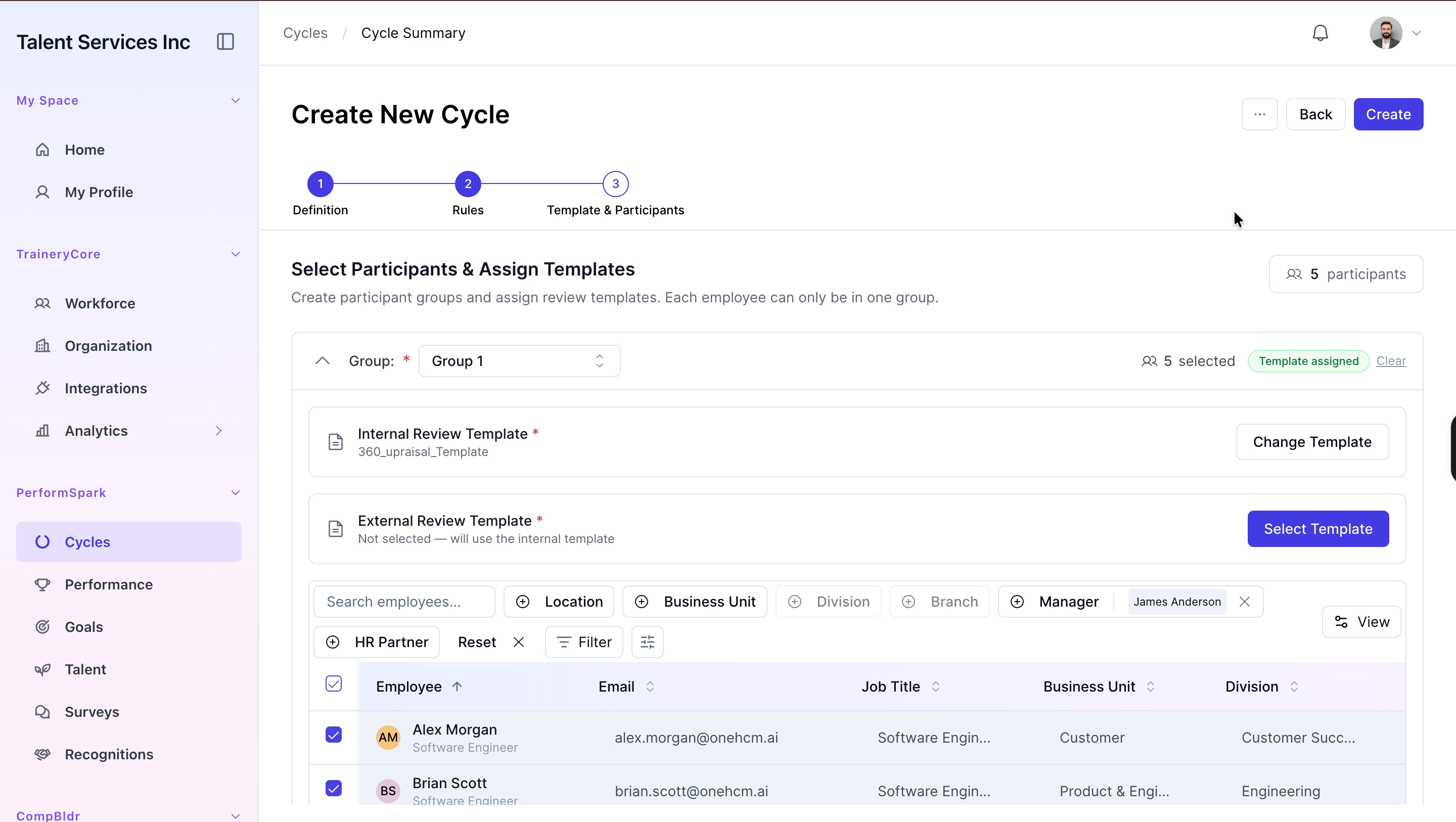
Verify that 360-Review-Fiscal-Year-2026 appears in the Cycle Summary list, confirming that the cycle has been successfully created.