Creating a 360 Degree Feedback Cycle
Last updated: July 1, 2026
Creating and Managing a 360° Feedback Cycle
This document describes how to set up a 360° feedback cycle, configure nomination and anonymity settings, select participants and templates, and manage participants after the cycle is created.
Step 1: Open the Cycles Section and Start a New Cycle
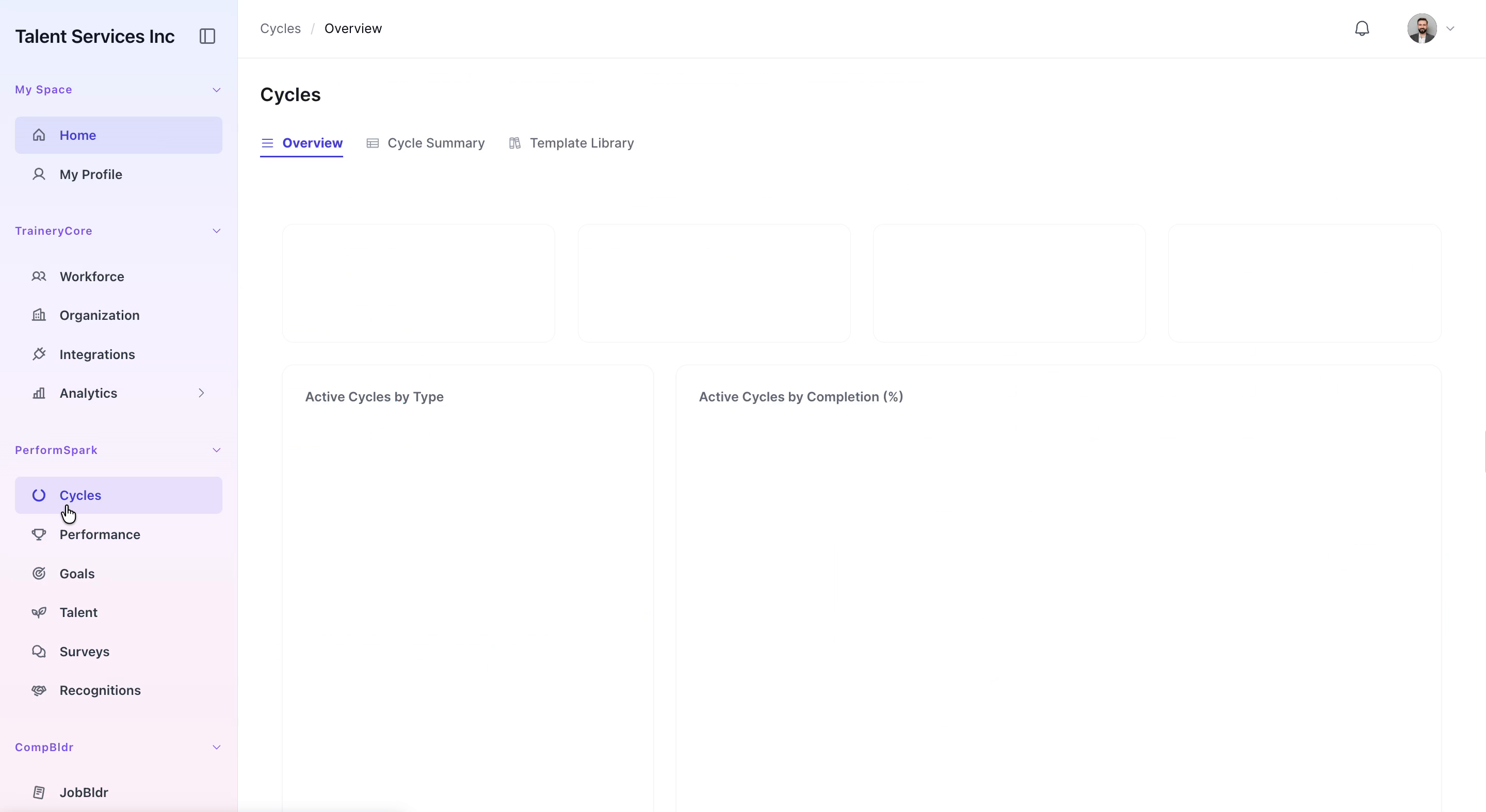
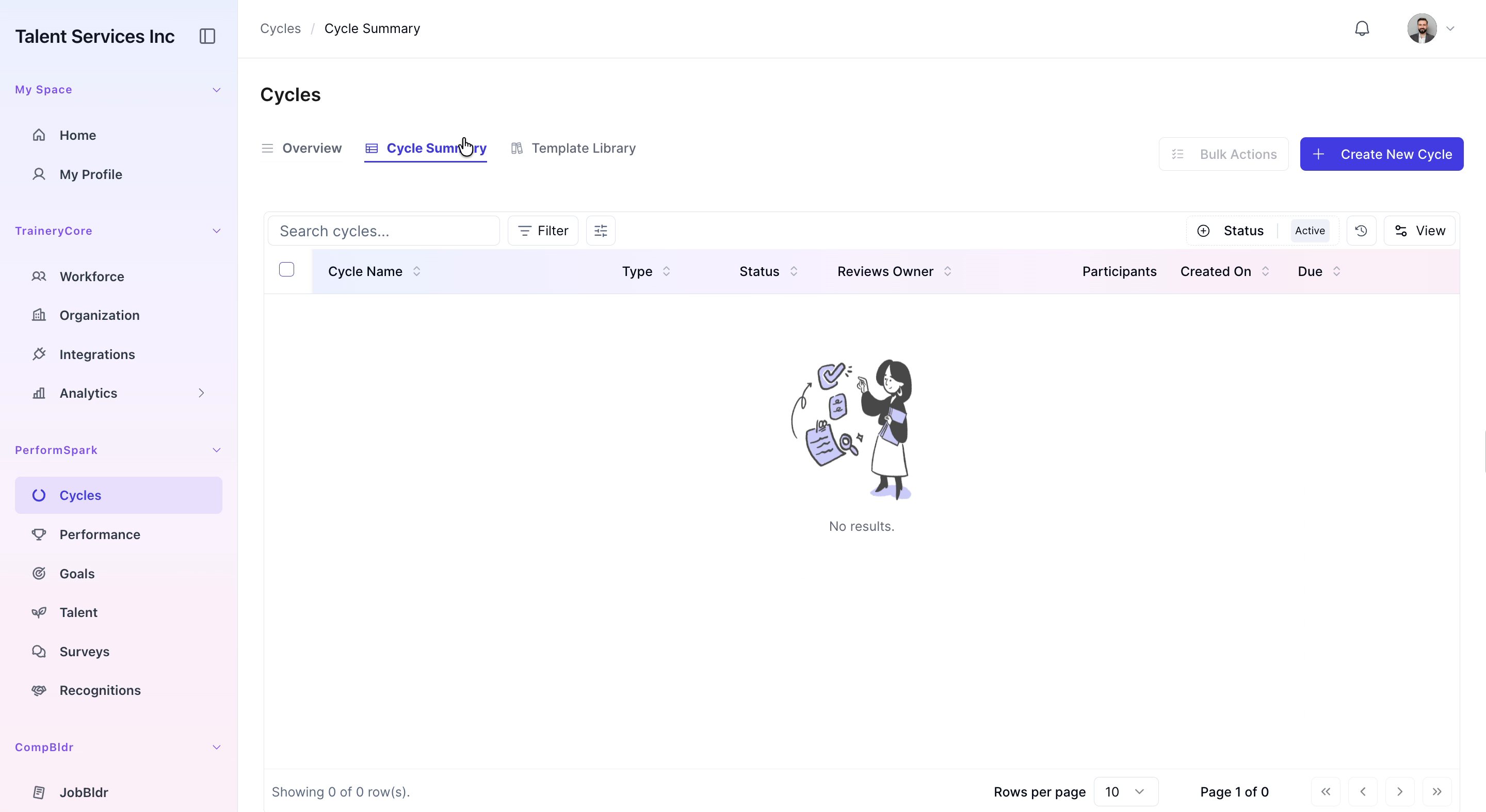
From the sidebar, navigate to the Cycles section and click Create New Cycle.
Step 2: Choose Cycle Type and Name the Cycle
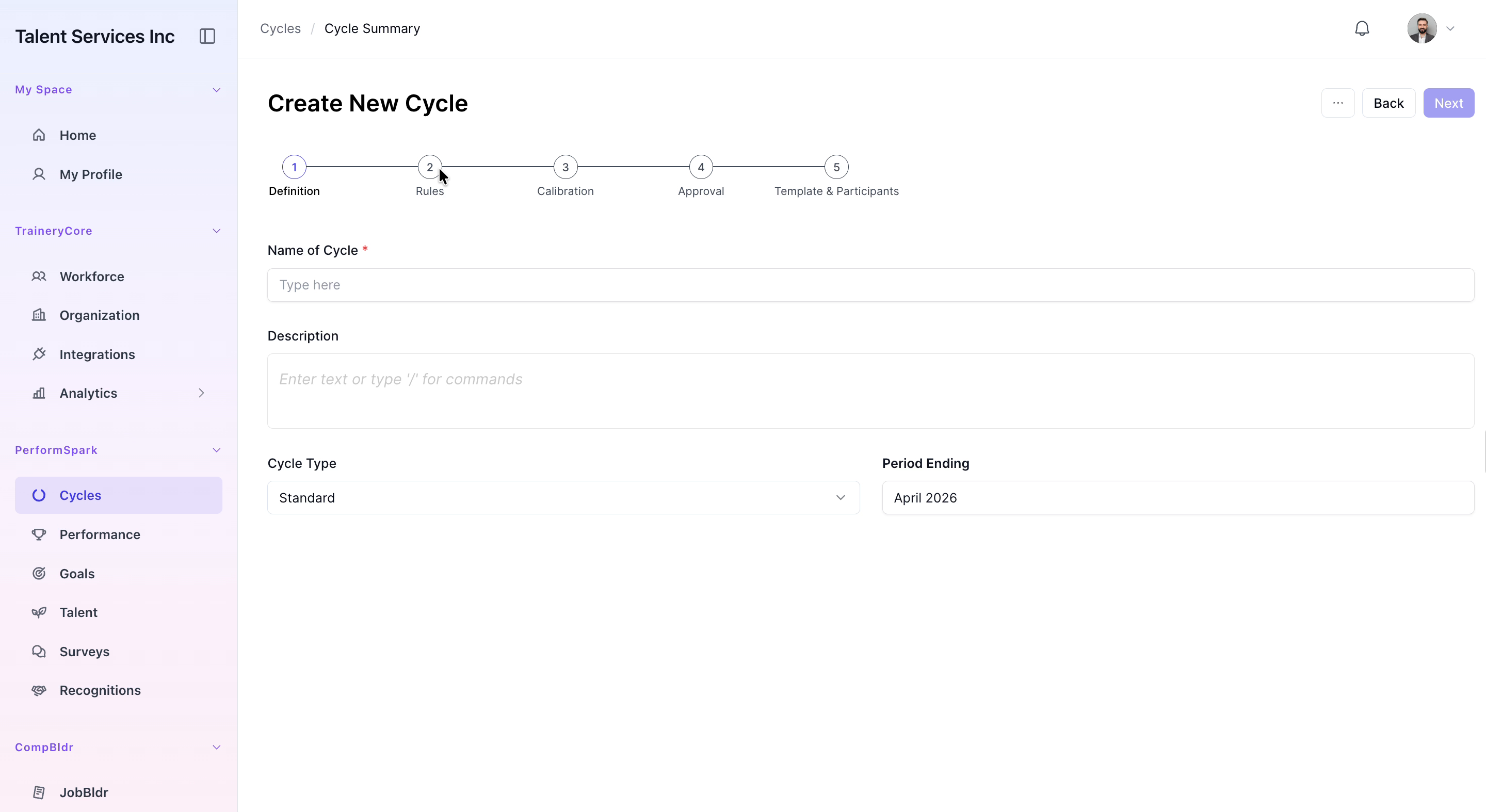
Select the 360 degree cycle type, enter a name such as “360 Q3”, and click Next to continue.

Step 3: Configure the Cycle Timeline
Set the overall timeline for the cycle. Carefully select the start and completion dates for both the nomination phase and the review phase to ensure the process stays on schedule.

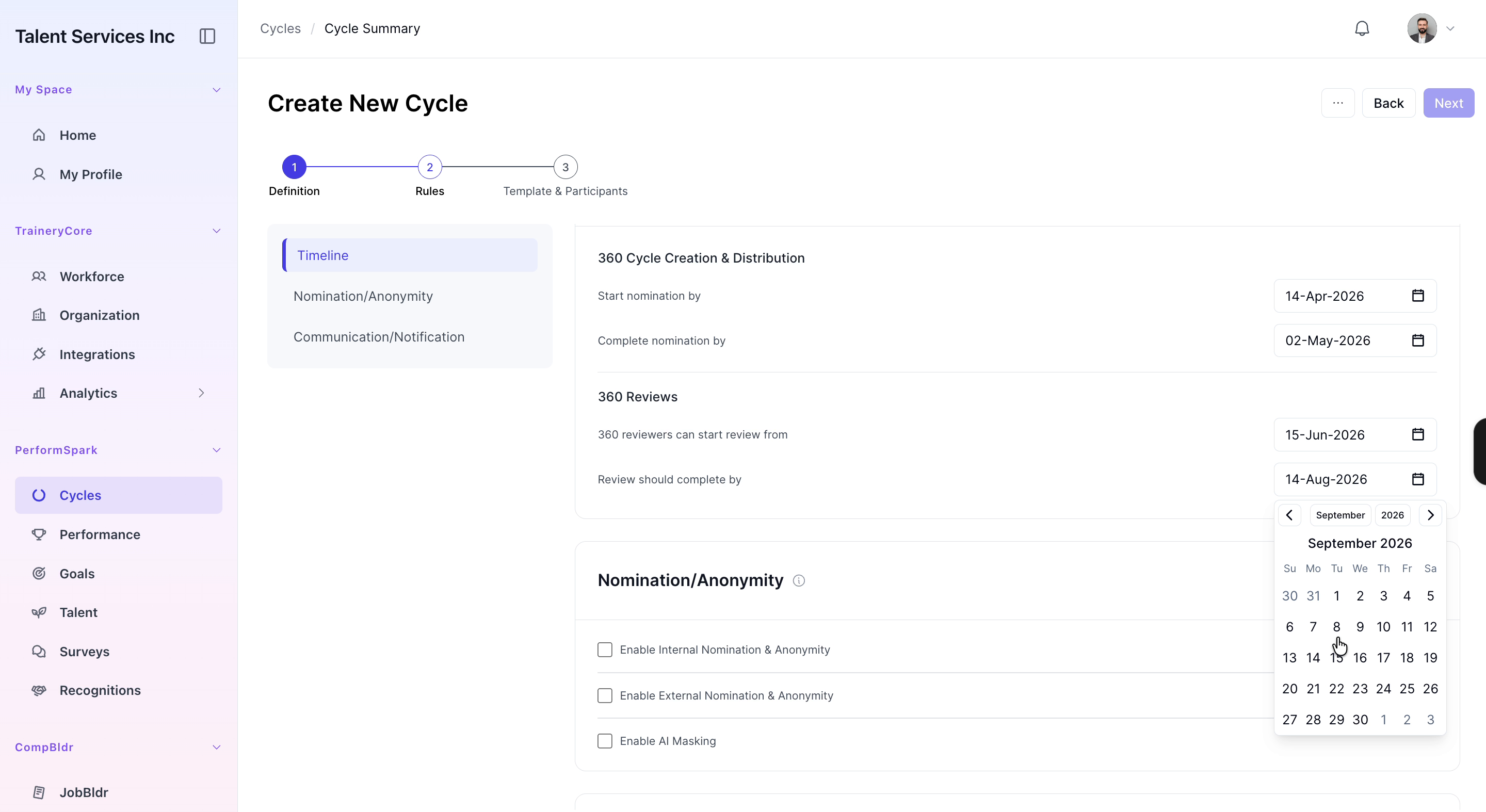
Step 4: Enable Internal Nomination and Anonymity
Enable internal nomination and turn on anonymity for internal reviewers. Specify which roles can nominate reviewers, ensuring that employees, managers, and HR are all allowed to nominate.
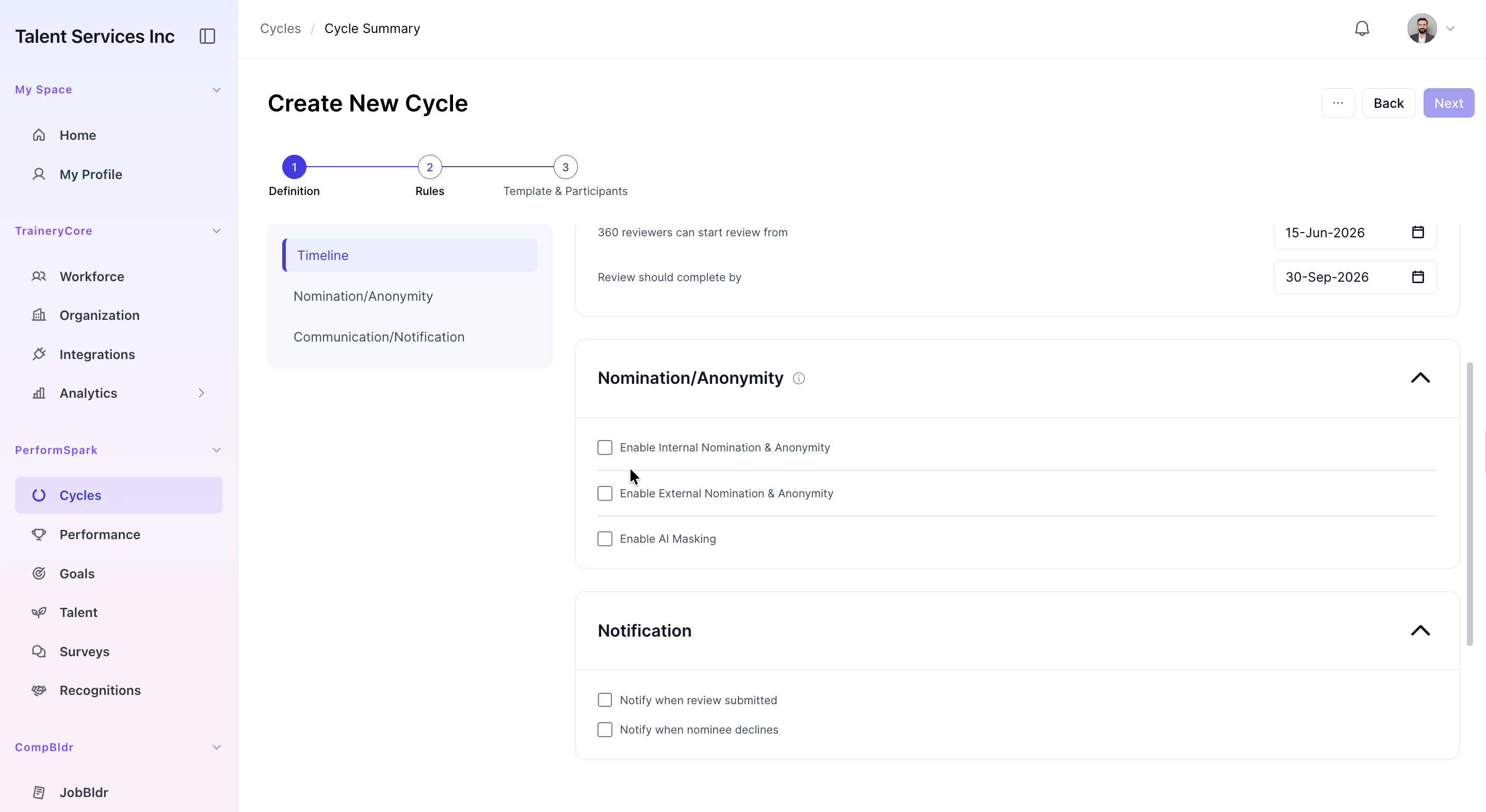
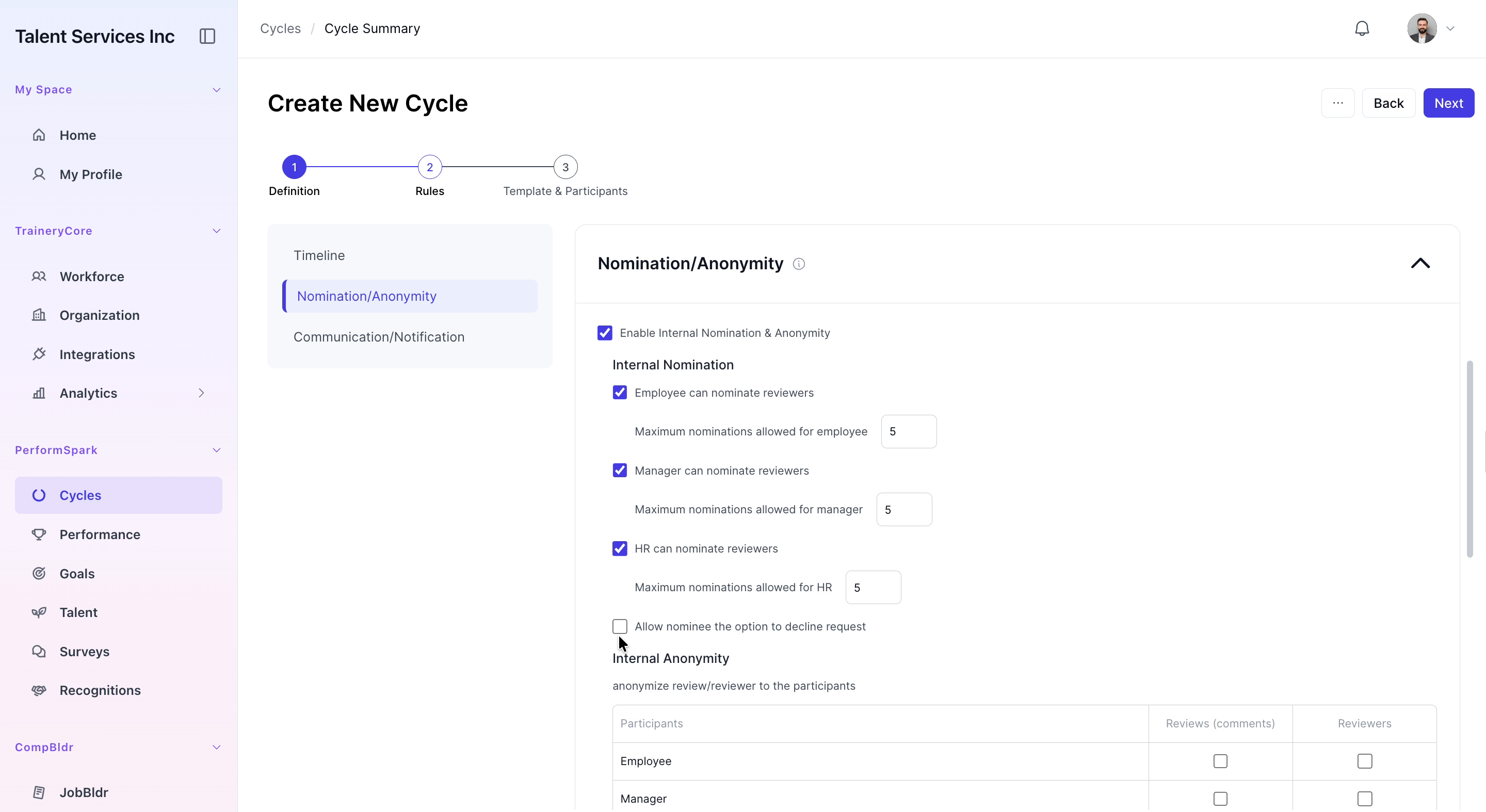
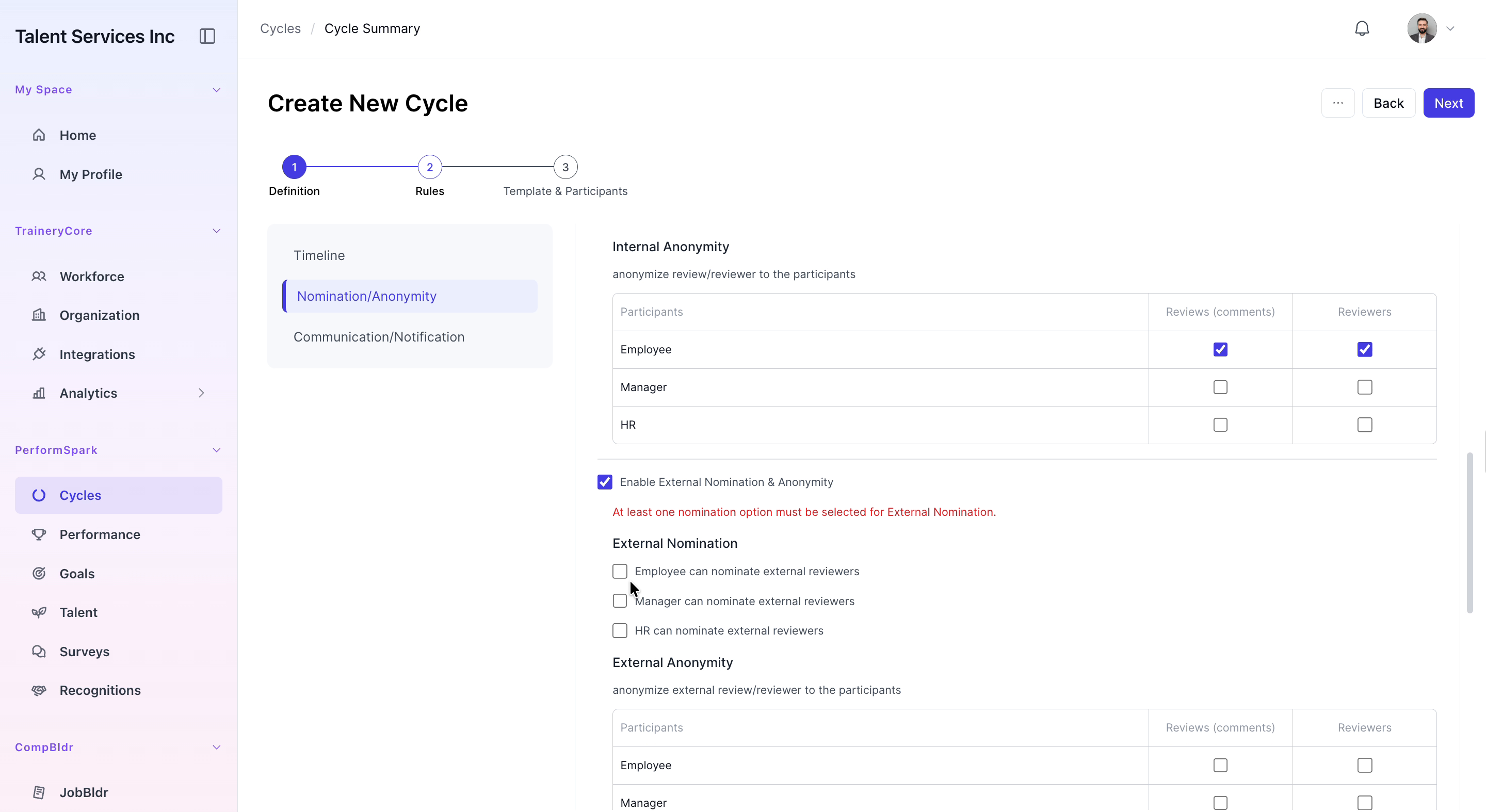
Step 5: Configure Internal Anonymity and External Nomination
Adjust the internal anonymity settings for participants (for example, whether reviewer identities are hidden from reviewees or admins). Then enable external nomination, allowing roles such as managers and HR to nominate external reviewers.
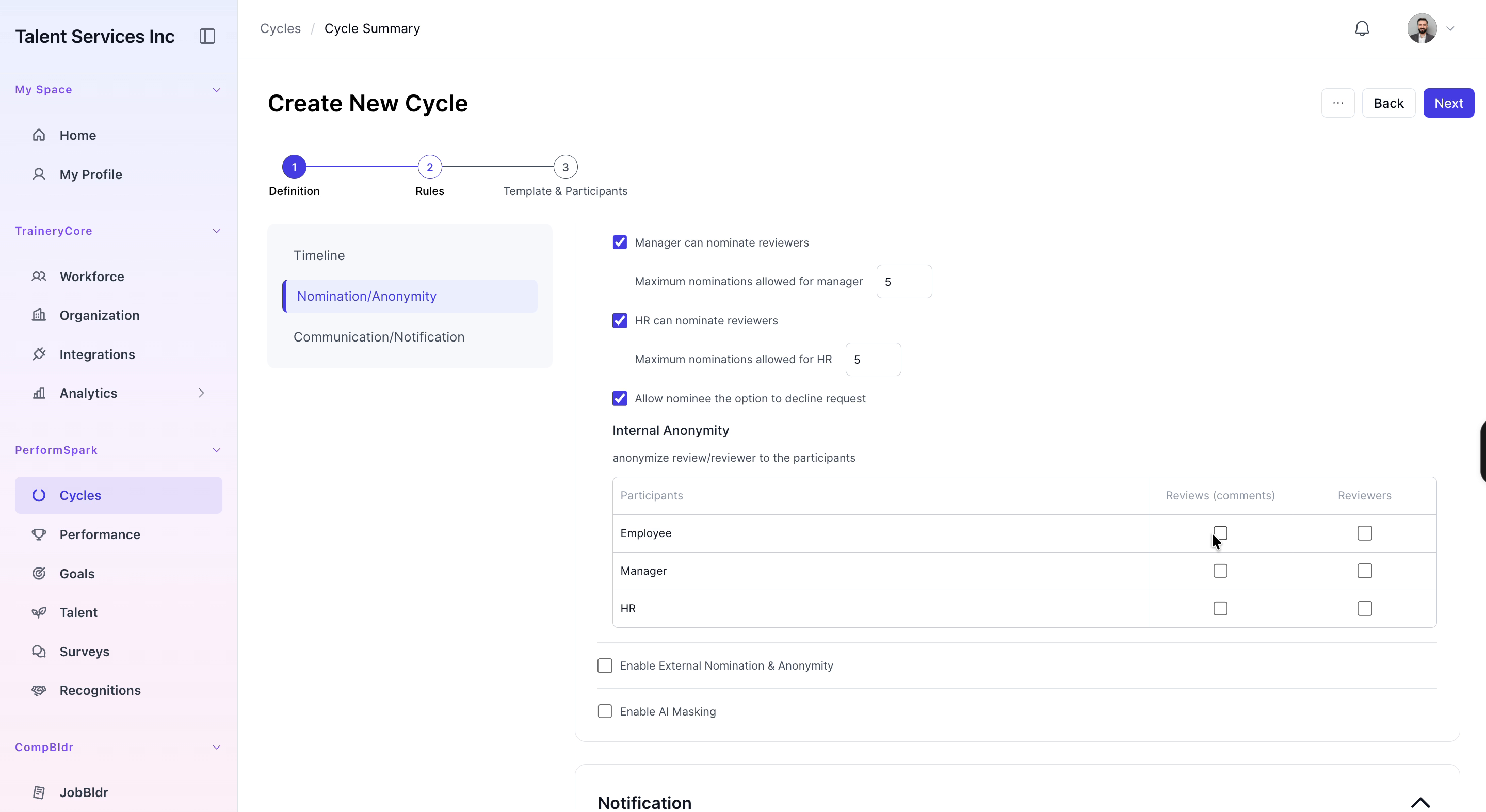
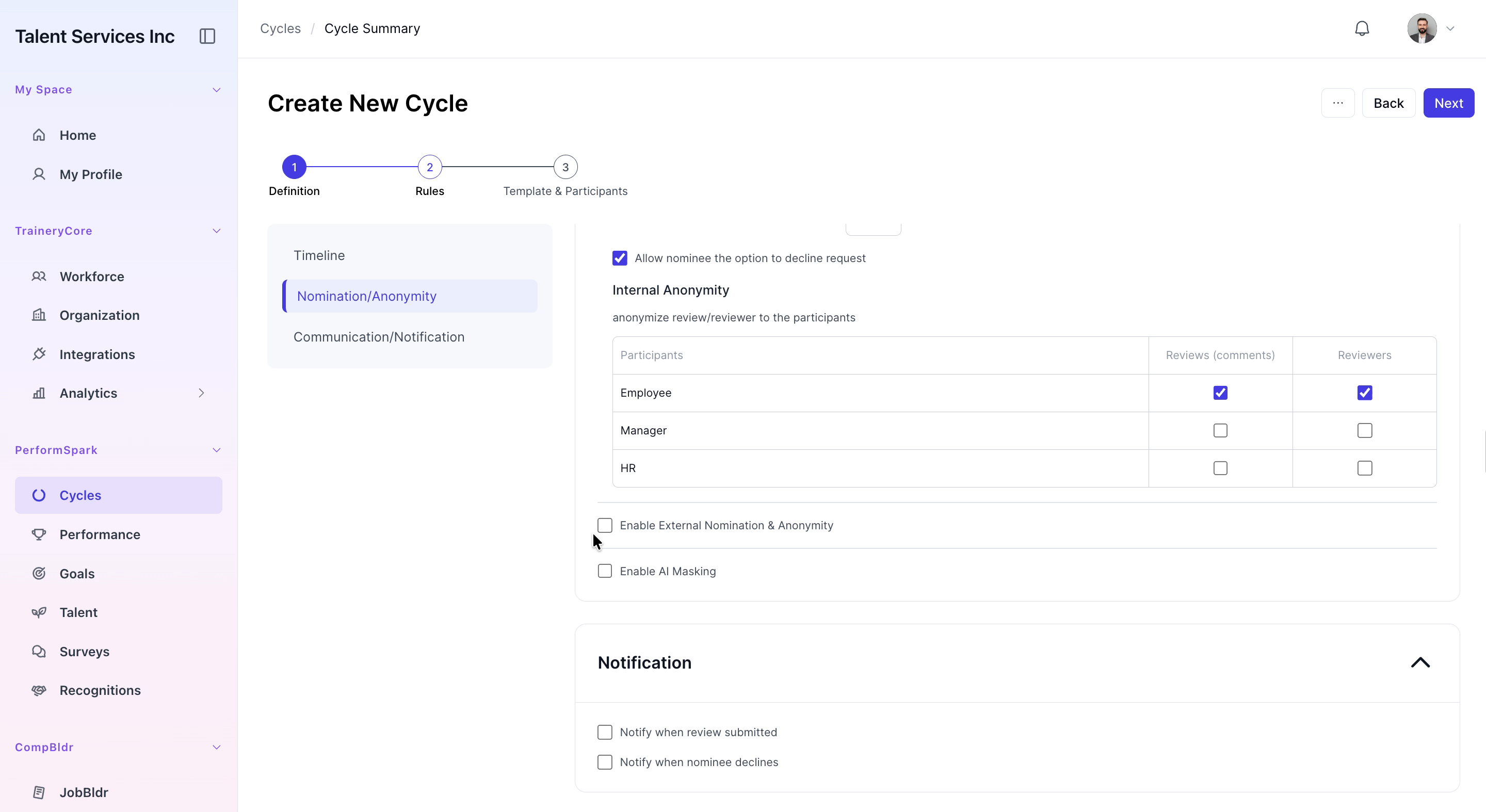
Step 6: Set Masking and Notifications, Then Proceed
Enable any required masking options (such as masking reviewer names or responses) and configure notification settings for the cycle (e.g., nomination and reminder emails). When finished, click Next to proceed to participant selection.

Step 7: Select Cycle Participants
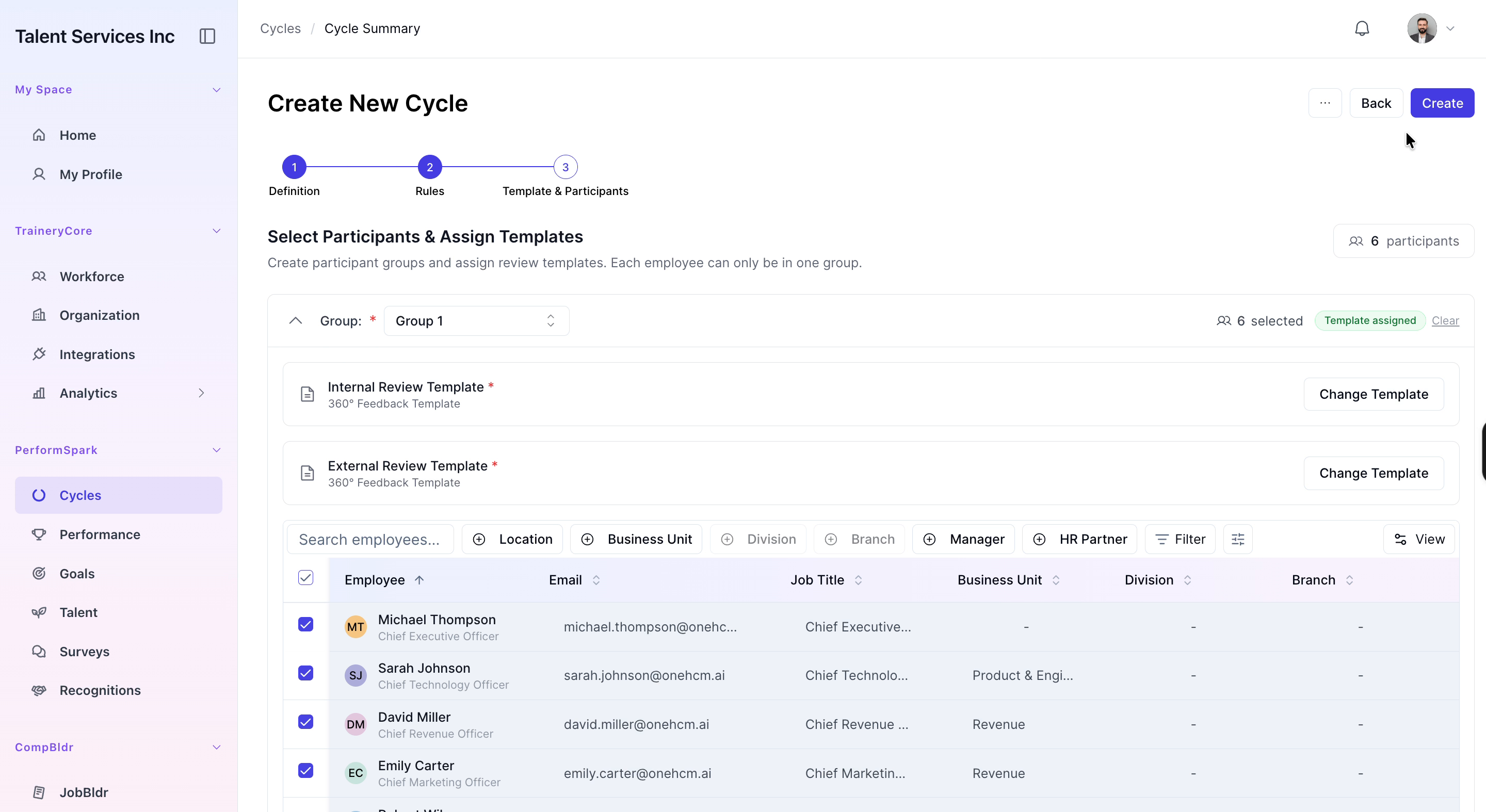
From the list of employees, select the individuals who will participate in this 360° feedback cycle as reviewees.
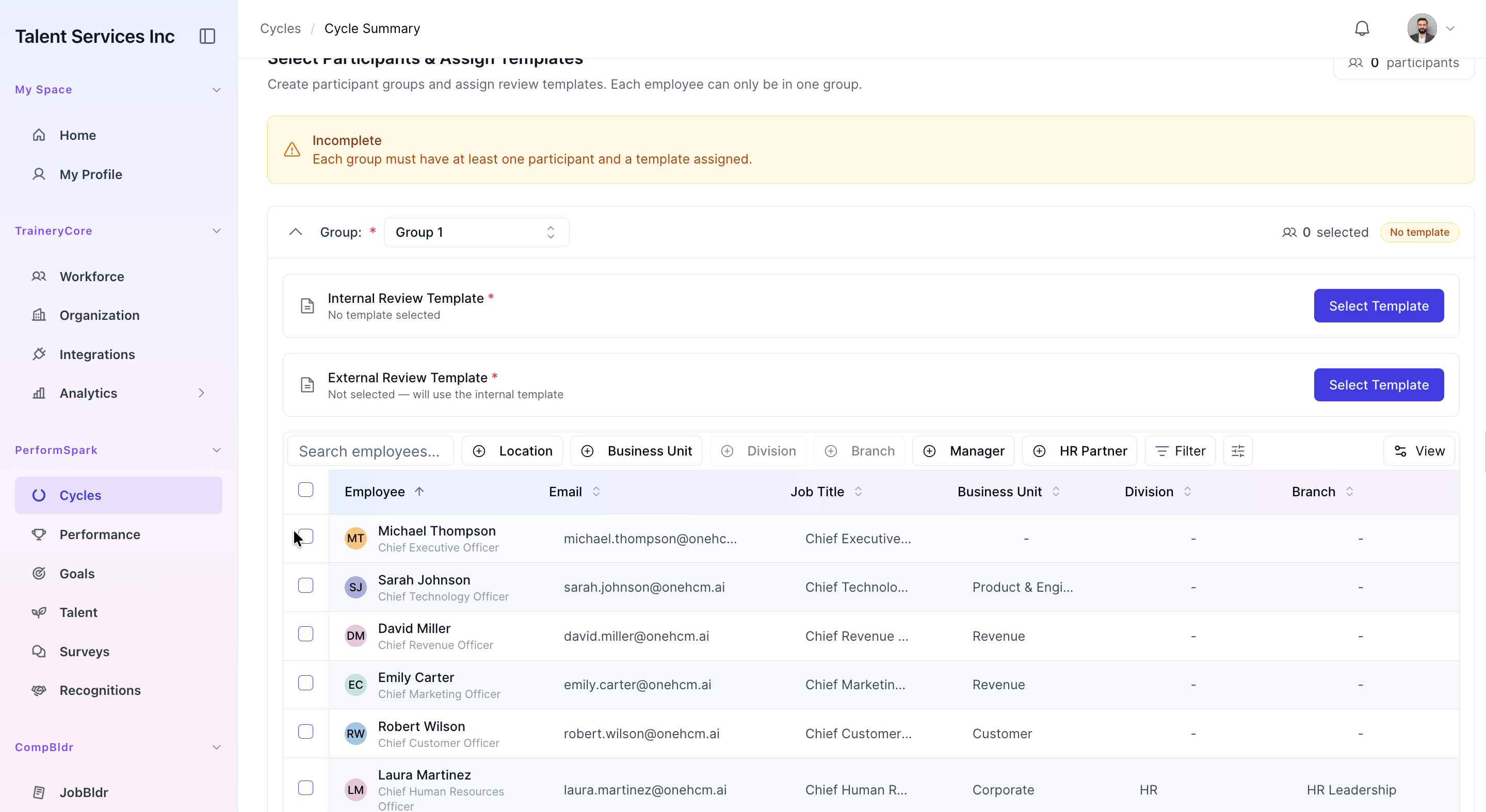
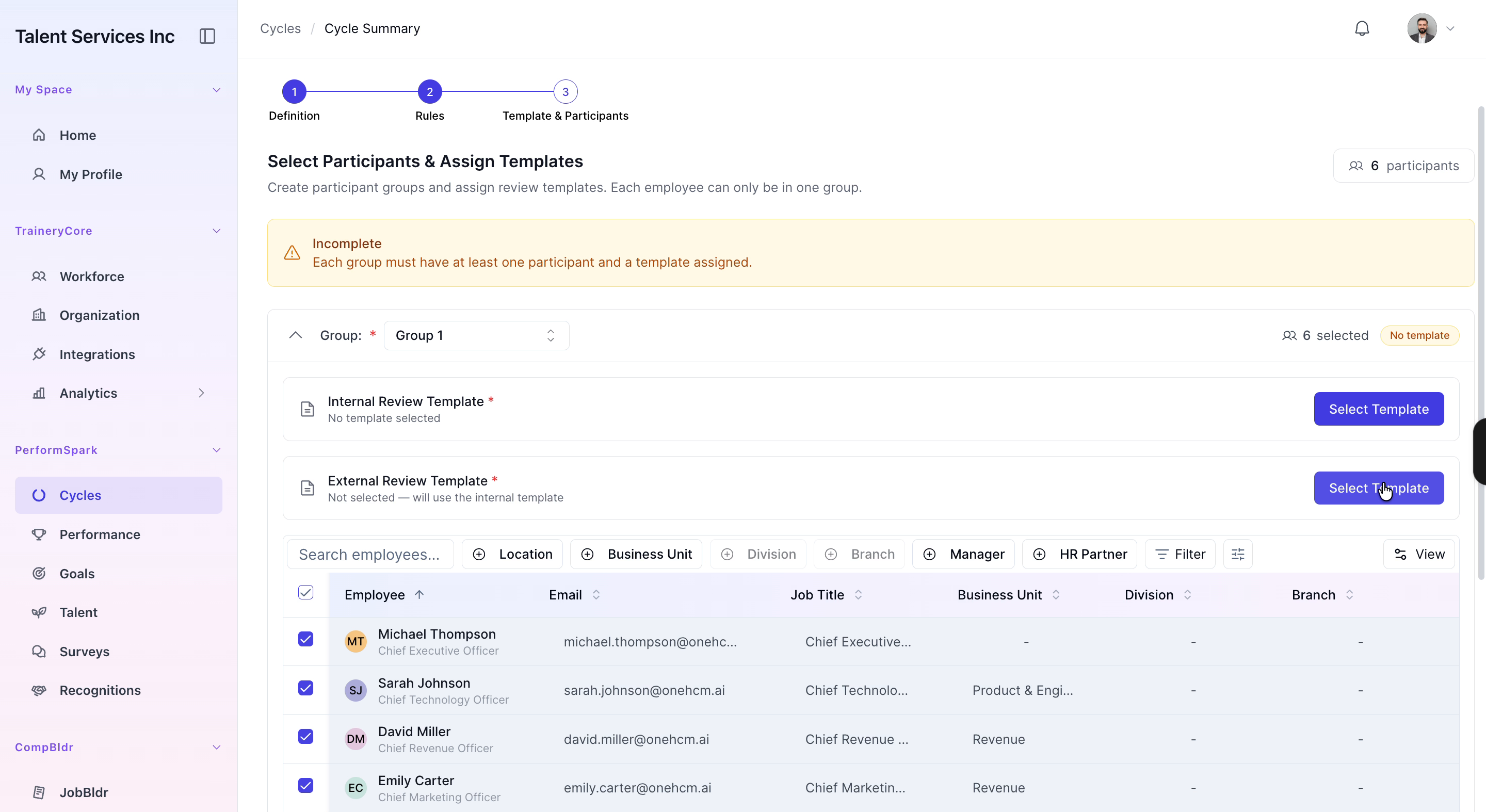
Step 8: Choose Review Templates and Create the Cycle
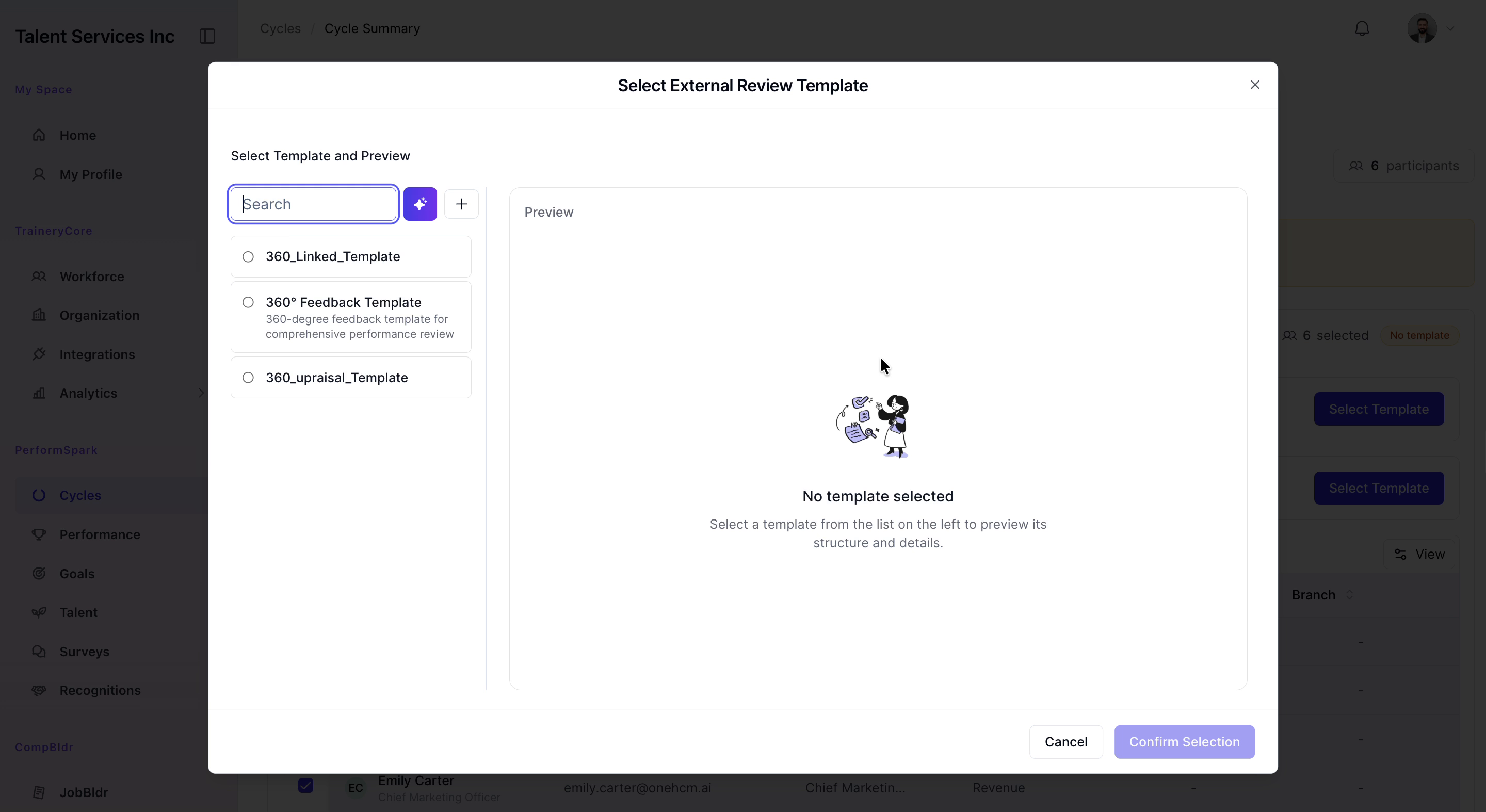
Select the internal and external review templates. Choose the 360 degree feedback template for both internal and external reviews, then click Create to finalize and launch the cycle.
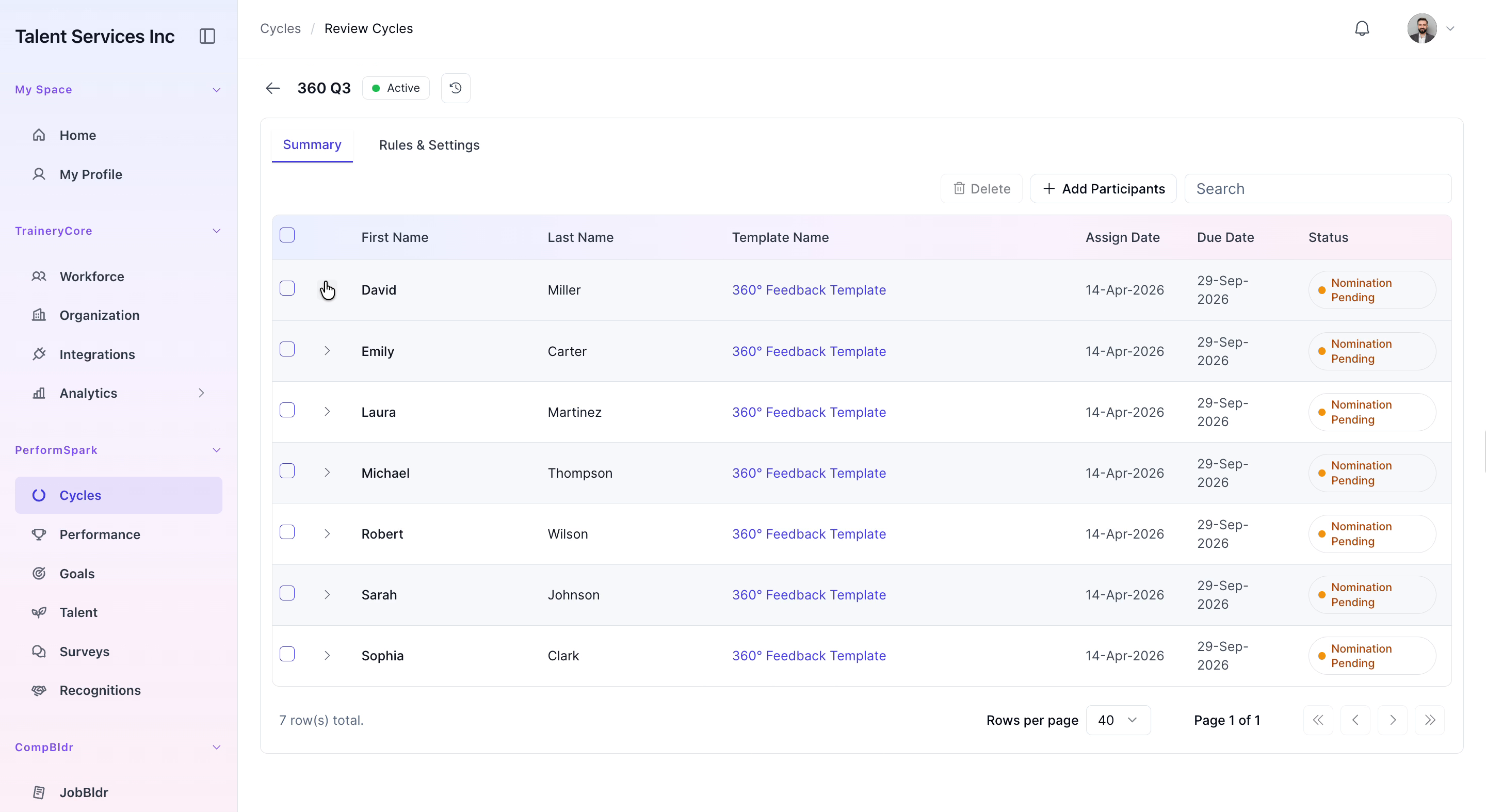
Step 9: Review the Newly Created Cycle
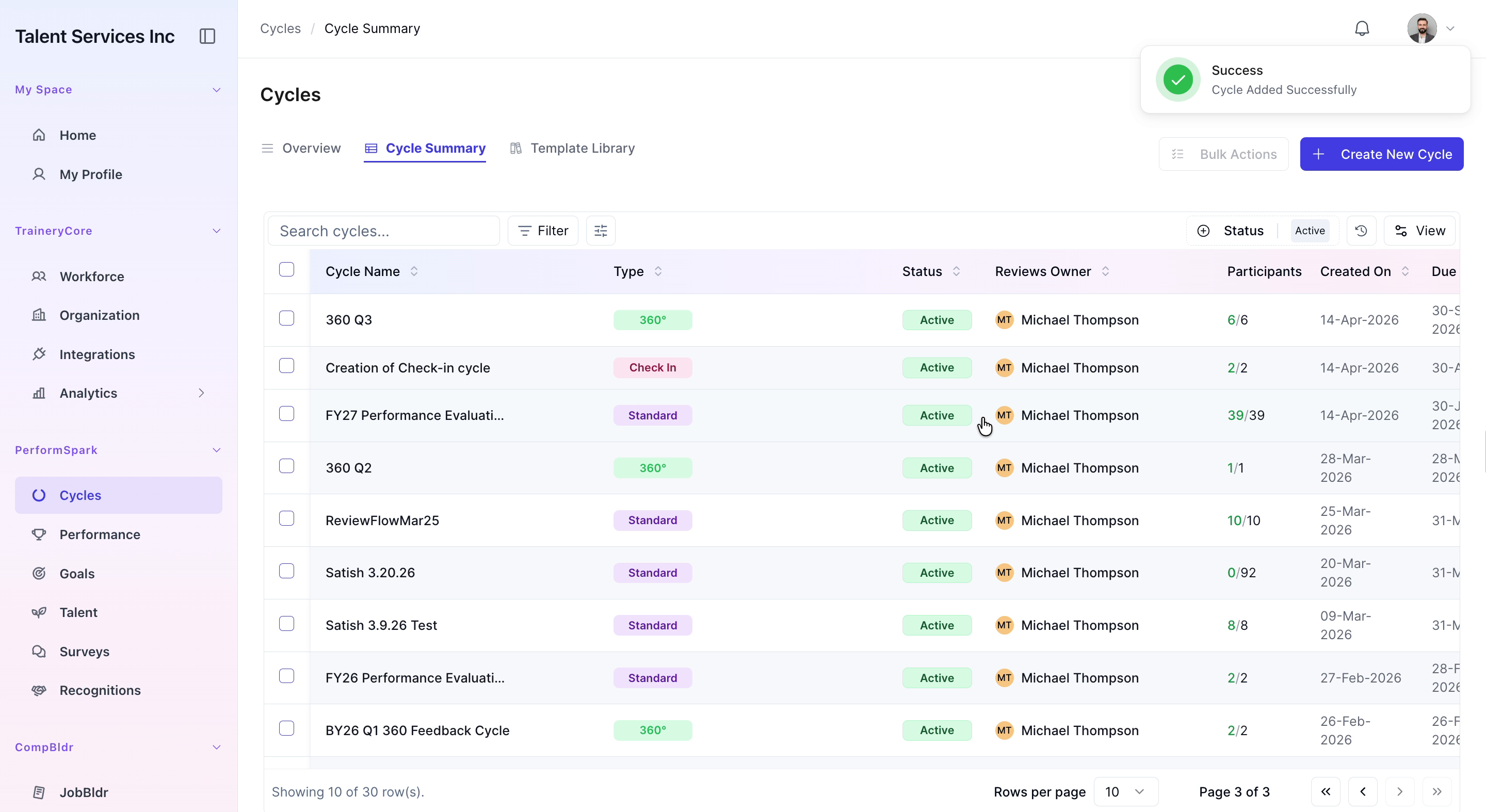
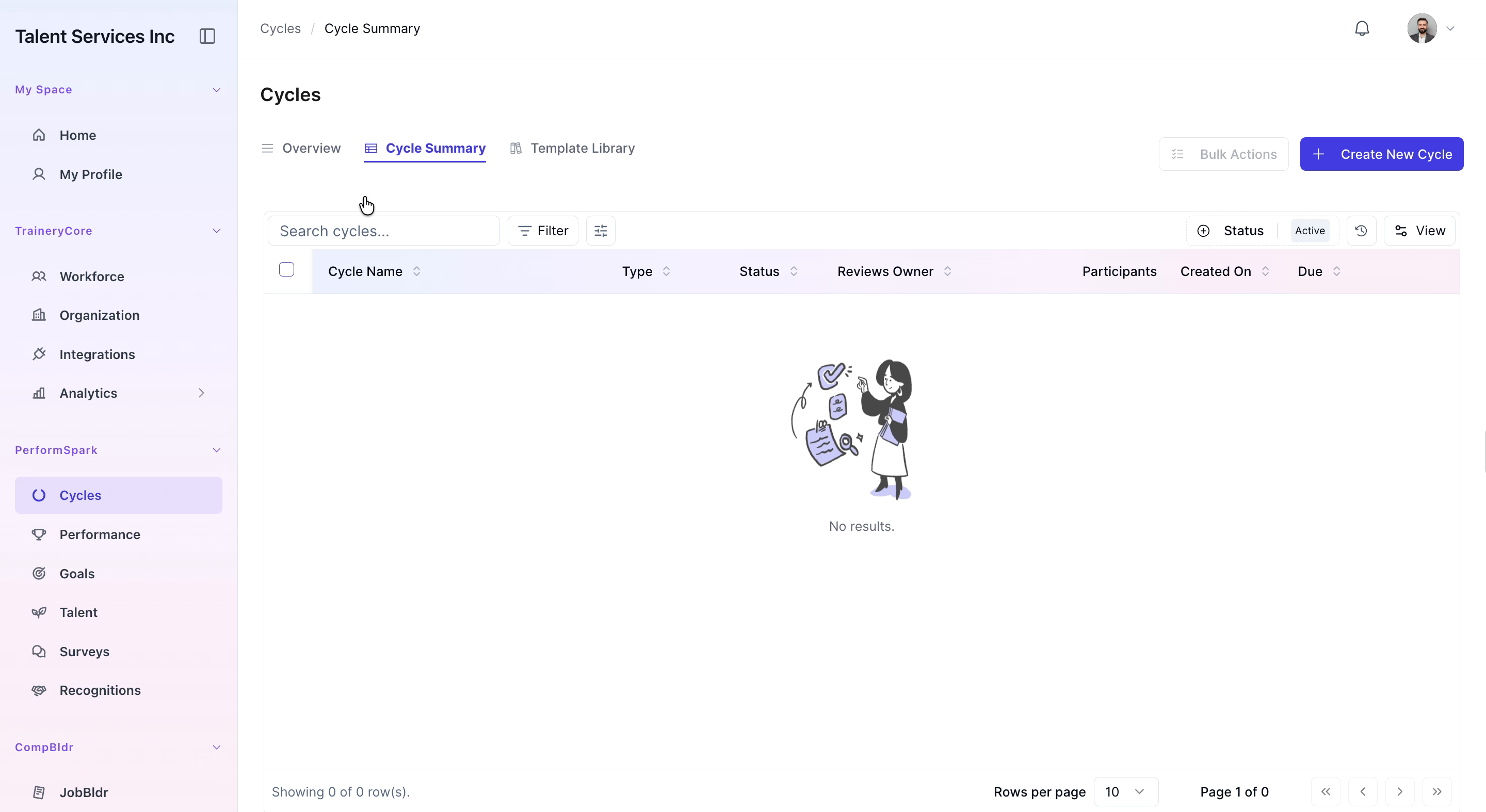
Open the newly created cycle to review the list of current participants and check their nomination status.
Step 10: Add Additional Participants and Assign Templates
Click Add Participants to include more employees in the cycle. Select the employees to add, assign them the appropriate review template, and confirm the assignment to update the cycle.