Creation of the standard review Cycle
Last updated: July 1, 2026
Creating and Managing a Performance Evaluation Cycle in PerformanceSpark
This document describes how to create, configure, launch, and manage a performance evaluation cycle in PerformanceSpark, including calibration, approvals, group assignments, and participant notifications.
Step 1: Open the Cycle Summary Page
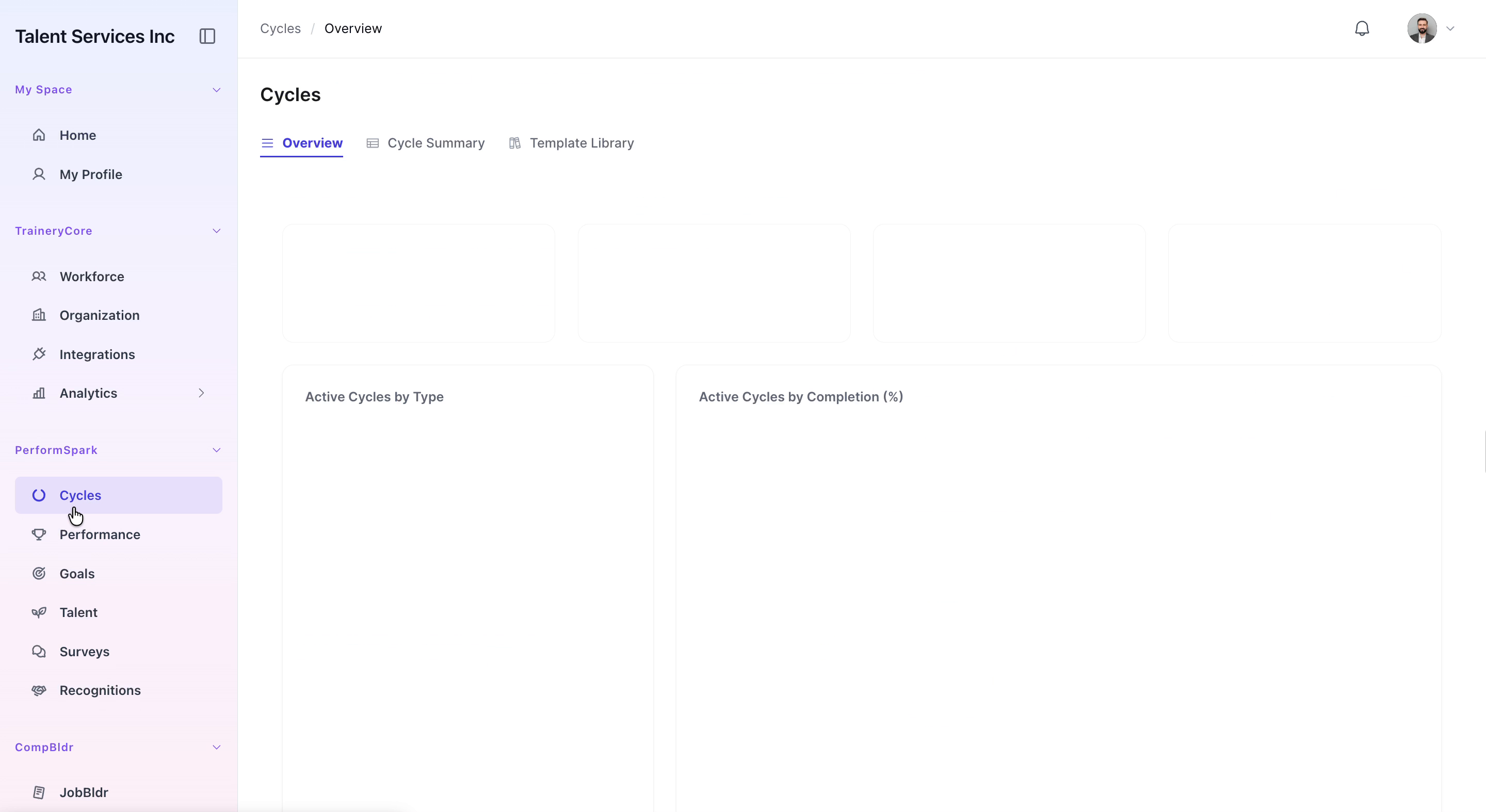
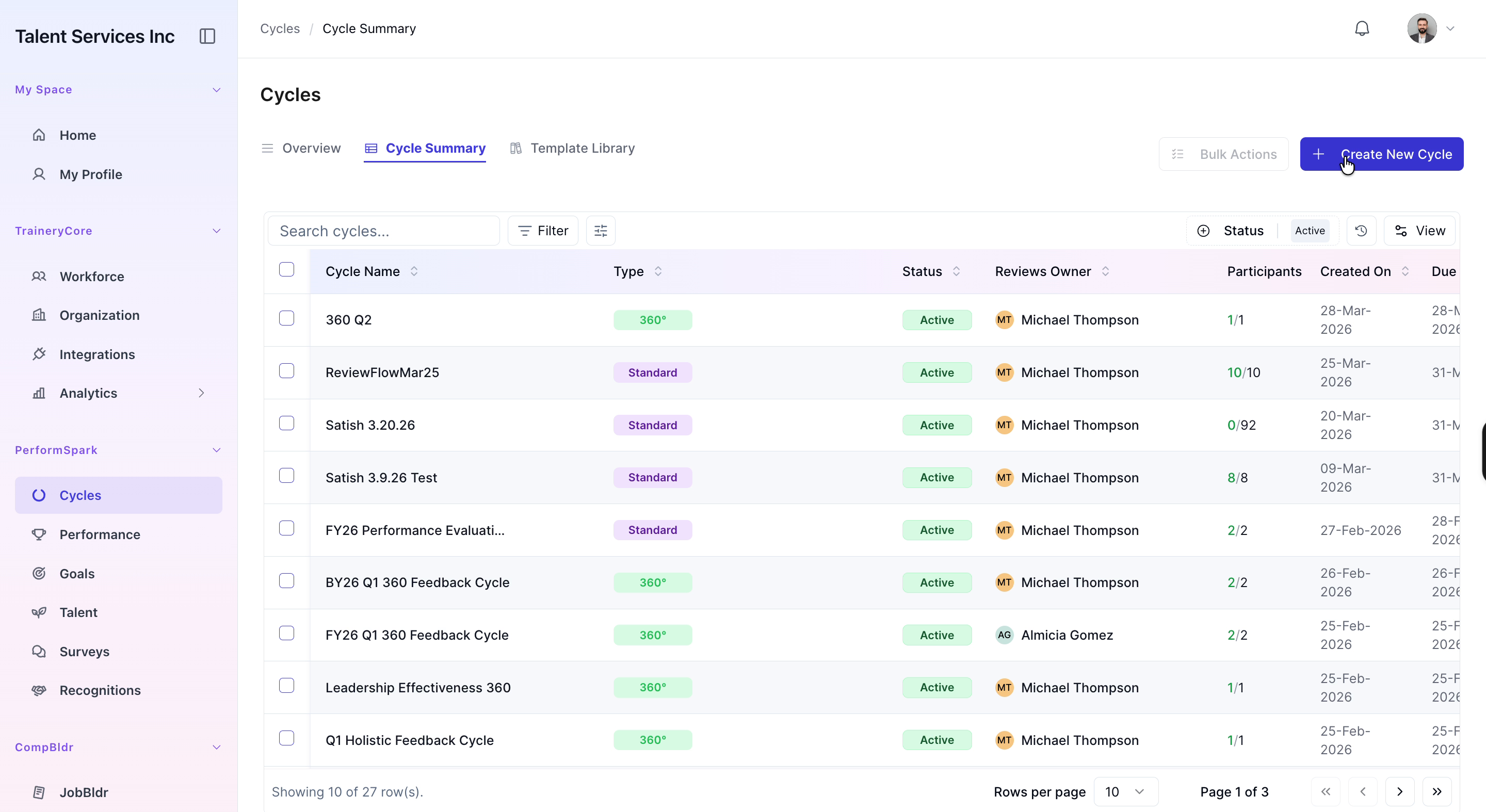
Navigate to the Cycles section under PerformanceSpark and click on Cycle Summary to view all existing performance cycles.
Step 2: Create a New Cycle
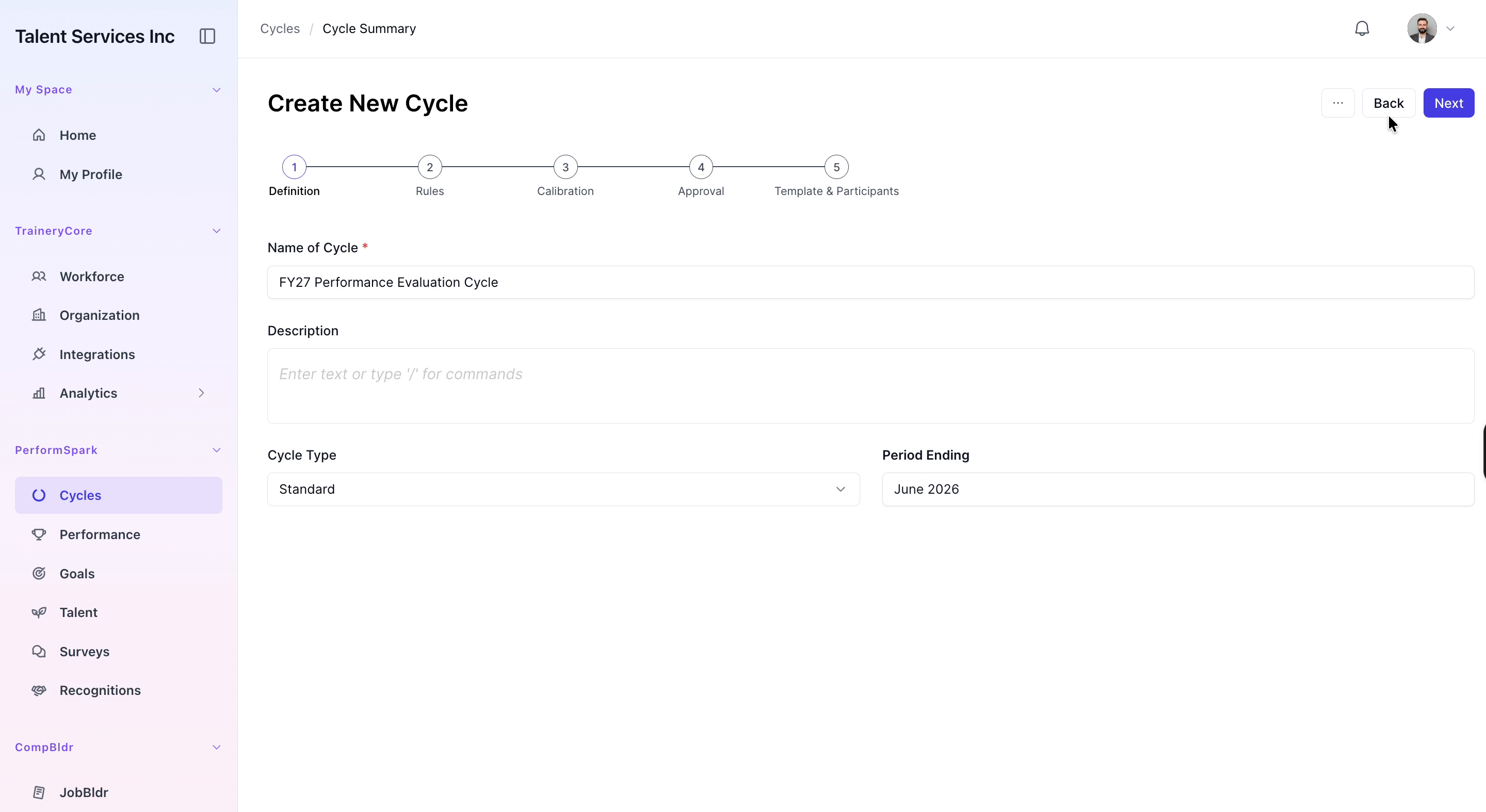
Click Create New Cycle and enter FY27 Performance Evaluation Cycle as the cycle name.


Step 3: Set the Period Ending Date
Set the period ending date to June 2026, then click Next to proceed to the configuration steps.

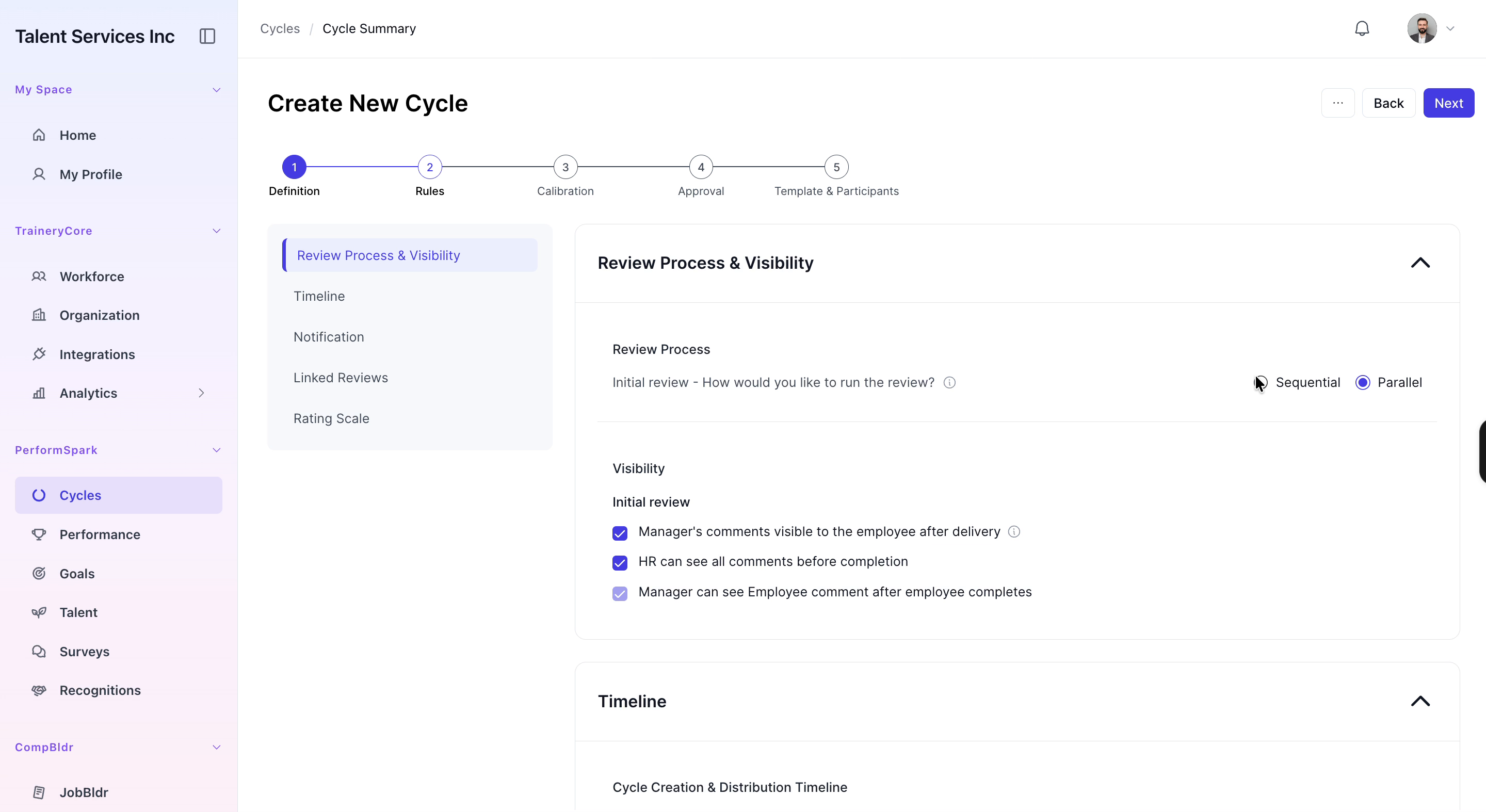
Step 4: Configure Review Visibility, Timeline, and Rating Scale
Configure who can see review results (review process visibility), define the key timeline dates for the cycle, and review the configured five-star rating scale. Once verified, click Next to move to the calibration configuration.

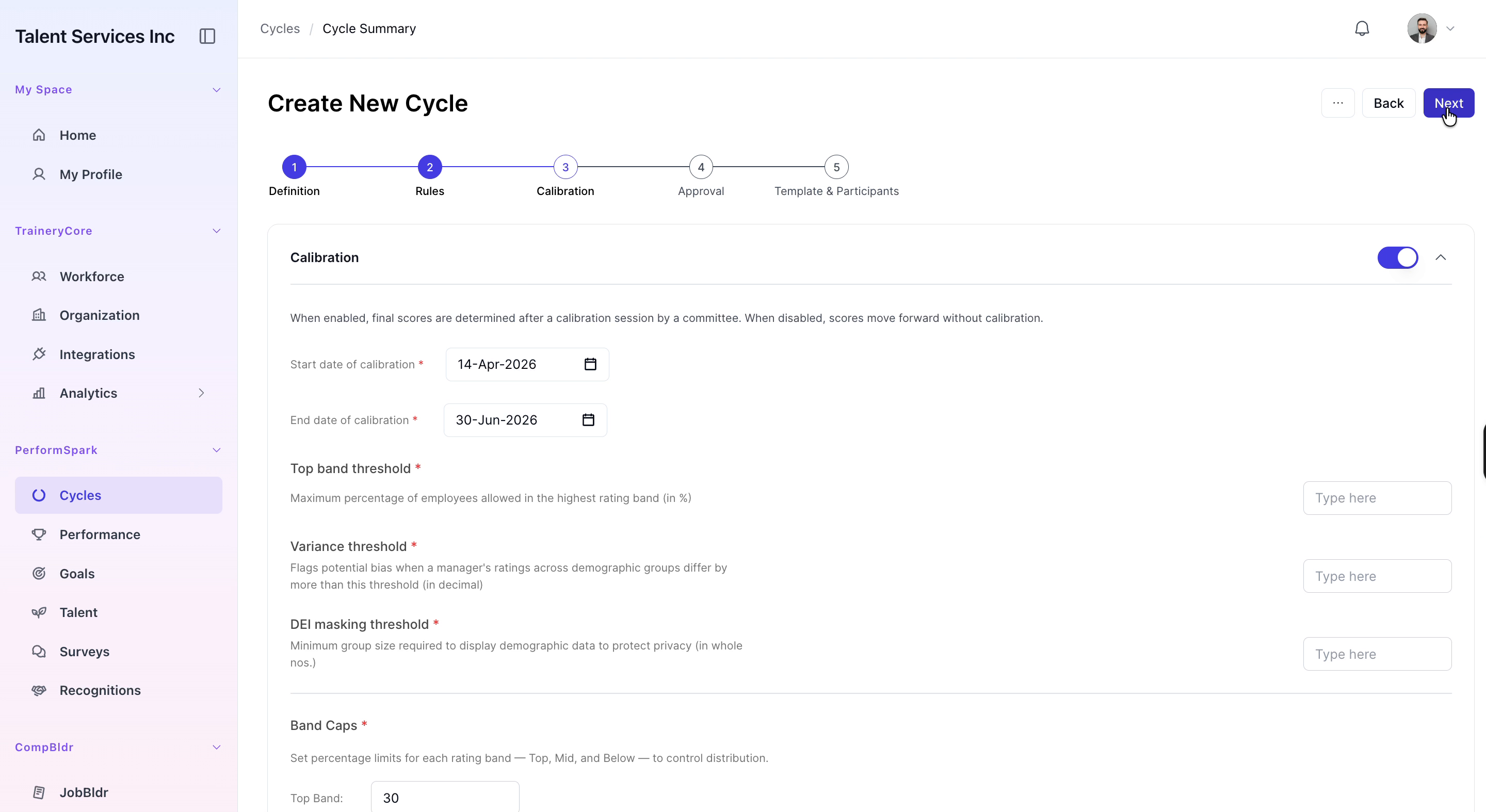
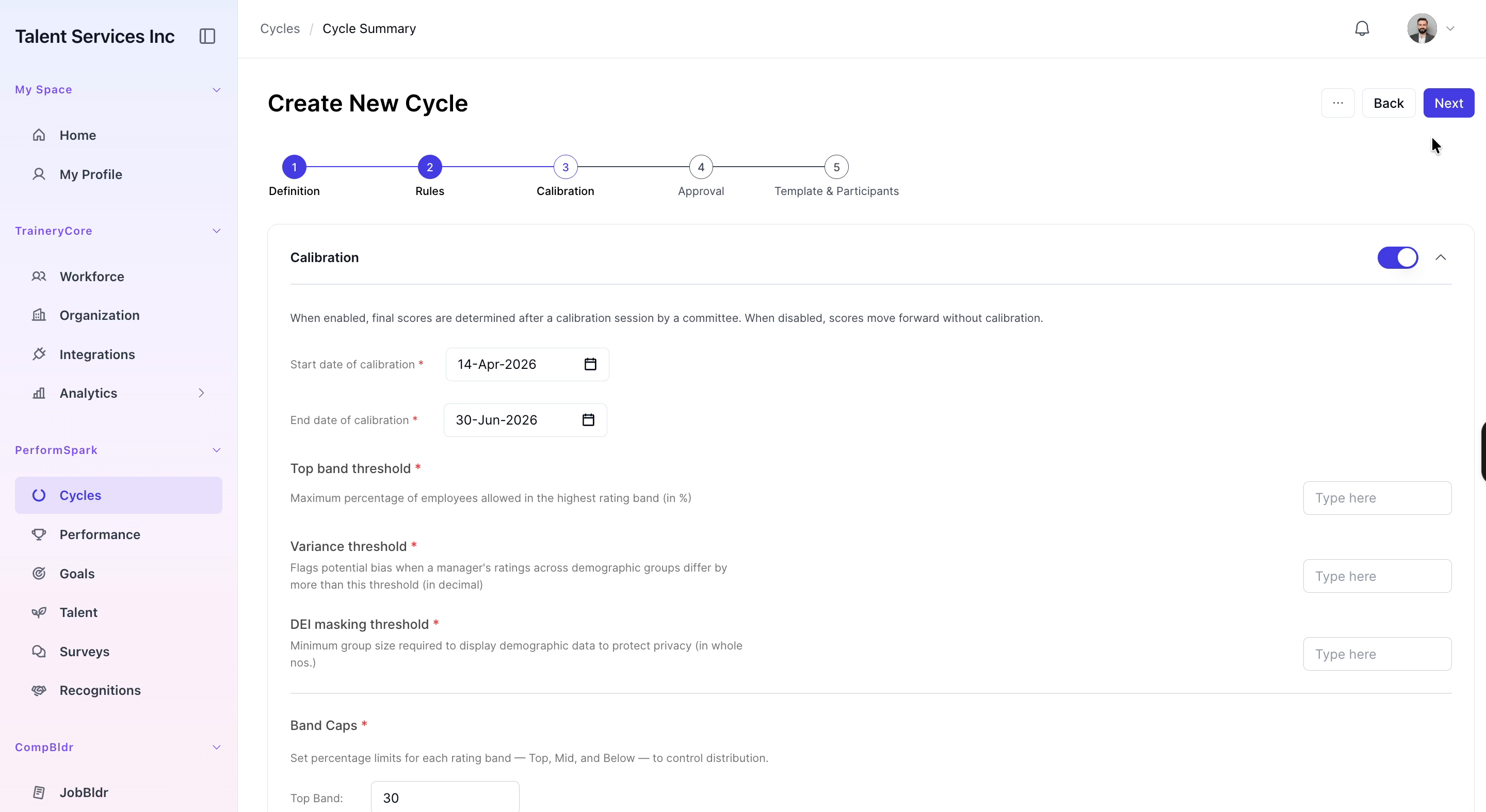
Step 5: Enable and Configure Calibration
Enable calibration, set the start and end dates for calibration, define the band caps for top, mid, and lower performance levels, and select the hierarchical authority model for calibration decisions.

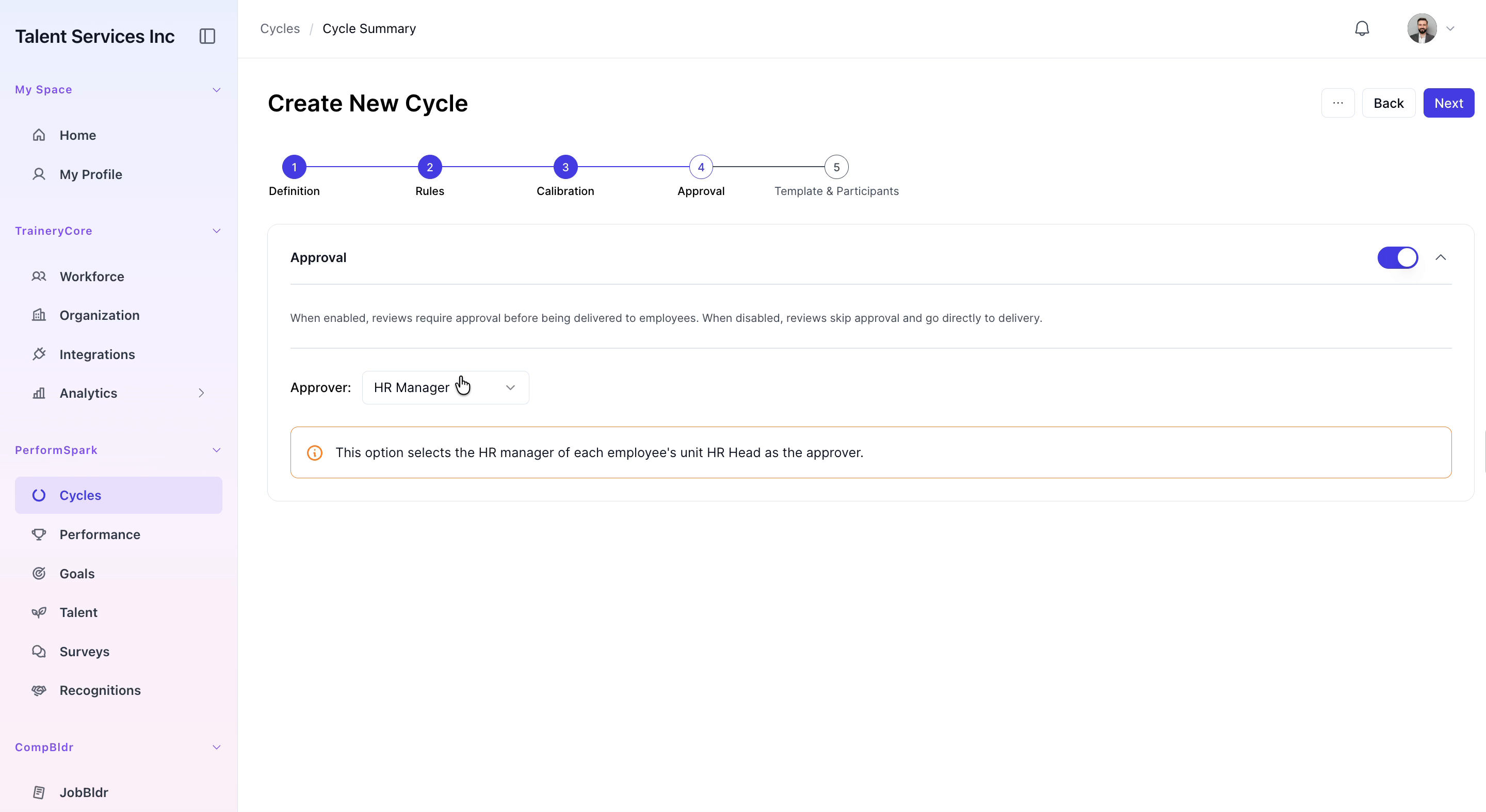
Step 6: Configure Approval Workflow
Enable the approval step and select HR Manager as the designated approver for final review outcomes.
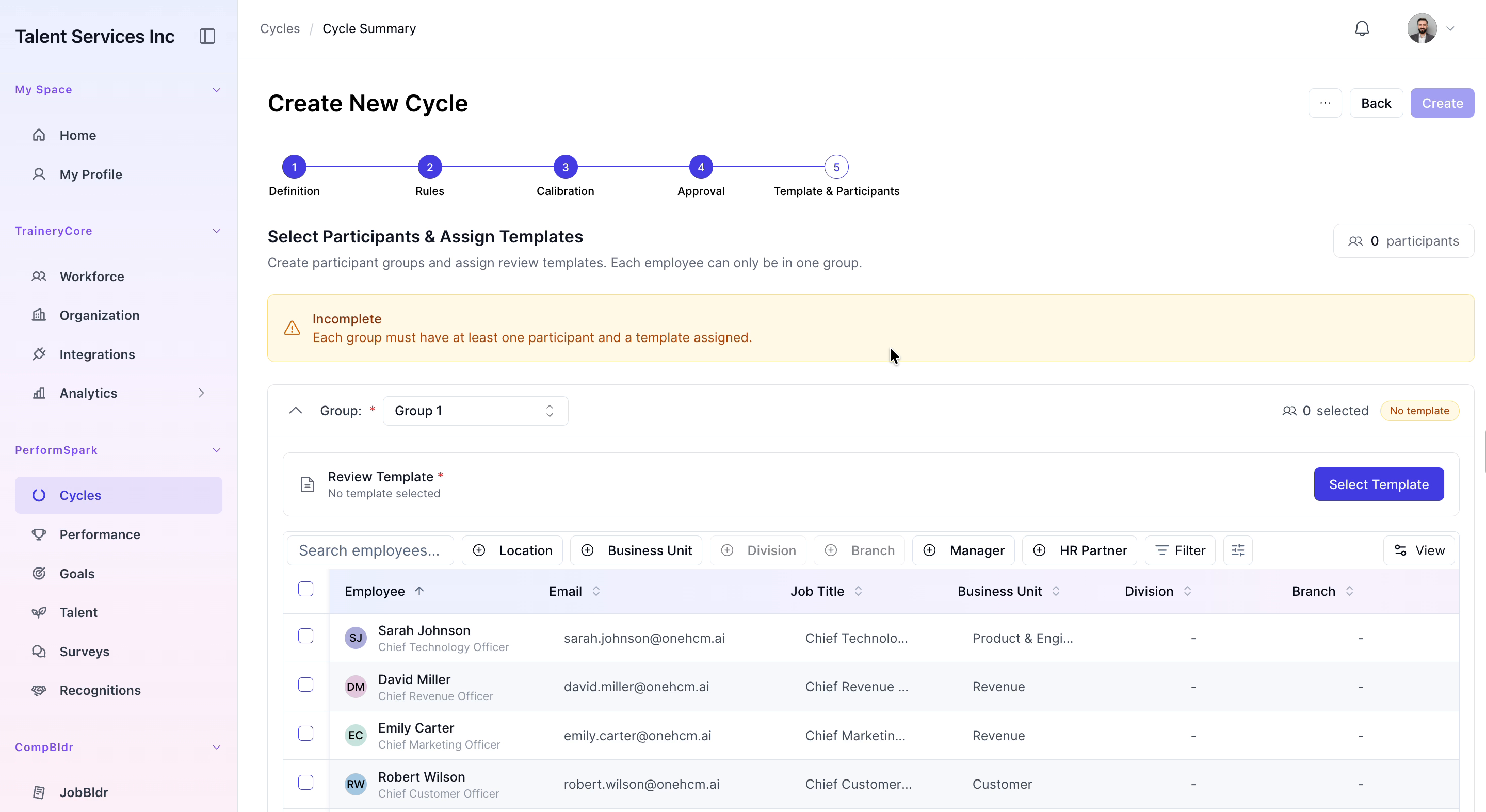
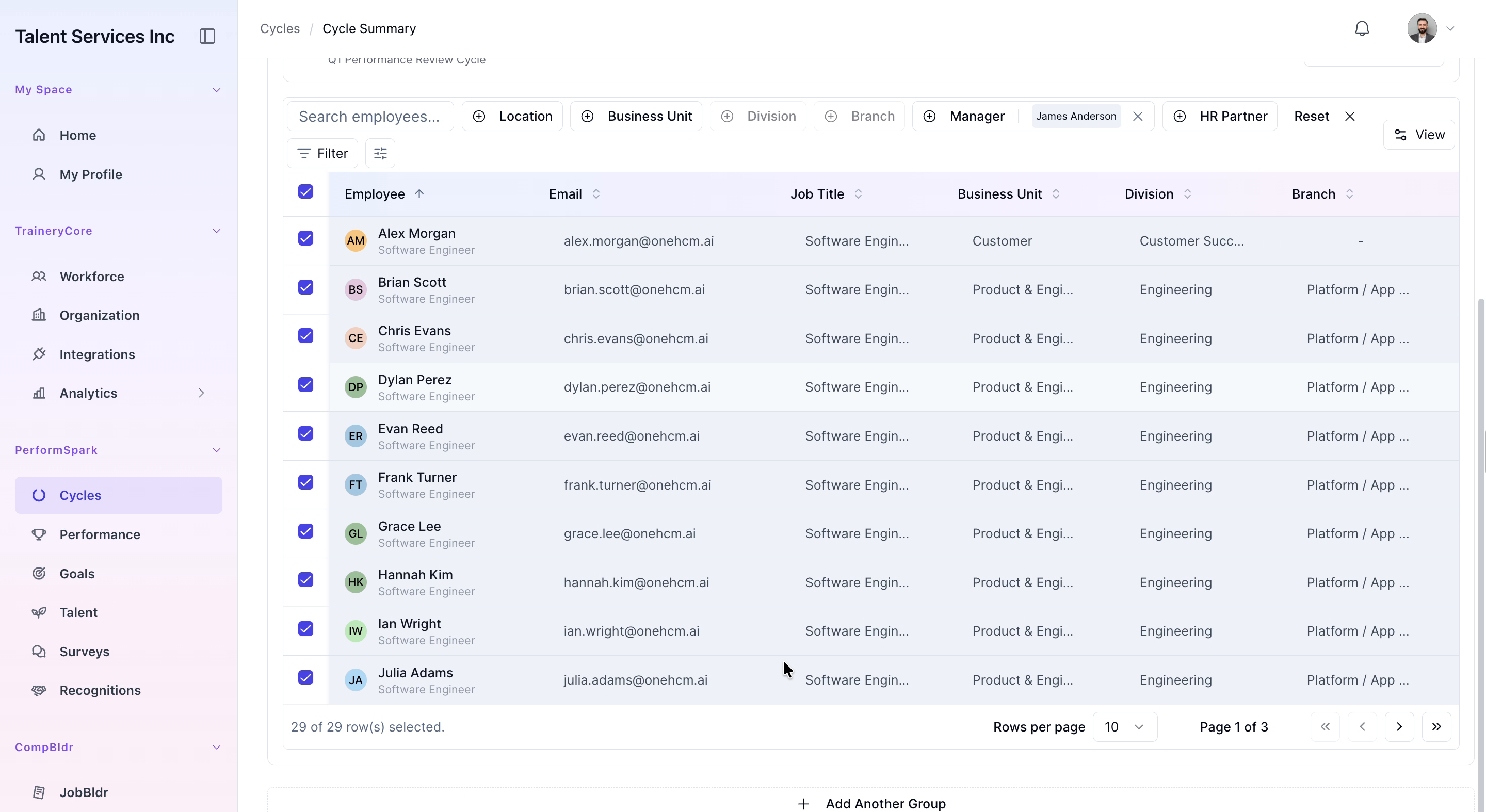
Step 7: Add Group 1 and Assign Template
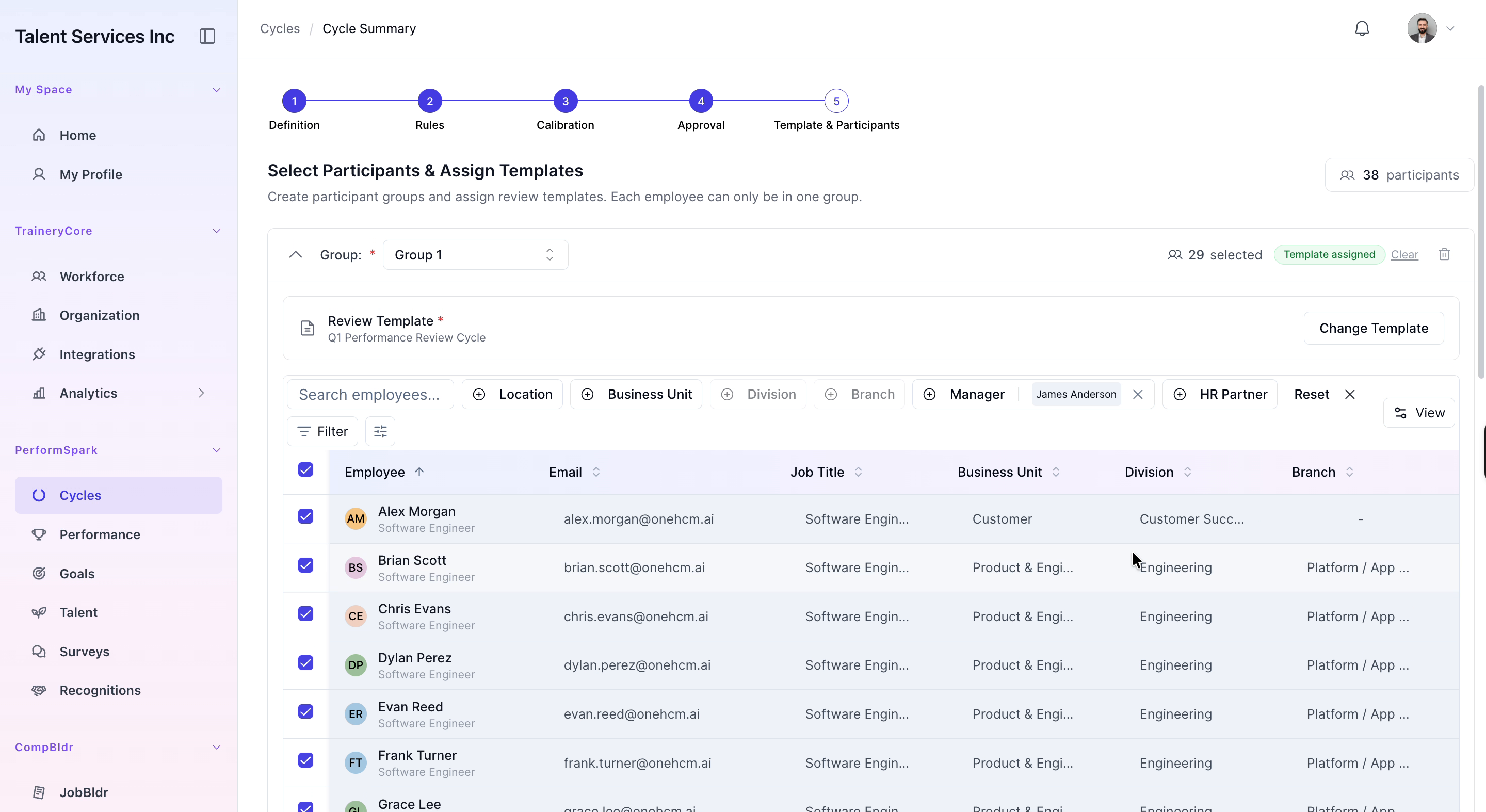
Add Group 1, filter the participant list to show employees managed by James Anderson, select all filtered employees, and assign the Q1 Performance Review Cycle template to this group.
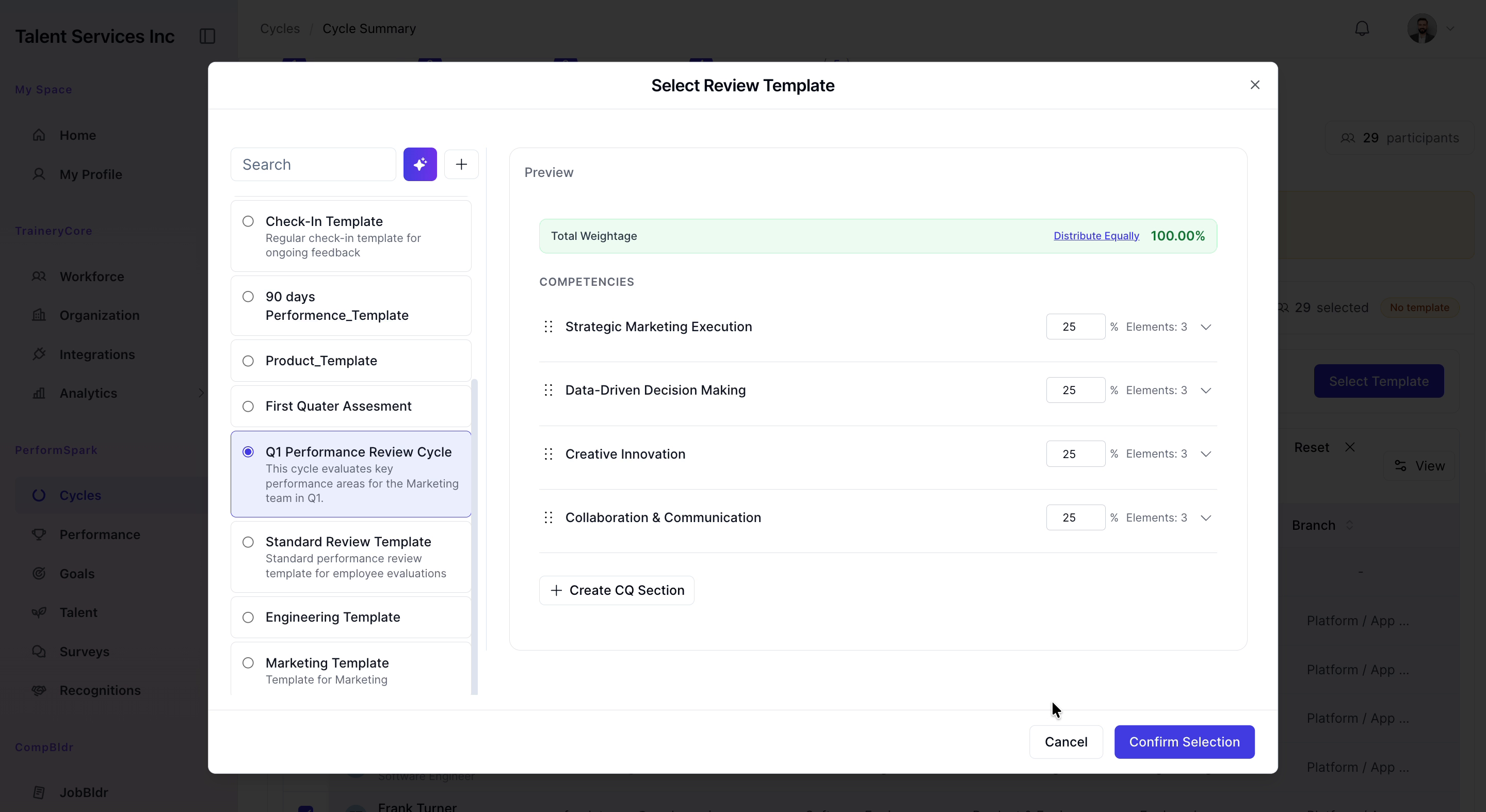
Step 8: Add Group 2 and Assign Template
Add Group 2, filter for employees managed by Ethan Lewis, select all applicable employees, and assign the Standard Review Template to this group.
Step 9: Create the Cycle and Open Its Details
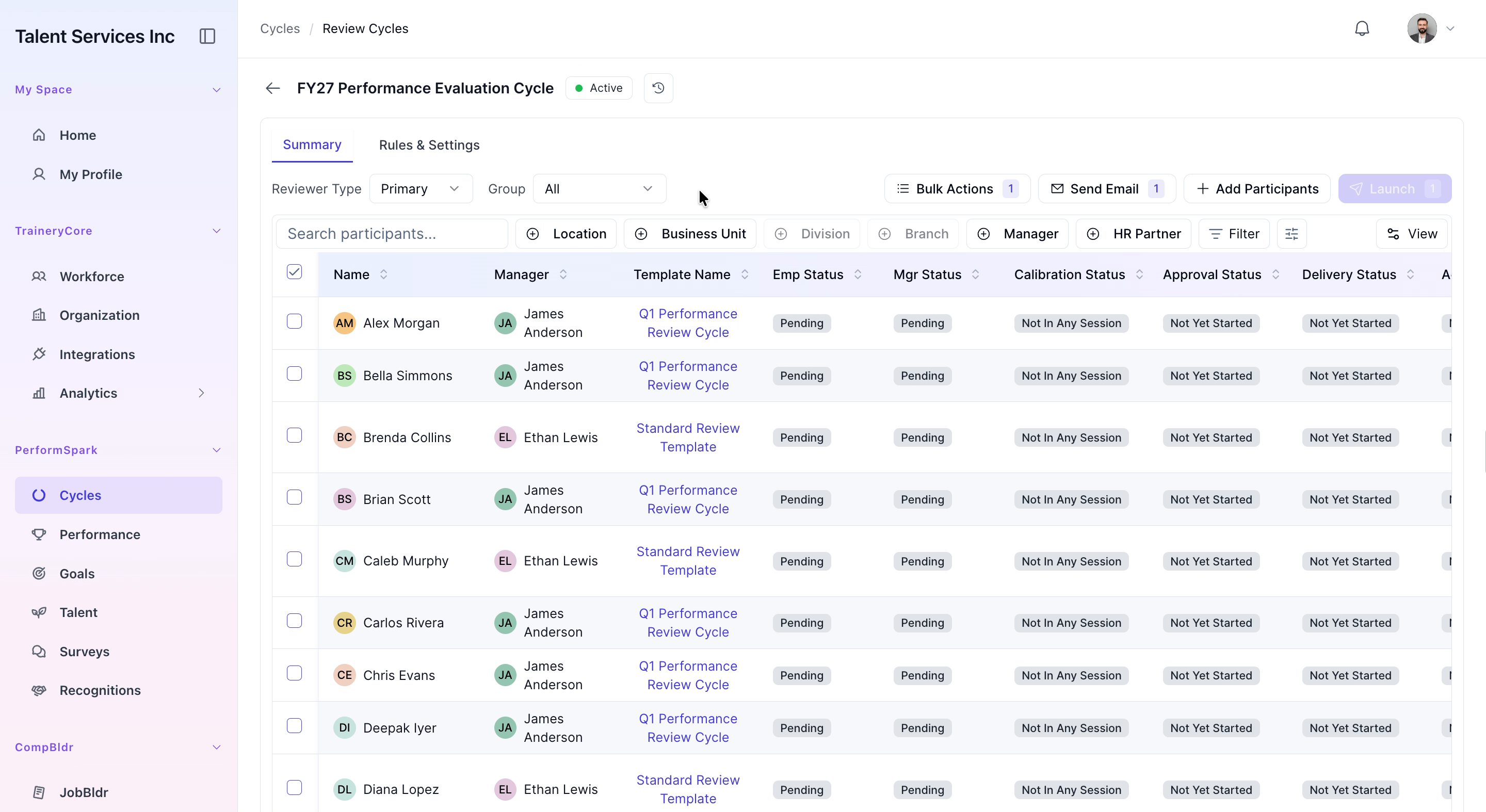
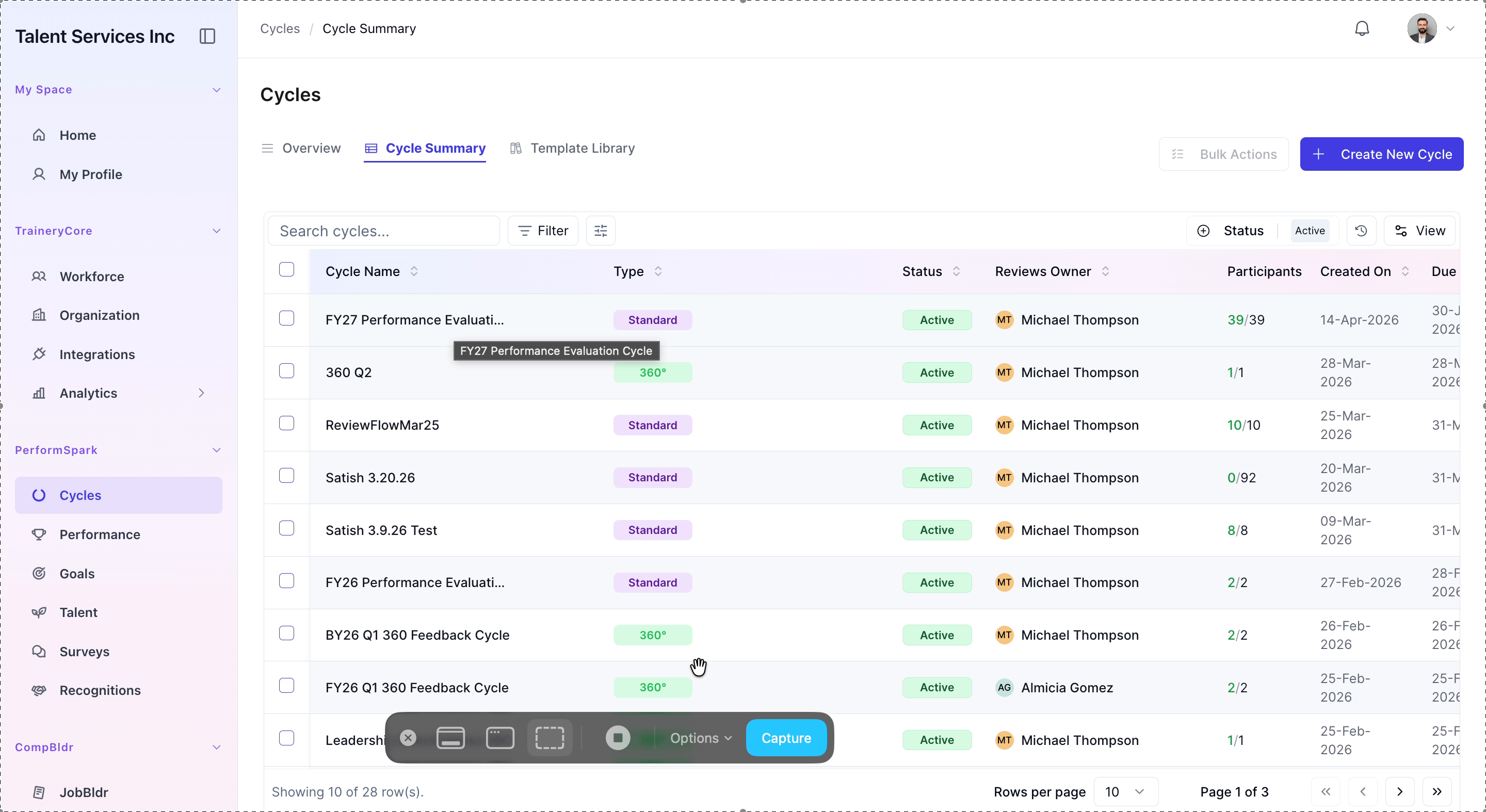
Click Create to finalize and save the new performance cycle. After creation, click on the cycle name to open and review its specific details.


Step 10: Launch the Cycle
Click the Launch button for the cycle and confirm the action to start the review process for all currently assigned participants.


Step 11: Notify Participants via Email
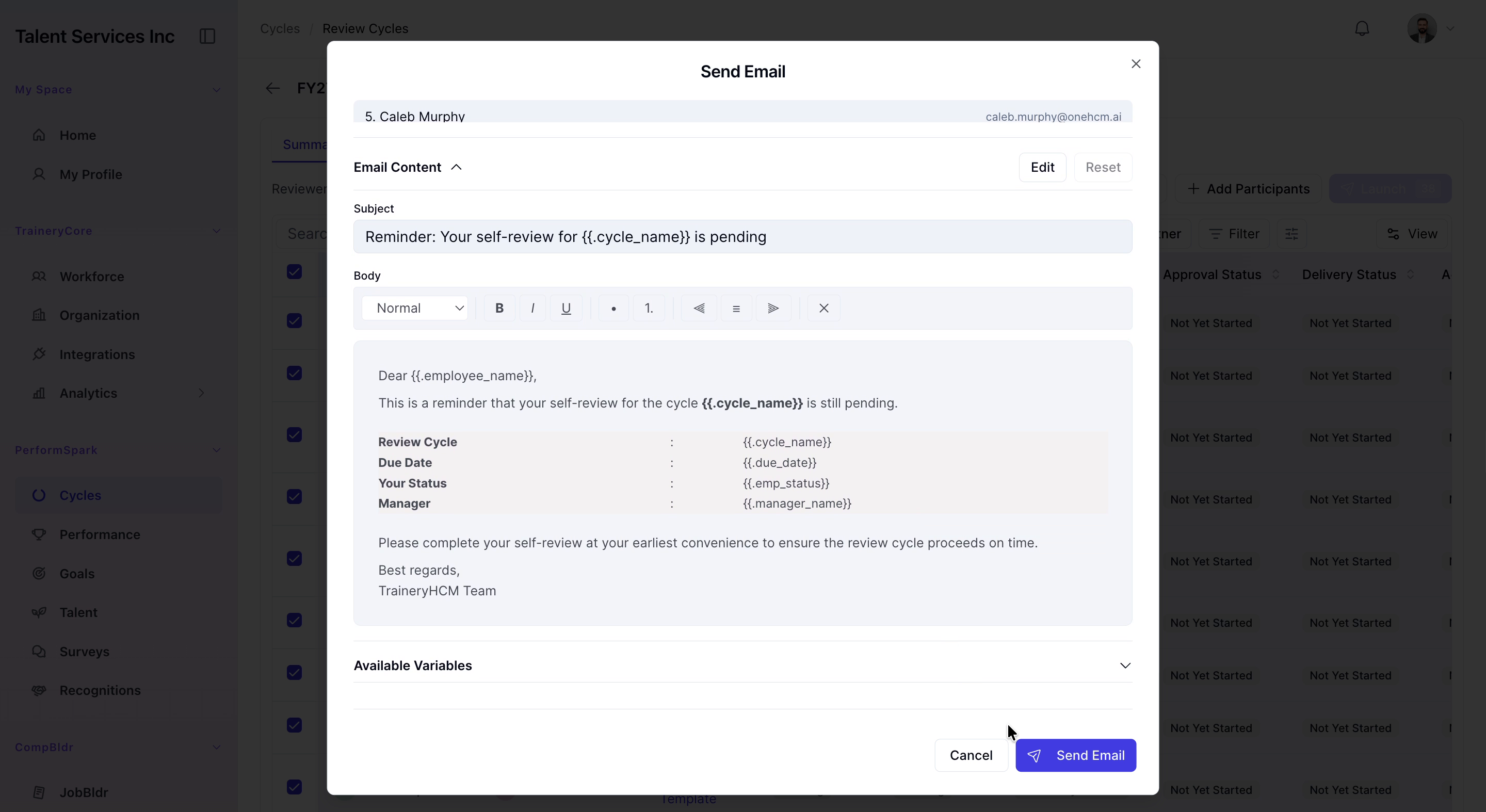
Select all participants, click Send Email, choose the self-review reminder email template, and send the reminder to everyone in the participant list.

Step 12: Add a New Participant (Sarah Johnson)
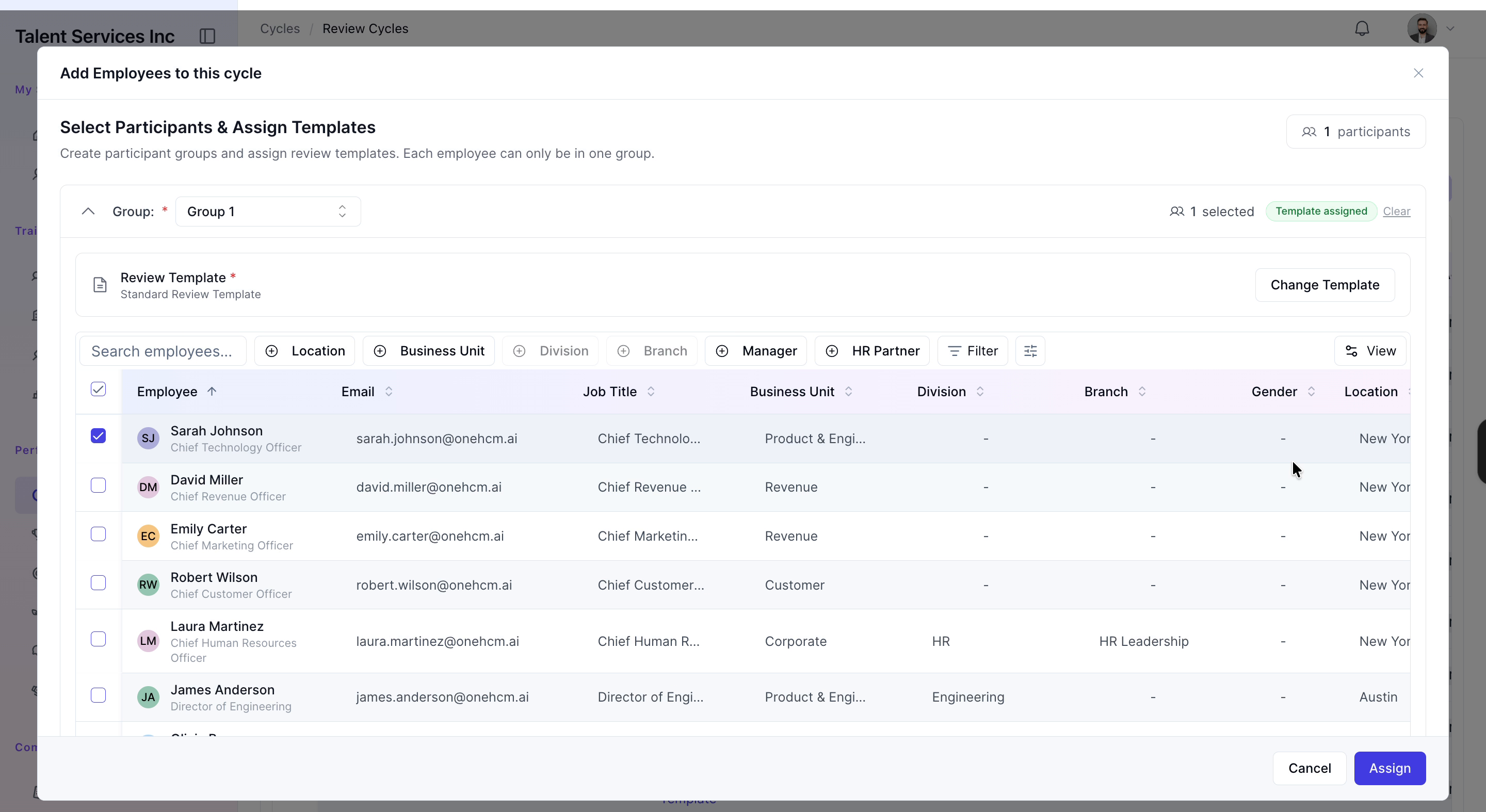
Click Add Participants, search for Sarah Johnson, select her from the results, assign the Standard Review Template, and click Assign to add her to the cycle.

Step 13: Launch and Notify the New Participant
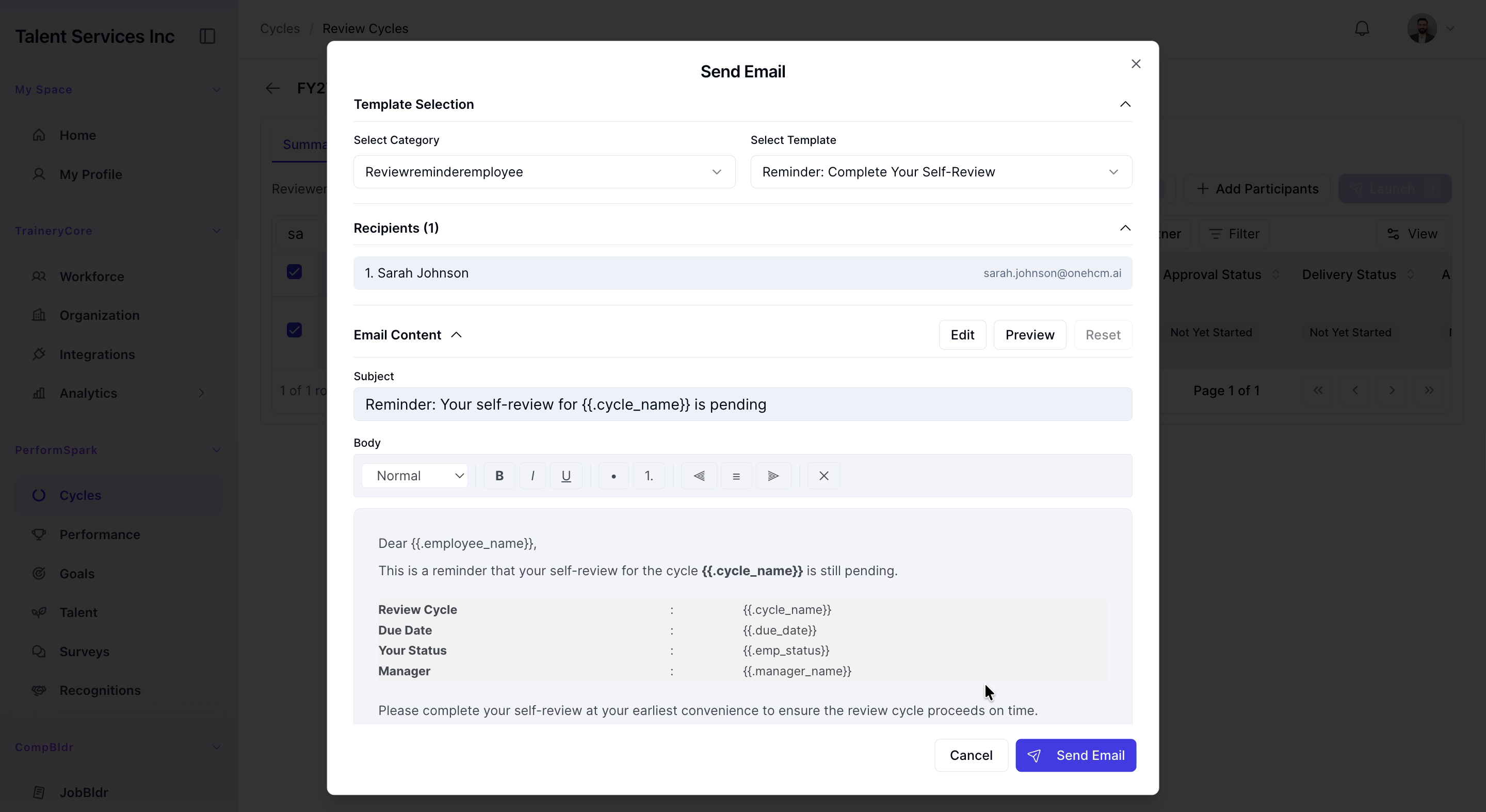
Search again for Sarah Johnson, select her record, click Launch to start her individual cycle, and then send her the self-review reminder email.
Step 14: Return to the Cycle Summary
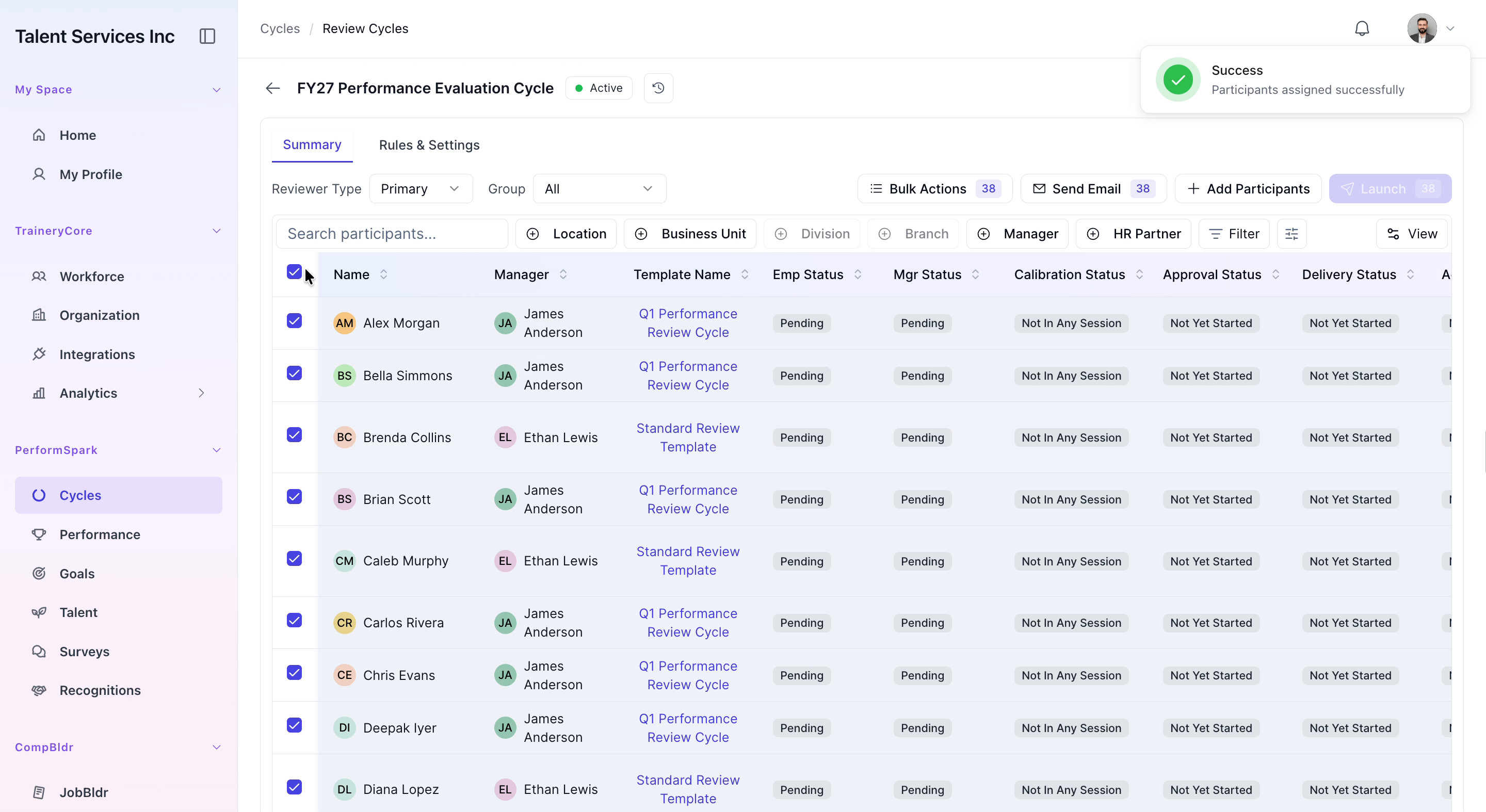
Clear any active search filters and navigate back to the main Cycle Summary page to view the updated list of cycles and participant statuses.