Creation of New Check-In Cycle
Last updated: July 1, 2026
Creating a New Check-In Cycle
This document outlines the process for creating a new Check-In cycle, configuring its basic settings, selecting employees, and confirming successful creation in the Cycle Summary view.
Step 1: Open the Cycles Section and Start a New Cycle
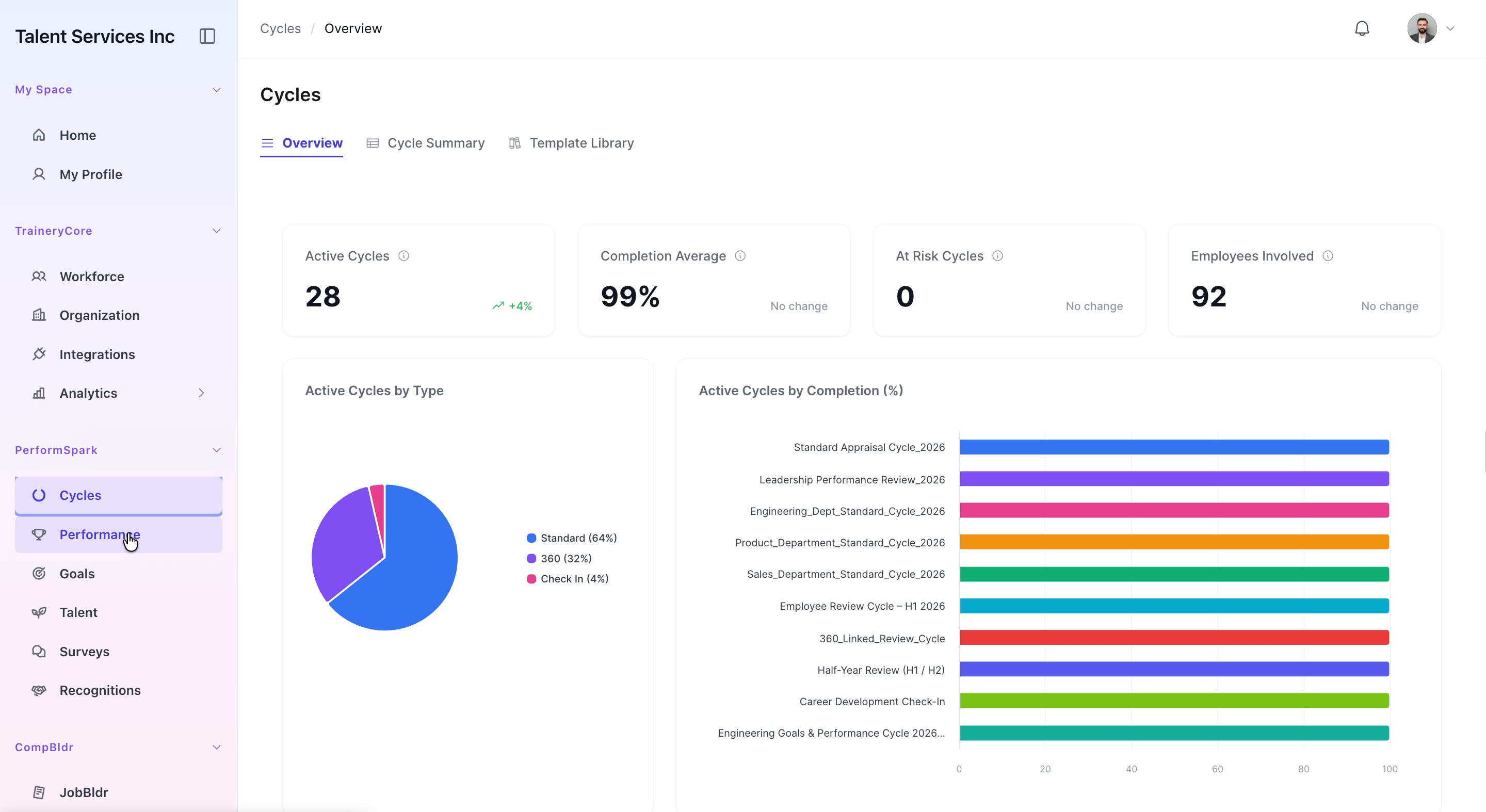
Navigate to the Cycles section in your application, open the Cycle Summary tab, and click the Create New Cycle button to begin creating a new cycle.
Step 2: Configure the Cycle Details
In the cycle creation form, enter "Creation of Check-in cycle" as the cycle name. Set the Cycle Type to Check In, and update the Period Ending date to April 2027. When finished, click Next to continue.
Step 3: Set Minimum Check-Ins
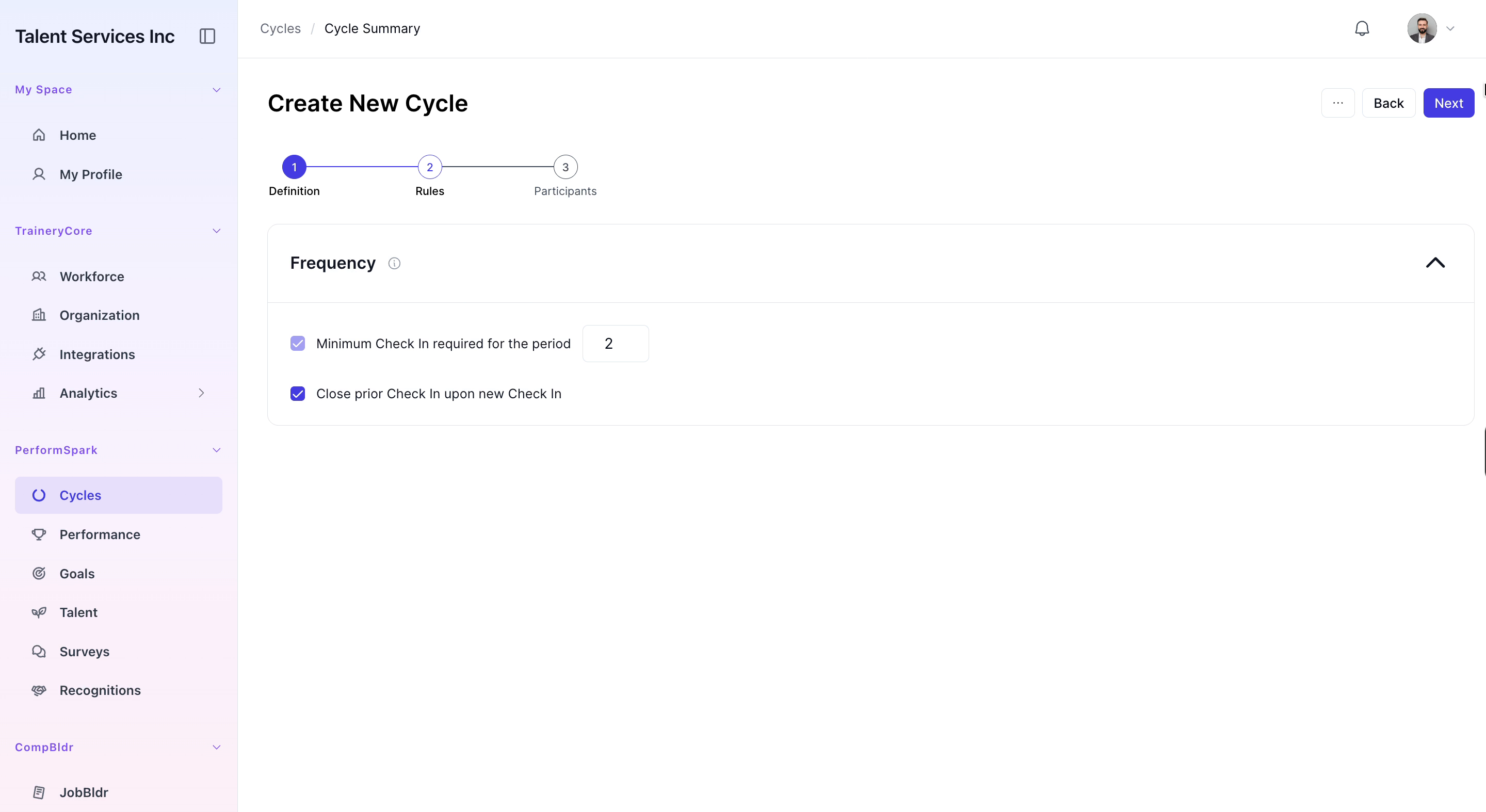
On the configuration screen, increase the Minimum Check-ins value to 2, then proceed to the next step of the setup by clicking Next (or the equivalent continue option).
Step 4: Select Employees for the Cycle
From the employee list, select Sarah Johnson and David Miller to include them in this Check-In cycle. After confirming your selection, click the Create button to finalize and create the new cycle.


Step 5: Verify the New Cycle in Cycle Summary
After creation, you are redirected back to the Cycle Summary tab. Confirm that the newly created cycle, "Creation of Check-in cycle", is now visible in the list of cycles.