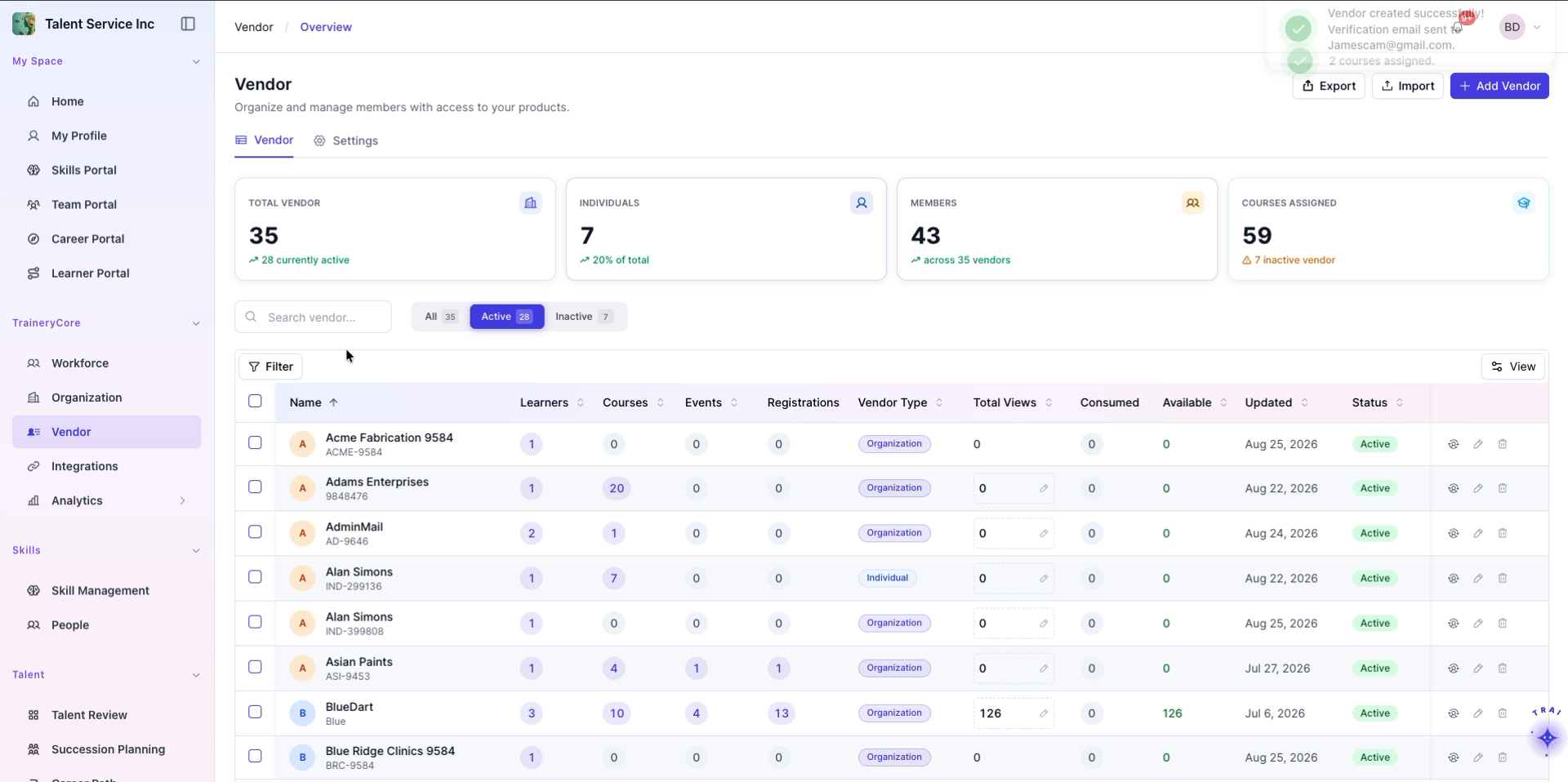
Customer Creation Flow
Last updated: September 8, 2026
This document describes how to create a new vendor record, configure its address and organizational details, add a primary contact, assign courses, and verify the vendor profile in the vendor list.
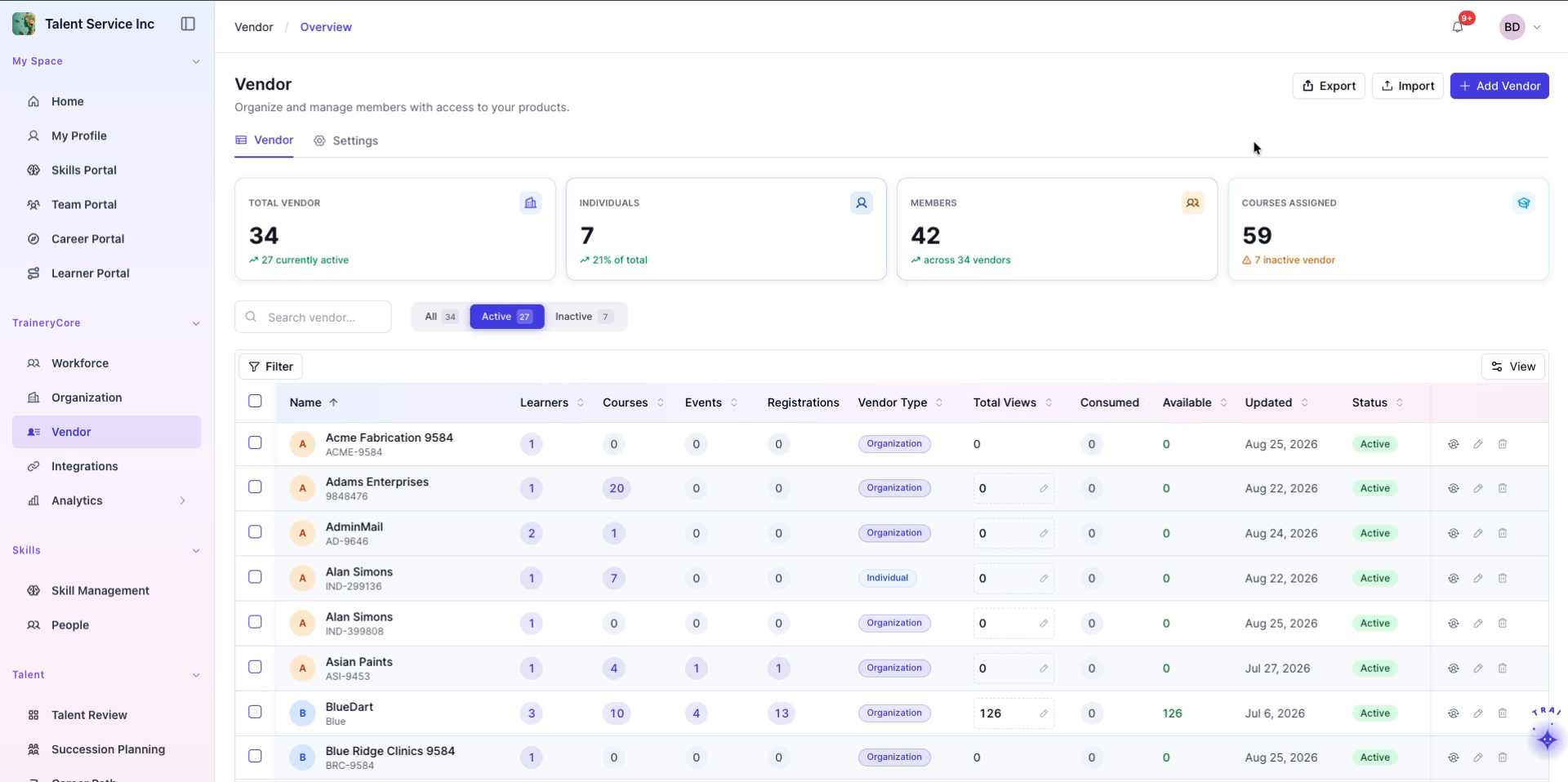
Step 1: Start Vendor Profile Creation
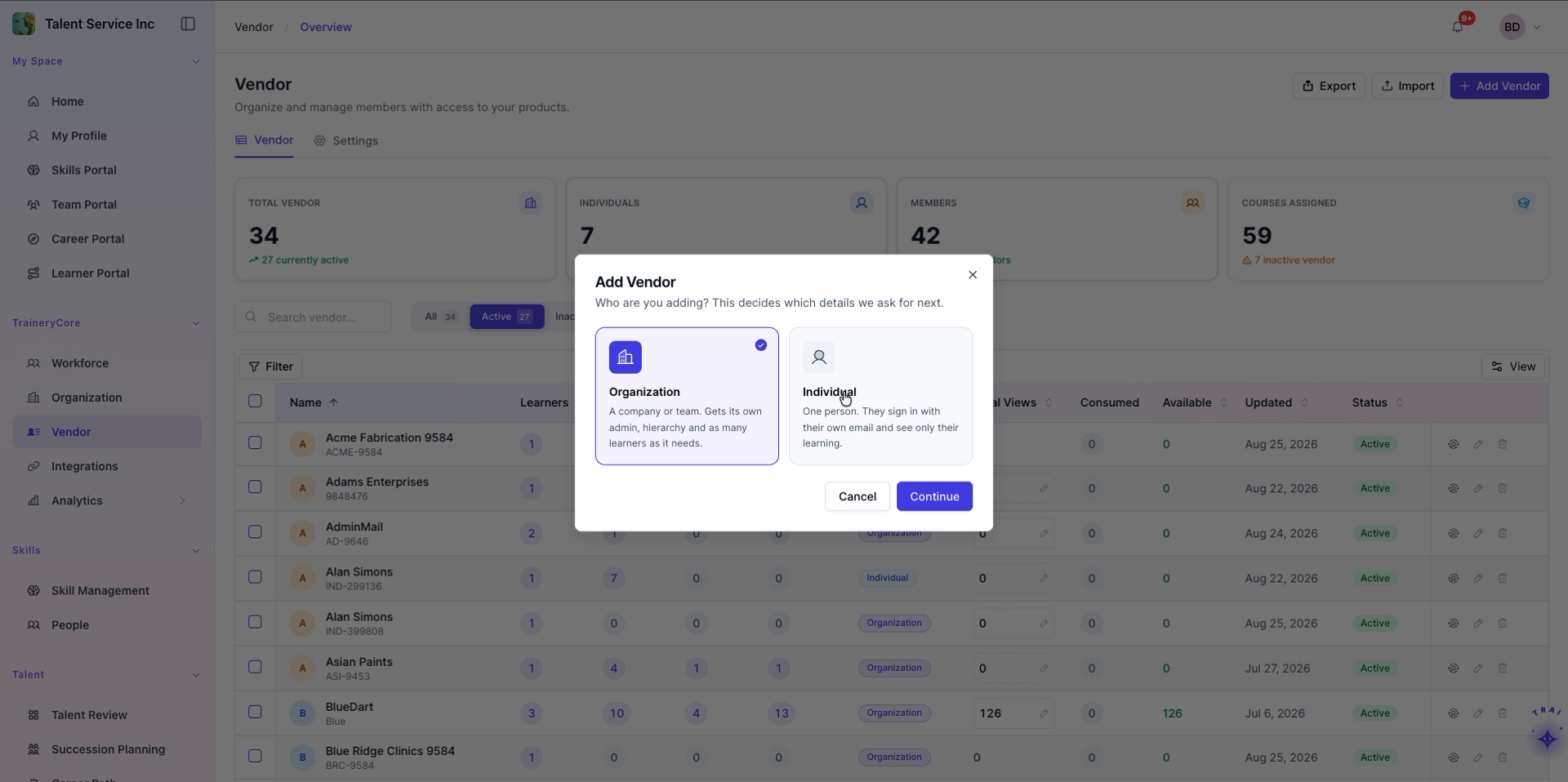
On the Vendor Overview page, click the Add button, then click Continue in the modal that appears to begin creating a new vendor.
Select Organization or Individual
Step 2: Enter Basic Vendor Details
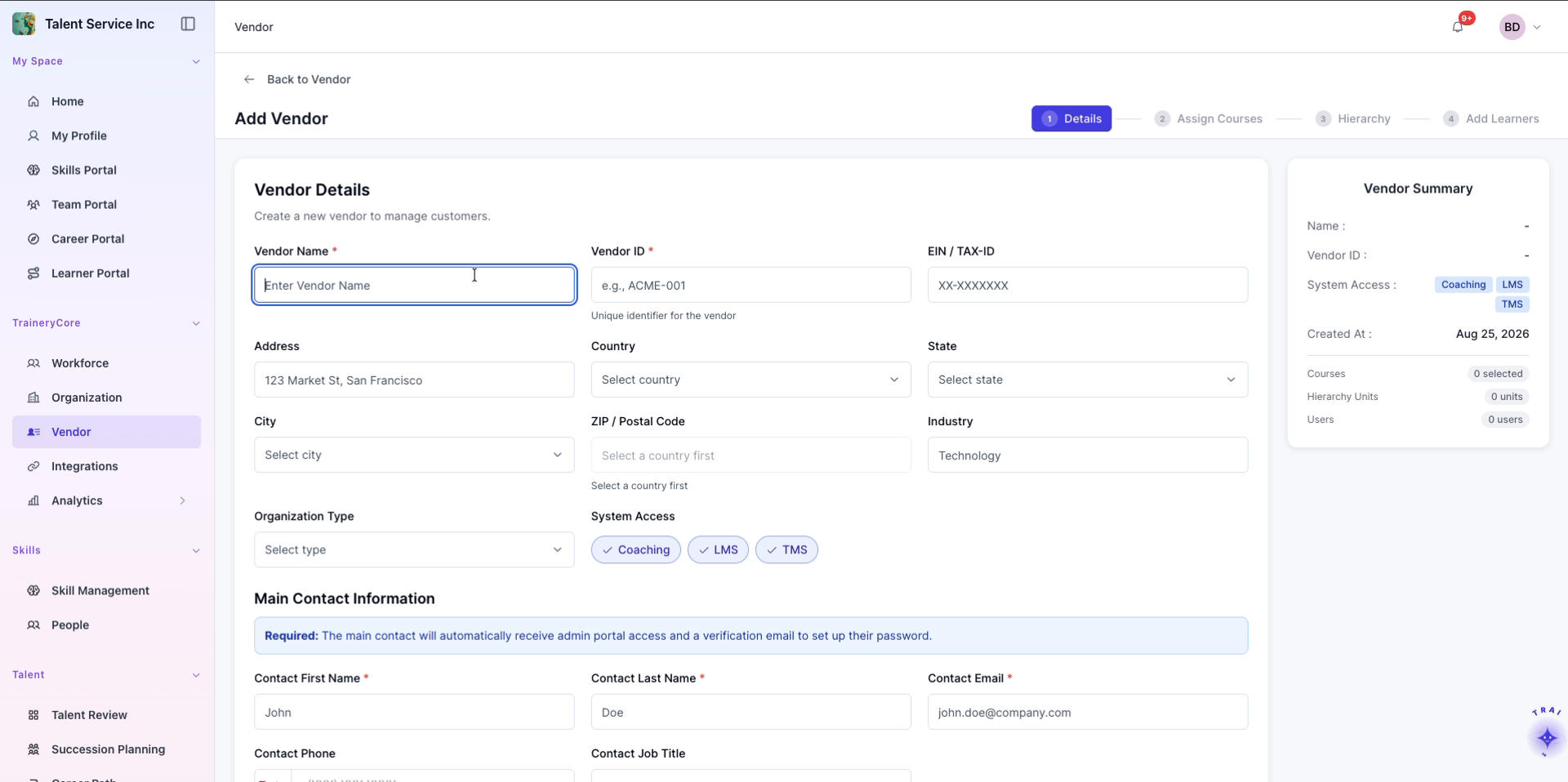
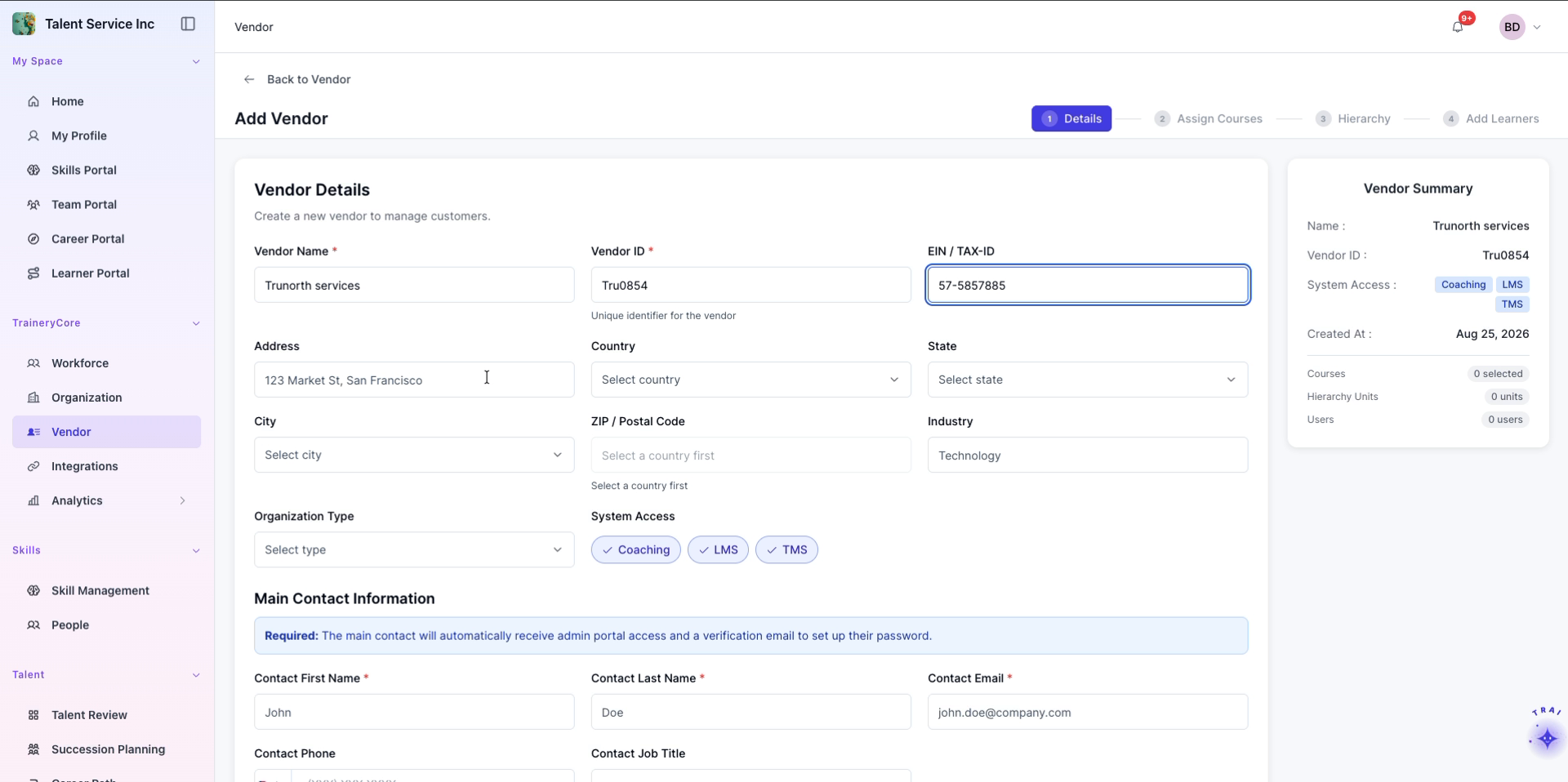
Enter as the Vendor Name, provide a unique Vendor ID, and input the vendor’s EIN or TAX ID in the corresponding field.
Step 3: Provide the Vendor Address
In the address field, type as the vendor’s address.
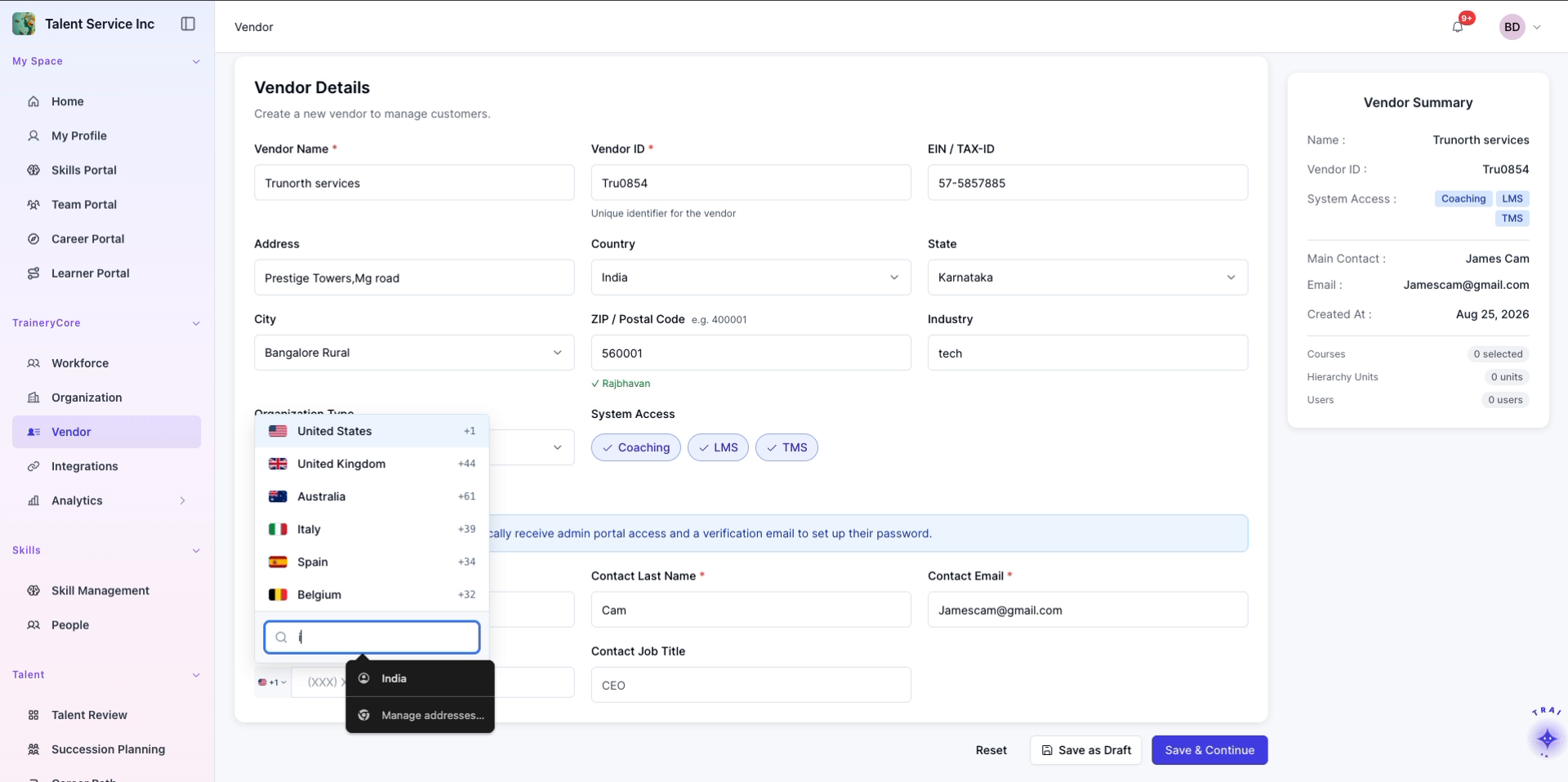
Select the appropriate country code, enter the phone number, set the Job Title then click Save & Continue to proceed.
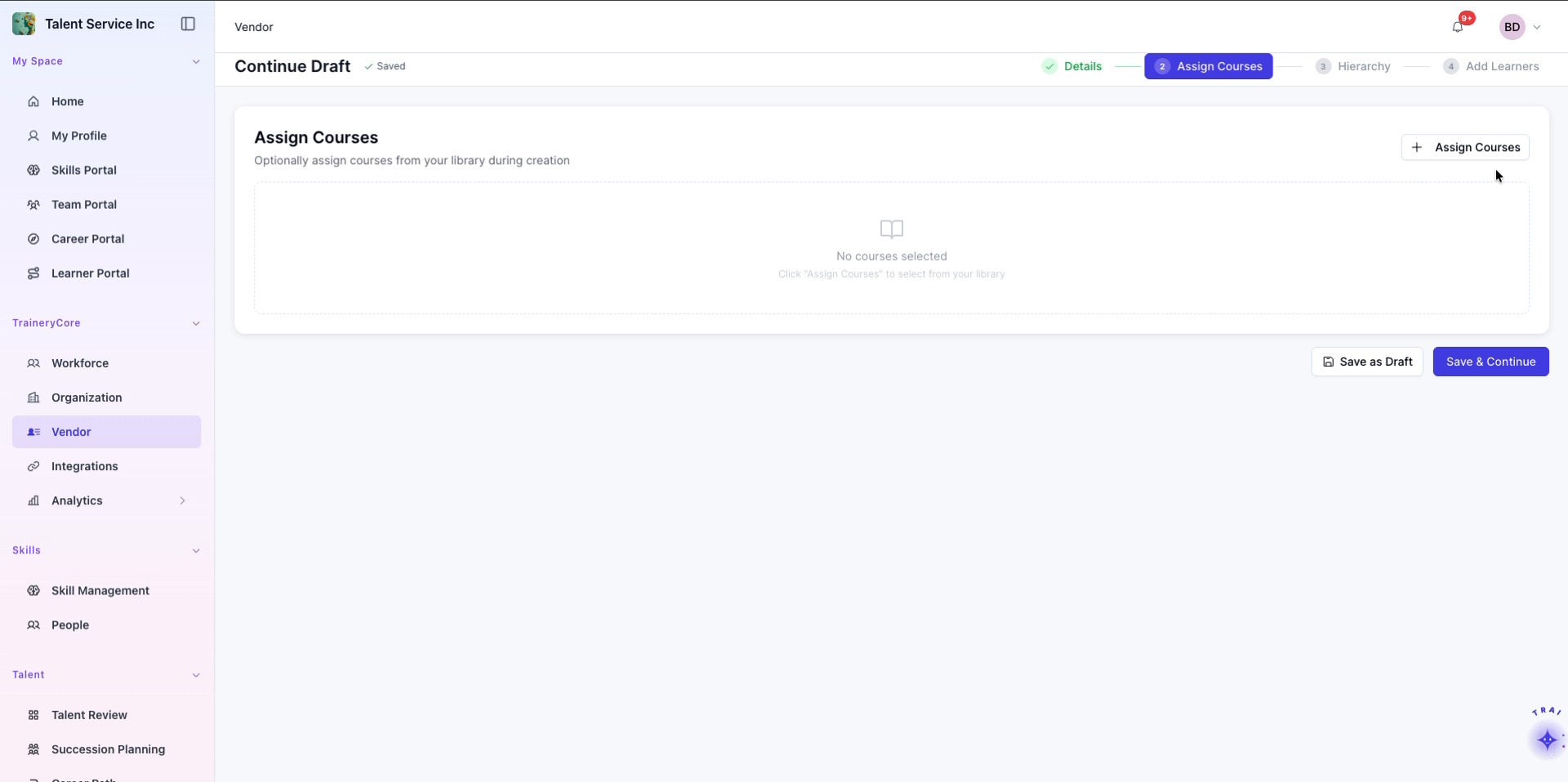
Step 4: Assign Courses to the Vendor
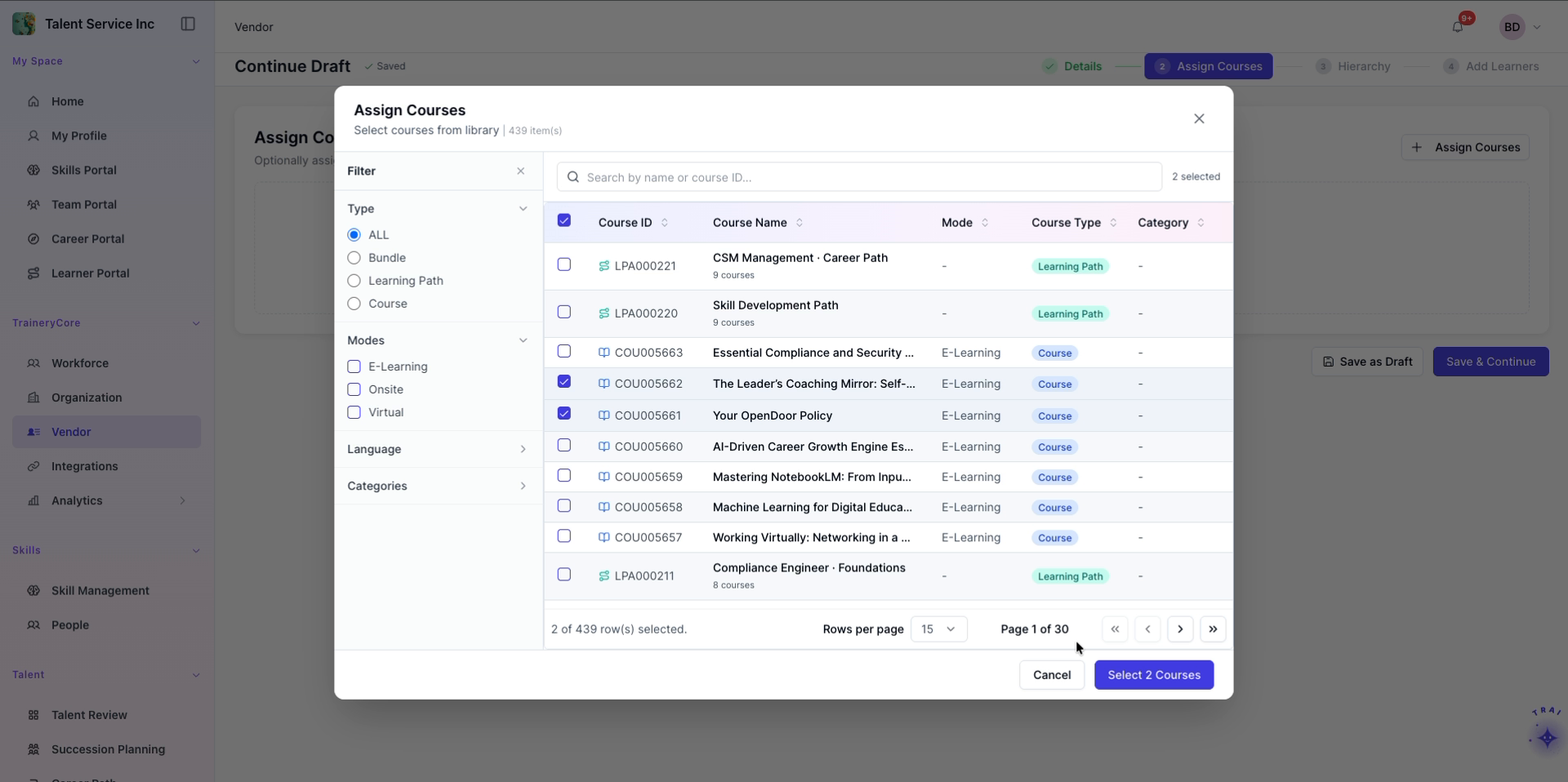
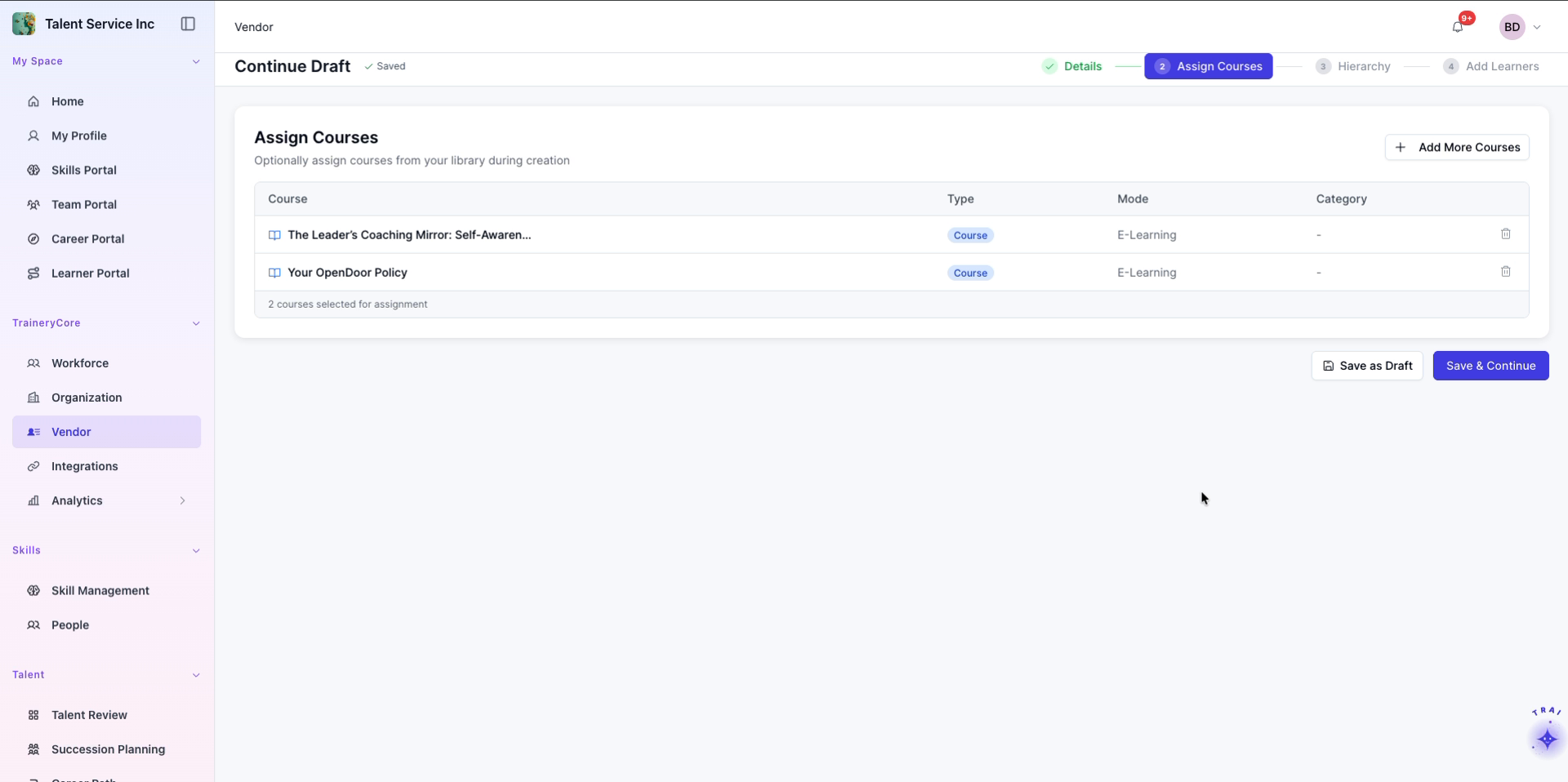
Click Add More Courses to open the course selection window, browse the list to locate and check the two required courses, then click Select Courses to assign them to the vendor.
Step 5: Complete Hierarchy and Learner Steps
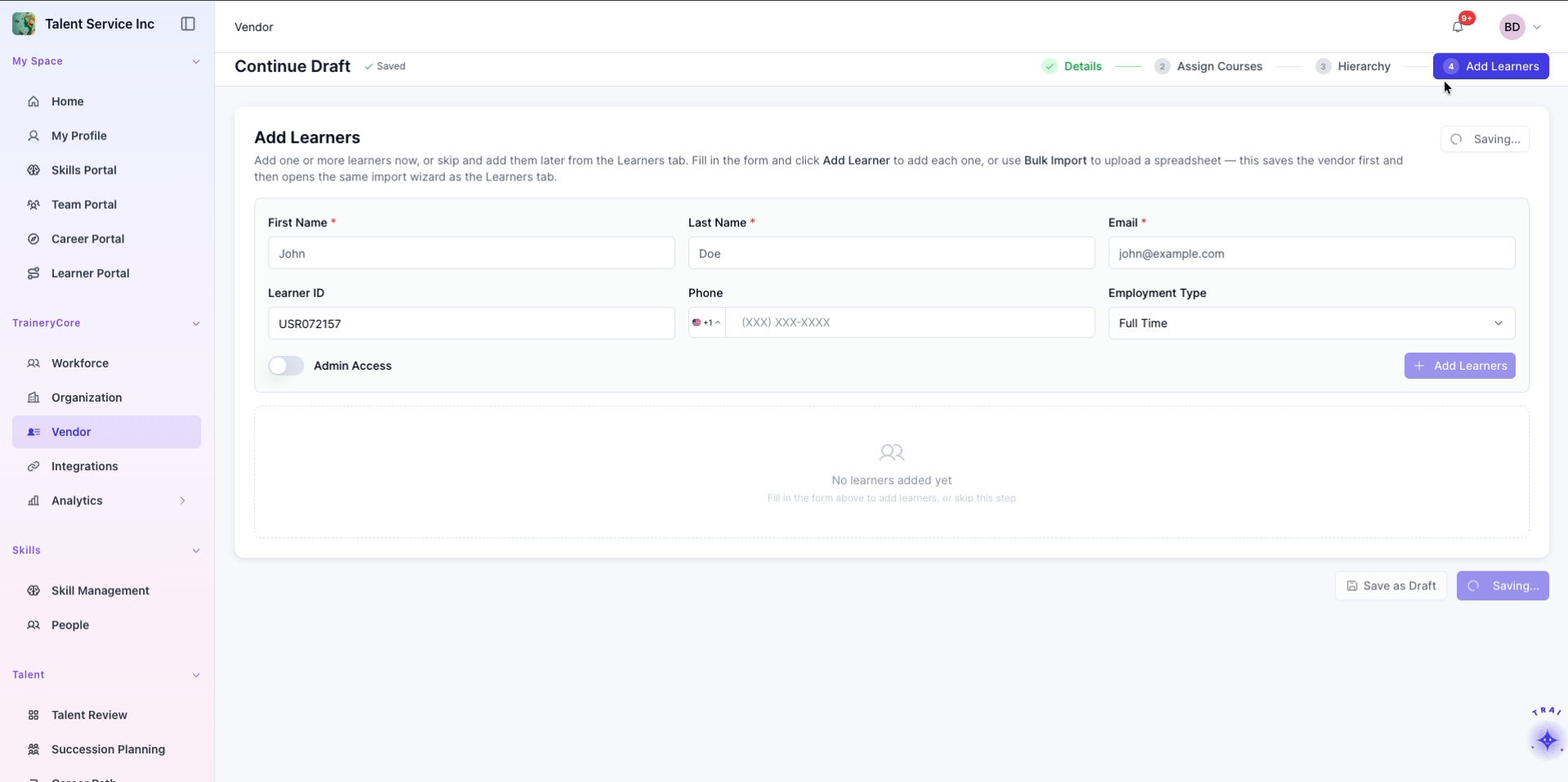
Click Save & Continue through the hierarchy and learner configuration steps, then click Add to finalize and create the vendor.
Step 6: Verify the Newly Created Vendor
Back on the vendor list, use the search field to look for the vendor, then click on the vendor entry to open and review the newly created vendor profile.