check-In cycle creation
Last updated: July 1, 2026
Creating a Backend Developer Team Check In Cycle
This process walks you through creating a new Backend Developer Team Check In Cycle in the Cycles section, configuring its type, period, rules, and participants, and then reviewing the newly created cycle.
Step 1: Open the Cycles Section and Start a New Cycle
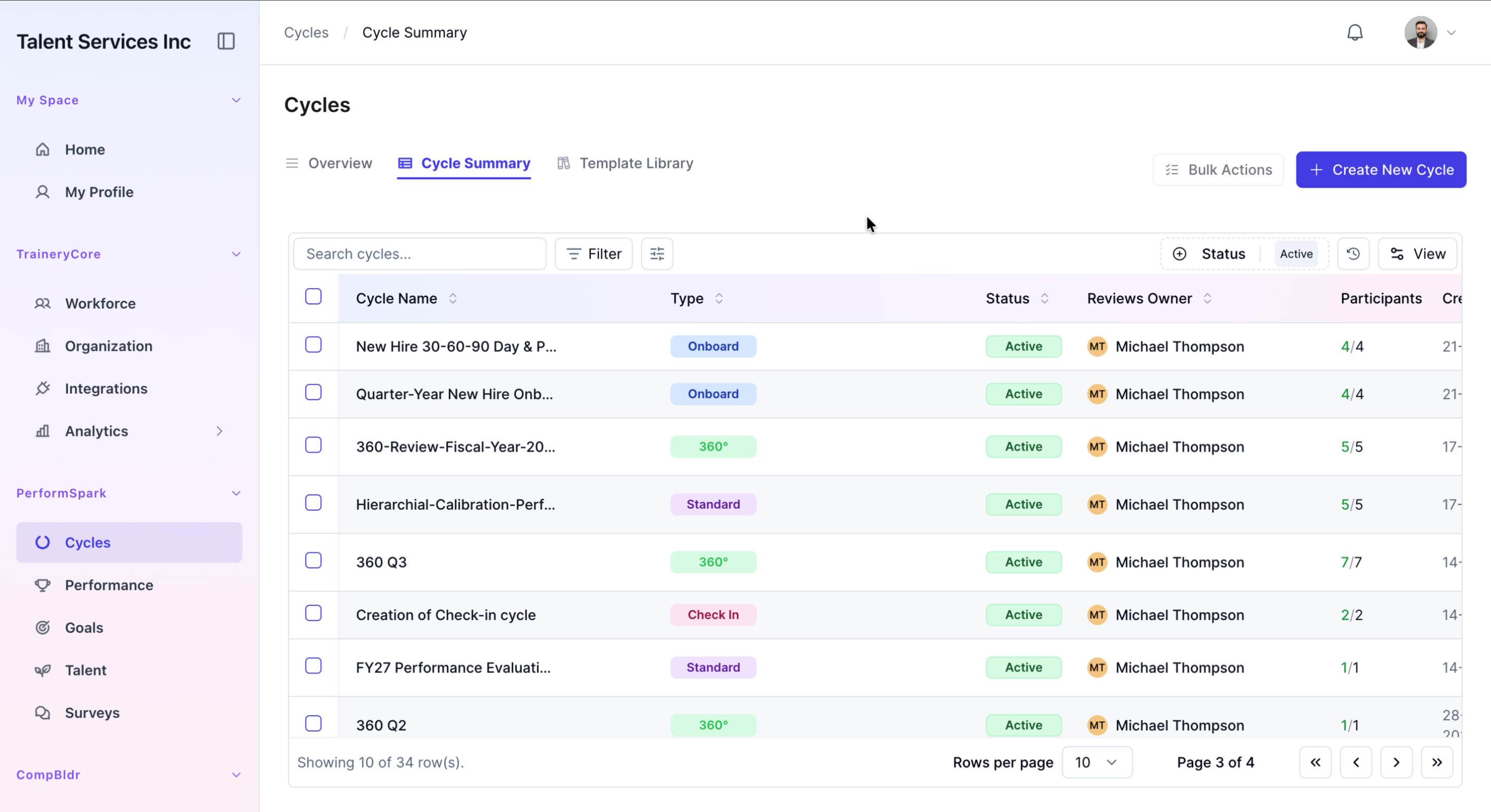
Navigate to the Cycles section from the sidebar, switch to the Cycle Summary tab, and click the Create New Cycle button to begin setting up a new cycle.

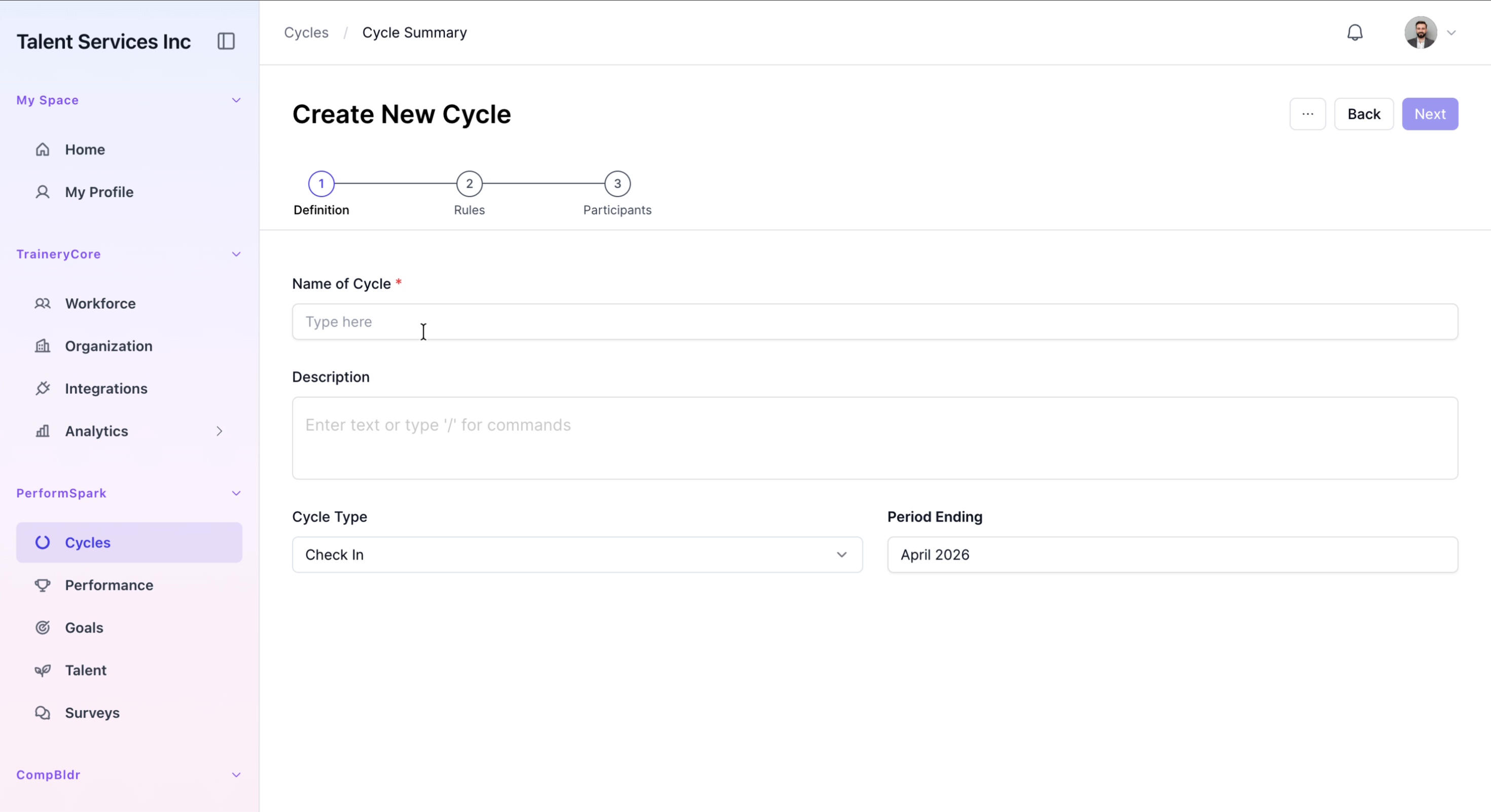
Step 2: Set the Cycle Type and Name
Change the Cycle Type to Check In, then in the Name field carefully enter the full name: Backend Developer Team Check In Cycle.

Step 3: Configure the Period Ending Date and Proceed
Open the date picker for the Period Ending field, navigate to December 2026, select the appropriate date, click Done, and then click Next to move to the next step.


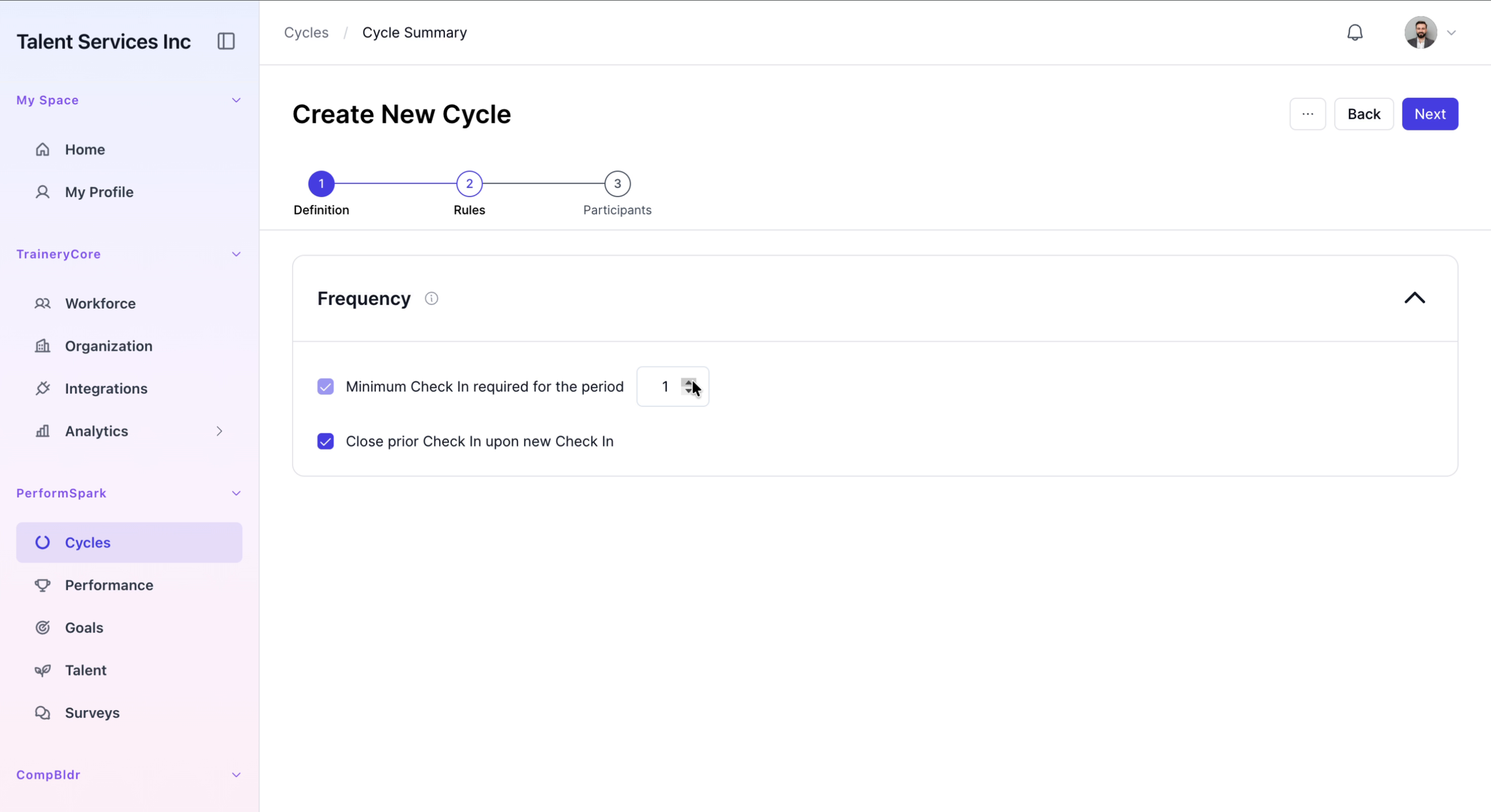
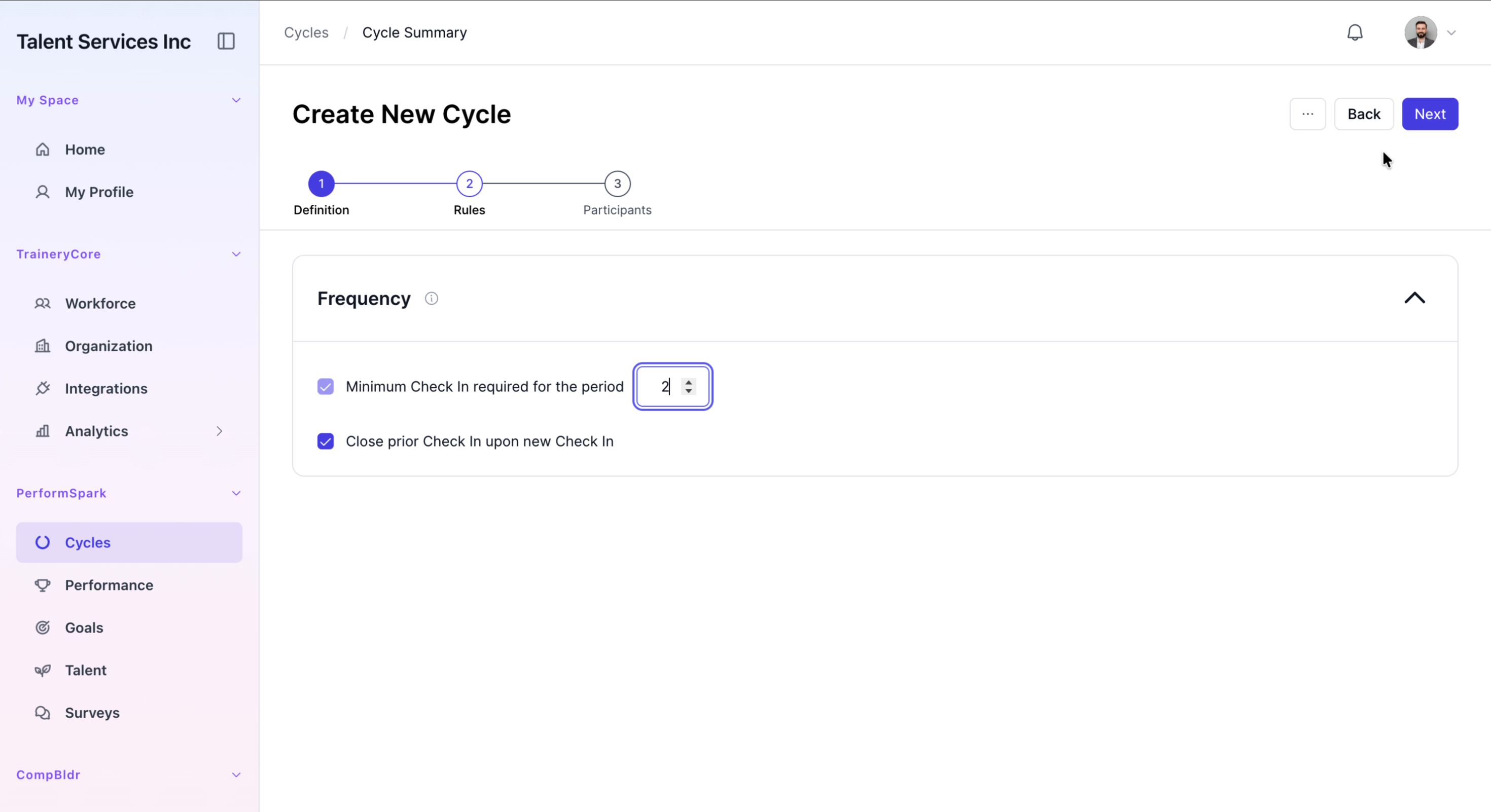
Step 4: Adjust Rules for Minimum Check-Ins
On the Rules step, increase the minimum check-ins required for the period to 2, then click Next to proceed.
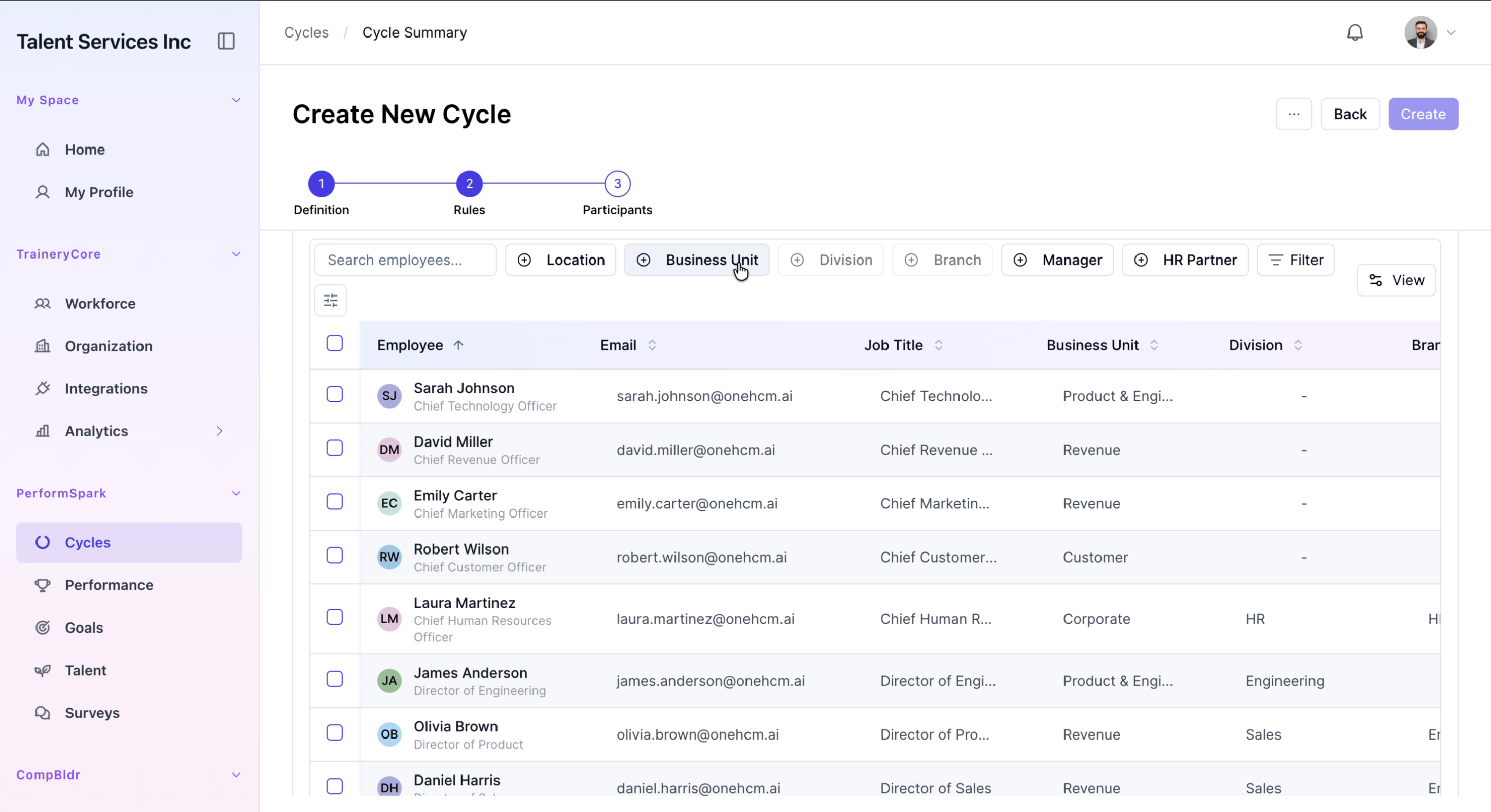
Step 5: Filter Participants by Organization Structure
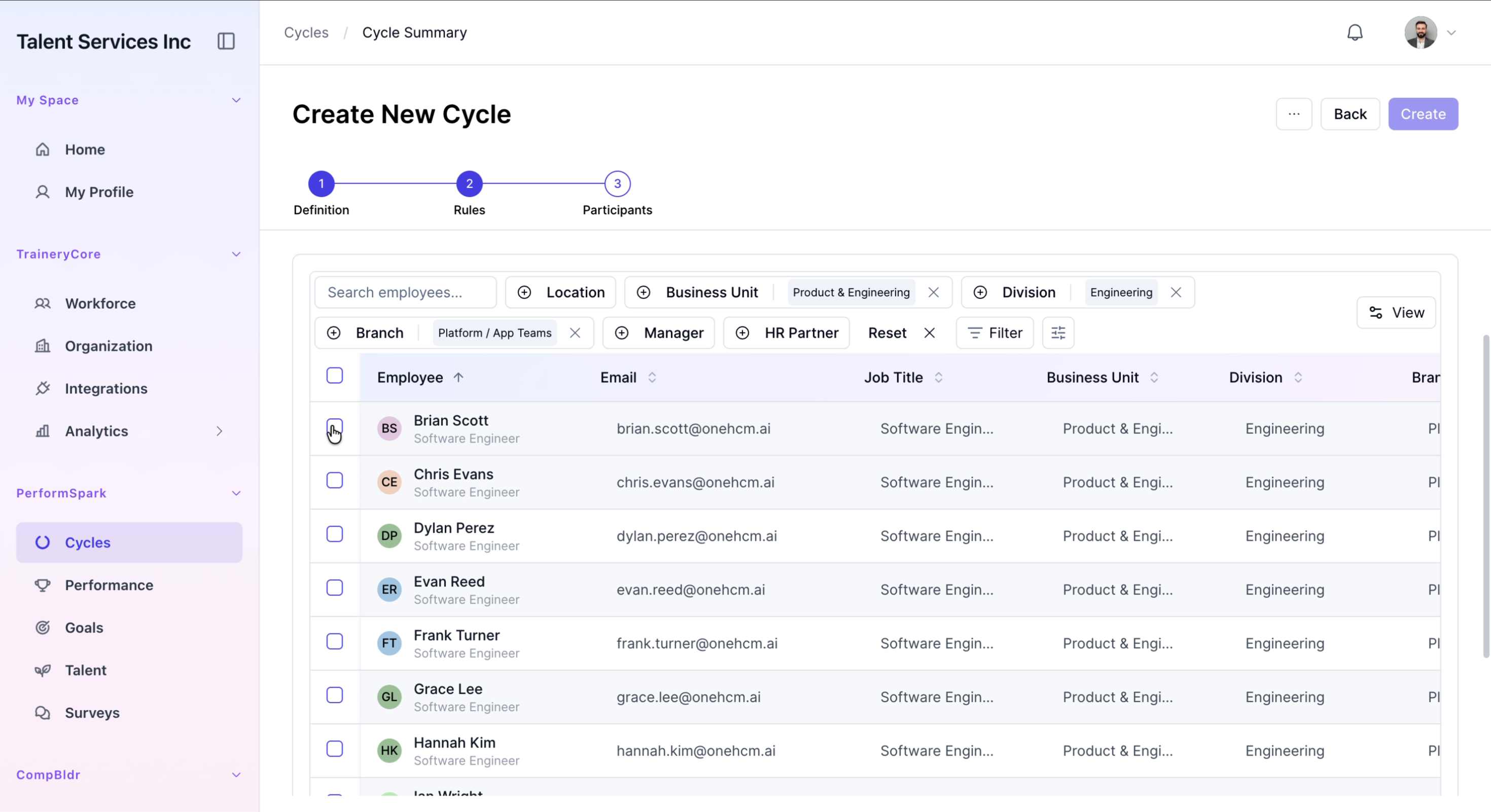
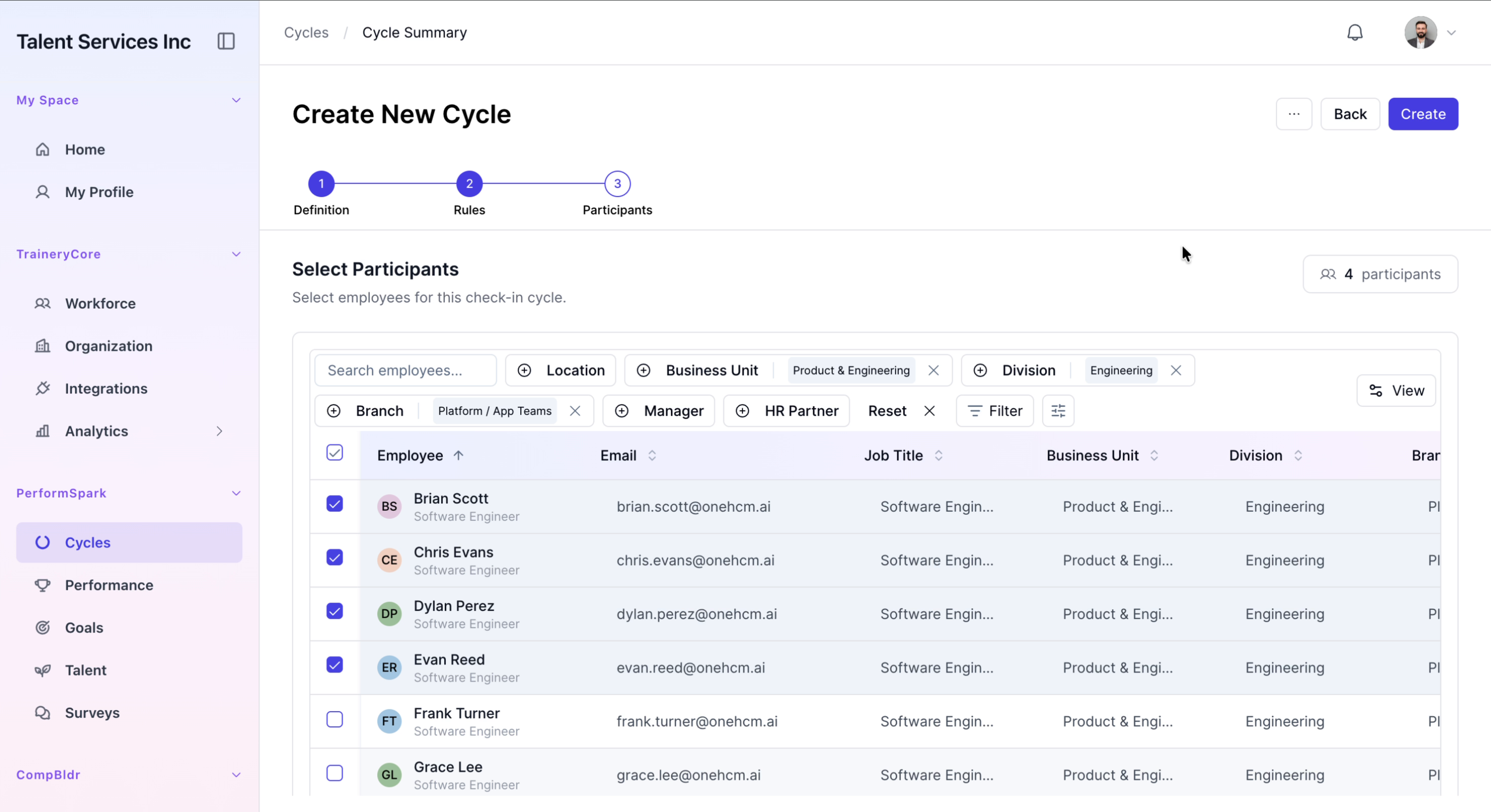
In the Participants step, apply filters to narrow down the participants to the Product and Engineering business unit, the Engineering division, and the Platform or App Teams branch.

Step 6: Select Employees and Create the Cycle
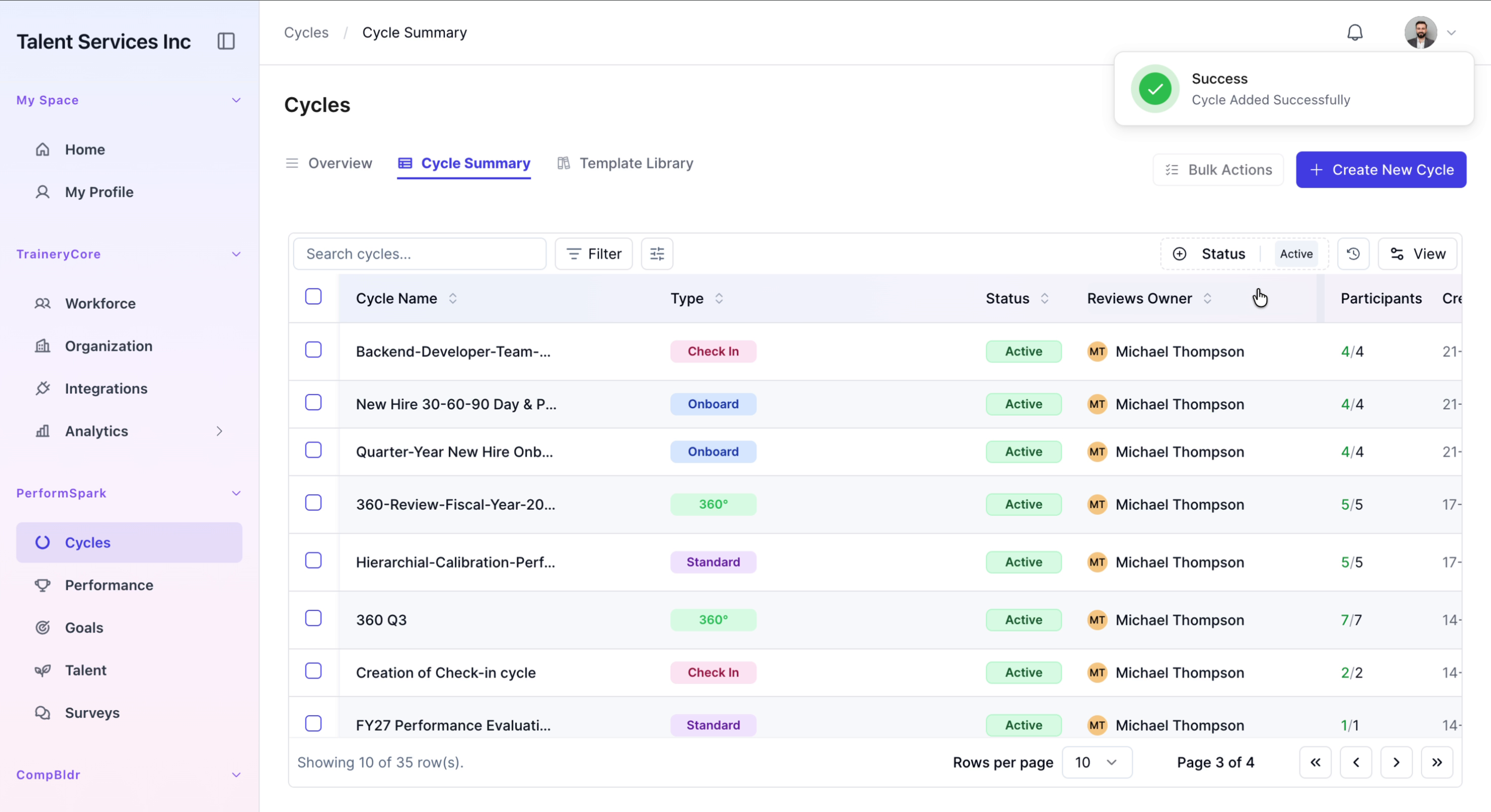
From the filtered list, select the first four employees, click Create, and verify that a confirmation appears indicating the cycle was added successfully.
Step 7: Review the New Cycle and Return to Summary
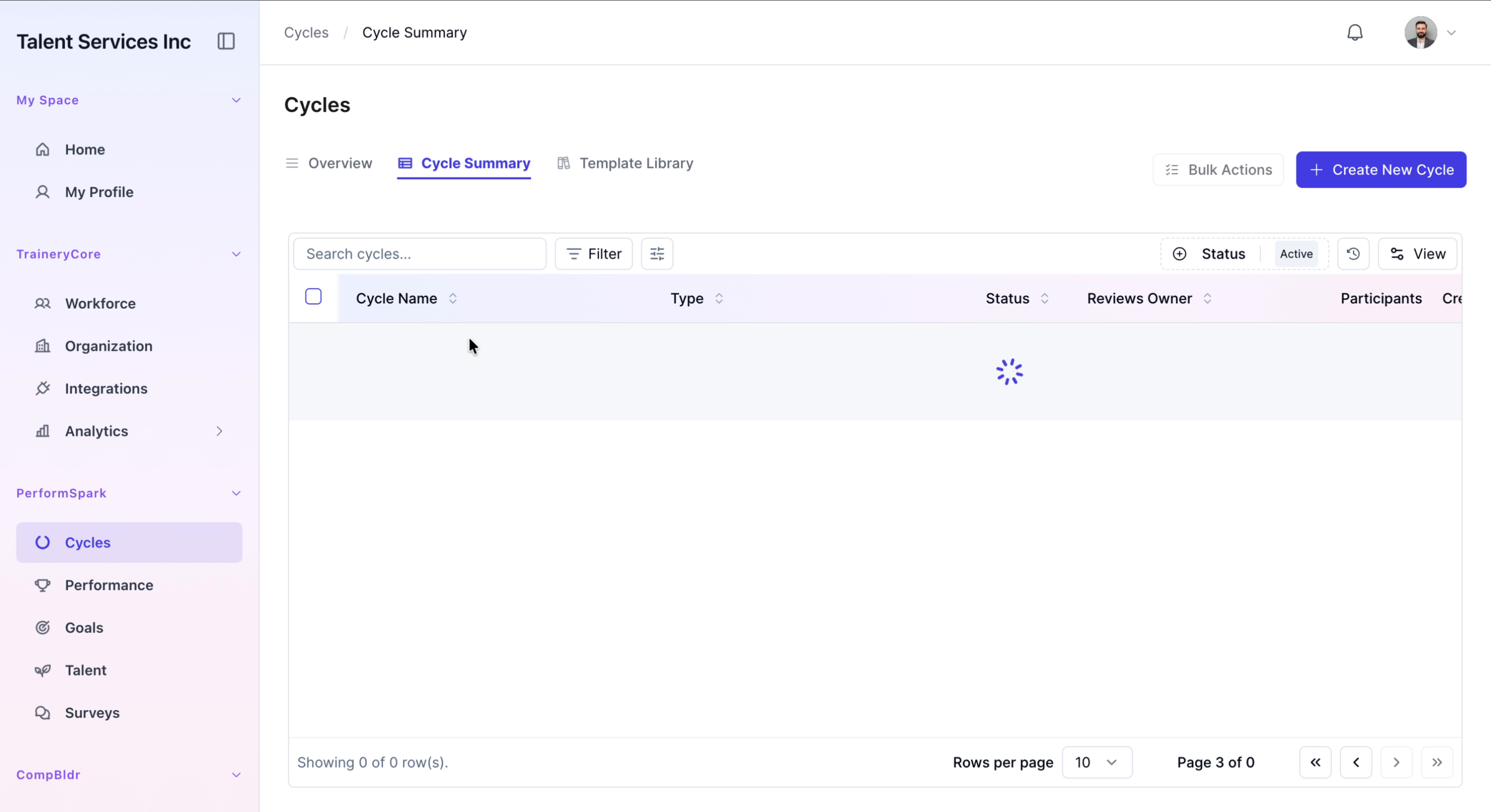
Click on the newly created Backend Developer Team Check In Cycle to review its details, then navigate back to the main Cycle Summary list.