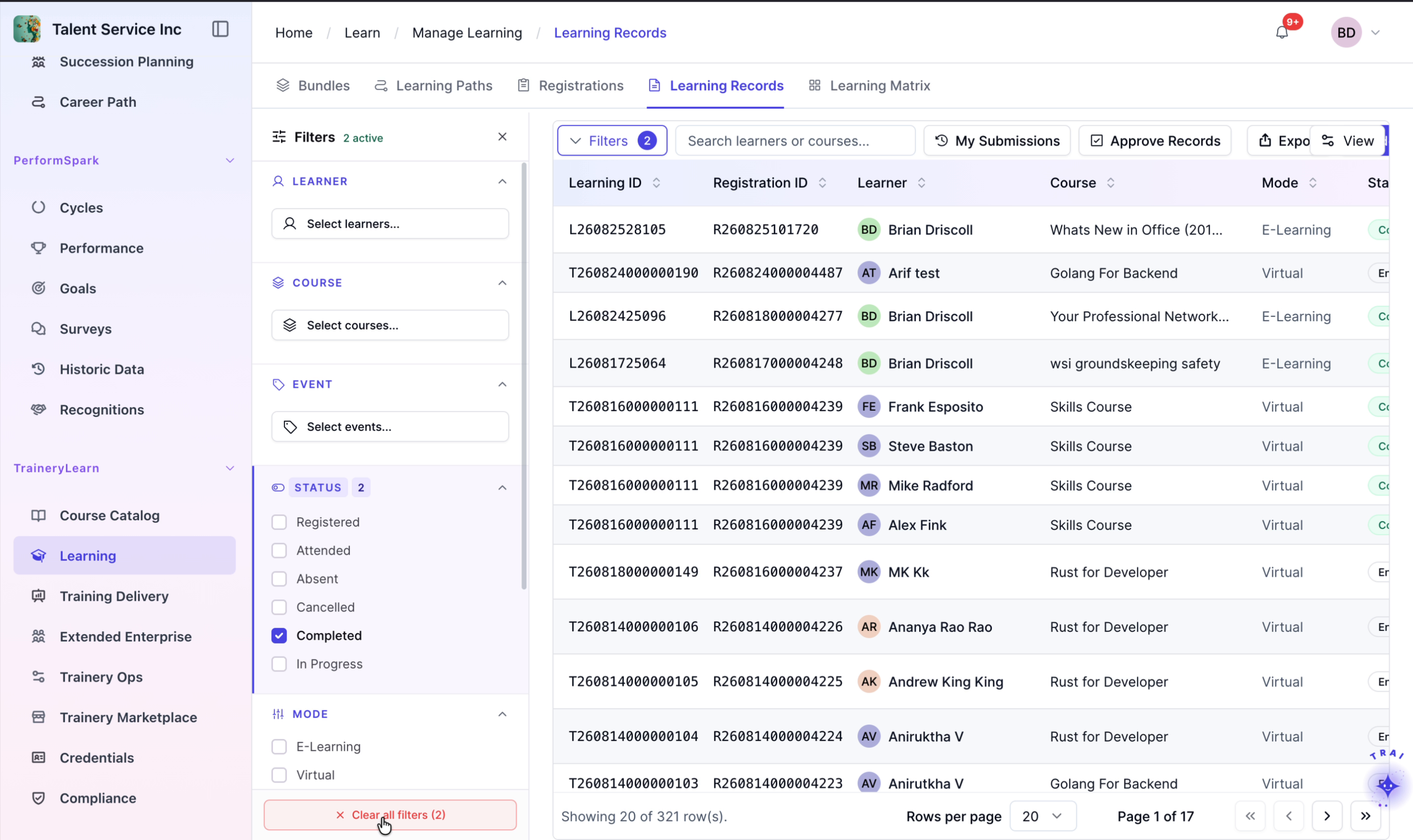
Adding and Managing Learning Records
Last updated: September 8, 2026
This document describes how to create a new learning record, attach supporting documentation, and verify that the record appears correctly in the Learning Records list with available filter options.
Step 1: Open the Add Record Form
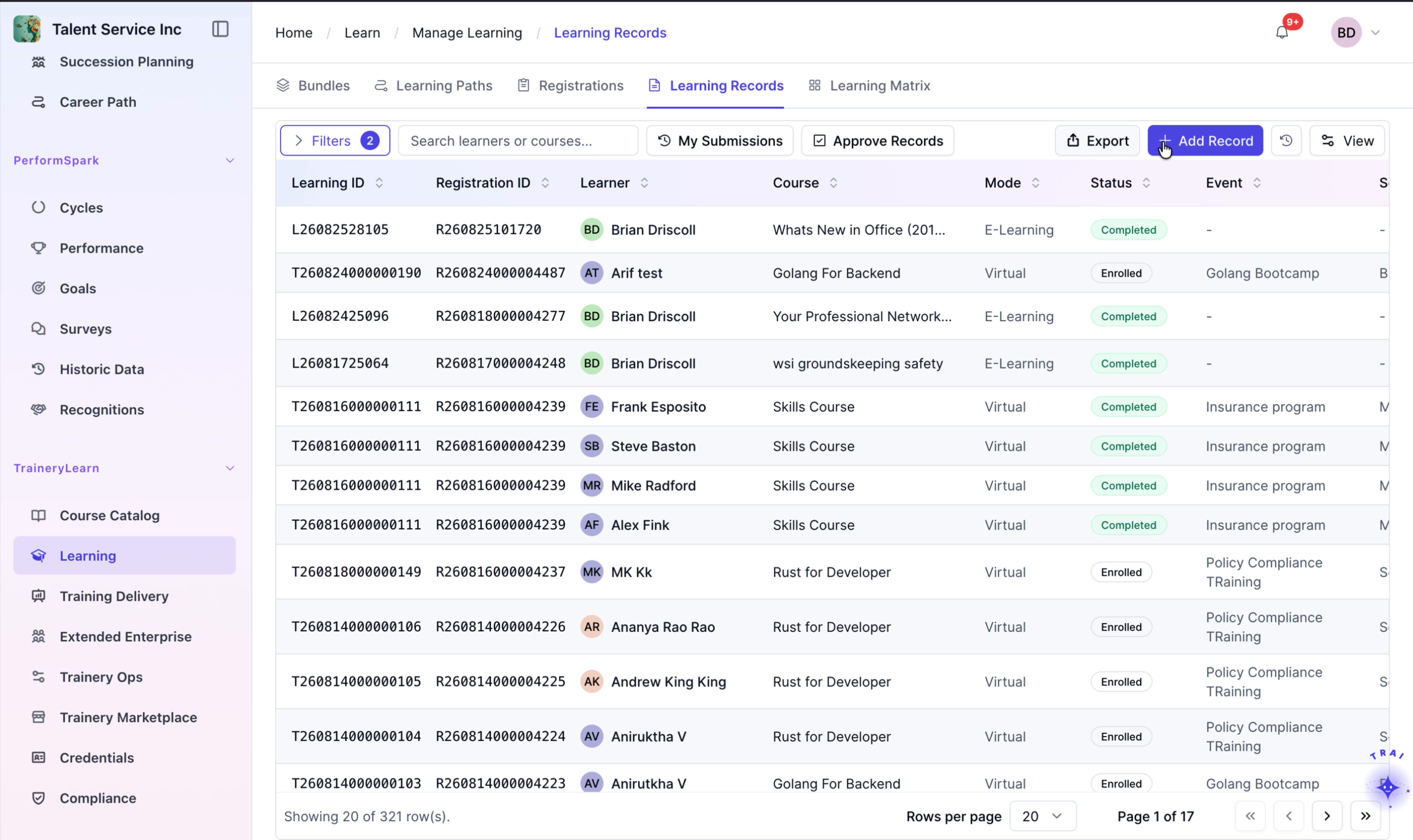
From the Learning Records page, click the + Add Record button to open the new learning record form.
Step 2: Select the name
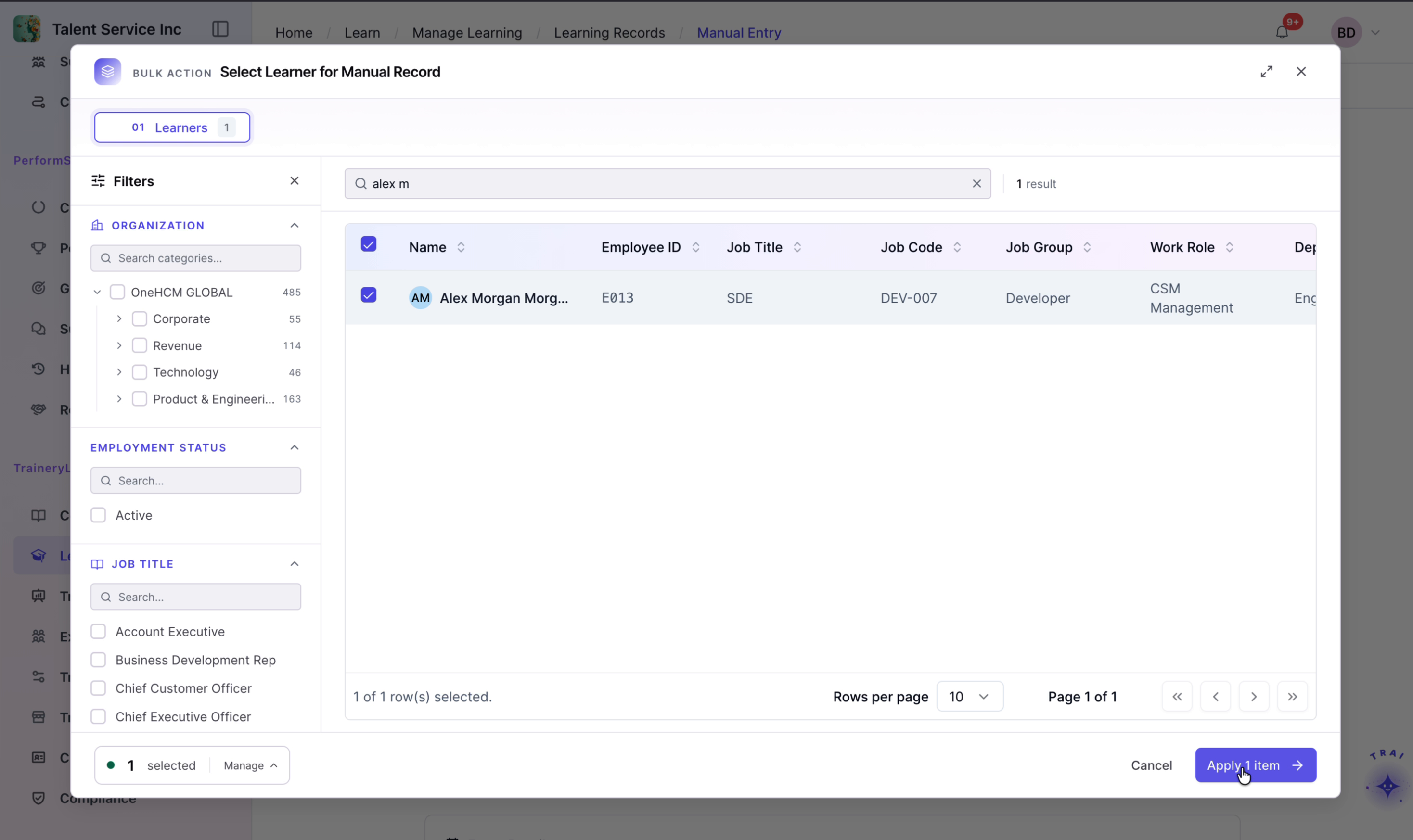
Use the search field to find the employee by name. Select the matching result, and click Apply item to assign the record to this employee.
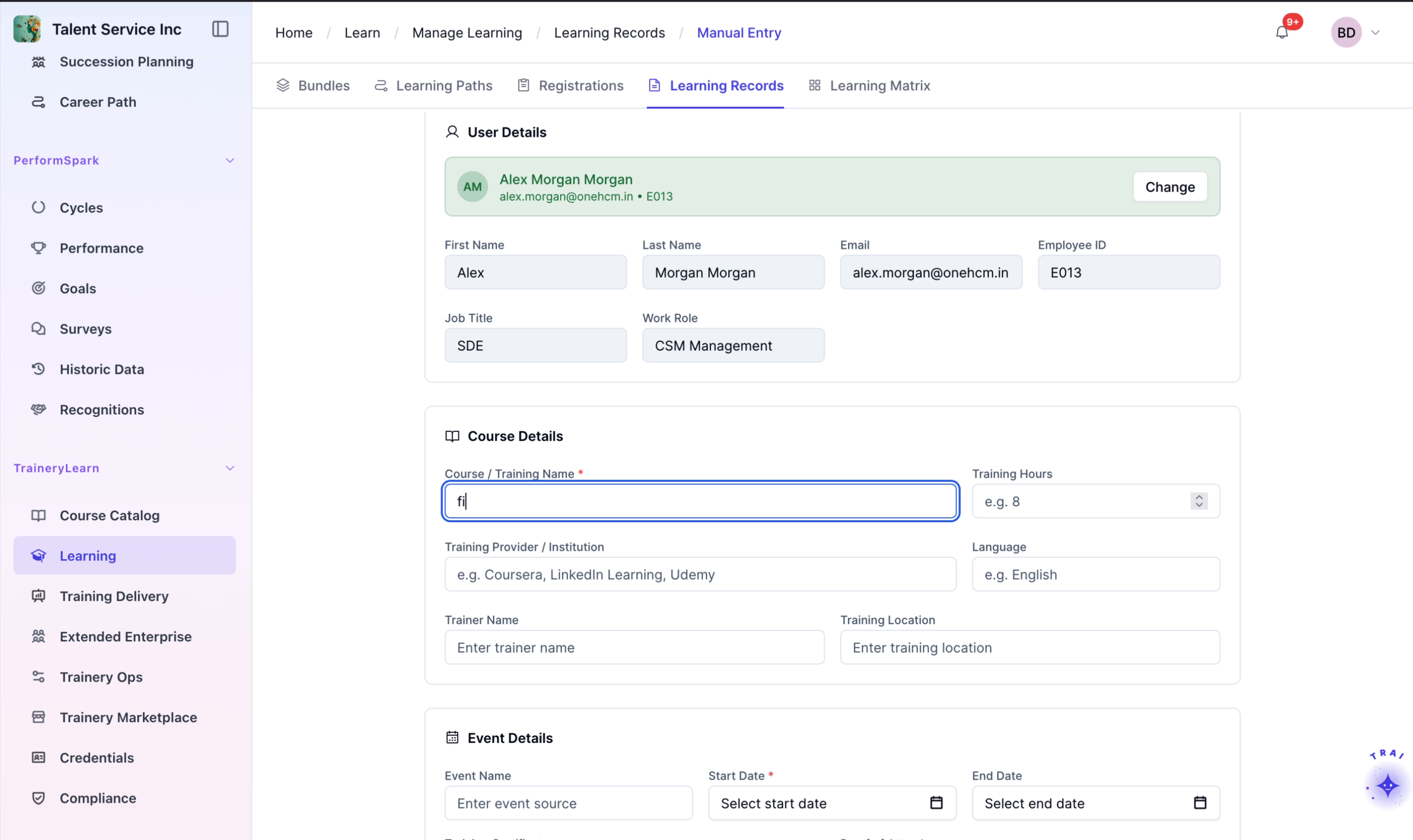
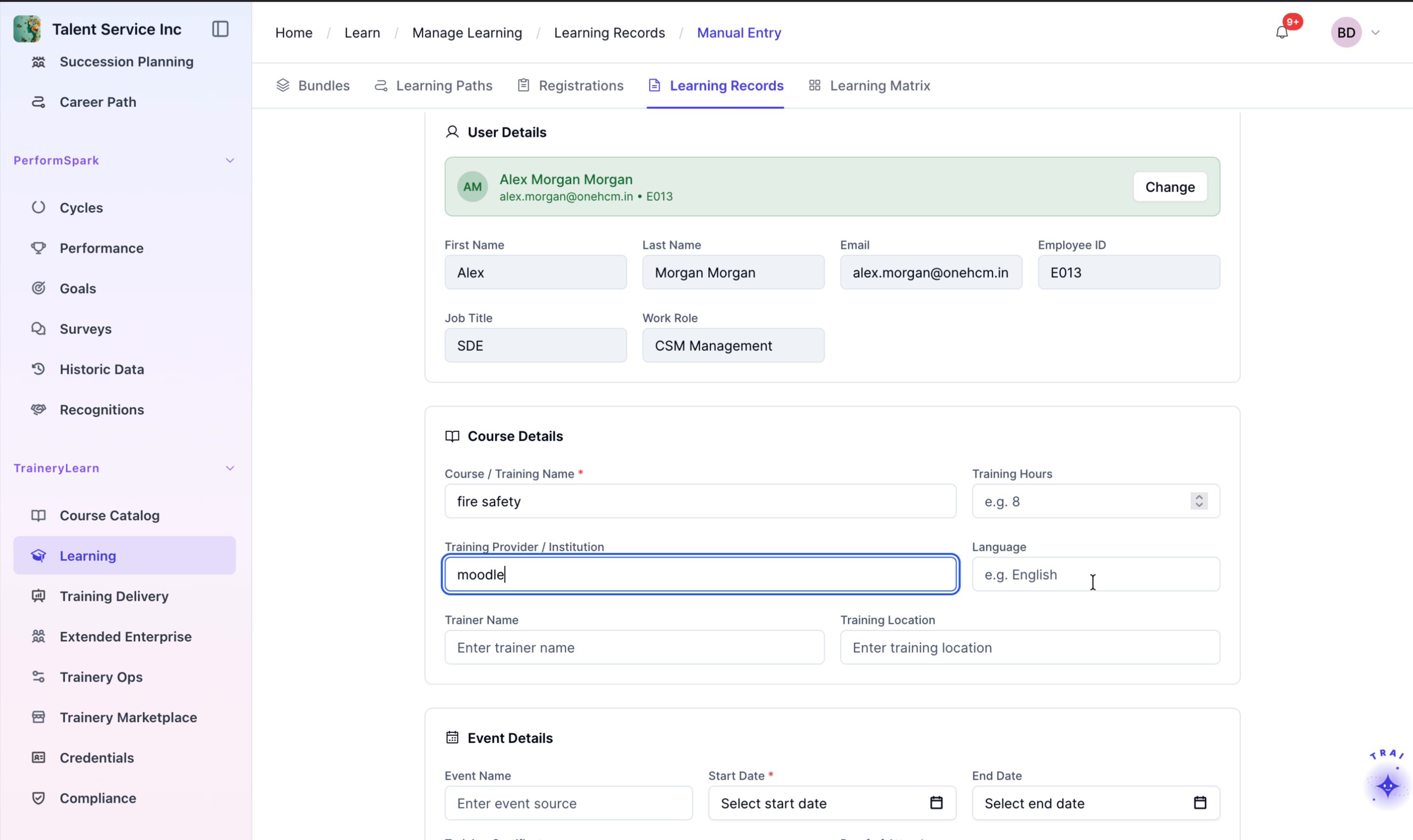
Step 3: Enter Course Details
In the course details section, enter the following information:
Name: fire safety
Provider: moodle
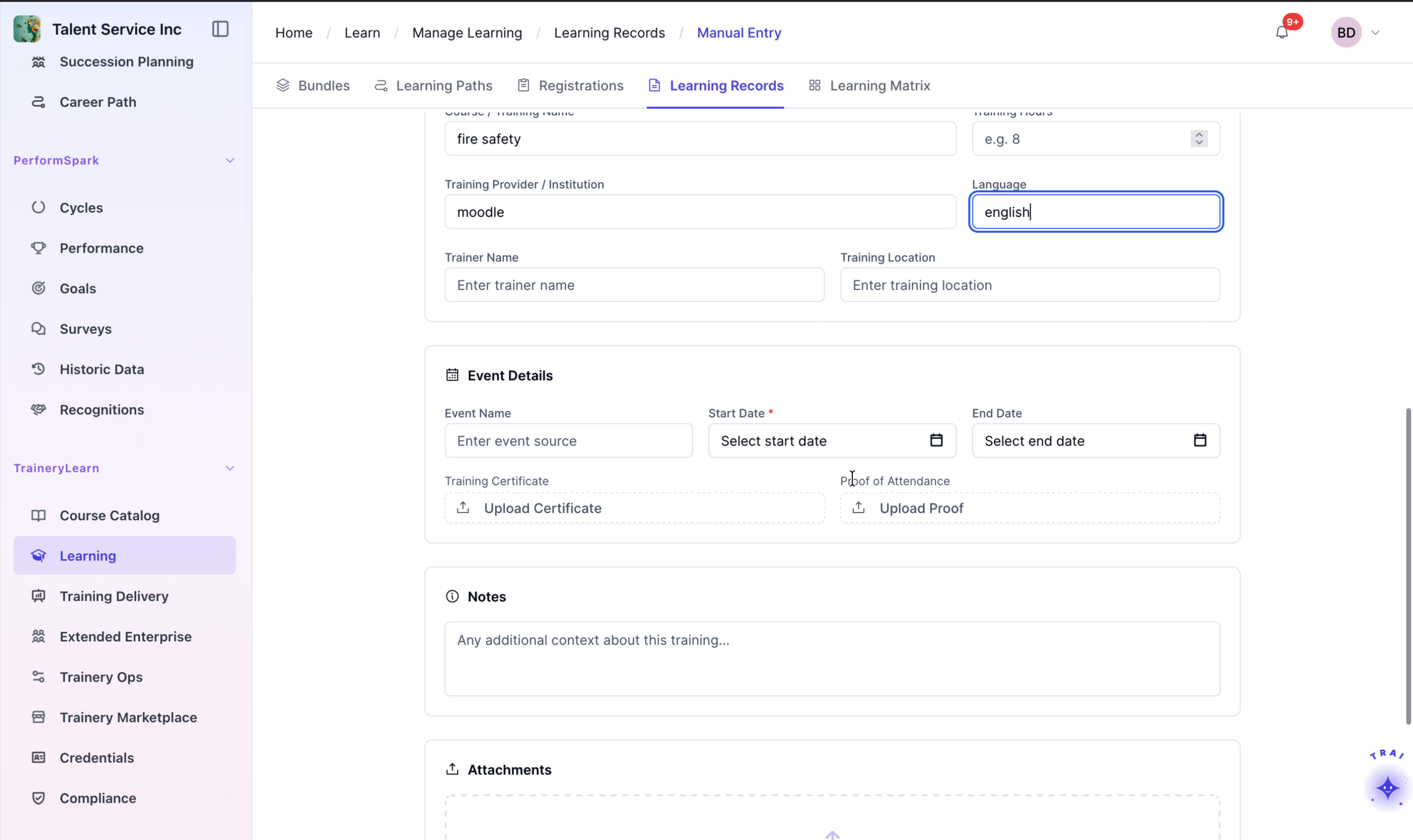
Language: english
Step 4: Set Event Dates
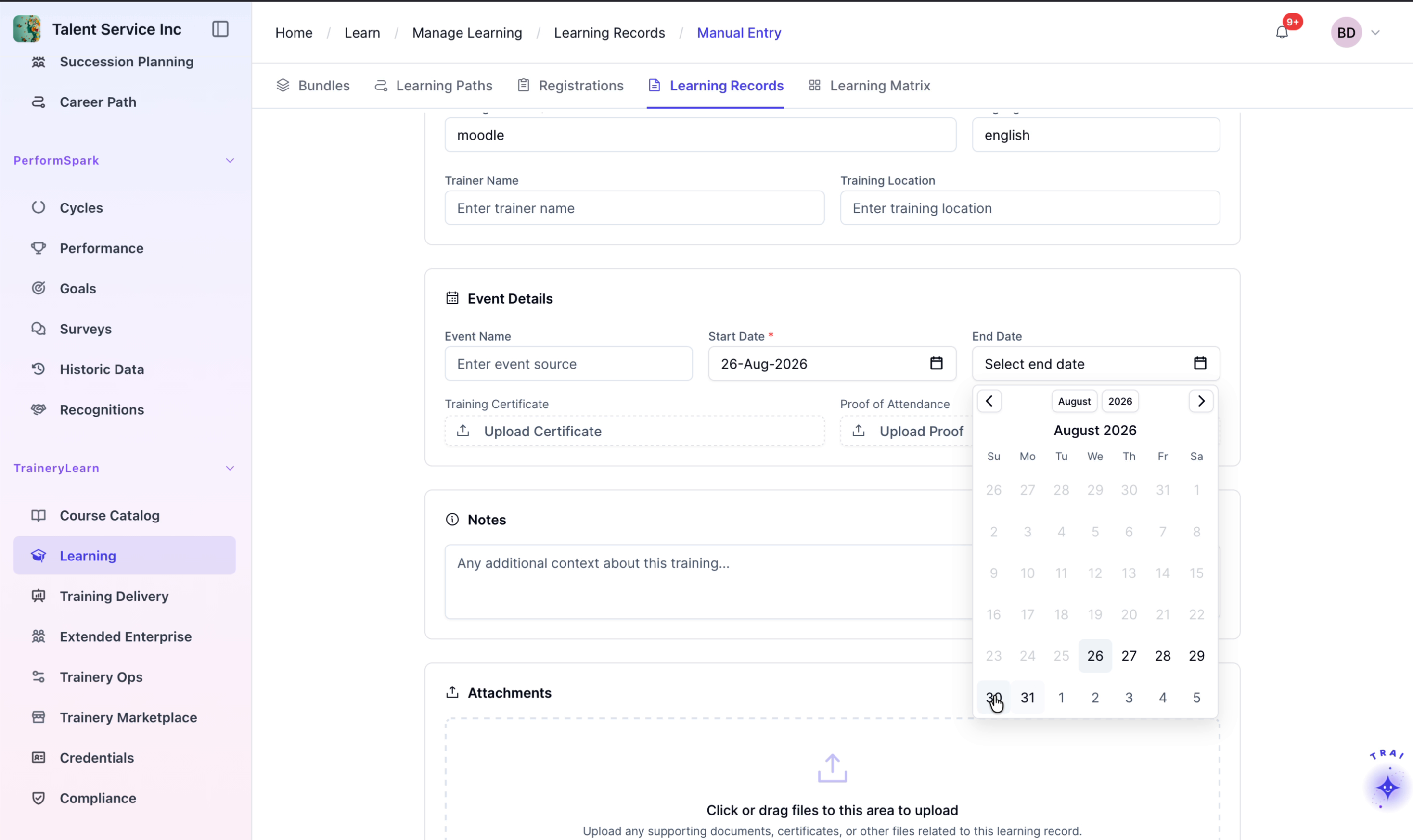
Specify the course duration by setting the event dates
Step 5: Upload Supporting Documentation
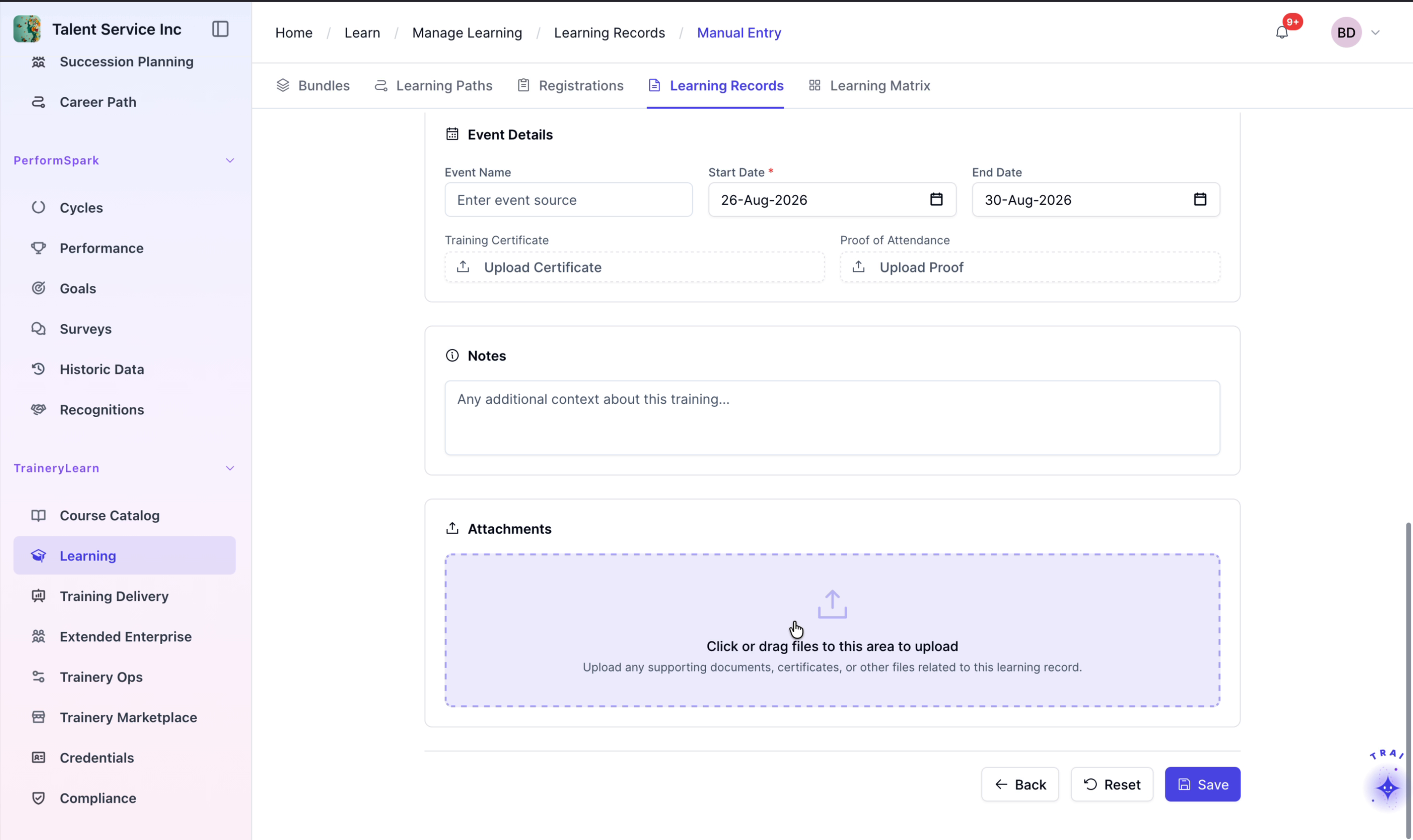
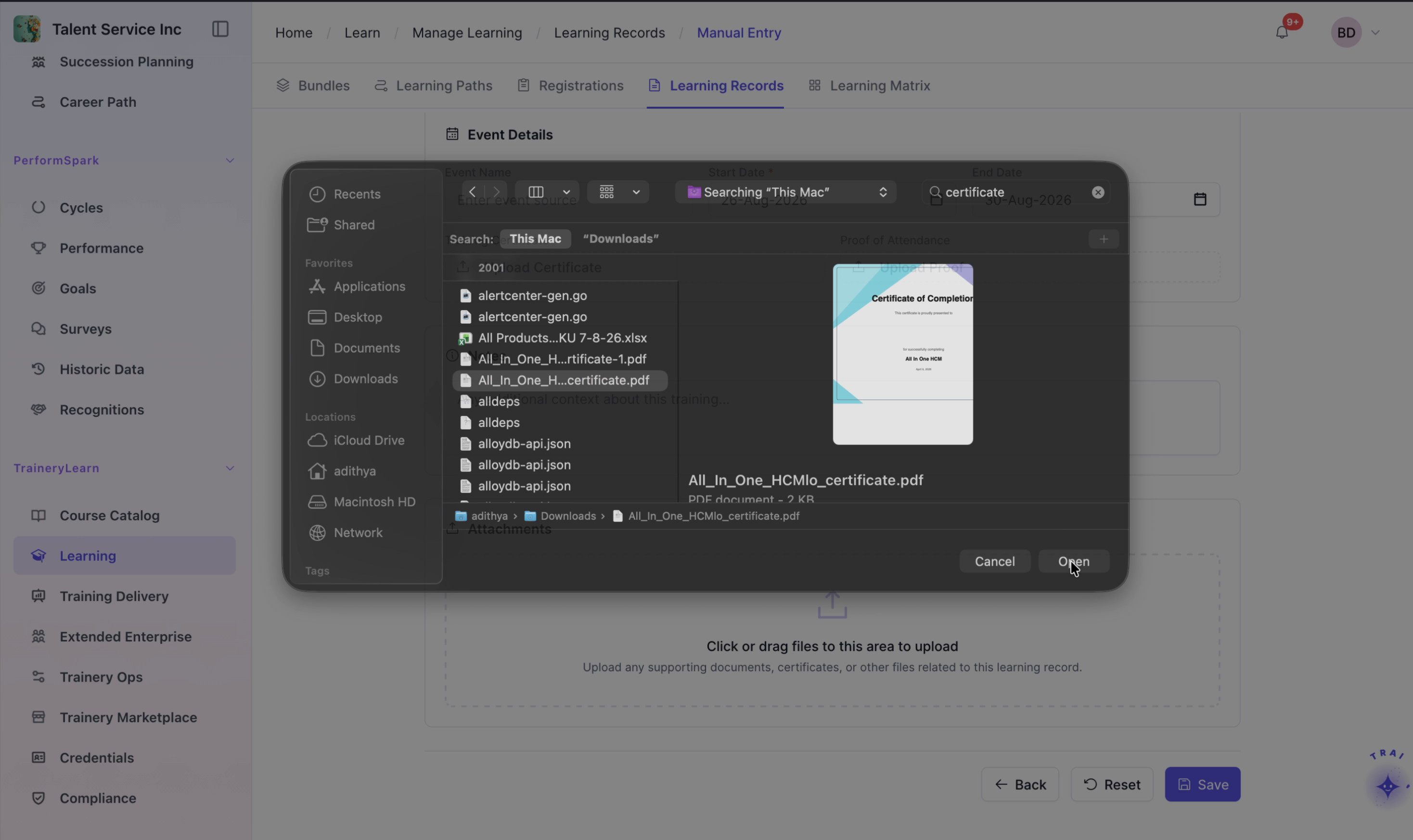
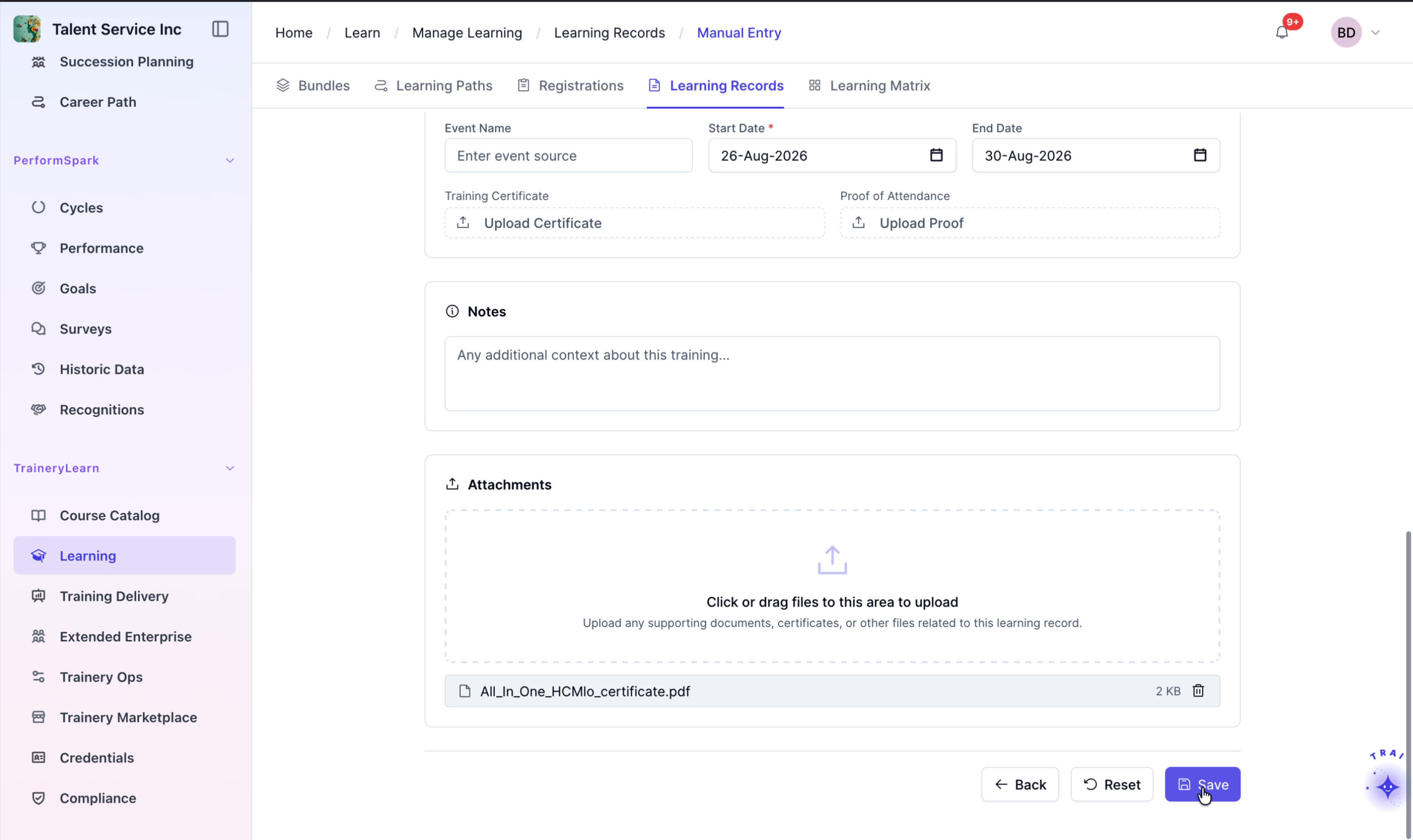
Click the upload area to attach proof of completion. In the file browser, navigate to your local storage, select the file, and confirm to attach it to the learning record.
Step 6: Save the Record and Review Confirmation
Click the Save button to create the learning record. Confirm that a success message appears indicating the record was created successfully.
Step 7: Verify the Record and View Filters
After saving, allow the list to refresh and verify that the new learning record appears in the Learning Records list.